# Introduction to Pangolin (/)
> Connect and protect your users with an open-source networking and security platform
Pangolin is an open-source SASE platform with one mission: connect and protect your users, wherever they are.
It treats networking and security as a single system. Identity, sites, access control, privileged access, and an identity-aware AI gateway share one policy model. The idea is the same as platforms like Cloudflare One, Zscaler, and Prisma Access, but Pangolin is open, self-hostable, and built to stay light enough that administrators actually enjoy running it.
## Why Pangolin Exists [#why-pangolin-exists]
Legacy SASE platforms got the idea right: connectivity and security belong together. They delivered it as a heavyweight, closed, cloud-locked stack. Pangolin does that unification in the open, on infrastructure you control, and simple enough to deploy yourself.
* **Open source and auditable.** You can see how traffic is handled and how access decisions get made.
* **Networking and security as one platform.** Connecting users and protecting them happen together, with one identity and policy model.
* **Lightweight by design.** The control plane runs on a modest server. A user-space connector sits in your private networks.
* **Zero trust from day one.** Access is granted per resource, with identity providers, roles, and audit logs.
* **Run it your way.** Self-host or use [Pangolin Cloud](https://app.pangolin.net/auth/signup).
## Core Concepts [#core-concepts]
Pangolin is organized around a few pieces you will use everywhere:
1. A **server** is the control plane. It holds identity, policy, and coordination. You can use [Pangolin Cloud](/about/pangolin-cloud-vs-self-hosted) or [self-host](/self-host/quick-install) the same software.
2. **[Sites](/manage/sites/understanding-sites)** connect the networks where your applications and infrastructure live.
3. **[Resources](/manage/resources/understanding-resources)** are the specific things users are allowed to reach: web apps, SSH, desktops, private hosts, and AI providers.
4. **[Clients](/manage/clients/understanding-clients)** give devices a private path to those resources.
Learn the fundamentals: server, sites, resources, clients, and how they fit together.
## Explore the Platform [#explore-the-platform]
Connect private networks with lightweight connectors so authorized users can reach what lives there.
Define the apps, hosts, SSH sessions, desktops, and AI endpoints users can access.
Use built-in users or your identity provider. Grant roles per resource and keep an audit trail.
Put identity, budgets, and session history in front of cloud and self-hosted model APIs.
## Keep Reading [#keep-reading]
Choose a managed control plane or run the same software on your own infrastructure.
How Pangolin relates to traditional reverse proxies and VPNs, and what it does beyond either.
How Pangolin's identity-aware AI Gateway compares to dedicated LLM gateways.
A technical picture of the control plane, nodes, connectors, and how traffic moves.
## Deployment Options [#deployment-options]
See [Cloud vs. Self-Hosted](/about/pangolin-cloud-vs-self-hosted) for the differences, including [remote nodes](/manage/remote-node/understanding-nodes) as a hybrid.
A managed control plane. Install sites and clients, then define resources. Optionally self-host a node to keep traffic on your network.
Run a fully isolated Pangolin server. Install Community Edition or Enterprise Edition with the quick installer.
---
# How Pangolin Works (/about/how-pangolin-works)
> Learn about the fundamentals of Pangolin and how they work together.
This page explains Pangolin's concepts: the server, sites, resources, users, and clients. Read it first. For a more technical picture of the software components and how they interact, see [System Architecture](/development/system-architecture) after this page.
## Basic Steps [#basic-steps]
Access remote networks using site connectors. Pangolin's lightweight connectors use intelligent routing and NAT traversal to make any network anywhere available. Once a site is created, you can access resources on that network from anywhere.
Create resources for the things users should reach on the network of your site. Each resource follows a protocol: HTTPS in the browser, an IP or network range over the client, SSH, remote desktop, LLM access, and more. Resources can be public or fully private.
Authenticated users access resources via the protocol of the resource. Commonly, public resources are accessed through a web browser, while private resources are accessed through a Pangolin client. The same users, roles, and policies apply across both. Users don't think about connecting to a site, they just access resources and Pangolin routes to the right connector automatically.
## Key Concepts [#key-concepts]
Pangolin relies on several components that work together to provide secure networking. Each component has a specific role in ensuring that only authenticated users can access the resources they are authorized to use.
### Pangolin Server [#pangolin-server]
The Pangolin server is the central coordination component for your network. It stores configuration changes, manages access policies, and coordinates connections between clients and sites. The server handles user authentication, generates access control lists that determine what resources each user can reach, hosts the UI and API, and more. It is the brains of your Pangolin network.
You can use [Pangolin Cloud](https://app.pangolin.net/auth/signup), which is fully managed, or you can self-host your own Pangolin server for complete control over your infrastructure and data. See [Pangolin Cloud vs. Self-Hosted](/about/pangolin-cloud-vs-self-hosted).
Fastest way to get started with the fully managed control plane.
Learn how to deploy your own self-hosted Pangolin server.
### Sites [#sites]
Sites connect remote networks to your Pangolin server. They use Pangolin Site connectors (sometimes referred by their engineering name, "Newt") to create secure tunnels from remote networks back to Pangolin. Sites let you expose [resources](/manage/resources/understanding-resources) on those networks to authorized users.
Sites are an expected to entirely be managed by administrators and are typically set-and-forget. Users don't need to know about sites, they just access resources that are available on the site.
Sites run behind firewalls on remote networks. They maintain outbound connections to the Pangolin server. By default, sites block all traffic until you define resources and grant access. This ensures that just [deploying a site](/manage/sites/install-site) does not expose any network resources.
When [private resources](/manage/resources/understanding-resources#private-resource-types) (VPN-like access) are used, [clients](/manage/clients/understanding-clients) connect directly to the site connector using peer-to-peer (P2P) [NAT traversal](/manage/clients/nat-traversal). If the client is on the same network as the site connector, it will use the [local network address](/manage/clients/nat-traversal#same-network-detection).
The site connector is very intelligent and handles tunnel creation, NAT traversal, and routing. It makes remote networks available without requiring complex firewall rules or public IP addresses. They also unlock browser-based [SSH](/manage/resources/public/ssh), [RDP](/manage/resources/public/rdp), and [VNC](/manage/resources/public/vnc) resources, [private HTTP](/manage/resources/private/private-http) with edge TLS termination, intelligent [multi-site routing](/manage/resources/private/multi-site-routing) when the same resource is reachable from more than one location, and much more.
Learn about sites, how they work, and how to install and configure them.
### Resources [#resources]
Pangolin is resource-based. A resource is the unit of access: you define it, grant users and roles, and Pangolin routes only authorized traffic. Users connect to resources, not to sites.
Resources follow different protocols depending on what you are exposing (for example, but not limited to):
* An HTTPS app, available in the browser
* An IP address, reached through the Pangolin client
* A network range, reachable through the Pangolin client
* An [AI Gateway](/manage/ai/overview) resource for LLM access
* Remote desktop
* SSH
The access model stays the same while the protocol changes.
[Public resources](/manage/resources/understanding-resources#public-resource-types) are publically available proxies to your Pangolin server. Often, these are exposed as a public FQDN, like a website available in the web-browser or an API.
[Private resources](/manage/resources/understanding-resources#private-resource-types) require a [Pangolin client](/manage/clients/platforms) connection and stay off the public internet. They are for VPN-like, fully private access to resources on your remote network.
You must define resources and assign access before users can reach them. By default, no resources are available on sites. This ensures that only explicitly defined resources can be accessed.
#### Resource Launcher [#resource-launcher]
The Resource Launcher is the dashboard your users (non-admins) see. It lists every resource they are allowed to access in one place, grouped by site or label, with search and filters. Users open a web app, copy a hostname, or launch a private resource from that hub.
Selecting a resource always expands a panel with the details that matter for that type: URL or alias, how to connect, and any extra setup. The screenshot below is an [AI Gateway](/manage/ai/overview) example. The same panel is used for every resource.
Find, launch, and save views of the resources you can access.
Learn about public and private resources and how to create them.
### Users and Roles [#users-and-roles]
Identity lives in the same control plane as sites and resources. You manage your team in one place: Pangolin users, [identity providers](/manage/identity-providers/add-an-idp), and the [roles](/manage/access-control/create-user#roles) that grant access.
Use Pangolin's built-in users, or bring Google Workspace, Microsoft Entra ID, Okta, or any OIDC provider. Users authenticate once. That identity applies to the dashboard, browser resources, the Pangolin client, the AI Gateway, and everything else.
Roles group people for RBAC. You assign roles on each resource, so access follows the team rather than a separate list per protocol. A user's effective access is the union of what their roles can reach. The same users and roles apply to public resources, private resources, and AI Gateway resources.
Add internal or external users and assign roles for resource access.
Let users sign in with Google, Microsoft Entra ID, Okta, or any OIDC provider.
### Clients [#clients]
Clients are software components installed on user devices or machines. They let users and automated systems connect directly to sites to access [private resources](/manage/resources/understanding-resources#private-resource-types) through a secure tunnel. Clients also enforce access control and security at the edge.
Users authenticate through the client with their [user credentials](/manage/access-control/create-user) in a web login flow. [Machines](/manage/clients/machine-clients) connect with machine client credentials. Once connected, users can reach all resources their account has access to. The client handles [routing](/manage/clients/nat-traversal) decisions and establishes encrypted tunnels to the appropriate [sites](/manage/sites/understanding-sites).
Clients are available on [all major platforms](/manage/clients/platforms). They work transparently with applications, so no application configuration is required.
Get the client for Mac, Windows, Linux, iOS, and Android.
Learn how user and machine clients connect to private resources.
### AI Gateway [#ai-gateway]
An [AI Gateway](/manage/ai/overview) is a special resource type for LLM access. It is protocol-aware, in the same way an HTTPS resource understands HTTP.
Pangolin already inspects HTTPS traffic to apply identity, access rules, [request logs](/manage/analytics/request), and analytics. An AI Gateway resource does the equivalent for model APIs. Because the gateway understands the LLM protocol, it can attribute each call to a user, record [cost and token usage](/manage/ai/usage-analytics), keep [chat session history](/manage/ai/session-logs), and enforce who can use which [models](/manage/ai/providers/model-routing) and [budgets](/manage/ai/budgets).
Access is identity-based. You grant users and roles on the resource the same way you do for HTTPS or SSH. Pangolin then decides which models that identity may call and whether a budget still allows the request.
A [private AI Gateway](/manage/resources/private/ai-gateway) uses the [Pangolin client](/manage/clients/platforms) the same way every other private resource does. The client running on the end user's device already authenticated that user. Coding agents on that device call the resource over the tunnel, and Pangolin attributes the request to the connected identity. That eliminates provider API keys on the laptop: the upstream key stays on the [provider](/manage/ai/providers/overview).
Set up providers, resources, and identity-based access for coding agents and AI clients.
### Remote Nodes [#remote-nodes]
Remote nodes are self-hosted Pangolin servers that you control while using Pangolin Cloud for management and coordination. You maintain complete control over your infrastructure and data flow, while the cloud handles the control plane, DNS, certificate management, and backups.
You can deploy multiple remote nodes for high availability and automatic failover. If your nodes become unavailable, traffic can optionally fail over to cloud infrastructure until you restore service.
Learn about remote nodes and how they provide high availability and simplified operations.
## System Architecture [#system-architecture]
For a more technical picture of the software components and how they interact, see [System Architecture](/development/system-architecture).
---
# Pangolin vs. Proxy vs. VPN (/about/pangolin-vs-reverse-proxy-vs-vpn)
> What are the similarities and differences between Pangolin and traditional reverse proxies and VPNs?
Pangolin combines the capabilities of both a reverse proxy and a VPN into a single platform. It provides reverse proxy functionality through public resources and VPN functionality through private resources, all with zero-trust access control and distributed architecture.
## What Each Solution Provides [#what-each-solution-provides]
**Reverse Proxies** expose web applications to the internet. They handle SSL termination, load balancing, and basic authentication. Users access applications through web browsers using domain names. They are usually protocol-aware of HTTPS only.
**VPNs** create encrypted tunnels that give users access to entire private networks as if they were on the local network. Users install client software and connect to a VPN server. Once connected, they can access any resource on the network they have network-level access to.
**Pangolin** provides both capabilities, and several things neither traditional tool does on its own. [Public resources](/manage/resources/understanding-resources#public-resource-types) are publicly served proxies. That is often a website in a browser, but it can also be an API or an [AI Gateway](/manage/ai/overview). [Private resources](/manage/resources/understanding-resources#private-resource-types) work like a zero-trust VPN, giving users access to specific hosts or network ranges when connected with a client.
## What Pangolin Does Differently [#what-pangolin-does-differently]
| Capability | Traditional reverse proxy | Traditional VPN | Pangolin |
| --------------------------------- | ------------------------- | --------------- | ------------------------------------------------------------------ |
| Publicly served proxies | Web apps | No | Yes: HTTP/HTTPS, APIs, [AI Gateway](/manage/ai/overview) |
| Protocol-aware proxies | HTTPS | No | Yes: HTTPS, SSH, RDP, VNC, AI providers, and more |
| Browser SSH, RDP, VNC | No | No | Yes — public SSH, RDP, VNC |
| Client-only private access | No | Yes | Yes — host, CIDR, SSH, private HTTP |
| Per-resource access control | Limited | Network-wide | Yes — users and roles per resource |
| No open inbound ports | No | Sometimes | Yes — outbound site tunnels |
| TLS at the network edge (private) | No | No | Yes — [private HTTP/HTTPS](/manage/resources/private/private-http) |
| Multi-site routing and failover | Uncommon | Uncommon | Yes — automatic site selection |
## Reverse Proxy Capabilities [#reverse-proxy-capabilities]
Pangolin's public resources function as reverse proxies. They are publicly served, not limited to web browsers. A traditional reverse proxy is usually protocol-aware of HTTPS only. Pangolin understands many protocols, including HTTPS, SSH, RDP, VNC, and AI provider APIs, so identity, access rules, and logging apply to each the same way.
**HTTP/HTTPS** resources expose web applications and APIs through domain names with automatic SSL certificates. A browser is the common client; any HTTP client can call the same FQDN. Identity-aware access control supports SSO, MFA, and rules based on user identity, roles, geographic location, IP addresses, and URL paths.
**AI Gateway** resources are public proxies for LLM APIs. Coding agents call the FQDN instead of the upstream provider. Pangolin authenticates the caller and applies identity, model access, and budgets. See [AI Gateway](/manage/ai/overview).
**SSH, RDP, and VNC** resources render full sessions in the browser. Users get a terminal, Windows desktop, or VNC display without installing SSH clients or remote desktop software—while still passing through Pangolin authentication first.
**TCP and UDP** resources bind to a port on the Pangolin server for raw protocol proxying when you need a public pipe without a domain name or auth layer.
Unlike traditional reverse proxies, Pangolin does not require public IP addresses or open ports on your network. Sites create outbound tunnels to Pangolin, so your applications remain behind firewalls.
## VPN Capabilities [#vpn-capabilities]
Pangolin's private resources function like a zero-trust VPN—but with tighter scope than a traditional VPN.
**Host and CIDR** resources route traffic to specific machines or subnets over the tunnel. Users only reach what you explicitly grant them, with optional per-resource port restrictions—not an entire flat network.
**Private HTTP/HTTPS** resources behave like a reverse proxy that only exists on the tunnel. TLS terminates at your [site edge over peer-to-peer transport](/manage/resources/private/private-http)—the application is never reachable from the public internet, only from connected clients with valid access.
**[Private SSH](/manage/resources/private/ssh)** resources provide terminal access via `pangolin ssh`, with optional automatic user provisioning from Pangolin identity—no manual key distribution required.
Clients work transparently with applications. No application configuration is required. Users connect once and can access all their authorized resources. The client handles routing and establishes encrypted tunnels automatically.
## Why Pangolin Combines Both [#why-pangolin-combines-both]
Many organizations need both reverse proxy and VPN capabilities. You might want to expose a customer portal through a browser while also giving developers SSH access to internal servers and a private HTTPS dashboard that never touches the public internet.
With Pangolin, you use one platform for all of these. Public resources handle publicly served access: websites in a browser, APIs, [AI Gateway](/manage/ai/overview) resources, and SSH, RDP, and VNC sessions. Private resources handle tunnel-only access to hosts, subnets, internal HTTPS apps, and CLI SSH. Both use the same authentication system, access control policies, and infrastructure.
This unified approach simplifies management. You configure users, roles, and access policies once. Those policies apply to both public and private resources. You do not need to maintain separate systems for reverse proxy and VPN access.
## Infrastructure and Availability [#infrastructure-and-availability]
Traditional reverse proxies and VPNs typically run on a single server. If that server fails, all access is lost. They also require public IP addresses and open ports, which adds complexity and security concerns.
Pangolin uses a distributed architecture with multiple nodes. If one node fails, traffic automatically routes to another node. Sites create outbound tunnels, so your networks do not need public IP addresses or open ports.
When a resource is reachable from multiple site connectors, Pangolin selects the healthiest path based on latency and availability—users connect to the resource, not to a specific site. You can deploy multiple remote nodes for high availability. If your nodes become unavailable, traffic can optionally fail over to cloud infrastructure until you restore service.
## When to Use Each Solution [#when-to-use-each-solution]
Use a traditional reverse proxy if you only need to expose web applications over HTTP/HTTPS, you have a public IP address, and you do not need advanced access control or high availability.
Use a traditional VPN if you need broad network access, you can accept the security risks of flat network visibility, and you do not need application-specific access control.
Use Pangolin if you need both reverse proxy and VPN capabilities, publicly served APIs and AI gateways, browser SSH/RDP/VNC, private HTTPS with edge TLS termination, granular per-resource access control, multi-site routing, high availability, or outbound-only connectivity without open ports on your networks.
---
# Pangolin vs. Bifrost vs. LiteLLM (/about/pangolin-vs-bifrost-vs-litellm)
> What are the similarities and differences between Pangolin's AI Gateway and traditional LLM gateways like Bifrost and LiteLLM?
Pangolin's [AI Gateway](/manage/ai/overview) does the work you would expect from a traditional LLM gateway: one URL in front of many providers, model routing, usage tracking, and access control. The difference is how it is built. It is a protocol-aware Pangolin resource, so identity, tunnels, and governance are the same system you already use for HTTPS and SSH.
## Why Use a Gateway [#why-use-a-gateway]
Coding agents and AI clients want a provider URL and a key. If every laptop holds the org's OpenAI, Anthropic, or Gemini key, you cannot tell who spent what, you cannot limit which models a contractor may call, and rotating a leaked key means touching every machine.
An AI gateway sits in front of those upstream APIs. Clients call the gateway. The gateway authenticates the caller, picks a provider and model, records usage, and forwards the request with the org's real key. LiteLLM and Bifrost are dedicated products for that job. Pangolin does it as an identity-aware resource on the same platform as the rest of your application and infrastructure access.
## A Protocol-Aware Resource [#a-protocol-aware-resource]
An [AI Gateway resource](/manage/ai/overview) is not a separate stack. It is a Pangolin resource type, the same way HTTP/HTTPS is a type for web apps and SSH is a type for terminals.
Pangolin already inspects HTTPS to apply identity, access rules, [request logs](/manage/analytics/request), and analytics. An AI Gateway resource does the equivalent for model APIs. Because it understands the LLM protocol, it can attribute each call to a user, record [cost and token usage](/manage/ai/usage-analytics), keep [chat session history](/manage/ai/session-logs), and enforce who can use which [models](/manage/ai/providers/model-routing) and [budgets](/manage/ai/budgets).
That is the justification in Pangolin terms: an identity-aware gateway, not only a model router.
## What Each Solution Provides [#what-each-solution-provides]
**[LiteLLM](https://docs.litellm.ai)** is a dedicated LLM proxy. It presents a unified API in front of many model providers, with virtual keys, spend tracking, fallbacks, and load balancing. Teams often run it as a self-hosted proxy or use its SDK inside applications.
**[Bifrost](https://www.getmaxim.ai/bifrost)** is a dedicated LLM gateway focused on complex routing rules, failover, and performance. For example, you can use it to route requests to different models based on the user's location or the request's content. You can also run it downstream of Pangolin as a [Custom provider](/manage/ai/providers/custom/bifrost) when Pangolin should authenticate callers and Bifrost should pick models.
**Pangolin** provides the same gateway job as a [protocol-aware resource](/about/how-pangolin-works#ai-gateway). Providers, model lists, [virtual API keys](/manage/ai/virtual-api-keys) on public resources, budgets, and session logs are all there. Identity comes from Pangolin users, roles, and (for private AI gateway resources) the [desktop client](/manage/clients/platforms). Site and client tunnels are how you reach self-hosted models and how you keep provider keys off laptops.
## Identity-Aware Gateway [#identity-aware-gateway]
Access follows the resource. You grant [users and roles](/manage/access-control/create-user) the same way you do for other Pangolin resources. Pangolin then decides which models that identity may call and whether a [budget](/manage/ai/budgets) still allows the request.
On a [public AI Gateway](/manage/resources/public/ai-gateway), coding agents send a [virtual API key](/manage/ai/virtual-api-keys). Pangolin identity keys identify the user; you grant the user or role, not the key.
On a [private AI Gateway](/manage/resources/private/ai-gateway), the [Pangolin client](/manage/clients/platforms) running on the end user's device already authenticated that user. Coding agents on that device call over the tunnel fully privately. Pangolin attributes the request to the connected identity. That eliminates provider API keys on the laptop: the upstream key never leaves the provider.
## Virtual API Keys [#virtual-api-keys]
On other gateways you mint a key for each person, then keep track of who holds which key and which models that key may call. Pangolin [virtual API keys](/manage/ai/virtual-api-keys) work the other way around.
Every user already has an **identity key**. You do not grant the key access to the gateway. You grant the [user or role](/manage/access-control/create-user) access to the AI Gateway resource and its models. The key only identifies the caller as that user. When you change who is on the resource, the key follows. You do not manage a key inventory as the source of access.
Users retrieve their own key:
* Log in at the public gateway URL in a browser, using Pangolin or their [identity provider](/manage/identity-providers/add-an-idp). After login, Pangolin presents the key.
* Open the Resource Launcher, pick the resource, and copy the key. The launcher also shows which models they can use and how to configure a coding agent to use the key.
* Admins can [email keys](/manage/ai/virtual-api-keys#email-keys-to-users) to users.
You can still mint **manual keys**, the same way other gateways issue arbitrary virtual keys. Use those for services, machines, CI, or a person if you want a key that is not tied to resource grants. Creating the key grants access to the public gateways you scope it to. See [Identity Keys vs Manual Keys](/manage/ai/virtual-api-keys#identity-keys-vs-manual-keys).
## Tunneling [#tunneling]
Tunneling is a Pangolin strength, on both sides of the network.
### Sites: Self-Hosted Models on Remote Networks [#sites-self-hosted-models-on-remote-networks]
A [site connector](/manage/sites/understanding-sites) sits on the network where [Ollama](/manage/ai/providers/custom/ollama), [vLLM](/manage/ai/providers/custom/vllm), or another model server already runs. [Custom providers](/manage/ai/providers/custom) use **Site Targets** so the gateway reaches that API over the tunnel. The model host does not need a public IP or an inbound port. Pangolin can also call cloud providers from the node, so one resource can mix hosted APIs and self-hosted models.
You can put LiteLLM or Bifrost on that same site network and attach them as a Custom provider. Pangolin authenticates; the downstream gateway routes.
### Clients: Remote Access Without Provider Keys [#clients-remote-access-without-provider-keys]
Users connect with the Pangolin client, then reach a private AI Gateway the same way they reach a private host or SSH resource. That is how someone on a laptop uses a self-hosted model on a remote network, or a cloud provider, without holding the upstream key. The client connection is the credential so you don't need to distribute virtual API keys to users.
## When to Use Each Solution [#when-to-use-each-solution]
Use **LiteLLM** if you want a dedicated Python proxy or SDK in front of many providers, and you already have a network path and your own identity layer.
Use **Bifrost** if you want a dedicated high-performance LLM gateway for routing and failover. You can run it on its own, or behind Pangolin as a [Custom provider](/manage/ai/providers/custom/bifrost).
Use **Pangolin** if you want LLM access as an identity-aware resource: the same users and roles as the rest of Pangolin, site tunnels to self-hosted models, and client tunnels that authenticate and govern usage at the edge so provider keys stay off devices.
Set up providers, resources, and identity-based access for coding agents and AI clients.
---
# Cloud vs. Self-Hosted (/about/pangolin-cloud-vs-self-hosted)
> Choose managed Pangolin Cloud or run the same software on your own infrastructure
You can run Pangolin as [Pangolin Cloud](https://app.pangolin.net/auth/signup) or [self-host](/self-host/quick-install) the same open-source software. Sites, resources, and clients work the same way in both. The difference is who operates the server: the control plane, DNS, certificates, and the nodes that terminate tunnels.
## Pangolin Cloud [#pangolin-cloud]
Cloud is the managed control plane. You create an account, install [sites](/manage/sites/install-site) and [clients](/manage/clients/platforms), and define resources. Pangolin runs the dashboard, database, certificates, and globally distributed nodes.
Use Cloud when you want high availability, automatic updates, and less operational work. You can still keep traffic on infrastructure you control with [remote nodes](/manage/remote-node/understanding-nodes).
## Self-Hosted [#self-hosted]
Self-hosted Pangolin runs on a server you operate. You supply a public IP, a domain, and the listener ports. See [Quick Install](/self-host/quick-install) and [DNS and Networking](/self-host/dns-and-networking). You are responsible for updates, backups, certificates, and uptime.
Two editions:
* **Community Edition** is the core platform.
* **[Enterprise Edition](/self-host/enterprise-edition)** uses the `ee` image and a license key. It unlocks extra identity, logging, and management features. Compare tiers on the [Self-Hosted pricing page](https://pangolin.net/pricing#Self-Hosted-identity-and-access-management).
Enterprise Edition is **free** for personal use and organizations with less than $100,000 USD gross annual revenue. You still need a license key. Larger organizations need a paid license.
## Remote Nodes (Hybrid) [#remote-nodes-hybrid]
[Remote nodes](/manage/remote-node/understanding-nodes) are a middle path but are part of Pangolin Cloud. You run the node (tunnels, TLS, relay) on your server and bandwidth. Cloud still handles the dashboard, DNS, certificates, and failover. If your node goes down, traffic can fail over to other nodes or cloud points of presence.
Public TCP/UDP listeners that bind a port on the Pangolin host are a self-hosted-server feature. On Cloud, deploy a remote node for that. See [TCP / UDP](/manage/resources/public/raw-resources).
## Quick Comparison [#quick-comparison]
| | Pangolin Cloud | Self-hosted |
| ------------------------ | ---------------------------------------------------------------------------- | ----------------------------------------------------------------------------------------------------------------- |
| **Control plane** | Managed | You run Pangolin, Traefik, and Gerbil |
| **Traffic path** | Cloud nodes, or your [remote nodes](/manage/remote-node/understanding-nodes) | Your server |
| **DNS and certificates** | Managed | You configure DNS and Let's Encrypt |
| **Updates and backups** | Included | You operate them |
| **High availability** | Included | You design it ([clustering](/self-host/clustering/understanding-clustering) on Enterprise) |
| **Identity and logs** | Cloud plans | Community core; extra IdPs, streaming, and AI session logs on [Enterprise Edition](/self-host/enterprise-edition) |
| **Data residency** | Cloud regions, or traffic on your remote nodes | Entirely on your infrastructure |
| **Best for** | Fast start and less ops | Air-gapped networks, full control, compliance that requires self-hosting |
Cloud and self-hosted plans are listed separately on [pricing](https://pangolin.net/pricing). Click "Self-Hosted" at the top to toggle between deployment options.
## When to Use Each [#when-to-use-each]
Use **Pangolin Cloud** if you want to start quickly, get HA and certificate management included, and optionally attach remote nodes so tunnel traffic stays on your network.
Use **self-hosted** if the control plane and data must stay on infrastructure you operate, you need an air-gapped or fully isolated deployment, or you already run Pangolin as Community or Enterprise Edition.
Managed control plane. Install sites and clients, then define resources.
Install Community Edition or Enterprise Edition with the quick installer.
---
# Understanding Sites (/manage/sites/understanding-sites)
> Create a site to connect to a remote network and expose resources
A site is a connection to a network where your resources live. Pangolin uses sites to make public and private resources available to users. Every resource belongs to one or more sites.
A Pangolin Site is the software connector that establishes this connection and routes traffic to targets on remote networks. In engineering contexts, and in some install commands, it is sometimes referred to as Newt. New installs should use the [Pangolin CLI](/manage/sites/install-site). Newt remains available as a [standalone connector](/manage/sites/install-newt) if you want a smaller binary or container.
## The Basics [#the-basics]
* **Tunneled sites should always run behind a firewall.** Do not expose a site directly to the public internet.
* **Users do not connect to a site directly.** Admins define public (browser-based) or private resources on the site's network, and users connect to those resources.
* **You can run one or multiple sites per network.** You need at least one site to provide access, but you can run multiple sites in the same network for redundancy.
* **Sites are software-defined proxies and deny traffic by default.** Deploying a site does not automatically expose hosts. Admins must define resources and assign access.
## Site Types [#site-types]
Pangolin supports three different types of sites, each designed for different use cases and deployment scenarios.
### Pangolin Site (Recommended) [#pangolin-site-recommended]
This site type exposes resources on a remote network through a managed tunnel and websocket connection. It requires the Pangolin Site connector on the remote network. This is the easiest setup and does not require NAT configuration.
Use Pangolin Sites in most deployments. This is the primary site type and supports the broadest feature set.
Pangolin Sites support (not limited to):
* Public proxied resources
* Protocol awareness (HTTP/HTTPS, SSH, RDP, VNC)
* Private resources (ZTNA)
* Load balancing and multi-site routing
* Health checking
* Docker socket scanning
* And more
### Local Site [#local-site]
Use this to expose resources on the same host as your Pangolin server (self-hosted only). No tunnels are created. Required ports must be open on the Pangolin host.
Use local sites when the resource runs on the same machine as your self-hosted Pangolin instance.
Local sites do not support:
* Private resources
* Health checking
* Docker socket scanning
### Basic WireGuard Site [#basic-wireguard-site]
This option is self-hosted only. It uses a raw WireGuard connection without a Pangolin Site connector, so there is no websocket control channel and setup is more manual. NAT is required to reach targets on other hosts in the remote network. Without NAT, you can expose only resources on the WireGuard peer host itself.
In general, use Basic WireGuard sites only for specific advanced use cases.
Basic WireGuard sites do not support:
* Using LAN-style addresses as targets
* Private resources
* Health checking
* Docker socket scanning
---
# Install Sites (/manage/sites/install-site)
> Install the site connector as a binary or Docker container
The site connector can be installed as either a static binary executable or a Docker container via the CLI. You must first create a site and copy the ID and secret config from Pangolin before running it.
The Pangolin CLI is the recommended way to install a new site. Existing Newt deployments keep working. For Newt-specific install commands, see [Install Newt](/manage/sites/install-newt).
## Binary Installation (Linux, macOS, Windows) [#binary-installation-linux-macos-windows]
### Install [#install]
Use this command to automatically install the CLI. It detects your system architecture automatically and always pulls the latest version, adding the CLI to your PATH:
```bash
curl -fsSL https://static.pangolin.net/get-cli.sh | bash
```
To run a site on Windows, [download the latest installer](https://github.com/fosrl/cli/releases/latest/download/pangolin-cli_windows_installer.msi).
Binaries for Linux, macOS, and Windows are available in the [GitHub releases](https://github.com/fosrl/cli/releases/latest) for ARM and AMD64 (x86\_64) architectures.
### Running the Site [#running-the-site]
Run the site connector with the configuration from Pangolin:
```bash
pangolin up site \
--id 31frd0uzbjvp721 \
--secret h51mmlknrvrwv8s4r1i210azhumt6isgbpyavxodibx1k2d6 \
--endpoint https://app.pangolin.net
```
### Run as a Service [#run-as-a-service]
The CLI can install and manage a service on your host machine for you. This supports Windows services, MacOS's launchd, and Linux's systemd to create a persistent site connection from that host.
```bash
sudo pangolin service install site \
--id 31frd0uzbjvp721 \
--secret h51mmlknrvrwv8s4r1i210azhumt6isgbpyavxodibx1k2d6 \
--endpoint https://app.pangolin.net
```
Check the service status:
```bash
sudo pangolin service status site
```
And to get the logs:
```bash
sudo pangolin service logs site
```
### Manual Systemd Service [#manual-systemd-service]
Create `/etc/pangolin/pangolin-site.env` with the initial values from your Pangolin site configuration:
```bash title="/etc/pangolin/pangolin-site.env"
SITE_ID=31frd0uzbjvp721
SITE_SECRET=h51mmlknrvrwv8s4r1i210azhumt6isgbpyavxodibx1k2d6
PANGOLIN_ENDPOINT=https://app.pangolin.net
```
Create the directory, write the file, and restrict its permissions:
```bash
sudo install -d -m 0755 /etc/pangolin
sudo editor /etc/pangolin/pangolin-site.env
sudo chmod 600 /etc/pangolin/pangolin-site.env
```
Then create a systemd service. The site connector reads those environment variables automatically, so `ExecStart` does not need to repeat them as flags:
```ini title="/etc/systemd/system/pangolin-site.service"
[Unit]
Description=Pangolin Site
Wants=network-online.target
After=network-online.target
[Service]
Type=simple
User=root
Group=root
EnvironmentFile=/etc/pangolin/pangolin-site.env
ExecStart=/usr/local/bin/pangolin up site
Restart=always
RestartSec=2
UMask=0077
PrivateTmp=true
[Install]
WantedBy=multi-user.target
```
Make sure the binary exists at `/usr/local/bin/pangolin` before daemon reload and starting the service: `~$ which pangolin`
Reload systemd and enable the service:
```bash
sudo systemctl daemon-reload
sudo systemctl enable --now pangolin-site
sudo systemctl status pangolin-site
```
If you later change `/etc/pangolin/pangolin-site.env`, restart the service so the site connector picks up the new values.
See [Configure Sites](/manage/sites/configure-site) for more environment variables.
## Docker Installation [#docker-installation]
### Pull the Image [#pull-the-image]
Pull the latest image from Docker Hub:
```bash
docker pull fosrl/pangolin-cli:latest
```
### Run with Docker [#run-with-docker]
Run the site connector with CLI arguments from Pangolin:
```bash
docker run -dit --network host fosrl/pangolin-cli up site --id 31frd0uzbjvp721 \
--secret h51mmlknrvrwv8s4r1i210azhumt6isgbpyavxodibx1k2d6 \
--endpoint https://app.pangolin.net
```
### Docker Compose [#docker-compose]
#### Environment Variables (Recommended) [#environment-variables-recommended]
```yaml title="docker-compose.yml"
services:
pangolin-site:
image: fosrl/pangolin-cli
container_name: pangolin-site
restart: unless-stopped
environment:
- PANGOLIN_ENDPOINT=https://app.pangolin.net
- SITE_ID=2ix2t8xk22ubpfy
- SITE_SECRET=nnisrfsdfc7prqsp9ewo1dvtvci50j5uiqotez00dgap0ii2
```
#### Config File Injected as Compose Secret [#config-file-injected-as-compose-secret]
A safer but slightly more complex way is to use [Compose Secrets](https://docs.docker.com/compose/how-tos/use-secrets/). First, create a `JSON` file containing your configuration:
```json title="pangolin-site-config.secret"
{
"id": "2ix2t8xk22ubpfy",
"secret": "nnisrfsdfc7prqsp9ewo1dvtvci50j5uiqotez00dgap0ii2",
"endpoint": "https://app.pangolin.net"
}
```
Then register and reference the secret in your `docker-compose.yml`:
```yaml title="docker-compose.yml"
services:
pangolin-site:
image: fosrl/pangolin-cli
container_name: pangolin-site
restart: unless-stopped
command:
- up
- site
environment:
- CONFIG_FILE=/run/secrets/pangolin-site-config
secrets:
- pangolin-site-config
secrets:
pangolin-site-config:
file: ./pangolin-site-config.secret
```
This allows you to separate sensitive secrets from plain configuration, improving security when storing or sharing your `docker-compose.yml` anywhere else.
#### CLI Arguments [#cli-arguments]
```yaml title="docker-compose.yml"
services:
pangolin-site:
image: fosrl/pangolin-cli
container_name: pangolin-site
restart: unless-stopped
command:
- up
- site
- --id 31frd0uzbjvp721
- --secret h51mmlknrvrwv8s4r1i210azhumt6isgbpyavxodibx1k2d6
- --endpoint https://app.pangolin.net
```
#### Docker Healthcheck [#docker-healthcheck]
The site connector supports healthchecks as described in [Configure Sites](/manage/sites/configure-site#param-health-file). This file can be used to do a
healthcheck from within docker (compose file).
We need to define the `HEALTH_FILE` environment variable as well as the healthcheck itself:
```bash
environment:
- HEALTH_FILE=/tmp/healthy
healthcheck:
test: ["CMD-SHELL", "[ -f /tmp/healthy ]"]
interval: 30s
timeout: 5s
start_period: 30s
retries: 3
```
Start the service:
```bash
docker compose up -d
```
## Platform-Specific Installation [#platform-specific-installation]
### Unraid [#unraid]
Pangolin Site is available in the Unraid Community Applications store. This template runs the Pangolin CLI (`fosrl/pangolin-cli`) and is the recommended way to install a site on Unraid. Use it instead of the Newt Community Applications listing for new sites.
Search for **Pangolin Site** and install the listing from **Fossorial's Repository**. That is the officially supported template.
Follow the installation prompts, then enter the site ID, secret, and endpoint from Pangolin in the template fields.
### Kubernetes [#kubernetes]
The Kubernetes install still uses the legacy Newt for the Helm chart, namespace, and secret keys shown below.
Running a site in a Kubernetes cluster is covered separately from the Docker instructions above, since it uses a dedicated Helm chart rather than a plain `docker run` or Compose file. See:
Quick-start guide for installing a site with Helm.
Install a site with rendered manifests and Kustomize overlays.
Full configuration reference for Helm and Kustomize workflows.
Debug site deployment and connection issues in Kubernetes.
### Newt [#newt]
Advantech routers, Windows services, and other Newt-only install methods are documented on [Install Newt](/manage/sites/install-newt). Use Newt when you want the smaller standalone connector instead of the Pangolin CLI.
---
# Configure Sites (/manage/sites/configure-site)
> Configure Pangolin site connector setting
## Flags [#flags]
Almost every setting below can also be set via an environment variable (**Env var**) or in the [config file](#config-file) (**Config file key**) instead of as a CLI flag. Values are resolved with priority `CLI flag > environment variable > config file > default`, so a flag always overrides an env var, which always overrides what's saved on disk. This makes environment variables and config files particularly useful for containerized environments where CLI flags are less convenient.
Site ID generated by Pangolin to identify the client.
**Example**: `31frd0uzbjvp721`
**Env var**: `SITE_ID`
**Config file key**: `id`
**Legacy env var**: `NEWT_SECRET`
A unique secret used to authenticate the site with the websocket.
**Example**: `h51mmlknrvrwv8s4r1i210azhumt6isgbpyavxodibx1k2d6`
**Env var**: `SITE_SECRET`
**Config file key**: `secret`
**Legacy env var**: `NEWT_SECRET`
Keep this secret private and secure. It's used for authentication.
The endpoint where the Pangolin server resides for websocket connections.
**Example**: `https://pangolin.example.com`
**Env var**: `PANGOLIN_ENDPOINT`
**Config file key**: `endpoint`
Site name to use when provisioning with a provisioning key. Supports `{{env.VARIABLE_NAME}}` templating from the process environment. If omitted, Pangolin assigns a random animal-based name (changeable in the dashboard).
**Example**: `my-edge-site` or `'{{env.SERIAL_NUMBER}}-edge'`
**Env var**: `SITE_NAME`
**Config file key**: `name`
Path to a blueprint YAML file applied **once** at provisioning (imperative bootstrap). Unlike `--blueprint-file`, the site does not keep reapplying it, so resources you edit in the dashboard are not overwritten on later runs. See [Site provisioning keys](/manage/sites/site-provisioning).
**Example**: `/path/to/bootstrap.yaml`
**Env var**: `PROVISIONING_BLUEPRINT_FILE`
**Config file key**: `provisioningBlueprintFile`
Provisioning key from Pangolin (alternative to a `provisioningKey` field inside the config file). The site exchanges it once for site credentials, then persists `id` and `secret` to the config file and ignores the key on later runs. This flag is not written into the config file. See [Site provisioning keys](/manage/sites/site-provisioning).
**Example**: `spk_...`
**Env var**: `SITE_PROVISIONING_KEY`
**Config file key**: `provisioningKey`
**Legacy env var**: `NEWT_PROVISIONING_KEY`
Path to a JSON file where the site reads and persists settings (`endpoint`, `id`, `secret`, optional `provisioningKey`, and virtually every other flag below). When you use [site provisioning](/manage/sites/site-provisioning), the site writes `id` and `secret` into this file after a successful exchange. See [Config File](#config-file) for the default path on each platform.
**Example**: `/var/site.json`
**Env var**: `CONFIG_FILE`
DNS server to use for resolving the endpoint.
**Default**: `9.9.9.9`
**Env var**: `DNS`
**Config file key**: `dns`
The log level to use for the site output.
**Options**: `DEBUG`, `INFO`, `WARN`, `ERROR`, `FATAL`
**Default**: `INFO`
**Env var**: `LOG_LEVEL`
**Config file key**: `logLevel`
Interval for pinging the server.
**Default**: `15s`
**Env var**: `PING_INTERVAL`
**Config file key**: `pingInterval`
Timeout for each ping.
**Default**: `7s`
**Env var**: `PING_TIMEOUT`
**Config file key**: `pingTimeout`
Idle timeout for UDP proxied client flows before cleanup.
**Default**: `90s`
**Env var**: `SITE_UDP_PROXY_IDLE_TIMEOUT`
**Config file key**: `udpProxyIdleTimeout`
**Legacy env var**: `NEWT_UDP_PROXY_IDLE_TIMEOUT`
Set the Docker socket path for container discovery integration.
**Example**: `/var/run/docker.sock`
**Env var**: `DOCKER_SOCKET`
**Config file key**: `dockerSocket`
Validate the container target is on the same network as the the site process.
**Default**: `false`
**Env var**: `DOCKER_ENFORCE_NETWORK_VALIDATION`
**Config file key**: `dockerEnforceNetworkValidation`
Check if connection to WireGuard server (Pangolin) is ok. Creates a file if ok, removes it if not ok. Can be used with Docker healthcheck to restart the site.
**Example**: `/tmp/healthy`
**Env var**: `HEALTH_FILE`
**Config file key**: `healthFile`
Script to be called when targets are added or removed.
**Example**: `/path/to/updown.sh`
**Env var**: `UPDOWN_SCRIPT`
**Config file key**: `updownScript`
Path to a blueprint file that defines Pangolin resources and settings. This mode is declarative: the site keeps applying the file, and it remains the source of truth (dashboard changes can be overwritten on the next apply). For a one-time bootstrap blueprint with provisioning keys, use `--provisioning-blueprint-file` instead.
**Example**: `/path/to/blueprint.yaml`
**Env var**: `BLUEPRINT_FILE`
**Config file key**: `blueprintFile`
Don't fail over to the cloud when using managed nodes in Pangolin Cloud.
**Default**: `false`
**Env var**: `NO_CLOUD`
**Config file key**: `noCloud`
Disable clients on the WireGuard interface.
**Default**: `false` (clients enabled)
**Env var**: `DISABLE_CLIENTS`
**Config file key**: `disableClients`
Disable SSH auth daemon and native SSH mode (remote auth daemon integrations still work).
**Default**: `false`
**Env var**: `DISABLE_SSH`
**Config file key**: `disableSsh`
Enable Prometheus /metrics exporter.
**Default**: `false`
**Env var**: `SITE_METRICS_PROMETHEUS_ENABLED`
**Config file key**: `metrics`
**Legacy env var**: `NEWT_METRICS_PROMETHEUS_ENABLED`
Enable OTLP exporters (metrics/traces) to OTEL\_EXPORTER\_OTLP\_ENDPOINT.
**Default**: `false`
**Env var**: `SITE_METRICS_OTLP_ENABLED`
**Config file key**: `otlp`
**Legacy env var**: `NEWT_METRICS_OTLP_ENABLED`
Admin/metrics bind address.
**Default**: `127.0.0.1:2112`
**Env var**: `SITE_ADMIN_ADDR`
**Config file key**: `metricsAdminAddr`
**Legacy env var**: `NEWT_ADMIN_ADDR`
Enable async bytes counting (background flush; lower hot path overhead).
**Default**: `false`
**Env var**: `SITE_METRICS_ASYNC_BYTES`
**Config file key**: `metricsAsyncBytes`
**Legacy env var**: `NEWT_METRICS_ASYNC_BYTES`
Enable pprof debug endpoints on the admin server.
**Default**: `false`
**Env var**: `SITE_PPROF_ENABLED`
**Config file key**: `pprof`
**Legacy env var**: `NEWT_PPROF_ENABLED`
Optional region resource attribute for telemetry and metrics.
**Example**: `us-west-2`
**Env var**: `SITE_REGION`
**Config file key**: `region`
**Legacy env var**: `NEWT_REGION`
Enforce certificate validation for health checks.
**Default**: `false` (accepts any cert)
**Env var**: `ENFORCE_HC_CERT`
**Config file key**: `enforceHcCert`
Path to client certificate file (PEM/DER format) for mTLS.
**Example**: `/path/to/client.crt`
**Env var**: `TLS_CLIENT_CERT`
**Config file key**: `tlsClientCertFile`
Path to client private key file (PEM/DER format) for mTLS.
**Example**: `/path/to/client.key`
**Env var**: `TLS_CLIENT_KEY`
**Config file key**: `tlsClientKey`
Path to CA certificate file for validating remote certificates (can be specified multiple times).
**Example**: `/path/to/ca.crt`
**Env var**: `TLS_CLIENT_CAS` (comma-separated list)
**Config file key**: `tlsClientCa` (array of strings in the config file)
Path to client certificate (PKCS12 format) - DEPRECATED: use `--tls-client-cert-file` and `--tls-client-key` instead.
**Example**: `/path/to/client.p12`
**Env var**: `TLS_CLIENT_CERT_PKCS12`
**Config file key**: `tlsClientCert`
Pre-shared key for auth daemon authentication.
**Env var**: `AD_KEY`
**Config file key**: `adPreSharedKey`
Path to the principals file for auth daemon.
**Default**: `/var/run/auth-daemon/principals`
**Env var**: `AD_PRINCIPALS_FILE`
**Config file key**: `adPrincipalsFile`
Path to the CA certificate file for auth daemon.
**Default**: `/etc/ssh/ca.pem`
**Env var**: `AD_CA_CERT_PATH`
**Config file key**: `adCaCertPath`
Generate a random password for authenticated users.
**Default**: `false`
**Env var**: `AD_GENERATE_RANDOM_PASSWORD`
**Config file key**: `adGenerateRandomPassword`
Print the Newt (package) version and exit.
Print the fully resolved configuration (including which source — default, config file, environment, or CLI — each value came from) and exit. Secrets are masked. Useful for confirming what a config file actually loaded.
**Default**: `false`
Prefer this endpoint for the connection (if set, will override the endpoint from the server).
**Example**: `https://preferred.endpoint.com`
**Config file key**: `preferEndpoint`
Name of the WireGuard interface.
**Default**: `pangolin`
**Env var**: `INTERFACE`
**Config file key**: `interface`
Port for the peers to connect to the site on. This can be used to keep a static port open in firewalls instead of default random ports.
**Example**: `34534`
**Env var**: `PORT`
**Config file key**: `port`
Use a native WireGuard interface for client tunnels instead of the userspace netstack implementation.
Most users should not use this feature.
**Default**: `false`
**Env var**: `USE_NATIVE_INTERFACE`
**Config file key**: `native`
Use a native WireGuard interface for the main tunnel (instead of netstack).
Most users should not use this feature.
**Default**: `false`
**Env var**: `USE_NATIVE_MAIN_INTERFACE`
**Config file key**: `nativeMain`
Name of the native main tunnel WireGuard interface (used with `--native-main`).
Most users should not use this feature.
**Default**: `pangolin`
**Env var**: `INTERFACE_MAIN`
**Config file key**: `interfaceMain`
MTU for the internal WireGuard interface.
Most users should not use this feature.
**Default**: `1280`
**Env var**: `MTU`
**Config file key**: `mtu`
## Config File [#config-file]
The site can be configured entirely with a JSON config file instead of (or in addition to) CLI flags and environment variables. Almost every flag documented above has a matching camelCase key in this file — see the **Config file key** on each flag for its exact name.
You can use `--config-file` or the `CONFIG_FILE` environment variable to point the site at a specific path. The site also writes to this file: when [site provisioning](/manage/sites/site-provisioning) succeeds, the resolved `id` and `secret` are persisted here so you don't need to pass `--id`/`--secret` (or a provisioning key) on every subsequent run.
### Default locations [#default-locations]
If `--config-file`/`CONFIG_FILE` isn't set, the site reads and writes the config file at a platform-specific default path:
| Platform | Default path |
| -------------- | ------------------------------------------------ |
| macOS | `~/.config/pangolin/site.json` |
| Windows | `C:\Users\\.config\pangolin\site.json` |
| Linux / others | `~/.config/pangolin/site.json` |
### Example [#example]
```json
{
"endpoint": "https://app.pangolin.net",
"id": "spmzu8rbpzj1qq6",
"secret": "f6v61mjutwme2kkydbw3fjo227zl60a2tsf5psw9r25hgae3",
"name": "my-edge-site",
"dns": "9.9.9.9",
"logLevel": "INFO",
"interface": "pangolin",
"mtu": 1280,
"port": 34534,
"pingInterval": "15s",
"pingTimeout": "7s",
"udpProxyIdleTimeout": "90s",
"disableClients": false,
"disableSsh": false,
"noCloud": false,
"dockerSocket": "unix:///var/run/docker.sock",
"dockerEnforceNetworkValidation": false,
"healthFile": "/tmp/healthy",
"blueprintFile": "/path/to/blueprint.yaml",
"tlsClientCertFile": "",
"tlsClientKey": "",
"tlsClientCa": []
}
```
You only need to include the keys you want to set — anything omitted falls back to an environment variable, then its built-in default. Run `pangolin --show-config` to see every resolved setting alongside where it came from (config file, environment, CLI, or default), which is useful for confirming what a config file actually loaded.
Fields like `secret`, `tlsClientKey`, and `adPreSharedKey` are sensitive. Restrict file permissions on the config file accordingly.
## Docker Socket Integration [#docker-socket-integration]
The site can integrate with the Docker socket to provide remote inspection of Docker containers. This allows Pangolin to query and retrieve detailed information about containers running on the site, including metadata, network configuration, port mappings, and more.
**Configuration:**
You can specify the Docker socket path using the `--docker-socket` CLI argument or by setting the `DOCKER_SOCKET` environment variable. If the Docker socket is not available or accessible, the site will gracefully disable Docker integration and continue normal operation.
Supported values include:
* Local UNIX socket (default):
> You must mount the socket file into the container using a volume, so the site can access it.
`unix:///var/run/docker.sock`
* TCP socket (e.g., via Docker Socket Proxy):
`tcp://localhost:2375`
* HTTP/HTTPS endpoints (e.g., remote Docker APIs):
`http://your-host:2375`
* SSH connections (experimental, requires SSH setup):
`ssh://user@host`
```yaml
services:
pangolin-site:
image: fosrl/pangolin-cli
container_name: pangolin-site
restart: unless-stopped
volumes:
- /var/run/docker.sock:/var/run/docker.sock:ro
environment:
- PANGOLIN_ENDPOINT=https://example.com
- SITE_ID=2ix2t8xk22ubpfy
- SITE_SECRET=nnisrfsdfc7prqsp9ewo1dvtvci50j5uiqotez00dgap0ii2
- DOCKER_SOCKET=unix:///var/run/docker.sock
```
If the Docker socket is not available or accessible, the site will gracefully disable Docker integration and continue normal operation.
**Hostnames vs IPs**
When the Docker Socket Integration is used, depending on the network which the site is run with, either the hostname (generally considered the container name) or the IP address of the container will be sent to Pangolin:
* **Running in Network Mode 'host'**: IP addresses will be used
* **Running in Network Mode 'bridge'**: IP addresses will be used
* **Running in docker-compose without a network specification**: Docker compose creates a network for the compose by default, hostnames will be used
* **Running on docker-compose with defined network**: Hostnames will be used
**Docker Enforce Network Validation**
When run as a Docker container, the site can validate that the target being provided is on the same network as the site container and only return containers directly accessible by the site. Validation will be carried out against either the hostname/IP Address and the Port number to ensure the running container is exposing the ports to the site.
Validation is `false` by default. It can be enabled via setting the `--docker-enforce-network-validation` CLI argument or by setting the `DOCKER_ENFORCE_NETWORK_VALIDATION` environment variable.
If the site container is run with a network mode of `host`, this feature will not work. Running in `host` mode causes the container to share its resources with the host machine, making it impossible to retrieve specific host container information for network validation.
## Updown Scripts [#updown-scripts]
You can pass in an updown script for the site to call when it is adding or removing a target:
```bash
--updown "python3 test.py"
```
The script will be called with arguments when a target is added or removed:
```bash
python3 test.py add tcp localhost:8556
python3 test.py remove tcp localhost:8556
```
Returning a string from the script in the format of a target (`ip:dst` so `10.0.0.1:8080`) will override the target and use this value instead to proxy.
You can look at `updown.py` as a reference script to get started!
## mTLS Authentication [#mtls-authentication]
The site supports mutual TLS (mTLS) authentication if the server is configured to request a client certificate. You can use either a PKCS12 (.p12/.pfx) file or split PEM files for the client cert, private key, and CA.
### Option 1: PKCS12 (Legacy) [#option-1-pkcs12-legacy]
This is the original method and still supported.
**Requirements:**
* File must contain:
* Client private key
* Public certificate
* CA certificate
* Encrypted `.p12` files are **not supported**
**Example:**
```bash
pangolin \
--id 31frd0uzbjvp721 \
--secret h51mmlknrvrwv8s4r1i210azhumt6isgbpyavxodibx1k2d6 \
--endpoint https://example.com \
--tls-client-cert ./client.p12
```
### Option 2: Split PEM Files (Preferred) [#option-2-split-pem-files-preferred]
You can now provide separate files for:
* `--tls-client-cert-file`: client certificate (`.crt` or `.pem`)
* `--tls-client-key`: client private key (`.key` or `.pem`)
* `--tls-client-ca`: CA cert to verify the server (can be specified multiple times)
**Example:**
```bash
pangolin \
--id 31frd0uzbjvp721 \
--secret h51mmlknrvrwv8s4r1i210azhumt6isgbpyavxodibx1k2d6 \
--endpoint https://example.com \
--tls-client-cert-file ./client.crt \
--tls-client-key ./client.key \
--tls-client-ca ./ca.crt
```
---
# Update Sites (/manage/sites/update-site)
> Update your site to the latest version
The update process depends on how you originally installed the site.
Find the latest version in the [GitHub releases](https://github.com/fosrl/cli/releases).
If you installed Newt instead of the Pangolin CLI, see [Install Newt](/manage/sites/install-newt) for Newt-specific commands.
## Docker Installation [#docker-installation]
Update the image version in your `docker-compose.yml`:
```yaml title="docker-compose.yml"
services:
pangolin-site:
image: fosrl/pangolin-cli:{version} # Replace {version} with the latest version tag
# ... rest of config
```
Then pull and restart:
```bash
docker compose pull pangolin-site
docker compose up -d pangolin-site
```
## Binary Installation [#binary-installation]
### Auto Installer (Recommended) [#auto-installer-recommended]
If you used the auto installer, simply run it again.
```bash
curl -fsSL https://static.pangolin.net/get-cli.sh | bash
```
### Manual Installation [#manual-installation]
Download the latest binary for your system from [GitHub releases](https://github.com/fosrl/cli/releases) and replace your existing binary.
---
# Automatic Site Updates (/manage/sites/auto-update)
> Let sites check for and install updates on their own
Only available in [Pangolin Cloud](https://app.pangolin.net/auth/signup) and [Enterprise Edition](/self-host/enterprise-edition).
Sites can automatically check for new versions, download the latest release, and restart to begin using it. This is useful when you manage many remote connectors and do not want to update each one by hand.
## Supported Installation Methods [#supported-installation-methods]
Automatic updates are only supported for sites installed with the [binary installation method](/manage/sites/install-site).
If you run a site in Docker, Kubernetes, or another container orchestration platform, updates are handled by that platform. Pangolin cannot coordinate automatic updates for containerized deployments.
## How It Works [#how-it-works]
When automatic updates are enabled, the site periodically checks for a newer version. If one is available, it downloads the latest release and restarts itself. After the restart, the site reconnects to Pangolin on the new version.
For safety, Pangolin waits **24 hours** after a release is published before sites pull that version. This gives time for early issues to surface before a fleet of sites updates.
## Enable Automatic Updates [#enable-automatic-updates]
Automatic updates are disabled by default. You must opt in at the organization or site level.
You can control automatic updates at two levels:
* **Organization**: Enable automatic updates for all sites under **Organization Settings**.
* **Per site**: Enable or disable automatic updates on an individual site.
These settings work together:
* Turn updates **off** for the organization and enable them on specific sites only.
* Turn updates **on** for the organization and disable them on specific sites that should stay on a fixed version.
## Fleet Deployments [#fleet-deployments]
Automatic updates are especially useful when you run many sites across edge networks. For example, if you have dozens or hundreds of Raspberry Pis or other edge devices running a site, you would otherwise need to update each site every time a new release ships.
With automatic updates enabled, each site in the fleet checks for new versions on its own, downloads the latest release after the 24-hour safety window, restarts, and reconnects to Pangolin without manual intervention.
## Use With Caution [#use-with-caution]
Automatic updates trade convenience for control. If you need predictable change windows or want to validate a release before rolling it out, keep automatic updates disabled and [update sites manually](/manage/sites/update-site) on your own schedule.
---
# Site Credentials (/manage/sites/credentials)
> Understanding how site credentials work and how they can be rotated & regenerated
## Understanding Credentials [#understanding-credentials]
Every site is provisioned with a unique identifier (ID), secret, and endpoint. The site uses the combination of these three to establish a secure, encrypted connection to the server.
### ID [#id]
Example: `ln8yqs6w85la5zg`
The ID represents the site connection type in the system. Every Pangolin Site has an ID.
This value is not a secret and it is okay if made publically available.
### Secret [#secret]
Example: `tfpwoc580jf1l1glfagix0o97p8kirjogdflqg604n0tr3to`
The secret represents the "password" of the site. This secret must match the secret hashed in the system for the relevant ID.
This is a *secret*! Only share it with trusted people and be sure to store it safely and securely.
When the site connects, it uses this secret as a first handshake with the server. The server then passes temporary session credentials back to the site before it can initiate a websocket connection. Once the websocket connection is established, ephemeral keys are used to establish tunnels using WireGuard.
### Endpoint [#endpoint]
Example: `https://app.pangolin.net` or `https://pangolin.my-server.com`
The endpoint is how the site knows which server to connect to. This is the fully qualified hostname of the Pangolin server (the URL you use to access the dashboard). For Pangolin cloud, the endpoint is `https://app.pangolin.net`. The site uses this endpoint to establish a websocket connection and receive control messages from the server.
## Provisioning keys at scale [#provisioning-keys-at-scale]
If you deploy many sites (for example IoT devices, golden images, or scripted installs), managing a unique ID and secret per host before first boot can be awkward. **[Site provisioning keys](/manage/sites/site-provisioning)** let each site exchange a single long-lived token for its own ID and secret on first connect, so you do not have to pre-create and distribute credentials for every machine individually.
## Rotating and Regenerating Credentials [#rotating-and-regenerating-credentials]
Site credentials can be regenerated. Regenerating credentials will completely invalidate the previous ID and secret. Use this feature if you have lost the secret and need to reset the credentials, or if you wish to rotate credentials on a regular basis for extra security.
To regenerate credentials, visit Sites > Your Site > Credentials in the Pangolin admin dashboard.
### Regenerate vs. Regenerate and Disconnect [#regenerate-vs-regenerate-and-disconnect]
Regenerate simply recreates the credentials and invalidates the old ones. The site will remain connected until you restart it with the new credentials.
Regenerate and Disconnect recreates the credentials and invalides the old ones. The site will instantly disconnect and will require you to restart it with the new credentials.
---
# Site Provisioning Keys (/manage/sites/site-provisioning)
> Use long-lived provisioning tokens to bootstrap Pangolin sites at scale without pre-creating ID-secret pairs for every host
## Why provisioning keys exist [#why-provisioning-keys-exist]
As described in [Site credentials](/manage/sites/credentials), each Pangolin site authenticates with an ID and secret (random strings you get when a site is first created) plus an endpoint pointing at your Pangolin server. That model is simple for a handful of sites, but it breaks down quickly when you must issue and distribute unique credentials for many machines.
**IoT and edge fleets** are the classic case: hundreds or thousands of devices each need their own site identity. Before provisioning keys, you typically scripted against the API to mint an ID-secret pair per device, then pushed those secrets through your device-management or OTA layer so each unit could connect. That works, but it multiplies secret-handling paths and makes rotation and auditing harder.
The same friction shows up in other scenarios:
* **Golden images and OS images**: You want one trusted image (or cloud-init payload) shared across a class of machines, not a unique secret baked into every build artifact. A single provisioning key in the image, or injected at first boot, lets each instance obtain its own credentials the first time the site starts.
* **Scripted and CI-driven installs**: Ansible, Terraform, cloud-init, or installer scripts can drop the same provisioning key everywhere (or fetch it from a vault once) instead of coordinating “create site N, copy credentials to host N” for every node.
* **Developer and lab environments**: Spin up VMs or containers repeatedly without clicking through the dashboard for each site; tear them down and provision again with bounded keys (usage limits and expiry; see below).
* **MSP and multi-customer rollouts**: Standardize your onboarding bundle (endpoint + provisioning key + blueprint) while still giving each customer site isolated credentials after exchange.
With provisioning keys, you create one long-lived token in Pangolin, embed it in your image or distribute it with a single script, and each site exchanges that token for its own [site ID and secret](/manage/sites/credentials) on first connect.
## How provisioning works [#how-provisioning-works]
You can supply the provisioning key in either of two ways:
**1. Config file**\
Put the key in a JSON config file in a `provisioningKey` field (the value is the key string from Pangolin, often shown with an `spk` prefix) and point the site at that file:
```bash
pangolin up site --config-file /var/site.json
```
```json
{
"endpoint": "https://app.pangolin.net",
"provisioningKey": "spk_..."
}
```
**2. Command line**\
Pass the key with **`--provisioning-key`** instead of storing it in the file. You still use **`--config-file`** so the site has a path to write and persist settings; see [Configure Sites](/manage/sites/configure-site) for the rest):
```bash
pangolin up site --config-file /var/site.json --endpoint https://app.pangolin.net --provisioning-key 'spk_...'
```
**After the site is provisioned**, the site writes the new `id` and `secret` into that config file. On later runs, the site uses those credentials and ignores the provisioning key (CLI flag or file field), because valid ID and secret are already present. If you used `provisioningKey` in JSON, that entry is removed when the file is updated, so the long-lived token is not left on disk. If you pass `--provisioning-key` instead, the site does not write that key into the config file, but anything that launched the site with the flag may still contain it.
From there the site authenticates over the websocket, optionally applies a blueprint if you passed one, then brings the tunnel online. The high-level sequence is summarized below.
[Pangolin Blueprints](/manage/blueprints) are not required when using provisioning keys. You can provision with the key only and manage resources in the dashboard afterward. Blueprints are optional but convenient when you want resources and settings created automatically from YAML as soon as the site connects.
### `--provisioning-blueprint-file` vs `--blueprint-file` [#--provisioning-blueprint-file-vs---blueprint-file]
When you run a site with a provisioning key, you can attach a blueprint YAML file in two different ways:
| Flag | Behavior |
| ----------------------------------- | --------------------------------------------------------------------------------------------------------------------------------------------------------------------------------------------------------------------------------------------- |
| **`--blueprint-file`** | **Declarative.** The blueprint is the ongoing source of truth. The site keeps applying it, and changes you make in the dashboard can be overwritten the next time the blueprint is applied. |
| **`--provisioning-blueprint-file`** | **Imperative (bootstrap only).** The file is applied once, at provisioning time. After that, the site does not keep reapplying it. You can edit resources in the dashboard and those edits will not be overridden by that YAML on later runs. |
Use **`--provisioning-blueprint-file`** when you want automation to create an initial set of resources (for example from a fleet template) but you intend to manage or tune them in the UI afterward. Use `--blueprint-file` when you want the file to remain authoritative, the same as on a normal site without provisioning keys.
```bash
pangolin up site --config-file /var/site.json --provisioning-blueprint-file /path/to/bootstrap.yaml
```
If you do use blueprints together with provisioning keys, you get a repeatable pattern for large fleets: one key (with appropriate limits), a blueprint file, and optional environment-specific values so each host gets distinct resource names or domains without maintaining separate YAML per device. Pick the flag above based on whether that YAML should keep governing the site or only run at first connect.
### Blueprint example and environment templating [#blueprint-example-and-environment-templating]
Blueprints can reference environment variables using `{{env.VARIABLE_NAME}}` syntax. At apply time, those placeholders are filled from the process environment running the site (for example a serial number, hostname, or customer slug exported before start). That lets one blueprint drive many sites: each host sets `SERIAL_NUMBER`, `CUSTOMER_ID`, or similar, and the resolved YAML defines unique site names, domains, or role assignments.
Below, `{{env.SERIAL_NUMBER}}` ties the private resource’s site field and the public resource’s hostname to the same per-device identity:
```yaml
private-resources:
ssh-resource:
name: SSH Server
mode: host
destination: localhost
site: "{{env.SERIAL_NUMBER}}-site"
tcp-ports: "22,3389"
udp-ports: "*"
disable-icmp: false
roles:
- Customer1
- DevOps
users:
- user@example.com
public-resources:
secure-resource:
name: Web Resource
protocol: http
full-domain: "{{env.SERIAL_NUMBER}}.example.com"
auth:
sso-enabled: true
sso-roles:
- Member
- Admin
sso-users:
- user@example.com
```
Use whatever variables match your deployment (for example asset tags or cloud instance IDs). Ensure those variables are set in the environment where the site runs before it applies the blueprint. For more on blueprint structure and applying YAML from a site, see the [Blueprints](/manage/blueprints) documentation.
### Optional site name (`--name`) [#optional-site-name---name]
You can pass `--name` to the site when provisioning so the new site gets a specific name. The value supports the same `{{env.VARIABLE_NAME}}` templating as blueprints: placeholders are expanded from the environment where the site runs before the site is created (for example per-device serials or hostnames).
```bash
pangolin up site --config-file /var/site.json --name '{{env.SERIAL_NUMBER}}-edge'
```
If you omit `--name`, Pangolin assigns a random animal-based name, which you can change later in the dashboard. Explicit or templated names help when your automation or blueprint references the site by a stable label.
## Limits, expiry, and security model [#limits-expiry-and-security-model]
Provisioning keys support a maximum usage count and an expiration time. For example, to roll out 250 devices over a week, set max usage to `250` and expiry to one week. When either limit is reached, the key becomes inactive and the server rejects further exchange attempts.
Provisioning keys are not API keys. They cannot authorize arbitrary Pangolin API calls; they exist only to bootstrap sites through the provisioning exchange.
## Creating a key and pending approval [#creating-a-key-and-pending-approval]
In the Pangolin admin UI, create a provisioning key from the provisioning settings (including usage and expiration as needed). The flow is illustrated below.
Optionally, sites provisioned with a key can be placed into a pending state. They appear under the Pending Sites tab on the provisioning page so administrators can review new sites and approve them before they are treated as fully active in production.
When a site is pending, any resources created for that site from a blueprint are pending as well. Pending resources are hidden from the main resources table and disabled by default, so end users cannot access them. That keeps the provisioned site and its blueprint resources in a staging setup until an admin confirms everything looks correct.
Admins can still inspect pending resources from the site: open **Resources** on the site row in the sites table, or go to the site’s edit page. Pending resources can be edited like any other resource. You can review configuration, enable a resource temporarily, and connect to verify that access works before promoting the site.
Approving a pending site marks all of its associated pending resources as not pending and enables them, moving the staged setup into production. Rejecting a pending site deletes all associated pending resources along with the site.
---
# Helm (/manage/sites/kubernetes/helm)
> Quick-start guide for installing Site (newt) on Kubernetes using Helm.
This guide installs and manages Site (newt) in Kubernetes using Helm.
See [Version Matrix](https://github.com/fosrl/helm-charts/VERSION_MATRIX.md) for chart and default app version references.
## What the chart supports [#what-the-chart-supports]
The Newt chart can deploy one or more Newt instances through `newtInstances[]`.
Newt chart `1.4.0` includes support for:
* provisioning with `NEWT_PROVISIONING_KEY` and `NEWT_NAME`
* legacy credential installs with `NEWT_ID` and `NEWT_SECRET`
* existing Kubernetes Secrets for production credentials
* writable config persistence with `emptyDir` or an existing PVC
* optional metrics, PodMonitor, ServiceMonitor, and PrometheusRule
* optional NetworkPolicy
* multi-instance deployments with per-instance overrides
The chart README lists these features for version `1.4.0`.
## Prerequisites [#prerequisites]
Before installing Newt, you need:
* Kubernetes `1.30.14` or newer
* Helm 3.x
* `kubectl` access to the target cluster
* a reachable Pangolin instance
* either:
* Newt credentials from Pangolin: `NEWT_ID` and `NEWT_SECRET`
* or a provisioning key for provisioning installs
The chart quickstart lists Kubernetes `>=1.30.14`, Helm 3.x, configured `kubectl`, and Newt credentials from Pangolin as prerequisites.
See [Prerequisites](/self-host/manual/kubernetes/prerequisites) for cluster, namespace, storage, networking, and security planning.
## Authentication options [#authentication-options]
Newt chart `1.4.0` supports three credential patterns:
| Method | Recommended for | Notes |
| ---------------- | --------------------- | ------------------------------------------------------------------ |
| Existing Secret | Production | Credentials are stored in a Kubernetes Secret created outside Helm |
| Provisioning key | Provisioning installs | Requires writable config persistence |
| Inline values | Local testing only | Credentials may be stored in Helm release history |
For production, use `auth.existingSecretName` or a GitOps-safe secret workflow. The chart values explicitly warn that inline credentials can be stored in Helm release history and recommend existing Secrets for production.
## Quick install with existing Secret [#quick-install-with-existing-secret]
This is the recommended simple production pattern.
### Step 1: Create the namespace [#step-1-create-the-namespace]
Create the namespace before installing the chart:
```bash
kubectl create namespace pangolin
```
If your cluster uses Pod Security Admission labels, namespace labels, or policy annotations, apply them before installing Newt.
Example:
```bash
kubectl label namespace pangolin \
pod-security.kubernetes.io/enforce=baseline \
pod-security.kubernetes.io/audit=restricted \
pod-security.kubernetes.io/warn=restricted
```
The chart can create namespaces through `namespace.create`, but creating the namespace explicitly is recommended when your cluster uses Pod Security Admission, namespace labels, or policy annotations.
### Step 2: Create the Newt Secret [#step-2-create-the-newt-secret]
Create a Secret with the credentials from Pangolin:
```bash
kubectl create secret generic newt-auth \
--namespace pangolin \
--from-literal=PANGOLIN_ENDPOINT=https://pangolin.example.com \
--from-literal=NEWT_ID= \
--from-literal=NEWT_SECRET=
```
Get the Newt credentials from the Pangolin dashboard for the site you want this Newt instance to connect to.
### Step 3: Create a values file [#step-3-create-a-values-file]
Create `values-newt.yaml`:
```yaml
newtInstances:
- name: main-tunnel
enabled: true
auth:
existingSecretName: newt-auth
replicas: 1
```
The default Secret keys are:
```yaml
PANGOLIN_ENDPOINT
NEWT_ID
NEWT_SECRET
```
You only need to set `auth.keys.*` if your Secret uses different key names.
Example with custom Secret keys:
```yaml
newtInstances:
- name: main-tunnel
enabled: true
auth:
existingSecretName: newt-auth
keys:
endpointKey: PANGOLIN_ENDPOINT
idKey: NEWT_ID
secretKey: NEWT_SECRET
replicas: 1
```
`auth.keys.*` are key names inside the Kubernetes Secret, not the credential values themselves. (\[GitHub]\[2])
### Step 4: Install Newt [#step-4-install-newt]
Add the Helm repository:
```bash
helm repo add fossorial https://charts.fossorial.io
helm repo update fossorial
```
Install Newt:
```bash
helm upgrade --install newt fossorial/newt \
--namespace pangolin \
--values values-newt.yaml
```
Do not use `--create-namespace` here if you created and labeled the namespace manually.
### Step 5: Verify the deployment [#step-5-verify-the-deployment]
Check the Helm release:
```bash
helm status newt --namespace pangolin
```
Check the pods:
```bash
kubectl get pods --namespace pangolin \
-l app.kubernetes.io/name=newt
```
Check the logs:
```bash
kubectl logs --namespace pangolin \
-l app.kubernetes.io/name=newt \
--tail=50
```
Wait for the Newt pod to become ready:
```bash
kubectl wait --for=condition=ready pod \
-l app.kubernetes.io/name=newt \
--namespace pangolin \
--timeout=60s
```
## Quick install with provisioning key [#quick-install-with-provisioning-key]
Provisioning-based installs bootstrap credentials from a provisioning key.
Provisioning requires writable config persistence so Newt can store the generated configuration. The chart quickstart explicitly notes that provisioning requires a writable `CONFIG_FILE` target and that the chart provides this through `newtInstances[x].configPersistence`. (\[GitHub]\[3])
Create `values-newt.yaml`:
```yaml
newtInstances:
- name: main-tunnel
enabled: true
pangolinEndpoint: https://pangolin.example.com
provisioningKey: ""
newtName: "my-site"
configPersistence:
enabled: true
type: emptyDir
mountPath: /var/lib/newt
fileName: config.json
```
Install Newt:
```bash
helm upgrade --install newt fossorial/newt \
--namespace pangolin \
--values values-newt.yaml
```
`emptyDir` is enough for testing, but it is ephemeral. For durable provisioning state, use `type: persistentVolumeClaim` with an existing PVC.
Example with an existing PVC:
```yaml
newtInstances:
- name: main-tunnel
enabled: true
pangolinEndpoint: https://pangolin.example.com
provisioningKey: ""
newtName: "my-site"
configPersistence:
enabled: true
type: persistentVolumeClaim
existingClaim: my-newt-config
mountPath: /var/lib/newt
fileName: config.json
```
The Newt README includes both `emptyDir` and existing PVC provisioning examples. (\[GitHub]\[4])
## Verifying connectivity [#verifying-connectivity]
Follow the Newt logs:
```bash
kubectl logs --namespace pangolin \
-l app.kubernetes.io/name=newt \
--follow
```
In the Pangolin dashboard, verify that the site connected by this Newt instance is online.
If the pod is running but the site does not connect, check:
* `PANGOLIN_ENDPOINT`
* Newt credentials or provisioning key
* DNS resolution from inside the cluster
* outbound network access from the Newt pod
* TLS validity for the Pangolin endpoint
## Upgrade [#upgrade]
Update the Helm repository:
```bash
helm repo update fossorial
```
Upgrade the release:
```bash
helm upgrade newt fossorial/newt \
--namespace pangolin \
--values values-newt.yaml
```
Check upgrade status:
```bash
helm status newt --namespace pangolin
helm history newt --namespace pangolin
```
Rollback to a previous revision if needed:
```bash
helm rollback newt --namespace pangolin
```
## Multiple Newt instances [#multiple-newt-instances]
You can deploy multiple Newt instances with one chart release.
Example:
```yaml
newtInstances:
- name: site-a
enabled: true
auth:
existingSecretName: newt-auth-site-a
replicas: 1
- name: site-b
enabled: true
auth:
existingSecretName: newt-auth-site-b
replicas: 1
```
Create a separate Secret for each site:
```bash
kubectl create secret generic newt-auth-site-a \
--namespace pangolin \
--from-literal=PANGOLIN_ENDPOINT=https://pangolin.example.com \
--from-literal=NEWT_ID= \
--from-literal=NEWT_SECRET=
kubectl create secret generic newt-auth-site-b \
--namespace pangolin \
--from-literal=PANGOLIN_ENDPOINT=https://pangolin.example.com \
--from-literal=NEWT_ID= \
--from-literal=NEWT_SECRET=
```
## Architecture notes [#architecture-notes]
### Instance-based deployment [#instance-based-deployment]
* `newtInstances[]` defines the Newt instances rendered by the chart.
* Each enabled instance creates its own workload.
* Each instance can use its own Secret, provisioning settings, resources, service settings, and network policy settings.
* Per-instance namespace and service account overrides require `allowGlobalOverride: true`.
The chart values include `newtInstances[]`, per-instance namespace settings, and per-instance service account overrides. (\[GitHub]\[2])
### RBAC [#rbac]
Newt chart `1.4.0` defaults `rbac.create` to `false`. Enable RBAC only when your selected Newt configuration requires Kubernetes API permissions.
```yaml
rbac:
create: true
```
The chart changelog for `1.4.0` marks this as a breaking change: installations that relied on auto-created RBAC must explicitly enable `rbac.create=true` during upgrade. (\[GitHub]\[1])
### Helm tests [#helm-tests]
Helm test Jobs are disabled by default.
Enable them only when you want to run chart test jobs:
```yaml
global:
tests:
enabled: true
```
The chart quickstart notes that test Jobs are gated behind `global.tests.enabled`, which defaults to `false`. (\[GitHub]\[3])
## OCI install [#oci-install]
The Newt chart is also published as an OCI chart in GHCR.
Pull the chart:
```bash
helm pull oci://ghcr.io/fosrl/helm-charts/newt \
--version 1.4.0
```
Install from OCI:
```bash
helm upgrade --install newt oci://ghcr.io/fosrl/helm-charts/newt \
--version 1.4.0 \
--namespace pangolin \
--values values-newt.yaml
```
OCI changes where Helm pulls the chart from. It does not change the values file or the release behavior.
## References [#references]
## Next steps [#next-steps]
Review all Newt chart options.
Debug Newt deployment and connection issues.
Install Newt with rendered manifests and Kustomize overlays.
Install the Pangolin control plane.
---
# Kustomize (/manage/sites/kubernetes/kustomize)
> Deploy Newt on Kubernetes using Helm-rendered manifests and Kustomize overlays.
Use Kustomize when you want to manage Newt with rendered manifests, environment-specific overlays, and explicit patches in Git.
For Newt, the supported Kustomize workflow is:
1. Render the Newt Helm chart to manifests.
2. Use the rendered output as the Kustomize base.
3. Create overlays per site, cluster, or environment.
4. Apply the overlay with `kubectl apply -k` or reconcile it with Argo CD or Flux.
## When to use Kustomize for Newt [#when-to-use-kustomize-for-newt]
Use Kustomize if you:
* want site-specific or environment-specific overlays
* need explicit patches committed to Git
* prefer reviewing rendered Kubernetes manifests before applying them
* use Argo CD or Flux with Kustomize sources
* want to customize Helm-rendered output without forking the chart
For a simpler single-site setup, use [Newt Helm](/manage/sites/kubernetes/helm).
## Supported approach [#supported-approach]
The Newt chart does not provide native Kustomize bases. Render the Helm chart first, then use Kustomize on the rendered manifests.
Do not manage the same Newt resources with both a live Helm release and Kustomize. Pick one ownership model per environment.
Recommended ownership model:
* Use Helm only to render the Newt chart.
* Use Kustomize, Argo CD, or Flux to apply and reconcile the rendered manifests.
* Re-render the base when upgrading the chart or changing Helm values.
## Example directory structure [#example-directory-structure]
```text
newt-deployment/
├── base/
│ ├── kustomization.yaml
│ └── newt.yaml
├── overlays/
│ ├── site-a/
│ │ ├── kustomization.yaml
│ │ └── patches/
│ │ └── deployment-resources.patch.yaml
│ └── site-b/
│ ├── kustomization.yaml
│ └── patches/
│ └── deployment-resources.patch.yaml
└── values/
├── values-base.yaml
├── values-site-a.yaml
└── values-site-b.yaml
```
## Step 1: Create the namespace [#step-1-create-the-namespace]
Create the namespace before applying rendered manifests:
```bash
kubectl create namespace pangolin
```
If your cluster uses Pod Security Admission, namespace labels, or other policy labels, apply them before creating workloads.
Example:
```bash
kubectl label namespace pangolin \
pod-security.kubernetes.io/enforce=baseline \
pod-security.kubernetes.io/audit=restricted \
pod-security.kubernetes.io/warn=restricted
```
## Step 2: Create Newt credentials [#step-2-create-newt-credentials]
Create a Kubernetes Secret for each Newt site or instance.
```bash
kubectl create secret generic newt-auth-site-a \
--namespace pangolin \
--from-literal=PANGOLIN_ENDPOINT=https://pangolin.example.com \
--from-literal=NEWT_ID= \
--from-literal=NEWT_SECRET=
```
For a second site:
```bash
kubectl create secret generic newt-auth-site-b \
--namespace pangolin \
--from-literal=PANGOLIN_ENDPOINT=https://pangolin.example.com \
--from-literal=NEWT_ID= \
--from-literal=NEWT_SECRET=
```
Use existing Kubernetes Secrets for production. Do not commit Newt credentials into Helm values, rendered manifests, or Kustomize patches.
## Step 3: Create base values [#step-3-create-base-values]
Create `values/values-base.yaml`:
```yaml
newtInstances:
- name: main-tunnel
enabled: true
replicas: 1
auth:
existingSecretName: newt-auth-site-a
```
This values file uses an existing Secret. The default Secret keys are:
```text
PANGOLIN_ENDPOINT
NEWT_ID
NEWT_SECRET
```
Use `auth.keys.*` only when your Secret uses different key names.
## Step 4: Render Newt to the base [#step-4-render-newt-to-the-base]
Add and update the Helm repository:
```bash
helm repo add fossorial https://charts.fossorial.io
helm repo update fossorial
```
Render the Newt chart:
```bash
mkdir -p base overlays/site-a/patches overlays/site-b/patches values
helm template newt fossorial/newt \
--namespace pangolin \
--values values/values-base.yaml \
> base/newt.yaml
```
You can also render from the GHCR OCI chart:
```bash
helm template newt oci://ghcr.io/fosrl/helm-charts/newt \
--version 1.4.0 \
--namespace pangolin \
--values values/values-base.yaml \
> base/newt.yaml
```
## Step 5: Create the base kustomization [#step-5-create-the-base-kustomization]
```yaml
# base/kustomization.yaml
apiVersion: kustomize.config.k8s.io/v1beta1
kind: Kustomization
resources:
- newt.yaml
```
The namespace is already rendered by Helm through `--namespace pangolin`. You can also set `namespace: pangolin` in Kustomize, but avoid changing namespaces in overlays unless you have verified all rendered resources and references.
## Step 6: Inspect the rendered resource names [#step-6-inspect-the-rendered-resource-names]
Before writing patches, check the generated names:
```bash
kustomize build base | grep -E "^(kind:| name:)"
```
Or list the deployments:
```bash
kustomize build base | yq '. | select(.kind == "Deployment") | .metadata.name'
```
Use the actual rendered Deployment name in your patch targets.
Do not assume the rendered Deployment name without checking the generated manifests. Helm naming can change with release name, chart name, `nameOverride`, or `fullnameOverride`.
## Step 7: Create site-specific overlays [#step-7-create-site-specific-overlays]
Example overlay for Site A:
```yaml
# overlays/site-a/kustomization.yaml
apiVersion: kustomize.config.k8s.io/v1beta1
kind: Kustomization
resources:
- ../../base
labels:
- pairs:
app.kubernetes.io/site: site-a
app.kubernetes.io/environment: production
patches:
- path: patches/deployment-resources.patch.yaml
target:
group: apps
version: v1
kind: Deployment
name: newt-main-tunnel
```
Example resource patch:
```yaml
# overlays/site-a/patches/deployment-resources.patch.yaml
apiVersion: apps/v1
kind: Deployment
metadata:
name: newt-main-tunnel
spec:
replicas: 1
template:
spec:
containers:
- name: newt
resources:
requests:
cpu: 100m
memory: 128Mi
limits:
memory: 256Mi
```
Replace `newt-main-tunnel` with the actual Deployment name from your rendered manifests.
Example overlay for Site B with a different Secret is usually better handled by rendering a second base with a different values file.
Create `values/values-site-b.yaml`:
```yaml
newtInstances:
- name: main-tunnel
enabled: true
replicas: 1
auth:
existingSecretName: newt-auth-site-b
```
Then render a separate base for Site B:
```bash
mkdir -p site-b/base
helm template newt-site-b fossorial/newt \
--namespace pangolin \
--values values/values-site-b.yaml \
> site-b/base/newt.yaml
```
For different credentials, endpoints, provisioning keys, or instance names, prefer separate Helm-rendered bases. Use Kustomize patches for environment-level changes such as labels, annotations, resources, scheduling, or NetworkPolicy adjustments.
## Common Kustomize patches for Newt [#common-kustomize-patches-for-newt]
### Patch resource requests and limits [#patch-resource-requests-and-limits]
```yaml
# overlays/site-a/kustomization.yaml
apiVersion: kustomize.config.k8s.io/v1beta1
kind: Kustomization
resources:
- ../../base
patches:
- path: patches/resources.patch.yaml
target:
group: apps
version: v1
kind: Deployment
name: newt-main-tunnel
```
```yaml
# overlays/site-a/patches/resources.patch.yaml
apiVersion: apps/v1
kind: Deployment
metadata:
name: newt-main-tunnel
spec:
template:
spec:
containers:
- name: newt
resources:
requests:
cpu: 200m
memory: 256Mi
limits:
memory: 512Mi
```
### Patch log level [#patch-log-level]
Prefer configuring log level through Helm values before rendering. If you still need a manifest patch, patch the generated environment variable carefully after inspecting the rendered Deployment.
Example JSON6902-style patch:
```yaml
# overlays/site-a/kustomization.yaml
apiVersion: kustomize.config.k8s.io/v1beta1
kind: Kustomization
resources:
- ../../base
patches:
- target:
group: apps
version: v1
kind: Deployment
name: newt-main-tunnel
patch: |-
- op: add
path: /spec/template/spec/containers/0/env/-
value:
name: LOG_LEVEL
value: DEBUG
```
Only use index-based JSON patches after checking the rendered manifest. Container order and environment variable layout can change between chart versions.
### Add node affinity [#add-node-affinity]
```yaml
# overlays/site-a/patches/node-affinity.patch.yaml
apiVersion: apps/v1
kind: Deployment
metadata:
name: newt-main-tunnel
spec:
template:
spec:
affinity:
nodeAffinity:
requiredDuringSchedulingIgnoredDuringExecution:
nodeSelectorTerms:
- matchExpressions:
- key: site
operator: In
values:
- site-a
```
Reference the patch:
```yaml
# overlays/site-a/kustomization.yaml
apiVersion: kustomize.config.k8s.io/v1beta1
kind: Kustomization
resources:
- ../../base
patches:
- path: patches/node-affinity.patch.yaml
target:
group: apps
version: v1
kind: Deployment
name: newt-main-tunnel
```
### Add annotations [#add-annotations]
```yaml
# overlays/site-a/kustomization.yaml
apiVersion: kustomize.config.k8s.io/v1beta1
kind: Kustomization
resources:
- ../../base
patches:
- target:
group: apps
version: v1
kind: Deployment
name: newt-main-tunnel
patch: |-
- op: add
path: /metadata/annotations
value:
example.com/owner: platform
```
## Do not rename rendered Helm resources by default [#do-not-rename-rendered-helm-resources-by-default]
Avoid Kustomize options such as `namePrefix` and `nameSuffix` for Helm-rendered bases unless you have validated every generated reference.
Renaming rendered resources can break:
* Service selectors
* Secret references
* ConfigMap references
* ServiceAccount references
* NetworkPolicy selectors
* Prometheus monitor selectors
If you need different resource names, prefer changing the Helm release name or chart naming values before rendering.
## Apply the overlay [#apply-the-overlay]
Preview the rendered output:
```bash
kustomize build overlays/site-a
```
Compare with the live cluster:
```bash
kustomize build overlays/site-a | kubectl diff -f -
```
Apply the overlay:
```bash
kubectl apply -k overlays/site-a
```
Verify the deployment:
```bash
kubectl get pods --namespace pangolin \
-l app.kubernetes.io/name=newt
kubectl logs --namespace pangolin \
-l app.kubernetes.io/name=newt \
--tail=50
```
## Updating the rendered base [#updating-the-rendered-base]
When upgrading the Newt chart, re-render the base and review the changes.
```bash
helm repo update fossorial
```
Render the updated chart output:
```bash
helm template newt fossorial/newt \
--namespace pangolin \
--values values/values-base.yaml \
> base/newt.yaml
```
Or with OCI:
```bash
helm template newt oci://ghcr.io/fosrl/helm-charts/newt \
--version 1.4.0 \
--namespace pangolin \
--values values/values-base.yaml \
> base/newt.yaml
```
Validate the overlay:
```bash
kustomize build overlays/site-a
```
Review the diff:
```bash
git diff
kustomize build overlays/site-a | kubectl diff -f -
```
Commit the updated base and overlays:
```bash
git add base/ overlays/ values/
git commit -m "Update Newt rendered manifests"
```
Apply after review:
```bash
kubectl apply -k overlays/site-a
```
## Ownership model [#ownership-model]
Do not run `helm upgrade` against a release that is managed by Kustomize.
Avoid this pattern:
```bash
helm upgrade newt fossorial/newt --namespace pangolin
kubectl apply -k overlays/site-a
```
Use one of these models instead:
| Model | Description |
| ----------------- | ------------------------------------------------------------------------------------------ |
| Helm-managed | Helm installs and upgrades the live release. Kustomize is not used for the same resources. |
| Kustomize-managed | Helm renders manifests only. Kustomize applies and owns the live resources. |
| GitOps-managed | Argo CD or Flux applies the Kustomize overlay and owns reconciliation. |
## Validation [#validation]
Validate Kustomize output:
```bash
kustomize build overlays/site-a
```
Run a server-side dry run:
```bash
kustomize build overlays/site-a | kubectl apply -f - --dry-run=server
```
Preview live changes:
```bash
kustomize build overlays/site-a | kubectl diff -f -
```
Check live resources:
```bash
kubectl get all --namespace pangolin
kubectl get events --namespace pangolin --sort-by=.lastTimestamp
```
## Troubleshooting [#troubleshooting]
### The patch does not apply [#the-patch-does-not-apply]
Check the rendered resource name and kind:
```bash
kustomize build base | grep -E "^(kind:| name:)"
```
Then verify the patch target in your overlay.
### The pod does not start [#the-pod-does-not-start]
Check pod status and events:
```bash
kubectl get pods --namespace pangolin
kubectl describe pod --namespace pangolin
kubectl get events --namespace pangolin --sort-by=.lastTimestamp
```
### Newt does not connect [#newt-does-not-connect]
Check logs:
```bash
kubectl logs --namespace pangolin \
-l app.kubernetes.io/name=newt \
--tail=100
```
Verify:
* the Secret exists in the same namespace
* `PANGOLIN_ENDPOINT` is reachable from the pod
* `NEWT_ID` and `NEWT_SECRET` are correct
* outbound DNS and HTTPS are allowed
* TLS certificates for the Pangolin endpoint are valid
## Next steps [#next-steps]
Install Newt with Helm.
Review Newt chart options.
Debug Newt deployment and connection issues.
Deploy Kustomize overlays with Argo CD or Flux.
---
# Configuration (/manage/sites/kubernetes/configuration)
> Configuration reference for Newt Kubernetes deployments.
This page covers the main Newt Kubernetes configuration options for Helm and Kustomize workflows.
For exhaustive option coverage, refer to the chart resources:
## Version context [#version-context]
This page is aligned with the Newt Helm chart `1.4.0`.
| Item | Value |
| ------------------ | ----------------------------- |
| Chart version | `1.4.0` |
| App version | `1.12.3` |
| Kubernetes version | `>=1.30.14-0` |
| Default image | `docker.io/fosrl/newt:1.12.3` |
Chart `1.4.0` also publishes the Newt image metadata for Docker Hub and GHCR and includes Artifact Hub signing metadata.
## Configuration sections [#configuration-sections]
Use `global.image` to control the Newt container image used by all instances.
```yaml
global:
image:
registry: docker.io
repository: fosrl/newt
tag: ""
digest: ""
imagePullPolicy: IfNotPresent
imagePullSecrets: []
logLevel: INFO
```
Recommendations:
* Leave `tag` empty to use the chart `appVersion`.
* Use `digest` when you need immutable image pinning.
* Use `imagePullSecrets` when pulling from a private registry.
* Use per-instance overrides only when `allowGlobalOverride` is enabled for that instance.
The chart can render Namespace resources, including Pod Security Admission labels.
```yaml
namespace:
create: false
name: ""
labels: {}
podSecurity:
enforce: ""
warn: ""
audit: ""
```
Recommended production pattern:
1. Create the namespace manually.
2. Apply required Pod Security Admission labels or policy labels.
3. Install the chart into that namespace.
```bash
kubectl create namespace pangolin
```
Example namespace labels:
```bash
kubectl label namespace pangolin \
pod-security.kubernetes.io/enforce=baseline \
pod-security.kubernetes.io/audit=restricted \
pod-security.kubernetes.io/warn=restricted
```
Per-instance namespace overrides are available when `allowGlobalOverride: true` is set:
```yaml
newtInstances:
- name: main-tunnel
allowGlobalOverride: true
namespace:
name: pangolin
create: false
labels: {}
podSecurity:
enforce: ""
warn: ""
audit: ""
```
Creating the namespace manually is recommended when your cluster uses Pod Security Admission, policy labels, admission webhooks, or namespace annotations.
For production, use an existing Kubernetes Secret.
```yaml
newtInstances:
- name: main-tunnel
enabled: true
auth:
existingSecretName: newt-auth
```
Create the Secret before installing the chart:
```bash
kubectl create secret generic newt-auth \
--namespace pangolin \
--from-literal=PANGOLIN_ENDPOINT=https://pangolin.example.com \
--from-literal=NEWT_ID= \
--from-literal=NEWT_SECRET=
```
The default Secret keys are:
```yaml
PANGOLIN_ENDPOINT
NEWT_ID
NEWT_SECRET
```
Use `auth.keys.*` only when your Secret uses different key names:
```yaml
newtInstances:
- name: main-tunnel
enabled: true
auth:
existingSecretName: newt-auth
keys:
endpointKey: PANGOLIN_ENDPOINT
idKey: NEWT_ID
secretKey: NEWT_SECRET
```
`auth.keys.*` are Secret key names, not credential values.
Inline credentials are supported, but should only be used for local testing:
```yaml
newtInstances:
- name: main-tunnel
enabled: true
auth:
pangolinEndpoint: "https://pangolin.example.com"
id: ""
secret: ""
```
Inline credentials can appear in rendered manifests and Helm release history. Use `auth.existingSecretName` for production.
Do not commit plaintext credentials to Git. For GitOps workflows, use encrypted or external secret backends such as SOPS, Sealed Secrets, External Secrets Operator, Vault, or Infisical.
Chart `1.4.0` also includes `auth.createSecret` and `auth.envVarsDirect` modes for generated Secret and direct environment-variable workflows. Use these only when they match your operational model.
Provisioning supports installs where Newt bootstraps credentials from a provisioning key.
Use provisioning when Newt should bootstrap credentials from a provisioning key instead of using a static `NEWT_ID` and `NEWT_SECRET`.
```yaml
newtInstances:
- name: main-tunnel
enabled: true
auth:
pangolinEndpoint: https://pangolin.example.com
provisioningKey: ""
newtName: "my-site"
configPersistence:
enabled: true
type: emptyDir
mountPath: /var/lib/newt
fileName: config.json
```
Provisioning requires writable config persistence so Newt can store the generated configuration.
For durable storage, use an existing PVC:
```yaml
newtInstances:
- name: main-tunnel
enabled: true
auth:
pangolinEndpoint: https://pangolin.example.com
provisioningKey: ""
newtName: "my-site"
configPersistence:
enabled: true
type: persistentVolumeClaim
existingClaim: my-newt-config
mountPath: /var/lib/newt
fileName: config.json
```
You can also provide a provisioning blueprint:
```yaml
newtInstances:
- name: main-tunnel
enabled: true
auth:
pangolinEndpoint: https://pangolin.example.com
provisioningKey: ""
newtName: "my-site"
configPersistence:
enabled: true
type: emptyDir
provisioningBlueprintFile: /etc/newt/provisioning-blueprint.yaml
provisioningBlueprintData: |
version: 1
routes: []
```
Each Newt instance is configured under `newtInstances[]`.
```yaml
newtInstances:
- name: main-tunnel
enabled: true
replicas: 1
logLevel: INFO
mtu: 1280
dns: ""
pingInterval: ""
pingTimeout: ""
acceptClients: false
useNativeInterface: false
interface: newt
keepInterface: false
noCloud: false
disableClients: false
```
Key settings:
| Setting | Purpose |
| ------------------------------ | ----------------------------------------------------------- |
| `replicas` | Number of replicas for this Newt instance |
| `mtu` | WireGuard interface MTU |
| `dns` | Optional DNS server address pushed to the client |
| `pingInterval` / `pingTimeout` | Optional Newt ping timing overrides |
| `acceptClients` | Allows client connections at runtime |
| `useNativeInterface` | Uses native WireGuard interface when native mode is enabled |
| `noCloud` | Disables cloud connectivity |
| `disableClients` | Disables client connections |
Newt 1.11 changed upstream ping defaults. Set `pingInterval` and `pingTimeout` explicitly if you need older timing behavior.
Service exposure is controlled separately from `acceptClients`.
```yaml
newtInstances:
- name: main-tunnel
enabled: true
service:
enabled: false
type: ClusterIP
port: 51820
testerPort: ""
externalTrafficPolicy: ""
loadBalancerSourceRanges: []
```
Important behavior:
* `acceptClients` does not create a Service.
* `newtInstances[].service.enabled` controls whether a Service is created.
* Tester port exposure is disabled by default unless enabled through test settings or explicit legacy tester-port configuration.
Common Service types:
| Type | Use case |
| -------------- | --------------------------------------------- |
| `ClusterIP` | Internal cluster access |
| `LoadBalancer` | External exposure through cloud load balancer |
| `NodePort` | Node-level port exposure |
Use `configPersistence` when Newt needs writable configuration storage.
```yaml
newtInstances:
- name: main-tunnel
configPersistence:
enabled: false
type: emptyDir
mountPath: /var/lib/newt
fileName: config.json
existingClaim: ""
```
Storage types:
| Type | Behavior |
| ----------------------- | ----------------------------------------- |
| `emptyDir` | Ephemeral storage, recreated with the pod |
| `persistentVolumeClaim` | Durable storage using an existing PVC |
Provisioning-based installs should enable config persistence. For production provisioning, prefer a PVC over `emptyDir`.
`emptyDir` is recreated when a pod is replaced. Newt can require a reconnect and handshake after restart, which may briefly interrupt active traffic.
For production, prefer an existing PersistentVolumeClaim to keep writable Newt configuration across restarts and rescheduling.
The chart supports blueprints, provisioning blueprints, mTLS certificate mounts, Docker socket mounts, and up/down scripts.
Blueprint example:
```yaml
newtInstances:
- name: main-tunnel
blueprintFile: /etc/newt/blueprint.yaml
blueprintData: |
version: 1
routes: []
```
Provisioning blueprint example:
```yaml
newtInstances:
- name: main-tunnel
provisioningBlueprintFile: /etc/newt/provisioning-blueprint.yaml
provisioningBlueprintData: |
version: 1
routes: []
```
mTLS using an existing PEM Secret:
```yaml
newtInstances:
- name: main-tunnel
mtls:
enabled: true
mode: pem
pem:
secretName: newt-mtls
clientCertPath: /certs/client.crt
clientKeyPath: /certs/client.key
caPath: /certs/ca.crt
```
Up/down scripts:
```yaml
global:
updownScripts:
route.sh: |
#!/bin/sh
echo "Newt interface changed"
newtInstances:
- name: main-tunnel
updown:
enabled: true
mountPath: /opt/newt/updown
```
Use Secrets for certificates and sensitive script inputs. Avoid inline private keys or credentials in values files.
ServiceAccount creation is enabled by default.
```yaml
serviceAccount:
create: true
name: ""
automountServiceAccountToken: false
```
RBAC is disabled by default in chart `1.4.0`:
```yaml
rbac:
create: false
clusterRole: false
```
Enable RBAC only when your selected configuration needs Kubernetes API permissions:
```yaml
rbac:
create: true
clusterRole: false
```
Per-instance ServiceAccount overrides are available when `allowGlobalOverride: true` is set:
```yaml
newtInstances:
- name: main-tunnel
allowGlobalOverride: true
serviceAccount:
create: true
name: newt-main-tunnel
automountServiceAccountToken: false
```
Chart `1.4.0` changed the RBAC default to `rbac.create=false`. Existing installations that relied on auto-created RBAC must opt in explicitly during upgrade.
Global resource requests and limits apply to Newt workloads.
```yaml
global:
resources:
requests:
cpu: 100m
memory: 128Mi
ephemeral-storage: 128Mi
limits:
cpu: 200m
memory: 256Mi
ephemeral-storage: 256Mi
```
Scheduling defaults:
```yaml
global:
priorityClassName: ""
nodeSelector: {}
tolerations: []
affinity:
nodeAffinity: {}
podAffinity: {}
podAntiAffinity: {}
topologySpreadConstraints: []
```
Pod Disruption Budget:
```yaml
global:
podDisruptionBudget:
enabled: false
minAvailable: 1
maxUnavailable: ""
```
Recommendations:
* Start with the chart defaults.
* Increase requests and limits based on traffic volume.
* Use node selectors, tolerations, affinity, or topology spread constraints when you need placement control.
* Enable a PodDisruptionBudget only when your replica count and maintenance policy support it.
Avoid CPU limits unless you explicitly need hard caps. CPU limits can trigger throttling even when spare node CPU exists. For most deployments, use CPU requests and memory limits as the starting point.
Health probes are disabled by default.
```yaml
global:
health:
enabled: false
path: /tmp/healthy
readinessFailureThreshold: 3
```
Per-instance health options:
```yaml
newtInstances:
- name: main-tunnel
healthFile: /tmp/healthy
enforceHcCert: false
```
Helm test jobs are disabled by default:
```yaml
global:
tests:
enabled: false
image:
repository: registry.k8s.io/kubectl
tag: "1.30.14"
pullPolicy: IfNotPresent
```
Enable tests only when you want chart test jobs and tester-port related resources.
Metrics are disabled by default.
```yaml
global:
metrics:
enabled: false
port: 9090
path: /metrics
adminAddr: ":2112"
asyncBytes: false
region: ""
otlpEnabled: false
pprofEnabled: false
```
The default `adminAddr` is `:2112`, which listens on all interfaces and allows in-cluster scraping. Use `127.0.0.1:2112` only when scraping from other pods is not required.
Metrics Service:
```yaml
global:
metrics:
service:
enabled: false
type: ClusterIP
port: 2112
portName: metrics
```
Prometheus Operator resources:
```yaml
global:
metrics:
podMonitor:
enabled: false
serviceMonitor:
enabled: false
prometheusRule:
enabled: false
```
Example with ServiceMonitor:
```yaml
global:
metrics:
enabled: true
service:
enabled: true
serviceMonitor:
enabled: true
```
Optional pprof endpoint:
```yaml
global:
metrics:
pprofEnabled: true
```
NetworkPolicy rendering is disabled by default.
```yaml
global:
networkPolicy:
enabled: false
defaultMode: merge
components:
defaultApp:
enabled: true
dns:
enabled: false
kubeApi:
enabled: false
custom:
enabled: false
ruleSets: {}
```
Per-instance NetworkPolicy overrides:
```yaml
newtInstances:
- name: main-tunnel
networkPolicy:
enabled: null
mode: merge
useGlobalComponents:
defaultApp: true
dns: false
kubeApi: false
custom: true
components:
dns:
enabled: false
custom:
enabled: false
includeRuleSets: []
```
Modes:
| Mode | Behavior |
| --------- | ------------------------------------------------- |
| `inherit` | Use global components and rule sets only |
| `merge` | Combine global and instance-level policy settings |
| `replace` | Use only the instance-level policy settings |
Enable DNS egress rules if your default network policy blocks DNS.
## Configuration by install method [#configuration-by-install-method]
### Helm [#helm]
Use a values file:
```bash
helm upgrade --install newt fossorial/newt \
--namespace pangolin \
--values values-newt.yaml
```
Use inline values only for small tests:
```bash
helm upgrade --install newt fossorial/newt \
--namespace pangolin \
--set 'newtInstances[0].name=main-tunnel' \
--set 'newtInstances[0].auth.existingSecretName=newt-auth'
```
See [Site (newt) Helm](/manage/sites/kubernetes/helm) for the installation flow.
### Kustomize [#kustomize]
Render the chart with Helm, then use Kustomize overlays:
```bash
helm template newt fossorial/newt \
--namespace pangolin \
--values values-newt.yaml \
> base/newt.yaml
```
Then apply an overlay:
```bash
kubectl apply -k overlays/site-a
```
See [Newt Kustomize](/manage/sites/kubernetes/kustomize) for the Kustomize workflow.
### GitOps [#gitops]
Store Helm values or Kustomize overlays in Git. Argo CD or Flux reconciles the desired state.
Argo CD Helm example:
```yaml
spec:
source:
helm:
values: |
newtInstances:
- name: main-tunnel
enabled: true
auth:
existingSecretName: newt-auth
```
Flux HelmRelease example:
```yaml
spec:
values:
newtInstances:
- name: main-tunnel
enabled: true
auth:
existingSecretName: newt-auth
```
See [GitOps](/self-host/manual/kubernetes/gitops/overview) for GitOps guidance.
## Next steps [#next-steps]
Install Newt with Helm.
Install Newt with rendered manifests and Kustomize overlays.
Debug Newt deployment and connection issues.
Deploy Newt with Argo CD or Flux.
---
# Troubleshooting (/manage/sites/kubernetes/troubleshooting)
> Diagnose and resolve common Newt Kubernetes deployment issues.
Use this guide to troubleshoot Newt Kubernetes deployments installed with Helm, Kustomize, Argo CD, or Flux.
Start with the basic checks, then move to the section that matches the symptom.
## Quick checks [#quick-checks]
Set the namespace and release name used by your installation:
```bash
export NEWT_NAMESPACE=pangolin
export NEWT_RELEASE=newt
```
Check the Helm release:
```bash
helm status "$NEWT_RELEASE" --namespace "$NEWT_NAMESPACE"
helm history "$NEWT_RELEASE" --namespace "$NEWT_NAMESPACE"
```
Check Newt pods:
```bash
kubectl get pods --namespace "$NEWT_NAMESPACE" \
-l app.kubernetes.io/name=newt
```
Check recent events:
```bash
kubectl get events --namespace "$NEWT_NAMESPACE" \
--sort-by=.lastTimestamp
```
Check logs:
```bash
kubectl logs --namespace "$NEWT_NAMESPACE" \
-l app.kubernetes.io/name=newt \
--tail=100
```
Check the applied Helm values:
```bash
helm get values "$NEWT_RELEASE" --namespace "$NEWT_NAMESPACE"
```
Do not assume the pod or Deployment name. Chart-generated names can change with the Helm release name, instance name, `nameOverride`, or `fullnameOverride`.
## Get the generated resource names [#get-the-generated-resource-names]
List Newt resources:
```bash
kubectl get deploy,sts,svc,secret,cm --namespace "$NEWT_NAMESPACE" \
-l app.kubernetes.io/name=newt
```
List pods with labels:
```bash
kubectl get pods --namespace "$NEWT_NAMESPACE" \
-l app.kubernetes.io/name=newt \
--show-labels
```
Store the first Newt pod name:
```bash
export NEWT_POD="$(kubectl get pod --namespace "$NEWT_NAMESPACE" \
-l app.kubernetes.io/name=newt \
-o jsonpath='{.items[0].metadata.name}')"
```
Then use:
```bash
echo "$NEWT_POD"
```
## Pod fails to start [#pod-fails-to-start]
### Symptoms [#symptoms]
```text
STATUS RESTARTS
CrashLoopBackOff 5
Error 3
CreateContainerConfigError
ImagePullBackOff
```
### Check pod details [#check-pod-details]
```bash
kubectl describe pod "$NEWT_POD" --namespace "$NEWT_NAMESPACE"
```
Check logs:
```bash
kubectl logs "$NEWT_POD" --namespace "$NEWT_NAMESPACE" --tail=100
```
If the container restarts quickly, check the previous logs:
```bash
kubectl logs "$NEWT_POD" --namespace "$NEWT_NAMESPACE" --previous --tail=100
```
### Common causes [#common-causes]
| Symptom | Likely cause | Check |
| ----------------------------------- | ------------------------------------------------------ | ------------------------------------------------------- |
| `Secret "..." not found` | Secret name does not match `auth.existingSecretName` | `kubectl get secret -n "$NEWT_NAMESPACE"` |
| Missing env var or empty credential | Secret exists but key names do not match `auth.keys.*` | `kubectl describe secret -n "$NEWT_NAMESPACE"` |
| Authentication failure | Wrong `NEWT_ID`, `NEWT_SECRET`, or provisioning key | Check credentials in Pangolin |
| Endpoint connection errors | `PANGOLIN_ENDPOINT` is wrong or unreachable | Test DNS and HTTPS from the pod |
| Image pull failure | Registry or image settings are wrong | `kubectl describe pod` |
## Secret issues [#secret-issues]
### Verify the Secret exists [#verify-the-secret-exists]
```bash
kubectl get secret newt-auth --namespace "$NEWT_NAMESPACE"
```
### Check Secret keys [#check-secret-keys]
```bash
kubectl describe secret newt-auth --namespace "$NEWT_NAMESPACE"
```
The default keys are:
```text
PANGOLIN_ENDPOINT
NEWT_ID
NEWT_SECRET
```
If your Secret uses different key names, map them in values:
```yaml
newtInstances:
- name: main-tunnel
enabled: true
auth:
existingSecretName: newt-auth
keys:
endpointKey: PANGOLIN_ENDPOINT
idKey: NEWT_ID
secretKey: NEWT_SECRET
```
Do not paste decoded secrets into issue reports, logs, screenshots, or public repositories.
### Check which Secret the pod uses [#check-which-secret-the-pod-uses]
```bash
kubectl get pod "$NEWT_POD" --namespace "$NEWT_NAMESPACE" \
-o jsonpath='{range .spec.containers[*].envFrom[*]}{.secretRef.name}{"\n"}{end}'
```
Also inspect explicit Secret references:
```bash
kubectl get pod "$NEWT_POD" --namespace "$NEWT_NAMESPACE" -o yaml | grep -A5 -B2 secretKeyRef
```
## Newt cannot reach Pangolin [#newt-cannot-reach-pangolin]
### Test DNS from the Newt pod [#test-dns-from-the-newt-pod]
```bash
kubectl exec "$NEWT_POD" --namespace "$NEWT_NAMESPACE" -- \
nslookup pangolin.example.com
```
### Test HTTPS from the Newt pod [#test-https-from-the-newt-pod]
```bash
kubectl exec "$NEWT_POD" --namespace "$NEWT_NAMESPACE" -- \
wget -S -O- https://pangolin.example.com 2>&1 | head -40
```
Depending on the image, `curl`, `wget`, `nc`, or `nslookup` may not be available. If needed, run a temporary debug pod in the same namespace:
```bash
kubectl run net-debug \
--namespace "$NEWT_NAMESPACE" \
--rm -it \
--image=curlimages/curl:latest \
--restart=Never \
-- sh
```
Then test:
```bash
curl -vk https://pangolin.example.com
```
### Common causes [#common-causes-1]
| Problem | What to check |
| -------------------------------- | --------------------------------------------------------- |
| DNS fails | CoreDNS, NetworkPolicy egress to DNS, wrong hostname |
| HTTPS fails | ingress, TLS certificate, firewall, proxy, wrong endpoint |
| TLS verification fails | certificate chain, hostname mismatch, private CA |
| Works locally but not in cluster | egress policies, proxy settings, DNS split-horizon |
## Newt pod is running but site is offline [#newt-pod-is-running-but-site-is-offline]
Check logs:
```bash
kubectl logs "$NEWT_POD" --namespace "$NEWT_NAMESPACE" --tail=200
```
Check the site in the Pangolin dashboard.
Verify:
* the site credentials belong to the same site
* the site was not deleted or regenerated in Pangolin
* `PANGOLIN_ENDPOINT` points to the correct Pangolin URL
* the cluster can resolve and reach the Pangolin endpoint
* outbound HTTPS is allowed from the Newt namespace
* the Secret is in the same namespace as the Newt workload
If you use provisioning, also verify:
* `provisioningKey` is valid
* `newtName` is set as expected
* `configPersistence.enabled=true`
* the configured `CONFIG_FILE` path is writable
## Provisioning issues [#provisioning-issues]
Provisioning requires writable config persistence.
### Symptoms [#symptoms-1]
* Newt starts but does not keep generated credentials after restart.
* Newt provisions repeatedly.
* Logs mention config file or write errors.
* Pod restarts cause the site to appear as a new or unconfigured instance.
### Check values [#check-values]
```bash
helm get values "$NEWT_RELEASE" --namespace "$NEWT_NAMESPACE"
```
Provisioning example:
```yaml
newtInstances:
- name: main-tunnel
enabled: true
auth:
pangolinEndpoint: https://pangolin.example.com
provisioningKey: ""
newtName: "my-site"
configPersistence:
enabled: true
type: emptyDir
mountPath: /var/lib/newt
fileName: config.json
```
For durable state, use an existing PVC:
```yaml
newtInstances:
- name: main-tunnel
enabled: true
auth:
pangolinEndpoint: https://pangolin.example.com
provisioningKey: ""
newtName: "my-site"
configPersistence:
enabled: true
type: persistentVolumeClaim
existingClaim: my-newt-config
mountPath: /var/lib/newt
fileName: config.json
```
`emptyDir` is recreated when the pod is recreated. Use a PVC if the generated configuration must survive pod replacement.
## Service not created or not reachable [#service-not-created-or-not-reachable]
### Important behavior [#important-behavior]
`acceptClients` does not create a Service.
A Service is created through:
```yaml
newtInstances:
- name: main-tunnel
service:
enabled: true
```
The chart also has `service.enabledWhenAcceptClients`, but runtime client behavior and Service rendering should still be verified in the rendered manifests.
### Check Services [#check-services]
```bash
kubectl get svc --namespace "$NEWT_NAMESPACE" \
-l app.kubernetes.io/name=newt
```
Describe the Service:
```bash
kubectl describe svc --namespace "$NEWT_NAMESPACE"
```
### LoadBalancer stuck in pending [#loadbalancer-stuck-in-pending]
```text
EXTERNAL-IP
```
Common causes:
* the cluster has no cloud load balancer integration
* bare-metal cluster without MetalLB or equivalent
* cloud provider quota or permission issue
* invalid `loadBalancerClass`
* invalid `loadBalancerSourceRanges`
For bare-metal clusters, use MetalLB or another load balancer implementation, or use `NodePort` if appropriate.
## Metrics scraping does not work [#metrics-scraping-does-not-work]
Metrics are disabled by default.
Enable metrics:
```yaml
global:
metrics:
enabled: true
```
The chart default admin address is:
```yaml
global:
metrics:
adminAddr: ":2112"
```
This listens on all interfaces and allows in-cluster scraping. Do not set it to `127.0.0.1:2112` if Prometheus scrapes from another pod.
### Metrics Service [#metrics-service]
Enable the metrics Service:
```yaml
global:
metrics:
enabled: true
service:
enabled: true
port: 2112
```
### ServiceMonitor [#servicemonitor]
If you use Prometheus Operator:
```yaml
global:
metrics:
enabled: true
service:
enabled: true
serviceMonitor:
enabled: true
```
Check resources:
```bash
kubectl get svc,podmonitor,servicemonitor,prometheusrule \
--namespace "$NEWT_NAMESPACE" \
-l app.kubernetes.io/name=newt
```
The chart has separate metrics values for container port, admin address, and metrics Service port. Check the rendered manifest when changing these values.
## NetworkPolicy blocks traffic [#networkpolicy-blocks-traffic]
If NetworkPolicy is enabled, check that the policy allows required egress.
Newt usually needs egress to:
* DNS
* Pangolin endpoint over HTTPS
* any tunnel or connectivity endpoints used by your deployment
Check policies:
```bash
kubectl get networkpolicy --namespace "$NEWT_NAMESPACE"
kubectl describe networkpolicy --namespace "$NEWT_NAMESPACE"
```
If DNS is blocked, enable or add DNS egress rules.
Example:
```yaml
global:
networkPolicy:
enabled: true
components:
dns:
enabled: true
```
If HTTPS egress is blocked, add an appropriate custom egress rule for your environment.
## Multiple Newt instances conflict [#multiple-newt-instances-conflict]
### Symptoms [#symptoms-2]
* Multiple pods run, but only one site connects.
* Both instances use the same credentials.
* A site appears to flap between instances.
* Logs show authentication or registration conflicts.
### Check values [#check-values-1]
```bash
helm get values "$NEWT_RELEASE" --namespace "$NEWT_NAMESPACE"
```
Each instance should use its own credentials or provisioning identity:
```yaml
newtInstances:
- name: site-a
enabled: true
auth:
existingSecretName: newt-auth-site-a
- name: site-b
enabled: true
auth:
existingSecretName: newt-auth-site-b
```
Create separate Secrets:
```bash
kubectl create secret generic newt-auth-site-a \
--namespace "$NEWT_NAMESPACE" \
--from-literal=PANGOLIN_ENDPOINT=https://pangolin.example.com \
--from-literal=NEWT_ID= \
--from-literal=NEWT_SECRET=
kubectl create secret generic newt-auth-site-b \
--namespace "$NEWT_NAMESPACE" \
--from-literal=PANGOLIN_ENDPOINT=https://pangolin.example.com \
--from-literal=NEWT_ID= \
--from-literal=NEWT_SECRET=
```
## RBAC or service account issues [#rbac-or-service-account-issues]
Chart `1.4.0` disables RBAC creation by default.
Check service account and RBAC:
```bash
kubectl get serviceaccount,role,rolebinding \
--namespace "$NEWT_NAMESPACE" \
-l app.kubernetes.io/name=newt
```
If your configuration requires Kubernetes API access, enable RBAC:
```yaml
rbac:
create: true
clusterRole: false
```
For most Newt deployments, RBAC is not required.
## High CPU or memory usage [#high-cpu-or-memory-usage]
Check resource usage:
```bash
kubectl top pod --namespace "$NEWT_NAMESPACE" \
-l app.kubernetes.io/name=newt
```
Check current resource settings:
```bash
kubectl get pod "$NEWT_POD" --namespace "$NEWT_NAMESPACE" \
-o jsonpath='{.spec.containers[0].resources}'
```
Tune resources in values:
```yaml
newtInstances:
- name: main-tunnel
resources:
requests:
cpu: 200m
memory: 256Mi
limits:
cpu: 1000m
memory: 512Mi
```
Then upgrade:
```bash
helm upgrade "$NEWT_RELEASE" fossorial/newt \
--namespace "$NEWT_NAMESPACE" \
--values values-newt.yaml
```
Common causes of high usage:
* high tunnel traffic
* too low resource limits
* repeated reconnect loops
* excessive debug logging
* MTU or network path issues
## MTU issues [#mtu-issues]
### Symptoms [#symptoms-3]
* Connections establish but large transfers fail.
* Some websites or services work, others hang.
* Logs show repeated reconnects.
* Throughput is much lower than expected.
Newt defaults to MTU `1280`.
Try another MTU only after confirming basic connectivity:
```yaml
newtInstances:
- name: main-tunnel
mtu: 1280
```
Upgrade after changing values:
```bash
helm upgrade "$NEWT_RELEASE" fossorial/newt \
--namespace "$NEWT_NAMESPACE" \
--values values-newt.yaml
```
## Helm debugging [#helm-debugging]
Preview an upgrade:
```bash
helm upgrade "$NEWT_RELEASE" fossorial/newt \
--namespace "$NEWT_NAMESPACE" \
--values values-newt.yaml \
--dry-run
```
Render the chart locally:
```bash
helm template "$NEWT_RELEASE" fossorial/newt \
--namespace "$NEWT_NAMESPACE" \
--values values-newt.yaml
```
Show rendered manifests from the live release:
```bash
helm get manifest "$NEWT_RELEASE" --namespace "$NEWT_NAMESPACE"
```
Show values from the live release:
```bash
helm get values "$NEWT_RELEASE" --namespace "$NEWT_NAMESPACE"
```
Rollback:
```bash
helm rollback "$NEWT_RELEASE" --namespace "$NEWT_NAMESPACE"
```
## Kustomize debugging [#kustomize-debugging]
Validate the overlay:
```bash
kustomize build overlays/site-a
```
Run a server-side dry run:
```bash
kustomize build overlays/site-a | kubectl apply -f - --dry-run=server
```
Preview live changes:
```bash
kustomize build overlays/site-a | kubectl diff -f -
```
If a patch does not apply, inspect generated resource names:
```bash
kustomize build base | grep -E "^(kind:| name:)"
```
## Collect diagnostics [#collect-diagnostics]
Collect logs and resource information:
```bash
kubectl logs --namespace "$NEWT_NAMESPACE" \
-l app.kubernetes.io/name=newt \
--tail=200 > newt-logs.txt
kubectl get pods --namespace "$NEWT_NAMESPACE" \
-l app.kubernetes.io/name=newt \
-o yaml > newt-pods.yaml
kubectl get events --namespace "$NEWT_NAMESPACE" \
--sort-by=.lastTimestamp > newt-events.txt
helm get values "$NEWT_RELEASE" \
--namespace "$NEWT_NAMESPACE" > newt-helm-values.yaml
helm get manifest "$NEWT_RELEASE" \
--namespace "$NEWT_NAMESPACE" > newt-helm-manifest.yaml
```
If using Kustomize:
```bash
kustomize build overlays/site-a > newt-kustomize-output.yaml
```
Before sharing diagnostics, remove:
* Newt credentials
* provisioning keys
* TLS private keys
* tokens
* passwords
* internal hostnames if sensitive
## Next steps [#next-steps]
Review Newt chart options.
Install Newt with Helm.
Install Newt with rendered manifests and Kustomize overlays.
Deploy Newt with Argo CD or Flux.
---
# Understanding Resources (/manage/resources/understanding-resources)
> Resources are any network address you want to make available to users
Resources represent the applications, hosts, or ranges you make available for remote access to users. Resources exist on the remote networks of your sites. Users only ever think about connecting to resources and not specific sites. They find and open what they can access from the [Resource Launcher](/manage/resource-launcher).
By default, no resources are made available on sites. Admins must define resources with backend targets, and assign specific access policies before any users can gain access.
## Resource Types [#resource-types]
There are two categories of resources: **public resources** and **private resources**. Each category supports different protocol types suited to how users connect.
* Protocol-aware reverse proxies on the public internet
* Browser-based access for most types (no client required)
* Authentication and access rules on protocol-aware types
* Zero-trust VPN access over the Pangolin client
* Every resource requires authentication
* Not browser-rendered; requires a connected client
### Public Resource Types [#public-resource-types]
Public resources create a public proxy on the Pangolin server. The protocol changes per type, but the overall model is the same: traffic enters through Pangolin and is forwarded to your backend on a remote site.
HTTP/HTTPS, SSH, RDP, and VNC are all **browser-based**. You assign a fully qualified domain name (FQDN) to each resource and users open it in a web browser—no client-side software is required. Pangolin authentication and access rules protect all of these types the same way. You can configure those rules inline on each resource or share them through a [resource policy](/manage/resources/public/resource-policies).
[AI Gateway](/manage/resources/public/ai-gateway) also gets a public FQDN, but coding agents call it as an API. Visiting the URL in a browser is how users retrieve a virtual API key, not how they run the workload.
SSH, RDP, and VNC require a **Pangolin Site**. HTTP/HTTPS, AI Gateway, and TCP/UDP resources can also run on local and basic WireGuard sites.
TCP and UDP are the exception. They do not receive a FQDN. Instead, they bind to a port on the Pangolin server host and act as simple protocol-agnostic pipes to the downstream resource. Because they are not protocol-aware, they do not enforce Pangolin authentication or access rules.
Websites, APIs, and dashboards behind an authenticated reverse proxy.
Public FQDN for coding agents. Authenticate with virtual API keys.
Full terminal in the browser with password, key, or Pangolin identity (PAM).
Full remote desktop in the browser, including file transfer and clipboard.
Remote display session rendered entirely in the browser.
Raw TCP proxy on a Pangolin server port. No authentication.
Raw UDP proxy on a Pangolin server port. No authentication.
#### Site Compatibility [#site-compatibility]
All public resource types supported.
Required for SSH, RDP, and VNC.
HTTP/HTTPS, AI Gateway, and TCP/UDP only.
SSH, RDP, and VNC are not supported.
HTTP/HTTPS, AI Gateway, and TCP/UDP only.
SSH, RDP, and VNC are not supported.
### Private Resource Types [#private-resource-types]
Private resources require users to connect with the Pangolin client before any traffic can flow. Nothing is exposed on the public internet. Users gain access to all resources their account is permitted to use once connected.
Route traffic to a single IP address or FQDN on the remote network.
Route traffic to an entire IP range, such as a subnet.
Private reverse proxy with optional TLS termination at the site edge.
AI API over the client tunnel. Identity from the connected client.
Traditional terminal SSH over the tunnel via `pangolin ssh`.
Route all client internet traffic out through the site.
Private resources can only be created on Pangolin Sites.
**Private resources function like a zero-trust virtual private network (VPN).** Explicit access to resources must be granted for users and roles to be able to access them. For raw TCP/UDP traffic that does not need a public proxy, prefer a private host or CIDR resource over public TCP/UDP resources.
Private resources support [aliases](/manage/resources/private/alias) for human-readable internal hostnames. When multiple sites can reach the same destination, Pangolin [intelligently routes](/manage/resources/private/multi-site-routing) traffic through the healthiest path.
#### Site Compatibility [#site-compatibility-1]
Supported.
Private resources require a Pangolin Site.
Not supported.
Local sites can only host public resources.
Not supported.
Basic WireGuard sites can only host public resources.
---
# Resource Launcher (/manage/resource-launcher)
> Find and open the resources you can access from one organization home page
The Resource Launcher is the organization home page. It lists every [public](/manage/resources/understanding-resources#public-resource-types) and [private](/manage/resources/understanding-resources#private-resource-types) resource the signed-in user can access through an explicit grant on their user or [role](/manage/access-control/create-user#roles). Non-administrators land here when they sign in. Administrators can use it the same way, then jump into settings when they need to change a resource.
## Find Resources [#find-resources]
Switch between **Grid** and **List** layouts. Search updates as you type across names, domains, sites, labels, destinations, aliases, and related fields. Filter by one or more [sites](/manage/sites/understanding-sites) and [labels](/manage/labels). Sort by name, and group by **Site**, **Label**, or **None** for a flat list.
Site groups show an online or offline indicator. You can expand or collapse groups. The launcher remembers that state for the current organization and view.
In very large organizations, the launcher may ask you to search or filter before browsing, and it may simplify grouping until the list is smaller.
## Open a Resource [#open-a-resource]
Selecting a resource always expands a details panel. The panel shows what matters for that type: access URL or alias, health and auth for public resources, destination and certificate status for private resources, and port restrictions when they apply.
From a card, list row, or the panel you can open HTTP-style resources in a new tab (HTTP/HTTPS, SSH, RDP, VNC, AI Gateway) or copy the access string. Private resources remind you to connect with a [Pangolin client](/manage/clients/platforms).
For [AI Gateway](/manage/ai/overview) resources, the panel also lists available models, [virtual API keys](/manage/ai/virtual-api-keys), and copy-paste setup for coding agents. Public gateways use your API key. Private gateways use the connected client as the credential.
The launcher URL stores the current search, filters, grouping, layout, and sort, so you can bookmark or share a view. Opening a resource from admin settings can deep-link into the launcher with that resource's panel already open.
## Saved Views [#saved-views]
A saved view captures search, filters, grouping, layout, and sort. Start from **Default**, then save the current setup as a personal view. Switch views with the tabs at the top. The last view you used in that organization is restored when you come back.
* **Save for Me** stores your personal default. It overrides any organization-wide default for you only.
* **Save as New View** creates a named personal view.
* **Save to Current View** updates a personal view you own.
* **Reset View** discards unsaved changes.
Organization-wide views are read-only unless you are an administrator.
## For Administrators [#for-administrators]
Use **View as Admin** in the header to open organization settings, or from a resource panel to open that resource's settings. From a resource settings page you can jump back to the launcher with that resource already open.
Administrators can share views with the organization:
* **Save for Everyone** on the default view sets the organization-wide default for members who have not saved a personal default.
* **Save for Everyone** on a named view shares it with every member.
* **Make Personal** turns an organization-wide view back into a personal view.
Set a useful organization-wide default (for example grouped by site, list layout) so people do not have to configure the launcher themselves. Users only see resources granted to their user or a role they belong to. Refresh reloads the latest resources so recent access or config changes show up.
---
# HTTP / HTTPS (/manage/resources/public/http-https)
> Publish websites, APIs, and dashboards as authenticated public reverse proxies
HTTP and HTTPS public resources are the most common public resource type. They expose a web application or API on a fully qualified domain name with a valid TLS certificate, fronted by Pangolin's authenticated reverse proxy.
Users open the resource URL in any web browser. No Pangolin client is required.
## Benefits [#benefits]
* Publish apps from behind NAT or a firewall without opening inbound ports or needing a public IP on the backend.
* Every resource gets a valid TLS certificate that Pangolin issues and renews.
* Unauthenticated visitors are stopped at Pangolin before any traffic reaches your app.
* SSO, identity providers, and context rules like geo-blocking protect apps that have no login of their own.
* Multiple targets across sites give load balancing, health checks, and automatic failover.
* Users only need a browser, so contractors, customers, and personal devices can get access without installing anything.
## Use Cases [#use-cases]
* Put self-hosted apps such as Grafana, Home Assistant, or an internal wiki behind SSO.
* Publish a public website or API running on a home server or private network.
* Share a staging site with a client using a PIN, passcode, or expiring link.
* Restrict an admin panel to certain countries, IP ranges, or URL paths with access rules.
* Load balance a web app across servers in different locations.
## How It Works [#how-it-works]
1. You assign a FQDN on a domain managed in Pangolin.
2. Pangolin terminates TLS and applies [authentication and access rules](/manage/resources/public/authentication).
3. Authenticated requests are proxied through a site connector to your backend target.
Pangolin acts as a front-door barrier: unauthenticated visitors are redirected to a Pangolin login page before traffic reaches your application.
## Target Configuration [#target-configuration]
HTTP/HTTPS resources use **[targets](/manage/resources/public/targets)** to define where traffic is sent on your remote network.
* Add one or more targets, each with an upstream address and port.
* Assign each target to a site. Targets on different sites enable [load balancing](/manage/resources/public/targets#load-balancing-strategy) and [automatic failover](/manage/resources/public/healthchecks-failover).
* Optionally configure path-based routing, path rewriting, a load balancing strategy, sticky sessions, custom host headers, and other proxy settings.
This multi-target model differs from SSH, RDP, and VNC public resources, which use site selection and a single host/port instead of discrete targets.
## Authentication and Access Rules [#authentication-and-access-rules]
HTTP/HTTPS resources are protocol-aware and fully support Pangolin's identity and context policies:
* Platform SSO and external identity providers
* User, role, and machine access assignments
* PIN, passcode, shareable links, and email OTP
* Ranked allow/deny rules for IP, geolocation, URL paths, and more
See [Authentication](/manage/resources/public/authentication) for the full list of options. To share the same settings across multiple resources, use a [resource policy](/manage/resources/public/resource-policies).
---
# AI Gateway (/manage/resources/public/ai-gateway)
> Publish an AI API on a public FQDN and authenticate coding agents with virtual API keys
An AI Gateway public resource is a protocol-aware reverse proxy on a fully qualified domain name, like [HTTP / HTTPS](/manage/resources/public/http-https). Clients call that URL instead of OpenAI, Anthropic, Gemini, or another model API. Pangolin authenticates the caller, then forwards the request to an attached [provider](/manage/ai/providers/overview).
This page covers how the **resource** works: reachability, authentication, and what you attach. Providers, keys, model routing, the catalog, and client setup live in [AI Gateway](/manage/ai/overview).
## Benefits [#benefits]
* Coding agents work from anywhere, with no Pangolin client on the device.
* Provider API keys stay in Pangolin. Users get virtual API keys that you can revoke without rotating the provider key.
* Identity keys follow user and role grants, so removing someone's access disables their key.
* One URL can front several providers, with model routing, budgets, and usage analytics in one place.
## Use Cases [#use-cases]
* Give a team Claude Code, Codex, or Gemini CLI on company provider accounts.
* Issue manual keys to CI pipelines, scripts, or internal services that call a model API.
* Track AI usage per user and key, and cap spend by role, key, or model with [budgets](/manage/ai/budgets).
* Limit which models each team can use with [model routing](/manage/ai/providers/model-routing).
## How It Works [#how-it-works]
1. You assign a FQDN on a domain managed in Pangolin and set the resource type to **AI Gateway**.
2. You attach one or more org-level providers. The resource speaks the API formats those providers advertise.
3. A user retrieves a [virtual API key](/manage/ai/virtual-api-keys) by visiting the URL in a browser and logging in, or from the Resource Launcher or `https://app.pangolin.net//keys`.
4. Coding agents send that key to the same FQDN. Pangolin checks the key and proxies to the selected provider.
Visiting the URL in a browser is how you retrieve a key. Model calls still need the key in the request. A dashboard session cookie cannot proxy through the gateway.
## Providers, Not Targets [#providers-not-targets]
AI Gateway public resources do **not** use HTTP [targets](/manage/resources/public/targets). Traffic goes to providers configured under **AI Gateway → Providers**, then attached on the resource.
Cloud APIs (OpenAI, Anthropic, and similar) need no site. [Custom](/manage/ai/providers/custom) providers can use **Site Targets** when the model server sits on a site network. That routing is on the provider, not on the resource.
## Authentication and Access Rules [#authentication-and-access-rules]
Authentication is always on. You cannot turn Platform SSO off the way you can on an HTTPS resource.
Assign [users and roles](/manage/access-control/create-user) the same way as a public HTTPS resource. Those grants control who can use an **identity key**. [Manual keys](/manage/ai/virtual-api-keys#manual-keys) grant access as soon as you create them, regardless of users and roles on the resource.
When the call uses an identity key, or a manual key attributed to a user, Pangolin forwards that identity upstream as [`Remote-*` headers](/manage/ai/providers/configuration#identity-headers). An unattributed manual key authenticates without sending them.
HTTPS resources can add PIN, passcode, header auth, shareable links, or email OTP. AI clients authenticate programmatically, so this type uses virtual API keys instead of those methods. See [Virtual API Keys](/manage/ai/virtual-api-keys) and [public authentication](/manage/resources/public/authentication).
You can still attach a [resource policy](/manage/resources/public/resource-policies) for users, roles, and access rules.
## More Than One Resource [#more-than-one-resource]
Give different users and roles their own providers with more than one AI Gateway resource. Distinct hostnames are the usual approach. Unlike HTTP / HTTPS, they can also share a FQDN because they all route to the gateway inside Pangolin. See [Multiple Gateway Resources](/manage/ai/multiple-gateway-resources).
## Compared to Private AI Gateway [#compared-to-private-ai-gateway]
| | Public AI Gateway | [Private AI Gateway](/manage/resources/private/ai-gateway) |
| ----------------- | -------------------------------- | ---------------------------------------------------------- |
| **Reachability** | Public FQDN | Pangolin client tunnel |
| **Auth** | Virtual API key on every call | Client identity; the gateway does not check a key |
| **Browser visit** | Shows the user's key after login | Not used to retrieve a key |
For providers, keys, model routing, and connecting Claude Code, Codex, and other clients, see [AI Gateway](/manage/ai/overview).
---
# SSH (/manage/resources/public/ssh)
> Access a remote shell in the browser with password, key, or Pangolin identity authentication
SSH public resources render a full interactive terminal in the browser. Users visit a FQDN—no SSH client or Pangolin desktop client is required.
## Benefits [#benefits]
* Users get a terminal from any browser, with no SSH client, keys, or Pangolin client on their device.
* The host's SSH port is never exposed to the internet. Pangolin authentication happens before a session can start.
* SSO, identity providers, and access rules like geo-blocking apply to shell access.
* With automated provisioning, users are created on the host from their Pangolin identity, so there are no shared accounts or keys to manage.
## Use Cases [#use-cases]
* Get emergency access to a server from a borrowed or locked-down computer.
* Give contractors shell access to a single server without setting up a VPN or SSH keys for them.
* Manage home lab or edge devices from a phone or tablet.
* Let support staff reach customer appliances behind NAT through a site.
## Video Walkthrough [#video-walkthrough]
## How It Works [#how-it-works]
1. You assign a FQDN on a domain managed in Pangolin.
2. The user completes [public resource authentication](/manage/resources/public/authentication) in the browser (platform SSO, identity providers, access rules, and so on).
3. Depending on the SSH [configuration](/manage/ssh#configuration-options) you chose, the user may be prompted for a second credential step or proceed directly into the terminal.
4. Pangolin renders the session and proxies traffic to the backend through a site connector.
## Site and Host Configuration [#site-and-host-configuration]
SSH public resources do **not** use [targets](/manage/resources/public/targets). Instead, you:
1. Select which sites can route to the resource.
2. Enter the backend host and port—unless you selected **Pangolin SSH** mode, which executes sessions on the site connector host and does not require a host or port.
**Pangolin SSH mode requires root.** The Pangolin Site must run as root on the site connector host. Use `sudo pangolin up site ...` or run the site service as root. See [Install Sites](/manage/sites/install-site).
Pangolin routes through the site that is online and healthiest, using the same intelligent multi-site routing model as [private resources](/manage/resources/private/multi-site-routing).
## SSH Configuration [#ssh-configuration]
The SSH settings on a public resource use the same options as [private SSH resources](/manage/resources/private/ssh). Mode, authentication method, and auth daemon location are configured identically in the dashboard.
See [SSH Access](/manage/ssh) for a full explanation of each option, setup instructions, and an example for every configuration combination.
## How Public SSH Differs from Private SSH [#how-public-ssh-differs-from-private-ssh]
| | Public SSH | [Private SSH](/manage/resources/private/ssh) |
| -------------------- | --------------------------------------------------------------------------------------------------------- | --------------------------------------------------------------------------------------------------------------------- |
| **Access** | Web browser at a public FQDN | Pangolin CLI: `pangolin ssh ` |
| **Client required** | No | Yes — user must be connected with the Pangolin client |
| **First auth layer** | [Public resource authentication](/manage/resources/public/authentication) — login page, SSO, access rules | Identity from the active client connection; [private resource access rules](/manage/resources/private/authentication) |
| **Hostname** | Public FQDN on your Pangolin domain | [Alias](/manage/resources/private/alias) on the private resource |
## Authentication and Access Rules [#authentication-and-access-rules]
SSH public resources are protocol-aware and support the full set of Pangolin [authentication and access rules](/manage/resources/public/authentication). These rules gate who can reach the resource URL in the first place—before any SSH session or host credential prompt begins.
You can configure these settings inline on the resource or attach a shared [resource policy](/manage/resources/public/resource-policies) and add resource-specific overrides on top.
---
# RDP (/manage/resources/public/rdp)
> Control a Windows computer remotely through a full RDP client rendered in the browser
RDP public resources render a full Remote Desktop Protocol client in the browser. Users visit a FQDN, complete Pangolin authentication, and get an interactive Windows desktop session—including file transfers, clipboard copy/paste, and standard RDP features—without installing remote desktop software.
## Benefits [#benefits]
* Users get a Windows desktop from any browser, with no remote desktop software or Pangolin client to install.
* Port 3389 is never exposed to the internet, which removes a common target for brute-force attacks.
* SSO, identity providers, and access rules sit in front of Windows authentication.
* File transfer and clipboard copy and paste work in the browser session.
## Use Cases [#use-cases]
* Let staff reach their office workstation from home or a personal device.
* Give vendors or support staff time-limited access to a Windows server.
* Reach Windows machines on a factory floor, lab, or branch office behind NAT.
* Use Windows-only line-of-business apps from Mac, Linux, or Chromebook devices.
## Video Walkthrough [#video-walkthrough]
## How It Works [#how-it-works]
1. You assign a FQDN on a domain managed in Pangolin.
2. The user completes [authentication and access rules](/manage/resources/public/authentication) in the browser.
3. Pangolin renders the RDP session and proxies traffic to the Windows host through a site connector.
No Pangolin client is required. Any modern web browser is sufficient.
## Site and Host Configuration [#site-and-host-configuration]
RDP public resources do **not** use [targets](/manage/resources/public/targets). Instead, you:
1. Select which sites can route to the resource.
2. Enter the backend Windows host and RDP port (default `3389`).
Pangolin routes through the site that is online and healthiest, using the same intelligent multi-site routing model as [private resources](/manage/resources/private/multi-site-routing).
## Authentication and Access Rules [#authentication-and-access-rules]
RDP public resources are protocol-aware and support the full set of Pangolin [authentication and access rules](/manage/resources/public/authentication), including platform SSO, identity providers, user/role assignments, and context-based allow/deny rules. You can share these settings across resources with a [resource policy](/manage/resources/public/resource-policies).
RDP session credentials (Windows username and password) are entered in the browser-rendered client after Pangolin authentication succeeds.
---
# VNC (/manage/resources/public/vnc)
> View and control a remote display through a VNC client rendered in the browser
VNC public resources render a full VNC client in the browser. Users visit a FQDN, complete Pangolin authentication, and get an interactive remote display session without installing a VNC viewer.
## Benefits [#benefits]
* Users get a remote display from any browser, with no VNC viewer or Pangolin client to install.
* The VNC server is never exposed to the internet. Pangolin authentication happens before a session can start.
* SSO, identity providers, and access rules protect VNC servers that often have weak or no passwords of their own.
* Works with Linux desktops, macOS screen sharing, and embedded devices that expose a VNC server.
## Use Cases [#use-cases]
* Remotely support a Linux or macOS desktop.
* Reach the display of a kiosk, digital sign, or industrial HMI panel behind NAT.
* Get console access to a virtual machine whose hypervisor exposes VNC.
## How It Works [#how-it-works]
1. You assign a FQDN on a domain managed in Pangolin.
2. The user completes [authentication and access rules](/manage/resources/public/authentication) in the browser.
3. Pangolin renders the VNC session and proxies traffic to the VNC server through a site connector.
No Pangolin client is required.
## Video Walkthrough [#video-walkthrough]
## Site and Host Configuration [#site-and-host-configuration]
VNC public resources do **not** use [targets](/manage/resources/public/targets). Instead, you:
1. Select which sites can route to the resource.
2. Enter the backend VNC server host and port (commonly `5900` or `5900 + display number`).
Pangolin routes through the site that is online and healthiest, using the same intelligent multi-site routing model as [private resources](/manage/resources/private/multi-site-routing).
## Authentication and Access Rules [#authentication-and-access-rules]
VNC public resources are protocol-aware and support the full set of Pangolin [authentication and access rules](/manage/resources/public/authentication), including platform SSO, identity providers, user/role assignments, and context-based allow/deny rules. You can share these settings across resources with a [resource policy](/manage/resources/public/resource-policies).
VNC session credentials (if configured on the VNC server) are entered in the browser-rendered client after Pangolin authentication succeeds.
---
# TCP / UDP (/manage/resources/public/raw-resources)
> Expose raw TCP and UDP services on a Pangolin server port without authentication
TCP and UDP public resources are protocol-agnostic proxies. Unlike HTTP/HTTPS, SSH, RDP, and VNC, they do **not** receive a fully qualified domain name or TLS certificate. Instead, each resource binds to a port on the Pangolin server host. Clients connect to `:` and traffic is forwarded to the downstream service through a site connector.
Because TCP and UDP resources are not protocol-aware, they do **not** enforce Pangolin authentication or access rules. They are simple pipes—use them only when you need a raw public proxy and accept that traffic is unauthenticated at the Pangolin layer.
For workloads that do not need a public proxy, prefer a [private host or CIDR resource](/manage/resources/understanding-resources#private-resource-types) so traffic stays on the zero-trust tunnel with full access control.
## Benefits [#benefits]
* Expose any TCP or UDP service, whatever the protocol, without opening ports on the backend network.
* The backend stays behind NAT or a firewall. Only the Pangolin server needs a public port.
* Players or users connect with their normal client software, with no Pangolin client to install.
* Multiple targets across sites give round-robin routing and failover. Unlike HTTP resources, TCP/UDP always use round robin (no strategy picker).
* Proxy Protocol can pass the original client IP through to backends that support it.
## Use Cases [#use-cases]
* Host a game server, such as Minecraft, from a home network.
* Publish a VoIP, MQTT, or other non-HTTP service that clients reach by host and port.
* Give public access to a service that has its own authentication and needs no extra layer from Pangolin.
## How TCP and UDP Resources Work [#how-tcp-and-udp-resources-work]
1. You map a port on the Pangolin server to the resource.
2. A client connects to `:`.
3. Pangolin forwards the traffic as-is through the tunnel to a site, which delivers it to the target.
Pangolin does not inspect or authenticate the traffic, so any security has to come from the service itself.
## Target Configuration [#target-configuration]
TCP and UDP resources use **[targets](/manage/resources/public/targets)** like HTTP/HTTPS resources:
* Add one or more targets with an upstream address and port.
* Assign targets to different sites for round-robin routing and failover. Load balancing strategy options on the Proxy tab apply to HTTP resources only; see [Targets](/manage/resources/public/targets#load-balancing-strategy).
## Self-Hosted Setup [#self-hosted-setup]
This feature is only available in self-hosted Pangolin instances. If you're using Pangolin Cloud, you will need to deploy a remote node.
Pangolin supports raw TCP and UDP traffic because a site can pass anything through the tunnel.
In Community Edition or Enterprise Edition, ensure you have the flag enabled in the config file:
```
flags:
allow_raw_resources: true
```
You map the resource to a port on the host Pangolin server, so you can access the resource from `:`. This is useful if you want to access the resource over the public internet, such as exposing a game server like Minecraft.
## Proxied Resources [#proxied-resources]
Proxied resources require extra configuration to expose on the Pangolin server. You'll need to configure firewall rules, Docker port mappings, and Traefik entry points. These steps require a server restart.
In the Pangolin dashboard, go to Resources and click Add Resource. Select "Raw TCP/UDP resource", and enter your desired publicly mapped port. This is the port you'll use to access the proxied resource.
Open your desired ports on your VPS firewall, just like you did for ports 51820, 443, and 80. This is highly OS and VPS dependent.
In this example, we're exposing two resources: TCP 1602 and UDP 1704.
Add port mappings to your `docker-compose.yml` file:
```yaml title="docker-compose.yml" {4,5}
gerbil:
ports:
# ... existing ports ...
- 1704:1704/udp # ADDED: Your UDP port
- 1602:1602 # ADDED: Your TCP port
```
Add entry points to your `config/traefik/traefik_config.yml`:
```yaml title="traefik_config.yml" {12-15}
entryPoints:
web:
address: ":80"
websecure:
address: ":443"
http:
tls:
certResolver: letsencrypt
transport:
respondingTimeouts:
readTimeout: 30m
tcp-1602:
address: ":1602/tcp"
udp-1704:
address: ":1704/udp"
```
**Important**: Always name your entry points in the format `protocol-port` (e.g., `tcp-1602`, `udp-1704`). This naming is required for Pangolin's dynamic configuration.
Restart your Docker stack to apply all changes:
```bash
sudo docker compose down
sudo docker compose up -d
```
In this example, we expose port 1602 for TCP and port 1704 for UDP. You can use any available ports on your VPS.
## Proxy Protocol [#proxy-protocol]
On TCP resources you can enable Proxy Protocol support to forward the original client IP address to your backend service. This is useful for logging and access control.
In order to enable proxy protocol, simply check the "Enable Proxy Protocol" box when creating or editing a TCP resource.
Your backend application must be configured to accept Proxy Protocol connections. If your backend doesn't support Proxy Protocol, enabling this will break all connections so only enable this if you know what you're doing. Make sure to configure your backend to trust Proxy Protocol headers from Traefik.
To enable Proxy Protocol in Traefik, add the following to the bottom of your `config/traefik/dynamic_config.yml`:
```yaml
tcp:
serversTransports:
pp-transport-v1:
proxyProtocol:
version: 1
pp-transport-v2:
proxyProtocol:
version: 2
```
---
# Authentication (/manage/resources/public/authentication)
> Create identity and context aware rules to allow access
Though public resources are public and accessible to via a web browser, admins can create rules to enable a layer of authenticated protection in front of public resources. By default, all public resources have Pangolin auth (Platform SSO) enabled, but a number of other authentication methods are available.
You can configure these settings directly on each resource or share them across multiple resources with a [resource policy](/manage/resources/public/resource-policies). A resource either uses an inline policy (no shared policy attached) or inherits a shared policy and can add resource-specific overrides on top.
[AI Gateway](/manage/resources/public/ai-gateway) public resources always require authentication. Coding agents use [virtual API keys](/manage/ai/virtual-api-keys) rather than PIN, passcode, or email OTP. Users and roles still apply to identity keys the same way they do for HTTPS.
When an unauthenticated user visits a resource in their web browser, they will be redirected to a Pangolin-controlled authentication page where they must complete authentication.
## User Login [#user-login]
* **Pangolin (Platform) SSO** - Users must log in with a valid Pangolin account before they can log in.
* **External Identity Provider** - Enable log in to resources via your organization's identity provider of choice (Google, Azure, Okta, etc).
* **Users and Roles** - Assign specific users accesss to resources. Group users by roles and assign entire roles access to resources.
## PIN and Passcode [#pin-and-passcode]
Add simple PIN or passcode authentication to resources. Similarly to user login, users will need to first enter a PIN or passcode before they can gain access to the resource.
## Header Auth [#header-auth]
Add header auth to authenticate with a `Authorization` header or with a username and password challenge in the browser. When making a machine to machine request to this resource include the username and password in one of the following ways:
1. `Authorization: Basic dXNlcm5hbWU6cGFzc3dvcmQ=` where the payload is username:password -> dXNlcm5hbWU6cGFzc3dvcmQ=
2. In the url as `username:password@example.domain.com`
[Read more about the standard here.](https://developer.mozilla.org/en-US/docs/Web/HTTP/Reference/Headers/Authorization)
To challenge the browser to prompt for a username and password to log in, ensure the "Extended Compatibility" checkbox is toggled on. This will ensure a 401 response occurs which will trigger the prompt.
## Shareable Links and Access Tokens [#shareable-links-and-access-tokens]
Generate temporary self-destructing links that provide authenticated access to resources. Set specific expiration times for when all users who used the link will lose access and when the link becomes invalid. Links can optionally grant more permanent access with no expiration. Delete links when you want to revoke access.
You can also pass access tokens via query params or headers to resources to enable programmatic access.
## Email-based One Time Passcode (OTP) [#email-based-one-time-passcode-otp]
First whitelist specific emails or wildcards, like `*@.example.com`. When users visit the resource, they will be prompted to enter an email. If the email they enter is on the whitelist, a temporary one time passcode will be sent to their email. Users can then enter this OTP to gain access to the resource.
## Client Certificate (mTLS) [#client-certificate-mtls]
Require clients to present a certificate signed by a CA you trust. mTLS is configured alongside the other methods above, but it runs first—during the TLS handshake, before PIN, SSO, email OTP, or any other auth. Clients without a valid certificate never reach the login page; the connection fails instead.
The resource must use HTTP with SSL enabled. Upload trusted CA public certificates, then enable **Require client certificate**. Pangolin does not issue client certificates for you.
[Read more about Client Certificate (mTLS)](/manage/access-control/mtls).
## Rules to Access or Deny [#rules-to-access-or-deny]
Define ranked rules to either block or allow access from specific IPs, geolocation, URL paths, and more.
## More [#more]
Read about more authentication options and specific settings in [Access Control](/manage/access-control/) and [Identity Providers](/manage/identity-providers/). To reuse the same authentication and access rule settings across many public resources, see [Resource Policies](/manage/resources/public/resource-policies).
---
# Resource Policies (/manage/resources/public/resource-policies)
> Share authentication and access rule settings across multiple public resources
Only available in [Pangolin Cloud](https://app.pangolin.net/auth/signup) and [Enterprise Edition](/self-host/enterprise-edition).
Resource policies let you define authentication and access rule settings once and apply them to multiple public resources. Instead of configuring the same PIN code, user assignments, or geo-blocking rules on every resource individually, you attach a shared policy and every linked resource inherits those settings.
Resource policies currently apply to **public resources** only. Support for private resources is coming soon.
## Benefits [#benefits]
* Define authentication and access rules once instead of repeating them on every resource.
* A change to a policy applies to every linked resource at once, so resources don't drift apart.
* Resources can still add their own users, roles, and rules on top of the shared baseline.
* A consistent baseline makes it easier to see and review how your public resources are protected.
## Use Cases [#use-cases]
* Require SSO and block the same set of countries on every app a team publishes.
* Apply one IP allow list to all internal tools, then grant individual apps to extra roles.
* Keep the same PIN or email OTP settings across a group of resources shared with a client.
## How Resource Policies Work [#how-resource-policies-work]
A public resource either has its own inline policy or links to a shared policy. When it links to one, it inherits every setting in that policy, and those settings show as read-only on the resource. Users, roles, and access rules you add on the resource combine with the shared policy rather than replacing it. See [Additive Policies](#additive-policies).
## What a Resource Policy Contains [#what-a-resource-policy-contains]
A resource policy holds the same settings you configure on a public resource's authentication and access tabs:
**Authentication**
* Platform SSO and external identity providers
* PIN and passcode
* User and role assignments
* Shareable links, access tokens, and email OTP
* Client certificate (mTLS)
**Access rules**
* Ranked allow, deny, and pass-to-auth rules
* IP and CIDR matching
* [Geo-blocking](/manage/geoblocking) and [ASN blocking](/manage/asnblocking)
* URL path and other context-based conditions
See [Authentication](/manage/resources/public/authentication) for a full overview of these options.
## Shared Policies vs. Inline Policies [#shared-policies-vs-inline-policies]
Each public resource uses one of two modes:
| Mode | Description |
| ------------------------ | ------------------------------------------------------------------------------------------------------------- |
| **Shared policy** | The resource inherits settings from a resource policy. Multiple resources can reference the same policy. |
| **None (inline policy)** | The resource keeps its own settings with no shared policy attached. The policy applies only to that resource. |
Choose **None** when a resource needs a one-off configuration. Choose a shared policy when several resources should enforce the same baseline—for example, a standard login requirement and geo-blocking rules across every app in a team.
## Additive Policies [#additive-policies]
Shared policies are **additive**. A resource policy provides the base layer, and the resource itself can add settings on top.
For example:
1. A shared policy **denies** all countries.
2. You attach that policy to a public HTTP resource.
3. On the resource, you add an additional **allow** rule for a specific country.
The resource-specific rule sits on top of the shared policy, so visitors from that country can pass through while everyone else remains blocked. The same pattern works for users, roles, IP allow lists, and other rule types.
Use additive policies when most resources share a common baseline but individual resources need small exceptions.
## Create a Resource Policy [#create-a-resource-policy]
1. In the Pangolin dashboard, open the **Shared Policies** section for your organization.
2. Start the policy wizard to define authentication and access rule settings.
3. Save the policy with a descriptive name.
You can edit a shared policy at any time from this section. Changes apply to every public resource that references the policy.
## Apply a Policy to a Resource [#apply-a-policy-to-a-resource]
1. Open the public resource in the dashboard.
2. Go to the **General** tab.
3. Under **Shared Policy**, select the policy you want to attach—or choose **None** for an inline-only policy.
Once a shared policy is attached, the resource inherits its settings immediately.
## Editing Settings on a Resource with a Shared Policy [#editing-settings-on-a-resource-with-a-shared-policy]
When a shared policy is applied, settings defined on the shared policy are **read-only** on the resource. They appear grayed out or disabled, sometimes with a lock icon. You cannot change those values from the resource—you must edit the shared policy directly.
You can still add settings on the resource that layer on top of the shared policy:
* **Authentication** — add additional users and roles beyond what the shared policy grants
* **Access rules** — add additional allow, deny, or pass-to-auth rules
These resource-specific additions are additive. They combine with the shared policy rather than replacing it, as described in [Additive Policies](#additive-policies).
If a setting on a resource looks locked, open the linked shared policy to change it. To make the resource fully self-contained again, set **Shared Policy** to **None** on the General tab.
---
# Targets (/manage/resources/public/targets)
> Configure destination endpoints for resource routing and load balancing
When you create a resource in Pangolin, you define different targets that specify where traffic should be routed within your network. Each target represents a specific destination that the resource can proxy to when handling incoming requests.
## How Targets Work [#how-targets-work]
### Target Routing [#target-routing]
Targets function as destination endpoints for your resources:
1. **Resource Creation**: When you create a resource, you configure one or more targets
2. **Traffic Routing**: Incoming traffic is routed to the appropriate target based on your configuration
3. **Network Access**: The site routes traffic to the local network through the tunnel
4. **Direct Connection**: No additional routing is necessary on the remote network
## Additional Proxy Settings [#additional-proxy-settings]
In the public resource **Proxy** tab, Pangolin also provides additional proxy settings for how requests are sent to the upstream target.
### Load Balancing Strategy [#load-balancing-strategy]
When an [HTTP / HTTPS](/manage/resources/public/http-https) resource has more than one eligible target in the same routing group, Pangolin spreads requests across those targets. Choose the strategy on the resource **Proxy** tab (or with `load-balancing-strategy` in a [blueprint](/manage/blueprints#load-balancing-example)).
| Strategy | Behavior |
| --------------------- | ----------------------------------------------------------------------------------------- |
| Round Robin (default) | Rotate requests evenly across targets. |
| Power of Two Choices | Pick two random targets and send the request to the one with fewer active connections. |
| Client IP Hash | Hash the client IP so the same client is consistently routed to the same target. |
| Least Response Time | Send requests to the target with the fastest response time and fewest active connections. |
Notes:
* Strategy applies per routing group. Targets that share the same path match and path rewrite settings are load balanced together using the resource's strategy.
* Disabled targets, offline sites (when any peer site is online), and [unhealthy](/manage/resources/public/healthchecks-failover) targets are excluded from the pool.
* [TCP / UDP](/manage/resources/public/raw-resources) resources always use round robin. The strategy setting is HTTP-only.
### Sticky Sessions [#sticky-sessions]
Enable **Sticky Sessions** on the **Proxy** tab when clients should stay on the same target after the first request. For HTTP/HTTPS, Pangolin sets a sticky cookie (`p_sticky`). Sticky sessions work alongside the load balancing strategy: the strategy picks the first target, then sticky keeps follow-up requests on that target while it remains available.
### Custom Host Header [#custom-host-header]
Use **Custom Host Header** when the upstream application expects a specific `Host` value instead of the public resource hostname.
This is commonly needed for virtual-hosted backends that route traffic based on `Host`.
### Custom Headers [#custom-headers]
Use **Custom Headers** to add static headers to every proxied request for the resource.
* Enter one header per line.
* Use the format `Header-Name: value`.
* Save the change with **Save Proxy Settings**.
Example:
```text
X-Example-Header: example-value
X-Environment: production
```
Typical uses include upstream shared-secret headers, feature flags, or tenant-routing headers that your application expects on every request.
Custom headers are static resource-level headers. If you need Pangolin to pass user identity to the upstream app, use [Forwarded Headers](/manage/access-control/forwarded-headers) instead.
## Multi-Site Targets [#multi-site-targets]
Targets have sites associated with them. This provides significant benefits for reliability and load distribution described below.
### Site-Distributed Resources [#site-distributed-resources]
You can configure targets across different sites for the same resource:
Distribute your resources across multiple sites so that if one site goes down, traffic automatically continues to be served from other available sites.
Spread traffic across targets on one or more sites using the resource [load balancing strategy](#load-balancing-strategy).
### Distributing Sites Load Across Servers [#distributing-sites-load-across-servers]
This is an [Enterprise Edition](/self-host/enterprise-edition)-only feature.
On highly available clustered Enterprise Pangolin servers (like the cloud platform), different sites can connect to different nodes. If one of the nodes goes down, the site moves to another node. This has implications for site-based load balancing, because DNS can only route a FQDN to one Pangolin server node at a time.
Load balancing between different targets only works when those sites are connected to the same Pangolin node. The strategy you choose still applies, but each node only sees targets for sites attached to it. In Pangolin instances with multiple remote nodes, pin the sites you want to load balance together to the same node.
To ensure effective load balancing in multi-node environments:
```bash
pangolin up site --prefer-endpoint
```
For a list of endpoints used on the cloud platform, take a look at `/manage/endpoints-and-pops#points-of-presence`.
## Path-Based Routing [#path-based-routing]
Path-based routing allows you to direct traffic to different targets based on the request path. This enables sophisticated routing scenarios where different services can handle different parts of your application.
### How Path-Based Routing Works [#how-path-based-routing-works]
Each target can be configured with optional path routing parameters:
* **Path**: The path pattern to match against incoming requests
* **Match**: The matching strategy to use when comparing the request path
When a request comes in, Pangolin evaluates the path against all targets and routes traffic to the target with the matching path configuration.
### Match Types [#match-types]
Pangolin supports three different matching strategies:
#### Exact Match [#exact-match]
**exact**: The request path must match the configured path exactly.
Example: Path `/api/users` with exact match only matches `/api/users`
#### Prefix Match [#prefix-match]
**prefix**: The request path must start with the configured path.
Example: Path `/api` with prefix match matches `/api/users`, `/api/orders`, `/api/users/123`, etc.
#### Regex Match [#regex-match]
**regex**: The request path is matched against a regular expression pattern.
Example: Path `^/api/users/[0-9]+$` with regex match matches `/api/users/123` but not `/api/users/abc`
### Load Balancing with Path-Based Routing [#load-balancing-with-path-based-routing]
When multiple targets have the same path and match configuration, Pangolin load balances between them using the resource [load balancing strategy](#load-balancing-strategy) (default: round robin).
**Example Scenario:**
* Target 1: Path `/api`, Match `prefix`, Address `10.0.1.10:8080`
* Target 2: Path `/api`, Match `prefix`, Address `10.0.1.11:8080`
* Target 3: Path `/web`, Match `prefix`, Address `10.0.1.12:80`
In this configuration:
* Requests to `/api/users` will be load balanced between Target 1 and Target 2
* Requests to `/web/dashboard` will only go to Target 3
## Path Rewriting [#path-rewriting]
Path rewriting allows you to modify the request path before it reaches your backend service. This enables you to expose different URL structures to your users while maintaining your existing backend API paths.
Path rewriting requires path-based routing to be configured first. You must set up a Path Match before you can configure path rewriting.
### How Path Rewriting Works [#how-path-rewriting-works]
After Pangolin matches a request using path-based routing, it can rewrite the path before forwarding the request to your target service. Each target with path matching configured can optionally include path rewriting:
* **Rewrite Type**: The strategy to use for rewriting the path
* **Rewrite Value**: The new path or pattern to apply (optional for Strip Prefix)
The rewriting happens after the path match evaluation but before the request reaches your backend service.
### Rewrite Types [#rewrite-types]
Pangolin supports four different rewriting strategies:
#### Prefix Rewrite [#prefix-rewrite]
**prefix**: Replaces the matched portion with a new prefix, preserving the rest of the path.
* With Prefix Match: `/api` → `/v2/api` transforms `/api/users` into `/v2/api/users`
* With Exact Match: `/old` → `/new` transforms `/old` into `/new`
* With Regex Match: Uses the regex pattern with the rewrite value as replacement
#### Exact Rewrite [#exact-rewrite]
**exact**: Replaces the matched path with the exact rewrite path.
Example: Match path `/api/users` → Rewrite to `/users` transforms `/api/users` into `/users`
#### Regex Rewrite [#regex-rewrite]
**regex**: Uses regular expression substitution to transform the path. Works with any match type.
* With Regex Match: Uses the regex pattern directly
* With Prefix Match: Automatically captures everything after the prefix with `(.*)`
* With Exact Match: Matches the exact path
Example: Match path `^/api/v1/(.*)` (regex) → Rewrite to `/api/v2/$1` transforms `/api/v1/users` into `/api/v2/users`
#### Strip Prefix [#strip-prefix]
**stripPrefix**: Removes the matched prefix from the path.
* With Prefix Match: Efficiently strips the prefix using Traefik's stripPrefix middleware
* With Exact/Regex Match: Uses regex replacement to remove the matched portion
* Optionally add a new prefix after stripping by providing a rewrite value
Example: Match path `/api` (prefix) → Strip Prefix transforms `/api/users` into `/users`
Example with new prefix: Match path `/old` (prefix) → Strip Prefix + Rewrite to `/new` transforms `/old/users` into `/new/users`
### Configuration Requirements [#configuration-requirements]
Path rewriting validation ensures your configuration is valid:
* Path rewriting requires path matching to be configured first
* When using rewrite types other than Strip Prefix, both rewrite path and rewrite type must be specified together
* For regex path matching, the path pattern must be a valid regular expression
* Strip Prefix works with any match type, but is most effective with Prefix match type
### Automatic Path Normalization [#automatic-path-normalization]
Pangolin automatically normalizes paths to ensure correct routing:
* Non-regex paths that don't start with `/` will have `/` prepended automatically
* Non-regex rewrite paths that don't start with `/` will have `/` prepended automatically
* This ensures consistent behavior across different configurations
### Load Balancing with Path Rewriting [#load-balancing-with-path-rewriting]
All targets with identical path match and path rewrite configurations are load balanced together using the resource [load balancing strategy](#load-balancing-strategy).
**Example:**
* Target 1: Match `/api` (prefix), Rewrite `/v2` (prefix), Address `10.0.1.10:8080`
* Target 2: Match `/api` (prefix), Rewrite `/v2` (prefix), Address `10.0.1.11:8080`
* Target 3: Match `/api` (prefix), Strip Prefix, Address `10.0.1.12:8080`
Requests to `/api/users` will:
* Load balance between Target 1 and Target 2 (both rewrite to `/v2/users`)
* NOT be sent to Target 3 (different rewrite configuration - strips to `/users`)
### Priority Calculation [#priority-calculation]
When using path rewriting, request priority is automatically calculated to ensure proper routing order:
* Base priority: 100
* Path matching adds +10 to priority
* Exact match adds +5 more
* Prefix match adds +3 more
* Regex match adds +2 more
* Root path `/` gets priority 1 (lowest, acts as catch-all)
* Custom priorities override the automatic calculation
---
# Wildcard Resources (/manage/resources/public/wildcard-resources)
> Pangolin Cloud and Enterprise: route every hostname at a subdomain level through one public resource
Only available in [Pangolin Cloud](https://app.pangolin.net/auth/signup) and [Enterprise Edition](/self-host/enterprise-edition).
With a wildcard public resource, one resource owns an entire subdomain level: every hostname under that level is proxied through the same Pangolin resource and tunnel so downstream systems can route further (for example another reverse proxy or Kubernetes ingress).
Access rules and authentication you set on that resource apply to all hostnames matched by the wildcard. If you enable a PIN code, every hostname under the wildcard requires that PIN. You can also attach a [resource policy](/manage/resources/public/resource-policies) so the same shared settings apply to the wildcard and any other linked public resources.
## Benefits [#benefits]
* New hostnames work as soon as your downstream proxy serves them, with no new resource in Pangolin.
* One set of authentication and access rules protects every hostname at that level.
* Downstream routing keeps working, since the original `Host` header is passed through.
* A single wildcard certificate covers every hostname, so there is no certificate to issue per app.
## Use Cases [#use-cases]
* Put a Kubernetes ingress controller or an existing reverse proxy such as Traefik, Caddy, or nginx behind Pangolin.
* Give each pull request or branch its own preview URL, such as `pr-123.preview.example.com`.
* Host per-customer or per-tenant subdomains for a multi-tenant app.
## How Wildcard Resources Work [#how-wildcard-resources-work]
1. You set the resource's subdomain to `*`, optionally under a parent such as `*.apps`.
2. DNS sends every hostname at that level to Pangolin, which serves a wildcard certificate for it.
3. Pangolin applies the resource's authentication and access rules to the request.
4. The request goes through the tunnel to the target with its original `Host` header, and your downstream proxy routes it to the right app.
## Creating a Wildcard Resource [#creating-a-wildcard-resource]
In the resource’s domain settings, set the subdomain field to `*` to match any label at that level. You can combine this with a parent subdomain, such as `*.apps`, so only hostnames under `apps` are covered, as long as TLS and DNS cover that same scope.
The downstream target still receives the original `Host` header, so virtual hosts and path rules on your side keep working.
## Requirements for Wildcard Resources [#requirements-for-wildcard-resources]
Wildcard hostnames need TLS certificates that cover `*.your-level`, not just a single FQDN, and DNS must send all of those names to Pangolin. How you satisfy that depends on how you host Pangolin.
### Self-hosted Pangolin [#self-hosted-pangolin]
You must issue a wildcard certificate using DNS validation (DNS-01). HTTP-01 challenges prove one exact hostname at a time; they cannot obtain a certificate for `*.example.com`. DNS-01 proves control of the DNS zone, which is what certificate authorities require for wildcard coverage, otherwise Pangolin could not terminate HTTPS for arbitrary subdomains at that label.
Configure Traefik / Let’s Encrypt for DNS-01 and wildcard certs as described in [Wildcard domains](/self-host/advanced/wild-card-domains).
You also need DNS records so every name at that level resolves to your Pangolin server, for example an A record for `*.subdomain`. See [Domains](/manage/domains#for-wildcard-domains) for typical wildcard DNS patterns.
### Pangolin Cloud [#pangolin-cloud]
Use a [domain delegation](/manage/domains#domain-delegation-ns-records) (NS record) domain so Pangolin controls DNS at the delegated zone. That delegation lets Pangolin issue and renew wildcard certificates for that level and ensures queries for `*.your-delegated-zone` route to Pangolin. Pangolin Cloud manages the certificates for you once delegation is in place.
---
# Health Checks and Failover (/manage/resources/public/healthchecks-failover)
> Monitor public resource targets and automatically remove unhealthy targets from routing
Health checks for public resources monitor each target and keep bad targets out of traffic automatically. When a target fails its check, Pangolin marks it unhealthy and removes it from load balancing. When it recovers and passes again, Pangolin adds it back.
## Benefits [#benefits]
* Traffic is only sent to targets that are responding, so users don't hit a broken backend.
* Failover and recovery are automatic, with no manual changes to the resource.
* Thresholds keep a brief blip from pulling a target out of rotation.
* Health status feeds [alert rules](/manage/alerting/alert-rules) and the [maintenance page](/manage/resources/public/maintenance), so you can notify admins and users when something fails.
## Use cases [#use-cases]
* Keep a web app online when one of several servers goes down or restarts.
* Fail over between sites in different locations for disaster recovery.
* Roll out an update one target at a time while the others keep serving traffic.
## How it works [#how-it-works]
For every target on a public resource, Pangolin runs checks at your configured intervals and evaluates the result against your health criteria.
* Passing checks keep the target in rotation.
* Failing checks remove the target from rotation.
* Recovery checks add the target back after threshold conditions are met.
This gives automatic failover across targets without manual intervention.
## Target states [#target-states]
Targets move through three operational states:
* `Unknown`: initial state before the first check finishes; target may still receive traffic.
* `Healthy`: checks are passing; target is eligible for routing and load balancing.
* `Unhealthy`: checks are failing; target is excluded from routing and load balancing.
## Check types [#check-types]
Public resource target health checks support the same two probe types used by arbitrary health checks:
* HTTP checks: request a URL and evaluate response behavior (for example status code).
* TCP checks: attempt a TCP connection to a host and port without HTTP semantics. This is useful for non-HTTP services where you only need to verify the port is reachable.
## Configure health checks on a target [#configure-health-checks-on-a-target]
1. Open a public resource in the dashboard.
2. In the targets table, open the health check settings for the target.
3. Configure probe parameters and thresholds.
4. Save.
Each target can have its own health check settings.
## Common parameters [#common-parameters]
Some of the most important settings to tune are:
* `healthy interval`: how often Pangolin probes when a target is currently healthy.
* `unhealthy interval`: how often Pangolin probes when a target is currently unhealthy (usually shorter for faster recovery detection).
* `healthy threshold`: how many consecutive successful checks are required before marking a target healthy again.
* `unhealthy threshold`: how many consecutive failed checks are required before marking a target unhealthy.
* `timeout`: maximum time a probe can take before it is treated as failed.
* HTTP-specific fields: probe scheme (`http`/`https`), path, method, headers, and expected status codes.
Use intervals and thresholds together to avoid flapping: short transient blips should not immediately eject a target, and recovery should be confirmed before re-entry.
The dashboard includes additional health-check options beyond the examples above. Use this section as a starting point and refer to the full UI field set when configuring production checks.
## Public resource failover patterns [#public-resource-failover-patterns]
### Multi-target redundancy [#multi-target-redundancy]
Use multiple targets for the same service. If one goes unhealthy, traffic continues to healthy targets.
```text
Resource: web-application
├── Target 1: web-01.local:8080 (Site A) - Healthy
├── Target 2: web-02.local:8080 (Site A) - Unhealthy
└── Target 3: web-03.local:8080 (Site B) - Healthy
Traffic routes to: Target 1 & Target 3 only
```
### Cross-site failover [#cross-site-failover]
Distribute targets across multiple sites to protect against site-level failures.
```text
Resource: api-service
├── Primary Site Targets
│ ├── api-01.primary:8443 - Healthy
│ └── api-02.primary:8443 - Healthy
└── Backup Site Targets
├── api-01.backup:8443 - Healthy
└── api-02.backup:8443 - Healthy
All targets receive traffic via load balancing
```
If a whole site fails, only targets from reachable sites continue receiving traffic until health recovers.
## Related alerting and arbitrary checks [#related-alerting-and-arbitrary-checks]
This page covers health checks attached to public resource targets (available in all editions).
If you need centralized visibility across checks, standalone non-resource checks, or notifications:
* See [Alerting health checks](/manage/alerting/health-checks) for org-level health-check visibility and arbitrary health checks.
* See [Alert rules](/manage/alerting/alert-rules) to notify email, webhooks, and integrations when health state changes.
---
# Maintenance Page (/manage/resources/public/maintenance)
> Show a maintenance page to users when a resources is down for maintenance or targets are unhealthy
Maintenance pages are only available in [Enterprise Edition](/self-host/enterprise-edition).
Pangolin can display a customizable maintenance page to users when a resource is undergoing maintenance or when all targets are unhealthy. This ensures users are informed about the downtime and provides a better user experience.
## Benefits [#benefits]
* Users see a clear message you write instead of a gateway error when a resource is down.
* An estimated completion time sets expectations and cuts down on support requests.
* Automatic mode covers unplanned outages without anyone having to switch it on.
## Use Cases [#use-cases]
* Announce a planned maintenance window for an app or API.
* Tell users a service is temporarily unavailable when every target fails its health check.
* Hold a page in place while you migrate a resource to new servers.
## Configuration [#configuration]
Title: The main title text displayed on the maintenance page.
Message: A descriptive message informing users about the maintenance status.
Estimated completion time: Optionally provide an estimated time for when the resource will be back online.
## Enabling Maintenance Page [#enabling-maintenance-page]
To enable the maintenance page for a resource, navigate to the general resource settings in the Pangolin dashboard. Under the "Maintenance Page" section, you can customize the title, message, and estimated completion time. This can also be set using Blueprints.
## When is the Maintenance Page Shown? [#when-is-the-maintenance-page-shown]
There are two modes that control when the page is shown:
#### Forced [#forced]
In forced mode, the maintenance page is displayed to all users regardless of the health status of the resource targets. This is useful for planned maintenance windows.
#### Automatic [#automatic]
In automatic mode, the maintenance page is shown only when all targets associated with the resource are unhealthy or all of the sites are offline. This is useful for unplanned outages and can be used to inform the user that the resource is temporarily unavailable by customizing the above settings.
## Remote Nodes [#remote-nodes]
Maintenance pages do not work on remote nodes at this time.
---
# Host (/manage/resources/private/host)
> Route client traffic to a single IP address or FQDN on the remote network
A host private resource exposes a single machine on your remote network to connected Pangolin clients. When a user connects with the Pangolin client and has access to the resource, traffic destined for that host is carried over the tunnel to the site, which delivers it on the remote network.
Host resources are the most common private resource type. They do not render in a browser—you use native applications (a database client, `curl`, an RDP client, etc.) against the destination address while the Pangolin client is connected.
## Benefits [#benefits]
* Nothing is exposed to the public internet. The host is only reachable by clients that are connected and granted access.
* Access is scoped to a single machine, not the whole network behind the site, so users only reach what they need.
* Any TCP or UDP protocol works, and you can narrow it to specific ports with port restrictions.
* An alias gives users a stable, memorable name for the host without any external DNS records.
* Attaching several sites gives the host redundant paths with automatic failover.
## Use Cases [#use-cases]
* Connect to a database such as PostgreSQL or MySQL with your usual client, without opening its port to the internet.
* Reach an internal API, admin panel, or dashboard from a laptop on any network.
* Use a native RDP, SSH, or VNC client against a single server.
* Reach a service that only listens on the site host's loopback interface, through an alias.
* Give a machine client, such as a CI runner, access to one build server or artifact store.
## How Host Resources Work [#how-host-resources-work]
When a user with access connects, the Pangolin client starts routing traffic for the host over the encrypted tunnel. That covers the destination address and, if the resource has one, its alias, which the client resolves through Pangolin. A site attached to the resource receives the traffic and sends it to the destination on its local network. Responses come back the same way.
The site resolves the destination, so an FQDN only needs to resolve from the site's network, not from the user's device. Traffic to any other address stays on the user's normal network path, since the client only routes resources the user has access to.
## Destination [#destination]
Every host resource has a [destination](/manage/resources/private/destinations): a single IP address or fully qualified domain name (FQDN).
| Destination type | Example | When to use |
| ---------------- | -------------------- | --------------------------------------------------- |
| IP address | `10.1.0.35` | A host with a stable IP on the remote network |
| FQDN | `db.autoco.internal` | A host identified by DNS that may change IP |
| Loopback | `127.0.0.1` | A service running on the site connector host itself |
### Loopback on the Site Host [#loopback-on-the-site-host]
If the service runs on the same machine as the site connector, set the destination to `127.0.0.1` or `localhost`. On the user's machine, `localhost` always refers to their own computer—not the remote site. You must add an [alias](/manage/resources/private/alias) (for example `metrics.site-internal.example`) so users connect to a name that Pangolin resolves over the tunnel.
## Port Restrictions [#port-restrictions]
By default, all TCP and UDP ports on the destination are reachable. Tighten access with [port restrictions](/manage/resources/private/port-restrictions) to allow only the ports your application needs.
## Multi-Site Routing [#multi-site-routing]
Attach multiple sites to a host resource when the same destination is reachable from more than one connector. Pangolin [routes traffic through the best available site](/manage/resources/private/multi-site-routing) and fails over automatically when a site goes offline.
## Aliases [#aliases]
Optionally assign an [alias](/manage/resources/private/alias) so users connect with a memorable hostname instead of a raw IP. Aliases are required for loopback destinations and recommended when the same IP exists on overlapping networks across sites.
---
# CIDR (/manage/resources/private/cidr)
> Route client traffic to an entire IP range on the remote network
A CIDR private resource exposes an entire IP range on your remote network to connected Pangolin clients. When a user connects with the Pangolin client and has access to the resource, the client installs a route for that prefix and all traffic to addresses within the range is carried over the tunnel.
CIDR resources are the usual choice for whole subnets or network segments instead of creating a separate host resource for every machine.
## Benefits [#benefits]
* One resource covers a whole subnet, so you don't have to create a resource for every machine.
* Hosts added to the range later are reachable right away, with no change in Pangolin.
* Access is still granted per user, role, or machine client, and port restrictions apply to the whole range.
* Attaching several sites that reach the same range gives redundant paths with automatic failover.
* CIDR resources are the building block for [subnet routers](/manage/clients/subnet-router), which give devices that can't run the client access to Pangolin resources.
## Use Cases [#use-cases]
* Give IT or operations staff access to a full office or data center LAN.
* Reach a cloud VPC, such as an AWS VPC or Azure VNet, through a site running inside it.
* Manage a range of network equipment, IP cameras, or industrial devices on a dedicated subnet.
* Let a team reach a lab or staging network where machines change often.
* Restrict a range to a single protocol, such as HTTPS on port `443`, across every host in it.
## How CIDR Resources Work [#how-cidr-resources-work]
When a user with access connects, the Pangolin client installs a route for the whole prefix. Any traffic to an address in that range goes over the encrypted tunnel to a site attached to the resource, and the site forwards it to the matching host on its network.
The client only routes the prefixes a user has access to, so traffic to other addresses, including the public internet, stays on the device's normal network path. When a host resource and a CIDR resource overlap, the client prefers the more specific route.
## Destination [#destination]
A CIDR resource destination is an IP range in CIDR notation—for example `10.1.0.0/16`. Any address inside the range is covered for users who have been granted access.
The site connector must have routable access to the entire prefix. Confirm from the site's network that it can reach hosts across the range before creating the resource.
## Port Restrictions [#port-restrictions]
[Port restrictions](/manage/resources/private/port-restrictions) apply to the entire CIDR range. Use Custom mode to allow only specific ports (for example `443` for HTTPS workloads across the subnet) or Blocked to disable a protocol entirely.
## Multi-Site Routing [#multi-site-routing]
When the same CIDR is reachable from multiple site connectors, attach all applicable sites. Pangolin [routes through the best available path](/manage/resources/private/multi-site-routing) and fails over when a site goes offline.
Only attach sites that can actually reach the configured CIDR. Mixing sites on unrelated networks where some cannot reach the range leads to unpredictable routing.
## Overlapping Networks [#overlapping-networks]
If the same IP range exists on multiple sites, Pangolin resolves the conflict automatically. CIDR resources cannot use [aliases](/manage/resources/private/alias)—aliases apply to individual hosts only. If you need predictable routing to a specific site, create separate [host resources](/manage/resources/private/host) for the machines you care about instead of relying on a shared CIDR range.
---
# Exit Node (route all traffic) (/manage/resources/private/exit-node)
> Create private exit node resources to act as full
Pangolin works as a split tunnel VPN by default. It carries traffic between sites and clients and leaves your public internet traffic alone, for example when you visit Google or Wikipedia. This suits most people, who want secure communication between sensitive devices such as company servers or home computers, without the extra encryption and latency on their regular internet connection.
Sometimes you do want Pangolin to carry your public internet traffic, for instance when:
* You're on untrusted coffee shop Wi-Fi.
* You're abroad and need an online service, such as banking, that only works from your home country.
To do this, make a site an exit node and point other devices at it using an exit node resource. Routing everything through an exit node uses the default routes (0.0.0.0/0, ::/0), the same way a typical VPN does.
Subnet routers and exit nodes both route traffic, but they do different
jobs. A subnet router gives access to resources to devices not running the
Pangolin client on private subnets. Devices can reach Pangolin resources in
those subnets, and internet routing is unchanged. An exit node sends
outbound internet traffic from your Pangolin clients through sites, like a
VPN server. Your traffic appears to originate from the exit node's location,
which helps with geo-restricted content or privacy.
Exit nodes currently only support routing IPv4 traffic. IPv6 traffic will
not be routed through exit nodes. An IPv6 overlay is in development and will
be supported in the future. If this is a business requirement for your
organization, please reach out to Pangolin sales at [sales@pangolin.net](mailto:sales@pangolin.net).
## Benefits [#benefits]
* All traffic is secured, including traffic to internet sites and applications.
* You can deploy exit nodes around the world to fit your scale and location needs.
* Network connection logging shows traffic across the Pangolin network and supports analysis after a security incident.
## Use cases [#use-cases]
* Traveling staff have all their internet traffic secured, whatever network they're on.
* You can test applications from different locations by deploying exit nodes in several regions and choosing between them.
* If regulations or compliance rules require your workforce to use a VPN, exit nodes can meet that requirement.
## How it works [#how-it-works]
With the exit node feature, you send all traffic through one or more sites on your Pangolin network. That device is the exit node. You can use exit nodes in several ways:
* Route all non-Pangolin traffic through an exit node.
* Use multiple exit nodes on the resource and clients will pick the best one automatically based on latency.
## Set up a exit node [#set-up-a-exit-node]
### Deploy the site [#deploy-the-site]
Create a site in the dashboard and run it on the network you want your traffic to leave from. Traffic exits from that site's internet connection. See [Install Sites](/manage/sites/install-site). For redundancy or lower latency, deploy more than one site.
### Create the exit node resource [#create-the-exit-node-resource]
1. Create a new private resource and set the mode to Exit Node.
2. Select the sites to use as exit nodes. With several sites, clients pick the best one by latency.
3. Choose the roles, users, and machine clients that can use the exit node.
An exit node has no destination, since it always routes 0.0.0.0/0. All TCP and UDP ports and ICMP are allowed.
### Select the node in your client [#select-the-node-in-your-client]
Each device enables the exit node on its own, and the steps depend on the client.
#### MacOS, Windows, iOS, Android [#macos-windows-ios-android]
1. Open the Pangolin app and go to the exit node section.
2. Select the exit node you want.
3. Check that the status shows active in the exit node section and when clicking on the sites they are marked for exit node use.
4. To stop using an exit node, go to the Exit Node section and select None.
#### CLI [#cli]
Run this command and pick an exit node from the list:
```bash
pangolin select exit-node
```
If the client is running, the change applies immediately. If not, the choice is saved and applied on the next `pangolin up`. To turn it off, run the command again and choose None. To select an exit node without the prompt, pass its nice ID with `--exit-node`.
To confirm routing works, look up your public IP address with an online tool. It should show the exit node's public address instead of your local device's.
## Other Resources When Connected [#other-resources-when-connected]
When a client is connected using an exit node other Pangolin resources will still be accessible and resolvable - even on other sites not designated on the exit node resource. In this way Pangolin is still split tunneling these destinations. If you would like to disable this, set the [Exit Nodes Take Precedence Over Resources](/manage/clients/platforms#exit-nodes-take-precedence-over-resources) setting on. By enabling this setting, you are configuring Pangolin to ignore other resources outside of the exit node - all traffic will flow to and through the exit node resource and DNS aliases and subnets on other resources will no longer function.
## Logging [#logging]
All exit node traffic appears in the network connection logs.
Network connection logs are available on Enterprise Edition and Pangolin
Cloud.
---
# HTTP / HTTPS (/manage/resources/private/private-http)
> Private reverse proxy with optional TLS termination at the site edge over the Pangolin tunnel
Private HTTP/HTTPS resources expose web applications over the Pangolin tunnel with a fully qualified domain name. Unlike [public HTTP/HTTPS resources](/manage/resources/public/http-https), nothing is reachable from the public internet—a user must connect with the Pangolin client first.
Once connected, users open the resource in a normal web browser at a URL like `https://my-app.internal.example.com`. The Pangolin client resolves the hostname privately, traffic travels over the peer-to-peer tunnel, and the site connector terminates TLS and runs a reverse proxy to the backend.
## Benefits [#benefits]
* Web apps get a real hostname on your domain and a valid TLS certificate, so browsers show no certificate warnings.
* Users browse on the default port with a clean URL, with no port numbers or IP addresses to remember.
* Nothing is reachable from the public internet. The hostname only resolves for connected clients with access.
* Identity comes from the client connection, so users don't see an extra login page in front of the app.
* Traffic travels peer-to-peer from the client to the site, and TLS terminates at the site, close to the app.
## Use Cases [#use-cases]
* Publish internal tools such as wikis, Grafana, or admin panels only to employees on the Pangolin client.
* Serve a self-hosted app over HTTPS when it only speaks plain HTTP on the local network.
* Replace a public resource for sensitive apps that should never have a public login page.
* Give contractors browser access to a staging site without exposing it to the internet.
## How Private HTTP Resources Work [#how-private-http-resources-work]
1. You assign a hostname on a domain configured in Pangolin and set the destination host, port, and scheme.
2. The Pangolin control plane provisions routing and pushes a certificate for that hostname to the site.
3. A connected user with access opens the URL. The Pangolin client resolves the hostname privately and sends the request over the tunnel to the site.
4. A reverse proxy on the site terminates TLS and proxies the request to the destination.
For a deep dive into how private HTTPS reverse proxying works—including DNS hijacking, overlay addressing, certificate push, and the embedded edge proxy—see [Building a Peer-to-Peer Alternative to Cloudflare Tunnels](https://pangolin.net/news/building-a-peer-to-edge-peer-reverse-proxy).
## Hostname, DNS, and TLS [#hostname-dns-and-tls]
When you create a private HTTP/HTTPS resource, you assign a domain name. That hostname must be a domain you have already added and configured in Pangolin (see [Domains](/manage/domains)). This is analogous to an [alias](/manage/resources/private/alias) in that the client resolves the name through Pangolin and traffic is steered to the correct site, but it is not the same system: the name must be a real domain managed in your organization, not an arbitrary internal alias.
Enable SSL on the resource so Pangolin obtains and serves a valid certificate for that hostname. When a connected user opens the site in a browser, a reverse proxy running on the site terminates TLS and proxies the request downstream to your [destination](/manage/resources/private/destinations). The Pangolin control plane provisions routing and pushes certificates to the site connector, so users get normal HTTPS without certificate warnings.
## Destination Fields [#destination-fields]
The destination block for a private HTTP resource is closer to a [target](/manage/resources/public/targets) on a public resource than to a plain private resource: in addition to the upstream hostname or IP, you set a destination port and a scheme (`http` or `https`). Those values are required so the site knows how to open the connection to the backend after TLS is terminated at the proxy.
## Compared to an IP Resource and an Alias [#compared-to-an-ip-resource-and-an-alias]
You can approximate private browsing with a standard private resource by pairing an IP or internal hostname with an [alias](/manage/resources/private/alias) and a port. In practice you would still visit something like `https://your-alias.example:8443/` (or HTTP without a trusted name), and the browser will not show a normal publicly trusted certificate for that pattern the way it does for a first-class HTTPS hostname. Private HTTP is meant for the case where you want a real FQDN on your Pangolin domain with valid TLS and default ports, similar to a public resource, while keeping the surface client-only.
## Compared to a Public Resource [#compared-to-a-public-resource]
A [public resource](/manage/resources/public/authentication) is reachable from the internet; Pangolin sits in front with authentication (for example platform SSO or other methods) so unauthenticated requests are blocked at the edge—the “bouncer” in front of a public site.
Private HTTP does not use that public forward-auth model for reachability. The hostname does not grant access from the open internet at all. The user must connect with the Pangolin client first, like a VPN, before the domain resolves and the reverse proxy will serve the app. Instead of a login page at the edge, Pangolin uses the user's active client connection to determine their identity and enforces [private resource access rules](/manage/resources/private/authentication) (users, roles, machines) from that session. The network path is client-attached only.
When the connected client maps to a user, Pangolin forwards that identity to the upstream app as `Remote-User`, `Remote-Email`, `Remote-Name`, and `Remote-Role` — the same [forwarded headers](/manage/access-control/forwarded-headers) public resources use.
---
# AI Gateway (/manage/resources/private/ai-gateway)
> Reach an AI API over the Pangolin tunnel using the connected client's identity
A private AI Gateway resource exposes an AI API only to devices connected with the [Pangolin client](/manage/clients/platforms). Nothing is reachable from the public internet. Unlike [public AI Gateway](/manage/resources/public/ai-gateway), the gateway does not check a virtual API key. Identity comes from the active client connection.
This page covers how the **resource** works: reachability, access, and what you attach. Providers, model routing, the catalog, and client setup live in [AI Gateway](/manage/ai/overview).
## Benefits [#benefits]
* The gateway is never reachable from the public internet, only from connected clients with access.
* There are no API keys to issue or leak. The client connection identifies the caller.
* Provider API keys stay in Pangolin and never reach users' machines.
* Calls are attributed to the connected user, so [usage analytics](/manage/ai/usage-analytics) and [session logs](/manage/ai/session-logs) show who made each one.
* Self-hosted model servers on a site network can sit behind the same gateway as cloud providers.
## Use Cases [#use-cases]
* Give employees Claude Code, Codex, or other coding agents through company provider accounts without handing out provider keys.
* Keep AI access limited to managed devices that run the Pangolin client.
* Serve a self-hosted model, such as one running on Ollama or vLLM, to your team without exposing it to the internet.
* Give machine clients, such as CI jobs or internal agents, model access tied to their own identity.
## How It Works [#how-it-works]
1. You create a private resource with type **AI Gateway** on a Pangolin Site and attach one or more org-level [providers](/manage/ai/providers/overview).
2. You grant [users, roles, or machines](/manage/resources/private/authentication) access, the same as any other private resource.
3. The user connects with the Pangolin client. The machine running the AI client must be on that tunnel.
4. The agent calls the resource URL. Pangolin attributes the call to the connected user and proxies to the selected provider.
Clients still need a value in the API key field. Use the literal string `none`. Deleting the field usually breaks the client.
## Providers, Not Destinations [#providers-not-destinations]
Private AI Gateway resources attach providers on the resource's **AI Gateway** tab. They do not use a host or CIDR [destination](/manage/resources/private/destinations) as the model backend. Cloud APIs are called from Pangolin. [Custom](/manage/ai/providers/custom) providers can use **Site Targets** when the model server is on a site network.
Private resources, including this type, can only be created on [Pangolin Sites](/manage/sites/understanding-sites#pangolin-site-recommended).
## Authentication and Access Rules [#authentication-and-access-rules]
Access is the private resource model: grant users, roles, or machines explicitly. See [Private Authentication](/manage/resources/private/authentication).
When the connected client maps to a user, Pangolin forwards that identity upstream as [`Remote-*` headers](/manage/ai/providers/configuration#identity-headers).
## More Than One Resource [#more-than-one-resource]
Give different users and roles their own providers with more than one AI Gateway resource. Distinct hostnames are the usual approach. Unlike other private resource types, they can also share a FQDN because they all route to the gateway inside Pangolin. See [Multiple Gateway Resources](/manage/ai/multiple-gateway-resources).
## Compared to Public AI Gateway [#compared-to-public-ai-gateway]
| | Private AI Gateway | [Public AI Gateway](/manage/resources/public/ai-gateway) |
| ------------------- | -------------------------------------------------- | --------------------------------------------------------------------------- |
| **Reachability** | Pangolin client tunnel | Public FQDN |
| **Auth** | Client identity; use `none` as the key placeholder | [Virtual API key](/manage/ai/virtual-api-keys) on every call |
| **Who can call it** | Users, roles, and machines granted on the resource | Identity keys follow users and roles; manual keys grant access when created |
For providers, model routing, and connecting Claude Code, Codex, and other clients, see [AI Gateway](/manage/ai/overview).
---
# SSH (/manage/resources/private/ssh)
> Connect to remote hosts over the Pangolin tunnel using the Pangolin CLI
Private SSH resources let users connect to remote hosts from their terminal over the Pangolin tunnel. Unlike [public SSH resources](/manage/resources/public/ssh), private SSH is **not** browser-rendered.
## Benefits [#benefits]
* SSH servers are never exposed to the public internet. Only connected clients with access can reach them.
* With automated provisioning, users sign in with their Pangolin identity and get short-lived certificates, so there are no long-lived keys to distribute or rotate.
* Accounts are created on the host just in time, with sudo and group permissions set by role.
* Users keep a native terminal workflow, including their own shell, tools, and SSH options.
* Removing a user's access in Pangolin cuts off their path to the host, whatever credentials they still hold.
## Use Cases [#use-cases]
* Give engineers SSH access to production or staging servers based on their role.
* Reach many servers behind one bastion, with an auth daemon provisioning users on each host.
* Replace a shared jump host and hand-managed `authorized_keys` files.
* Let on-call staff get into servers from anywhere without a separate VPN.
## How It Works [#how-it-works]
1. The user connects with the Pangolin client (GUI or CLI).
2. They run `pangolin ssh ` where the alias matches the private resource.
3. Pangolin checks the user's identity from the active client connection and enforces [private resource access rules](/manage/resources/private/authentication) (users, roles, machines).
4. Depending on the SSH [configuration](/manage/ssh#configuration-options), Pangolin generates a short-lived certificate and provisions the user on the host, or the user authenticates with existing host credentials.
5. An SSH session opens through the tunnel.
The Pangolin client provides the tunnel; the CLI handles certificate generation, user provisioning, and the SSH session itself. No manual SSH key distribution is required when using automated provisioning.
```bash
pangolin ssh
```
The tunnel can be provided by the CLI or by another Pangolin client (for example the macOS app). You can run the GUI for the tunnel and use the CLI only for SSH. On Windows, [companion mode](/manage/clients/platforms/windows#companion-mode) uses the desktop app's login and connection, so `pangolin ssh` runs as the account you already signed in with.
## Destination and Access [#destination-and-access]
Create a private resource with a [destination](/manage/resources/private/destinations) (IP or FQDN) for the host you want to SSH into. Assign an [alias](/manage/resources/private/alias) so users have a friendly name to pass to `pangolin ssh`.
Grant access to users or roles and ensure **TCP 22** is allowed in [port restrictions](/manage/resources/private/port-restrictions).
If TCP 22 is not allowed in the resource's port restrictions, users will not be able to establish SSH sessions to that resource even when the rest of the setup is correct.
## Site and Host Configuration [#site-and-host-configuration]
SSH private resources do **not** use discrete targets. Instead, you:
1. Select which sites can route to the resource.
2. Enter the backend host and port—unless you selected **Pangolin SSH** mode, which executes sessions on the site connector host and does not require a host or port.
**Pangolin SSH mode requires root.** The Pangolin Site must run as root on the site connector host. Use `sudo pangolin up site ...` or run the site service as root. See [Install Sites](/manage/sites/install-site).
Pangolin routes through the site that is online and healthiest. See [Multi-site Routing](/manage/resources/private/multi-site-routing).
## SSH Configuration [#ssh-configuration]
The SSH settings on a private resource use the same options as [public SSH resources](/manage/resources/public/ssh). Mode, authentication method, and auth daemon location are configured identically in the dashboard.
See [SSH Access](/manage/ssh) for a full explanation of each option, setup instructions, and an example for every configuration combination.
## How Private SSH Differs from Public SSH [#how-private-ssh-differs-from-public-ssh]
| | Private SSH | [Public SSH](/manage/resources/public/ssh) |
| --------------------- | --------------------------------------------------------------------------------------------------------------------- | --------------------------------------------------------------------------------------------------------- |
| **Access** | Pangolin CLI: `pangolin ssh ` | Web browser at a public FQDN |
| **Client required** | Yes — user must be connected with the Pangolin client | No |
| **Auth layer** | Identity from the active client connection; [private resource access rules](/manage/resources/private/authentication) | [Public resource authentication](/manage/resources/public/authentication) — login page, SSO, access rules |
| **Manual auth step** | Credentials handled by the SSH client or certificate flow | Username/password or private key entered in a browser form after the public auth layer |
| **Hostname** | [Alias](/manage/resources/private/alias) on the private resource | Public FQDN on your Pangolin domain |
| **Port restrictions** | TCP 22 must be allowed in [port restrictions](/manage/resources/private/port-restrictions) | Not applicable |
---
# Authentication (/manage/resources/private/authentication)
> Only allow access to resources to specific users, roles, and machines
When a client connects into an organization they will NOT have access to any resources by default. Access must be explicitly granted to users, roles, or machines for a tunnel to be established to the site(s) hosting the resource. The client will show no sites or resources unless access is granted.
Access can be granted in several ways:
* **Roles:** Assign access to resources to specific roles. Any user with that role, and any [machine client](/manage/clients/machine-clients) assigned that role, gains access to the resource when they connect.
* **Users:** Assign access to resources to specific users. Only those users will gain access to the resource when they connect.
* **Machines:** Assign access to resources to specific machine clients. Only those machine clients will gain access to the resource when they connect. You can also put machine clients into roles so they inherit the same private-resource access as that role; see [Machine Clients](/manage/clients/machine-clients#grant-access-to-private-resources) and [Users and Roles](/manage/access-control/create-user#machine-clients-and-roles).
When removing access to a resource, the client will automatically tear down the tunnel to that resource if there are no other resources accessible on that site.
---
# Destinations (/manage/resources/private/destinations)
> What a private resource destination is and how to define it (FQDN, IP, or CIDR)
## What is a destination? [#what-is-a-destination]
A destination is the network location your site can route to for a private resource: a single host IP address, an IP CIDR range, or a fully qualified domain name (FQDN). Every private resource must have a destination—it tells Pangolin where the resource lives on the remote network and how the site should reach it.
When a user connects with the Pangolin client and has access to that resource, their traffic is steered toward the address or range defined by the destination.
That role is similar to a [target](/manage/resources/public/targets) on a public resource: both tell Pangolin where to send traffic after it enters the platform. For public resources, traffic typically arrives from the internet; for private resources, it comes from other clients already connected to your organization.
You can optionally add an [alias](/manage/resources/private/alias) so people use a memorable hostname instead of the raw destination, or so overlapping IPs across sites resolve predictably (see [Overlapping destinations across sites](#overlapping-destinations-across-sites) below). In some setups an alias is required—for example when the destination is loopback on the site host ([Loopback on the site host](#loopback-on-the-site-host)).
## Defining a Destination [#defining-a-destination]
A private resource destination is always exactly one of the following: a single host IP, a CIDR range, or a FQDN.
### IP Address [#ip-address]
Use a single IP address for one host on the remote network—for example, `10.1.0.35`. The Pangolin client installs a route for that host when the user connects with access to the resource, and traffic to that IP is carried over the tunnel to the site, which delivers it on the remote network.
### Loopback on the Site Host [#loopback-on-the-site-host]
If the service lives on the same machine as the Pangolin site, you can set the destination to `127.0.0.1` or `localhost`. The site then routes to its own loopback interface, which is where that process is listening.
On the user’s machine, `localhost` and `127.0.0.1` always mean that machine, not the remote site. Telling someone to open `http://127.0.0.1:8080` in a browser would hit their laptop, not the site.
So you must add an [alias](/manage/resources/private/alias)—for example a hostname only resolvable through Pangolin, such as `metrics.site-internal.example`—and have people use that name to connect. The client resolves the alias via Pangolin, sends traffic over the tunnel, and the site forwards it to `127.0.0.1` / `localhost` on its side. This is an example where an alias is required and where it resolves overlapping or conflicting meanings of the same address between the client and the site.
### CIDR Range [#cidr-range]
Use an IP CIDR range when many addresses should be reachable as one resource—for example, `10.1.0.0/16`. Any address inside the range is covered for users who have been granted access. The client installs routing for that prefix when they connect. This is the usual choice for whole subnets or segments instead of listing hosts one by one.
### FQDN [#fqdn]
Use a fully qualified domain name when the resource is identified by DNS on the remote network—for example, `host.autoco.internal`. The Pangolin site resolves that hostname to an IP address on the network behind the site. That is a good fit when the host’s address can change but the name stays the same.
Another pattern is routing traffic destined for a public SaaS hostname through a Pangolin site using the client. For example, you can configure a private resource whose destination is `google.com`. When a user with access opens `google.com` in the browser, the client sends that traffic over the tunnel to the site. Because the site treats `google.com` as the resource’s destination, it proxies that traffic out to the internet from the site’s egress. The flow is: client → tunnel → site → upstream host, instead of the client reaching the host directly on its local path.
### Additional Notes on Resource Destinations [#additional-notes-on-resource-destinations]
* Reserved IP Addresses: The Pangolin client reserves the CGNAT subnet 100.96.128.0/24. Accessing resources via an IP address within this reserved range will be blocked by the client, though its use is uncommon. This range can be configured for newly created orgs in the self-hosted Pangolin configuration file.
* Resource Destination Resolution: The configured address of the Resource is resolved by the site the resource points to. Make sure the site can resolve the address correctly.
### Overlapping destinations across sites [#overlapping-destinations-across-sites]
Pangolin smooths away overlapping networks and arbitrarily chooses a single site to resolve the IP address or range to. This is because we want connection requests to any Resource to be as simple as possible for the end users: when they connect to a particular IP address or FQDN, Pangolin figures out which site to send it to and the end user never needs to figure this out.
It is recommended that you create overlapping resources only if absolutely required. If you do, use [Aliases](/manage/resources/private/alias) to explicitly define which host should be used for a given FQDN or IP address and use the alias to connect.
### Overlapping destinations with local routes [#overlapping-destinations-with-local-routes]
The Pangolin client uses split tunneling: it only routes traffic for the private resources you've defined, and leaves everything else—public websites, local printers, other network devices—on the device's normal network path.
If a resource's destination overlaps with the user's local subnet, the client can end up capturing traffic that should have stayed local. For example, if a resource is defined as `192.168.1.0/24` (or a specific IP inside that range) and the user's home network is also on `192.168.1.0/24`, the client will route their local traffic—like printer or NAS access—over the tunnel instead, where it fails.
**Symptoms** include a user losing access to a local printer, file server, or another VPN client once connected to Pangolin.
**To fix it**, have the user check their local IP and subnet (`ipconfig` on Windows, `ifconfig`/`ip addr` on macOS/Linux), then compare it against your resource destinations. The recommended solution is to use more specific routes for your resources to prevent routing conflicts. For example instead of using a whole CIDR, use only host resources, or use more specific CIDRs like a /30 instead of a /24. Clients will always route to more specific routes over less specific ones. This way resource access is still controlled by Pangolin while the user's local and internet traffic is undisturbed.
If the above does not work, on Windows and Linux you can update the Pangolin client configuration to add a `prefer local routes` entry for the user's local subnet. This will tell the client to leave that traffic on the local network instead of routing it over the tunnel. See [Windows](/manage/clients/platforms/windows) and the [Pangolin CLI](/manage/clients/platforms/cli).
---
# Ports and ICMP (/manage/resources/private/port-restrictions)
> Configure TCP and UDP port modes and ICMP (ping) for private resources
For each private resource, TCP and UDP are configured separately. Each protocol uses one of three modes: All, Blocked, or Custom. ICMP (ping) is controlled on its own and does not follow those TCP/UDP modes.
## Port restrictions [#port-restrictions]
Port settings apply to users, roles, and machines that have access to the resource. They limit which application traffic can reach the resource’s destination through Pangolin.
### All [#all]
All means no port filtering for that protocol: every port on the destination is reachable through the tunnel. This is the default-style behavior when you are not narrowing traffic to a subset of ports.
Use All when the service needs arbitrary ports (for example ephemeral ports on the client side are handled by the stack, but the server listens on many ports) or when you have not yet tightened access.
### Blocked [#blocked]
Blocked means that protocol is not allowed to the destination through Pangolin: no TCP or no UDP traffic passes, depending on which row you set. The other protocol can still be All or Custom independently-for example TCP Custom (only `443`) with UDP Blocked for a HTTPS-only workload that should not receive UDP to that destination.
Use Blocked when you want to turn off a protocol entirely for that resource.
### Custom [#custom]
Custom means only the ports you list are allowed; every other port for that protocol is denied. Enter either:
* a single port (e.g. `80`),
* a comma-separated list (e.g. `80,443,8080`), or
* a range with a hyphen (e.g. `8000-8100`).
* lists and ranges (e.g. `80,443,8080-8090,9000-9010`)
Use Custom for least-privilege access: allow only the ports your application actually needs (see also [SSH](/manage/ssh) for allowing TCP `22` when using Pangolin SSH).
## ICMP [#icmp]
By default, ICMP (ping) to the resource’s destination is enabled. To turn it off, disable the ICMP option when configuring access to the resource. That stops ICMP echo requests (ping) to the destination for principals that have access.
ICMP ping does not work when using a resource [alias](/manage/resources/private/alias) as the target-ping applies to the resource’s configured destination (FQDN, IP, or CIDR), not to alias hostnames.
---
# Aliases (/manage/resources/private/alias)
> Friendly names for resources, overlaps, loopback on the site host, and DNS behavior
Aliases provide a secondary, user-friendly address for any of your resources, allowing users to access the resource using this alternate name in addition to the original address.
For instance, a router with the address `10.0.0.1` could be assigned the alias `router.internal`, and users could connect using either. Aliases are accessible to anyone who has access to the resource, and they are exclusively accessible when connected with a Pangolin client, meaning they function without requiring any external DNS record setup. Furthermore, aliases are protocol agnostic, which means they will work with any network protocol, essentially acting as a pseudo-A record for an address that is only functional within the Pangolin environment.
## Overlapping Networks and Loopback on the Site Host [#overlapping-networks-and-loopback-on-the-site-host]
Several situations described on the [Destinations](/manage/resources/private/destinations) page are where an alias is especially important—either optional but strongly recommended, or effectively required.
Overlapping IP spaces across sites are common (for example the same RFC1918 subnet behind different Pangolin sites). Pangolin helps route connections without users picking a site by hand, but raw IPs or ambiguous names can still collide across environments. Assigning a distinct alias per resource gives clients a single hostname whose DNS resolution goes through Pangolin, so traffic consistently reaches the intended resource and site instead of whichever overlapping address would otherwise win. See [Overlapping destinations across sites](/manage/resources/private/destinations#overlapping-destinations-across-sites).
Loopback on the site host is another case: if the resource destination is `127.0.0.1` or `localhost` on the machine running the site, those strings still mean “this machine” on the user’s laptop or desktop—not the remote site. There is no safe way for users to type loopback literals and reach the service behind another host; an alias hostname is required so the client resolves the name via Pangolin and sends traffic over the tunnel to the site, which then forwards to its own loopback. See [Loopback on the site host](/manage/resources/private/destinations#loopback-on-the-site-host).
## CIDRs vs. IPs [#cidrs-vs-ips]
An alias can only be created for a resource that is a single host (IP or FQDN). Aliases cannot be created for resources that are CIDR ranges because it would be ambiguous which host within the range the alias should point to.
## Domain Structure [#domain-structure]
Since aliases cannot be single-label domains, you must avoid using domain names that do not contain a dot (e.g., `pangolin`). A domain like `pangolin.net`, which includes a dot, is acceptable. Instead of a single-label domain, you should consider using a subdomain of a domain you control, such as `router.mywebsite.com`, or an existing private/internal domain name, like `router.internal` or `router.corp`.
### Wildcards [#wildcards]
Wildcards allow you to define aliases that match multiple hostnames using special characters in the FQDN. For example, in an alias like `*.host-0?.autoco.internal`, the asterisk `*` matches any sequence of characters (including none), and the question mark `?` matches exactly one character.
If you use a wildcard such as `*.proxy.internal`, it will match any hostname that ends with `.proxy.internal` and has something before the dot—such as `host.proxy.internal`, `longerhost.proxy.internal`, or even `sub.host.proxy.internal`. However, the wildcard will not match the base domain itself (`autoco.internal` without anything before the dot).
### .local TLD [#local-tld]
The `.local` TLD is reserved for local networking and multicast DNS (mDNS). mDNS is commonly used by Apple Bonjour, Linux zeroconf, and limited Windows features. Because of this, aliases that use `.local` may not resolve reliably across many devices. We recommend using a subdomain you control (for example, `alias.mywebsite.com`) or a private/internal domain such as `alias.internal` or `alias.corp`.
## Custom Upstream DNS [#custom-upstream-dns]
Aliases work by overriding the DNS of your computer running the client so that all DNS requests are sent to the Pangolin client for resolution. That behavior is controlled by the Enable Aliases (Override DNS) preference; see [Platforms](/manage/clients/platforms#enable-aliases-override-dns). The DNS server on your computer is typically `100.96.128.1` (the first address inside of your utility subnet on the org) when connected to the tunnel, which forwards requests to an upstream server. By default, we use `1.1.1.1`, but this upstream address can be configured in the CLI or in the client settings.
**If you are attempting to set an upstream DNS server that is only accessible via the tunnel, ensure that you create a resource and check the tunnel DNS option in the client configuration settings.** Otherwise, connectivity to the server may fail when connected to the tunnel. Enable Aliases (Override DNS) must also be on—see [Platforms](/manage/clients/platforms#enable-aliases-override-dns)—so the client can intercept DNS and forward queries to the upstream server.
---
# Multi-site Routing and High Availability (/manage/resources/private/multi-site-routing)
> Use multiple sites on a private resource for resilient routing and failover
When you configure a private resource, you can attach more than one site. Pangolin then chooses how to reach the resource’s destination through those sites, similar in spirit to running multiple connectors into the same network: traffic is steered toward whichever path is most suitable at the time.
### Benefits [#benefits]
* A single site or connector host going down doesn't cut users off from the resource.
* Clients route through the best online site, weighing factors such as latency, so users never choose a site by hand.
* Failover is automatic. You don't need to edit the resource or reconnect clients.
* You can attach as many sites as you need to one resource.
### Use Cases [#use-cases]
* Run two connectors into the same office LAN so access survives a server reboot or hardware failure.
* Reach a cloud VPC through connectors in different availability zones.
* Do maintenance or upgrades on one connector while users keep working through another.
### How Routing Works [#how-routing-works]
Pangolin evaluates the sites you selected and routes client traffic through the site that is most ideal from the client’s perspective. That decision weighs factors such as latency and whether the site is reachable. If a site becomes unavailable, clients begin using the next best online site without you having to reconfigure the resource.
Failover may take a few seconds. The site must be registered as offline, routing changes propagated to clients, and only then can failover take effect, so a short gap while that happens is expected.
You are not limited to two sites. You can select as many sites as you need on a single private resource, as long as every selected site can actually reach the resource’s destination on the network.
### Example: Redundant Office Connectors [#example-redundant-office-connectors]
Suppose your office LAN is reachable from two servers, and you install a Pangolin site connector on each. Both sites act as connectors into the same office network, so either site can route to the same internal hosts.
You create one private resource for an internal service and select both sites. While both connectors are healthy, Pangolin sends traffic through the better path. If one server or connector goes down, clients keep access to the private resource because traffic fails over to the other online site.
### Requirements and Pitfalls [#requirements-and-pitfalls]
Every site you attach must have routable access to the resource destination (same logical network, correct routes, DNS or IP resolution from that site’s perspective, and so on). The product assumes that any site in the list is a valid path to the same destination.
If you mix sites that live on entirely different networks and one or more of them cannot reach the destination, behavior becomes unpredictable and the resource may not work reliably. Before adding a site, confirm from that site’s network that it can reach the configured destination the same way you expect the primary site to.
---
# Understanding Clients (/manage/clients/understanding-clients)
> Create a client to connect to your Pangolin network from a remote computer
A client is a way to access resources on sites remotely and privately via a virtual private network. Clients are used with private resources to faciliate zero-trust network access.
By default a client does not have access to any hosts on the local network of the site. Admins must explicitly define resources on the site and give specific users and roles access to the resources.
Users must log in and connect from a Pangolin client available on [Windows, Mac, Linux, iOS/iPadOS, and Android](/manage/clients/platforms). They sign in with their user credentials through a web login flow. Machines (automated systems and servers) connect with [machine client credentials](/manage/clients/machine-clients#credentials): an ID, secret, and endpoint.
## Client Types [#client-types]
There are two types of clients: user devices and machines.
* Associated with a user in your Pangolin organization
* Logs in with user credentials through a web login flow (password, 2FA, or an identity provider)
* Available for download on Mac, Windows, and Linux
* Represent a server or automated system instead of a user
* Connect with machine client credentials (ID and secret)
* Can be assigned roles for private resource access
* Available in CLI form with Pangolin CLI
### User Devices [#user-devices]
A user may download a client for their specific system. Before they can connect, they select a Pangolin server and log in with their user credentials through the web login flow. Users can log in as a Pangolin user or with your attached external identity provider.
Examples include:
* **SSH**: Admins and developers can connect with their client to specific hosts for SSH.
* **RDP**: Users can connect to a remote host using familiar remote desktop software.
Then, just like in the Pangolin dashboard, a user selects the organization to connect to. Once connected, all resources made available to the user in that organization become available via the tunnel.
### Machines [#machines]
Machine clients are for servers and automated systems that are not associated with a specific user.
Examples include:
* **CICD**: Access remote resources like a database in an automated deployment pipeline.
* **Servers**: Provide a VPS with access to a resource running in a different network.
Though you may connect a server via a user account using a CLI client, we recommend you specifically use a machine client.
Machine clients authenticate with [machine client credentials](/manage/clients/machine-clients#credentials): an ID and secret. These are passed as arguments to the Pangolin CLI. They can be revoked and rotated. User devices never use these credentials. You can also assign [roles](/manage/clients/machine-clients#grant-access-to-private-resources) to a machine client so it inherits private-resource access from those roles.
## Client Modalities [#client-modalities]
Clients connect to sites using NAT hole punching or relaying. A client first attempts a direct peer-to-peer tunnel, then falls back to relaying through your Pangolin server if hole punching fails.
See [NAT Traversal](/manage/clients/nat-traversal) for how each modality works, how to check whether a site is relayed, and tips for improving hole punching reliability.
---
# NAT Traversal (/manage/clients/nat-traversal)
> How clients connect on the same network, hole punch through NAT, or relay through Pangolin
When a client connects to a site, Pangolin tries to establish the most direct path possible. If the client and site are on the same local network, they form a direct peer-to-peer connection on that network. Otherwise, the client attempts NAT hole punching before falling back to relaying.
## Same Network Detection [#same-network-detection]
When a client and site share the same local network, they detect this and connect peer-to-peer over the LAN. Packets stay on the local network and are not routed out through the internet or your Pangolin server. The connection does not use the relay path when both peers are on the same network.
Same-network connections typically offer the lowest latency because traffic never leaves the LAN.
The site collects IP addresses from the host's network interfaces and uses them to send UDP test packets to the client. If the site runs inside a Docker container, it only sees the container's internal network, so run it on the host itself to ensure it can detect the host's real IP addresses. This detection also works across VLANs. If a client and site are on different VLANs but routing between them is configured correctly, the connection should still succeed.
## NAT Hole Punching [#nat-hole-punching]
NAT hole punching establishes a direct peer-to-peer connection between the client and site, bypassing the need to route traffic through the Pangolin server. The server coordinates the initial connection by helping both peers discover each other's network addresses, allowing them to establish a direct tunnel through their respective NATs and firewalls.
For a deeper look at how Pangolin coordinates hole punching between clients and sites, see [NAT Hole Punching in Pangolin](https://pangolin.net/news/nat-holepunching).
Direct connections typically offer:
* Better performance (speed and bandwidth)
* Lower VPS transit costs when you self-host
## Relaying [#relaying]
If the site and client are unable to hole punch, they fall back to relaying through your Pangolin server.
Clients can relay traffic through a Pangolin server, through the Gerbil service specifically. Gerbil listens on UDP port 21820 for new WireGuard connections and forwards the packets down the site tunnels to the right peers. This means your connections back to your site do not require firewall config and uses the existing NAT hole punching capabilities of the site.
Relaying is reliable when direct paths are blocked by NAT or firewall rules, but traffic passes through your Pangolin node instead of traveling directly between the client and site.
If you use [Pangolin Cloud](https://app.pangolin.net/auth/signup) and want relayed traffic to stay on infrastructure you control, [self-host a remote node](/manage/remote-node/understanding-nodes). Relayed client traffic then traverses your node rather than Pangolin's shared cloud infrastructure.
## Check Whether a Site Is Relayed [#check-whether-a-site-is-relayed]
You can confirm whether a connection is direct or relayed from the client. GUI clients and the CLI both report a connection value:
* `Direct`: hole-punched connection to the site
* `Relay`: traffic is relayed through your Pangolin server
* `Local`: the site is on the same local network as the client
### GUI clients [#gui-clients]
In a GUI client (Mac, Windows, Android, or iOS/iPadOS), open **Preferences** and go to the **Status** tab. The formatted view lists each site and its status. Click a site to open its details and read **Connection**.
In this example, **Prod VPC Bastion us-east-1** is connected through the relay.
### CLI [#cli]
On Linux or when using [Pangolin CLI](/manage/clients/platforms/cli), run `pangolin status`. The **CONNECTION** column shows the same value for each site:
```bash
pangolin status
AGENT VERSION STATUS ORG
Pangolin CLI 0.10.1 Connected org_example123
SITE ENDPOINT STATUS LAST SEEN CONNECTION
Office Network 203.0.113.10:51820 Connected 1s ago Direct
Remote Lab 198.51.100.5:21820 Connected 1s ago Relay
Worklab Lab 192.168.1.33:23423 Connected 1s ago Local
```
Use either view when troubleshooting hole punching or verifying that configuration changes took effect.
## Improve Hole Punching Reliability [#improve-hole-punching-reliability]
Pangolin Sites support NAT traversal so clients can connect directly without relaying through the Pangolin server, improving performance and reducing latency.
In some environments, depending on the NAT type and firewall, you may need to tweak settings to get optimal connectivity in the firewall itself. See [Firewall Integrations](/manage/clients/firewalls) for Pangolin-specific guidance for common platforms.
Another option is to keep the Pangolin Site listening for client connections on a static port. This allows you to open a specific port in your firewall for Pangolin Site client connections instead of random high ports. You can do this by setting the `--port` flag or `PORT` environment variable and then opening this port in your firewall to DNAT to the Pangolin Site. See [Configure Sites](/manage/sites/configure-site) for the full list of Pangolin Site flags and environment variables.
## FAQ [#faq]
The client and site detect that they share a local network and form a direct peer-to-peer connection on the LAN. Packets are not routed out of the network, and the connection does not use the relay path.
Hole punching can fail when either side sits behind a restrictive NAT, symmetric NAT, or a firewall that blocks the UDP ports needed for peer discovery. When that happens, the client and site fall back to relaying through your Pangolin server so the tunnel still comes up reliably.
**GUI clients:** Open **Preferences**, go to the **Status** tab, and click a site. **Connection** is `Relay` when the site is relayed, and `Direct` or `Local` when the path is direct.
**CLI:** Run `pangolin status` and check the **CONNECTION** column for each site.
See [Check Whether a Site Is Relayed](#check-whether-a-site-is-relayed) for examples.
Yes. Whether the path is direct or relayed, client-to-site traffic is encrypted over WireGuard. Relaying changes the network path, not the encryption of the tunnel itself.
Direct hole-punched connections usually offer lower latency and higher throughput because traffic does not pass through your Pangolin node. Relayed connections add an extra hop through Gerbil, which can increase latency and bandwidth use on the node—especially relevant if you self-host and pay for transit.
You can disable relaying with `disable-relay` in the client config or `--disable-relay` / `DISABLE_RELAY=true` on CLI clients. If hole punching fails, the client will not fall back to a relay and the site may not connect. See [Olm](/manage/clients/platforms/olm) for details.
Yes. Set `disable-holepunch` in the client config or use `--disable-holepunch` / `DISABLE_HOLEPUNCH=true` on CLI clients to skip hole punching and connect through the relay path. See [Olm](/manage/clients/platforms/olm) for details.
On self-hosted Pangolin, relayed traffic passes through your own Gerbil instance. On [Pangolin Cloud](https://app.pangolin.net/auth/signup), relayed traffic may traverse Pangolin's shared infrastructure unless you [self-host a remote node](/manage/remote-node/understanding-nodes), in which case relayed client traffic uses your node instead.
Not always. Many networks hole punch successfully without inbound rules. If punching is unreliable, try [Firewall Integrations](/manage/clients/firewalls) guidance or pin the Pangolin Site to a static port with `--port` / `PORT` and DNAT that port to the Pangolin Site host.
---
# Platforms (/manage/clients/platforms)
> Install, configure, and update Pangolin clients, and shared DNS and routing preferences
Pangolin clients run on Windows, Mac, iOS/iPadOS, Android, and from the command line. Choose a platform below for install steps, platform-specific settings, and how to update.
Some preferences, like DNS and routing, are the same across all platforms. Those are documented on this page under Shared Preferences.
Install the Windows client, set preferences, and update.
Install the Mac client, set preferences, and update.
Install the iOS app, set preferences, and update from the App Store.
Install the Android app, set preferences, and update from Google Play.
Install the CLI on Linux, macOS, and Windows, including machine clients.
## Shared Preferences (All Platforms) [#shared-preferences-all-platforms]
The following preferences control how your client handles DNS resolution and network routing. They are available on Mac, Windows, Android, and iOS/iPadOS.
### Enable Aliases (Override DNS) [#enable-aliases-override-dns]
When enabled, the client uses custom DNS servers to resolve internal resources and aliases. This overrides your system's default DNS settings. Queries that cannot be resolved as a Pangolin resource will be forwarded to your configured Upstream DNS Server.
**When to use it**: This is required if you use aliases on resources in Pangolin. Aliases are friendly domain names assigned to private resources. Pangolin resolves these alias addresses over a private DNS server running in your client.
**How it works**: The client loops back to itself to resolve the alias. This is why you may see your DNS server as an unfamiliar address (often like `100.90.128.x`) when this is enabled. When a request doesn't resolve to a Pangolin resource and is bound for another website (like `google.com`), it falls back to your configured upstream DNS server.
### DNS Over Tunnel [#dns-over-tunnel]
When enabled, DNS queries are routed through the tunnel for remote resolution. To ensure queries are tunneled correctly, you must define the DNS server as a Pangolin resource and enter its address as an Upstream DNS Server.
**When to use it**: Tunnel DNS is used when you want to send all DNS queries over the tunnel to a private resource made available in Pangolin. For example, if you host a DNS server like Pi-hole, you could define a private resource for Pi-hole on your remote network. Then in the Pangolin client, you would enable Tunnel DNS and set the host of the Pi-hole private resource as the tunnel DNS server.
**How it works**: When a request needs to be resolved, Pangolin sends it over the tunnel to the site of the private resource with your DNS server. You must enable DNS Over Tunnel and also set the upstream DNS server to your private DNS server.
This requires aliases "override DNS" to be enabled as well. This is because the client must take control of your DNS settings to route queries through the tunnel to your private DNS server.
You cannot use an alias name for your DNS server. It must be the IP address
of the resource. This is because it's pointing to the DNS server, so the DNS
server can't resolve itself.
### Primary Upstream DNS [#primary-upstream-dns]
This is the DNS server used to resolve queries that are not bound to a Pangolin alias when Override DNS or DNS Over Tunnel is enabled.
When left blank, **System DNS** is used. This pulls the existing configured system DNS settings and applies them to the tunnel. If Tunnel DNS is enabled and System DNS is used, requests will likely fail if the DNS server is not accessible over the tunnel.
### Secondary Upstream DNS [#secondary-upstream-dns]
This is a fallback DNS server used to resolve queries that are not bound to a Pangolin alias when the primary server is unavailable. Ordering and priority of the server is not guaranteed, but it provides redundancy for DNS resolution. When left blank, **System DNS** is used, same as Primary Upstream DNS.
### Match Domains [#match-domains]
By default, when match domains are not set, all DNS queries are sent to the configured upstream DNS server. Match domains let you whitelist which domains should be sent to the upstream DNS server. When match domains are set, only matching queries go to upstream DNS; all other requests use the system's DNS servers.
**When to use it**: When you have a private or corporate DNS server for specific domains (for example, `*.proxy.internal` or `corp.example.com`) and want everything else resolved by the system DNS as usual.
**How it works**: With no match domains configured, every query is forwarded to your Upstream DNS Server. With match domains set, only queries that match the list are forwarded upstream; the rest use the system's default DNS servers.
### Exit Nodes Take Precedence Over Resources [#exit-nodes-take-precedence-over-resources]
By default this is disabled. When a client is connected using an exit node other Pangolin resources will still be accessible and resolvable even on other sites not designated on the exit node resource. In this way Pangolin is still split tunneling these destinations. By enabling this setting, you are configuring Pangolin to ignore other resources outside of the exit node. All traffic will flow to and through the exit node resource and DNS aliases and subnets on other resources will no longer function.
### MTU [#mtu]
You can set the maximum transmission unit (MTU) for the client’s internal WireGuard interface. This value is client-wide: every site the client connects to must use the same MTU on the site side, or you can see fragmentation, failed handshakes, or unstable tunnels. See the **mtu** option on [Configure Sites](/manage/sites/configure-site) and set the same value on each of those sites.
Changing MTU is advanced and not recommended for most users. Only change it
when you have a specific, well-understood reason (for example, a constrained
network path or a requirement from your infrastructure team). If you do
change it, you must update every connected site to the identical value.
---
# Windows (/manage/clients/platforms/windows)
> Install, configure, and update the Pangolin client for Windows
## Install [#install]
* [Pangolin for Windows Installer](https://pangolin.net/downloads/windows) - This is the official page to download the latest installer file for Windows.
* [All Versions](https://github.com/fosrl/windows/releases) - The releases section of this repository contains release notes and download artifacts for the latest version and all older versions.
### Installation Steps [#installation-steps]
1. **Download and install the Pangolin client**
Download and install the Pangolin client using the official .msi installer from the download button above.
2. **Launch Pangolin**
Open Pangolin from the Start menu or the shortcut on your Desktop.
3. **Log in with your Pangolin account**
Log in on your Pangolin Cloud account or your self-hosted Pangolin instance.
* Click the Pangolin icon in the task bar's system tray and select Log in.
## Companion Mode [#companion-mode]
Companion mode lets [Pangolin CLI](/manage/clients/platforms/cli) use this app's login and tunnel. Sign in and connect here, then run CLI commands as that same account. You do not run `pangolin login` again.
Companion mode is available on Windows only. It requires Pangolin for Windows 0.11.0 or later, and it is on by default once the CLI is installed.
1. Log in with the Windows client and connect.
2. Install Pangolin CLI if it is not already installed. From the Pangolin menu bar, choose **Install Pangolin CLI**, or follow the [CLI install steps](/manage/clients/platforms/cli).
3. Run CLI commands in a terminal. For example, open SSH to a [private SSH resource](/manage/resources/private/ssh):
```bash
pangolin ssh username@alias
```
The CLI follows the account, organization, and exit node selected in the desktop app. Change those in the app. While companion mode is on, `pangolin login`, `pangolin logout`, and `pangolin select` for account, organization, or exit node are blocked.
The desktop app has to be open and logged in. If it is not, the CLI asks you to start Pangolin and log in.
Commands to check status or turn companion mode off are on the [CLI companion mode section](/manage/clients/platforms/cli#companion-mode).
## Configure [#configure]
DNS, MTU, and other preferences shared across clients are on [Platforms](/manage/clients/platforms#shared-preferences).
### Start at Login [#start-at-login]
When enabled, Pangolin starts when you sign in to Windows.
### Connect at Start [#connect-at-start]
When enabled, the tunnel connects whenever Pangolin starts. This also opens Pangolin at sign-in.
### Config File [#config-file]
On Windows, the Pangolin GUI reads configuration from two `pangolin.json` files:
* User config: `%LOCALAPPDATA%\Pangolin\pangolin.json` (for example, `C:\Users\USER\AppData\Local\Pangolin\pangolin.json`)
* Global config: `%ProgramData%\Pangolin\pangolin.json`
Most keys in the `Config` object below can be set in either file. If the same key exists in both places, the user config value overrides the global value. This lets administrators define global defaults while still allowing per-user overrides when needed. Keys marked **Global only** must be set in `%ProgramData%\Pangolin\pangolin.json`; restart the Pangolin manager/UI after changing them.
JSON configuration for the Windows Pangolin client stored in `pangolin.json`.
When true, matches the [Enable Aliases (Override DNS)](/manage/clients/platforms#enable-aliases-override-dns) preference and lets the client take over DNS resolution for Pangolin resources.
When true, matches the [DNS Over Tunnel](/manage/clients/platforms#dns-over-tunnel) preference and sends DNS queries through the Pangolin tunnel.
Primary upstream DNS server used when override/tunnel DNS is enabled.
Optional secondary upstream DNS server used as a fallback when the primary is unavailable.
Optional whitelist of domains sent to the configured upstream DNS server. When unset, all queries go to upstream DNS. When set, only matching queries use your Upstream DNS Server; all other requests use the system's DNS servers. Supports wildcards such as `*.proxy.internal`.
When set, skips the deployment option screen during login; all login flows start directly with this server URL.
Optional path appended to the server URL for authentication, for example `/auth/org/my-org` to always send users to a specific organization or branded login page. Most deployments should leave this unset.
When true, hides and disables the settings form in the GUI so users cannot change these values themselves.
When true, opens the Status tab immediately after clicking Connect so users can watch connection feedback while the tunnel is starting.
MTU for the internal WireGuard interface. Changing this is advanced and not recommended unless you have a clear reason; if you set a non-default value, configure the same MTU on every site this client connects to—see [Configure Sites](/manage/sites/configure-site).
When true, prioritizes local routes over remote ones by adding an arbitrary metric to the WireGuard routes. This is useful when you want to ensure that local network traffic (for example, to a printer or NAS) is not routed through the Pangolin tunnel.
When true, matches the [Exit Nodes Take Precedence Over Resources](/manage/clients/platforms#exit-nodes-take-precedence-over-resources) preference. While connected through an exit node, routes for other resources are not added and their aliases are not resolved, so all traffic flows through the exit node. If omitted, the default is `false`.
When true, matches the **Start at Login** preference and starts Pangolin when you sign in to Windows. If omitted, the default is `false`.
When true, matches the **Connect at Start** preference. The tunnel connects whenever Pangolin starts, and Pangolin also opens at sign-in, regardless of `openUIAtLogin`. If omitted, the default is `false`.
**Global only.** When true, periodically check for updates in the background. When false, automatic checks are off; users can still use **Check for Updates** unless that button is also disabled. If omitted, the default is `true`. Enabling checks surfaces the update UI when a new version exists (tray “Pangolin Update Available” and the update prompt). Intended for org admins / MDM so config is the source of truth.
**Global only.** How often automatic checks run, in seconds. Values below `3600` (1 hour) are clamped to `3600`. Only matters when `autoUpdateChecksEnabled` is true. If omitted, the default is `86400` (24 hours). The client applies a small amount of jitter around this interval.
**Global only.** When true, show **Check for Updates** in the system tray More menu. When false, hide that menu item. If omitted, the default is `true`. Manual checks always perform a live network lookup when the button is used. This is independent of `autoUpdateChecksEnabled`.
**Global only.** Controls client log verbosity. Supported values include `debug` and `info`. If omitted, the default is `info`.
Overrides the cookie name the session token is sent and read under. Most deployments should leave this unset.
As a system administrator, you can script placing `pangolin.json` in `%ProgramData%\Pangolin\` to set global defaults, and/or in each user's `%LOCALAPPDATA%\Pangolin\` folder for per-user overrides and targeted rollout behavior.
For enterprise customers, contact us if you need a custom MSI installer with
baked-in configuration; we can maintain custom installers as an add-on to
your enterprise license.
## Update [#update]
### Automatic Updates [#automatic-updates]
The Windows client checks for updates automatically in the background. When a new version is available, Pangolin shows a notification and adds **Pangolin Update Available…** to the system tray menu. Open the notification or that menu item to see a dialog asking whether to install the update now.
**Install Update** downloads the new version and installs it. Pangolin restarts when the installation finishes, and the tunnel disconnects briefly while that happens. **Later** closes the dialog and leaves the current version in place.
You can also check from the system tray: **More** > **Check for Updates…**.
### Manual Updates [#manual-updates]
Find the latest version in the [GitHub releases](https://github.com/fosrl/windows/releases).
You can download the latest installer and run it again to install the latest version. Visit [https://pangolin.net/downloads](https://pangolin.net/downloads) for the official installer.
---
# Mac (/manage/clients/platforms/mac)
> Install, configure, and update the Pangolin client for Mac
## Install [#install]
* [Pangolin for macOS Installer](https://pangolin.net/downloads/mac) - This is the official page to download the latest installer file for macOS.
* [All Versions](https://github.com/fosrl/apple/releases) - The releases section of this repository contains release notes and download artifacts for the latest version and all older versions.
### Installation Steps [#installation-steps]
1. **Download and install the Pangolin client**
Download and install the Pangolin client using the official .dmg installer from the download button above.
* Open the downloaded .dmg file
* Drag and drop Pangolin.app into your Applications folder
2. **Launch Pangolin**
Open Pangolin from your Applications folder.
3. **Install the VPN configuration**
Follow the Pangolin onboarding flow, which will guide you to install the Pangolin VPN configuration.
* Select Open System Settings on startup when it asks to install a network extension.
* In System Settings, under General > Login Items & Extension > By Category > Network Extensions, ensure that Pangolin.app is toggled on.
* Select Allow when Pangolin asks to add a VPN configuration.
4. **Log in with your Pangolin account**
Log in on your Pangolin Cloud account or your self-hosted Pangolin instance.
* Click the Pangolin icon in the menu bar and select Log in.
## Configure [#configure]
DNS, MTU, and other preferences shared across clients are on [Platforms](/manage/clients/platforms#shared-preferences).
### Start at Login [#start-at-login]
When enabled, Pangolin opens automatically when you log in to your Mac.
### Connect Automatically On [#connect-automatically-on]
Choose when Pangolin may connect automatically. **Connect** enables on-demand for that interface; **Disconnect** disables it.
**Ethernet** connects automatically while the Mac is on Ethernet.
**Wi-Fi** connects automatically while the Mac is on Wi-Fi. You can limit which networks that applies to:
* **Any Wi-Fi Network** connects on every Wi-Fi network.
* **Only these Wi-Fi Networks** connects only on the networks you list.
* **Except these Wi-Fi Networks** connects on every network except the ones you list.
### Config File [#config-file]
On Mac, the Pangolin GUI reads configuration from `~/Library/Application Support/Pangolin/pangolin.json`. Restart Pangolin after editing for changes to apply.
JSON configuration for the Mac Pangolin client stored in `pangolin.json`.
When true, matches the [Enable Aliases (Override DNS)](/manage/clients/platforms#enable-aliases-override-dns) preference and lets the client take over DNS resolution for Pangolin resources.
When true, matches the [DNS Over Tunnel](/manage/clients/platforms#dns-over-tunnel) preference and sends DNS queries through the Pangolin tunnel.
Primary upstream DNS server used when override/tunnel DNS is enabled.
Optional secondary upstream DNS server used as a fallback when the primary is unavailable.
Optional whitelist of domains sent to the configured upstream DNS server. When unset, all queries go to upstream DNS. When set, only matching queries use your Upstream DNS Server; all other requests use the system's DNS servers. Supports wildcards such as `*.proxy.internal`.
When true, matches the [Exit Nodes Take Precedence Over Resources](/manage/clients/platforms#exit-nodes-take-precedence-over-resources) preference. While connected through an exit node, routes for other resources are not added and their aliases are not resolved, so all traffic flows through the exit node. If omitted, the default is `false`.
MTU for the internal WireGuard interface. Changing this is advanced and not recommended unless you have a clear reason; if you set a non-default value, configure the same MTU on every site this client connects to. See [Configure Sites](/manage/sites/configure-site).
When true, matches the **Wi-Fi** option under **Connect Automatically On** and connects on demand whenever the Mac is on Wi-Fi. Use `onDemandSSIDOption` and `onDemandSSIDs` to limit this to specific networks. If omitted, the default is `false`.
When true, matches the **Ethernet** option under **Connect Automatically On** and connects on demand whenever the Mac is on Ethernet. If omitted, the default is `false`.
Which Wi-Fi networks on-demand applies to when `onDemandWiFiEnabled` is true. Supported values are `any` (**Any Wi-Fi Network**), `only` (**Only these Wi-Fi Networks**, the names in `onDemandSSIDs`), and `except` (**Except these Wi-Fi Networks**). If omitted, or if `onDemandSSIDs` is empty, the default is `any`.
Wi-Fi network names (SSIDs) used by the `only` and `except` modes of `onDemandSSIDOption`.
When true, periodically check for updates in the background. When false, automatic checks are off; users can still use **Check for Updates**. If omitted, the client default applies (may prompt the user on second launch). Enabling checks without `autoDownloadUpdatesEnabled` still surfaces the update UI when a new version exists. Intended for admin / MDM provisioning so config stays the source of truth over user toggles.
When true, download updates silently when found and stage install for quit/relaunch. When false, show the normal update dialog instead of silent download. Silent download does not replace the running app mid-session; the update installs on quit (and relaunches), so long-running menu bar sessions may keep a staged update until quit. If omitted, the default is `false`.
How often automatic checks run, in seconds. Values below `3600` (1 hour) are clamped to `3600`. Only matters when `autoUpdateChecksEnabled` is true. If omitted, the default is `86400` (24 hours).
Overrides the cookie name the session token is sent and read under. Most deployments should leave this unset.
## Update [#update]
### Automatic Updates [#automatic-updates]
The Mac client checks for updates in the background. The second time you open Pangolin, it asks whether to keep checking automatically. You can also check from the menu bar: **More** > **Check for Updates…**.
When an update is available, Pangolin shows a dialog and asks to install it. After you accept, it downloads the new version and installs it.
Automatic installation can be turned on from that dialog, or by setting `autoDownloadUpdatesEnabled` to `true` in the [config file](#config-file). Pangolin then downloads the update in the background while you keep using the current version. The update installs the next time you quit Pangolin, and the app opens again on the new version. If Pangolin stays open for about a week with an update already downloaded, it asks you to install that update.
### Manual Updates [#manual-updates]
Find the latest version in the [GitHub releases](https://github.com/fosrl/apple/releases).
You can download the latest installer and run it again to install the latest version. Visit [https://pangolin.net/downloads](https://pangolin.net/downloads) for the official installer.
---
# iOS/iPadOS (/manage/clients/platforms/ios)
> Install, configure, and update the Pangolin app for iOS and iPadOS
## Install [#install]
* [Pangolin on the App Store](https://apps.apple.com/us/app/pangolin-client/id6757407406) - This is the official page to download the latest Pangolin app for iOS and iPadOS.
### Installation Steps [#installation-steps]
1. **Download and install the Pangolin app**
Download and install the Pangolin app from the App Store using the link above.
2. **Launch Pangolin**
Open the Pangolin app from your home screen.
3. **Install the VPN configuration**
When prompted, allow Pangolin to add VPN configurations to your device.
You may be asked to enter your device passcode or use Face ID/Touch ID to authorize the VPN configuration.
4. **Log in with your Pangolin account**
Log in on your Pangolin Cloud account or your self-hosted Pangolin instance.
5. **Connect to Pangolin**
Tap the Connect button to establish a VPN connection.
## Configure [#configure]
DNS, MTU, and other preferences shared across clients are on [Platforms](/manage/clients/platforms#shared-preferences).
### Dynamic Island and Live Activity [#dynamic-island-and-live-activity]
When enabled, Pangolin shows connection status in the Dynamic Island and on the Lock Screen.
### Connect Automatically On [#connect-automatically-on]
Choose when Pangolin may connect automatically. Tap **Connect** to enable on-demand for that interface; **Disconnect** disables it.
**Cellular** connects automatically while the device is on cellular.
**Wi-Fi** connects automatically while the device is on Wi-Fi. You can limit which networks that applies to:
* **Any Wi-Fi Network** connects on every Wi-Fi network.
* **Only these Wi-Fi Networks** connects only on the networks you list.
* **Except these Wi-Fi Networks** connects on every network except the ones you list.
## Update [#update]
Updates are delivered through the App Store.
---
# Android (/manage/clients/platforms/android)
> Install, configure, and update the Pangolin app for Android
## Install [#install]
* [Pangolin on Google Play](https://play.google.com/store/apps/details?id=net.pangolin.Pangolin) - This is the official page to download the latest Pangolin app for Android devices.
* [All Versions](https://github.com/fosrl/android/releases) - The releases section of this repository contains release notes and download artifacts for the latest version and all older versions.
### Installation Steps [#installation-steps]
1. **Download and install the Pangolin app**
Download and install the Pangolin app from the Google Play Store using the link above.
2. **Launch Pangolin**
Open the Pangolin app from your app drawer or home screen.
3. **Log in with your Pangolin account**
Log in on your Pangolin Cloud account or your self-hosted Pangolin instance.
4. **Connect to Pangolin**
Tap the Connect button to establish a VPN connection. On the first connection, you may be prompted to allow the VPN connection.
## Configure [#configure]
DNS, MTU, and other preferences shared across clients are on [Platforms](/manage/clients/platforms#shared-preferences).
### Always-on VPN [#always-on-vpn]
Always-on VPN keeps Pangolin connected and brings the tunnel back up if it drops. Connect once in the Pangolin app first so Android lists Pangolin under VPN, then turn it on in system settings:
1. Open the **Settings** app.
2. Go to **Network & internet**, then **VPN**. On some devices this is under **Connections** > **More connection settings** > **VPN**.
3. Tap the settings icon next to **Pangolin**.
4. Turn on **Always-on VPN**.
### Show Persistent VPN Notification [#show-persistent-vpn-notification]
When enabled, Pangolin keeps a status notification while connected. A temporary notification may still appear when connecting or recovering. Android's own VPN indicators are unaffected.
Leaving this on makes it less likely that Android will stop the connection while the app is in the background.
### Enable Log Collection [#enable-log-collection]
When enabled, tunnel logs are saved to a file that can be downloaded for troubleshooting. See [Client Logs](/manage/clients/client-logs).
### Battery Optimization [#battery-optimization]
To ensure Pangolin functions correctly in the background on Android devices, it's recommended to disable battery optimization for the app. This prevents the operating system from restricting its background activities, which could lead to disconnections.
1. Open the **Settings** app on your Android device.
2. Navigate to **Apps & notifications** (or simply **Apps** on some devices).
3. Find and select the Pangolin app from the list of installed apps.
4. Tap on **App battery usage**.
5. Select **Allow background usage** and enable if disabled.
6. From the options menu, choose **Unrestricted**.
## Update [#update]
Updates are delivered through the Google Play Store. Release notes and older builds are in the [GitHub releases](https://github.com/fosrl/android/releases).
---
# Pangolin CLI (/manage/clients/platforms/cli)
> Install, configure, and update Pangolin CLI on Linux, macOS, and Windows
Pangolin CLI is the recommended way to run a client using a command line interface on Mac and Linux.
Pangolin CLI can run on Windows, but the CLI VPN functionality is not supported. With [companion mode](#companion-mode), connect in the Windows app and use the CLI for commands such as SSH, on the same account, without a second login.
Pangolin CLI supports running as a user device with authentication or a machine client.
The CLI stores its own defaults in a config file.
Refer to the [documentation in the official repository](https://github.com/fosrl/cli/blob/main/docs/pangolin.md) for the available commands, default values, and more.
## Install [#install]
Use this command to automatically install Pangolin CLI. It detects your system architecture automatically and always pulls the latest version, adding `pangolin` to your PATH:
```bash
curl -fsSL https://static.pangolin.net/get-cli.sh | bash
```
On Windows, [download the latest installer](https://github.com/fosrl/cli/releases/latest/download/pangolin-cli_windows_installer.msi), or choose to install the CLI from menu bar of the desktop app by choosing the "Install Pangolin CLI" option.
Binaries for all platforms are available in the [GitHub releases](https://github.com/fosrl/cli/releases) for ARM and AMD64 (x86\_64) architectures.
### Installation Steps [#installation-steps]
1. **Download and install the Pangolin client**
Install Pangolin using the installation script:
```bash
curl -fsSL https://static.pangolin.net/get-cli.sh | bash
```
2. **Log in with your Pangolin account**
Log in on your Pangolin Cloud account or your self-hosted Pangolin instance:
```bash
pangolin login
```
3. **Start Pangolin**
When logged in as a Pangolin user, connect by running:
```bash
pangolin up
```
To launch a machine client without logging in, use your client credentials:
```bash
pangolin up --id {client_id} --secret {client_secret} --endpoint {endpoint_url} --attach
```
The `--attach` flag runs the client in the foreground instead of spawning it as a background process.
### Machine Clients [#machine-clients]
Machine clients don't require a login and are built for machines like services to be able to connect to private resources. Like sites, they have an ID and a secret.
#### Run as a Service [#run-as-a-service]
The CLI can install and manage a service on your host machine for you. This supports Windows services, MacOS's launchd, and Linux's systemd to create a persistent site connection from that host.
```bash
sudo pangolin service install client \
--id 31frd0uzbjvp721 \
--secret h51mmlknrvrwv8s4r1i210azhumt6isgbpyavxodibx1k2d6 \
--endpoint https://app.pangolin.net
```
Check the service status:
```bash
sudo pangolin service status client
```
And to get the logs:
```bash
sudo pangolin service logs client
```
#### Systemd Service (Pangolin CLI) [#systemd-service-pangolin-cli]
Create a basic systemd service for Pangolin CLI:
```ini title="/etc/systemd/system/pangolin-cli.service"
[Unit]
Description=Pangolin CLI
After=network.target
[Service]
ExecStart=/usr/local/bin/pangolin up --id {client_id} --secret {client_secret} --endpoint {endpoint_url} --attach
Restart=always
User=root
[Install]
WantedBy=multi-user.target
```
Make sure to move the binary to `/usr/local/bin/pangolin` before creating the service. Replace `{client_id}`, `{client_secret}`, and `{endpoint_url}` with your machine client credentials and endpoint.
#### Docker (Pangolin CLI) [#docker-pangolin-cli]
You can run Pangolin CLI with Docker Compose. For example, a service in your `docker-compose.yml` might look like this using environment variables (recommended):
```yaml
services:
pangolin-cli:
image: fosrl/pangolin-cli:latest
container_name: pangolin-cli
restart: unless-stopped
network_mode: host
cap_add:
- NET_ADMIN
devices:
- /dev/net/tun:/dev/net/tun
environment:
- PANGOLIN_ENDPOINT=https://app.pangolin.net
- CLIENT_ID=5n52gnzfgl3tdox
- CLIENT_SECRET=wyael1dhftekp0ii2ni0ym6xczwjnwmucy2vr6u9kgkp8tw9
```
You can also pass the CLI args to the container:
```yaml
services:
pangolin-cli:
image: fosrl/pangolin-cli:latest
container_name: pangolin-cli
restart: unless-stopped
network_mode: host
cap_add:
- NET_ADMIN
devices:
- /dev/net/tun:/dev/net/tun
command:
- up
- --id
- "5n52gnzfgl3tdox"
- --secret
- "wyael1dhftekp0ii2ni0ym6xczwjnwmucy2vr6u9kgkp8tw9"
- --endpoint
- https://app.pangolin.net
- --attach
```
**Docker Configuration Notes:**
* `network_mode: host` brings the Pangolin CLI network interface to the host system, allowing the WireGuard tunnel to function properly
* `cap_add: - NET_ADMIN` is required to grant the container permission to manage network interfaces
* `devices: - /dev/net/tun:/dev/net/tun` is required to give the container access to the TUN device for creating WireGuard interfaces
Deploying in Kubernetes? See [Kubernetes Deployment](/manage/clients/kubernetes/deployment) for a basic guide, including how to run the client as a sidecar container.
## Companion Mode [#companion-mode]
Companion mode lets Pangolin CLI use the [Windows desktop app](/manage/clients/platforms/windows#companion-mode) for authentication and the tunnel. Log in and connect in the desktop app, then run CLI commands as that same account. You do not run `pangolin login` separately.
Companion mode is available on Windows only, and it requires Pangolin for Windows 0.11.0 or later. On macOS and Linux the CLI keeps its own login, and `pangolin companion` is not available. On Windows, companion mode is on by default.
### SSH through the desktop connection [#ssh-through-the-desktop-connection]
1. Log in and connect with the Windows client.
2. SSH to a [private SSH resource](/manage/resources/private/ssh):
```bash
pangolin ssh username@alias
```
The CLI uses the desktop app's session and the tunnel that app already opened. `pangolin scp` works the same way.
### Commands [#commands]
Enable companion mode. This takes effect on the next `pangolin` command:
```bash
pangolin companion enable
```
Turn it off and go back to a standalone CLI login:
```bash
pangolin companion disable
```
Check whether the desktop app session is ready:
```bash
pangolin companion status
```
When the desktop app is logged in, status looks like this:
```text
Companion mode: enabled
Client: Pangolin Windows
Ready: yes
```
If the desktop app is not logged in, status reports `Ready: no` and tells you to open Pangolin and log in.
With companion mode off, status reports:
```text
Companion mode: disabled
Auth source: standalone CLI
```
### What stays in the desktop app [#what-stays-in-the-desktop-app]
While companion mode is on, the CLI reads accounts, the active organization, and exit node selection from the desktop app. Change those in the app.
These commands are blocked. The CLI tells you to use the desktop app, or to run `pangolin companion disable`:
* `pangolin login`
* `pangolin logout`
* `pangolin select account`
* `pangolin select org`
* `pangolin select exit-node`
Other commands, including `pangolin ssh` and `pangolin scp`, run with the desktop app's session. The desktop app has to be open and logged in. If it is not, the CLI asks you to start Pangolin for Windows 0.11.0 or later and log in.
You can also set `disable_companion_mode` in the [CLI config file](#config-file). `true` matches `pangolin companion disable`.
## Configure [#configure]
DNS, MTU, and other preferences shared across clients are on [Platforms](/manage/clients/platforms#shared-preferences).
### Config File [#config-file]
The Pangolin CLI stores persistent settings in `~/.config/pangolin/config.json` on every platform. When the CLI is run with `sudo`, it uses the home directory of the user who invoked `sudo`, so the same file applies with and without it. Run `pangolin config path` to print the exact location.
JSON configuration for the Pangolin CLI stored in `config.json`.
Controls CLI log verbosity. Supported values are `debug` and `info`. If omitted, the default is `info`.
Path of the client log file. If omitted, the default is `~/.config/pangolin/logs/client.log`. This key can only be changed by editing the file; it is not available through `pangolin config set`.
When true, the CLI does not check for new versions. If omitted, the default is `false`, except in builds distributed through a package manager, where it is `true`.
When true, the CLI uses its own standalone authentication instead of [companion mode](#companion-mode), where login, accounts, organizations, and exit node selection are managed by the Pangolin desktop app. If omitted, the default is `false`, so companion mode is on. This only applies on Windows.
Overrides where the CLI looks for the desktop app's data directory in companion mode. Accepts a `windows` and a `darwin` path. Most installations should leave this unset. This key can only be changed by editing the file.
Overrides the cookie name used for the CLI's session token. Most deployments should leave this unset.
Default for `--override-dns`. When true, matches the [Enable Aliases (Override DNS)](/manage/clients/platforms#enable-aliases-override-dns) preference and lets the client take over DNS resolution for Pangolin resources. If omitted, the default is `true`.
Default for `--tunnel-dns`. When true, matches the [DNS Over Tunnel](/manage/clients/platforms#dns-over-tunnel) preference and sends DNS queries through the Pangolin tunnel. If omitted, the default is `false`.
Default for `--upstream-dns`. Upstream DNS servers used when override/tunnel DNS is enabled. With `pangolin config set`, pass a comma-separated list such as `10.0.0.53,10.0.0.54`.
Default for `--match-domains`. Optional whitelist of domains sent to the configured upstream DNS server. When unset, all queries go to upstream DNS. When set, only matching queries use your Upstream DNS Server; all other requests use the system's DNS servers. Supports wildcards such as `*.proxy.internal`. With `pangolin config set`, pass a comma-separated list.
Default for `--prefer-local-routes`. When true, prioritizes local routes over remote ones by adding an arbitrary metric to the WireGuard routes. This is useful when you want to ensure that local network traffic (for example, to a printer or NAS) is not routed through the Pangolin tunnel. If omitted, the default is `false`.
Default for `--exit-node-takes-precedence`. When true, matches the [Exit Nodes Take Precedence Over Resources](/manage/clients/platforms#exit-nodes-take-precedence-over-resources) preference. While connected through an exit node, routes for other resources are not added and their aliases are not resolved, so all traffic flows through the exit node. If omitted, the default is `false`.
## Update [#update]
Find the latest version in the [GitHub releases](https://github.com/fosrl/cli/releases).
### Automatic Updates [#automatic-updates]
If you already have Pangolin CLI installed, use the update command:
```bash
pangolin update
```
Or you can re-run the installation script:
```bash
curl -fsSL https://static.pangolin.net/get-cli.sh | bash
```
### Manual Updates [#manual-updates]
Download the latest binary for your system from [GitHub releases](https://github.com/fosrl/cli/releases) and replace your existing binary.
```bash
wget -O pangolin "https://github.com/fosrl/cli/releases/download/{version}/pangolin-cli_{architecture}" && chmod +x ./pangolin
```
Replace `{version}` with the desired version and `{architecture}` with your architecture. Check the [release notes](https://github.com/fosrl/cli/releases) for the latest information.
---
# Olm (Deprecated) (/manage/clients/platforms/olm)
> Deprecated command-line client for machine connections
We recommend using the Pangolin CLI for both user and machine clients if
you're looking for a CLI interface. Olm is the underlying client for the
Pangolin CLI.
Olm is a command-line client for connecting machine clients in Pangolin. You can configure it using command-line flags, environment variables, or a configuration file.
## Install [#install]
### Binary Installation (Linux) [#binary-installation-linux]
#### Quick Install (Recommended) [#quick-install-recommended]
Use this command to automatically install Olm. It detects your system architecture automatically and always pulls the latest version, adding Olm to your PATH:
```bash
curl -fsSL https://static.pangolin.net/get-olm.sh | bash
```
#### Windows [#windows]
If you would like to use Olm on Windows, wintun.dll is required. Please use latest installer from [GitHub releases](https://github.com/fosrl/olm/releases/latest).
#### Manual Download [#manual-download]
Binaries for Linux, macOS, and Windows are available in the [GitHub releases](https://github.com/fosrl/olm/releases) for ARM and AMD64 (x86\_64) architectures.
Download and install manually:
```bash
wget -O olm "https://github.com/fosrl/olm/releases/download/{version}/olm_{architecture}" && chmod +x ./olm
```
Replace `{version}` with the desired version and `{architecture}` with your architecture. Check the [release notes](https://github.com/fosrl/olm/releases) for the latest information.
### Running Olm [#running-olm]
Run Olm with the configuration from Pangolin:
```bash
olm \
--id 31frd0uzbjvp721 \
--secret h51mmlknrvrwv8s4r1i210azhumt6isgbpyavxodibx1k2d6 \
--endpoint https://example.com
```
### Systemd Service [#systemd-service]
Create a basic systemd service:
```ini title="/etc/systemd/system/olm.service"
[Unit]
Description=Olm
After=network.target
[Service]
ExecStart=/usr/local/bin/olm --id 31frd0uzbjvp721 --secret h51mmlknrvrwv8s4r1i210azhumt6isgbpyavxodibx1k2d6 --endpoint https://example.com
Restart=always
User=root
[Install]
WantedBy=multi-user.target
```
Make sure to move the binary to `/usr/local/bin/olm` before creating the service!
### Docker [#docker]
You can also run it with Docker compose. For example, a service in your `docker-compose.yml` might look like this using environment vars (recommended):
```yaml
services:
olm:
image: fosrl/olm
container_name: olm
restart: unless-stopped
network_mode: host
cap_add:
- NET_ADMIN
devices:
- /dev/net/tun:/dev/net/tun
environment:
- PANGOLIN_ENDPOINT=https://example.com
- OLM_ID=31frd0uzbjvp721
- OLM_SECRET=h51mmlknrvrwv8s4r1i210azhumt6isgbpyavxodibx1k2d6
```
You can also pass the CLI args to the container:
```yaml
services:
olm:
image: fosrl/olm
container_name: olm
restart: unless-stopped
network_mode: host
cap_add:
- NET_ADMIN
devices:
- /dev/net/tun:/dev/net/tun
command:
- --id 31frd0uzbjvp721
- --secret h51mmlknrvrwv8s4r1i210azhumt6isgbpyavxodibx1k2d6
- --endpoint https://example.com
```
**Docker Configuration Notes:**
* `network_mode: host` brings the olm network interface to the host system, allowing the WireGuard tunnel to function properly
* `cap_add: - NET_ADMIN` is required to grant the container permission to manage network interfaces
* `devices: - /dev/net/tun:/dev/net/tun` is required to give the container access to the TUN device for creating WireGuard interfaces
### Windows Service [#windows-service]
On Windows, olm has to be installed and run as a Windows service. When running it with the cli args, it will attempt to install and run the service to function like a cli tool.
Minimum Windows version: Windows 10
#### Service Management Commands [#service-management-commands]
```
# Install the service
olm.exe install
# Start the service
olm.exe start
# Stop the service
olm.exe stop
# Check service status
olm.exe status
# Remove the service
olm.exe remove
# Run in debug mode (console output) with our without id & secret
olm.exe debug
# Show help
olm.exe help
```
Note running the service requires credentials in `%PROGRAMDATA%\olm\olm-client\config.json`.
#### Service Configuration [#service-configuration]
When running as a service, Olm will read configuration from environment variables or you can modify the service to include command-line arguments:
1. Install the service: `olm.exe install`
2. Set the credentials in `%PROGRAMDATA%\olm\olm-client\config.json`. Hint: if you run olm once with --id and --secret this file will be populated!
3. Start the service: `olm.exe start`
#### Service Logs [#service-logs]
When running as a service, logs are written to:
* Windows Event Log (Application log, source: "OlmWireguardService")
* Log files in: `%PROGRAMDATA%\olm\logs\olm.log`
You can view the Windows Event Log using Event Viewer or PowerShell:
```powershell
Get-EventLog -LogName Application -Source "OlmWireguardService" -Newest 10
```
### Gotchas [#gotchas]
Olm creates a native tun interface. This usually requires sudo / admin permissions. Some notes:
* **Windows**: Olm will run as a service. You can use the [service management commands](#service-management-commands) to manage it and run it in the background.
* **LXC containers**: Need to be configured to allow tun access. On Proxmox see below.
* **Linux**: May require root privileges or specific capabilities to create tun interfaces.
* **macOS**: May require additional permissions for network interface creation.
#### LXC Proxmox [#lxc-proxmox]
1. Create your LXC container.
2. Go to the Resources tab of the container.
3. Select Add. Then select Device Passthrough.
4. On the Add Device prompt, enter dev/net/tun in the Device Path field and select Add.
5. If the container is running, shut it down and start it up again.
Once /dev/net/tun is available, the olm can run within the LXC.
## Configure [#configure]
DNS, MTU, and other preferences shared across clients are on [Platforms](/manage/clients/platforms#shared-preferences).
### Flags [#flags]
Olm ID generated by Pangolin to identify the client.
**Example**: `31frd0uzbjvp721`
A unique secret used to authenticate the client ID with the websocket.
**Example**: `h51mmlknrvrwv8s4r1i210azhumt6isgbpyavxodibx1k2d6`
Keep this secret private and secure. It's used for authentication.
The endpoint where the Pangolin server resides for websocket connections.
**Example**: `https://pangolin.example.com`
Organization ID to connect to.
User authentication token.
MTU for the internal WireGuard interface.
**Default**: `1280`
DNS server to use to resolve the endpoint.
**Default**: `8.8.8.8`
Upstream DNS server(s), comma-separated.
**Default**: `8.8.8.8:53`
FQDN wildcard patterns (using `*` and `?` wildcards, comma-separated, e.g. `*.proxy.internal,*.host-0?.autoco.internal`) to check against local records/upstream DNS. Queries for domains that don't match any pattern are sent directly to the host's own system DNS servers instead of being resolved as Pangolin resources.
**Default**: (empty, matches every domain)
The log level to use for Olm output.
**Options**: `DEBUG`, `INFO`, `WARN`, `ERROR`, `FATAL`
**Default**: `INFO`
Interval for pinging the server.
**Default**: `3s`
Timeout for each ping.
**Default**: `5s`
Name of the WireGuard interface.
**Default**: `olm`
Enable API server for receiving connection requests.
**Default**: `false`
HTTP server address (e.g., ':9452'). When unset, the HTTP API is not started and the socket API (see `socket-path`) is used instead.
**Default**: (not set)
Unix socket path (or named pipe on Windows).
**Default**: `/var/run/olm.sock` (Linux/macOS) or `olm` (Windows)
Disable hole punching.
**Default**: `false`
When enabled, the client uses custom DNS servers to resolve internal resources and aliases. This overrides your system's default DNS settings. Queries that cannot be resolved as a Pangolin resource will be forwarded to your configured Upstream DNS Server.
**Default**: `true`
When enabled, DNS queries are routed through the tunnel for remote resolution. To ensure queries are tunneled correctly, you must define the DNS server as a Pangolin resource and enter its address as an Upstream DNS Server.
**Default**: `false`
Optional comma-separated whitelist of domains sent to the configured
upstream DNS server. When unset, all queries go to upstream DNS. When set,
only matching queries use your Upstream DNS Server; all other requests use
the system's DNS servers. Supports wildcards such as `*.proxy.internal`.
Disable relay connections.
**Default**: `false`
When true, prioritizes local routes over remote ones by adding an arbitrary metric to the WireGuard routes. This is useful when you want to ensure that local network traffic (for example, to a printer or NAS) is not routed through the Pangolin tunnel.
**Default**: `false`
### Environment Variables [#environment-variables]
All CLI arguments can be set using environment variables as an alternative to command line flags. Environment variables are particularly useful when running Olm in containerized environments.
When both environment variables and CLI arguments are provided, CLI
arguments take precedence.
Endpoint of your Pangolin server (equivalent to `--endpoint`)
Olm ID generated by Pangolin (equivalent to `--id`)
Olm secret for authentication (equivalent to `--secret`)
Organization ID to connect to (equivalent to `--org`)
User authentication token (equivalent to `--user-token`)
MTU for the internal WireGuard interface (equivalent to `--mtu`)
**Default**: `1280`
DNS server to use to resolve the endpoint (equivalent to `--dns`)
**Default**: `8.8.8.8`
Upstream DNS server(s), comma-separated (equivalent to `--upstream-dns`)
**Default**: `8.8.8.8:53`
FQDN wildcard patterns, comma-separated (equivalent to `--match-domains-dns`)
**Default**: (empty, matches every domain)
Log level (equivalent to `--log-level`)
**Default**: `INFO`
Interval for pinging the server (equivalent to `--ping-interval`)
**Default**: `3s`
Timeout for each ping (equivalent to `--ping-timeout`)
**Default**: `5s`
Name of the WireGuard interface (equivalent to `--interface`)
**Default**: `olm`
Enable API server for receiving connection requests (equivalent to `--enable-api`)
Set to "true" to enable
**Default**: `false`
HTTP server address (equivalent to `--http-addr`)
**Default**: (not set)
Unix socket path or Windows named pipe (equivalent to `--socket-path`)
**Default**: `/var/run/olm.sock` (Linux/macOS) or `olm` (Windows)
Disable hole punching (equivalent to `--disable-holepunch`)
Set to "true" to disable
**Default**: `false`
Override system DNS settings (equivalent to `--override-dns`)
Set to "true" to enable
**Default**: `true`
Route DNS queries through the tunnel (equivalent to `--tunnel-dns`)
Set to "true" to enable
**Default**: `false`
Optional whitelist of domains sent to the configured upstream DNS server
(equivalent to `--match_domains_dns`). When unset, all queries go to
upstream DNS.
When true, prioritizes local routes over remote ones by adding an arbitrary metric to the WireGuard routes. This is useful when you want to ensure that local network traffic (for example, to a printer or NAS) is not routed through the Pangolin tunnel.
**Default**: `false`
Disable relay connections (equivalent to `--disable-relay`)
Set to "true" to disable
**Default**: `false`
Set to the location of a JSON file to load secret values
### Config File [#config-file]
You can use `CONFIG_FILE` to define a location of a config file to store the credentials between runs.
```
$ cat ~/.config/olm-client/config.json
{
"id": "spmzu8rbpzj1qq6",
"secret": "f6v61mjutwme2kkydbw3fjo227zl60a2tsf5psw9r25hgae3",
"endpoint": "https://app.pangolin.net",
"org": "",
"userToken": "",
"mtu": 1280,
"dns": "8.8.8.8",
"upstreamDNS": ["8.8.8.8:53"],
"matchDomainsDNS": [],
"interface": "olm",
"logLevel": "INFO",
"enableApi": false,
"httpAddr": "",
"socketPath": "/var/run/olm.sock",
"pingInterval": "3s",
"pingTimeout": "5s",
"disableHolepunch": false,
"overrideDNS": true,
"tunnelDNS": false,
"disableRelay": false,
"tlsClientCert": "",
"preferLocalRoutes": false
}
```
This file is also written to when olm first starts up. So you do not need to run every time with --id and secret if you have run it once!
Default locations:
* **macOS**: `~/Library/Application Support/olm-client/config.json`
* **Windows**: `%PROGRAMDATA%\olm\olm-client\config.json`
* **Linux/Others**: `~/.config/olm-client/config.json`
### API [#api]
Olm can be started with a HTTP or socket API to configure and manage it. See the [API documentation](https://github.com/fosrl/olm/blob/main/API.md) for more details.
## Update [#update]
Re-run the install script to pull the latest version:
```bash
curl -fsSL https://static.pangolin.net/get-olm.sh | bash
```
On Windows, download the latest installer from the [GitHub releases](https://github.com/fosrl/olm/releases/latest). You can also download a binary for your system from the [GitHub releases](https://github.com/fosrl/olm/releases) and replace the existing binary.
---
# Machine Clients (/manage/clients/machine-clients)
> Connect servers and automation to private resources with ID and secret credentials, and assign roles for access
Machine clients are for servers and automated systems that are not tied to a person. Unlike [user devices](/manage/clients/understanding-clients#user-devices), they do not log in through a web flow. They authenticate with an ID, secret, and endpoint, then reach the [private resources](/manage/resources/understanding-resources#private-resource-types) you grant them.
Use a machine client when a long-running process or job needs network access, for example:
* A CI/CD runner that deploys against an internal database
* A VPS that must reach a service on another site
* A [subnet router](/manage/clients/subnet-router) that shares access with devices behind it
* A [Kubernetes sidecar](/manage/clients/kubernetes/deployment) that brings a pod onto the network
Run machine clients with [Pangolin CLI](/manage/clients/platforms/cli#machine-clients).
## Create a Machine Client [#create-a-machine-client]
1. In the dashboard, go to **Clients → Machines**.
2. Create a machine client and give it a name.
3. Copy the ID, secret, and endpoint shown at creation. You need all three to start the client.
## Grant Access to Private Resources [#grant-access-to-private-resources]
A connected machine client has no private resource access until you grant it. You can do that in two ways:
| Method | Where | When to use it |
| ---------- | ------------------------------------------------------------------------------------------------------------- | -------------------------------------------------------------------------- |
| **Direct** | On the private resource under **Access**, assign the machine client | One-off access for a single machine |
| **Roles** | On the machine client under **General**, assign one or more [roles](/manage/access-control/create-user#roles) | The machine should share the same private-resource set as a group of users |
When you assign a role to a machine client, the client gains access to every private resource that role is allowed to reach. Access is the union of direct grants and all assigned roles.
User devices cannot be assigned roles on the client itself. They inherit roles from the signed-in user.
Unlike users, a machine client is not required to keep at least one role. You can remove every role and leave only direct grants, or leave the client with no access at all.
To assign roles on a machine client:
1. Open **Clients → Machines →** your client → **General**.
2. Select the roles the client should belong to.
3. Save.
After you change roles or resource grants, the client updates its tunnels automatically. Removing access tears down tunnels to sites that no longer have any reachable resources.
Assigning roles to machine clients is only available in [Pangolin Cloud](https://app.pangolin.net/auth/signup) or self-hosted [Enterprise Edition](/self-host/enterprise-edition). Direct assignment of a machine client on a private resource does not require that feature.
## Credentials [#credentials]
Machine client credentials are only for machine clients. Each machine client is provisioned with a unique identifier (ID), secret, and endpoint. The client uses those three values to establish a secure, encrypted connection to the server. **Machine client credentials can not be shared across different clients**.
User devices do not use machine client credentials. A person logs in with their Pangolin user credentials, or with an external identity provider, through the web login flow in the client. That login creates a session tied to their account. The session is not shown in the dashboard and cannot be regenerated. To disconnect a user device, have the user log out in the client.
### ID [#id]
Example: `ln8yqs6w85la5zg`
The ID represents the client connection in the system. Every machine client has an ID.
This value is not a secret and it is okay if made publically available.
### Secret [#secret]
Example: `tfpwoc580jf1l1glfagix0o97p8kirjogdflqg604n0tr3to`
The secret represents the "password" of the client. This secret must match the secret hashed in the system for the relevant ID.
This is a *secret*! Only share it with trusted people and be sure to store it safely and securely.
When the client connects, it uses this secret as a first handshake with the server. The server then passes temporary session credentials back to the site before it can initiate a websocket connection. Once the websocket connection is established, ephemeral keys are used to establish tunnels using WireGuard.
### Endpoint [#endpoint]
Example: `https://app.pangolin.net` or `https://pangolin.my-server.com`
The endpoint is how the client knows which server to connect to. This is the fully qualified hostname of the Pangolin server (the URL you use to access the dashboard). For Pangolin cloud, the endpoint is `https://app.pangolin.net`. The client uses this endpoint ot establish a websocket connection and receive control messages from the server.
## Rotating and Regenerating Credentials [#rotating-and-regenerating-credentials]
Machine client credentials can be regenerated. Regenerating credentials will completely invalidate the previous ID and secret. Use this feature if you have lost the secret and need to reset the credentials, or if you wish to rotate credentials on a regular basis for extra security.
To regenerate credentials, visit Clients > Machines > Your Client > Credentials in the Pangolin admin dashboard.
### Regenerate vs. Regenerate and Disconnect [#regenerate-vs-regenerate-and-disconnect]
Regenerate simply recreates the credentials and invalidates the old ones. The client will remain connected until you restart it with the new credentials.
Regenerate and Disconnect recreates the credentials and invalides the old ones. The client will instantly disconnect and will require you to restart it with the new credentials.
---
# Client Fingerprinting and Posture (/manage/clients/fingerprinting)
> A summary of device information that is collected during the connection
## Device Fingerprinting [#device-fingerprinting]
Pangolin clients collect device fingerprinting information and can perform
security posture checks to help determine trusted devices. This information is
used to enforce security policies, audit device configurations, and monitor
compliance with organizational requirements. Snapshots of device information are
collected periodically on each platform when clients are connected.
## Collected Fingerprint Information [#collected-fingerprint-information]
The following device attributes are collected on each device when available:
* Username
* Hostname
* OS version
* Kernel version
* Architecture
* Device model
* Serial number
## Available Posture Checks [#available-posture-checks]
Posture checks are only collected on [Pangolin Cloud](https://app.pangolin.net/auth/signup) and self-hosted [Enterprise Edition](/self-host/enterprise-edition).
Posture checks are also collected on each platform; this is device state that
could potentially change, such as biometric availability, firewall settings, and
other related information if it is available.
Posture checks are supported on a per-platform basis.
### Windows [#windows]
| Posture Check | What It Reports |
| --------------------- | ----------------------------------------------------------------- |
| Hard drive encryption | Whether the system disk and other disks are encrypted (BitLocker) |
| Firewall | If the firewall (Windows or third party) is enabled |
| Antivirus | If antivirus (Windows or third party) is installed and active |
| TPM availability | If a Trusted Platform Module is available |
### macOS [#macos]
| Posture Check | What It Reports |
| --------------------------------- | ---------------------------------------- |
| Hard drive encryption | Whether the system disk is encrypted |
| Biometric configuration | If Touch ID or Face ID is configured |
| Firewall | If the macOS firewall is enabled |
| System Integrity Protection (SIP) | Whether SIP is active |
| Gatekeeper | Whether Gatekeeper is active |
| Firewall stealth mode | Whether firewall stealth mode is enabled |
| Auto updates | If automatic updates are enabled |
### Linux [#linux]
| Posture Check | What It Reports |
| --------------------- | ------------------------------------------------ |
| Hard drive encryption | If LUKS devices are detected on the system |
| Firewall | Whether UFW, firewalld, or iptables are enabled |
| AppArmor | If AppArmor is active |
| SELinux | If SELinux is active |
| TPM availability | If a Trusted Platform Module device is available |
### iOS [#ios]
No posture checks are currently supported on iOS.
### Android [#android]
| Posture Check | What It Reports |
| --------------------- | ----------------------------------- |
| Hard drive encryption | If File-Based Encryption is enabled |
---
# Archiving & Blocking (/manage/clients/archiving-blocking)
> Manage clients and block unwanted connections
## Blocking Devices [#blocking-devices]
To block a device that has been compromised or lost:
1. Navigate to the device in your client list
2. Click the Action Menu (three dots)
3. Select **Block**
When you block a device, it is immediately moved to a restricted list and loses access to all resources or the ability to connect.
## Archiving Devices [#archiving-devices]
Devices cannot be permanently deleted from Pangolin. Instead, you can archive devices to remove them from your active client list.
To archive a device:
1. Navigate to the device in your client list
2. Click the Action Menu (three dots)
3. Select **Archive**
### Why Archive Instead of Delete? [#why-archive-instead-of-delete]
Pangolin maintains a permanent audit trail of all devices that have accessed your resources. This ensures:
* Block rules remain effective even for archived devices
* Security logs and access history are preserved
Archiving keeps your interface clean by hiding inactive or duplicate devices while maintaining the integrity of your security records.
## Filtering [#filtering]
You can filter your client list to show only active, blocked, or archived devices.
---
# Client Logs (/manage/clients/client-logs)
> View Pangolin client logs on Windows, Mac, Linux, Android, and iOS
How you access client logs depends on the platform. Use the section for your client type below.
## Windows [#windows]
You can view logs in the Pangolin client GUI under **Preferences > Logs**.
You can also open the log file directly. The default location is:
```
C:\ProgramData\pangolin\logs\pangolin.log
```
To tail the log in PowerShell:
```powershell
Get-Content "C:\ProgramData\pangolin\logs\pangolin.log" -Tail 0 -Wait
```
## Mac [#mac]
Mac uses the Apple system logger. To stream Pangolin logs:
```bash
log stream --predicate 'subsystem == "net.pangolin.Pangolin" OR subsystem == "net.pangolin.Pangolin.PacketTunnel"' --level debug --style compact
```
## CLI / Linux [#cli--linux]
The default log file location is:
```
~/.config/pangolin/logs/client.log
```
If you run `pangolin up` in detached mode, you can tail logs with:
```bash
pangolin logs client -f -n 10
```
This example follows new log lines and shows the last 10 rows.
Alternatively, run in attached mode to see logs in the current terminal session:
```bash
sudo pangolin up --attach
```
## Android [#android]
Turn on **Enable Log Collection** under **Preferences**. Tunnel logs are then saved to a file you can download from the app. You can also view logs under **Preferences > Logs**. See [Android](/manage/clients/platforms/android).
## iOS [#ios]
Because of how iOS handles system logging, attach the iPhone to a Mac and use Console.app to view logs.
In Console.app, add a **Subsystem** filter for:
```
net.pangolin.Pangolin
```
---
# Subnet Router (/manage/clients/subnet-router)
A subnet router lets devices that can't run the Pangolin client access Pangolin resources. It sits between the Pangolin network and a physical subnet, so legacy devices, whole networks, or services still have access without installing Pangolin on each one.
Subnet routing currently only works on Linux with the [Pangolin
CLI](/manage/clients/platforms/cli).
Installing the Pangolin client on a device gives you end-to-end encryption and the best performance, so do that whenever you can. Often you can't. Printers usually can't run the client, and in a large AWS VPC or a legacy network that is being modernized step by step, touching every endpoint isn't realistic.
In those cases a subnet router relays traffic between your Pangolin network and the regular subnet. It enforces your access control policies on that traffic, so non-Pangolin devices get connectivity without a gap in security.
Devices behind a subnet router don't count toward your plan's limit. Even so, a direct install remains the better option for performance, security, and simpler configuration.
## Benefits [#benefits]
* Connect legacy devices that can't run the Pangolin client.
* Bring in entire networks, such as AWS VPCs, without installing Pangolin on each device.
* Adopt Pangolin gradually by connecting existing network segments through subnet routers.
* Keep access control in place, since subnet routers follow Pangolin's access control policies.
## Use cases [#use-cases]
* Reach managed services such as Amazon RDS or Google Cloud SQL without exposing them to the public internet.
* Connect cloud VPCs or other cloud network segments to your Pangolin network.
* Let remote Pangolin users reach devices like printers or cameras that can't run the client.
## How subnet routers work [#how-subnet-routers-work]
A subnet router links separate network environments under one access model. It works at the network layer to pass traffic between your Pangolin network and traditional subnet-based networks.
In Pangolin, a subnet router is a client in your Pangolin network that acts as a gateway and advertises routes to a subnet. Other devices in that subnet can then connect to your Pangolin network without running the Pangolin client.
A device that uses the subnet router as its gateway is said to be behind it. By default, subnet routers apply Source Network Address Translation (SNAT), so traffic from a device behind the router appears to come from the router rather than from the device.
Subnet routers and exit nodes both route traffic, but they do different jobs. An exit node sends outbound internet traffic from your Pangolin clients through a site, like a VPN server. Your traffic appears to originate from the exit node's location, which helps with geo-restricted content or privacy. A subnet router gives access to Pangolin resources do devices not running the Pangolin client on private subnets. Devices can reach Pangolin resources in those subnets, and internet routing is unchanged.
## Set up a subnet router [#set-up-a-subnet-router]
### Deploy the site [#deploy-the-site]
You need a site in the dashboard, running on the remote network. See [Install Sites](/manage/sites/install-site).
### Create resources [#create-resources]
Create [CIDR](/manage/resources/private/cidr) resources, or [host](/manage/resources/private/host) resources with an IP destination. The destination must be an IP or CIDR so that other devices on the subnet router's network can set up routes that point at the router. Give the machine client from the next steps access to these resources.
### Install the Pangolin CLI [#install-the-pangolin-cli]
The host must run Linux. Install the CLI with:
```bash
curl -fsSL https://static.pangolin.net/get-cli.sh | bash
```
When you run the CLI with `--subnet-router`, it enables forwarding and manages the nftables backend for you. See [Pangolin CLI](/manage/clients/platforms/cli) for other install options.
By default Docker adds its own forwarding rules to iptables, which can interfere with subnet routing if Docker is on the host. Let forwarded traffic through Docker's chain by setting this in `/etc/docker/daemon.json`:
```json title="/etc/docker/daemon.json"
{
"ip-forward-no-drop": true
}
```
Restart Docker after changing this file. For background on running Docker on a router, see Docker's [packet filtering and firewalls guide](https://docs.docker.com/engine/network/packet-filtering-firewalls/#docker-on-a-router).
### Log in or create a machine client [#log-in-or-create-a-machine-client]
A machine client is the usual choice for a router, since it isn't tied to a user account. In the dashboard, go to Clients > Machines and create one. Copy its ID, secret, and endpoint. See [Machine Clients](/manage/clients/machine-clients).
You can also log in as a user with `pangolin login` and run `pangolin up`, but a machine client is better suited to a long-running service.
### Connect the client as a subnet router [#connect-the-client-as-a-subnet-router]
Start the client with the `--subnet-router` flag. It needs the CAP\_NET\_ADMIN capability, so run it as root:
```bash
sudo pangolin up client \
--id {client_id} \
--secret {client_secret} \
--endpoint {endpoint_url} \
--subnet-router \
--attach
```
`--attach` keeps the client in the foreground. To keep it running across reboots, install it as a service instead. See [Run as a Service](/manage/clients/platforms/cli#run-as-a-service).
### Check the firewall and NAT rules [#check-the-firewall-and-nat-rules]
Make sure no firewall rules on the host or the network block traffic from the resource ranges going up the tunnel. Connections from the LAN to those ranges must be able to reach the Pangolin client and leave through its tunnel interface.
When the client starts with `--subnet-router`, it enables IPv4 forwarding on the host and adds NAT rules for traffic leaving through the tunnel. It also accepts forwarded traffic to and from the tunnel interface, so a default-deny forward policy elsewhere on the host doesn't drop it. To see the rules, run:
```bash
sudo nft list table ip olm_subnet_router
```
The client removes the rules when it disconnects, and turns forwarding back off only if it was the one that enabled it.
### Set up routing on the network [#set-up-routing-on-the-network]
If the Pangolin client is not running on the network's gateway/router then you will need to teach the network where to find these specific resource routes.
On the default gateway of the network, add a route that sends the resource CIDRs to the device running the Pangolin client. For example, with a LAN of 192.168.18.0/24, the client running on 192.168.18.10, and a resource CIDR of 10.1.0.0/16:
| Where | Destination | Next hop |
| ---------------------------------- | ----------- | ------------- |
| Default gateway of 192.168.18.0/24 | 10.1.0.0/16 | 192.168.18.10 |
On a Linux gateway, that route looks like this:
```bash
sudo ip route add 10.1.0.0/16 via 192.168.18.10
```
Devices on the LAN can now reach the resource through the subnet router without running the Pangolin client.
## Logging [#logging]
All subnet traffic will show up in the network connection logs but will originate from the source of the Pangolin client because of the SNAT.
Network connection logs are availble on Enterprise Edition and Pangolin Cloud.
---
# Firewall Quirks (/manage/clients/firewalls)
> Improve Pangolin direct-connect success behind restrictive firewalls
Most of the time, Pangolin works with existing firewall policies without any special tuning. Pangolin Sites and Pangolin Clients attempt NAT traversal first so traffic can flow directly between client and site. When direct connectivity cannot be established, traffic falls back to relaying through Gerbil. You can [learn more about how holepunching works here](https://pangolin.net/news/nat-holepunching).
For background on direct vs relayed paths and how to verify connection type, see [NAT Traversal](/manage/clients/nat-traversal).
## Firewall compatibility and workarounds [#firewall-compatibility-and-workarounds]
The table below summarizes common behavior and practical mitigations reported by users.
| Firewall platform | Typical behavior with Pangolin | Practical workaround |
| ------------------------------------ | ----------------------------------------- | ------------------------------------------------------------------------------------------------ |
| Barracuda | Often relayed | Increase available UDP session capacity; optionally allow a dedicated inbound Pangolin Site port |
| Check Point | Usually direct | No workaround typically required |
| Cisco | Often relayed | Allow required UDP flows and, if needed, open a fixed Pangolin Site listening port |
| Cisco Umbrella Endpoint Security | Usually relayed | Endpoint filtering commonly prevents direct paths |
| Fortinet | Often connects directly | No workaround typically required |
| OPNsense | Often relayed by default | Disable hard NAT |
| pfSense | Often relayed by default | Disable hard NAT |
| Palo Alto Networks | Mixed; may relay without NAT tuning | Use persistent NAT behavior to stabilize UDP mappings |
| Sophos | Commonly direct | No workaround typically required |
| UniFi Gateways (threat detection on) | Often relayed when threat detection is on | Allow peer-to-peer traffic categories |
If your firewall is not listed and connections are consistently relayed, start with:
1. Confirm current path with `pangolin status` (CLI) or client status JSON (`isRelay`).
2. Keep relaying enabled for reliability while testing firewall adjustments.
3. If needed, pin the Pangolin Site to a fixed listening port with `--port` / `PORT` and forward that port to the Pangolin Site host.
## Platform notes [#platform-notes]
### Barracuda [#barracuda]
Barracuda environments commonly struggle with simultaneous UDP flows from multiple clients, which can push connections to relay mode.
What helps:
* Increase the firewall's maximum UDP session capacity [by increasing the max udp parameter](https://campus.barracuda.com/product/cloudgenfirewall/doc/95258827/general-firewall-configuration/?sl=AX5zwzvyOBUvMAhoTe4U\&so=2)
* If direct connectivity is still inconsistent, use a fixed Pangolin Site listening port and forward it explicitly.
### Check Point [#check-point]
Check Point deployments generally allow Pangolin direct connectivity without extra configuration.
### Cisco [#cisco]
Cisco firewalls often require additional policy tuning before direct paths become stable.
#### Cisco Umbrella Endpoint Security [#cisco-umbrella-endpoint-security]
When Cisco Umbrella Endpoint Security is in-path, direct peer connectivity is frequently blocked and relay becomes the normal outcome.
### Fortinet [#fortinet]
Fortinet environments are often stable for smaller deployments but may shift heavily to relay as concurrent client count grows.
### pfSense [#pfsense]
pfSense frequently land in relay mode unless inbound UDP mapping behavior is made explicit. Try the following changes:
By default, pfSense software rewrites the source port on all outgoing connections to enhance security and prevent direct exposure of internal port numbers.
Static port mapping in pfSense involves creating a fixed association between a specific external port number and an internal IP address and port, allowing incoming traffic to be directed to the correct destination within the local network.
Locate the Firewall > NAT, Outbound tab. Select Hybrid Outbound NAT rule generation. Select Save. Select ↑ Add to create a new NAT rule to the top of the list.
Configure the rule: IPv4+IPv6, for Protocol UDP, source address Any. Check Static Port in the Translation section of the page.
Select Save. Select Apply Changes.
### OPNsense [#opnsense]
OPNsense frequently land in relay mode unless inbound UDP mapping behavior is made explicit. Try the following changes:
By default, OPNsense software rewrites the source port on all outgoing connections to enhance security and prevent direct exposure of internal port numbers.
Static port mapping in OPNsense involves creating a fixed association between a specific external port number and an internal IP address and port, allowing incoming traffic to be directed to the correct destination within the local network.
Go to Firewall > NAT, Outbound tab. Select Hybrid Outbound NAT rule generation. Select Save. Select ↑ Add to create a new NAT rule to the top of the list.
Configure the rule to match UDP traffic. Note, for each rule, select the appropriate Address Family (IP version), IPv4 for one and IPv6 for the other.
Here is the Markdown table based on the image provided:
| Interface | Source | Source Port | Destination | Destination Port | NAT Address | NAT Port | Static Port | Description |
| --------- | ------- | ----------- | ----------- | ---------------- | ----------------- | -------- | ----------- | ------------- |
| WAN | LAN net | udp/ \* | \* | udp/ \* | Interface address | \* | YES | Pangolin IPv4 |
| WAN | LAN net | udp/ \* | \* | udp/ \* | Interface address | \* | YES | Pangolin IPv6 |
Check Static Port in the Translation section of the page. Select Save. Select Apply Changes.
### Palo Alto Networks [#palo-alto-networks]
Palo Alto deployments can improve direct path reliability by using persistent NAT translation behavior (dynamic IP and port persistence) so UDP mappings do not churn between destinations. [Take a look at the documentation here](https://docs.paloaltonetworks.com/pan-os/10-1/pan-os-new-features/networking-features/persistent-nat-for-dipp).
PAN-OS 11.1.x and later: Persistent Dynamic IP and Port
Ensure stability and performance by referring to the list of preferred releases for PAN-OS.
PAN-OS 11.1.1 contains the translation type for NAT policies, Persistent Dynamic IP and Port. In this translation type, once a client has sent a packet with a particular source port, the same NAT translated port number will be used for all destinations. This lets Tailscale to predict the port number and establish a direct connection.
To use this translation type, go to NAT Policy Rule, select the Translated Packet tab, then select the Translation Type option Persistent Dynamic IP and Port.
Earlier PAN-OS releases: Static IP
With older PAN-OS releases and the Dynamic IP and Port translation type, every UDP stream will translate to a random UDP port. Opening a specific port will not allow traffic through, and Tailscale cannot predict what port number to try for a direct connection.
With older PAN-OS releases it is possible to use the Static IP NAT Policy to enable one device within the protected zone to make direct connections. One might choose a subnet router or other high-traffic node to optimize. In the PAN-OS software create a NAT policy rule with Translation Type set to Static IP, instead of the default setting Dynamic IP And Port. This helps Tailscale figure out how to get packets through the NAT and establish direct connections.
### Sophos [#sophos]
Sophos gateways usually work well with Pangolin's direct-connect flow under default NAT behavior.
If relay usage rises unexpectedly, verify no extra IPS/inspection rule set is rewriting UDP sessions.
### UniFi Gateways [#unifi-gateways]
On UniFi networks with threat detection enabled, peer-to-peer categories can interfere with hole punching.
In UniFi Network version 9.0.107 and earlier, select to Settings, Firewall & Security, Edit threat categories, and uncheck P2P.
In UniFi Network version 9.0.108 and later, select to Network, Security, Protection, Peer to Peer and Dark Web, and uncheck P2P.
## Verify improvements [#verify-improvements]
After each firewall change, validate results from a client:
1. Reconnect the site/client pair.
2. Run `pangolin status` (or check JSON status in GUI clients).
3. Confirm `RELAY=false` / `isRelay: false` for sessions expected to be direct.
If direct paths still fail, keep relay enabled and continue iterating with narrower firewall adjustments rather than broad allow-all rules.
---
# Deployment (/manage/clients/kubernetes/deployment)
> Basic guide for running a Pangolin client in Kubernetes as a sidecar.
This page covers a basic way to run a Pangolin client inside Kubernetes: as a sidecar container that gives a Pod access to your Pangolin resources over the tunnel.
This is a minimal example, not a production chart. There is no official Helm chart for the client at this time — adapt the manifests below to your own deployment, Kustomize overlays, or GitOps workflow.
## Why a sidecar [#why-a-sidecar]
Containers in the same Pod share a network namespace. Running Pangolin CLI (or Olm) as a sidecar container brings up the WireGuard tunnel inside that shared namespace, so every other container in the Pod can reach your Pangolin resources as if they were on the tunnel directly — no `hostNetwork` required.
This is useful when a workload running in your cluster (a batch job, an internal service, a CI runner) needs to reach private resources behind Pangolin.
## Prerequisites [#prerequisites]
* A machine client created in Pangolin, with its `Client ID` and `Client Secret`. See [Pangolin CLI](/manage/clients/platforms/cli#machine-clients).
* A Kubernetes cluster where you can grant the `NET_ADMIN` capability and access to `/dev/net/tun`.
## Step 1: Create a Secret for machine client credentials [#step-1-create-a-secret-for-machine-client-credentials]
```bash
kubectl create secret generic pangolin-client \
--namespace default \
--from-literal=CLIENT_ID= \
--from-literal=CLIENT_SECRET=
```
Do not commit plaintext credentials to Git. For GitOps workflows, use an encrypted or external secret backend such as SOPS, Sealed Secrets, External Secrets Operator, Vault, or Infisical.
## Step 2: Add the sidecar container [#step-2-add-the-sidecar-container]
Add a `pangolin-cli` container alongside your application container in the Pod spec. It needs the `NET_ADMIN` capability and access to the host's `/dev/net/tun` device to create the WireGuard interface.
```yaml
apiVersion: v1
kind: Pod
metadata:
name: my-app
labels:
app: my-app
spec:
containers:
- name: my-app
image: my-app-image:latest
# This container can reach Pangolin resources through
# the tunnel brought up by the pangolin-cli sidecar below.
- name: pangolin-cli
image: fosrl/pangolin-cli:latest
restartPolicy: Always
envFrom:
- secretRef:
name: pangolin-client
env:
- name: PANGOLIN_ENDPOINT
value: "https://pangolin.example.com"
securityContext:
capabilities:
add: ["NET_ADMIN"]
volumeMounts:
- name: tun
mountPath: /dev/net/tun
volumes:
- name: tun
hostPath:
path: /dev/net/tun
```
Setting `restartPolicy: Always` on the container makes it a [native sidecar](https://kubernetes.io/docs/concepts/workloads/pods/sidecar-containers/) on Kubernetes 1.29+. It starts before the main container and Kubernetes keeps it running for the life of the Pod. On older clusters, omit `restartPolicy` and the container runs as a regular container instead — the tunnel still comes up, but startup ordering isn't guaranteed.
The `pangolin-cli` image runs `pangolin up --attach` by default, which launches the client as a machine client using the `CLIENT_ID`/`CLIENT_SECRET` from the Secret and keeps it in the foreground so the container stays alive. See [Pangolin CLI](/manage/clients/platforms/cli#docker-pangolin-cli) for the environment variables and flags.
## Step 3: Apply and verify [#step-3-apply-and-verify]
```bash
kubectl apply -f pod.yaml
```
Check that both containers are running:
```bash
kubectl get pod my-app
```
Check the tunnel came up in the sidecar's logs:
```bash
kubectl logs my-app -c pangolin-cli
```
In the Pangolin dashboard, verify the client shows as connected. Then, from inside the `my-app` container, confirm you can reach a private resource:
```bash
kubectl exec my-app -c my-app -- curl -s http://internal-resource.example
```
## Deployments and other workload types [#deployments-and-other-workload-types]
The same sidecar pattern applies to a `Deployment`, `StatefulSet`, `Job`, or `CronJob` — add the `pangolin-cli` container to `spec.template.spec.containers` (or `initContainers` with `restartPolicy: Always` for native sidecar behavior) the same way as shown above.
Each Pod running the sidecar connects as the same machine client. If you scale a Deployment to multiple replicas, every replica's sidecar authenticates with the same `CLIENT_ID`/`CLIENT_SECRET` and appears as one client in Pangolin. If you need to distinguish traffic per replica, create a separate machine client and Secret for each one.
## Next steps [#next-steps]
Install, configure, and run the CLI, including Docker.
Shared client preferences for DNS and routing.
Create machine clients, assign roles, and rotate credentials.
---
# AI Gateway Overview (/manage/ai/overview)
> Route coding agents and AI clients through Pangolin with centralized providers and access control
An AI Gateway resource is a normal Pangolin resource that proxies requests to one or more upstream AI providers (OpenAI, Anthropic, Google Gemini, Bedrock, Vertex AI, or a custom endpoint). Point a client at the resource's URL instead of the provider's, and Pangolin handles auth, access control, and logging in front of it. See [Pangolin vs. Bifrost vs. LiteLLM](/about/pangolin-vs-bifrost-vs-litellm) if you are comparing Pangolin to a traditional LLM gateway.
## How It Fits Together [#how-it-fits-together]
* **[Providers](/manage/ai/providers/overview)** are configured once per organization - the upstream URL, API key, and capabilities for OpenAI, Anthropic, etc.
* **Resources** (type `AI Gateway`) attach one or more of those providers and get a normal Pangolin domain.
* **[Virtual API Keys](/manage/ai/virtual-api-keys)** are what clients send to a **public** AI Gateway resource. Private resources are reached through the Pangolin network, so the gateway does not check a key.
* The **[Model Catalog](/manage/ai/model-catalog)** is the known-model list and token pricing used by [model routing](/manage/ai/providers/model-routing) and budgets.
* **[Budgets](/manage/ai/budgets)** cap estimated USD spend or token usage on a provider, model, resource, role, or key.
* **[Session Logs](/manage/ai/session-logs)** store prompt and response transcripts for each call.
* **[Usage Analytics](/manage/ai/usage-analytics)** charts cost, tokens, and request volume across providers, resources, roles, users, and keys.
A resource only understands the API format(s) its attached providers support. An Anthropic provider makes the resource speak the Anthropic Messages API; an OpenAI provider makes it speak Chat Completions/Responses; a Gemini provider makes it speak Gemini's `generateContent` API. Attach whichever providers match the clients you plan to connect. See [AI Providers](/manage/ai/providers/overview) for per-type setup and [Provider Configuration](/manage/ai/providers/configuration) for capabilities, auth, and model lists.
## 1. Add a Provider [#1-add-a-provider]
Create an org-level provider so the gateway has an upstream to call. Sidebar → **AI Gateway** → **Providers** → **Create**, or follow the [AI Providers](/manage/ai/providers/overview) guide. Pick a type, paste in its API key, and save. You can add as many as you need.
## 2. Create a Resource [#2-create-a-resource]
Resources → **Create** → set **Type** to **AI Gateway**, pick a domain, and attach the provider(s) from step 1. You can also attach providers to an existing resource later from its **AI Gateway** settings tab. How public and private AI Gateway resources reach users is covered on the [public](/manage/resources/public/ai-gateway) and [private](/manage/resources/private/ai-gateway) resource type pages.
You can create more than one AI Gateway resource so different users and roles get their own providers. Distinct hostnames are the usual approach; they can also share a FQDN. See [Multiple Gateway Resources](/manage/ai/multiple-gateway-resources).
## 3. Authenticate to the Gateway [#3-authenticate-to-the-gateway]
How a client authenticates depends on whether the resource is public or private.
### Private Resources [#private-resources]
Reachable only on devices connected with the [Pangolin client](/manage/clients/platforms). Identity comes from that connection, so you do not issue a [virtual API key](/manage/ai/virtual-api-keys). The desktop client already proved who is calling. Details are on the [private AI Gateway](/manage/resources/private/ai-gateway) resource page.
### Public Resources [#public-resources]
Reachable from anywhere. The gateway checks a [virtual API key](/manage/ai/virtual-api-keys) on every call. Details are on the [public AI Gateway](/manage/resources/public/ai-gateway) resource page.
## 4. Connect a Coding Agent, Agent, or AI Client to the Gateway [#4-connect-a-coding-agent-agent-or-ai-client-to-the-gateway]
Every resource has ready-to-copy setup for common clients, and `pangolin configure ` can write the config for you. Full instructions per client:
| Client | Needs a provider that speaks | Guide |
| ----------- | ------------------------------------- | ------------------------------------------------------- |
| Claude Code | Anthropic Messages | [Setup guide](/manage/ai/configure-ai-clients/claude) |
| Codex | OpenAI Chat/Responses | [Setup guide](/manage/ai/configure-ai-clients/codex) |
| OpenCode | Anthropic Messages and/or OpenAI Chat | [Setup guide](/manage/ai/configure-ai-clients/opencode) |
| Gemini CLI | Gemini `generateContent` | [Setup guide](/manage/ai/configure-ai-clients/gemini) |
There are also guides for pointing other tools at a Pangolin AI Gateway resource:
* [Open WebUI](/manage/ai/configure-ai-clients/open-webui)
* [Claude Desktop](/manage/ai/configure-ai-clients/claude-desktop)
* [OpenClaw](/manage/ai/configure-ai-clients/openclaw)
## Supported Providers [#supported-providers]
Each type has its own configuration guide. Capabilities (which API formats a provider speaks) are explained in [Provider Configuration](/manage/ai/providers/configuration#capabilities).
| Provider | Default capabilities | Guide |
| ----------------- | ------------------------------------- | --------------------------------------------------- |
| OpenAI | Chat Completions, Responses | [Configure](/manage/ai/providers/openai) |
| Anthropic | Messages | [Configure](/manage/ai/providers/anthropic) |
| Google Gemini | `generateContent` | [Configure](/manage/ai/providers/google-gemini) |
| Vertex AI | Google `generateContent`/`rawPredict` | [Configure](/manage/ai/providers/vertex-ai) |
| Amazon Bedrock | Converse | [Configure](/manage/ai/providers/bedrock) |
| Microsoft Foundry | Chat Completions, Responses, Messages | [Configure](/manage/ai/providers/microsoft-foundry) |
| OpenRouter | Chat Completions | [Configure](/manage/ai/providers/open-router) |
| Vercel AI Gateway | Chat Completions, Responses | [Configure](/manage/ai/providers/vercel-ai-gateway) |
| Custom | Whatever you select | [Configure](/manage/ai/providers/custom) |
Use [Custom](/manage/ai/providers/custom) for any upstream that isn't in the typed list. Assign whichever capabilities it speaks - OpenAI, Anthropic, Gemini, Vertex, Bedrock, or a mix. A Moonshot AI (Kimi) endpoint is one example: select Anthropic Messages and point at its Anthropic-compatible URL.
How Pangolin's identity-aware AI Gateway compares to traditional LLM gateways.
---
# Multiple Gateway Resources (/manage/ai/multiple-gateway-resources)
> Give different users and roles their own providers, model lists, and budgets with more than one AI Gateway resource
You can create more than one [public](/manage/resources/public/ai-gateway) or [private](/manage/resources/private/ai-gateway) AI Gateway resource. Each one has its own users and roles, attached [providers](/manage/ai/providers/overview), model lists, and [budgets](/manage/ai/budgets). That is how the Employees role gets OpenAI and Anthropic while Contractors get a tighter set, without sharing one allow list.
This is Pangolin's existing access control, applied to AI. A gateway resource is still a resource: you assign [users and roles](/manage/access-control/create-user) to it the same way as [public HTTPS](/manage/resources/public/authentication) or a [private host](/manage/resources/private/authentication). Assign a role when a set of people should share access. Assign individual users when the set is smaller or does not match a role. What differs per resource is which providers, models, and budgets it exposes.
## Users and Roles [#users-and-roles]
Create a resource for the people who should share providers. Assign those users, or a role they belong to, then give the resource its own hostname. Clients point at a URL that already means that resource's providers.
For example:
* Resource **Staff AI**: FQDN `ai-staff.example.com`, role Employees, providers OpenAI and Anthropic.
* Resource **Contractor AI**: FQDN `ai-contractors.example.com`, role Contractors, OpenRouter (or a custom endpoint) with a narrower allow list.
Staff point Claude Code, Codex, or another client at `https://ai-staff.example.com`. Contractors use `https://ai-contractors.example.com`. An [identity key](/manage/ai/virtual-api-keys) is still per user; the hostname is what selects the resource.
The same pattern works across public and private: a public resource for agents on the internet, a private resource for people on the Pangolin client.
## Sharing a Hostname [#sharing-a-hostname]
HTTP and HTTPS resources each need their own fully qualified domain name, because Pangolin would otherwise not know which target to send traffic to. AI Gateway resources can share a FQDN. Every one of them routes to the gateway running inside Pangolin, so they always go to the same place.
The hostname is an entrypoint, not a unique backend. Use a shared name when you want the same split as [users and roles](#users-and-roles), but everyone configures one URL.
You can overlap:
* Several public AI Gateway resources
* Several private AI Gateway resources
* Public and private together
An [HTTP / HTTPS](/manage/resources/public/http-https) resource still cannot use that same name.
### How Pangolin Picks a Resource [#how-pangolin-picks-a-resource]
On each request, Pangolin lists the enabled AI Gateway resources whose FQDN matches the host, then keeps the ones the caller is allowed to use.
* **Public.** [Users and roles](/manage/resources/public/authentication) on the resource control an [identity key](/manage/ai/virtual-api-keys). A [manual key](/manage/ai/virtual-api-keys#manual-keys) must be scoped to that resource, or to all resources.
* **Private.** [Users, roles, or machines](/manage/resources/private/authentication) granted on the resource, using the connected Pangolin client.
A user or role can be granted on more than one resource in the overlapping set. After access filtering, Pangolin picks among the remaining resources the same way it picks a [provider](/manage/ai/providers/model-routing#provider-selection) on a single resource:
1. **Capability.** The path must match a capability an attached provider advertises.
2. **Allow and block.** The requested model must pass the resource's effective lists.
3. **Specificity, catalog ownership, and class.** Exact allow keys beat patterns. A typed catalog owner beats an aggregator. Native typed providers beat aggregators, which beat Custom.
The chosen resource's attached providers, model lists, and resource-scoped budgets apply. Someone granted on both Staff AI and Contractor AI, both at `ai.example.com`, is routed by the model and API they called.
If more than one resource still matches after those steps, the gateway returns the same ambiguous error as overlapping providers: `Model "" is ambiguous across multiple AI providers on this resource`.
When a public resource and a private resource share a host, calls from the internet use the public path (virtual API key). Calls over the Pangolin client tunnel use the private path (client identity).
The steps above assume [users and roles](/manage/resources/public/authentication) decide who can use each overlapping resource, together with virtual API keys or the connected client. If you also add [access rules](/manage/access-control/rules) (IP, path, geolocation, and similar) on those resources, which overlapping resource a request lands on is undefined. Put access rules on resources that have their own hostname.
```mermaid
flowchart LR
client[Client] --> fqdn["ai.example.com"]
fqdn --> gw[Gateway in Pangolin]
gw --> pick{Access then model}
pick --> eng[Staff AI]
pick --> fin[Contractor AI]
eng --> openai[OpenAI and Anthropic]
fin --> cheap[Restricted providers]
```
---
# Virtual API Keys (/manage/ai/virtual-api-keys)
> Authenticate AI clients to public AI Gateway resources without sharing upstream provider keys
A virtual API key is a Pangolin credential that AI clients send to a public AI Gateway resource. Users retrieve their **identity key** by logging in with their existing Pangolin account or [identity provider](/manage/identity-providers/add-an-idp). That key is bound to their Pangolin identity, so calls are attributed to them for auditing, tracking, and access enforcement. When the user is known, Pangolin also forwards that identity upstream as [`Remote-*` headers](/manage/ai/providers/configuration#identity-headers).
The real OpenAI, Anthropic, Gemini, or other provider key stays on the [provider](/manage/ai/providers/overview). Pangolin checks the virtual key, then forwards the request with the upstream secret.
These keys are what coding agents put in their API key field. They are not [Integration API](/manage/integration-api) organization or root keys.
## Why Virtual API Keys [#why-virtual-api-keys]
Agents and SDKs expect an API key. Virtual keys let many people and services call the gateway while the org keeps a single upstream provider key.
* Revoke or rotate one person or agent's access without rotating the provider key
* Attribute usage to a user or a named key
* Use the same Pangolin credential in clients that send `Authorization: Bearer`, `x-api-key`, or `x-goog-api-key`
Pangolin accepts the virtual key in those headers and strips it before the upstream call. Keys look like `pangolin-key-.`.
Logging into Pangolin in a browser is how you **retrieve** a key. Model calls still need the virtual key in the request. A dashboard session cookie cannot proxy through the gateway.
## Public Resources Only [#public-resources-only]
Virtual keys apply to **public** AI Gateway resources. [Private resources](/manage/resources/understanding-resources) are reached through the [Pangolin client](/manage/clients/platforms), so the gateway does not check a key. Clients still need a placeholder in the key field; use the literal string `none`. Deleting the field usually breaks the client.
## Authentication Is Always On [#authentication-is-always-on]
Public AI Gateway resources always require authentication. Unlike [HTTPS public resources](/manage/resources/public/authentication), you cannot turn Platform SSO off.
Assign [users and roles](/manage/access-control/create-user) on the resource the same way you would for a public HTTPS resource. Those grants control who can use an **identity key**.
HTTPS resources can add PIN, passcode, header auth, shareable links, or email OTP for browser access. AI clients authenticate programmatically, so the gateway uses virtual API keys instead of those methods.
## Identity Keys vs Manual Keys [#identity-keys-vs-manual-keys]
Both kinds are `pangolin-key-…` secrets. They differ in how access is granted.
### Identity Keys [#identity-keys]
Every organization user already has an identity key. It is unique to their account and authenticates them as that user.
Access follows the resource's **Users** and **Roles**, the same way a public HTTPS resource does. Grant the user or their role on the AI Gateway resource, or their identity key cannot call it.
Admins do not mint identity keys; they already exist. To send them out, see [Email Keys to Users](#email-keys-to-users).
### Manual Keys [#manual-keys]
Admins create manual keys at **AI Gateway → Virtual API Keys → Virtual Keys**. Scope a key to selected public AI gateways, or to every public AI gateway in the org.
Creating the key immediately grants access to those resources, regardless of the users and roles set on the resource. Use this for services, CI, and shared agents that should not depend on a person's resource grants.
You can optionally associate a user. That association is for usage tracking and so the key appears on that user's keys page. It does not change which resources the key can call.
When you create or edit a key, you can attach a [budget](/manage/ai/budgets) so spend or tokens on that key are capped.
## Where to Get a Key [#where-to-get-a-key]
Your identity key and any manual keys attributed to you are available in three places:
1. Visit the public resource URL in a browser and log in with your Pangolin identity. After login, Pangolin shows the key.
2. Open the Resource Launcher, select the resource, and use the more-info side panel.
3. Go to `https://app.pangolin.net//keys` (the org **Your API Keys** page). On self-hosted Pangolin, use the same path on your dashboard URL, for example `https://pangolin.example.com//keys`.
See [Organization ID](/manage/organizations/org-id) if you need to look up ``.
Put that key in the AI client. Visiting the resource in a browser only reveals the key; it does not authenticate the agent's requests.
## Email Keys to Users [#email-keys-to-users]
Admins can email keys so users do not have to find the dashboard page themselves. The message includes the secret and public AI gateway URLs they can call.
### Email Identity Keys [#email-identity-keys]
**AI Gateway → Virtual API Keys → Identity Keys → Email Identity Keys.** Send every organization member their identity key, or pick specific users and roles. Recipients without an account email are skipped.
### Email Manual Keys [#email-manual-keys]
When you create or edit a manual key, enable **Email key upon generation** (or **Email this key**). Send it to the associated user and to extra addresses you add.
Self-hosted Pangolin needs [SMTP](/self-host/advanced/config-file#email-configuration) configured before either flow can send mail.
---
# AI Providers (/manage/ai/providers/overview)
> Connect upstream model APIs once per organization, then attach them to AI Gateway resources
A provider is an organization-level connection to an upstream model API. It stores the provider type, credentials, base URL, API capabilities, and optional model allow and block lists. Create providers once, then attach them to any AI Gateway resource in the org. Clients call the resource's domain, not the provider directly.
See [AI Gateway Overview](/manage/ai/overview) for creating a resource and issuing keys. See [Provider Configuration](/manage/ai/providers/configuration) for capabilities, auth, and routing. See [Model Routing](/manage/ai/providers/model-routing) for allow lists, inherit vs select, and how the gateway picks a provider. See [Model Catalog](/manage/ai/model-catalog) for known models and pricing used by routing and budgets.
## What a Provider Is [#what-a-provider-is]
Sidebar → **AI Gateway** → **Providers** → **Create**.
Each provider is:
* A **type** (OpenAI, Anthropic, Google Gemini, and others) that fills in recommended defaults
* **Credentials** and a **base URL** the gateway uses when it forwards a request
* **Capabilities** that declare which API formats the provider can handle
* Optional **allow** and **block** lists that restrict which model keys may be used
Providers are reused across resources. The resource still owns the public URL and the keys clients authenticate with.
## Attach to a Resource [#attach-to-a-resource]
On an AI Gateway resource, attach one or more providers from the **AI Gateway** settings tab. For each attachment you can inherit the provider's model lists or select a subset. Details are in [Model Routing](/manage/ai/providers/model-routing#inherit-vs-select).
The resource only speaks the API formats its attached providers advertise. Attach whichever providers match the [clients](/manage/ai/overview#4-connect-a-client) you plan to connect.
## Provider Types [#provider-types]
| Provider | Default capabilities | Guide |
| ----------------- | --------------------------------------------- | --------------------------------------------------------------------- |
| OpenAI | Chat Completions, Responses | [Configure OpenAI](/manage/ai/providers/openai) |
| Anthropic | Messages, Models | [Configure Anthropic](/manage/ai/providers/anthropic) |
| Google Gemini | Gemini Generate Content | [Configure Google Gemini](/manage/ai/providers/google-gemini) |
| Vertex AI | Vertex Generate Content, Raw Predict | [Configure Vertex AI](/manage/ai/providers/vertex-ai) |
| Amazon Bedrock | Bedrock Converse | [Configure Amazon Bedrock](/manage/ai/providers/bedrock) |
| Microsoft Foundry | Chat Completions, Responses, Messages, Models | [Configure Microsoft Foundry](/manage/ai/providers/microsoft-foundry) |
| OpenRouter | Chat Completions | [Configure OpenRouter](/manage/ai/providers/open-router) |
| Vercel AI Gateway | Chat Completions, Responses | [Configure Vercel AI Gateway](/manage/ai/providers/vercel-ai-gateway) |
| Custom | Whatever you select | [Configure Custom](/manage/ai/providers/custom) |
Custom also covers local engines, downstream routers, and cloud APIs sent through a site. See [Ollama](/manage/ai/providers/custom/ollama), [vLLM](/manage/ai/providers/custom/vllm), [Bifrost](/manage/ai/providers/custom/bifrost), and [Cloud APIs Through a Site](/manage/ai/providers/custom/cloud-apis-through-a-site).
---
# Provider Configuration (/manage/ai/providers/configuration)
> Capabilities, auth, routing, and model lists for AI Gateway providers
This page is the field reference for every AI provider type. Type-specific defaults (URL, auth header, capabilities) live on each provider page. See [AI Providers](/manage/ai/providers/overview) for what a provider is and how it attaches to a resource.
Sidebar → **AI Gateway** → **Providers** → **Create**. After you save, the provider has tabs for **General**, **Network**, **Models**, **Authentication**, and **Budget**.
## Capabilities [#capabilities]
A capability is an API format the gateway will accept and proxy. The incoming request path selects a capability, and only attached providers that advertise that capability can handle the request. That is why Claude Code needs a provider with Anthropic Messages, and Codex needs a provider with OpenAI Chat Completions or Responses.
| Capability | What the gateway accepts |
| ----------------------- | ------------------------------------------------------------------------------------------ |
| OpenAI Chat Completions | `POST /v1/chat/completions` |
| OpenAI Responses | `POST /v1/responses` |
| Anthropic Messages | `POST /v1/messages` |
| Anthropic Models | `GET /v1/models` (answered from the gateway's allow and block lists, not proxied upstream) |
| Gemini Generate Content | Gemini `generateContent` / `streamGenerateContent` |
| Vertex Generate Content | Vertex AI Gemini format |
| Vertex Raw Predict | Vertex AI `rawPredict` for Anthropic models |
| Bedrock Converse | Amazon Bedrock Converse API |
| Bedrock Model Invoke | Amazon Bedrock InvokeModel |
Typed providers start with recommended capabilities. Custom providers need at least one selected. You can change capabilities later on the provider's **General** tab. Select every format the upstream actually speaks. Custom providers can mix any combination.
If two attached providers share a capability for the same model, the gateway picks one at request time. See [Model Routing](/manage/ai/providers/model-routing#provider-selection).
## Auth Type [#auth-type]
How the gateway authenticates to the upstream. Typed providers prefill the header that upstream expects.
| Auth type | What Pangolin sends |
| --------------------- | ----------------------------------------------------------------------------------------------------------- |
| Bearer | `Authorization: Bearer `. Used by OpenAI and most compatible APIs. |
| `x-api-key` | `x-api-key` header. Used by Anthropic and Anthropic-compatible APIs. |
| `x-goog-api-key` | `x-goog-api-key` header. Used by Google Gemini. |
| Cloudflare AI Gateway | `cf-aig-authorization: Bearer `. |
| Splunk HEC | `Authorization: Splunk `. |
| Passthrough | Forward the caller's remaining API key headers to the upstream (after Pangolin strips its own virtual key). |
| No Auth | Send the request without authentication headers. |
Bearer, `x-api-key`, `x-goog-api-key`, Cloudflare AI Gateway, and Splunk HEC all require an API key on the provider.
## Routing [#routing]
Where the gateway sends the request after it has selected this provider.
| Mode | When to use |
| ---------------- | ----------------------------------------------------------------------------------------------------------------------------------------------------------------------------------------- |
| **Upstream URL** | Call a public or private API base URL. Typed providers with a public API prefill this. Vertex AI, Amazon Bedrock, and Microsoft Foundry ask you to enter a regional or resource base URL. |
| **Site Targets** | Route through HTTP targets on your Pangolin sites, the same way a public resource reaches an internal service. Available on [Custom](/manage/ai/providers/custom) providers only. |
If you choose **Site Targets**, configure the targets on the provider's **Network** tab after you save.
See [Ollama](/manage/ai/providers/custom/ollama), [vLLM](/manage/ai/providers/custom/vllm), [Bifrost](/manage/ai/providers/custom/bifrost), and [Cloud APIs Through a Site](/manage/ai/providers/custom/cloud-apis-through-a-site) for Site Targets walkthroughs.
## Models [#models]
Allow and block lists, inherit vs select, and provider selection are covered in [Model Routing](/manage/ai/providers/model-routing). Known Models, ownership scoring, and token pricing for budgets come from the [Model Catalog](/manage/ai/model-catalog).
## Budget [#budget]
The provider **Budget** tab caps estimated USD spend or token usage for every call that uses this provider. You can also set a budget on an individual allow-list model from the **Models** tab. See [Budgets](/manage/ai/budgets) for scopes, periods, and the 429 clients receive when a cap is hit.
## Headers and TLS [#headers-and-tls]
On **Network** you can also set:
* **Custom headers** sent on every request to this provider (`Header-Name: value`, one per line)
* **Skip TLS verification** for the upstream connection
### Identity Headers [#identity-headers]
When Pangolin knows which user made the request, it forwards that identity to the upstream on every call:
| Header | Value |
| -------------- | --------------------------------------- |
| `Remote-User` | Username |
| `Remote-Email` | Email, when set |
| `Remote-Name` | Display name, when set |
| `Remote-Role` | Org role names, when the user has roles |
The user is known when:
* A public resource is called with an [identity key](/manage/ai/virtual-api-keys#identity-keys)
* A public resource is called with a [manual key](/manage/ai/virtual-api-keys#manual-keys) attributed to a user
* A private AI Gateway resource is called from a connected [Pangolin client](/manage/clients/platforms), and that client maps to a user
An unattributed manual key still authenticates, but these headers are omitted. Empty values are omitted rather than sent blank.
These are the same names as [Forwarded Headers](/manage/access-control/forwarded-headers) on HTTPS resources. A Custom upstream such as [Bifrost](/manage/ai/providers/custom/bifrost) can use them for downstream access control. They are sent in addition to any custom headers you configure on the provider.
---
# Model Routing (/manage/ai/providers/model-routing)
> Allow and block lists, inherit vs select, and how the gateway picks a provider
Model routing is how Pangolin decides which attached provider handles a request, and which model keys that provider may serve. Configure lists on the provider, optionally narrow them on the resource, then the gateway picks a provider per request.
See [AI Providers](/manage/ai/providers/overview) for what a provider is, and [Provider Configuration](/manage/ai/providers/configuration) for capabilities, auth, and routing mode. The [Model Catalog](/manage/ai/model-catalog) supplies Known Models, wildcard discovery, ownership scoring, and pricing for budgets.
## Choosing Models on a Provider [#choosing-models-on-a-provider]
On the provider's **Models** tab, every request must match an **allow** entry and must not match a **block** entry. An empty allow list denies all traffic. A key cannot sit on both lists.
You add keys three ways:
| How | What it is | Example |
| ------------------------------------------------------ | -------------------------------------------- | ----------------------------------- |
| **[Catalog (Known Models)](/manage/ai/model-catalog)** | Pick from the catalog for that provider type | `gpt-4o`, `claude-sonnet-4-6` |
| **Custom key** | Type an exact model id the upstream accepts | `llama3.2`, `openai/gpt-4o-mini` |
| **Pattern** | Glob with `*` and `?` | `gpt-*`, `claude-3-5-sonnet-?`, `*` |
`*` matches every model key. Typed providers (OpenAI, Anthropic, Google Gemini, Vertex AI, Amazon Bedrock, Microsoft Foundry) show Known Models from the catalog. [OpenRouter](/manage/ai/providers/open-router), [Vercel AI Gateway](/manage/ai/providers/vercel-ai-gateway), and [Custom](/manage/ai/providers/custom) skip that list; enter custom keys or patterns.
### Allow vs Block [#allow-vs-block]
Allow is the positive set. Block subtracts even when allow matched. Allow `*` and block `gpt-4o-mini` to permit every key except that one. Allow `gpt-*` and leave block empty to permit only keys that start with `gpt-`.
### Model Discovery [#model-discovery]
`GET /v1/models` is answered from these lists plus the catalog. The gateway does not proxy that listing call upstream.
* Exact allow keys are listed as themselves.
* Patterns expand against the catalog for typed providers (`claude-*` becomes every matching catalog id).
* On OpenRouter, Vercel AI Gateway, and Custom, add exact allow keys to make those models show up in discovery. A wildcard still matches at request time.
A block pattern hides a model from discovery the same way it would reject the request.
## Inherit vs Select [#inherit-vs-select]
On an AI Gateway resource, attach providers from the **AI Gateway** settings tab. Each attachment has an access mode:
| Mode | What the resource uses |
| ----------- | ---------------------------------------------------------------------- |
| **Inherit** | The provider's allow and block lists as configured on the provider |
| **Select** | A subset of that provider's allow-list models, chosen on this resource |
The same provider can be inherited on one resource and selected on another. You can disable an attachment without removing the provider.
Select only offers models already on the provider's allow list. Use inherit when every resource should see the same keys. Use select when one gateway should expose a narrower set (for example a public resource with `gpt-4o` only, while the provider still allows `gpt-*`).
## Provider Selection [#provider-selection]
When a resource has more than one attached provider, the gateway picks one per request. Overlapping allows are allowed at save time. Collisions are resolved, or rejected, when the request arrives.
Steps, in order. Later steps run only while more than one candidate remains:
1. **Capability.** The path must match a [capability](/manage/ai/providers/configuration#capabilities) the provider advertises.
2. **Allow and block.** The effective lists (inherit or select) must pass.
3. **Specificity.** The most specific matching allow wins: exact keys beat patterns, fewer wildcards win, longer literals win. `gpt-4o` beats `gpt-*` beats `*`.
4. **Catalog ownership.** A typed provider whose catalog contains the id beats an aggregator that also allows it.
5. **Class.** Native typed providers beat aggregators (OpenRouter, Vercel AI Gateway), which beat Custom.
6. **Ambiguous.** If more than one distinct provider remains, the gateway returns `403` with `Model "" is ambiguous across multiple AI providers on this resource`.
Typical ambiguous cases: two OpenAI providers both allowing `*`, or two aggregators both allowing `*` with no native owner on the resource.
`GET /v1/models` skips steps 3-6. There is no requested model to disambiguate, so the gateway returns the union of what every attached provider advertising Anthropic Models would accept.
### Examples [#examples]
**OpenAI + Anthropic, both `*`.** `POST /v1/chat/completions` with `gpt-4o` goes to OpenAI. Anthropic never reaches scoring; capability alone decides. `POST /v1/messages` with a Claude model goes to Anthropic.
**OpenAI + OpenRouter, both `*`.** `gpt-4o` on Chat Completions matches both. Specificity is a tie (`*` vs `*`). Catalog ownership sends it to OpenAI.
**Two OpenAI providers, both `*`.** Capability, lists, specificity, catalog, and class all leave both candidates. Result is the ambiguous error. Narrow at least one allow list, disable one attachment, or split them across resources.
---
# OpenAI (/manage/ai/providers/openai)
> Connect OpenAI as an AI Gateway provider
An OpenAI provider forwards Chat Completions and Responses requests to OpenAI's API. Attach it to an AI Gateway resource when you want Codex, OpenCode, Open WebUI, OpenClaw, or any other OpenAI-compatible client to use your org's OpenAI key.
See [AI Providers](/manage/ai/providers/overview) if you haven't created a provider before. Field options are in [Provider Configuration](/manage/ai/providers/configuration).
## Defaults [#defaults]
| Setting | Value |
| ------------ | ----------------------------------------- |
| Upstream URL | `https://api.openai.com/v1` |
| Auth type | Bearer |
| Capabilities | OpenAI Chat Completions, OpenAI Responses |
## Configure [#configure]
1. Sidebar → **AI Gateway** → **Providers** → **Create**.
2. Set **Provider Type** to **OpenAI**. Name, capabilities, upstream URL, and auth type fill in from the defaults above.
3. Paste your OpenAI API key.
4. Set **Allow** and **Block** lists. `*` allows every model key; `gpt-*` is a typical narrower pattern.
5. Save, then attach the provider to an [AI Gateway resource](/manage/ai/overview).
Leave the upstream URL as the default unless you are pointing at a compatible OpenAI-style base URL.
## Clients [#clients]
| Client | Guide |
| ---------- | --------------------------------------------------------- |
| Codex | [Setup guide](/manage/ai/configure-ai-clients/codex) |
| OpenCode | [Setup guide](/manage/ai/configure-ai-clients/opencode) |
| Open WebUI | [Setup guide](/manage/ai/configure-ai-clients/open-webui) |
| OpenClaw | [Setup guide](/manage/ai/configure-ai-clients/openclaw) |
---
# Anthropic (/manage/ai/providers/anthropic)
> Connect Anthropic as an AI Gateway provider
An Anthropic provider forwards Messages requests to Anthropic's API. Attach it to an AI Gateway resource when you want Claude Code, Claude Desktop, OpenCode, OpenClaw, or any other Anthropic-compatible client to use your org's Anthropic key.
See [AI Providers](/manage/ai/providers/overview) if you haven't created a provider before. Field options are in [Provider Configuration](/manage/ai/providers/configuration).
## Defaults [#defaults]
| Setting | Value |
| ------------ | ------------------------------------ |
| Upstream URL | `https://api.anthropic.com` |
| Auth type | `x-api-key` |
| Capabilities | Anthropic Messages, Anthropic Models |
Anthropic Models (`GET /v1/models`) is answered from this provider's allow and block lists. See [Capabilities](/manage/ai/providers/configuration#capabilities).
## Configure [#configure]
1. Sidebar → **AI Gateway** → **Providers** → **Create**.
2. Set **Provider Type** to **Anthropic**. Name, capabilities, upstream URL, and auth type fill in from the defaults above.
3. Paste your Anthropic API key.
4. Set **Allow** and **Block** lists. `*` allows every model key; `claude-*` is a typical narrower pattern.
5. Save, then attach the provider to an [AI Gateway resource](/manage/ai/overview).
Leave the upstream URL as the default unless you are pointing at a compatible Anthropic-style base URL.
Clients can send `anthropic-version` themselves. You can also set it as a [custom header](/manage/ai/providers/configuration#headers-and-tls) on the provider (`anthropic-version: 2023-06-01`). A header set on the provider is always sent upstream and overrides the same header from the client.
## Clients [#clients]
| Client | Guide |
| -------------- | ------------------------------------------------------------- |
| Claude Code | [Setup guide](/manage/ai/configure-ai-clients/claude) |
| Claude Desktop | [Setup guide](/manage/ai/configure-ai-clients/claude-desktop) |
| OpenCode | [Setup guide](/manage/ai/configure-ai-clients/opencode) |
| OpenClaw | [Setup guide](/manage/ai/configure-ai-clients/openclaw) |
---
# Google Gemini (/manage/ai/providers/google-gemini)
> Connect Google Gemini as an AI Gateway provider
A Google Gemini provider forwards `generateContent` requests to Google's Gemini API. Attach it to an AI Gateway resource when you want Gemini CLI (or another client that speaks the Gemini API) to use your org's Gemini key.
See [AI Providers](/manage/ai/providers/overview) if you haven't created a provider before. Field options are in [Provider Configuration](/manage/ai/providers/configuration).
This type is the Gemini Developer API (`generativelanguage.googleapis.com`). For Vertex AI's `generateContent` / `rawPredict` paths, use [Vertex AI](/manage/ai/providers/vertex-ai) instead.
## Defaults [#defaults]
| Setting | Value |
| ------------ | ------------------------------------------- |
| Upstream URL | `https://generativelanguage.googleapis.com` |
| Auth type | `x-goog-api-key` |
| Capabilities | Gemini Generate Content |
## Configure [#configure]
1. Sidebar → **AI Gateway** → **Providers** → **Create**.
2. Set **Provider Type** to **Google Gemini**. Name, capabilities, upstream URL, and auth type fill in from the defaults above.
3. Paste your Gemini API key.
4. Set **Allow** and **Block** lists. `*` allows every model key; `gemini-*` is a typical narrower pattern.
5. Save, then attach the provider to an [AI Gateway resource](/manage/ai/overview).
Leave the upstream URL as the default unless you are pointing at a compatible Gemini API base URL.
## Clients [#clients]
| Client | Guide |
| ---------- | ----------------------------------------------------- |
| Gemini CLI | [Setup guide](/manage/ai/configure-ai-clients/gemini) |
---
# Vertex AI (/manage/ai/providers/vertex-ai)
> Connect Google Vertex AI as an AI Gateway provider
A Vertex AI provider forwards Vertex `generateContent` and `rawPredict` requests to your Google Cloud project. Use it when clients call Vertex AI publisher-model paths rather than the Gemini Developer API.
See [AI Providers](/manage/ai/providers/overview) if you haven't created a provider before. Field options are in [Provider Configuration](/manage/ai/providers/configuration).
For Google's Gemini Developer API, use [Google Gemini](/manage/ai/providers/google-gemini) instead.
## Defaults [#defaults]
| Setting | Value |
| ------------ | ------------------------------------------- |
| Upstream URL | You enter the regional Vertex AI base URL |
| Auth type | Bearer |
| Capabilities | Vertex Generate Content, Vertex Raw Predict |
Vertex Generate Content covers Gemini-format calls on Vertex. Vertex Raw Predict covers Anthropic models hosted on Vertex (`rawPredict` / `streamRawPredict`).
## Configure [#configure]
1. Sidebar > **AI Gateway** > **Providers** > **Create**.
2. Set **Provider Type** to **Vertex AI**. Capabilities and auth type fill in from the defaults above.
3. Set **Upstream URL** to your regional Vertex host, for example `https://us-central1-aiplatform.googleapis.com`. The host includes the location.
4. Paste a Bearer credential the Vertex endpoint accepts (typically a Google OAuth access token).
5. Set **Allow** and **Block** lists. Use the model ids Vertex expects, including publisher-qualified keys when that is how the client sends them.
6. Save, then attach the provider to an [AI Gateway resource](/manage/ai/overview).
The gateway authenticates with `Authorization: Bearer `. Add extra capabilities on the **General** tab only if this Vertex endpoint actually speaks those API formats.
## Clients [#clients]
Clients that call Vertex `generateContent` or `rawPredict` paths work with the default capabilities. Gemini CLI talks the Gemini Developer API (`gemini_generate_content`), so it needs a [Google Gemini](/manage/ai/providers/google-gemini) provider rather than this one.
---
# Amazon Bedrock (/manage/ai/providers/bedrock)
> Connect Amazon Bedrock as an AI Gateway provider
An Amazon Bedrock provider forwards Converse requests to Bedrock Runtime in the region you configure. Use it when clients call Bedrock's Converse API.
See [AI Providers](/manage/ai/providers/overview) if you haven't created a provider before. Field options are in [Provider Configuration](/manage/ai/providers/configuration).
## Defaults [#defaults]
| Setting | Value |
| ------------ | ----------------------------------------------- |
| Upstream URL | You enter the regional Bedrock Runtime base URL |
| Auth type | Bearer |
| Capabilities | Bedrock Converse |
Bedrock Model Invoke (`InvokeModel` / `invoke-with-response-stream`) is available as an extra capability if the client uses that API instead of Converse.
## Configure [#configure]
1. Sidebar → **AI Gateway** → **Providers** → **Create**.
2. Set **Provider Type** to **Amazon Bedrock**. Capabilities and auth type fill in from the defaults above.
3. Set **Upstream URL** to your regional Bedrock Runtime host, for example `https://bedrock-runtime.us-east-1.amazonaws.com`.
4. Paste a Bearer credential the upstream accepts. Pangolin sends `Authorization: Bearer ` on every request.
5. Set **Allow** and **Block** lists. Use Bedrock model ids (for example `anthropic.claude-sonnet-4-20250514-v1:0` or an inference profile id).
6. Save, then attach the provider to an [AI Gateway resource](/manage/ai/overview).
Add **Bedrock Model Invoke** on the **General** tab if the client calls `/model/{id}/invoke` rather than Converse. Add other capabilities only if this endpoint actually speaks those API formats.
## Clients [#clients]
Clients that call Bedrock Converse work with the default capability. Claude Code talks Anthropic Messages (`POST /v1/messages`), so it needs a provider that advertises Anthropic Messages, such as [Anthropic](/manage/ai/providers/anthropic), [Microsoft Foundry](/manage/ai/providers/microsoft-foundry), or a [custom](/manage/ai/providers/custom) Anthropic-compatible endpoint.
---
# Microsoft Foundry (/manage/ai/providers/microsoft-foundry)
> Connect Microsoft Foundry as an AI Gateway provider
A Microsoft Foundry provider forwards OpenAI-format and Anthropic-format requests to your Azure AI Foundry (or Azure OpenAI) resource. One Foundry provider can serve both Codex-style clients and Claude Code, because the defaults include Chat Completions, Responses, and Anthropic Messages.
See [AI Providers](/manage/ai/providers/overview) if you haven't created a provider before. Field options are in [Provider Configuration](/manage/ai/providers/configuration).
## Defaults [#defaults]
| Setting | Value |
| ------------ | ------------------------------------------------------------------------------- |
| Upstream URL | You enter your Foundry or Azure OpenAI resource base URL |
| Auth type | Bearer |
| Capabilities | OpenAI Chat Completions, OpenAI Responses, Anthropic Messages, Anthropic Models |
## Configure [#configure]
1. Sidebar → **AI Gateway** → **Providers** → **Create**.
2. Set **Provider Type** to **Microsoft Foundry**. Capabilities and auth type fill in from the defaults above.
3. Set **Upstream URL** to the resource base, for example `https://.services.ai.azure.com` or `https://.openai.azure.com`.
4. Paste a Bearer credential the resource accepts (typically the Azure API key).
5. Set **Allow** and **Block** lists. Use the deployment or model names the Foundry resource exposes.
6. Save, then attach the provider to an [AI Gateway resource](/manage/ai/overview).
Leave capabilities at the defaults if you want both OpenAI-compatible and Anthropic-compatible clients on the same resource. Trim them if this Foundry resource only hosts one API family.
## Clients [#clients]
| Client | Guide |
| -------------- | ------------------------------------------------------------- |
| Codex | [Setup guide](/manage/ai/configure-ai-clients/codex) |
| Claude Code | [Setup guide](/manage/ai/configure-ai-clients/claude) |
| OpenCode | [Setup guide](/manage/ai/configure-ai-clients/opencode) |
| Open WebUI | [Setup guide](/manage/ai/configure-ai-clients/open-webui) |
| Claude Desktop | [Setup guide](/manage/ai/configure-ai-clients/claude-desktop) |
| OpenClaw | [Setup guide](/manage/ai/configure-ai-clients/openclaw) |
---
# OpenRouter (/manage/ai/providers/open-router)
> Connect OpenRouter as an AI Gateway provider
An OpenRouter provider forwards Chat Completions requests to OpenRouter. Use it as an aggregator when you want one key to reach many upstream models through OpenAI Chat Completions.
See [AI Providers](/manage/ai/providers/overview) if you haven't created a provider before. Field options are in [Provider Configuration](/manage/ai/providers/configuration).
## Defaults [#defaults]
| Setting | Value |
| ------------ | ------------------------------ |
| Upstream URL | `https://openrouter.ai/api/v1` |
| Auth type | Bearer |
| Capabilities | OpenAI Chat Completions |
OpenRouter's default capability is Chat Completions only. Clients that require Responses or Anthropic Messages need a different provider, extra capabilities this OpenRouter account actually supports, or a [custom](/manage/ai/providers/custom) endpoint.
## Configure [#configure]
1. Sidebar → **AI Gateway** → **Providers** → **Create**.
2. Set **Provider Type** to **OpenRouter**. Name, capabilities, upstream URL, and auth type fill in from the defaults above.
3. Paste your OpenRouter API key.
4. Set **Allow** and **Block** lists. OpenRouter model keys are often vendor-prefixed, for example `openai/gpt-4o` or `anthropic/claude-sonnet-4`.
5. Save, then attach the provider to an [AI Gateway resource](/manage/ai/overview).
## Models [#models]
OpenRouter is an aggregator. See [Model Routing](/manage/ai/providers/model-routing) for how allow lists and `GET /v1/models` discovery work. Add exact keys such as `openai/gpt-4o` or `anthropic/claude-sonnet-4`.
## Clients [#clients]
| Client | Guide |
| ---------- | --------------------------------------------------------- |
| Codex | [Setup guide](/manage/ai/configure-ai-clients/codex) |
| OpenCode | [Setup guide](/manage/ai/configure-ai-clients/opencode) |
| Open WebUI | [Setup guide](/manage/ai/configure-ai-clients/open-webui) |
| OpenClaw | [Setup guide](/manage/ai/configure-ai-clients/openclaw) |
---
# Vercel AI Gateway (/manage/ai/providers/vercel-ai-gateway)
> Connect Vercel AI Gateway as an AI Gateway provider
A Vercel AI Gateway provider forwards Chat Completions and Responses requests to Vercel's AI Gateway. Use it as an aggregator when you want one key to reach models Vercel exposes through OpenAI-compatible APIs.
See [AI Providers](/manage/ai/providers/overview) if you haven't created a provider before. Field options are in [Provider Configuration](/manage/ai/providers/configuration).
## Defaults [#defaults]
| Setting | Value |
| ------------ | ----------------------------------------- |
| Upstream URL | `https://ai-gateway.vercel.sh/v1` |
| Auth type | Bearer |
| Capabilities | OpenAI Chat Completions, OpenAI Responses |
## Configure [#configure]
1. Sidebar → **AI Gateway** → **Providers** → **Create**.
2. Set **Provider Type** to **Vercel AI Gateway**. Name, capabilities, upstream URL, and auth type fill in from the defaults above.
3. Paste your Vercel AI Gateway API key.
4. Set **Allow** and **Block** lists. Use the model ids Vercel documents for the gateway.
5. Save, then attach the provider to an [AI Gateway resource](/manage/ai/overview).
## Models [#models]
Vercel AI Gateway is an aggregator. See [Model Routing](/manage/ai/providers/model-routing) for how allow lists and `GET /v1/models` discovery work. Add exact model keys to the allow list.
## Clients [#clients]
| Client | Guide |
| ---------- | --------------------------------------------------------- |
| Codex | [Setup guide](/manage/ai/configure-ai-clients/codex) |
| OpenCode | [Setup guide](/manage/ai/configure-ai-clients/opencode) |
| Open WebUI | [Setup guide](/manage/ai/configure-ai-clients/open-webui) |
| OpenClaw | [Setup guide](/manage/ai/configure-ai-clients/openclaw) |
---
# Custom (/manage/ai/providers/custom)
> Connect any upstream endpoint and assign whichever API capabilities it speaks
A custom provider is for an upstream that is not in the typed list: a self-hosted model server, a vendor API, a proxy, or an internal service reached through a Pangolin site. You assign any mix of [capabilities](/manage/ai/providers/configuration#capabilities). The gateway will accept those API formats on resources that attach this provider.
Custom providers start blank. You choose capabilities, [routing](/manage/ai/providers/configuration#routing), and [auth](/manage/ai/providers/configuration#auth-type). At least one capability is required. Site Targets routing is available on Custom only.
See [AI Providers](/manage/ai/providers/overview) if you haven't created a provider before, and [Provider Configuration](/manage/ai/providers/configuration) for the field reference.
## Configure [#configure]
1. Sidebar → **AI Gateway** → **Providers** → **Create**.
2. Set **Provider Type** to **Custom** and give it a name.
3. Select every **API capability** the upstream speaks. You can add any combination.
4. Choose **Routing Mode**. For **Upstream URL**, paste the base URL. For **Site Targets**, add targets after save.
5. Pick **Auth Type** and paste a key if that type needs one.
6. Set **Allow** and **Block** lists. Add exact model keys if you want them listed in `GET /v1/models`. See [Model Routing](/manage/ai/providers/model-routing).
7. Save, then attach the provider to an [AI Gateway resource](/manage/ai/overview).
## Reach a Self-Hosted API [#reach-a-self-hosted-api]
Site Targets send the request over a Pangolin tunnel to a host the site can reach. [Install a site](/manage/sites/install-site) on the same network as the model server so the gateway can route to that API over the tunnel. See [Understanding Sites](/manage/sites/understanding-sites).
After the site is connected, add the process as a target on the provider's **Network** tab (host, port, HTTP or HTTPS). Worked examples: [Ollama](/manage/ai/providers/custom/ollama), [vLLM](/manage/ai/providers/custom/vllm), and [Bifrost](/manage/ai/providers/custom/bifrost).
AI Gateway providers are only routed to the Pangolin server nodes. Sites
that are connected to remote nodes will not be accessible to be routed to as
targets on providers. DNS resolution of gateway resources will not point at
remote nodes. Users using gateway resources with custom targets on sites may
wish to create a separate org for these resources so sites are able to
connect to regular nodes.
## Examples [#examples]
Worked Custom setups:
* [Ollama](/manage/ai/providers/custom/ollama): local models on a site, OpenAI Chat Completions
* [vLLM](/manage/ai/providers/custom/vllm): a vLLM OpenAI server on a site
* [Bifrost](/manage/ai/providers/custom/bifrost): downstream model routing with Pangolin identity headers
* [Cloud APIs Through a Site](/manage/ai/providers/custom/cloud-apis-through-a-site): send OpenAI or Anthropic out through a site so the vendor sees that site's IP
The same Custom pattern works for llama.cpp server, LM Studio, LocalAI, and other OpenAI-compatible listeners: pick Chat Completions, point Site Targets at the process, and allow the model ids it serves.
## Example: Kimi K2 [#example-kimi-k2]
This is one custom setup: Moonshot AI's Kimi K2 endpoint speaks the Anthropic API, so you select Anthropic capabilities. A different upstream would get a different capability set.
1. Create a **Custom** provider.
2. Select **Anthropic Messages** and **Anthropic Models**.
3. Set routing to **Upstream URL** and use Moonshot's Anthropic-compatible base URL.
4. Set auth to **`x-api-key`** and paste the Moonshot key.
5. Allow the Kimi model ids you plan to call.
6. Attach the provider to a resource, then point [Claude Code](/manage/ai/configure-ai-clients/claude) or [Claude Desktop](/manage/ai/configure-ai-clients/claude-desktop) at that resource.
---
# Ollama (/manage/ai/providers/custom/ollama)
> Point a Custom provider at Ollama on a Pangolin site
[Ollama](https://ollama.com) serves local models with an OpenAI-compatible HTTP API. Create a [Custom](/manage/ai/providers/custom) provider and route to that API so Codex, OpenCode, Open WebUI, and other Chat Completions clients can use models running on a site.
Pangolin talks to Ollama at `/v1/chat/completions`. Use that OpenAI-compatible listener, not Ollama's native `/api/chat` path.
See [Capabilities](/manage/ai/providers/configuration#capabilities) for the full capability list.
[Install a site](/manage/sites/install-site) on the same network as Ollama so Pangolin can reach it over the tunnel. See [Reach a Self-Hosted API](/manage/ai/providers/custom#reach-a-self-hosted-api).
## Configure [#configure]
1. Sidebar > **AI Gateway** > **Providers** > **Create**.
2. Set **Provider Type** to **Custom** and give it a name.
3. Select **OpenAI Chat Completions**.
4. Set **Routing Mode** to **Site Targets** if Ollama runs on a site's network. Use **Upstream URL** (`http://:11434`) only when the Pangolin node can reach Ollama directly.
5. Set **Auth Type** to **No Auth** on a private LAN. Use **Bearer** if you set an Ollama API key.
6. Allow the exact model ids you plan to call, for example `llama3.2`. See [Model Routing](/manage/ai/providers/model-routing).
7. Save. On the **Network** tab, add a target: the Ollama host, port `11434`, method HTTP.
8. Attach the provider to an [AI Gateway resource](/manage/ai/overview).
Then point a client at that resource: [Codex](/manage/ai/configure-ai-clients/codex), [OpenCode](/manage/ai/configure-ai-clients/opencode), or [Open WebUI](/manage/ai/configure-ai-clients/open-webui).
---
# vLLM (/manage/ai/providers/custom/vllm)
> Point a Custom provider at a vLLM OpenAI server on a Pangolin site
[vLLM](https://docs.vllm.ai) can expose an OpenAI-compatible HTTP server for local or GPU-hosted models. Create a [Custom](/manage/ai/providers/custom) provider and route to that server so Codex, OpenCode, Open WebUI, and other Chat Completions clients can use it.
Pangolin talks to vLLM at `/v1/chat/completions` on the OpenAI server (default port `8000`).
See [Capabilities](/manage/ai/providers/configuration#capabilities) for the full capability list.
[Install a site](/manage/sites/install-site) on the same network as vLLM so Pangolin can reach it over the tunnel. See [Reach a Self-Hosted API](/manage/ai/providers/custom#reach-a-self-hosted-api).
## Configure [#configure]
1. Sidebar → **AI Gateway** → **Providers** → **Create**.
2. Set **Provider Type** to **Custom** and give it a name.
3. Select **OpenAI Chat Completions**.
4. Set **Routing Mode** to **Site Targets** if vLLM runs on a site's network. Use **Upstream URL** (`http://:8000`) only when the Pangolin node can reach vLLM directly.
5. Set **Auth Type** to **No Auth** if the server has no key. Use **Bearer** and paste the key if you started vLLM with `--api-key`.
6. Allow the exact served model id (the `--model` name or `--served-model-name`). See [Model Routing](/manage/ai/providers/model-routing).
7. Save. On the **Network** tab, add a target: the vLLM host, port `8000`, method HTTP.
8. Attach the provider to an [AI Gateway resource](/manage/ai/overview).
Then point a client at that resource: [Codex](/manage/ai/configure-ai-clients/codex), [OpenCode](/manage/ai/configure-ai-clients/opencode), or [Open WebUI](/manage/ai/configure-ai-clients/open-webui).
---
# Bifrost (/manage/ai/providers/custom/bifrost)
> Point a Custom provider at Bifrost for downstream model routing and identity-aware access control
[Bifrost](https://www.getmaxim.ai/bifrost) is an OpenAI-compatible LLM gateway that routes to many upstream model providers. Use it as a Custom AI Gateway provider when Pangolin should authenticate clients and Bifrost should pick models, fail over, or apply its own access controls.
Pangolin talks to Bifrost at `/v1/chat/completions` (default port `8080`). Add [Anthropic Messages](/manage/ai/providers/configuration#capabilities) as well if clients will call Bifrost's Anthropic-compatible paths.
See [Capabilities](/manage/ai/providers/configuration#capabilities) for the full capability list.
[Install a site](/manage/sites/install-site) on the same network as Bifrost so Pangolin can reach it over the tunnel. See [Reach a Self-Hosted API](/manage/ai/providers/custom#reach-a-self-hosted-api).
## Configure [#configure]
1. Sidebar → **AI Gateway** → **Providers** → **Create**.
2. Set **Provider Type** to **Custom** and give it a name.
3. Select **OpenAI Chat Completions** (and any other formats Bifrost should accept).
4. Set **Routing Mode** to **Site Targets** if Bifrost runs on a site's network. Use **Upstream URL** (`http://:8080`) only when the Pangolin node can reach Bifrost directly.
5. Set **Auth Type** to **No Auth** on a private LAN. Use **Bearer** if Bifrost requires a virtual key or other API key.
6. Allow the model ids Bifrost should serve, including provider-prefixed keys such as `openai/gpt-4o-mini` if that is how Bifrost names them. See [Model Routing](/manage/ai/providers/model-routing).
7. Save. On the **Network** tab, add a target: the Bifrost host, port `8080`, method HTTP.
8. Attach the provider to an [AI Gateway resource](/manage/ai/overview).
Then point a client at that resource: [Codex](/manage/ai/configure-ai-clients/codex), [OpenCode](/manage/ai/configure-ai-clients/opencode), or [Open WebUI](/manage/ai/configure-ai-clients/open-webui). Clients still call the Pangolin resource. Bifrost only sees the request after Pangolin has authenticated it.
When the caller is a known user, Pangolin forwards [`Remote-User`, `Remote-Email`, `Remote-Name`, and `Remote-Role`](/manage/ai/providers/configuration#identity-headers). Use those in Bifrost (or any Custom upstream) for downstream access control. An unattributed [manual key](/manage/ai/virtual-api-keys#manual-keys) authenticates without sending them.
---
# Cloud APIs Through a Site (/manage/ai/providers/custom/cloud-apis-through-a-site)
> Send OpenAI or Anthropic traffic out through a Pangolin site so the vendor sees a fixed egress IP
Typed [OpenAI](/manage/ai/providers/openai) and [Anthropic](/manage/ai/providers/anthropic) providers send requests from the Pangolin node's own egress. A [Custom](/manage/ai/providers/custom) provider with **Site Targets** sends the same APIs out through a chosen site, so OpenAI or Anthropic see that site's public IP.
Use this when the vendor allowlists IPs, or all inference must leave from one network. The site is only the egress path. Auth still lives on the provider: paste the real vendor key.
Those typed provider types use **Upstream URL** only. This walkthrough uses Custom plus targets.
See [Capabilities](/manage/ai/providers/configuration#capabilities) for the full capability list.
## Configure [#configure]
1. Pick a [site](/manage/sites/understanding-sites) that can reach the public internet. That box's public IP is what the vendor will see.
2. Sidebar → **AI Gateway** → **Providers** → **Create**. Set **Provider Type** to **Custom**.
3. Select capabilities that match the cloud API:
* OpenAI: **OpenAI Chat Completions** and **OpenAI Responses**
* Anthropic: **Anthropic Messages** and **Anthropic Models**
4. Set **Routing Mode** to **Site Targets**.
5. Set **Auth Type** to **Bearer** for OpenAI, or **`x-api-key`** for Anthropic, and paste the vendor API key.
6. Allow the model ids you plan to call, then save.
7. On the **Network** tab, add a target on that site. Use the API hostname as the address so TLS Host and SNI match:
| Vendor | Address | Port | Method |
| --------- | ------------------- | ----- | ------ |
| OpenAI | `api.openai.com` | `443` | HTTPS |
| Anthropic | `api.anthropic.com` | `443` | HTTPS |
The target address is sent as the Host header.
8. Attach the provider to an [AI Gateway resource](/manage/ai/overview).
The site must resolve and reach that hostname. Clients still point at the resource URL, not at OpenAI or Anthropic directly: [Codex](/manage/ai/configure-ai-clients/codex), [Claude Code](/manage/ai/configure-ai-clients/claude), and the other [client guides](/manage/ai/overview#4-connect-a-client).
---
# Claude Code (/manage/ai/configure-ai-clients/claude)
> Connect Claude Code to a Pangolin AI Gateway resource
Claude Code talks the Anthropic Messages API, so the resource you point it at needs an Anthropic-compatible provider attached - Anthropic itself, Bedrock, Vertex AI, or a custom Anthropic-compatible endpoint like Kimi K2. See [AI Gateway Overview](/manage/ai/overview) if you haven't set that up yet.
You'll need the resource's URL (its ``) and its API key (``). Both are on the resource's Keys page.
**Public vs. private resources**
Wherever these instructions show ``, what you put there depends on the resource type:
* **Public resource** - reachable from anywhere, so the gateway checks a [virtual API key](/manage/ai/virtual-api-keys). Copy it from the resource URL after login, the Resource Launcher more-info panel, or `https://app.pangolin.net//keys` (use your self-hosted dashboard URL in place of `app.pangolin.net` if you self-host).
* **Private resource** - only reachable from devices connected to your Pangolin network, so no key is checked. You must have the [Pangolin client](/manage/clients/platforms) installed and connected. Use the literal string `none` as the key.
Don't delete the key field for private resources. Most clients refuse to start without *some* key set, so they need an inert placeholder rather than a missing one.
## Fastest: Pangolin CLI [#fastest-pangolin-cli]
[Install the Pangolin CLI](/manage/clients/platforms/cli#install) if you don't have it, then log in:
```bash
pangolin login
```
Configure Claude Code against a resource:
```bash
pangolin configure claude
```
This prompts you to pick an organization and resource if you have more than one, fetches a key for you if the resource needs one, and writes `~/.claude/settings.json`. To skip the prompts:
```bash
pangolin configure claude --resource
```
To undo it:
```bash
pangolin configure claude --reset
```
## Manual setup [#manual-setup]
Pick the preset that matches your provider.
### Default (Anthropic) [#default-anthropic]
Write `~/.claude/settings.json`:
```json
{
"apiKeyHelper": "echo ''",
"env": {
"ANTHROPIC_BASE_URL": ""
}
}
```
Or, for a one-off shell session instead of a permanent settings file:
```bash
export ANTHROPIC_BASE_URL=
export ANTHROPIC_API_KEY=
claude
```
For a private resource, keep `apiKeyHelper`/`ANTHROPIC_API_KEY` in place and set the key to `none`. Claude Code only calls `apiKeyHelper` if it's present, and falls back to whatever account you're already signed into if it isn't - so removing it sends your traffic to Anthropic instead of through the gateway.
### Amazon Bedrock [#amazon-bedrock]
Use this when the resource has a Bedrock provider attached. Write `~/.claude/settings.json`:
```json
{
"env": {
"ANTHROPIC_MODEL": "claude-sonnet-4-6",
"ANTHROPIC_BEDROCK_BASE_URL": "/bedrock",
"CLAUDE_CODE_USE_BEDROCK": "1",
"CLAUDE_CODE_SKIP_BEDROCK_AUTH": "1"
}
}
```
### Google Vertex AI [#google-vertex-ai]
Use this when the resource has a Vertex AI provider attached. Write `~/.claude/settings.json`:
```json
{
"env": {
"CLOUD_ML_REGION": "global",
"ANTHROPIC_VERTEX_PROJECT_ID": "",
"CLAUDE_CODE_USE_VERTEX": "1",
"CLAUDE_CODE_SKIP_VERTEX_AUTH": "1",
"ANTHROPIC_VERTEX_BASE_URL": "/v1"
}
}
```
Replace `` with your actual GCP project ID.
### Kimi K2 (Moonshot AI) [#kimi-k2-moonshot-ai]
Use this when the resource has a custom provider pointed at Moonshot AI's Anthropic-compatible endpoint. Write `~/.claude/settings.json`:
```json
{
"apiKeyHelper": "echo ''",
"env": {
"ANTHROPIC_BASE_URL": "/anthropic",
"ANTHROPIC_MODEL": "kimi-k2",
"ANTHROPIC_DEFAULT_OPUS_MODEL": "kimi-k2",
"ANTHROPIC_DEFAULT_SONNET_MODEL": "kimi-k2",
"ANTHROPIC_DEFAULT_HAIKU_MODEL": "kimi-k2",
"CLAUDE_CODE_SUBAGENT_MODEL": "kimi-k2",
"ENABLE_TOOL_SEARCH": "false"
}
}
```
---
# Codex (/manage/ai/configure-ai-clients/codex)
> Connect Codex to a Pangolin AI Gateway resource
Codex talks the OpenAI API, so the resource you point it at needs an OpenAI-compatible provider attached — OpenAI, OpenRouter, Vercel AI Gateway, Microsoft Foundry, or a custom OpenAI-compatible endpoint. See [AI Gateway Overview](/manage/ai/overview) if you haven't set that up yet.
You'll need the resource's URL (its ``) and its API key (``). Both are on the resource's Keys page.
**Public vs. private resources**
Wherever these instructions show ``, what you put there depends on the resource type:
* **Public resource** - reachable from anywhere, so the gateway checks a [virtual API key](/manage/ai/virtual-api-keys). Copy it from the resource URL after login, the Resource Launcher more-info panel, or `https://app.pangolin.net//keys` (use your self-hosted dashboard URL in place of `app.pangolin.net` if you self-host).
* **Private resource** - only reachable from devices connected to your Pangolin network, so no key is checked. You must have the [Pangolin client](/manage/clients/platforms) installed and connected. Use the literal string `none` as the key.
Don't delete the key field for private resources. Most clients refuse to start without *some* key set, so they need an inert placeholder rather than a missing one.
## Fastest: Pangolin CLI [#fastest-pangolin-cli]
[Install the Pangolin CLI](/manage/clients/platforms/cli#install) if you don't have it, then log in:
```bash
pangolin login
```
Configure Codex against a resource:
```bash
pangolin configure codex
```
This prompts you to pick an organization and resource if you have more than one, fetches a key for you if the resource needs one, and merges a `pangolin` provider into `~/.codex/config.toml` without touching anything else in that file. To skip the prompts:
```bash
pangolin configure codex --resource
```
To undo it:
```bash
pangolin configure codex --reset
```
## Manual setup [#manual-setup]
Merge this into `~/.codex/config.toml` (honors `$CODEX_HOME` if you've set it):
```toml
model_provider = "pangolin"
[model_providers.pangolin]
name = "Pangolin AI Gateway"
base_url = "/v1"
wire_api = "responses"
env_key = "PANGOLIN_API_KEY"
```
Codex reads the key from the environment variable named in `env_key`, not from the file. Before running Codex, export it in your shell:
```bash
export PANGOLIN_API_KEY=
```
Codex is the one client here that also tolerates no key at all: for a private resource you can drop the `env_key` line and skip the export entirely. Exporting `PANGOLIN_API_KEY=none` works too, so use whichever you find clearer.
---
# OpenCode (/manage/ai/configure-ai-clients/opencode)
> Connect OpenCode to a Pangolin AI Gateway resource
OpenCode configures each model provider separately, so it can talk to whichever API formats your resource supports — Anthropic Messages, OpenAI Chat/Responses, or both, depending on which providers are attached. See [AI Gateway Overview](/manage/ai/overview) if you haven't set that up yet.
You'll need the resource's URL (its ``) and its API key (``). Both are on the resource's Keys page.
**Public vs. private resources**
Wherever these instructions show ``, what you put there depends on the resource type:
* **Public resource** - reachable from anywhere, so the gateway checks a [virtual API key](/manage/ai/virtual-api-keys). Copy it from the resource URL after login, the Resource Launcher more-info panel, or `https://app.pangolin.net//keys` (use your self-hosted dashboard URL in place of `app.pangolin.net` if you self-host).
* **Private resource** - only reachable from devices connected to your Pangolin network, so no key is checked. You must have the [Pangolin client](/manage/clients/platforms) installed and connected. Use the literal string `none` as the key.
Don't delete the key field for private resources. Most clients refuse to start without *some* key set, so they need an inert placeholder rather than a missing one.
## Fastest: Pangolin CLI [#fastest-pangolin-cli]
[Install the Pangolin CLI](/manage/clients/platforms/cli#install) if you don't have it, then log in:
```bash
pangolin login
```
Configure OpenCode against a resource:
```bash
pangolin configure opencode
```
This prompts you to pick an organization and resource (if you have more than one), then asks which OpenCode provider ID(s) should point at this gateway — defaults to `anthropic,openai`, but you can enter any comma-separated list OpenCode recognizes (e.g. `openrouter,google`). It fetches a key for you if needed and writes `opencode.json` and `auth.json`. To skip the org/resource prompts:
```bash
pangolin configure opencode --resource
```
To undo it:
```bash
pangolin configure opencode --reset
```
## Manual setup [#manual-setup]
Merge this into your global `opencode.json` (`~/.config/opencode/opencode.json`, or `$XDG_CONFIG_HOME/opencode/opencode.json` if set):
```json
{
"$schema": "https://opencode.ai/config.json",
"provider": {
"anthropic": {
"options": {
"baseURL": "/v1"
}
},
"openai": {
"options": {
"baseURL": "/v1"
}
}
}
}
```
Then merge your key into `auth.json` (`~/.local/share/opencode/auth.json`, or `$XDG_DATA_HOME/opencode/auth.json` if set):
```json
{
"anthropic": {
"type": "api",
"key": ""
},
"openai": {
"type": "api",
"key": ""
}
}
```
`auth.json` is required even for a private resource. OpenCode refuses to start a provider with no key at all and fails with `OpenAI API key is missing. Pass it using the 'apiKey' parameter or the OPENAI_API_KEY environment variable.` Set the key to `none` rather than leaving the entry out.
Only add entries for the providers your resource actually supports. To point a different OpenCode provider (`openrouter`, `google`, `groq`, etc.) at this gateway, add a matching block under `provider` in `opencode.json` and a matching key in `auth.json`.
---
# Gemini CLI (/manage/ai/configure-ai-clients/gemini)
> Connect Gemini CLI to a Pangolin AI Gateway resource
Gemini CLI talks Google's native `generateContent` API, so the resource you point it at needs a Google Gemini (or Vertex AI) provider attached. See [AI Gateway Overview](/manage/ai/overview) if you haven't set that up yet.
You'll need the resource's URL (its ``) and its API key (``). Both are on the resource's Keys page.
**Public vs. private resources**
Wherever these instructions show ``, what you put there depends on the resource type:
* **Public resource** - reachable from anywhere, so the gateway checks a [virtual API key](/manage/ai/virtual-api-keys). Copy it from the resource URL after login, the Resource Launcher more-info panel, or `https://app.pangolin.net//keys` (use your self-hosted dashboard URL in place of `app.pangolin.net` if you self-host).
* **Private resource** - only reachable from devices connected to your Pangolin network, so no key is checked. You must have the [Pangolin client](/manage/clients/platforms) installed and connected. Use the literal string `none` as the key.
Don't delete the key field for private resources. Most clients refuse to start without *some* key set, so they need an inert placeholder rather than a missing one.
## Fastest: Pangolin CLI [#fastest-pangolin-cli]
[Install the Pangolin CLI](/manage/clients/platforms/cli#install) if you don't have it, then log in:
```bash
pangolin login
```
Configure Gemini CLI against a resource:
```bash
pangolin configure gemini
```
This prompts you to pick an organization and resource if you have more than one, fetches a key for you if the resource needs one, and writes `~/.gemini/.env` - the file Gemini CLI loads automatically on every run, regardless of which directory you start it from. To skip the prompts:
```bash
pangolin configure gemini --resource
```
To undo it:
```bash
pangolin configure gemini --reset
```
## Manual setup [#manual-setup]
Write `~/.gemini/.env`:
```bash
GOOGLE_GEMINI_BASE_URL=
GEMINI_API_KEY=
```
Gemini CLI also checks a project-local `.env` first (in the current directory or a parent, up to `.git` or your home directory) before falling back to `~/.gemini/.env`, so a project-level file with the same two lines overrides this for just that project.
Or, for a one-off shell session instead of a permanent file:
```bash
export GOOGLE_GEMINI_BASE_URL=
export GEMINI_API_KEY=
gemini
```
For a private resource, keep `GEMINI_API_KEY` in place and set it to `none`. Gemini CLI won't start without it set to something.
---
# Open WebUI (/manage/ai/configure-ai-clients/open-webui)
> Connect Open WebUI to a Pangolin AI Gateway resource
Open WebUI is a self-hosted chat interface. It talks the OpenAI API, so point it at an AI Gateway resource that has an OpenAI-compatible provider attached (OpenAI, OpenRouter, Vercel AI Gateway, Microsoft Foundry, or custom). See [AI Gateway Overview](/manage/ai/overview) if you haven't set that up yet.
You'll need the resource's URL (its ``) and its API key (``). Both are on the resource's Keys page.
**Public vs. private resources**
Wherever these instructions show ``, what you put there depends on the resource type:
* **Public resource** - reachable from anywhere, so the gateway checks a [virtual API key](/manage/ai/virtual-api-keys). Copy it from the resource URL after login, the Resource Launcher more-info panel, or `https://app.pangolin.net//keys` (use your self-hosted dashboard URL in place of `app.pangolin.net` if you self-host).
* **Private resource** - only reachable from devices connected to your Pangolin network, so no key is checked. You must have the [Pangolin client](/manage/clients/platforms) installed and connected. Use the literal string `none` as the key.
Don't delete the key field for private resources. Most clients refuse to start without *some* key set, so they need an inert placeholder rather than a missing one.
## If you're running Open WebUI for the first time [#if-youre-running-open-webui-for-the-first-time]
```bash
docker run -d -p 3000:8080 \
-e OPENAI_API_BASE_URL=/v1 \
-e OPENAI_API_KEY= \
-v open-webui:/app/backend/data \
--name open-webui \
--restart always \
ghcr.io/open-webui/open-webui:main
```
Open `http://localhost:3000`, finish the first-run account setup, and your Pangolin gateway is already the active connection.
## If Open WebUI is already running [#if-open-webui-is-already-running]
Go to **Settings → Connections** and add a connection:
* **URL:** `/v1`
* **Key:** ``
{/*
Screenshot: `/images/ai/openwebui-connections.png`
Open WebUI's Settings → Connections page with the Pangolin gateway URL and key filled in.
*/}
Save, then open a new chat - the models exposed by your resource's attached provider(s) show up in the model picker.
{/*
Screenshot: `/images/ai/openwebui-model-picker.png`
The Open WebUI model picker showing models served through the Pangolin gateway.
*/}
For a private resource, set the key to `none` rather than leaving it blank. Open WebUI treats a blank key as "no connection configured" and won't list the models.
Note that Open WebUI runs as a server, not on your laptop - so it's the Open WebUI host that needs the Pangolin client installed and connected to reach a private resource, not the browser you're viewing it from.
---
# Claude Desktop (/manage/ai/configure-ai-clients/claude-desktop)
> Connect Claude Desktop's third-party inference to a Pangolin AI Gateway resource
Claude Desktop can route its requests through a third-party inference gateway instead of Anthropic directly. Point it at an AI Gateway resource that has an Anthropic-compatible provider attached — Anthropic itself, Bedrock, Vertex AI, or a custom Anthropic-compatible endpoint. See [AI Gateway Overview](/manage/ai/overview) if you haven't set that up yet.
You'll need the resource's URL (its ``) and its API key (``). Both are on the resource's Keys page.
**Public vs. private resources**
Wherever these instructions show ``, what you put there depends on the resource type:
* **Public resource** - reachable from anywhere, so the gateway checks a [virtual API key](/manage/ai/virtual-api-keys). Copy it from the resource URL after login, the Resource Launcher more-info panel, or `https://app.pangolin.net//keys` (use your self-hosted dashboard URL in place of `app.pangolin.net` if you self-host).
* **Private resource** - only reachable from devices connected to your Pangolin network, so no key is checked. You must have the [Pangolin client](/manage/clients/platforms) installed and connected. Use the literal string `none` as the key.
Don't delete the key field for private resources. Most clients refuse to start without *some* key set, so they need an inert placeholder rather than a missing one.
## Steps [#steps]
1. Open Claude Desktop, go to the menu in the top left and select **Help > Troubleshooting**, and turn on **Developer Mode**.
2. From the menu bar, open **Developer**, then **Configure Third-Party Inference…**.
3. Select **Gateway**
4. Select **Credential kind** > **Static API Key**.
5. Fill in:
* **Gateway base URL:** ``
* **Gateway API Key:** ``
6. Restart Claude Desktop.
Send a message to confirm it's working — check the resource's activity in Pangolin's logs if you want to verify traffic is actually flowing through the gateway rather than straight to Anthropic.
For a private resource, put `none` in the API Key field rather than leaving it blank, and make sure the Pangolin client is installed and connected on the same machine as Claude Desktop.
---
# OpenClaw (/manage/ai/configure-ai-clients/openclaw)
> Connect OpenClaw to a Pangolin AI Gateway resource
[OpenClaw](https://openclaw.ai) is an open-source agent gateway that can run against any OpenAI- or Anthropic-compatible endpoint. Point it at an AI Gateway resource with a matching provider attached - OpenAI-compatible (OpenAI, OpenRouter, Vercel AI Gateway, Microsoft Foundry, custom) or Anthropic-compatible (Anthropic, Bedrock, Vertex AI, custom). See [AI Gateway Overview](/manage/ai/overview) if you haven't set that up yet.
You'll need the resource's URL (its ``) and its API key (``), both on the resource's Keys page, plus the name of a model your attached provider actually serves (e.g. `gpt-4o`, `claude-sonnet-4-6`) - that's `` below.
**Public vs. private resources**
Wherever these instructions show ``, what you put there depends on the resource type:
* **Public resource** - reachable from anywhere, so the gateway checks a [virtual API key](/manage/ai/virtual-api-keys). Copy it from the resource URL after login, the Resource Launcher more-info panel, or `https://app.pangolin.net//keys` (use your self-hosted dashboard URL in place of `app.pangolin.net` if you self-host).
* **Private resource** - only reachable from devices connected to your Pangolin network, so no key is checked. You must have the [Pangolin client](/manage/clients/platforms) installed and connected. Use the literal string `none` as the key.
Don't delete the key field for private resources. Most clients refuse to start without *some* key set, so they need an inert placeholder rather than a missing one.
## Install [#install]
```bash
# macOS/Linux
curl -fsSL https://openclaw.ai/install.sh | bash
# Windows PowerShell
iwr -useb https://openclaw.ai/install.ps1 | iex
```
## Connect it to your resource [#connect-it-to-your-resource]
```bash
openclaw onboard --non-interactive --accept-risk \
--auth-choice custom-api-key \
--custom-base-url "/v1" \
--custom-model-id "" \
--custom-api-key "" \
--custom-compatibility openai \
--install-daemon --skip-channels --skip-skills
```
Set `--custom-compatibility anthropic` instead of `openai` if the resource's provider is Anthropic/Bedrock/Vertex rather than OpenAI-compatible, and drop `--custom-base-url`'s trailing `/v1` in that case (Anthropic-style resources are addressed at the endpoint root).
Prefer the interactive wizard instead:
```bash
openclaw onboard --install-daemon
```
When prompted, choose **QuickStart or Manual mode**, select the custom/OpenAI-compatible provider option, and enter the base URL and key.
## Manual setup [#manual-setup]
Onboarding writes `~/.openclaw/openclaw.json`. You can edit it directly instead - changes reload automatically:
```json
{
"models": {
"providers": {
"pangolin": {
"baseUrl": "/v1",
"apiKey": "",
"api": "openai-completions",
"models": [
{
"id": "",
"name": " via Pangolin"
}
]
}
}
},
"agents": {
"defaults": {
"model": { "primary": "pangolin/" }
}
}
}
```
To switch models later without re-editing the file:
```bash
openclaw models set pangolin/
```
## Verify [#verify]
```bash
openclaw health
openclaw models status
openclaw agent --agent main -m "Hello, what model are you?"
```
For a private resource, keep `--custom-api-key`/`apiKey` and set it to `none`, and make sure the Pangolin client is connected on whichever machine runs the OpenClaw daemon.
---
# Budgets (/manage/ai/budgets)
> Cap estimated USD spend or token usage on providers, models, resources, roles, and keys
A budget is a cap on estimated USD spend or token count for a rolling window. Pangolin checks every matching enabled budget before it forwards a request. If **any** one is already at or above its maximum, the call is blocked.
Budgets are estimates used for enforcement, not a copy of the vendor invoice. See [Model Catalog](/manage/ai/model-catalog) for where USD rates come from. The same recorded usage appears in [Usage Analytics](/manage/ai/usage-analytics).
## Estimates, Not Invoices [#estimates-not-invoices]
USD cost uses catalog rates (`in`, `out`, `cache`, `reasoning`) times the token buckets Pangolin recorded for the call. Cache-write tokens use the input rate. Missing reasoning rates use the output rate.
If the model ID is not in the catalog, the request has no USD amount and does not count toward USD budgets. Token budgets still sum tokens for that call.
[OpenRouter](/manage/ai/providers/open-router), [Vercel AI Gateway](/manage/ai/providers/vercel-ai-gateway), and [Custom](/manage/ai/providers/custom) may match a catalog ID with approximate pricing.
If the upstream omits usage, Pangolin estimates tokens from the request and response.
The check uses **prior** recorded usage. A request that would cross the cap can still complete, so usage can slightly overshoot. Reset periods are trailing windows from now, not calendar months. Daily means the last 24 hours.
## How Usage Is Calculated [#how-usage-is-calculated]
After each call, Pangolin records prompt, cache-read, cache-write, completion, and reasoning tokens.
* **Token** budgets sum those counts.
* **USD** budgets multiply the same counts by catalog rates, then sum dollars.
Enforcement totals that history for the budget's scope and [period](#fields), then compares the total to **Maximum Spend**.
## Where to Set a Budget [#where-to-set-a-budget]
Each budget has exactly one scope. You can add more than one budget on the same scope when the unit or period differs, for example a daily USD cap and a monthly token cap on the same provider.
| Scope | Where | Why |
| -------------------- | ----------------------------------------------- | -------------------------------------------------------------------- |
| **Provider** | **AI Gateway → Providers → Budget** | Cap everything that uses that upstream key |
| **Model** | Provider **Models** tab, on an allow-list entry | Cap one key or glob, such as `gpt-4o` or `gpt-*` |
| **Public resource** | Resource **Budget** tab | Cap a specific public gateway |
| **Private resource** | Resource **Budget** tab | Cap a client-only gateway |
| **Role** | Role form | Cap everyone in that role. Usage attributed to those users is summed |
| **Virtual API key** | Create or edit the key | Cap a service key or usage attributed to that key |
All matching scopes apply together. A call can hit a provider budget, a resource budget, a role budget, and a key budget at once. Exceeding any of them blocks the request.
## Fields [#fields]
The editor uses **Spend Type**, **Maximum Spend**, and **Reset Period**.
| Field | Options |
| ----------------- | -------------------------------------------------------------------------------------------- |
| **Spend Type** | `USD` or `Tokens` |
| **Maximum Spend** | A positive maximum in that unit |
| **Reset Period** | Hourly, Daily (24 hours), Weekly (7 days), Monthly (30 days), Yearly (365 days), or Lifetime |
Lifetime covers all recorded usage for that scope.
## Over Budget [#over-budget]
The gateway returns HTTP **429** with the message `AI usage budget exceeded for this request`. The JSON envelope matches the API the client is calling:
| Family | Shape |
| --------- | --------------------------------------------------------------------- |
| OpenAI | `error.type`: `rate_limit_error`, `error.code`: `rate_limit_exceeded` |
| Anthropic | `error.type`: `rate_limit_error` |
| Gemini | `error.status`: `RESOURCE_EXHAUSTED` |
---
# Model Catalog (/manage/ai/model-catalog)
> Known models, pricing for budgets, and how to load a custom catalog
The model catalog is Pangolin's list of known model ids, which provider type owns them, and token pricing. It is used for:
* The **Known Models** picker on a provider's Models tab
* Expanding wildcard allows in `GET /v1/models`
* [Provider selection](/manage/ai/providers/model-routing#provider-selection) when more than one attached provider allows the same id
* **Budgets and usage cost**, which look up `in` / `out` / `cache` / `reasoning` rates for a model key
See [Model Routing](/manage/ai/providers/model-routing) for allow lists, inherit vs select, and how those lists combine with the catalog at request time.
## Catalog Providers [#catalog-providers]
Default source: `https://api.fossorial.io/api/v1/models`. Typed AI provider types map as follows:
| Provider type | Catalog |
| ------------------------------------- | ------------ |
| OpenAI | `openai` |
| Anthropic | `anthropic` |
| Google Gemini | `gemini` |
| Vertex AI | `vertex` |
| Amazon Bedrock | `bedrock` |
| Microsoft Foundry | `azure` |
| OpenRouter, Vercel AI Gateway, Custom | (not mapped) |
Unmapped types skip Known Models and wildcard expansion against the catalog. Enter exact keys if you need them listed in discovery.
## Pricing and Budgets [#pricing-and-budgets]
Each catalog entry can include token rates: `in`, `out`, `cache`, and `reasoning`. [Budget](/manage/ai/budgets) enforcement and usage analytics use those rates when the requested model matches a catalog id. Unknown keys have no catalog price, so they do not count toward USD budgets. Add custom models to the catalog if you need cost tracking for them. Token budgets still sum usage for unknown ids. Cost is per token.
## Loading a Custom Catalog [#loading-a-custom-catalog]
Self-hosted Pangolin loads and refreshes the catalog from [`config.yml`](/self-host/advanced/config-file#ai-model-catalog):
```yaml
ai:
model_catalog:
upstream_url: "https://api.fossorial.io/api/v1/models"
file: "config/ai-models.json"
merge_file: "config/ai-models-extra.json"
refresh_interval_min_hours: 6
refresh_interval_max_hours: 12
```
| Key | Purpose |
| ------------------------------------------ | ------------------------------------------------------------------------------------------------------------------------------------------------------------ |
| `upstream_url` | HTTP GET for the catalog JSON. Defaults to the Fossorial API. Point this at your own endpoint to serve a custom catalog. |
| `file` | Local JSON file that **replaces** the HTTP catalog. |
| `merge_file` | Local JSON merged on top of the base catalog. Base entries win on duplicates; the merge file only adds missing models. |
| `refresh_interval_min_hours` / `max_hours` | Background refresh window. The interval is jittered between min and max so many instances do not hit the upstream at the same moment. Defaults are 6 and 12. |
If both `file` and `upstream_url` are set, `file` is used as the base. `merge_file` still applies.
Catalog files and API responses are JSON:
```json
{
"data": [
{
"model": "gpt-4o",
"provider": "openai",
"pricing": {
"in": 0.0000188,
"out": 0.0000188,
"cache": null,
"reasoning": null
}
}
]
}
```
`provider` must be `openai`, `anthropic`, `gemini`, `vertex`, `azure`, or `bedrock`. Prefixes `bedrock*`, `vertex*`, and `azure*` are accepted and normalized to those catalogs. Unknown providers are skipped.
---
# AI Session Logs (/manage/ai/session-logs)
> Prompt and response transcripts for AI Gateway requests in an organization
Session logs store the prompt and response for each AI Gateway call. Open **AI Gateway > Session Logs** to browse them. Use them to see what a client sent, what the upstream returned, and which user, key, provider, and resource handled the call.
Session logs are only available in [Pangolin Cloud](https://app.pangolin.net/auth/signup) or self-hosted [Enterprise Edition](/self-host/enterprise-edition).
Token counts and estimated USD live in [Usage Analytics](/manage/ai/usage-analytics). Those records are separate. Changing session log retention does not delete usage data.
Set **AI Gateway Session Log Retention** in org settings before you expect rows. The default is 0 days, which leaves logging off.
## Enable Retention [#enable-retention]
In org security settings, set **AI Gateway Session Log Retention** to how long Pangolin should keep transcripts. Logging starts only after that value is greater than zero. Older rows are removed when they pass the retention window.
## What Each Row Contains [#what-each-row-contains]
After a gateway call that belongs to an organization, Pangolin stores:
* Session id (shared with the usage record for that call)
* Time, HTTP status, and whether the response was streamed
* [Capability](/manage/ai/providers/configuration#capabilities), [provider](/manage/ai/providers/overview), and requested model
* Public or private [resource](/manage/ai/multiple-gateway-resources)
* User and [virtual API key](/manage/ai/virtual-api-keys), when they are known
* Raw request and response bodies
* Normalized chat messages used for the transcript view
Expand a row to see session id, status, catalog cost and tokens (joined from usage), and the transcript. Toggle between the chat view and raw JSON.
Very large bodies are truncated at about 200,000 characters. Truncated rows are marked in the UI.
## Filters [#filters]
Narrow the table by date range, then:
* Provider
* Capability
* Resource
* User
* Virtual API key
* Model
* Streaming or not
## Export [#export]
Export the current filters as CSV from the table, the same way as other organization logs.
## Streaming [#streaming]
Session logs can be streamed (like all other logs) to upstream SIEM providers or other data sources. You can set this up following the [streaming](/manage/analytics/streaming) documentation.
---
# AI Usage Analytics (/manage/ai/usage-analytics)
> Cost, token usage, and request volume across providers, resources, roles, users, and keys
Usage analytics rolls up every AI Gateway call: how many requests ran, how many tokens they used, and estimated USD. Open **AI Gateway → Usage Analytics**. The numbers come from the same recorded usage that [budgets](/manage/ai/budgets) enforce.
These records are independent of session log retention. For prompt and response text, see [Session Logs](/manage/ai/session-logs). The two share a session id per call.
## How Numbers Are Calculated [#how-numbers-are-calculated]
USD uses [catalog](/manage/ai/model-catalog) rates (`in`, `out`, `cache`, `reasoning`) when the model id is known. Unknown models have no USD amount. Tokens still sum.
Token buckets are prompt, cache-read, cache-write, completion, and reasoning. If the upstream omits usage, Pangolin estimates tokens from the request and response. Overview shows **Estimated**: the share of requests that used that path.
A non-2xx response from the provider still counts as a request with zero tokens, so volume charts include failed attempts.
These figures are estimates for the dashboard and for budgets, not a copy of the vendor invoice. See [Budgets](/manage/ai/budgets) for the same calculation used at enforcement time.
## Filters [#filters]
Every tab uses the same filters. The default date range is the last seven days.
* Provider
* Model
* Resource
* Role
* User
* Virtual API key
## Tabs [#tabs]
**Overview** shows totals for requests, tokens, cost, and estimated percent, daily charts for each, and top models by cost.
**Providers**, **Resources**, **Roles**, **Users**, and **Virtual API Keys** each show cost and token trends plus a ranked list for that dimension.
Role is derived from the caller's org roles. Usage rows store the user id, not the role. A [manual key](/manage/ai/virtual-api-keys#manual-keys) with no attributed user appears as an unknown user.
---
# Domains (/manage/domains)
> Learn how to configure domains for your Pangolin resources and understand the different domain types available
Domains allow you to access your Pangolin resources through custom URLs. Pangolin supports different domain types depending on your deployment model and requirements. You can also attach [redirects](/manage/redirects) to a domain hostname to forward matching requests to another URL.
In Pangolin Cloud, a domain is not required. You can use our provided domain
endings like `.hostlocal.app` or `.tunneled.to` for your resources on any of
the paid plans.
## Domain Types [#domain-types]
| Type | DNS Record | Coverage | Availability |
| --------------------- | ---------- | ---------------------------------------------------------------------- | -------------------------- |
| **Wildcard** | A / AAAA | Base domain and all subdomains (e.g. `example.com`, `app.example.com`) | Self-Hosted |
| **Domain Delegation** | NS | Base domain and all subdomains, managed entirely by Pangolin | Cloud or Enterprise w/ DNS |
| **Single Domain** | CNAME | Only the exact hostname provided (no subdomains) | Cloud or Enterprise w/ DNS |
Wildcard (A record) domains are the most common setup for Self-Hosted, since
you already control the server's DNS and just point it at your VPS IP.
## Delegating a Domain to Pangolin Cloud [#delegating-a-domain-to-pangolin-cloud]
Domain delegation and single-domain (CNAME) setups exist because Pangolin Cloud and Enterprise clustered mode doesn't run on a server whose single IP you control - your traffic is routed and terminated on various nodes. For Pangolin to issue certificates and route traffic for your domain, it needs to be able to create and update DNS records on your behalf.
* **Self-Hosted**: You point A/AAAA records at your own VPS's IP address. DNS stays with your existing provider; Pangolin never needs access to it.
* **Cloud**: There's no single static IP that's "yours" to point at, and Pangolin needs to create records (for certificate validation, routing, and new resources) without you manually updating DNS every time. Delegation and CNAME setups solve this by giving Pangolin either full control over the zone (NS delegation) or a single record it can manage (CNAME).
Domain delegation is the more powerful option since new subdomains work automatically. It also lets you manage the entire DNS zone through Pangolin, including creating and updating records as needed.
## Setting It Up [#setting-it-up]
### Self-Hosted (Wildcard / A Records) [#self-hosted-wildcard--a-records]
Refer to the [DNS & Networking Section](/self-host/dns-and-networking).
### Cloud & Enterprise (NS Delegation or CNAME) [#cloud--enterprise-ns-delegation-or-cname]
**Changing nameservers hands over the whole zone, not individual records.** If you point the nameservers for your root domain (e.g. `example.com`) at Pangolin, Pangolin becomes authoritative for **every** record on that domain - including MX/email, TXT/SPF, and any other subdomains you weren't intending to move. Once delegated, you manage DNS for that zone through Pangolin, not your old provider.
Some registrars like Cloudflare included only let you delegate NS records at subdomains, and **don't allow you to add NS records on the root zone** at all or still include their nameservers on the root. In this case if you need to use NS delegation, delegate a subdomain of the domain or use CNAME records.
From your organization's domain settings, add the domain and choose either **Domain Delegation** or **Single Domain (CNAME)**. Pangolin will show you the exact records to configure.
Change the nameservers for the domain (or subdomain) to Pangolin's, as shown in the dashboard:
```dns
Type: NS
Name: test.example.com
Value: ns1.pangolin-ns.net
ns2.pangolin-ns.net
ns3.pangolin-ns.net
```
This is done at your registrar or in your current DNS provider's nameserver settings, not as a normal DNS record.
Add a CNAME for the hostname and for its ACME challenge, pointing to the values Pangolin gives you:
```dns
Type: CNAME
Name: test.example.com
Value: 0nbn5rpcq4wthq6.cname.pangolin.net
```
```dns
Type: CNAME
Name: _acme-challenge.test.example.com
Value: _acme-challenge.0nbn5rpcq4wthq6.cname.pangolin.net
```
Pangolin checks for the records automatically. NS delegation can take longer to propagate than a CNAME since it changes how the entire zone (or subzone) resolves.
## Serving DNS Records [#serving-dns-records]
Only available on Pangolin Cloud and Pangolin Enterprise when running with
the DNS server or in clustered mode.
Pangolin can serve arbitrary DNS records on a NS delegated domain. Currently, Pangolin supports serving A, AAAA, CNAME, MX, TXT, SRV, and NS records. Records will not be served until a domain has been verified.
To create a DNS record on a NS delegated domain, navigate to the domain settings in the Pangolin dashboard and add the desired record type with the appropriate name and value.
---
# Redirects (/manage/redirects)
> Forward requests from a path on your domains or resources to another URL
Redirects forward matching HTTP requests to another URL. Use them to retire old hostnames, move paths on an existing resource, or send traffic from one origin to another.
Manage redirects from your organization's **Settings -> Redirects**.
## Attach to a Domain or a Resource [#attach-to-a-domain-or-a-resource]
Every redirect attaches to exactly one of:
| Attachment | Listen host | When to use it |
| ------------ | ----------------------------------------------------------------------------------- | -------------------------------------------------------------------------------------------------------------------------------------------------------------------------------------------------------------------------------------------- |
| **Domain** | A hostname on one of your [domains](/manage/domains) (subdomain or the base domain) | You need a redirect on a hostname that is not (or not only) a public resource, for example retiring `old.example.com`. Also use this when the hostname matches a resource but you do not want the redirect tied to that resource's lifecycle |
| **Resource** | The attached [public resource](/manage/resources/public/http-https)'s full hostname | You want some paths on an existing resource to redirect while other paths still hit that resource, and you are fine deleting the redirect when the resource is deleted |
### Domain-attached redirects [#domain-attached-redirects]
Choose **Domain** when you want to enter a subdomain or the base domain for one of the domains you have attached to your organization regardless of whether a resource is attached to it.
* You pick a domain and an optional subdomain. The listen host is `subdomain.baseDomain`, or the bare base domain if subdomain is empty.
* The redirect owns its own TLS setting. Pangolin provisions a certificate for that host. On self-hosted installs you can turn SSL off to match plain HTTP; on Pangolin Cloud, HTTPS is always on.
* No public resource is required on that hostname.
* You can use the same hostname as an existing resource (same domain and subdomain). The redirect is not linked to the resource, so deleting or disabling the resource leaves the redirect in place.
* Deleting the domain deletes every redirect attached to it.
### Resource-attached redirects [#resource-attached-redirects]
Choose **Resource** when you want to use a resource's full hostname (including wildcards when the resource uses them).
* The listen host is the resource's full domain (including wildcards when the resource uses them).
* TLS follows the resource — there is no separate SSL toggle on the redirect.
* Paths that do not match the redirect continue to the resource as usual.
* Matching redirects are evaluated **before** resource authentication, so visitors are redirected without logging in even if the resource is protected.
* If the resource is disabled or has no domain, the redirect is not active.
* Deleting the resource deletes every redirect attached to it.
## How Requests Are Matched [#how-requests-are-matched]
A request matches a redirect when:
1. The **Host** matches the listen host from the attachment (domain hostname or resource full domain).
2. The **path** matches the redirect's path rule — or the redirect has no path rule, which matches every path on that host.
Path match types:
| Type | Behavior |
| ---------- | --------------------------------------------------------------------------------------------------------------------------------- |
| **Exact** | Path must equal the match path |
| **Prefix** | Path must start with the match path as a path segment (for example `/products` matches `/products/shoes`, not `/productsforsale`) |
| **Regex** | Path must match the regular expression |
Leave the match path empty to redirect every request on that host.
When a redirect and a public resource share a host, the redirect is always considered first. Among redirects, higher **priority** wins.
## Destination and Path Rewrite [#destination-and-path-rewrite]
The **destination** is an origin only: scheme, host, and optional port — for example `https://example.com` or `https://example.com:8443`. Do not put a path, query string, or fragment in the destination field.
The final redirect URL is:
```
destination origin + rewritten path + original query string
```
By default the request path is kept. Optionally set a **path rewrite**:
| Rewrite type | Behavior |
| ---------------- | ------------------------------------------------------------------------------------- |
| **Exact** | Replace the entire path |
| **Prefix** | Replace the matched prefix and keep the remainder |
| **Regex** | Replace using the match pattern; substitution supports capture groups (`$1`, `$2`, …) |
| **Strip prefix** | Remove the matched prefix; optionally add a new prefix |
### Capture groups [#capture-groups]
When the rewrite type is **Regex**, parentheses in the **match path** (with match type **Regex**) define capture groups. Reference them in the rewrite path with `$1`, `$2`, and so on — the same substitution rules as JavaScript `String.replace`.
Example: move `/blog/2020/post` to `/archive/post-2020`:
| Field | Value |
| --------------- | -------------------- |
| Path match type | Regex |
| Match path | `^/blog/(\d+)/(.*)$` |
| Rewrite type | Regex |
| Rewrite path | `/archive/$2-$1` |
With match type **Prefix** and rewrite type **Regex**, the remainder after the prefix is available as `$1` (for example match `/old` and rewrite `/new$1` turns `/old/x` into `/new/x`).
Use **Same Domain as Source** when you only want to change the path and keep the visitor on the same host.
The original query string is always preserved.
## Permanent vs Temporary [#permanent-vs-temporary]
| Setting | Status code | Behavior |
| ------------------- | ----------- | --------------------------------------------------------------- |
| Temporary (default) | **307** | Browsers and clients should not cache the redirect indefinitely |
| Permanent | **308** | Browsers may cache the redirect; use when the move is lasting |
Turn on **Permanent** only when you intend clients to remember the new location.
## Priority [#priority]
Each redirect has a priority from 1 to 1000. Higher values are evaluated first.
Redirects always sit above public resources on the same host, so a matching redirect wins over the resource even when priorities look similar in the UI. Use priority mainly to order multiple redirects against each other.
---
# Manage Organizations (/manage/organizations/manage-organizations)
> View every organization on a self-hosted instance from the server admin panel
The server admin panel is for the people who run a self-hosted Pangolin instance. It already includes a [master list of every user](/manage/access-control/create-user) on the server, across all organizations. Pangolin 1.23 adds the same kind of list for organizations.
## Organizations Table [#organizations-table]
Open **Server Admin → Organizations** to see every organization on the instance in one place. Each row shows the organization name, ID, owner, and counts for users, sites, and resources.
You can search the table and delete an organization from it.
## Visibility and Membership [#visibility-and-membership]
Server admins can see this list even if they are not a member of an organization. That visibility is limited to the table. It does not add the server admin as a member, and it does not let them impersonate one.
To see an organization's contents in the dashboard, a server admin still has to be a member of that organization.
---
# Organization ID (/manage/organizations/org-id)
> Understand organization IDs and how to locate yours in the dashboard
Pangolin is multi-tenant. All sites, resources, clients, and other items belong to an organization, and a server can host more than one organization.
Each organization has a unique ID that Pangolin generates when you create the organization. You cannot change the ID after creation, and it is separate from the display name.
## Finding Your Organization ID [#finding-your-organization-id]
You can find your organization ID in these ways:
1. Check the general settings page for your organization. The ID appears at the top of the info card.
2. Check the URL path when viewing your dashboard. The org ID is the first slug in the URL. For example, in `https://app.pangolin.net/home-lab/settings/sites`, the org ID is `home-lab`.
3. On a self-hosted instance, as the server admin account, open the [organizations table](/manage/organizations/manage-organizations) in the server admin panel. The Organization ID column lists every org on the server.
---
# Labels (/manage/labels)
> Attach reusable string labels to sites, clients, and resources for metadata, search, and filtering
Only available in [Pangolin Cloud](https://app.pangolin.net/auth/signup) and [Enterprise Edition](/self-host/enterprise-edition).
Labels are string-based values you can assign to sites, machine clients, and resources. Use them to attach metadata, group related entities, and quickly find what you need across your organization.
## Supported Entities [#supported-entities]
You can attach labels to:
* **Sites**
* **Machine clients**
* **Resources**
Labels are shared across all three entity types. The same label can be applied to a site, a client, and a resource in the same organization. There is no limit to how many labels you can attach to a single entity.
## Organization Label Store [#organization-label-store]
Each organization maintains a central store of all labels. The organization-wide labels page shows every label available in that organization in one place, so you can see what is in use before assigning labels to new entities.
## Search and Filtering [#search-and-filtering]
Once a label is attached to an entity, that entity becomes searchable by the label string. You can also filter by label in the table view for sites, clients, and resources.
For example, filtering resources by `warehouse-1` shows only resources tagged with that label. The same label on a site or client makes those entities searchable and filterable the same way.
## Use Labels for Metadata [#use-labels-for-metadata]
Labels are flexible metadata. Because they are plain strings, you can use any naming convention that fits your workflow. Common examples include:
| Category | Example labels |
| ---------------- | ----------------------------------- |
| Environment | `prod`, `staging`, `dev` |
| Operating system | `linux`, `mac`, `windows` |
| Customer | `customer-1`, `customer-2` |
| Location | `us-east`, `warehouse-1`, `eu-west` |
These are only examples. You can define labels for teams, cost centers, compliance tiers, or anything else that helps you organize your infrastructure.
## Group Entities Across Types [#group-entities-across-types]
Labels work across entity types, which makes them useful for grouping things that belong together but are not the same kind of object.
Want to see everything related to `warehouse-1`? Tag the site, the machine clients, and the resources for that location with the same label. You can then search and filter each table by that label to find the related entities quickly.
## Managing Labels [#managing-labels]
You can manage labels in two ways:
### Inline on Entity Tables [#inline-on-entity-tables]
When viewing sites, clients, or resources, add labels directly from the entity table. If a label does not exist yet, you can create it on the spot and attach it immediately.
### Organization-wide Labels Page [#organization-wide-labels-page]
Go to the organization labels page to see all labels in one place. From there you can create, edit, and delete labels across the organization. Changes to a label are reflected everywhere that label is used.
---
# Users and Roles (/manage/access-control/create-user)
> Add internal or external users to your organization and manage roles
## Users in Organizations [#users-in-organizations]
Users can be added to organizations. When a user is added to Pangolin, there is a global user object and an organization‑specific user object that links that user to the organization. This allows a user to exist in one or more organizations.
Because the global user exists and a per‑organization user exists, a user invited to an organization may be able to create a new organization. You can disable this functionality via a flag in the config file in self‑hosted Pangolin. [Check out the config file documentation](/self-host/advanced/config-file#feature-flags).
When removing a user from an organization, their account still exists. To completely delete their account, visit the server admin panel as the server admin and delete the global user in the users table.
### Internal Users [#internal-users]
An internal user is an identity managed by Pangolin only. When adding the user, you will receive an invite link. The user needs to use this link to either accept the invite, or create an account for the first time and accept the invite.
### External Users [#external-users]
An external user is an identity managed by an external identity provider. When creating an external user, you will need to select an existing identity provider added to Pangolin. [Check out the documentation on adding an IDP](/manage/identity-providers/add-an-idp).
An identity provider may have auto‑provisioning enabled. This means new users who log in with the IDP are automatically created and you do not need to manually create the user. [Check out the auto‑provisioning documentation](/manage/identity-providers/auto-provisioning).
Even if auto‑provisioning is enabled, you can still manually create users.
## Roles [#roles]
Roles are how you group users in an organization. A user can belong to more than one role, for example Member, Admin, Contractor, Operations, or any custom roles you define. You use roles with RBAC on resources so access follows those groups: only Operations might reach production resources, while only Contractors might reach test environments, and so on.
On each resource, you define which roles are allowed to access it. A user’s effective access is the union of all resources their roles can reach: they can use any resource that at least one of their assigned roles is permitted to access.
You can create as many custom roles as you need in Pangolin. Each role has a name and a description. The name is the display label and also acts as the unique identifier, so two roles cannot share the exact same name.
To change which roles a user has, open that user’s settings and select the roles they should belong to.
To see how to configure SSH access on a role see [SSH Access](/manage/ssh#configuring-role-permissions).
Assigning more than one role to a user is only available in [Pangolin Cloud](https://app.pangolin.net/auth/signup) or self-hosted [Enterprise Edition](/self-host/enterprise-edition). In other editions, only one role per user is supported.
---
# Multi-Factor Authentication (/manage/access-control/mfa)
> Enable and manage two-factor authentication and enforcement for your organization
Pangolin supports two‑factor authentication (2FA) for Pangolin user accounts.
### Enable or Disable 2FA [#enable-or-disable-2fa]
* Click your profile menu (top right) to enable two‑factor authentication.
* You will need to confirm your password and code before enabling/disabling 2FA.
### Supported Methods [#supported-methods]
* **Time‑based one‑time code (TOTP)**: Use an authenticator app (e.g., 1Password, Google Authenticator).
* **Push via email**: Contact sales to enable.
* **Push via Duo**: Contact sales to enable.
### Enforcement [#enforcement]
Two‑factor enforcement (requiring 2FA at login) is available in [Enterprise Edition](/self-host/enterprise-edition) only.
To enable enforcement, go to Organization Settings and toggle 2FA enforcement in the Security section.
* Enforcement is configured per organization.
* MFA enforcement only applies to internal Pangolin user accounts. This policy does not apply to accounts linked to an external identity provider.
* When enforced, users must enable 2FA before accessing the organization or its resources.
* Users without 2FA will see a prompt directing them to enable it before proceeding.
---
# Security Keys (/manage/access-control/security-keys)
> Use security keys for passwordless login to your Pangolin account
You can log in with security keys, also known as passwordless login. On the login page, there is an option below the login button to Log in with security key.
### Add a Security Key [#add-a-security-key]
To add a security key, you must first be logged in. Then click your profile menu (top right) and select Add Security Keys. Follow the steps to add your key.
Once a security key is added to your account, you can select the Continue with security key option the next time you log in.
---
# Session Length (/manage/access-control/session-length)
> Configure maximum session length and expiration policies for your organization
By default, Pangolin keeps extending a session indefinitely if a user is actively using it. If a user is not actively using the session, it will expire after 30 days.
However, you can require users to log in at regular intervals by enforcing maximum session lengths on a per‑organization basis.
### Configuration [#configuration]
Session length enforcement is an [Enterprise Edition](/self-host/enterprise-edition)-only feature.
To enable session length enforcement, go to Organization Settings and set a maximum session length in the Security section. After this amount of time, users will be prompted to log back in to acquire a fresh session.
* Session length enforcement is configured per organization.
* Session length enforcement applies to both internal Pangolin users and users linked to external identity providers.
* Users whose session has expired will see a prompt directing them to log in again before proceeding.
---
# Password Rotation (/manage/access-control/password-rotation)
> Configure password expiration and rotation requirements for your organization
By default, Pangolin does not require passwords to be rotated on a regular basis. However, password rotation can be required on a per‑organization basis.
### Configuration [#configuration]
Password expiry and rotation is an [Enterprise Edition](/self-host/enterprise-edition)-only feature.
To enable password rotation, go to Organization Settings and select a maximum password age in the Security section. After the configured period expires, users will be prompted to change their password when accessing the organization or its resources.
* Password rotation is enforced on a per‑organization basis.
* Password rotation only applies to internal Pangolin user accounts. This policy does not apply to accounts linked to an external identity provider.
* Users who need to change their password will see a prompt directing them to update it before proceeding.
---
# Change Password (/manage/access-control/change-password)
> Change or reset your Pangolin account password
### Change Password [#change-password]
If you're already logged in, you can change your password by clicking your profile menu (top right) and selecting Change Password. You will be required to confirm your old password and enter a new password.
If you want to require password changes at regular intervals for better security, check out the [password rotation documentation](/manage/access-control/password-rotation).
### Reset Password [#reset-password]
If you forgot your password, you can use the reset password function. On the login page, select Forgot your password?. This will ask for your username or email. A reset code will be sent to that email to complete the reset.
If you're self‑hosting Pangolin, you will need an SMTP server configured to send emails. If you don't have one configured, the server will log the reset code to the server logs for you to retrieve and use to reset the password.
### Force Reset Server Admin Password [#force-reset-server-admin-password]
For self‑hosted Pangolin, if you need to force reset your server admin account password server‑side, you can use the internal CLI. [See more here](/self-host/advanced/container-cli-tool).
---
# SSH Access (/manage/ssh)
> SSH configuration, setup, and examples for public and private resources
This page explains the configuration options shared by both resource types, gives a concrete example for every valid combination, and walks through host setup for **Standard SSH Server** automated provisioning.
## Benefits [#benefits]
* SSH servers are never exposed to the public internet. Users reach them through a [public resource](/manage/resources/public/ssh) in the browser or a [private resource](/manage/resources/private/ssh) over the Pangolin client.
* Automated provisioning signs short-lived certificates from your organization's CA, so there are no long-lived keys on servers.
* User accounts are created just in time from Pangolin identities, with sudo access and groups set per role.
* Pangolin SSH mode works without an SSH server or OpenSSH configuration on the host.
* Access follows your users and roles. Removing someone in Pangolin removes their path to every server.
## Use Cases [#use-cases]
* Replace shared accounts and copied `authorized_keys` files with per-user access tied to SSO.
* Give a team access to a fleet of servers behind a single bastion running a Pangolin Site.
* Limit some roles to no sudo or a fixed set of sudo commands on production hosts.
* Sign keys with `pangolin ssh sign` for tools that open their own SSH connections.
## How SSH Access Works [#how-ssh-access-works]
1. A user starts a session in the browser on a public resource, or with `pangolin ssh ` on a private resource.
2. Pangolin checks that the user has access to the resource.
3. With manual authentication, the user signs in with credentials that already exist on the host. With automated provisioning, Pangolin makes sure an account exists for the user and authenticates them, using a short-lived signed certificate in Standard SSH Server mode.
4. The session runs on the site host in Pangolin SSH mode, or is routed to an SSH server on the network in Standard SSH Server mode.
See [How Certificates Work](#how-certificates-work) and [How Users and Access Are Managed](#how-users-and-access-are-managed) for details.
## Video Walkthrough [#video-walkthrough]
## Default Configuration (Easiest) [#default-configuration-easiest]
When you create an SSH resource, the dashboard defaults to **Pangolin SSH** mode with **Manual Authentication**. This is the easiest path. It works out of the box. You do not need an auth daemon, OpenSSH reconfiguration, or extra host setup beyond running the Pangolin Site as root.
With these defaults:
1. Create the SSH resource and select a site where the Pangolin Site runs as root on the machine you want to access.
2. Leave mode as **Pangolin SSH** and authentication as **Manual Authentication**.
3. Users connect and authenticate with credentials that already exist on that host.
On a [public resource](/manage/resources/public/ssh), users visit the resource FQDN, complete Pangolin authentication, then enter their host username and password (or private key) in the browser form. On a [private resource](/manage/resources/private/ssh), users connect with the Pangolin client and run `pangolin ssh username@`-Pangolin prompts for the host password. To use a private key instead, pass it with `-i`: `pangolin ssh username@ -i `.
That is the entire setup for the default preset. If you need Pangolin identities provisioned automatically on the host, without password prompts, switch to **Automated Provisioning**. With **Pangolin SSH** mode, that also works without OpenSSH or auth daemon configuration. The Pangolin Site still must run as root. With **Standard SSH Server** mode, follow the host setup sections below.
## Configuration Options [#configuration-options]
SSH resources are configured through three decisions in the dashboard.
### Mode [#mode]
| Option | Description |
| ------------------------------ | --------------------------------------------------------------------------------------------------------------------------------------------------------------------------------------------------------------------------------------------------------------------------------------------------------------------------------------------------------------------------------------------------- |
| **Pangolin SSH (Recommended)** | Executes commands directly on the host via the site connector. A network SSH server is not required, and you do not enter a host or port. The Pangolin Site must run as the [binary](/manage/sites/install-site#binary-installation) on the host as root (`sudo pangolin up site ...`). Containerized installs are not supported; sessions may open the container shell instead of the host. |
| **Standard SSH Server** | Routes commands over the network to an SSH server such as OpenSSH. Enter the backend host and port. To use automated provisioning (PAM) with this mode, you must configure OpenSSH to accept Pangolin certificates and connections. This mode also supports a remote auth daemon for pushing users to machines on the same network as the site connector that are not running the connector itself. |
**Pangolin SSH mode requires the Pangolin Site binary on the host.** Install
the site as a [binary on the site connector
host](/manage/sites/install-site#binary-installation) and run it as root
(`sudo pangolin up site ...` or a root site service). If the site runs in a
container, SSH sessions may drop you into the container shell rather than
the host.
### Authentication Method [#authentication-method]
| Option | Description |
| -------------------------- | ------------------------------------------------------------------------------------------------------------------------------------------------------------------------------------------------------------------------------------------------------------------------------------------------------------------------------------------------------------------- |
| **Manual Authentication** | Requires existing host credentials and bypasses automatic user provisioning. On [public resources](/manage/resources/public/ssh), users enter a username and password or upload a private key in a browser form after completing the public authentication layer. On [private resources](/manage/resources/private/ssh), credentials are handled by the SSH client. |
| **Automated Provisioning** | Automatically creates users, groups, and sudo permissions on the host based on Pangolin identity (PAM). Requires auth daemon and OpenSSH configuration on the target host. |
### Auth Daemon Location [#auth-daemon-location]
Only shown when **Automated Provisioning** is selected.
| Option | Description |
| ------------------ | -------------------------------------------------------------------------------------------------------------------------------------------------------------------------------------------------------------- |
| **On Site** | The auth daemon runs on the machine hosting the site connector. Use when the connector and target SSH host are the same machine, or when the connector handles provisioning locally. |
| **On Remote Host** | The auth daemon runs on a separate target machine on the same network. Use when the site connector is a bastion and each target host runs its own auth daemon. Only applies with **Standard SSH Server** mode. |
### Daemon Port [#daemon-port]
When the auth daemon runs on a remote host, set the port it listens on (default `22123`). This must match the `--port` flag used when starting the auth daemon. The Pangolin Site and the auth daemon communicate over HTTPS on this port within your internal network.
Ensure your target host is properly configured to run the auth daemon before
completing setup, or provisioning will fail.
## Configuration Examples [#configuration-examples]
There are five valid configuration combinations. Auth daemon location is not applicable when using manual authentication.
### 1. Pangolin SSH + Manual Authentication [#1-pangolin-ssh--manual-authentication]
**Settings:** Mode = Pangolin SSH · Authentication = Manual
**When to use:** You want the simplest setup. The site connector runs on the machine you need to access, and users already have local accounts with passwords or keys on that host.
**Example:** A small team exposes a staging server that runs a Pangolin Site. You create a public SSH resource with Pangolin SSH and manual authentication. Developers visit `https://staging-ssh.example.com`, pass Pangolin login, then enter their existing Linux username and password in the browser form. OpenSSH reconfiguration and an auth daemon are not needed on the host. Run the Pangolin Site as root.
**Host setup required:** Run the Pangolin Site as root on the site connector host (`sudo pangolin up site ...`).
***
### 2. Pangolin SSH + Automated Provisioning + On Site [#2-pangolin-ssh--automated-provisioning--on-site]
**Settings:** Mode = Pangolin SSH · Authentication = Automated Provisioning · Auth Daemon = On Site
**When to use:** The site connector runs on the machine you want to access, and you want Pangolin identities mapped to local users automatically-no password prompts and no separate SSH server routing.
**Example:** Your production app server runs a Pangolin Site. You create a private SSH resource with an alias `prod-app.internal` and configure Pangolin SSH with automated provisioning on site. Developers connect with the Pangolin client and run `pangolin ssh prod-app.internal`. Pangolin provisions their account on the fly from their organization identity.
**Host setup required:** Run the Pangolin Site as root on the site connector host. Pangolin SSH handles provisioning through the site connector directly.
***
### 3. Standard SSH Server + Manual Authentication [#3-standard-ssh-server--manual-authentication]
**Settings:** Mode = Standard SSH Server · Authentication = Manual
**When to use:** You need to reach an existing OpenSSH server on the network and users will authenticate with credentials already configured on that server.
**Example:** A legacy database server at `10.0.5.20` runs standard OpenSSH with per-user keys. You create a public SSH resource pointing at `10.0.5.20:22` with manual authentication. DBAs visit the resource FQDN, complete Pangolin authentication, then upload their private key in the browser form to open a terminal session. If the same host is reachable from multiple site connectors, select all applicable sites-Pangolin routes through the healthiest one automatically.
**Host setup required:** None-use your existing OpenSSH configuration.
***
### 4. Standard SSH Server + Automated Provisioning + On Site [#4-standard-ssh-server--automated-provisioning--on-site]
**Settings:** Mode = Standard SSH Server · Authentication = Automated Provisioning · Auth Daemon = On Site
**When to use:** OpenSSH runs on the same machine as the site connector, but you want network SSH routing (Standard SSH Server mode) with Pangolin identity provisioning instead of Pangolin SSH mode.
**Example:** A Pangolin Site runs on your production app server. OpenSSH also listens on that host. You create a private SSH resource with destination `localhost`, allow TCP 22 in [port restrictions](/manage/resources/private/port-restrictions), and assign an alias such as `prod-app.internal`. Configure Standard SSH Server mode pointing at `127.0.0.1:22`, automated provisioning, and auth daemon on site. Engineers run `pangolin ssh prod-app.internal` and land on the same machine running the Pangolin Site with a provisioned account.
**Host setup required:** Run the Pangolin Site and configure OpenSSH on the same host. The site runs as an auth daemon by default. An extra flag is not needed. See [Option 1](#option-1-pangolin-site-as-the-auth-daemon-same-host).
***
### 5. Standard SSH Server + Automated Provisioning + On Remote Host [#5-standard-ssh-server--automated-provisioning--on-remote-host]
**Settings:** Mode = Standard SSH Server · Authentication = Automated Provisioning · Auth Daemon = On Remote Host
**When to use:** The site connector runs on a bastion, and you need to SSH into multiple other servers on the same network that do not run a Pangolin Site. This is the most common automated provisioning setup for multi-server environments.
**Example:** A Pangolin Site runs on `bastion.corp.internal`. You have application servers `app-01` and `app-02` on the same VLAN. For `app-01`, you create a private SSH resource with destination `10.0.5.21` (the IP of the OpenSSH server on the remote host), allow TCP 22 in [port restrictions](/manage/resources/private/port-restrictions), and assign alias `app-01.corp.internal` as the domain name users connect with. Configure Standard SSH Server mode with host `10.0.5.21:22`, automated provisioning, and auth daemon on remote host (daemon port `22123`). Each app server runs `pangolin auth-daemon`. Developers run `pangolin ssh app-01.corp.internal`. The client tunnels through the Pangolin Site, which proxies SSH to the OpenSSH server and coordinates with the auth daemon on that host to provision the user.
**Host setup required:** Pangolin Site on the bastion with a pre-shared key, auth daemon on each target host, OpenSSH configured on each target. See [Option 2: External Auth Daemon](#option-2-external-auth-daemon-ssh-on-another-server-that-does-not-run-a-pangolin-site).
***
**Pangolin SSH + Automated Provisioning + On Remote Host** is not a valid
combination. Pangolin SSH executes sessions on the site connector host
itself, so the auth daemon must run on site. Use **Standard SSH Server**
mode when the auth daemon runs on a remote host.
## How Certificates Work [#how-certificates-work]
When using automated provisioning, each organization has a **certificate authority (CA)** used to sign temporary SSH keys. This is only used for automated provisioning on Standard SSH Server mode. Pangolin SSH doesn't use standard SSH certificates and instead uses its own authentication layer.
1. The user initiates a connection (browser for public resources, `pangolin ssh ` for private).
2. Pangolin generates a temporary key pair and sends the public key to the Pangolin server with the user's identity and target resource.
3. The server checks access, signs the public key with the organization CA, and returns it. The CA public key is sent to the remote server and trusted there.
4. The client connects using the temporary private key. The host verifies the certificate with the CA and uses principals in the certificate for access control.
This gives short-lived, auditable access without long-lived keys on the server.
## How Users and Access Are Managed [#how-users-and-access-are-managed]
When using **Standard SSH Server** with automated provisioning, users are provisioned **just in time** on the remote system. When you connect, Pangolin ensures an account exists for you with the right permissions before the SSH session starts. Your Pangolin identity is mapped to a local username (derived from the part before `@` in your identity; if needed, a suffix is added for uniqueness). The account is created with a home directory and can be granted sudo access as configured.
With **Pangolin SSH** and automated provisioning, Pangolin handles user provisioning through the site connector directly. OpenSSH and auth daemon setup are not required on the host. The Pangolin Site must still run as root.
## Host Setup [#host-setup]
Host setup is only required for **Standard SSH Server** mode with **Automated Provisioning**. **Pangolin SSH** mode (manual or automated) requires the Pangolin Site to run as root on the site connector host but does not require OpenSSH or auth daemon configuration.
| Configuration | Setup path |
| ------------------------------------------------ | -------------------------------------------------------------------------------------------------- |
| Standard SSH Server + Automated + On Site | [Option 1](#option-1-pangolin-site-as-the-auth-daemon-same-host) |
| Standard SSH Server + Automated + On Remote Host | [Option 2](#option-2-external-auth-daemon-ssh-on-another-server-that-does-not-run-a-pangolin-site) |
Before setting up the host, create the SSH resource (public or private) in the dashboard, grant access, and for private resources allow TCP 22 in [port restrictions](/manage/resources/private/port-restrictions).
## Option 1: Pangolin Site as the Auth Daemon (Same Host) [#option-1-pangolin-site-as-the-auth-daemon-same-host]
Use this for combination **4**, when the auth daemon runs on the site connector host and you are routing to OpenSSH in Standard SSH Server mode.
```mermaid
flowchart LR
subgraph client["User machine"]
CLI[Pangolin CLI / Browser]
end
subgraph cloud["Pangolin Cloud"]
CA[Sign certificate]
end
subgraph server["Single server (site)"]
direction TB
Site[Pangolin Site + auth-daemon]
SSHD[SSH server]
Site --> SSHD
end
CLI -->|Request signed cert| CA
CLI -->|SSH port 22| SSHD
```
### Run the Pangolin Site [#run-the-pangolin-site]
With the Pangolin Site [installed](/manage/sites/install-site), run it normally. The site runs as an auth daemon by default:
```bash
sudo pangolin up site --id --secret --endpoint
```
Replace ``, ``, and `` with the values from your site configuration in the Pangolin dashboard.
Then configure the SSH server on this host as described in [Configure the SSH server on the host](#configure-the-ssh-server-on-the-host).
## Option 2: External Auth Daemon (SSH on Another Server That Does Not Run a Pangolin Site) [#option-2-external-auth-daemon-ssh-on-another-server-that-does-not-run-a-pangolin-site]
Use this for combination **5**, when the site connector is a bastion and each target host runs its own auth daemon.
```mermaid
flowchart LR
subgraph client["User machine"]
CLI[Pangolin CLI / Browser]
end
subgraph cloud["Pangolin Cloud"]
CA[Sign certificate]
end
subgraph bastion["Bastion / site host"]
Site[Pangolin Site]
end
subgraph target["Target server"]
direction TB
AuthDaemon[Auth daemon]
SSHD[SSH server]
AuthDaemon --> SSHD
end
CLI -->|Request signed cert| CA
CLI -->|SSH port 22| Site
Site -->|SSH to target| SSHD
Site <-->|Extension, port 22123| AuthDaemon
```
### Prerequisites [#prerequisites]
* **Pangolin Site** running on one host (the site / bastion) with a pre-shared key for external auth daemons.
* **Pangolin CLI** installed on each server where you will run the auth daemon. See [Pangolin CLI](/manage/clients/platforms/cli#install).
### Step 1: On the Server Running the Pangolin Site [#step-1-on-the-server-running-the-pangolin-site]
Start the Pangolin Site with a **pre-shared key** so external auth daemons can authenticate to it:
```bash
sudo pangolin up site --id --secret --endpoint --ad-pre-shared-key
```
Choose a strong, random value for `` and use the same value when starting the auth daemon on each target server.
### Step 2: On each server you want to SSH into [#step-2-on-each-server-you-want-to-ssh-into]
On every host that should accept Pangolin SSH (and is not running a Pangolin Site), run the auth daemon with the same pre-shared key:
```bash
sudo pangolin auth-daemon --pre-shared-key
```
To use a non-default port, add `--port ` and set the same port in the resource's SSH settings in the dashboard.
#### Run as a systemd service [#run-as-a-systemd-service]
Create a systemd unit so the auth daemon runs on boot:
```ini title="/etc/systemd/system/pangolin-auth-daemon.service"
[Unit]
Description=Pangolin SSH auth daemon
After=network.target
[Service]
ExecStart=/usr/local/bin/pangolin auth-daemon --pre-shared-key
Restart=always
User=root
[Install]
WantedBy=multi-user.target
```
Replace `` with the same value used on the Pangolin Site. If you use a custom port (set in the resource's SSH settings), add `--port ` to `ExecStart`. Then:
```bash
sudo systemctl daemon-reload
sudo systemctl enable pangolin-auth-daemon
sudo systemctl start pangolin-auth-daemon
sudo systemctl status pangolin-auth-daemon
```
Ensure the Pangolin CLI binary is at `/usr/local/bin/pangolin` (or update
`ExecStart` to its path) before creating the service.
### Step 3: Configure the SSH server on each target host [#step-3-configure-the-ssh-server-on-each-target-host]
On each of these hosts, configure the SSH server as in [Configure the SSH server on the host](#configure-the-ssh-server-on-the-host). Use the `pangolin auth-daemon principals` command in `AuthorizedPrincipalsCommand`.
### Step 4: Ensure network connectivity [#step-4-ensure-network-connectivity]
* **Pangolin Site → auth daemon:** The Pangolin Site must be able to reach the auth daemon port on each target server (default **TCP 22123**).
* **Clients → SSH:** Port **22** must be open for SSH to each target server.
These ports do not need to be exposed to the public internet. They only need
to be reachable within the network where the Pangolin Site and the target servers live.
## Configure the SSH server on the host [#configure-the-ssh-server-on-the-host]
For automated provisioning, the host's SSH server must trust the Pangolin CA and use the auth daemon to resolve principals. Do the following on **every** host that will accept Pangolin SSH.
### 1. Update `sshd_config` [#1-update-sshd_config]
Add or adjust these lines in `/etc/ssh/sshd_config`. Use `pangolin auth-daemon principals` whether the auth daemon is the site process on this host or a standalone auth daemon:
```ini title="/etc/ssh/sshd_config"
TrustedUserCAKeys /etc/ssh/ca.pem
AuthorizedPrincipalsCommand /usr/local/bin/pangolin auth-daemon principals --username %u
AuthorizedPrincipalsCommandUser root
```
### 2. Restart the SSH server [#2-restart-the-ssh-server]
```bash
sudo systemctl restart ssh
```
After this, users with access to the resource can connect via the browser (public) or `pangolin ssh ` (private).
## Signing Keys for Other Applications [#signing-keys-for-other-applications]
You can ask Pangolin to sign a key for a resource without starting an interactive SSH session:
```bash
pangolin ssh sign vm-01.prod.example.com --key-file /path/to/public/key.pub
```
## Generating Passwords for Users [#generating-passwords-for-users]
If you need a password generated for your user on the remote system (for example for sudo access), use `--ad-generate-random-password` to have Pangolin generate a random password when users are created on the device.
## Configuring Role Permissions [#configuring-role-permissions]
Configuring role based access is only available in [Pangolin
Cloud](https://app.pangolin.net/auth/signup) and [Enterprise
Edition](/self-host/enterprise-edition).
When using SSH automated provisioning, you can configure role permissions to control which users have the ability to SSH and what privileges they have. This is done in the Pangolin dashboard under the role's settings.
Choosing to disable SSH will prevent users in that role from being able to connect with either private or public resources.
Choosing to restrict the sudo mode will configure what sudo permissions the user has on the remote machine. You can choose between no sudo access, full sudo access, or limited sudo access restricted by specific commands. Additionally, you can configure which groups to put the users into.
You can choose weather or not to allow the user to have a home directory configure when provisioning the user on the remote machine.
## FAQ [#faq]
### How long are the temporary keys valid? [#how-long-are-the-temporary-keys-valid]
When the client requests a signed key from the Pangolin server, the certificate is valid for **5 minutes**. You must start the SSH connection within that window. Once the session is established, it can stay open.
### Is the SSH Connection Proxied Through the Pangolin Site? [#is-the-ssh-connection-proxied-through-the-pangolin-site]
**Pangolin SSH mode or auth daemon on site:** Your client connects directly to the server that runs the Pangolin Site. SSH traffic does not go through another hop.
**Standard SSH Server + remote auth daemon:** Your client connects to the Pangolin Site, and the site proxies the SSH session to the target server. The auth daemon on each target is an extension of the Pangolin Site.
### How are usernames created on the remote server? [#how-are-usernames-created-on-the-remote-server]
Pangolin derives the remote username from your Pangolin identity (the part before `@`). If that name is already taken in the organization, a numeric suffix is added until it is unique.
### How Does the Pangolin Site Communicate With the External Auth Daemon? [#how-does-the-pangolin-site-communicate-with-the-external-auth-daemon]
The Pangolin Site talks to the auth daemon over **HTTPS** on **TCP 22123** by default. Port 22123 only needs to be open between the Pangolin Site and the auth daemon hosts on your internal network.
To use a different port, set the port in the resource's SSH settings and pass the same port to the auth daemon with `--port`.
---
# Rules (/manage/access-control/rules)
> Configure rules to allow or deny access to resources without authentication
Rules allow you to either "allow" and bypass the Pangolin auth system (no pin, login, password), or "deny" and fully reject the request. After you create a resource you can select the "Rules" tab on the sidebar and enable rules. On public resources, you can also define rules in a [resource policy](/manage/resources/public/resource-policies) and share them across multiple resources.
Bypass authentication completely for matching requests. Users can access resources without any login or PIN.
Completely reject requests that match the rule. Useful for blocking admin paths or sensitive endpoints.
Pass requests that match the rule to the next stage for user to authenticate with SSO, password, or pin. Useful for enforcing auth on specific paths while allowing others.
## Types of Rules [#types-of-rules]
Rules are processed from top to bottom in order of their priority. This means you can have multiple rules to bypass auth and to just flat deny users at the end.
Right now you can match on the following items:
### Path [#path]
Path match rules allow URL patterns defined with plain text and wildcards (`*`) that match any characters. Patterns and URLs are split into segments (using `/`), and **each segment is matched individually**.
#### Examples: [#examples]
* `blog/posts`
Matches the exact path `/blog/posts`.
* `blog/*`
Matches any path under `/blog` (e.g., `/blog/travel`).
* `*/2023/*`
Matches paths with `/2023/` as a middle segment (e.g., `/news/2023/summary`).
* `article*`
Matches **segments** starting with "article" (e.g., `/article-123`).
* `*admin*`
Matches **segments** containing "admin" (e.g., `/my-admin-panel`).
* `personal-*/*`
Matches paths where the first segment starts with `personal-` and is followed by any segment (e.g., `/personal-blog/post`).
#### Segment-by-Segment Matching [#segment-by-segment-matching]
* **Normalization:**
Both patterns and URLs are split into segments. For example, `/blog/journal/entry` becomes `["blog", "journal", "entry"]`, while `/blog*` becomes `["blog*"]`.
* **Validation:**
Each pattern segment must correspond to a URL segment, and wildcards match zero or more characters within that segment. A pattern like `/blog*` only matches the first segment, so URLs with extra segments require additional placeholders (e.g., `/blog*/*`).
### Country [#country]
Country match rules allow you to specify allowed or denied countries for requests based on their IP address. This is useful for geo-restrictions or compliance with regional regulations.
We use a IP database to geolocate the IP address but this is not always accurate. Try to keep it updated, but there may be cases where the location is incorrect.
Select the "ALL" option to match all countries for allowing or denying access.
To use country rules, follow this guide to set up the geolocation database: [Enable Geo-location](/self-host/advanced/enable-geolocation).
### Region [#region]
Region match rules allow you to specify allowed or denied regions for requests based on their IP address. This is useful for geo-restrictions or compliance with regional regulations. Regions are made up of a list of countries in that region (e.g. "EU" includes France, Germany, etc.) so this is a more broad match than country.
To use region rules, follow this guide to set up the geolocation database: [Enable Geo-location](/self-host/advanced/enable-geolocation).
### CIDR [#cidr]
CIDR (Classless Inter-Domain Routing) notation specifies IP address ranges using an IP address and a network prefix length. The format is \[IP address]/\[prefix length].
**Examples:**
* `192.168.1.0/0` - Matches all 256 IPs from 192.168.1.0 to 192.168.1.255
* `10.0.0.0/8` - Matches any IP starting with 10 (16.7 million addresses)
* `2001:db8::/32` - Matches a range of IPv6 addresses
* `0.0.0.0/0` - Matches all IPv4 addresses
The prefix length (1-32 for IPv4, 1-128 for IPv6) determines how many bits from the left are fixed. Smaller prefix numbers match larger ranges.
### IP [#ip]
Pretty simple: you can match on simply an IP address like your home IP to bypass auth. This is the same as entering a /32 CIDR.
### ASN [#asn]
ASN (Autonomous System Number) match rules allow you to specify allowed or denied ASNs for requests based on their IP address. This is useful for blocking or allowing traffic from specific ISPs or organizations.
To use ASN rules, follow this guide to set up the ASN lookup database: [Enable ASN Lookup](/self-host/advanced/enable-asn-lookup).
**Examples:**
* `23.234.134.32`
* `34.45.245.64`
* `192.168.1.1`
### Community Contributed Rules [#community-contributed-rules]
Some common bypass paths for common self hosted apps can be found [in the community contributed rules](/self-host/community-guides/rules).
---
# Geo-blocking (/manage/geoblocking)
> Configure geo-blocking to restrict access based on geographic location
Geo-blocking is available in Pangolin Community Edition. It depends on Pangolin's geo-location database, which is also used by other location-aware features such as analytics. Follow [Enable Geo-location](/self-host/advanced/enable-geolocation) before creating country or region rules.
## Benefits of Geo-blocking [#benefits-of-geo-blocking]
Geo-blocking provides several important security and compliance advantages:
### Security Benefits [#security-benefits]
* **Reduce Attack Surface**: Block access from regions with high levels of malicious activity or where you don't expect legitimate users
* **Prevent Unauthorized Access**: Limit exposure to threat actors operating from specific geographic locations
* **Compliance Requirements**: Meet regulatory requirements that restrict data access based on geographic location
* **Resource Protection**: Prevent unnecessary load on your services from regions where you don't operate
## Implementing Geo-blocking with Bypass Rules [#implementing-geo-blocking-with-bypass-rules]
Geo-blocking in Pangolin is implemented using [bypass rules](/manage/access-control/rules) with country-based matching. You can create rules that either allow or deny access based on the visitor's country. To apply the same geo-blocking rules to multiple public resources, define them in a [resource policy](/manage/resources/public/resource-policies) and attach that policy to each resource.
### Setting Up Geo-blocking Rules [#setting-up-geo-blocking-rules]
1. Navigate to your target resource and select the **Rules** tab
2. Create a new rule and select **Country** as the match type
3. Choose your rule action:
* **Allow**: Bypass authentication for users from specific countries
* **Deny**: Block all access from specific countries
* **Pass to Auth**: Let users from specific countries proceed to authentication
### Common Geo-blocking Patterns [#common-geo-blocking-patterns]
#### Allow Only Specific Countries [#allow-only-specific-countries]
Create a "Deny" rule that blocks all countries except those you want to allow:
1. Create a **Deny** rule
2. Select **Country** match type
3. Choose "ALL" to match all countries
4. Add priority: 100 (lower priority)
Then create specific allow rules for your approved countries:
1. Create **Allow** rules for each approved country
2. Set higher priority (e.g., 10, 20, 30) so they process first
#### Block Specific High-Risk Countries [#block-specific-high-risk-countries]
Create targeted deny rules for specific countries while allowing all others:
1. Create **Deny** rules for each country you want to block
2. Select the specific countries from the dropdown
3. Set appropriate priorities
#### Regional Access Control [#regional-access-control]
Combine geo-blocking with other rule types for sophisticated access control:
1. **Path + Country**: Block admin paths (`/admin/*`) from all countries except your headquarters
2. **IP + Country**: Allow specific IPs from restricted countries (for VPN users or partners)
3. **CIDR + Country**: Combine network-based and geography-based restrictions
### Best Practices [#best-practices]
IP geolocation is not always 100% accurate. Users with VPNs, proxies, or mobile networks may appear to be from different countries than expected.
### Rule Priority Example [#rule-priority-example]
```
Priority 1: Allow - Country: United States
Priority 2: Allow - Country: Canada
Priority 3: Allow - Country: United Kingdom
Priority 4: Deny - Country: ALL
```
This configuration allows access only from the US, Canada, and UK while blocking all other countries.
---
# ASN Blocking (/manage/asnblocking)
> Configure ASN blocking to restrict access based on Autonomous System Numbers
ASN blocking is available in Pangolin Community Edition. It depends on Pangolin's ASN lookup database. Follow [Enable ASN Lookup](/self-host/advanced/enable-asn-lookup) before creating ASN rules.
## Benefits of ASN Blocking [#benefits-of-asn-blocking]
ASN blocking provides several important security and operational advantages:
### Security Benefits [#security-benefits]
* **Block Malicious Networks**: Prevent access from autonomous systems known for hosting malicious activity, botnets, or spam operations
* **Control Cloud Provider Access**: Restrict or allow access from specific cloud providers (AWS, Azure, GCP, etc.)
* **Block VPN/Proxy Services**: Deny access from commercial VPN and proxy service providers to prevent anonymous access
* **Datacenter Filtering**: Block traffic from datacenter networks while allowing residential ISPs
* **Compliance Requirements**: Meet regulatory requirements that restrict access from certain network types or providers
## Implementing ASN Blocking with Bypass Rules [#implementing-asn-blocking-with-bypass-rules]
ASN blocking in Pangolin is implemented using [bypass rules](/manage/access-control/rules) with ASN-based matching. You can create rules that either allow or deny access based on the visitor's Autonomous System Number. To apply the same ASN rules to multiple public resources, define them in a [resource policy](/manage/resources/public/resource-policies) and attach that policy to each resource.
### Setting Up ASN Blocking Rules [#setting-up-asn-blocking-rules]
1. Navigate to your target resource and select the **Rules** tab
2. Create a new rule and select **ASN** as the match type
3. Choose an ASN from the dropdown of common providers, or manually enter a specific ASN number
4. Choose your rule action:
* **Allow**: Bypass authentication for users from specific ASNs
* **Deny**: Block all access from specific ASNs
* **Pass to Auth**: Let users from specific ASNs proceed to authentication
### Common ASNs [#common-asns]
The dropdown includes many commonly-used ASNs such as:
* **Cloud Providers**: Amazon (AS16509), Google Cloud (AS15169), Microsoft Azure (AS8075), DigitalOcean (AS14061)
* **Major ISPs**: Comcast (AS7922), AT\&T (AS7018), Verizon (AS701), Deutsche Telekom (AS3320)
* **VPN/Proxy Services**: NordVPN (various), ExpressVPN (various), Mullvad (AS42831)
* **CDN Providers**: Cloudflare (AS13335), Fastly (AS54113), Akamai (various)
If the ASN you need isn't in the dropdown, you can manually enter the ASN number (e.g., AS12345 or just 12345).
### Common ASN Blocking Patterns [#common-asn-blocking-patterns]
#### Block VPN and Proxy Services [#block-vpn-and-proxy-services]
Create deny rules for known VPN and proxy ASNs to prevent anonymous access:
1. Create **Deny** rules for each VPN/proxy provider ASN
2. Select ASNs from the dropdown or enter them manually
3. Set appropriate priorities
#### Block Datacenter Traffic [#block-datacenter-traffic]
Block access from datacenter and hosting provider ASNs while allowing residential users:
1. Create **Deny** rules for major cloud and hosting provider ASNs
2. Include providers like AWS, GCP, Azure, DigitalOcean, etc.
3. This helps ensure only real users from residential ISPs can access your resources
#### Allow Only Specific Networks [#allow-only-specific-networks]
Create a default deny rule and explicitly allow only approved ASNs:
1. Create a **Deny** rule matching all traffic with priority 100
2. Create **Allow** rules for specific approved ASNs with higher priority (e.g., 10, 20, 30)
#### Regional ISP Control [#regional-isp-control]
Allow access only from specific country ISPs while blocking others:
1. **Combine with Country Rules**: Use ASN rules to specify which ISPs are allowed
2. Create **Allow** rules for major residential ISPs in your target countries
3. Block datacenter and VPN ASNs that might circumvent country restrictions
### Best Practices [#best-practices]
ASN blocking affects all users from that network. Be careful when blocking large ISPs or cloud providers, as legitimate users or your own infrastructure may be affected.
### Finding ASN Numbers [#finding-asn-numbers]
If you need to find the ASN for a specific network or provider:
1. Use online tools like [bgp.he.net](https://bgp.he.net/) or [ipinfo.io](https://ipinfo.io/)
2. Search by company name, IP address, or ASN number
3. Enter the ASN in the rule configuration (with or without the "AS" prefix)
### Rule Priority Example [#rule-priority-example]
```
Priority 1: Allow - ASN: AS7922 (Comcast)
Priority 2: Allow - ASN: AS7018 (AT&T)
Priority 3: Deny - ASN: AS13335 (Cloudflare - VPN)
Priority 4: Deny - ASN: AS16509 (Amazon - Datacenter)
```
This configuration allows access from residential users on Comcast and AT\&T while blocking Cloudflare's VPN service and Amazon datacenters.
### Advanced Patterns [#advanced-patterns]
#### Block Bot Networks [#block-bot-networks]
Identify and block ASNs associated with automated bot traffic:
1. Monitor your access logs for suspicious ASNs
2. Create **Deny** rules for ASNs showing bot-like behavior
3. Regularly review and update your blocklist
---
# Shareable Links (/manage/access-control/links)
> Create Links and use access tokens for browser or programmatic access.
Links are special URLs that grant access to one resource without requiring the recipient to sign in as a Pangolin user. Anyone with a web browser on the internet can access the resource if they have a valid Link.
When you create a Link, Pangolin gives you two ways to use it:
* **Link**: This is a Pangolin-hosted URL that validates the validity of the Link and then redirects them to the resource.
* **Access Token Usage**: Use this only when making direct requests to the resource URL from scripts, tools, or integrations.
## Create a Link [#create-a-link]
From the resource authentication flow, create a Link by:
1. Choosing the target resource.
2. Adding a title if you want the link to be easy to identify later.
3. Setting an expiration, or enabling **Never expire** if the link should stay valid until you revoke it.
4. Copying the generated link or access-token details immediately after creation.
Anyone with the Link or access token can use it. Treat both like credentials.
## Use the Access Token [#use-the-access-token]
Pangolin can accept a Link access token in either the query string or request headers.
If you are sending access to a person, use the copied **Link** shown at the top of the modal.
Use **Access Token Usage** only when you are calling the resource URL directly on each request.
This is why the two URLs often look different:
* The **Link** is usually on your Pangolin domain.
* The **Access Token Usage** examples use the resource URL directly.
### Query Parameter [#query-parameter]
Pangolin accepts the access token in the `p_token` query parameter:
```bash
curl "https://resource.example.com/?p_token=."
```
The query-string value is the token ID and token joined with a `.`.
Some deployments may use a different query parameter name.
The query parameter must be sent in every request to the resource, not just the first time.
### Request Headers [#request-headers]
By default, Pangolin accepts these headers:
* `P-Access-Token-Id`
* `P-Access-Token`
Example:
```bash
curl \
-H "P-Access-Token-Id: " \
-H "P-Access-Token: " \
"https://resource.example.com/"
```
This is the same token data as the query-string form, split into two headers instead of `.`.
Some deployments may use different header names.
The headers must be sent in every request to the resource, not just the first time.
## Expiration and Revocation [#expiration-and-revocation]
* Expiring links stop working automatically when their lifetime ends.
* Non-expiring links remain valid until you delete them.
* Deleting the Link revokes both the Link and its access token.
## Important Notes [#important-notes]
* Links are best for targeted sharing and automation, not broad long-term access.
* Link-based access does not carry per-user identity headers to the upstream app. For identity-aware upstream integrations, see [Forwarded Headers](/manage/access-control/forwarded-headers).
---
# Device Approvals (/manage/access-control/approvals)
> Only allow trusted devices to connect to an organization
Only available in [Pangolin Cloud](https://app.pangolin.net/auth/signup) and [Enterprise Edition](/self-host/enterprise-edition).
By default, any client configured with valid credentials can connect to an organization. To enhance security, you can enable device approvals, which require each new device to be manually approved by an administrator before it can connect.
When device approvals are enabled, the first time a user connects a new device to the organization, the device will be marked as "Pending Approval." An administrator must then review and approve the device in the management console before it can access organization resources.
All approvals can also be managed from a central page as they stream in to allow admins to approve or deny devices quickly.
## Benefits [#benefits]
* Stolen or phished credentials aren't enough to connect from an unknown device.
* Admins see every new device before it can reach resources.
* Approvals are set per role, so you can require them for some groups and not others.
## Use Cases [#use-cases]
* Only allow company-issued laptops to connect, not personal devices.
* Require approval for contractor roles while employees connect freely.
* Catch an unexpected new device on a user's account before it reaches sensitive resources.
## How Device Approvals Work [#how-device-approvals-work]
1. A user in a role that requires approval connects a device for the first time.
2. The device shows as Pending Approval and can't reach any organization resources.
3. An admin approves or denies it from the device or the approvals page.
4. Once approved, the device connects normally. Devices that were already approved aren't asked again.
## Enabling Device Approvals [#enabling-device-approvals]
Device approvals are enabled on a per-role basis. To enable device approvals for a role, follow these steps:
1. Click on the **Roles** tab.
2. Select the role you want to enable device approvals for.
3. Toggle the **Require Device Approval** option to enable it.
4. Save your changes.
Once enabled, any new user connecting with that role will require approval from an administrator before it can access organization resources.
You cannot enable device approvals for the "Admin" role.
---
# Client Certificate (mTLS) (/manage/access-control/mtls)
> Require a trusted client certificate before any other public resource authentication
Client certificate (mTLS) authentication requires browsers and API clients to present a certificate signed by a CA you trust. It is configured on public resources alongside PIN, passcode, email OTP, and other auth methods, but it is enforced earlier: during the TLS handshake, before those methods run.
Pangolin does not issue or host client certificates. You bring your own CA and distribute client certificates to the devices or clients that should connect.
This is separate from [Pangolin Site
mTLS](/manage/sites/configure-site#mtls-authentication), which authenticates
a Newt site to the control plane.
## Requirements [#requirements]
* The resource must be an **HTTPS** public resource with **SSL** enabled
* At least one trusted **CA public certificate** must be uploaded before you can require client certificates
## Generate Certificates [#generate-certificates]
If you already run a PKI, use your existing CA and skip ahead to [Configure mTLS](#configure-mtls). Otherwise, the OpenSSL commands below create a small CA and one client certificate, which is enough to test the feature or protect a resource used by a handful of people.
This creates the CA private key (`ca.key`) and the CA certificate (`ca.crt`). Change the `CN` to something you will recognize later.
```bash
openssl req -x509 -newkey rsa:4096 -days 365 -nodes \
-keyout ca.key -out ca.crt \
-subj "/CN=My-Local-CA"
```
`ca.crt` is the file you upload to Pangolin. Keep `ca.key` somewhere safe and off the server, since anyone who has it can sign client certificates your resource will accept.
Each user or device should get its own key. The `CN` shows up as the subject in the certificate details forwarded to your backend, so a username or device name works well.
```bash
openssl req -newkey rsa:2048 -nodes \
-keyout client.key -out client.csr \
-subj "/CN=my-client-user"
```
```bash
openssl x509 -req -in client.csr -CA ca.crt -CAkey ca.key -CAcreateserial \
-out client.crt -days 365
```
You now have `client.crt` and `client.key`. Repeat the last two steps for each additional client, using a different file name and `CN` each time.
You do not need to create a server certificate. Pangolin already serves the resource over HTTPS with its own certificate; the CA you create here is only used to verify clients.
## Configure mTLS [#configure-mtls]
On the resource (or a [resource policy](/manage/resources/public/resource-policies)):
1. Open **Authentication** and enable **Client Certificate (mTLS)** under Other Methods.
2. Upload one or more trusted CA certificates (PEM, `.pem`, `.crt`, or `.cer`). Bundles are supported. Upload public CA certificates only—never a private key.
You can add up to 20 trusted CA certificates. Removing the last CA turns mTLS off automatically.
## Connect with a Client Certificate [#connect-with-a-client-certificate]
### Chrome [#chrome]
Browsers import client certificates as a single PKCS#12 file that bundles the certificate and its private key. Create one from the files you generated earlier:
```bash
openssl pkcs12 -export \
-in client.crt \
-inkey client.key \
-out client.p12
```
OpenSSL asks for an export password. You will need it when importing the file, so pick something you can share with the person who will use the certificate.
To import `client.p12` into Chrome:
1. Go to `chrome://certificate-manager`, or open **Settings > Privacy and security > Security > Manage certificates**.
2. Open **Your certificates**.
3. On Linux and ChromeOS, click **Import**, select `client.p12`, and enter the export password. On Windows and macOS, Chrome uses the operating system's certificate store, so you can also double-click `client.p12` and follow the system prompts (the Certificate Import Wizard on Windows, Keychain Access on macOS).
4. Fully quit and reopen Chrome.
The next time you open the resource, Chrome asks which certificate to use. Pick the one you imported. If you choose the wrong one or dismiss the prompt, Chrome remembers that choice until it restarts.
If macOS refuses the file with a password or MAC verification error, re-export it with `openssl pkcs12 -export -legacy ...`. OpenSSL 3 uses newer encryption by default, which some versions of Keychain cannot read.
### curl [#curl]
Command-line clients can use the PEM files directly:
```bash
curl --cert client.crt --key client.key https://app.example.com
```
If the resource also uses [header authentication](/manage/resources/public/authentication), add the credentials with `-u username:password`. Other auth methods still apply after the TLS handshake, as described below.
## How It Behaves [#how-it-behaves]
* When mTLS is required, clients without a valid certificate fail the TLS handshake. Browsers show a connection error, not the Pangolin login page.
* There is no optional mode: if enabled, a valid client certificate is always required.
* After the handshake succeeds, other configured auth methods still apply (SSO, PIN, passcode, email OTP, header auth, shareable links, and access rules).
* Access rules cannot skip mTLS. Bypass-auth rules only skip later authentication stages.
## Backend Certificate Details [#backend-certificate-details]
When a client connects successfully, Pangolin forwards verified certificate details to your backend in the `X-Forwarded-Tls-Client-Cert-Info` header (subject, issuer, serial number, validity, and SANs). This is separate from the identity headers documented in [Forwarded Headers](/manage/access-control/forwarded-headers).
---
# Forwarded Headers (/manage/access-control/forwarded-headers)
> Learn how Pangolin forwards user identity information to your backend applications through HTTP headers
Pangolin can forward user identity information to your backend applications through custom HTTP headers. This allows your applications to receive user details directly from the request headers, enabling integration with Pangolin's authentication system. The same headers apply to [public HTTP/HTTPS resources](/manage/resources/public/http-https), [private HTTP/HTTPS resources](/manage/resources/private/private-http), and [AI Gateway](/manage/ai/overview) resources. For AI Gateway specifics, see [Identity Headers](/manage/ai/providers/configuration#identity-headers).
Forwarded headers are only sent when Pangolin knows who the caller is — for example an authenticated public-resource session, or a connected [Pangolin client](/manage/clients/platforms) on a private HTTP resource that maps to a user.
## Supported Headers [#supported-headers]
Pangolin forwards the following headers to your backend when user identity is available:
| Header | Description | Example |
| -------------- | ------------------------------- | ---------------------- |
| `Remote-User` | Unique username or user ID | `user_123` |
| `Remote-Email` | User's email address | `john.doe@example.com` |
| `Remote-Name` | User's full name | `John Doe` |
| `Remote-Role` | User's role or group membership | `admin` |
## Public Resources [#public-resources]
On [public HTTP/HTTPS resources](/manage/resources/public/http-https), headers depend on the authentication method.
### Headers Available [#headers-available]
These authentication methods provide user identity information and will include the forwarded headers:
Full user identity information including username, email, and name.
Only `Remote-Email` is provided, set to the whitelisted address the visitor authenticated with. `Remote-User`, `Remote-Name`, and `Remote-Role` are not available since there is no associated user account.
Only available if the link was created with an associated user account. In that case, full user identity information is forwarded, the same as SSO. Links created without an associated user do not provide identity headers.
### Headers Not Available [#headers-not-available]
These authentication methods do not provide user identity information:
No user identity - only access control.
No user identity - only access control.
## Private HTTP [#private-http]
On [private HTTP/HTTPS resources](/manage/resources/private/private-http), identity comes from the connected [Pangolin client](/manage/clients/platforms), not from a public login page. When that client maps to a user, Pangolin forwards the same `Remote-User`, `Remote-Email`, `Remote-Name`, and `Remote-Role` headers to the upstream app. Access still comes from [private resource grants](/manage/resources/private/authentication) (users, roles, and machines); the headers carry the identity once the client is already authorized.
## Client Certificate (mTLS) [#client-certificate-mtls]
When [mTLS](/manage/access-control/mtls) is enabled on a public resource, verified client certificate details are forwarded in `X-Forwarded-Tls-Client-Cert-Info` (subject, issuer, serial number, validity, and SANs). That header is independent of the `Remote-*` identity headers above and is available whenever the TLS handshake succeeds with a trusted client certificate.
## AI Gateway [#ai-gateway]
[AI Gateway](/manage/ai/overview) resources forward the same `Remote-User`, `Remote-Email`, `Remote-Name`, and `Remote-Role` headers to the upstream model API when Pangolin knows the user:
* A public resource called with an [identity key](/manage/ai/virtual-api-keys#identity-keys)
* A public resource called with a [manual key](/manage/ai/virtual-api-keys#manual-keys) attributed to a user
* A private AI Gateway resource called from a connected [Pangolin client](/manage/clients/platforms)
An unattributed manual key authenticates without sending these headers. Details are in [Identity Headers](/manage/ai/providers/configuration#identity-headers).
---
# Custom Login Page (/manage/access-control/login-page)
> Configure a custom authentication page URL for your organization
Custom auth pages are only available in [Pangolin Cloud](https://app.pangolin.net/auth/signup).
Custom organization authentication pages let you serve the login page at your own domain instead of the default `app.pangolin.net`. This provides better user experience and brand consistency.
## Benefits [#benefits]
**For Resource Authentication:**
* Users are redirected to your custom domain for login
* Familiar domain builds trust and security awareness
* Consistent branding throughout the authentication flow
**For Identity Provider Integration:**
* Centralized login page for your organization
* Choose between multiple login methods (Google, Azure, etc.)
* Platform SSO: login once, access all Pangolin resources
* Direct access to the Pangolin management dashboard
## Configuration [#configuration]
1. Go to **Settings** in your organization sidebar
2. Use the domain picker to select your custom domain
3. Save your changes
You need to add a custom domain to your organization first. Free domains (`*.tunneled.to`, `*.hostlocal.app`, etc.) cannot be used for auth pages. [Learn how to add domains](/manage/domains)
---
# Add Identity Providers (/manage/identity-providers/add-an-idp)
> Configure external identity providers for user authentication to resources and the organization
Identity providers allow your users to log into Pangolin and Pangolin resources using their existing accounts from external identity systems like Google, Microsoft Azure, or Okta. Instead of creating separate Pangolin accounts, users can authenticate with their familiar work or personal credentials.
Here is an example using Microsoft Azure Entra ID as SSO for Pangolin:
**This feature is for you if:**
* Your organization already uses an identity provider like Google Workspace, Microsoft Entra ID, Okta, or similar systems
* You want to centralize user management and avoid maintaining separate Pangolin accounts
* You need to control who can access Pangolin resources through your existing user directory
* You want users to access Pangolin using their existing credentials without creating new passwords
Assigning more than one role per user is only available in [Pangolin Cloud](https://app.pangolin.net/auth/signup) or self-hosted [Enterprise Edition](/self-host/enterprise-edition).
## Identity Provider Types [#identity-provider-types]
### Organization Identity Providers [#organization-identity-providers]
Organization identity providers are configured per organization and only apply to that specific organization. Each org can have its own identity providers, allowing for authentication methods based on the organization's needs.
Organization only identity providers appear only on the organization login page.
Available in [Pangolin Cloud](https://app.pangolin.net/auth/signup) and [Enterprise Edition](/self-host/enterprise-edition). For [Enterprise Edition](/self-host/enterprise-edition), you must set `app.identity_provider_mode: "org"` in the [private config file](/self-host/advanced/private-config-file#param-identity-provider-mode) `privateConfig.yml`.
#### Sharing an identity provider across organizations [#sharing-an-identity-provider-across-organizations]
To share an organization-only identity provider across more than one organization, use the import feature. On the Identity Providers table in your organization, click Add Identity Provider and choose Import. You will see identity providers from other organizations where you are an administrator; you can associate another organization’s IdP with the current organization. Configure [auto provisioning](/manage/identity-providers/auto-provisioning) settings separately for each organization, since each organization has its own roles.
### Global Identity Providers [#global-identity-providers]
Global identity providers are managed at the server level and not the individual organization. They can apply to all or some organizations on the server. This means you must define policies per organization to map users to specific organizations and roles within those organizations.
Global identity providers appear on the global server login page.
Global identity providers are the only supported method in Pangolin Community.
## Supported Identity Providers [#supported-identity-providers]
### OAuth2/OIDC [#oauth2oidc]
This can be used to connect to any external identity provider that supports the OpenID Connect protocol such as:
* Authentik
* Keycloak
* Okta
* Other OIDC-compliant providers
### Google [#google]
Google IdP is only available in [Pangolin Cloud](https://app.pangolin.net/auth/signup) or self-hosted [Enterprise Edition](/self-host/enterprise-edition).
Easily set up Google Workspace authentication for your organization. Users can sign in with their Google accounts and access Pangolin resources using their existing Google credentials. Perfect for organizations already using Google Workspace for email, calendar, and other services.
### Azure Entra ID [#azure-entra-id]
Azure Entra ID IdP is only available in [Pangolin Cloud](https://app.pangolin.net/auth/signup) or self-hosted [Enterprise Edition](/self-host/enterprise-edition).
Integrate with Microsoft's enterprise identity platform to allow users to authenticate using their Azure Active Directory accounts. Ideal for organizations using Microsoft 365 or other Azure services, providing seamless single sign-on across your Microsoft ecosystem.
## How to Add an Identity Provider [#how-to-add-an-identity-provider]
When using global IDPs, identity providers are created and managed via the Server Admin UI rather than the organization settings.
In the Pangolin organization, select the "Identity Providers" section in the sidebar.
Click on the "Add Identity Provider" button.
Select the type of identity provider you want to add (OAuth2/OIDC, Google, Azure Entra ID).
Select the "Auto Provision Users" checkbox to automatically provision users and assign roles in Pangolin when they log in using an external identity provider. See [Auto Provision](/manage/identity-providers/auto-provisioning) for more information.
If this is disabled, you will need to pre-provision a user in Pangolin before they can log in using an external identity provider. Pre-provision means creating a user in Pangolin with a role and organization before they log in using an external identity provider.
Fill in the required fields for the selected identity provider type.
## Custom Login Page [#custom-login-page]
You can [configure a custom login page](/manage/access-control/login-page) for your organization to be served at a domain of your choice. The log in page for every resource will be served at this URL. Additionally, you can visit this url to log in to the organization itself to access the Pangolin dashboard. This is particularly useful for identity providers because it creates a place for your users to go to select the identity provider of choice to access the Pangolin dashboard.
## Auto Provisioning [#auto-provisioning]
See [Auto Provision](/manage/identity-providers/auto-provisioning) for more information on how to automatically provision users and assign orgs and roles in Pangolin when they log in using an external identity provider.
---
# Auto Provisioning (/manage/identity-providers/auto-provisioning)
> Automatically create and manage user accounts from external identity providers
Auto provisioning is a feature that allows you to automatically create and manage user accounts in Pangolin when they log in using an external identity provider rather than pre-provisioning (manually creating) a user with a role and organization. This is useful for organizations that want to streamline the onboarding process for new users and ensure that their user accounts are always up-to-date.
You will be able to programmatically decide the roles and organizations for new users based on the information provided by the identity provider.
## Enable Auto Provision [#enable-auto-provision]
Toggle the "Auth Provision Users" switch when creating or editing an identity provider.
## What if Auto Provisioning is Disabled? [#what-if-auto-provisioning-is-disabled]
If auto provision is disabled, organization admins will need to manually create the user accounts and select the role for each user. When creating a user, you can select the identity provider that the user will be associated with. A user will not be able to log in using the identity provider if a user is not pre-provisioned in the system.
## Role Mappings [#role-mappings]
When you configure role mappings in auto provisioning settings, you use one of three approaches: fixed roles, mapping builder, or raw expression. These options are available for global identity providers and for organization-only identity providers.
Auto provisioning does not create roles in Pangolin. Every role you assign whether you pick fixed roles, map IdP values in the builder, or return names from a raw expression must already exist in the target organization, and the name you use must match that role’s name exactly (character-for-character). This one-to-one name match applies to all three mapping types. If a name does not match an existing role, the user will not receive that role (and may not be added to the organization, depending on your setup).
### Role Mapping: Fixed Roles [#role-mapping-fixed-roles]
Fixed roles is the simplest option. Every user who signs in through the identity provider receives the same set of roles. The roles you select must already exist in Pangolin, and you must choose them by their exact names in that organization. Use this when you do not need dynamic mapping and a single role assignment for everyone is enough. You can still change roles on individual users after they have been auto-provisioned. This is the easiest way to get started.
### Role Mapping: Mapping Builder [#role-mapping-mapping-builder]
The mapping builder lets you map roles from your identity provider to Pangolin roles without writing expressions. For example, a user might sign in from Azure and belong to several groups there. Azure identifies those groups with its own internal ID strings. With the mapping builder, you translate those IDs to Pangolin role names in the UI.
First, choose the claim in the OIDC token where roles or groups are provided such as `groups`. Then define a one-to-one mapping for each role: on one side, the role or group ID from the identity provider; on the other, the Pangolin role name that already exists in the organization. The Pangolin side must match that role’s name exactly (same spelling, spacing, and casing).
### Role Mapping: Raw Expression [#role-mapping-raw-expression]
Raw expression is the most flexible option and the most complex. It matches how many users previously defined mappings in Pangolin. You provide a [JMESPath](https://jmespath.org/) expression that must evaluate to a string or array of strings. Each value must be the exact name of a role that already exists in the organization. If you can express the logic in JMESPath, it will work (for example, combining conditions on name, email, and other claims).
The expression is evaluated against the token from the identity provider on each login. Results are matched per organization:
* Each returned string must be the exact name of a role that already exists in that organization (same rules as fixed roles and the mapping builder).
* If no matching role is found for the resolved names, the user is not added to the organization.
#### Raw Expression Example: JMESPath role selection [#raw-expression-example-jmespath-role-selection]
This expression returns `"Admin"` when the user is in the `admin` group, and `"Member"` otherwise.
**Expression:**
When entering a string literal in JMESPath, surround it with `'` (single quotes), as in the example below.
```
contains(groups, 'admin') && 'Admin' || 'Member'
```
**Identity provider token (excerpt):**
```json
{
...
"sub": "9590c3bfccd1b1a54b35845fb1bb950057dfa50fba43cb8bada58b462c80e207",
"aud": "JJoSvHCZcxnXT2sn6CObj6a21MuKNRXs3kN5wbys",
"exp": 1745790819,
"iat": 1745789019,
"auth_time": 1745789019,
"email": "user@example.com",
"email_verified": true,
"name": "Example User",
"groups": [
"home-lab",
"admin"
]
}
```
### Organization Mapping [#organization-mapping]
Use this when you want to conditionally evaluate if the user should be added to an organization based on the identity provider data. For example, you can add users to an organization based on their email domain or if they are a member of a specific group.
This is different from the role mapping options because it is not based on the roles assigned to the user, but rather on the organization they should be added to.
The expression will be matched against each organization. Meaning:
* The result of the expression must return true or the organization ID as it is defined in the system.
* If no matching organization is found, the user will not be added to the organization.
You can insert the template variable `{{orgId}}` in the expression. This will be replaced with the organization ID when the expression is evaluated.
#### Example: Email-based Selection [#example-email-based-selection]
When entering a string literal in JMESPath, surround it with `'` (single quotes).
This example will return true since the user's email ends with @acme.com. Use this if you want to add users to an organization based on their email domain.
**Expression:**
```
ends_with(email, '@acme.com')
```
**Identity Provider Data:**
```json
{
...
"sub": "9590c3bfccd1b1a54b35845fb1bb950057dfa50fba43cb8bada58b462c80e207",
"aud": "JJoSvHCZcxnXT2sn6CObj6a21MuKNRXs3kN5wbys",
"exp": 1745790819,
"iat": 1745789019,
"auth_time": 1745789019,
"email": "user@acme.com",
"email_verified": true,
"name": "Example User",
"groups": [
"home-lab",
"admin"
]
}
```
## Global Identity Providers [#global-identity-providers]
After you create a global IdP, on the edit page you can manage organization policies from the Auto Provisioning tab. You can set a default (fallback) role mapping and organization rules, and you can add per-organization mappings that override or extend behavior for specific organizations. The fixed roles, mapping builder, and raw expression options apply both here (default and per org) and in organization-only identity providers.
### How Organization Policies Are Evaluated [#how-organization-policies-are-evaluated]
It is helpful to think of the auto provisioning process as follows:
User successfully logs in using an identity provider.
Pangolin creates a user account for the user.
Pangolin loops through each organization and evaluates the JMESPath expression for organization membership. If the expression does not return true or the same ID as the current organization, the user will not be added to the organization.
For each organization, Pangolin applies the configured role mapping (fixed roles, mapping builder, or raw expression). Resolved names must match existing Pangolin roles exactly; otherwise those assignments do not apply, and the user may not be added to the organization.
### Role mappings for global IdPs [#role-mappings-for-global-idps]
Use a default policy, per-organization policies, or both. Role mapping options (fixed roles, mapping builder, raw expression) work the same way as described in [Role mappings](#role-mappings).
### Default (Fallback) Policy [#default-fallback-policy]
You can optionally configure a default policy for all organizations. This will be used if the organization does not have its own policy configured.
This example will always return 'home-lab' meaning the user will always be added to the "home-lab" organization.
### Example: Dynamic Organization Selection with Interpolation [#example-dynamic-organization-selection-with-interpolation]
When Pangolin evaluates this expression against the "home-lab" organization, it will replace `{{orgId}}` with "home-lab". The result of the expression will return true since the user is a member of the "home-lab" group.
**Expression:**
```
contains(groups, '{{orgId}}')
```
**Identity Provider Data:**
```json
{
...
"sub": "9590c3bfccd1b1a54b35845fb1bb950057dfa50fba43cb8bada58b462c80e207",
"aud": "JJoSvHCZcxnXT2sn6CObj6a21MuKNRXs3kN5wbys",
"exp": 1745790819,
"iat": 1745789019,
"auth_time": 1745789019,
"email": "user@example.com",
"email_verified": true,
"name": "Example User",
"groups": [
"home-lab",
"admin"
]
}
```
---
# OAuth2/OIDC (/manage/identity-providers/openid-connect)
> Configure OpenID Connect identity provider for external authentication
This identity provider follows the OpenID Connect protocol. This means that it can be used to connect to any external identity provider that supports the OpenID Connect protocol such as Authentik, Keycloak, Okta, etc.
## Creating a Generic OAuth2/OIDC IdP in Pangolin [#creating-a-generic-oauth2oidc-idp-in-pangolin]
In Pangolin, go to "Identity Providers" and click "Add Identity Provider". Select the OAuth2/OIDC provider option.
In the OAuth2/OIDC Configuration, you'll need the following fields:
The client identifier provided by your identity provider.
The client secret provided by your identity provider.
The authorization endpoint URL from your identity provider.
The token endpoint URL from your identity provider.
## Token Configuration [#token-configuration]
Use JMESPath to select attributes from the claims token. See [JMESPath](https://jmespath.org/) for more information on how to use JMESPath.
Determine how to access information from the claims token returned by the identity provider. This is used to map the user information from the identity provider to the user information in Pangolin.
This must be unique for each user within an identity provider.
**Example**: `sub` or `user_id`
Path to the user's email address in the claims token.
**Example**: `email`
Path to the user's display name in the claims token.
**Example**: `name` or `preferred_username`
The scopes to request from the identity provider (not JMESPath; must be space-delimited strings).
**Default**: `openid profile email`
Generally, `openid profile email` is sufficient for most use cases.
---
# Google (/manage/identity-providers/google)
> Configure Google Single Sign-On
Google SSO is only available on [Pangolin Cloud](https://app.pangolin.net/auth/signup) and [Enterprise Edition](/self-host/enterprise-edition) deployments. In [Enterprise Edition](/self-host/enterprise-edition), you must set `app.identity_provider_mode: "org"` in your [private config file](/self-host/advanced/private-config-file#param-use-org-only-idp) `privateConfig.yml`.
The following steps will integrate Google SSO using the built in Google identity provider in Pangolin.
[Create a new Project](https://console.cloud.google.com/projectcreate), or use an [existing Project](https://console.developers.google.com/) you've already created in the Google Developers Console. Setting the organization isn't required, unless you intend to use SSO for [more than 100 users](https://support.google.com/cloud/answer/13464323) externally (not via Google Workspace).
Once created, or you've opened an existing Project, you may be on the project dashboard, where you will need to open the sidebar. If you are on the welcome page, continue by selecting [OAuth consent screen](https://console.cloud.google.com/auth/overview) in "APIs and services".
You should see that Google Auth Platform is not configured. Press "Get started" and fill in the relevant information, such as your "App name" and "User support email". These will be visible when the user is authenticating.
After continuing, you can select an "Audience". If you are using Pangolin for friends and family, use the "External" Audience. You can only have 100 users authenticated with a "Testing" status.
Depending on your use case, you may want to use the "Internal" Audience if you are utilising Google Workspace SSO.
Once completed, you will then need to open the [Branding](https://console.cloud.google.com/auth/branding) tab.
Locate "Authorized domains", then press "Add domain" to add an authorized domain. You'll need to authorize the top private (root) domain here, such as `example.com`. Your SSO *may* function without an authorized domain, though setting this field should guarantee functionality.
### Creating an OAuth client ID in your Project [#creating-an-oauth-client-id-in-your-project]
Go to the [Clients](https://console.cloud.google.com/auth/clients) tab, and click "Create client" below the top bar.
For "Application type", select `Web application`. Any "Name" can be set. Leave "Authorised JavaScript origins" and "Authorised redirect URIs" empty.
We will revisit the "Authorised redirect URIs" field later, as we do not have Pangolin set up for Google yet.
After hitting "Create", you will be able to see the "Client ID" and "Client secret", you may want to copy these somewhere as these will be needed momentarily, though they will still be accessible in the future.
## Creating a Google IdP in Pangolin [#creating-a-google-idp-in-pangolin]
In Pangolin, go to "Identity Providers" and click "Add Identity Provider". Select the Google provider option.
In the "Google Configuration", you'll need the following fields:
The Client ID from your Web application client.
The Client secret from your Web application client.
## Token Configuration [#token-configuration]
When you're done, click "Create Identity Provider". Then, copy the Redirect URL in the "General" tab as you will now need this for your **Web application client**.
## Returning to Google Developers Console [#returning-to-google-developers-console]
Lastly, you'll need to return to your "Web application client" in order to add the redirect URI created by Pangolin. Add the URI to "Authorized redirect URIs", then hit "Save"! Your configuration should now be complete. You'll now need to add an external user to Pangolin, or if you have "Auto Provision Users" enabled, you can now log in using Google SSO.
---
# Azure Entra ID (/manage/identity-providers/azure)
> Configure Azure Entra ID Single Sign-On
Azure SSO is only available on [Pangolin Cloud](https://app.pangolin.net/auth/signup) and [Enterprise Edition](/self-host/enterprise-edition) deployments. In [Enterprise Edition](/self-host/enterprise-edition), you must set `app.identity_provider_mode: "org"` in your [private config file](/self-host/advanced/private-config-file) `privateConfig.yml`.
The following steps will integrate Microsoft SSO using the built in Azure Entra ID identity provider in Pangolin.
#### Create an App Registration [#create-an-app-registration]
In Azure, go to "Microsoft Entra ID". Under "Manage", click "App registrations". On the "All applications" tab, select "Register an application".
Give it a name like "Pangolin", select your preferred supported account types, and click "Register". Leave the redirect URI blank for now; we will come back to this.
#### Copy Credentials [#copy-credentials]
On the new app registration, select the "Overview" tab. Here, you can copy the "Application (client) ID" and save for later.
Now we need to generate the client secret. Click "Add a certificate or secret". Then click "New client secret". Enter a description like "Pangolin credentials" and choose an expiration time. Note that once this secret expires, you will need to generate a new one and replace it in the Pangolin dashboard for the associated IdP.
Copy the "Value" field and save for later.
We will revisit the **Authorised redirect URIs** field later, as we do not have Pangolin set up for Azure yet.
## Creating an Azure Entra ID IdP in Pangolin [#creating-an-azure-entra-id-idp-in-pangolin]
In Pangolin, go to "Identity Providers" and click "Add Identity Provider". Select the Azure Entra ID provider option.
In the OAuth2/OIDC Configuration, you'll need the following fields:
The application (client) ID from the "Overview" section of your app registration
The client secret value from the "Certificates and secrets" section of your app registration
## Token Configuration [#token-configuration]
When you're done, click "Create Identity Provider". Then, copy the Redirect URL in the "General" tab as you will now need this for your app registration.
## Returning to Azure [#returning-to-azure]
Lastly, you'll need to return to your app registration in order to add the redirect URI created by Pangolin. On the "Overview" tab, click "Add a Redirect URI". The click "Add a platform", and select "Web". Here, you can add the redirect URL from Pangolin and click "Configure". Your configuration should now be complete. You'll now need to add an external user to Pangolin, or if you have "Auto Provision Users" enabled, you can now log in using Azure SSO.
---
# HTTPS Request Logs (/manage/analytics/request)
> Request logs are a record of each HTTP request to a resource
HTTPS Request logs provide detailed information about every HTTP request made to your Pangolin resources. These logs capture both successful and denied requests along with comprehensive request metadata.
## What are HTTPS Request Logs? [#what-are-https-request-logs]
HTTPS Request logs capture every HTTPS request that passes through a reverse proxy, including the request details, the decision made (allow or deny), and the reason for that decision. These logs are useful for:
* Monitoring traffic patterns and request volumes
* Debugging access issues and rule configurations
* Analyzing API usage and endpoint popularity
* Understanding geographic distribution of requests
* Identifying potential security threats or unusual traffic patterns
* Troubleshooting connectivity and routing issues
## HTTPS Request Log Fields [#https-request-log-fields]
Each HTTPS request log entry contains the following fields:
| Field | Type | Description |
| -------------------- | ------- | ------------------------------------------------------------------------------ |
| `timestamp` | number | Unix timestamp (in seconds) when the request was made |
| `action` | boolean | Whether the request was allowed (`true`) or denied (`false`) |
| `reason` | number | Numeric code indicating the reason for the decision |
| `actorType` | string | The type of actor making the request ("user", "apiKey", or null for anonymous) |
| `actor` | string | The display name of the authenticated actor (username or API key name) |
| `actorId` | string | The unique identifier for the authenticated actor |
| `resourceId` | number | The ID of the resource that received the request |
| `ip` | string | The IP address of the client making the request |
| `location` | string | The geographic location (country code) based on IP address |
| `userAgent` | string | The user agent string of the client browser or application |
| `metadata` | string | Additional contextual information in JSON format |
| `headers` | string | HTTP request headers in JSON format |
| `query` | string | URL query parameters in JSON format |
| `originalRequestURL` | string | The full original URL of the request |
| `scheme` | string | The protocol scheme (http or https) |
| `host` | string | The hostname from the request |
| `path` | string | The URL path of the request |
| `method` | string | The HTTP method (GET, POST, PUT, DELETE, etc.) |
| `tls` | boolean | Whether the connection used TLS/SSL |
## Log Retention [#log-retention]
HTTPS Request log retention is controlled by the organization setting. By default, HTTPS request logs are retained for 7 days.
HTTPS Request logs can generate significant data volume depending on your traffic. Consider your storage capacity when configuring retention periods.
## Exporting [#exporting]
Logs can be exported into CSV format for external analysis and archival. Logs can be exported from the table view in the Pangolin dashboard or via the Pangolin API. When exporting, you can specify date ranges and filters to narrow down the logs you need.
---
# Authentication Logs (/manage/analytics/access)
> Authentication logs are a record of each authenticated access attempt to a resource
Authentication logs provide detailed information about each access attempt made to your Pangolin resources. These logs help you monitor and analyze user activity each time they attempt to authenticate.
Authentication logs are only available in [Pangolin Cloud](https://app.pangolin.net/auth/signup) or self-hosted [Enterprise Edition](/self-host/enterprise-edition).
## What are Authentication Logs? [#what-are-authentication-logs]
Authentication logs capture authentication events when users or API keys attempt to access a resource. They record whether the authentication was successful or failed, along with contextual information about the attempt. These logs are useful for:
* Monitoring authentication patterns and login attempts
* Tracking which users are accessing which resources
* Identifying failed authentication attempts for security analysis
* Understanding geographic distribution of access attempts
* Analyzing user agent and device information
Make sure to enable authentication logs in the org settings
## Authentication Log Fields [#authentication-log-fields]
Each authentication log entry contains the following fields:
| Field | Type | Description |
| ------------ | ------- | ----------------------------------------------------------------------- |
| `timestamp` | number | Unix timestamp (in seconds) when the access attempt occurred |
| `action` | boolean | Whether the access was allowed (`true`) or denied (`false`) |
| `type` | string | The type of authentication event (e.g., "login", "password", "pincode") |
| `actorType` | string | The type of actor making the access attempt ("user" or "apiKey") |
| `actor` | string | The display name of the actor (username or API key name) |
| `actorId` | string | The unique identifier for the actor (user ID or API key ID) |
| `resourceId` | number | The ID of the resource being accessed (if applicable) |
| `ip` | string | The IP address of the client making the access attempt |
| `location` | string | The geographic location (country code) based on IP address |
| `userAgent` | string | The user agent string of the client browser or application |
| `metadata` | string | Additional contextual information in JSON format |
## Log Retention [#log-retention]
Authentication log retention is controlled by the organization setting. By default, authentication logs are retained for 0 days (disabled).
## Exporting [#exporting]
Logs can be exported into CSV format for external analysis and archival. Logs can be exported from the table view in the Pangolin dashboard or via the Pangolin API. When exporting, you can specify date ranges and filters to narrow down the logs you need.
---
# Network Logs (/manage/analytics/connection)
> Network logs are a record of TCP and UDP sessions between clients and private resources on sites
Network logs record each TCP and UDP session that traverses the tunnel between Pangolin clients and resources on your sites. They apply to private resources reached through the Pangolin client (and related tunnel traffic), not to public resources served only through the reverse proxy. You can see which clients and users opened sessions to which private resources, the source and destination addresses and protocols (TCP and UDP), the start and end times of the sessions, and more.
Network logs are only available in [Pangolin Cloud](https://app.pangolin.net/auth/signup) or self-hosted [Enterprise Edition](/self-host/enterprise-edition).
## What are Network Logs? [#what-are-network-logs]
Network logs capture tunnel sessions from clients to private resources. They are useful for:
* Observing which clients and users opened sessions to which private resources
* Reviewing source and destination addresses and protocols (TCP and UDP)
* Measuring traffic volume with transmitted and received byte counts
* Auditing session start and end times for troubleshooting and compliance
Network logs are synchronized to the cloud every 30–60 seconds. A brief delay before entries appear in the table is expected.
Make sure to enable network logging in the org settings
## Network Log Fields [#network-log-fields]
Each network log entry contains the following fields:
| Field | Type | Description |
| ---------------- | -------------- | ----------------------------------------------------------------------------------------------------------- |
| `timestamp` | number | Unix timestamp (in seconds) when the session started |
| `protocol` | string | Transport protocol for the session (`tcp` or `udp`) |
| `siteResourceId` | number \| null | The ID of the [private resource](/manage/resources/understanding-resources) for the session (if applicable) |
| `clientId` | number \| null | The Pangolin [client ID](/manage/clients/understanding-clients) for the session |
| `clientEndpoint` | string \| null | The client-side endpoint for the session (e.g. `123.123.123.123:12345`) |
| `userId` | string \| null | The user ID when the session is tied to an authenticated user |
| `sourceAddr` | string | Source address for the session (typically the client-side endpoint) |
| `destAddr` | string | Destination address for the session (typically the resource-side endpoint) |
| `duration` | number \| null | How long the session lasted (in seconds), when the session has ended |
| `bytesTx` | number \| null | Bytes transmitted in the session |
| `bytesRx` | number \| null | Bytes received in the session |
## Log Retention [#log-retention]
Network log retention is controlled by the organization setting. By default, network logs are retained for 0 days (disabled).
Network logs can generate significant data volume depending on session churn and traffic. Consider your storage capacity when configuring retention periods.
## Exporting [#exporting]
Logs can be exported into CSV format for external analysis and archival. Logs can be exported from the table view in the Pangolin dashboard or via the Pangolin API. When exporting, you can specify date ranges and filters to narrow down the logs you need.
---
# Admin Action Logs (/manage/analytics/action)
> Admin Action logs are a record of each event taken by users in the organization
Admin Action logs provide an audit trail of administrative actions and configuration changes made within your Pangolin organization. These logs help you track who made what changes and when.
Admin Action logs are only available in [Pangolin Cloud](https://app.pangolin.net/auth/signup) or self-hosted [Enterprise Edition](/self-host/enterprise-edition).
## What are Admin Action Logs? [#what-are-admin-action-logs]
Admin Action logs capture administrative events and configuration changes performed by users or API keys in the Pangolin dashboard. They record management operations such as creating resources, modifying settings, managing users, and other organizational changes. These logs are useful for:
* Maintaining an audit trail of configuration changes
* Tracking administrative actions for compliance
* Identifying who made specific changes to your infrastructure
* Troubleshooting configuration issues by reviewing recent changes
* Meeting security and compliance requirements
Make sure to enable access logs in the org settings
## Admin Action Log Fields [#admin-action-log-fields]
Each action log entry contains the following fields:
| Field | Type | Description |
| ----------- | ------ | ----------------------------------------------------------------------------------------------------- |
| `timestamp` | number | Unix timestamp (in seconds) when the action was performed |
| `action` | string | The specific action that was performed (e.g., "createResource", "updateUser", "deleteTarget") |
| `actorType` | string | The type of actor performing the action ("user" or "apiKey") |
| `actor` | string | The display name of the actor (username or API key name) |
| `actorId` | string | The unique identifier for the actor (user ID or API key ID) |
| `metadata` | string | Additional contextual information about the action in JSON format (often contains request parameters) |
## Log Retention [#log-retention]
Admin Action log retention is controlled by the organization settings. By default, admin action logs are retained for 0 days (disabled).
## Exporting [#exporting]
Logs can be exported into CSV format for external analysis and archival. Logs can be exported from the table view in the Pangolin dashboard or via the Pangolin API. When exporting, you can specify date ranges and filters to narrow down the logs you need.
---
# Event Streaming (/manage/analytics/streaming)
> Stream Pangolin log events to external collectors and SIEM tools
Log streaming forwards your organization's audit logs to external data collectors such as Datadog, Splunk, Microsoft Sentinel, Elastic, or any HTTP endpoint you operate. You add a **destination** (how events are delivered), choose which **log types** to include, and Pangolin pushes new events as they are recorded.
Event streaming is only available in [Pangolin Cloud](https://app.pangolin.net/auth/signup) or self-hosted [Enterprise Edition](/self-host/enterprise-edition).
## In the dashboard [#in-the-dashboard]
Open **Organization > Logs & Analytics > Streaming** to add destinations and monitor delivery status. Each destination has its own connection settings, optional body customization (where supported), and log-type selection.
## Log types [#log-types]
You choose which categories each destination receives. Only log types enabled for your organization can be streamed.
## Destination types [#destination-types]
Each destination type has its own configuration and payload behavior. Select **Add destination** and pick a delivery method.
POST JSON or NDJSON to any URL. Supports custom body templates, authentication, and payload formats for SIEMs and generic webhooks.
Upload batched audit logs to S3 or S3-compatible storage. JSON array, NDJSON, or CSV with optional gzip.
### Other destinations [#other-destinations]
Amazon S3 and HTTP webhooks are documented above. For Datadog, Microsoft Sentinel, or other vendor-specific setups, contact [sales@pangolin.net](mailto:sales@pangolin.net).
* **No backfill:** New destinations start from the current log cursor. Historical logs already in Pangolin are not replayed.
* **Per-log-type cursors:** Each enabled log type on a destination is tracked independently.
* **Errors in the UI:** When delivery fails, the destination's last error is shown in the dashboard so you can fix configuration or endpoint issues.
---
# HTTP webhook (/manage/analytics/streaming/http)
> Forward audit logs to any HTTP endpoint with optional custom body templates
HTTP destinations POST your organization’s audit logs to a URL you control. Use them for generic webhooks, Splunk HEC, Elastic or OpenSearch ingest, Grafana Loki push endpoints, or any receiver that accepts JSON over HTTP.
Event streaming is only available in [Pangolin Cloud](https://app.pangolin.net/auth/signup) or self-hosted [Enterprise Edition](/self-host/enterprise-edition).
## Overview [#overview]
An HTTP destination sends **POST** requests to your endpoint. Configure:
1. **Settings:** Name, URL, and authentication.
2. **Headers:** Optional static headers on every request.
3. **Body:** Default JSON shape or a custom body template, plus payload format (how batches are packaged).
4. **Logs:** Which log types are forwarded.
Enable **Custom body template** when your receiver expects a different JSON layout than Pangolin’s default. Leave it off to send the standard `{ event, timestamp, data }` object per log record.
## Configure the connection [#configure-the-connection]
On the **Settings** tab, set a display name, the endpoint URL, and authentication:
| Auth type | Behavior |
| ------------- | -------------------------------------------------------------- |
| None | No `Authorization` header |
| Bearer token | `Authorization: Bearer ` |
| Basic auth | `Authorization: Basic ` |
| Custom header | A single header name and value (for example an API key header) |
All delivery uses **POST**. Requests time out after 30 seconds.
## Authentication and headers [#authentication-and-headers]
On the **Headers** tab, add optional static headers sent with every request, for example a vendor-specific API key or a non-default `Content-Type`. When you do not override it, Pangolin sends `Content-Type: application/json` (or `application/x-ndjson` when using the NDJSON payload format).
## Default payload (template off) [#default-payload-template-off]
When custom body template is disabled, each log event is serialized as:
```json
{
"event": "request",
"timestamp": "2025-06-15T12:34:56.789Z",
"data": {
"timestamp": 1718454896,
"action": true,
"method": "GET",
"path": "/api/health"
}
}
```
| Field | Meaning |
| ----------- | --------------------------------------------------------------------- |
| `event` | Log type: `request`, `access`, `action`, or `connection` |
| `timestamp` | Event time as ISO-8601 UTC |
| `data` | The **complete stored log row** for that record, not a curated subset |
The field set inside `data` depends on the log type. The same destination can stream multiple types; batches may contain heterogeneous `data` shapes. See [Log type reference](#log-type-reference) below and the dedicated log docs for full field lists.
Some columns are stored as JSON strings in the database (`headers`, `query`, and `metadata` on request logs, for example). In `data`, they appear as **string values**, not nested JSON objects. Parse them on the receiver if you need structured fields.
## Custom body template [#custom-body-template]
On the **Body** tab, enable **Custom body template** and provide a JSON template string. Pangolin performs simple placeholder substitution, **not** a full templating language like Handlebars.
### Template variables [#template-variables]
Only these three placeholders are supported:
| Variable | Source | How to use in the template |
| --------------- | ------------------------------------------------------ | --------------------------------------------- |
| `{{event}}` | Log type (`request`, `access`, `action`, `connection`) | Inside JSON **string quotes** |
| `{{timestamp}}` | Event time (ISO-8601 UTC) | Inside JSON **string quotes** |
| `{{data}}` | Full log row as JSON | **Never wrap in quotes**; inlined as raw JSON |
**Canonical example** (equivalent to the default payload):
```json
{
"event": "{{event}}",
"timestamp": "{{timestamp}}",
"data": {{data}}
}
```
**Remapping property names** for a downstream schema:
```json
{
"type": "{{event}}",
"ts": "{{timestamp}}",
"payload": {{data}}
}
```
You may use the same token multiple times and nest placeholders at any depth in your JSON structure. Nested objects and arrays **inside** the substituted `{{data}}` value are preserved from the log row.
### Rules and constraints [#rules-and-constraints]
* **Simple substitution only:** No conditionals, loops, filters, or expressions.
* **No field paths:** Placeholders like `{{data.orgId}}`, `{{orgId}}`, or `{{ip}}` do **not** work. To use a single field, read it from the full `data` object on the receiver or transform after ingest.
* **Quote `{{data}}` correctly:** `"field": {{data}}` is valid; `"field": "{{data}}"` stringifies the object incorrectly and produces invalid or useless JSON.
* **One template per destination:** The same template applies to every log type enabled on that destination. You cannot define different templates per log type on one HTTP destination.
* **String escaping:** `{{event}}` and `{{timestamp}}` are JSON-escaped for safe use inside quoted strings.
* **Invalid JSON:** Pangolin does not validate templates at save time. If the rendered body is not valid JSON, delivery may still occur but your receiver may reject it. Validate templates with a JSON linter before saving.
* **Not available on other destination types:** Body templates apply to HTTP streaming only, not S3 or Datadog destinations.
## Payload format [#payload-format]
Payload format is separate from the body template. The template defines the shape of **one event**; payload format controls **how many events** are sent per HTTP request.
| Format | HTTP body | Content-Type |
| ------------------------- | ---------------------------------------- | ---------------------- |
| **JSON array** (default) | One POST per batch: `[{…}, {…}, …]` | `application/json` |
| **NDJSON** | One JSON object per line, no outer array | `application/x-ndjson` |
| **One event per request** | Separate POST for each event | `application/json` |
The template is applied once per event, then results are batched into an array, joined as NDJSON lines, or sent individually, depending on the format you select.
Choose **NDJSON** for aggregators that expect newline-delimited ingest (Splunk HEC, Elastic/OpenSearch bulk-style HTTP inputs, Loki). Choose **one event per request** when the endpoint cannot accept batches.
## Log type reference [#log-type-reference]
The `data` object in each streamed event is the full stored log row. Field sets differ by log type. See the documentation for that log type under **Logs & Analytics** for the complete `data` shape.
## Integration examples [#integration-examples]
### Generic webhook (default shape, JSON array) [#generic-webhook-default-shape-json-array]
Leave custom body template disabled. Select **JSON array** payload format. Point the destination at your webhook URL with bearer or custom-header auth.
Each batch POST body looks like:
```json
[
{
"event": "action",
"timestamp": "2025-06-15T12:34:56.789Z",
"data": { "action": "updateUser", "actor": "admin@example.com" }
}
]
```
### Log aggregator (NDJSON, minimal template) [#log-aggregator-ndjson-minimal-template]
Enable a custom template and select **NDJSON**:
```json
{
"type": "{{event}}",
"ts": "{{timestamp}}",
"payload": {{data}}
}
```
Each line in the POST body is one rendered event. Set any vendor-required headers on the **Headers** tab.
### Vendor schema remapping [#vendor-schema-remapping]
If a tool expects your log row under a specific key, wrap `{{data}}` without quotes:
```json
{
"source": "pangolin",
"sourcetype": "_json",
"time": "{{timestamp}}",
"event": {{data}}
}
```
Adjust property names to match the vendor; field extraction beyond the three template variables happens on the receiver.
## Limitations and troubleshooting [#limitations-and-troubleshooting]
* **Field selection:** Cannot pick individual columns in the template. Use full `{{data}}` or transform after delivery.
* **Mixed log types:** Enabling multiple log types on one destination produces heterogeneous `data` in the same batch. Enable one type per destination if your pipeline expects a uniform schema.
* **Historical logs:** New destinations do not backfill. Only events recorded after the destination is created are streamed.
* **Delivery errors:** Check the destination’s **last error** in the dashboard. Common causes: wrong URL, auth failure, TLS issues, or receiver rejecting malformed JSON.
* **Quoting `{{data}}`:** `"payload": "{{data}}"` treats the entire row as a string, which is almost always wrong. Use `"payload": {{data}}`.
* **Splunk field extraction:** Pangolin does not emit Splunk-style indexed fields in the template. Parse `data` or use a receiver-side pipeline.
---
# Amazon S3 (/manage/analytics/streaming/s3)
> Archive audit logs to S3 or S3-compatible object storage
S3 destinations upload batches of your organization's audit logs as objects in a bucket you control. Use them for long-term archival, data lakes (Athena, Glue, BigQuery), or S3-compatible stores such as MinIO and Cloudflare R2.
Event streaming is only available in [Pangolin Cloud](https://app.pangolin.net/auth/signup) or self-hosted [Enterprise Edition](/self-host/enterprise-edition).
## Overview [#overview]
An S3 destination writes **one object per batch** via `PutObject`. Each object contains up to 250 events of a **single log type**. There is no custom body template or field mapping; Pangolin serializes every event in a fixed shape and chooses the object key automatically.
Configure:
1. **Settings:** Name, credentials, region, bucket, optional prefix and custom endpoint.
2. **Format:** File format (JSON array, NDJSON, or CSV) and optional gzip compression.
3. **Logs:** Which log types are forwarded.
## Settings tab [#settings-tab]
| Field | Required | Description |
| --------------------- | -------- | ------------------------------------------------------------ |
| Name | Yes | Display label for this destination |
| AWS Access Key ID | Yes | Static access key for the S3 client |
| AWS Secret Access Key | Yes | Secret for the access key |
| AWS Region | Yes | S3 client region (UI default: `us-east-1`) |
| Bucket name | Yes | Target bucket |
| Key prefix | No | Prepended to every object key; trailing slashes are stripped |
| Custom endpoint | No | Base URL for MinIO, R2, etc.; leave blank for AWS S3 |
Pangolin uses static access keys only. There is no IAM role, instance profile, or OIDC picker in the UI.
Uploads time out after 60 seconds per object.
## Format tab [#format-tab]
**Gzip compression** (optional): When enabled, the object body is gzip-compressed before upload, `Content-Encoding: gzip` is set, and the object key gets a `.gz` suffix (for example `….json.gz`). Decompress before parsing unless your tool handles gzip automatically.
**File format:**
| Format | Description |
| ------------------------ | ------------------------------------------------------------- |
| **JSON array** (default) | One array per object: `[{…}, {…}, …]` |
| **NDJSON** | One JSON object per line, no outer array |
| **CSV** | RFC-4180 CSV with a header row; see [CSV format](#csv-format) |
## Logs tab [#logs-tab]
Choose which log categories are uploaded. Each enabled type is written to its own key prefix (`request/`, `action/`, etc.). Only log types enabled for your organization can be streamed.
## Object key layout [#object-key-layout]
Every upload gets a unique key:
```
{prefix}/{logType}/{YYYY}/{MM}/{DD}/{HH-mm-ss-uuid}.{ext}[.gz]
```
| Segment | Meaning |
| --------------- | ---------------------------------------------- |
| `prefix` | Your optional key prefix; omitted when empty |
| `logType` | `request`, `action`, `access`, or `connection` |
| `YYYY/MM/DD` | **Upload time (UTC)**, not the event timestamp |
| `HH-mm-ss-uuid` | Upload time plus a UUID so keys never collide |
| `ext` | `json` (JSON array), `ndjson`, or `csv` |
| `.gz` | Present when gzip is enabled |
**Without prefix:**
```
request/2026/06/04/14-30-45-a1b2c3d4-e5f6-7890-abcd-ef1234567890.json
```
**With prefix `pangolin/audit` and gzip:**
```
pangolin/audit/action/2026/06/04/14-30-45-a1b2c3d4-e5f6-7890-abcd-ef1234567890.json.gz
```
Enabling multiple log types on one destination produces **separate object streams** under different `logType/` segments. A single object never mixes log types.
## Event record shape [#event-record-shape]
Each event in JSON and NDJSON objects uses this fixed structure:
```json
{
"event": "request",
"timestamp": "2026-06-04T12:00:00.000Z",
"data": {
"timestamp": 1717492800,
"action": true,
"method": "GET",
"path": "/api/health"
}
}
```
| Field | Meaning |
| ----------- | --------------------------------------------------------------------- |
| `event` | Log type: `request`, `access`, `action`, or `connection` |
| `timestamp` | Event time as ISO-8601 UTC (connection logs use session start) |
| `data` | The **complete stored log row** for that record, not a curated subset |
Some columns are stored as JSON strings in the database (`headers`, `query`, and `metadata` on request logs, for example). In `data`, they appear as **string values**, not nested JSON objects. Parse them in your pipeline if you need structured fields.
## File formats [#file-formats]
### JSON array (default) [#json-array-default]
* One S3 object per batch; body is `[{…}, {…}, …]`.
* Up to 250 events per object.
* `Content-Type: application/json`.
### NDJSON [#ndjson]
* One S3 object per batch; body is one JSON record per line with no outer array.
* Good for Athena, BigQuery load jobs, Spark, and similar line-oriented pipelines.
* `Content-Type: application/x-ndjson`.
### CSV format [#csv-format]
* Header row: `event`, `timestamp`, then **all field names** found in `data` across that batch (union of keys, in insertion order).
* Each data row flattens `event`, `timestamp`, and spreads `data` fields into columns. There is **no** nested `data` column.
* Missing fields in a given row leave an empty cell.
* Object or array values in `data` are written as `JSON.stringify` strings inside the cell.
* `Content-Type: text/csv; charset=utf-8`.
The column set can grow as new fields appear in later batches. Order is not guaranteed to stay identical across all objects over time.
## Batching and throughput [#batching-and-throughput]
* Objects are written **per batch** (up to \~250 events), not one object per log line.
* Pangolin polls for new logs on a regular interval and may write multiple objects during catch-up after a pause.
* **No backfill:** New destinations start from the current log cursor. Historical logs already in Pangolin are not uploaded.
* **Extended outage:** If the destination is unreachable for about 24 hours, the backlog may be discarded and streaming resumes from the present cursor (same behavior as [HTTP streaming](/manage/analytics/streaming/http)).
## Gzip [#gzip]
When gzip is enabled:
1. The serialized body is compressed before upload.
2. The object key includes `.gz` (for example `….ndjson.gz`).
3. S3 stores `Content-Encoding: gzip`.
Consumers must decompress before parsing unless the tool auto-detects gzip (many Athena and Spark setups do when `Content-Encoding` is set). NDJSON plus gzip is a common choice for cost-sensitive archival.
## S3-compatible storage [#s3-compatible-storage]
Set **Custom endpoint** to your vendor's S3 API URL and provide access key credentials per that vendor's documentation.
| Store | Notes |
| ----------------- | ------------------------------------------------------------------ |
| **AWS S3** | Leave custom endpoint blank; use a bucket in the configured region |
| **MinIO** | Set endpoint to your MinIO server URL; use MinIO access keys |
| **Cloudflare R2** | Set endpoint to your R2 S3 API URL; use R2 access keys |
Pangolin does not expose path-style vs virtual-hosted addressing, ACLs, SSE-KMS, storage class, or multipart tuning. Configure those in the vendor console or bucket policy.
## IAM and bucket policy [#iam-and-bucket-policy]
Grant the access key permission to write under your prefix. A minimal AWS example:
```json
{
"Version": "2012-10-17",
"Statement": [
{
"Effect": "Allow",
"Action": ["s3:PutObject"],
"Resource": "arn:aws:s3:::your-bucket/pangolin/audit/*"
},
{
"Effect": "Allow",
"Action": ["s3:ListBucket"],
"Resource": "arn:aws:s3:::your-bucket",
"Condition": {
"StringLike": { "s3:prefix": ["pangolin/audit/*"] }
}
}
]
}
```
Adjust bucket name and prefix to match your configuration. `ListBucket` is optional but useful when debugging missing objects.
Block public access, encryption at rest, lifecycle rules, and object tags are configured in AWS or your vendor console, not in Pangolin.
## Log type reference [#log-type-reference]
The `data` object in each streamed event is the full stored log row. Field sets differ by log type. See the documentation for that log type under **Logs & Analytics** for the complete `data` shape.
## Limitations and troubleshooting [#limitations-and-troubleshooting]
* **No custom JSON shape:** Fixed event record only. Use an HTTP destination if you need body templates or field remapping.
* **No per-event objects:** Always batched (up to \~250 events per object).
* **No mixed log types in one object:** Each upload contains a single log type.
* **Upload-time partitioning:** Key date folders use upload time (UTC), not the event's `timestamp`.
* **CSV columns:** Automatic from batch contents; not user-selectable; column set may change over time.
* **Static credentials only:** Rotate keys by updating the destination; credentials are stored encrypted server-side.
* **Historical logs:** New destinations do not backfill.
* **Delivery errors:** Check the destination's **last error** in the dashboard. Common causes: `AccessDenied`, wrong bucket or region, bad endpoint URL, TLS issues, or expired credentials.
* **Missing objects:** Confirm prefix, lifecycle rules, and that the log type is enabled on the **Logs** tab.
* **Athena/Glue parse errors:** Verify format (JSON array vs NDJSON), gzip handling, and that the crawler/table schema matches flattened CSV columns if using CSV.
---
# Alert Rules (/manage/alerting/alert-rules)
> Subscribe to Pangolin events on sites, resources, and health checks and deliver email, webhooks, or integrations
Only available in [Pangolin Cloud](https://app.pangolin.net/auth/signup) and [Enterprise Edition](/self-host/enterprise-edition).
Alert rules let you react to changes in Pangolin: you pick a source (what to watch), a trigger (which change matters), and one or more actions (what to do). For example, when a site moves from online to offline, email your admins and support; when a [health check](/manage/alerting/health-checks) or resource becomes unhealthy, call a webhook so a tool like Zapier can fan out the event.
## Benefits [#benefits]
* Find out about outages as they happen instead of from users.
* Send alerts where your team already works: email, webhooks, or PagerDuty, Opsgenie, ServiceNow, and incident.io.
* One rule can watch every site or resource, or only the ones you pick.
* Health checks run from your sites, so alerts reflect what is reachable on the remote network.
## Use cases [#use-cases]
* Page on-call when a production site goes offline.
* Email a branch office's IT contact when their site connector drops.
* Open an incident when a public resource's targets all become unhealthy.
* Watch printers, cameras, or legacy servers with arbitrary health checks and alert when they stop responding.
* Send events to a webhook to post in chat or trigger automation.
## How alert rules work [#how-alert-rules-work]
Each rule has three parts:
1. A source: the sites, resources, or health checks to watch.
2. A trigger: the state change that matters, such as going offline or becoming unhealthy.
3. One or more actions: what Pangolin does when the trigger fires.
When a watched entity changes state and matches the trigger, Pangolin runs every action on the rule.
## Where to create rules [#where-to-create-rules]
Create and manage rules from the Alert rules page under Alerting for your organization.
You can also start a rule from a site or resource detail page: use Create alert rule near the uptime graph to prefill context and keep the flow short.
## Actions [#actions]
When a trigger fires, Pangolin can:
* Send email (recipients described below).
* Call a webhook with a JSON payload (see [Webhook payloads](#webhook-payloads)).
* Open an incident or ticket in PagerDuty, Opsgenie, ServiceNow, or incident.io.
You can attach several actions to the same rule (for example email plus a webhook).
### Email [#email]
Choose users in your Pangolin organization, entire roles, and/or arbitrary email addresses that should receive the message when the condition is met.
### Webhooks [#webhooks]
Webhook actions issue an HTTP request to your endpoint when the trigger runs. Payloads are JSON and follow the shapes in [Webhook payloads](#webhook-payloads).
## Creating an alert rule [#creating-an-alert-rule]
### 1. Source [#1-source]
Choose what entity the rule watches:
| Source type | Meaning |
| ------------ | ----------------------------------------------------------- |
| Site | One or more [sites](/manage/sites/understanding-sites) |
| Resource | One or more resources in the org |
| Health check | One or more [health checks](/manage/alerting/health-checks) |
For each type, decide whether the rule applies to all of that kind (for example all sites) or only specific sites, resources, or health checks you select.
### 2. Trigger [#2-trigger]
Available triggers depend on the source type. For sites, options include coming online, going offline, or any status change. For resources and health checks, you get healthy, unhealthy, and combined toggle-style triggers that match how those entities change state-the dashboard only lists combinations that apply to what you selected.
Pick the condition that should fire the rule (for example site status changes when you care about both online and offline transitions).
### 3. Actions [#3-actions]
Configure what happens when the trigger runs: add one or more actions (email, webhook, or a vendor integration). Use Add action to stack multiple destinations for the same rule.
## Webhook payloads [#webhook-payloads]
Webhook bodies are JSON. Every event includes `event`, ISO-8601 `timestamp`, and a `data` object. The event name tells you what changed; `data` always includes `orgId` and entity-specific fields.
`{{data}}` is an object and must be treated as such. If you can not support a object, you can also use the flattened fields shown in the examples below. For example `{{orgId}}`, `{{siteId}}`, and `{{siteName}}` are all available on a site alert.
### Site events [#site-events]
#### `site_online` [#site_online]
A site came back online.
```json
{
"event": "site_online",
"timestamp": "2025-06-15T12:34:56.789Z",
"data": {
"orgId": "org_abc123",
"siteId": 42,
"siteName": "us-east-prod"
}
}
```
#### `site_offline` [#site_offline]
A site went offline.
```json
{
"event": "site_offline",
"timestamp": "2025-06-15T12:34:56.789Z",
"data": {
"orgId": "org_abc123",
"siteId": 42,
"siteName": "us-east-prod"
}
}
```
#### `site_toggle` [#site_toggle]
Fires when site connectivity changes, alongside both `site_online` and `site_offline`. Use this when you only care that status flipped, not which direction. `siteId` is always present in `data`.
```json
{
"event": "site_toggle",
"timestamp": "2025-06-15T12:34:56.789Z",
"data": {
"orgId": "org_abc123",
"siteId": 42,
"siteName": "us-east-prod"
}
}
```
### Health check events [#health-check-events]
#### `health_check_healthy` [#health_check_healthy]
A health check recovered.
```json
{
"event": "health_check_healthy",
"timestamp": "2025-06-15T12:34:56.789Z",
"data": {
"orgId": "org_abc123",
"healthCheckName": "API /healthz"
}
}
```
#### `health_check_unhealthy` [#health_check_unhealthy]
A health check is failing.
```json
{
"event": "health_check_unhealthy",
"timestamp": "2025-06-15T12:34:56.789Z",
"data": {
"orgId": "org_abc123",
"healthCheckName": "API /healthz"
}
}
```
#### `health_check_toggle` [#health_check_toggle]
Fires alongside healthy and unhealthy transitions. `healthCheckId` is included in `data` for this combined event.
```json
{
"event": "health_check_toggle",
"timestamp": "2025-06-15T12:34:56.789Z",
"data": {
"orgId": "org_abc123",
"healthCheckId": 7,
"healthCheckName": "API /healthz"
}
}
```
### Resource events [#resource-events]
#### `resource_healthy` [#resource_healthy]
A resource recovered.
```json
{
"event": "resource_healthy",
"timestamp": "2025-06-15T12:34:56.789Z",
"data": {
"orgId": "org_abc123",
"resourceName": "internal-dashboard"
}
}
```
#### `resource_unhealthy` [#resource_unhealthy]
A resource is unhealthy.
```json
{
"event": "resource_unhealthy",
"timestamp": "2025-06-15T12:34:56.789Z",
"data": {
"orgId": "org_abc123",
"resourceName": "internal-dashboard"
}
}
```
#### `resource_toggle` [#resource_toggle]
Fires alongside healthy and unhealthy transitions, or when a resource is enabled or disabled. `resourceId` is included in `data`.
```json
{
"event": "resource_toggle",
"timestamp": "2025-06-15T12:34:56.789Z",
"data": {
"orgId": "org_abc123",
"resourceId": 15,
"resourceName": "internal-dashboard"
}
}
```
---
# Health Checks (/manage/alerting/health-checks)
> Monitor reachability and response for public resource targets and arbitrary endpoints from your sites
A health check is a periodic probe that decides whether something on your network is up and responding the way you expect. Pangolin runs these checks from your sites so they reflect reachability from the connector’s perspective, not only from wherever an administrator happens to be.
## Health Checks on Public Resource Targets [#health-checks-on-public-resource-targets]
You can attach health checks to individual targets on public resources. When a target fails its health check, Pangolin treats it as unhealthy: it is removed from rotation and load balancing until it passes again, so traffic is not sent to a broken upstream. That behavior is configured per target alongside your proxy settings.
For step-by-step setup, states (healthy / unhealthy / unknown), and routing implications, see [Health checks & failover](/manage/resources/public/healthchecks-failover).
## Health Checks in Alerting [#health-checks-in-alerting]
Under Alerting → Health checks for your organization, you get a single view of health checks tied to public resource targets, so you can see status across resources without opening each resource separately.
### Arbitrary Health Checks [#arbitrary-health-checks]
Arbitrary health checks are only available in [Pangolin Cloud](https://app.pangolin.net/auth/signup) and [Enterprise Edition](/self-host/enterprise-edition). Health checks attached to public resource targets are available in all editions.
In addition to target-linked checks, you can create standalone health checks that are not attached to any routable resource target. They work the same way at the probe layer, with the same protocols and timing concepts, but only represent reachability for an address your sites can reach (for example an IP or hostname on a remote LAN). You choose which site runs the check so it stays within an addressable range for that connector.
These are useful when you care about whether a system is up, even if it is not modeled as a Pangolin resource like a network printer, an IP camera, a legacy server, or anything else that should be watched from the site’s network. Pair them with [Alert rules](/manage/alerting/alert-rules) to send notifications when something goes unhealthy or recovers.
## Check Types [#check-types]
There are two kinds of checks: HTTP and TCP.
### HTTP [#http]
An HTTP health check issues an HTTP or HTTPS request to a URL you specify. You can tune the scheme (`http` or `https`), HTTP method (for example `GET` or `POST`), path, headers, expected status codes, and anything else needed to match how the service exposes a liveness endpoint. Success means the response satisfies your criteria (including status code and optional body rules, depending on configuration).
### TCP [#tcp]
A TCP health check does not speak application data: it tries to open a TCP connection to a host and port. If the TCP handshake completes, the check is treated as passing; if nothing answers or the connection is refused or times out, it fails. That is ideal for services that only expose a plain port (databases, cameras, PLCs) or when you only care that the host is reachable on a given port.
## Timing and Thresholds [#timing-and-thresholds]
Both HTTP and TCP checks support configuration for how often probes run when things are healthy versus when they are failing, how many successes or failures are required before flipping state, and related tuning (for example healthy interval, unhealthy interval, healthy threshold, unhealthy threshold). Exact field names appear in the dashboard; the intent is to avoid flapping—brief blips should not instantly mark a host down, and recovery should be confirmed before treating it as fully healthy again.
## How the pieces fit together [#how-the-pieces-fit-together]
* Target-linked health checks on public resources drive routing: unhealthy targets drop out of the pool until they recover.
* Arbitrary checks track reachability for addresses your sites can reach—dashboard visibility and [Alert rules](/manage/alerting/alert-rules)—even when there is no Pangolin resource for that system.
---
# Blueprints (/manage/blueprints)
> Define Pangolin resources and site settings declaratively with YAML or container labels
Blueprints let you define Pangolin resources as code. Instead of configuring every site, target, and access rule manually in the dashboard, you describe the desired state in YAML or container labels and let Pangolin apply it consistently.
## Benefits [#benefits]
* Roll out the same resources and access settings across many sites without repeating dashboard work.
* Keep infrastructure and access settings in version control, where changes can be reviewed and rolled back.
* Template and automate configuration from CI, scripts, or provisioning tools.
* Keep a resource's definition next to the container it exposes with container labels.
* Export a resource you already built in the dashboard to YAML, then reuse or version that definition.
## Use Cases [#use-cases]
* Stamp out an identical set of resources for every store, branch office, or customer site.
* Manage Pangolin resources through pull requests in a GitOps workflow.
* Define resources next to the Docker Compose services they expose, using container labels.
* Bootstrap new sites with their resources during provisioning.
* Configure a resource in the UI first, then [export it as a blueprint](#exporting-resources) to start a YAML workflow.
## How Blueprints Work [#how-blueprints-work]
You describe the desired state in YAML or container labels and apply it through the dashboard, a site, the API, or the CLI. Pangolin matches each entry to an existing site, resource, or policy by its key and creates or updates it to match. A blueprint applied from a site file or container labels acts as an ongoing source of truth, while dashboard, API, and CLI applies are one-off. See [How YAML Blueprints Are Applied](#how-yaml-blueprints-are-applied).
Some features in this documentation are marked with **(EE)**, which means they require [Enterprise Edition](/self-host/enterprise-edition).
## Blueprint Mental Model [#blueprint-mental-model]
A blueprint can contain up to four top-level sections:
* **`public-resources`**: Internet-facing HTTP, TCP, UDP, SSH, RDP, or VNC resources. `proxy-resources` is an accepted alias.
* **`private-resources`**: Client-only access to hosts, CIDR ranges, or an exit node. `client-resources` is an accepted alias.
* **`public-policies`**: Reusable authentication and access policy objects
* **`sites`**: Site-level settings such as container label discovery
```yaml
public-resources:
:
...
private-resources:
:
...
public-policies:
:
...
sites:
:
...
```
Think of the resource key as your stable ID inside the blueprint. The fields under that key describe what Pangolin should create or maintain. Dashboard [exports](#exporting-resources) use the `proxy-resources` and `client-resources` aliases; both naming styles apply the same way.
These keys are the same idea as the **Identifier** shown in the Pangolin app, called `niceId` in the API. Choose readable, stable keys such as `warehouse-west` or `web-app`; blueprints use them to match and update the same sites and resources on later applies. For more detail, see [What is an identifier?](/manage/common-api-routes#what-is-an-identifier).
## Choose A Format [#choose-a-format]
Pangolin supports two blueprint formats:
### YAML [#yaml]
Use YAML when you want a readable file that can be committed to git, applied through a site, pasted into the UI, or sent through the API.
### Container Labels [#container-labels]
Use container labels when the resource definition should live inside your Compose stack. This is especially useful when a container and its Pangolin resource should be managed together.
## How YAML Blueprints Are Applied [#how-yaml-blueprints-are-applied]
Paste YAML into **Settings > Blueprints** in the Pangolin dashboard.
Run a site with `--blueprint-file` to keep the file declarative and continuously applied:
```bash
pangolin up site --blueprint-file /path/to/blueprint.yaml --id --secret --endpoint https://app.pangolin.net
```
If you only want a one-time bootstrap during provisioning, use [`--provisioning-blueprint-file`](/manage/sites/site-provisioning) instead.
Apply a blueprint through the Pangolin API with an API key. See the [API documentation](https://api.pangolin.net/v1/docs/#/Organization/put_org__orgId__blueprint).
`PUT /org/{orgId}/blueprint`
```json
{
"blueprint": "base64-encoded-json-content"
}
```
[Python example](https://github.com/fosrl/pangolin/blob/dev/blueprint.py)
Apply a blueprint directly from the Pangolin CLI when you want a one-off apply from a terminal, CI job, or local automation.
**Using your logged-in user account**
First log in and select the organization you want the blueprint applied to:
```bash
pangolin login
pangolin select org --org
```
Then apply the file:
```bash
pangolin apply blueprint --file /path/to/blueprint.yaml
```
The CLI uses your active account and selected organization. You can optionally set the saved blueprint name:
```bash
pangolin apply blueprint --file /path/to/blueprint.yaml --name production
```
**Using an Integration API key**
For non-interactive automation, pass an Integration API key, API endpoint, and organization ID together:
```bash
pangolin apply blueprint \
--file /path/to/blueprint.yaml \
--api-key \
--endpoint https://api.example.com \
--org
```
For Pangolin Cloud, use `https://api.pangolin.net` as the endpoint. For self-hosted Pangolin, use your API host, for example `https://api.your-domain.com`. See [Integration API](/manage/integration-api) for creating API keys and enabling the API on self-hosted deployments.
You can also pipe a blueprint through stdin. When using stdin, provide `--name` because there is no filename to derive it from:
```bash
render-blueprint | pangolin apply blueprint --file - --name production
```
`--blueprint-file` on a site and container labels behave as an ongoing source of truth. Dashboard edits can be overwritten the next time the blueprint is applied. UI, API, and CLI applies are typically one-off operations.
## Exporting Resources [#exporting-resources]
You can export a resource created in the dashboard to its YAML blueprint equivalent. Use this when you want to move an existing resource into version control, reuse it on another site, or start a blueprint from a working UI configuration.
1. Open the **Public Resources** or **Private Resources** table.
2. Click the three-dot menu (`⋯`) on the resource row.
3. Select **Export as Blueprint**.
A dialog shows the generated YAML. **Copy** it to the clipboard or **Download** it as `{identifier}.yaml`, then apply it with any method in [How YAML Blueprints Are Applied](#how-yaml-blueprints-are-applied).
Passwords, PINs, and basic auth credentials are never written into the export. If the resource uses any of them, the YAML includes a `#` comment reminding you to set them again after you apply the blueprint. Shared [resource policies](/manage/resources/public/resource-policies) are referenced by identifier (`policy: `) rather than inlined.
## Quick Start YAML Example [#quick-start-yaml-example]
This example shows three common top-level sections in one file:
```yaml
public-resources:
web-app:
name: Web App
mode: http
full-domain: app.example.com
auth:
sso-enabled: true
whitelist-users:
- admin@example.com
targets:
- site: my-site
hostname: app
port: 8080
method: http
healthcheck:
hostname: app
port: 8080
path: /health
private-resources:
ssh-host:
name: SSH Host
mode: host
sites:
- my-site
destination: 192.168.1.10
tcp-ports: "22"
roles:
- DevOps
sites:
my-site:
name: My Site
docker-socket-enabled: true
```
## Public Resources [#public-resources]
Public resources expose services through Pangolin.
* Use **`http`** for websites, APIs, and dashboards
* Use **`tcp`** or **`udp`** for raw public services bound to a port on the Pangolin server
* Use **`ssh`**, **`rdp`**, or **`vnc`** for protocol-specific resources
* Use **`inference`** for an [AI Gateway](/manage/ai/overview) resource that proxies requests to one or more attached AI providers
Use `mode` for new blueprints. `protocol` is still accepted for backward compatibility and is normalized to `mode`.
### HTTP Resource Example [#http-resource-example]
```yaml
public-resources:
app:
name: App
mode: http
full-domain: app.example.com
host-header: app.internal
tls-server-name: app.internal
forward-identity-headers: true
response-headers:
- name: Access-Control-Allow-Origin
value: "*"
rules:
- action: allow
match: country
value: US
- action: deny
match: path
value: /admin
auth:
sso-enabled: true
whitelist-users:
- admin@example.com
targets:
- site: my-site
hostname: app
port: 8080
method: http
```
When applying a blueprint from a site (using `--blueprint-file` or container labels), `site` on each target is optional. If omitted, the target is assigned to the site that applied the blueprint.
### Raw TCP Or UDP Example [#raw-tcp-or-udp-example]
```yaml
public-resources:
mqtt:
name: Mosquitto MQTT
mode: tcp
proxy-port: 1883
targets:
- site: my-site
hostname: mqtt-server
port: 1883
```
For raw resources:
* `proxy-port` is required
* Target `method` must not be set
* `auth` is not supported
### Targets-Only Resources [#targets-only-resources]
A public resource can contain only `targets`. This is useful when you want to add or manage targets for an existing resource definition without repeating all resource-level fields.
```yaml
public-resources:
extra-targets:
targets:
- site: secondary-site
hostname: app-2
port: 8080
method: http
- site: tertiary-site
hostname: app-3
port: 8080
method: http
```
When a resource is targets-only, `name` and `mode` are not required.
### Load Balancing Example [#load-balancing-example]
When an HTTP resource has more than one target, `load-balancing-strategy` controls how requests are spread across them. The same options are available on the resource **Proxy** tab. See [Load Balancing Strategy](/manage/resources/public/targets#load-balancing-strategy).
```yaml
public-resources:
app:
name: App
mode: http
full-domain: app.example.com
load-balancing-strategy: hrw
targets:
- site: site-a
hostname: app
port: 8080
method: http
- site: site-b
hostname: app
port: 8080
method: http
```
Strategy values:
* **`wrr`** (default): Round robin. Requests rotate evenly across targets.
* **`p2c`**: Power of two choices. Pangolin picks two random targets and sends the request to the one with fewer active connections.
* **`hrw`**: Client IP hash. The same client IP is consistently routed to the same target.
* **`leasttime`**: Least response time. Requests go to the target with the fastest response time and fewest active connections.
TCP/UDP (`mode: tcp` / `mode: udp`) resources ignore this field and always use round robin.
### Identity Headers Example [#identity-headers-example]
By default, Pangolin forwards the authenticated user's identity to the backend in the `Remote-User`, `Remote-Email`, `Remote-Name`, `Remote-Role`, and `Remote-User-Id` headers. Set `forward-identity-headers: false` to stop sending them, for example when the backend should not see user details. See [Forwarded Headers](/manage/access-control/forwarded-headers).
```yaml
public-resources:
app:
name: App
mode: http
full-domain: app.example.com
forward-identity-headers: false
auth:
sso-enabled: true
targets:
- site: my-site
hostname: app
port: 8080
method: http
```
### Authentication Example [#authentication-example]
Authentication is configured inside `auth` and is supported only for HTTP resources. When you [export a resource](#exporting-resources) from the dashboard, passwords, PINs, and basic auth credentials are omitted for security; add them manually if you need them in the blueprint.
```yaml
public-resources:
secure-app:
name: Secure App
mode: http
full-domain: secure.example.com
auth:
pincode: 123456
password: strong-password
basic-auth:
user: demo
password: change-me
sso-enabled: true
sso-roles:
- Member
sso-users:
- user@example.com
whitelist-users:
- admin@example.com
```
### Mutual TLS (mTLS) **(EE)** [#mutual-tls-mtls-ee]
Set `auth.mtls` to require clients to present a TLS client certificate signed by one of the trusted CAs you list. mTLS is only supported on `http` resources, and `ssl` must not be set to `false`.
```yaml
public-resources:
internal-api:
name: Internal API
mode: http
full-domain: api.example.com
auth:
mtls:
enabled: true
ca-certificates:
- |
-----BEGIN CERTIFICATE-----
MIIBszCCAVmgAwIBAgIU...
-----END CERTIFICATE-----
targets:
- site: my-site
hostname: api
port: 8080
method: http
```
* Each `ca-certificates` entry is a PEM-encoded CA certificate. An entry can also be a bundle of several certificates; Pangolin splits it and removes duplicates.
* Only public CA certificates are accepted. An entry that contains a private key is rejected.
* A resource can trust up to 20 CA certificates.
* When `ca-certificates` is set, it replaces the full list of trusted CAs on each apply. When it is omitted, the existing CAs are left as they are.
* `enabled: true` requires at least one entry in `ca-certificates`.
* `mtls` can also be set on a [resource policy](#resource-policy-object-public-policies) so every resource using that policy shares the same trusted CAs.
A top-level `mtls` key on the resource is still accepted for backward compatibility. Put it under `auth` in new blueprints.
### Maintenance Page **(EE)** [#maintenance-page-ee]
The `maintenance` object lets you present a maintenance page for a public HTTP resource.
```yaml
public-resources:
app:
name: App
mode: http
full-domain: app.example.com
maintenance:
enabled: true
type: automatic
title: Scheduled Maintenance
message: We are upgrading the service.
estimated-time: 2 hours
targets:
- site: my-site
hostname: app
port: 8080
method: http
```
Maintenance `type` values:
* **`forced`**: Always show the maintenance page
* **`automatic`**: Show it only when all targets are unhealthy or the sites are offline
### AI Gateway (Inference) Example [#ai-gateway-inference-example]
Set `mode: inference` to turn a public resource into an [AI Gateway](/manage/ai/overview) that proxies requests to one or more AI providers already configured in the organization. Inference resources do not take `targets`.
```yaml
public-resources:
ai-gateway:
name: AI Gateway
mode: inference
full-domain: ai.example.com
ai-providers:
- provider: openai-prod
access-mode: select
models:
- gpt-4o
- provider: anthropic-prod
access-mode: inherit
ai-budget:
- amount: 100
unit: usd
period: monthly
enforcement: hard
```
* `ai-providers` references AI providers by their identifier and is only allowed when `mode: inference`.
* `access-mode: select` limits the resource to the listed `models`, which must already be on the provider's allow list. `access-mode: inherit` uses the provider's own allow and block lists. See [Model Routing](/manage/ai/providers/model-routing) for details.
* `ai-budget` is a list of spend or usage limits enforced on the resource. Only one budget per `unit`/`period` combination is allowed.
## Private Resources [#private-resources]
Private resources define what Pangolin clients can reach after they connect to your organization.
* Use **`mode: host`** for a single host or DNS name
* Use **`mode: cidr`** for an entire network range
* Use **`mode: http`** to expose an internal HTTP endpoint to clients via a private domain
* Use **`mode: ssh`** for SSH access workflows (including native auth-daemon mode)
* Use **`mode: inference`** for a private [AI Gateway](/manage/ai/overview) resource reachable only by Pangolin clients, not the public internet
* Use **`mode: exit-node`** to send all of a client's internet traffic out through the site network
When applying a blueprint from a site (using `--blueprint-file` or container labels), `sites` is optional. If omitted, the resource is assigned to the site that applied the blueprint.
```yaml
private-resources:
internal-net:
name: Internal Network
mode: cidr
destination: 10.0.0.0/24
sites:
- my-site
tcp-ports: "22,443,8000-9000"
udp-ports: "53,123"
disable-icmp: false
alias: "*.internal.example.com"
roles:
- Developer
users:
- user@example.com
machines:
- machine-id-1
internal-app:
name: Internal App
mode: http
destination: 10.0.0.5
destination-port: 8080
sites:
- my-site
full-domain: app.internal.example.com
ssl: true
scheme: https
roles:
- Member
```
### Exit Node Example [#exit-node-example]
Set `mode: exit-node` to turn a site into an exit node. Clients with access to the resource route all of their internet traffic through the site network, so it egresses from the site instead of the client's local connection.
```yaml
private-resources:
office-exit:
name: Office Exit Node
mode: exit-node
sites:
- office-site
roles:
- Developer
users:
- user@example.com
```
* `destination` is not needed. An exit node always routes the full range (`0.0.0.0/0`), and any `destination` you set is ignored.
* All TCP and UDP ports and ICMP are always allowed. `tcp-ports`, `udp-ports`, and `disable-icmp` are ignored.
* `gateway` is accepted as an equivalent value for `mode`.
## Resource Labels [#resource-labels]
Attach labels to public and private resources to organize and filter them in the dashboard. These are the same labels manageable from **Settings > Labels** - not to be confused with the [Docker container labels](#container-labels-format) used to define blueprints from Compose.
```yaml
public-resources:
app:
name: App
mode: http
full-domain: app.example.com
labels:
- production
- team-infra
targets:
- site: my-site
hostname: app
port: 8080
method: http
```
* Label names are matched case-insensitively against existing labels in the organization.
* If a label with that name doesn't already exist yet, Pangolin creates it automatically.
* Each apply replaces the resource's full label list with the list in the blueprint.
* Labels are not synced for [targets-only](#targets-only-resources) public resources - omitting `labels` on a targets-only update leaves existing labels untouched.
## Container Labels Format [#container-labels-format]
Container labels are the same blueprint schema flattened into dot-separated keys:
* Start every label with `pangolin.`
* Keep the same object path as YAML
* Use array indexes for lists, such as `[0]`
Example YAML:
```yaml
public-resources:
my-app:
request-headers:
- name: X-Env
value: prod
```
Equivalent Compose labels:
```yaml
labels:
- pangolin.public-resources.my-app.request-headers[0].name=X-Env
- pangolin.public-resources.my-app.request-headers[0].value=prod
```
Container labels are continuously applied. Treat the Compose file as the source of truth because dashboard edits can be overwritten.
### Enable Container Label Discovery [#enable-container-label-discovery]
To use container labels, the site must be able to read the Docker socket:
```bash
pangolin up site --docker-socket /var/run/docker.sock --id --secret --endpoint https://app.pangolin.net
```
Or with an environment variable:
```bash
DOCKER_SOCKET=/var/run/docker.sock
```
### Docker Compose Example [#docker-compose-example]
```yaml
services:
pangolin-site:
image: fosrl/pangolin-cli
container_name: pangolin-site
restart: unless-stopped
volumes:
- /var/run/docker.sock:/var/run/docker.sock
environment:
- PANGOLIN_ENDPOINT=https://app.pangolin.net
- SITE_ID=h1rbsgku89wf9z3
- SITE_SECRET=z7g54mbcwkglpx1aau9gb8mzcccoof2fdbs97keoakg2pp5z
- DOCKER_SOCKET=/var/run/docker.sock
nginx1:
image: nginxdemos/hello
container_name: nginx1
labels:
- pangolin.public-resources.nginx.name=nginx
- pangolin.public-resources.nginx.full-domain=nginx.fosrl.io
- pangolin.public-resources.nginx.protocol=http
- pangolin.public-resources.nginx.request-headers[0].name=X-Example-Header
- pangolin.public-resources.nginx.request-headers[0].value=example-value
- pangolin.public-resources.nginx.targets[0].method=http
- pangolin.public-resources.nginx.targets[0].path=/path
- pangolin.public-resources.nginx.targets[0].path-match=prefix
nginx2:
image: nginxdemos/hello
container_name: nginx2
labels:
- pangolin.public-resources.nginx.targets[1].method=http
- pangolin.public-resources.nginx.targets[1].hostname=nginx2
- pangolin.public-resources.nginx.targets[1].port=80
networks:
default:
name: pangolin_default
```
This creates a single Pangolin resource with multiple targets:
### Container Label Behavior [#container-label-behavior]
If `hostname` or `port` are not set explicitly, Pangolin can detect them from the container configuration. The hostname typically defaults to the container name, and port detection is based on the container's `expose` configuration.
If no `site` is specified on a target (public resource) or on a private resource, it is assigned to the site that applied the blueprint, whether through container labels or `--blueprint-file`.
Labels from multiple containers can be merged into one logical resource, which is useful when different containers contribute different targets.
## Configuration Reference [#configuration-reference]
Use this section when you need the full schema. The order below mirrors the blueprint structure rather than the dashboard UI.
### Top-Level Object [#top-level-object]
```yaml
public-resources:
app:
name: App
mode: http
full-domain: app.example.com
targets:
- hostname: app
port: 80
method: http
private-resources:
ssh-host:
name: SSH Host
mode: host
sites:
- my-site
destination: 192.168.1.10
tcp-ports: "22"
public-policies:
default-member:
name: Default Member Policy
sso: true
apply-rules: false
rules: []
sites:
my-site:
name: My Site
docker-socket-enabled: true
```
Public proxy resources keyed by resource ID. `proxy-resources` is an accepted alias (used by [dashboard exports](#exporting-resources)).
YAML: `public-resources: { web-app: { ... } }`\
Container label: `pangolin.public-resources.web-app.name=Web App`
Private resources keyed by resource ID. `client-resources` is an accepted alias (used by [dashboard exports](#exporting-resources)).
YAML: `private-resources: { internal-net: { ... } }`\
Container label: `pangolin.private-resources.internal-net.mode=cidr`
Reusable policy definitions keyed by policy ID.
YAML: `public-policies: { default-member: { ... } }`\
Container label: `pangolin.public-policies.default-member.name=Default Member Policy`
Site-level settings keyed by site ID.
YAML: `sites: { my-site: { name: My Site } }`\
Container label: `pangolin.sites.my-site.name=My Site`
Display name for the site.
YAML: `name: My Site`\
Container label: `pangolin.sites.my-site.name=My Site`
Enables blueprint discovery from container labels for that site.
**Default**: `true`
YAML: `docker-socket-enabled: true`\
Container label: `pangolin.sites.my-site.docker-socket-enabled=true`
### Public Resource Object (`public-resources`) [#public-resource-object-public-resources]
```yaml
public-resources:
web-app:
name: Web App
mode: http
policy: default-member
full-domain: app.example.com
enabled: true
labels:
- production
host-header: internal.example.local
tls-server-name: internal.example.local
forward-identity-headers: true
load-balancing-strategy: wrr
request-headers:
- name: X-Env
value: prod
response-headers:
- name: Access-Control-Allow-Origin
value: "*"
rules:
- action: allow
match: country
value: US
- action: deny
match: region
value: "019"
- action: deny
match: method
value: DELETE
auth:
pincode: 123456
sso-enabled: true
whitelist-users:
- admin@example.com
mtls:
enabled: true
ca-certificates:
- |
-----BEGIN CERTIFICATE-----
...
-----END CERTIFICATE-----
maintenance:
enabled: true
type: automatic
targets:
- site: my-site
hostname: app
port: 8080
method: http
path: /
path-match: prefix
rewrite-path: /
rewrite-match: prefix
healthcheck:
hostname: app
port: 8080
path: /health
healthy-threshold: 2
unhealthy-threshold: 3
```
A single public resource definition.
Human-readable resource name. Required unless the resource is targets-only.
YAML: `name: Web App`\
Container label: `pangolin.public-resources.web-app.name=Web App`
Resource mode. Preferred over `protocol`.
**Options**: `http`, `tcp`, `udp`, `ssh`, `rdp`, `vnc`, `inference`
`inference` turns the resource into an [AI Gateway](/manage/ai/overview) that proxies to attached `ai-providers` instead of `targets`.
YAML: `mode: http`\
Container label: `pangolin.public-resources.web-app.mode=http`
Deprecated resource type field. Use `mode` instead.
**Options**: `http`, `tcp`, `udp`, `ssh`, `rdp`, `vnc`
YAML: `protocol: http`\
Container label: `pangolin.public-resources.web-app.protocol=http`
Policy key to attach from `public-policies`.
YAML: `policy: default-member`\
Container label: `pangolin.public-resources.web-app.policy=default-member`
Optional SSL/TLS flag present in the schema.
YAML: `ssl: true`\
Container label: `pangolin.public-resources.web-app.ssl=true`
Public hostname for HTTP resources. Required when `protocol: http`.
YAML: `full-domain: app.example.com`\
Container label: `pangolin.public-resources.web-app.full-domain=app.example.com`
Public port for raw TCP or UDP resources. Required when `mode` is `tcp` or `udp`.
YAML: `proxy-port: 3000`\
Container label: `pangolin.public-resources.raw-api.proxy-port=3000`
Enables Proxy Protocol on TCP resources.
YAML: `proxy-protocol: true`\
Container label: `pangolin.public-resources.raw-api.proxy-protocol=true`
Proxy Protocol version when `proxy-protocol` is enabled.
**Minimum**: `1`\
YAML: `proxy-protocol-version: 1`\
Container label: `pangolin.public-resources.raw-api.proxy-protocol-version=1`
Disables the resource without removing it.
YAML: `enabled: true`\
Container label: `pangolin.public-resources.web-app.enabled=true`
[Resource labels](#resource-labels) to attach, by name. Labels that don't already exist in the organization are created automatically. Not synced when the resource is [targets-only](#targets-only-resources).
Container labels for arrays must include an index (`[0]`, `[1]`, ...).
YAML: `labels: [production]`\
Container label: `pangolin.public-resources.web-app.labels[0]=production`
AI providers attached to an [AI Gateway](/manage/ai/overview) resource. Only allowed when `mode: inference`.
Container labels for arrays must include an index (`[0]`, `[1]`, ...).
YAML: `ai-providers: [{ provider: openai-prod, access-mode: inherit }]`\
Container label: `pangolin.public-resources.ai-gateway.ai-providers[0].provider=openai-prod`
Identifier of an AI provider already configured in the organization.
YAML: `provider: openai-prod`\
Container label: `pangolin.public-resources.ai-gateway.ai-providers[0].provider=openai-prod`
How the resource uses the provider's model lists. `select` requires `models` to be set; `inherit` requires `models` to be empty.
**Options**: `inherit`, `select`\
**Default**: `inherit`
YAML: `access-mode: select`\
Container label: `pangolin.public-resources.ai-gateway.ai-providers[0].access-mode=select`
Enables or disables this provider attachment.
**Default**: `true`
YAML: `enabled: true`\
Container label: `pangolin.public-resources.ai-gateway.ai-providers[0].enabled=true`
Subset of the provider's allow-listed model keys exposed by this resource. Only valid when `access-mode: select`.
Container labels for arrays must include an index (`[0]`, `[1]`, ...).
YAML: `models: [gpt-4o]`\
Container label: `pangolin.public-resources.ai-gateway.ai-providers[0].models[0]=gpt-4o`
Spend or usage budgets enforced on an [AI Gateway](/manage/ai/overview) resource. Each entry must use a unique `unit`/`period` combination.
Container labels for arrays must include an index (`[0]`, `[1]`, ...).
YAML: `ai-budget: [{ amount: 100, unit: usd, period: monthly }]`\
Container label: `pangolin.public-resources.ai-gateway.ai-budget[0].amount=100`
Budget limit. Must be positive.
YAML: `amount: 100`\
Container label: `pangolin.public-resources.ai-gateway.ai-budget[0].amount=100`
Unit the budget is measured in.
**Options**: `usd`, `tokens`
YAML: `unit: usd`\
Container label: `pangolin.public-resources.ai-gateway.ai-budget[0].unit=usd`
Rolling window the budget resets on.
**Options**: `hourly`, `daily`, `weekly`, `monthly`, `yearly`, `lifetime`\
**Default**: `monthly`
YAML: `period: monthly`\
Container label: `pangolin.public-resources.ai-gateway.ai-budget[0].period=monthly`
What happens once the budget is exceeded. `hard` blocks further requests; `soft` allows them to continue.
**Options**: `hard`, `soft`\
**Default**: `hard`
YAML: `enforcement: hard`\
Container label: `pangolin.public-resources.ai-gateway.ai-budget[0].enforcement=hard`
Enables or disables this budget.
**Default**: `true`
YAML: `enabled: true`\
Container label: `pangolin.public-resources.ai-gateway.ai-budget[0].enabled=true`
Overrides the upstream `Host` header sent to the target.
YAML: `host-header: internal.example.local`\
Container label: `pangolin.public-resources.web-app.host-header=internal.example.local`
Overrides the TLS SNI hostname used for upstream TLS connections.
YAML: `tls-server-name: internal.example.local`\
Container label: `pangolin.public-resources.web-app.tls-server-name=internal.example.local`
Forwards the authenticated user's identity to the backend in the `Remote-User`, `Remote-Email`, `Remote-Name`, `Remote-Role`, and `Remote-User-Id` headers. Set to `false` to stop sending them. See [Forwarded Headers](/manage/access-control/forwarded-headers).
**Default**: `true`
YAML: `forward-identity-headers: false`\
Container label: `pangolin.public-resources.web-app.forward-identity-headers=false`
How requests are distributed across the resource's targets. Applies to HTTP resources only; TCP/UDP always use round robin. See [Load Balancing Strategy](/manage/resources/public/targets#load-balancing-strategy).
* `wrr`: Round robin. Requests rotate evenly across targets.
* `p2c`: Power of two choices. Pick two random targets and send the request to the one with fewer active connections.
* `hrw`: Client IP hash. The same client IP is consistently routed to the same target.
* `leasttime`: Least response time. Send requests to the target with the fastest response time and fewest active connections.
**Options**: `wrr`, `p2c`, `hrw`, `leasttime`\
**Default**: `wrr`
YAML: `load-balancing-strategy: hrw`\
Container label: `pangolin.public-resources.web-app.load-balancing-strategy=hrw`
Static headers added to proxied requests.
Container labels for arrays must include an index (`[0]`, `[1]`, ...).
YAML: `request-headers: [{ name: X-Env, value: prod }]`\
Container label: `pangolin.public-resources.web-app.request-headers[0].name=X-Env`
Header name.
YAML: `name: X-Env`\
Container label: `pangolin.public-resources.web-app.request-headers[0].name=X-Env`
Header value.
YAML: `value: prod`\
Container label: `pangolin.public-resources.web-app.request-headers[0].value=prod`
Static headers added to proxied responses.
Container labels for arrays must include an index (`[0]`, `[1]`, ...).
YAML: `response-headers: [{ name: Cache-Control, value: no-cache }]`\
Container label: `pangolin.public-resources.web-app.response-headers[0].name=Cache-Control`
Header name.
YAML: `name: Cache-Control`\
Container label: `pangolin.public-resources.web-app.response-headers[0].name=Cache-Control`
Header value.
YAML: `value: no-cache`\
Container label: `pangolin.public-resources.web-app.response-headers[0].value=no-cache`
Deprecated alias for `request-headers`.
Deprecated alias for `request-headers`.
Deprecated alias for `response-headers`.
Ordered access rules for public resources.
Container labels for arrays must include an index (`[0]`, `[1]`, ...).
YAML: `rules: [{ action: allow, match: country, value: US }]`\
Container label: `pangolin.public-resources.web-app.rules[0].action=allow`
What Pangolin should do when the rule matches.
**Options**: `allow`, `deny`, `pass`
YAML: `action: allow`\
Container label: `pangolin.public-resources.web-app.rules[0].action=allow`
Match type for the rule.
**Options**: `cidr`, `path`, `ip`, `country`, `country_is_not`, `asn`, `region`, `method`
`country_is_not` matches requests from any country except the one given. `method` matches the request's HTTP method.
YAML: `match: country`\
Container label: `pangolin.public-resources.web-app.rules[0].match=country`
Value to compare against, such as an IP, CIDR, path, two letter country code, ASN, region, or a comma-separated list of HTTP methods (for example `POST,PUT`).
YAML: `value: US`\
Container label: `pangolin.public-resources.web-app.rules[0].value=US`
When using match: region, the value must be a supported region code. The following region IDs are available, based on the United Nations geoscheme:
002
: Africa
015: Northern Africa
014: Eastern Africa
017: Middle Africa
018: Southern Africa
011: Western Africa
019
: Americas
029: Caribbean
013: Central America
005: South America
021: Northern America
142
: Asia
143: Central Asia
030: Eastern Asia
035: South-Eastern Asia
034: Southern Asia
145: Western Asia
150
: Europe
151: Eastern Europe
154: Northern Europe
039: Southern Europe
155: Western Europe
009
: Oceania
053: Australia and New Zealand
054: Melanesia
057: Micronesia
061: Polynesia
Use the top-level code (e.g., 019 for all Americas) or a subregion code (e.g., 021 for Northern America) as needed.
Explicit rule priority. If omitted, priority is assigned from the rule order.
YAML: `priority: 10`\
Container label: `pangolin.public-resources.web-app.rules[0].priority=10`
Enables or disables the rule.
**Default**: `true`\
YAML: `enabled: true`\
Container label: `pangolin.public-resources.web-app.rules[0].enabled=true`
Authentication settings for HTTP resources. Not allowed for `tcp` or `udp`.
Numeric PIN required before access is granted.
YAML: `pincode: 123456`\
Container label: `pangolin.public-resources.web-app.auth.pincode=123456`
Shared password gate for the resource.
YAML: `password: super-secret`\
Container label: `pangolin.public-resources.web-app.auth.password=super-secret`
Enables Pangolin sign-in for the resource.
YAML: `sso-enabled: true`\
Container label: `pangolin.public-resources.web-app.auth.sso-enabled=true`
Roles allowed through SSO.
Container labels for arrays must include an index (`[0]`, `[1]`, ...).
YAML: `sso-roles: [Member]`\
Container label: `pangolin.public-resources.web-app.auth.sso-roles[0]=Member`
Specific user identifiers allowed through SSO.
Container labels for arrays must include an index (`[0]`, `[1]`, ...).
YAML: `sso-users: [user@example.com]`\
Container label: `pangolin.public-resources.web-app.auth.sso-users[0]=user@example.com`
Whitelisted emails or patterns allowed for email-based access flows.
Container labels for arrays must include an index (`[0]`, `[1]`, ...).
YAML: `whitelist-users: [admin@example.com]`\
Container label: `pangolin.public-resources.web-app.auth.whitelist-users[0]=admin@example.com`
Identity provider ID to redirect to automatically.
YAML: `auto-login-idp: 1`\
Container label: `pangolin.public-resources.web-app.auth.auto-login-idp=1`
HTTP basic auth settings.
Basic auth username.
YAML: `user: demo`\
Container label: `pangolin.public-resources.web-app.auth.basic-auth.user=demo`
Basic auth password.
YAML: `password: change-me`\
Container label: `pangolin.public-resources.web-app.auth.basic-auth.password=change-me`
Compatibility flag for basic auth behavior.
**Default**: `true`
YAML: `extendedCompatibility: true`\
Container label: `pangolin.public-resources.web-app.auth.basic-auth.extendedCompatibility=true`
Mutual TLS settings **(EE)**. Requires clients to present a certificate signed by one of the trusted CAs. Only allowed when `mode: http`, and `ssl` must not be `false`. See [Mutual TLS (mTLS)](#mutual-tls-mtls-ee).
YAML: `mtls: { enabled: true, ca-certificates: [...] }`\
Container label: `pangolin.public-resources.web-app.auth.mtls.enabled=true`
Turns mTLS on for the resource. Requires at least one entry in `ca-certificates`.
YAML: `enabled: true`\
Container label: `pangolin.public-resources.web-app.auth.mtls.enabled=true`
PEM-encoded CA certificates that client certificates must chain to. An entry may contain a bundle of several certificates. Up to 20 certificates in total. When set, replaces the resource's trusted CAs; when omitted, the existing CAs are kept.
Container labels for arrays must include an index (`[0]`, `[1]`, ...).
YAML: `ca-certificates: ["-----BEGIN CERTIFICATE-----\n..."]`\
Container label: `pangolin.public-resources.web-app.auth.mtls.ca-certificates[0]=-----BEGIN CERTIFICATE-----...`
Deprecated. Use `auth.mtls` instead. Same shape as `auth.mtls`.
Maintenance page configuration for public resources **(EE)**.
YAML: `maintenance: { enabled: true, type: forced }`\
Container label: `pangolin.public-resources.web-app.maintenance.enabled=true`
Turns the maintenance page feature on for the resource.
When Pangolin should show the page.
**Options**: `forced`, `automatic`
Main heading shown on the maintenance page.
Message shown to users while the resource is unavailable.
Optional estimate for when the service will return.
Auth-daemon configuration for supported modes.
PAM behavior. Passthrough will require entering the username, password, or private key when connecting. Push will sync a Pangolin user with the configuration from the roles onto the auth-daemon and not prompt a log in.
**Options**: `passthrough`, `push`\
**Default**: `passthrough`
Auth-daemon mode. To use the built in ssh server inside of the site connector use `native`. For external ssh servers, use `remote` or `site` depending on where the server is.
**Options**: `site`, `remote`, `native`\
**Default**: `site`
Remote auth-daemon port. Required when `auth-daemon.mode` is `remote`.
Backend destinations for the resource. Not allowed when `mode: inference`.
Container labels for arrays must include an index (`[0]`, `[1]`, ...).
YAML: `targets: [{ hostname: app, port: 8080, method: http }]`\
Container label: `pangolin.public-resources.web-app.targets[0].hostname=app`
Site that hosts the target. Optional when deploying from a site. If omitted, the target is assigned to the site that applied the blueprint.
YAML: `site: my-site`\
Container label: `pangolin.public-resources.web-app.targets[0].site=my-site`
Upstream protocol for HTTP resources.
**Options**: `http`, `https`, `h2c`
YAML: `method: http`\
Container label: `pangolin.public-resources.web-app.targets[0].method=http`
Target hostname or IP address.
YAML: `hostname: app`\
Container label: `pangolin.public-resources.web-app.targets[0].hostname=app`
Target port.
YAML: `port: 8080`\
Container label: `pangolin.public-resources.web-app.targets[0].port=8080`
Disables the target without deleting it.
YAML: `enabled: true`\
Container label: `pangolin.public-resources.web-app.targets[0].enabled=true`
Internal port override used in container-oriented setups.
YAML: `internal-port: 8080`\
Container label: `pangolin.public-resources.web-app.targets[0].internal-port=8080`
Path condition used for HTTP routing.
YAML: `path: /`\
Container label: `pangolin.public-resources.web-app.targets[0].path=/`
Matching mode for `path`.
**Options**: `exact`, `prefix`, `regex`
Replacement path or prefix used during path rewriting.
YAML: `rewrite-path: /`\
Container label: `pangolin.public-resources.web-app.targets[0].rewrite-path=/`
Deprecated alias for `rewrite-path`.
Rewrite mode.
**Options**: `exact`, `prefix`, `regex`, `stripPrefix`
Target priority used in routing decisions.
**Range**: `1-1000`\
**Default**: `100`
YAML: `priority: 100`\
Container label: `pangolin.public-resources.web-app.targets[0].priority=100`
Health monitoring for the target.
Hostname or IP used for the health check.
Port used for the health check.
Enables health checking for the target.
HTTP path to check, such as `/health`.
Scheme to use for the check.
Health check mode supported by the schema.
Check interval while the target is healthy.
Check interval while the target is unhealthy.
Deprecated alias for `unhealthy-interval`.
Timeout for each health check attempt.
Headers sent with the health check request.
Container labels for arrays must include an index (`[0]`, `[1]`, ...).
YAML: `headers: [{ name: X-Health-Check, value: true }]`\
Container label: `pangolin.public-resources.web-app.targets[0].healthcheck.headers[0].name=X-Health-Check`
Header name.
Header value.
Whether redirects should be followed.
Deprecated alias for `follow-redirects`.
HTTP method for the check request.
Expected HTTP status code.
Number of consecutive successful checks before an unhealthy target is marked healthy again.
**Minimum**: `1`\
**Default**: `1`
Number of consecutive failed checks before a healthy target is marked unhealthy.
**Minimum**: `1`\
**Default**: `1`
### Private Resource Object (`private-resources`) [#private-resource-object-private-resources]
```yaml
private-resources:
internal-net:
name: Internal Network
mode: cidr
sites:
- my-site
destination: 10.0.0.0/24
enabled: true
tcp-ports: "22,443"
udp-ports: "53"
disable-icmp: false
alias: "*.internal.example.com"
roles:
- Member
users:
- user@example.com
machines:
- machine-id-1
labels:
- production
internal-app:
name: Internal App
mode: http
sites:
- my-site
destination: 10.0.0.5
destination-port: 8080
full-domain: app.internal.example.com
ssl: true
scheme: https
enabled: true
```
A single private resource definition.
Display name for the resource.
YAML: `name: Internal Network`\
Container label: `pangolin.private-resources.internal-net.name=Internal Network`
Private resource type.
**Options**: `host`, `cidr`, `http`, `ssh`, `inference`, `exit-node`
* `host`: A single host or IP. If `destination` is a domain, `alias` is required.
* `cidr`: An entire IPv4 or IPv6 CIDR range.
* `http`: An internal HTTP endpoint exposed to clients via `full-domain`.
* `ssh`: SSH access resource. `destination` may be omitted only when `auth-daemon.mode` is `native` (or when `auth-daemon` is omitted).
* `inference`: A private [AI Gateway](/manage/ai/overview) exposed to clients via `full-domain`, proxying to attached `ai-providers` instead of a `destination`.
* `exit-node`: Sends all of a client's internet traffic out through the site network. Does not take a `destination`; all ports and ICMP are always allowed. `gateway` is accepted as an alias.
YAML: `mode: cidr`\
Container label: `pangolin.private-resources.internal-net.mode=cidr`
Sites that host the resource. Optional when deploying from a site. If omitted, the resource is assigned to the site that applied the blueprint.
Container labels for arrays must include an index (`[0]`, `[1]`, ...).
YAML: `sites: [my-site]`\
Container label: `pangolin.private-resources.internal-net.sites[0]=my-site`
Deprecated. Use `sites` instead.
YAML: `site: my-site`\
Container label: `pangolin.private-resources.internal-net.site=my-site`
Host, IP, or CIDR block the client should reach. The accepted format depends on `mode`:
* `host`: a valid IPv4/IPv6 address, or a hostname/domain (when using a domain, `alias` must also be set)
* `cidr`: a valid IPv4 or IPv6 CIDR block
* `http`: a host or IP for the upstream HTTP endpoint
* `ssh`: optional only for `auth-daemon.mode: native`; required otherwise
* `inference`: not used; the resource proxies to `ai-providers` instead
* `exit-node`: not used; always routes `0.0.0.0/0`
YAML: `destination: 10.0.0.0/24`\
Container label: `pangolin.private-resources.internal-net.destination=10.0.0.0/24`
Auth-daemon configuration.
PAM behavior. Passthrough will require entering the username, password, or private key when connecting. Push will sync a Pangolin user with the configuration from the roles onto the auth-daemon and not prompt a log in.
**Options**: `passthrough`, `push`\
**Default**: `passthrough`
Auth-daemon mode. To use the built in ssh server inside of the site connector use `native`. For external ssh servers, use `remote` or `site` depending on where the server is.
**Options**: `site`, `remote`, `native`\
**Default**: `site`
Remote auth-daemon port. Required when `auth-daemon.mode` is `remote`.
Upstream port for the destination. Typically used with `mode: http` to point at the internal HTTP endpoint's port.
YAML: `destination-port: 8080`\
Container label: `pangolin.private-resources.internal-app.destination-port=8080`
Internal domain used to expose an HTTP private resource to clients. Applies when `mode: http`.
YAML: `full-domain: app.internal.example.com`\
Container label: `pangolin.private-resources.internal-app.full-domain=app.internal.example.com`
Whether SSL/TLS should be used when serving the private HTTP resource.
YAML: `ssl: true`\
Container label: `pangolin.private-resources.internal-app.ssl=true`
Upstream scheme used by Pangolin to reach the destination for HTTP private resources.
**Options**: `http`, `https`
YAML: `scheme: https`\
Container label: `pangolin.private-resources.internal-app.scheme=https`
Disables the resource without removing it.
YAML: `enabled: true`\
Container label: `pangolin.private-resources.internal-net.enabled=true`
Allowed TCP ports or ranges. Use comma-separated values for multiple ports or ranges, such as `22,443,8000-9000` or `*` for all ports or leave empty for no ports.
**Default**: `*`
YAML: `tcp-ports: "22,443"`\
Container label: `pangolin.private-resources.internal-net.tcp-ports=22,443`
Allowed UDP ports or ranges. Use comma-separated values for multiple ports or ranges, such as `22,443,8000-9000` or `*` for all ports or leave empty for no ports.
**Default**: `*`
YAML: `udp-ports: "53"`\
Container label: `pangolin.private-resources.internal-net.udp-ports=53`
Prevents ICMP traffic such as ping.
**Default**: `false`
YAML: `disable-icmp: false`\
Container label: `pangolin.private-resources.internal-net.disable-icmp=false`
Internal DNS alias for the resource. Must be a fully qualified domain name and may include wildcards (`*`, `?`), e.g. `example.com`, `*.example.com`, or `host-0?.example.internal`. Required when `mode: host` and `destination` is a domain.
YAML: `alias: "*.internal.example.com"`\
Container label: `pangolin.private-resources.internal-net.alias=*.internal.example.com`
Roles allowed to access the resource. The `Admin` role is reserved and cannot be listed here.
Container labels for arrays must include an index (`[0]`, `[1]`, ...).
YAML: `roles: [Member]`\
Container label: `pangolin.private-resources.internal-net.roles[0]=Member`
Individual users allowed to access the resource.
Container labels for arrays must include an index (`[0]`, `[1]`, ...).
YAML: `users: [user@example.com]`\
Container label: `pangolin.private-resources.internal-net.users[0]=user@example.com`
Machine identities allowed to access the resource.
Container labels for arrays must include an index (`[0]`, `[1]`, ...).
YAML: `machines: [machine-id-1]`\
Container label: `pangolin.private-resources.internal-net.machines[0]=machine-id-1`
[Resource labels](#resource-labels) to attach, by name. Labels that don't already exist in the organization are created automatically.
Container labels for arrays must include an index (`[0]`, `[1]`, ...).
YAML: `labels: [production]`\
Container label: `pangolin.private-resources.internal-net.labels[0]=production`
AI providers attached to an [AI Gateway](/manage/ai/overview) resource. Only allowed when `mode: inference`. Same shape as `ai-providers` on [public resources](#public-resource-object-public-resources).
Container labels for arrays must include an index (`[0]`, `[1]`, ...).
YAML: `ai-providers: [{ provider: openai-prod, access-mode: inherit }]`\
Container label: `pangolin.private-resources.ai-gateway.ai-providers[0].provider=openai-prod`
Spend or usage budgets enforced on an [AI Gateway](/manage/ai/overview) resource. Each entry must use a unique `unit`/`period` combination. Same shape as `ai-budget` on [public resources](#public-resource-object-public-resources).
Container labels for arrays must include an index (`[0]`, `[1]`, ...).
YAML: `ai-budget: [{ amount: 100, unit: usd, period: monthly }]`\
Container label: `pangolin.private-resources.ai-gateway.ai-budget[0].amount=100`
### Resource Policy Object (`public-policies`) [#resource-policy-object-public-policies]
```yaml
public-policies:
default-member:
name: Default Member Policy
sso: true
auto-login-idp: null
sso-roles:
- Member
sso-users: []
password: null
pincode: null
basic-auth: null
email-whitelist-enabled: false
whitelist-users:
- "*@example.com"
apply-rules: true
rules:
- action: allow
match: country
value: US
enabled: true
mtls:
enabled: false
```
A reusable policy definition that can be referenced by public resources via `policy`.
Display name for the policy.
Enables SSO for the policy.
**Default**: `true`
Identity provider ID to redirect to automatically.
Roles allowed by this policy. `Admin` is not allowed.
Specific users allowed by this policy.
Optional shared password.
Optional 6-digit PIN.
Optional basic-auth gate.
Basic auth username.
Basic auth password.
Compatibility flag for basic auth behavior.
**Default**: `true`
Enables email whitelist matching.
**Default**: `false`
Allowed email addresses or wildcard-domain entries like `*@example.com`.
Enables rule evaluation.
**Default**: `false`
Policy rule list using the same rule schema as public resource rules.
Mutual TLS settings **(EE)** shared by every resource that uses this policy. Same shape as `auth.mtls` on [public resources](#mutual-tls-mtls-ee).
Turns mTLS on for the policy. Requires at least one entry in `ca-certificates`.
PEM-encoded CA certificates that client certificates must chain to. Up to 20 certificates in total. When set, replaces the policy's trusted CAs; when omitted, the existing CAs are kept.
## Validation Rules And Constraints [#validation-rules-and-constraints]
### Core Rules [#core-rules]
1. A public resource can be **targets-only**. In that case it may contain only `targets`, and `name` plus `mode` are not required.
2. For full public resources, `name` plus (`mode` or deprecated `protocol`) are required.
3. When mode/protocol is `http`, the resource must have `full-domain` and each target must include `method`.
4. When mode/protocol is `tcp` or `udp`, the resource must have `proxy-port`, targets must not include `method`, and `auth` is not allowed.
5. `proxy-protocol` and `proxy-protocol-version` are only valid when mode/protocol is `tcp`.
6. If `auth-daemon.mode` is `remote`, `auth-daemon.port` is required.
7. In private resources, `destination` is required unless `mode: ssh` with native auth-daemon mode, `mode: inference`, or `mode: exit-node`.
8. `full-domain` values must be unique across public resources.
9. `proxy-port` values must be unique per protocol within `public-resources`. TCP `3000` and UDP `3000` can coexist, but two TCP resources cannot both use `3000`.
10. `alias` values must be unique across private resources in the blueprint.
11. `mode: inference` (public or private) requires `full-domain`, must not have `targets`, and is the only mode that may set `ai-providers`.
12. `ai-budget` entries on a resource must each use a unique `unit`/`period` combination.
13. When `auth.mtls.enabled` is `true`, the resource must use `mode: http`, must not set `ssl: false`, and must list at least one entry in `ca-certificates`. Policies with `mtls.enabled: true` also need at least one CA certificate.
### Common Validation Errors [#common-validation-errors]
### "Admin role cannot be included in sso-roles" [#admin-role-cannot-be-included-in-sso-roles]
`Admin` is reserved and cannot be used in `auth.sso-roles`.
### "Duplicate 'full-domain' values found" [#duplicate-full-domain-values-found]
Every public HTTP resource must have its own unique `full-domain`.
### "Duplicate 'proxy-port' values found in public-resources" [#duplicate-proxy-port-values-found-in-public-resources]
Two public resources with the same protocol cannot reuse the same `proxy-port`.
### "When protocol is 'http', all targets must have a 'method' field" [#when-protocol-is-http-all-targets-must-have-a-method-field]
Each HTTP target must specify `http`, `https`, or `h2c`.
### "When protocol is 'tcp' or 'udp', targets must not have a 'method' field" [#when-protocol-is-tcp-or-udp-targets-must-not-have-a-method-field]
Raw targets do not use HTTP methods.
### "When protocol is 'tcp' or 'udp', 'auth' must not be provided" [#when-protocol-is-tcp-or-udp-auth-must-not-be-provided]
Authentication settings apply only to HTTP public resources.
### "'proxy-protocol' and 'proxy-protocol-version' can only be set when mode is 'tcp'" [#proxy-protocol-and-proxy-protocol-version-can-only-be-set-when-mode-is-tcp]
Only TCP public resources can define proxy protocol behavior.
### "port is required when auth-daemon mode is 'remote'" [#port-is-required-when-auth-daemon-mode-is-remote]
Set `auth-daemon.port` whenever `auth-daemon.mode: remote` is used.
### "destination is required unless mode is 'ssh' with auth-daemon mode 'native', 'inference', or 'gateway'" [#destination-is-required-unless-mode-is-ssh-with-auth-daemon-mode-native-inference-or-gateway]
Private resources need a `destination` except for SSH resources using native auth-daemon mode, `inference` resources, and `exit-node` (`gateway`) resources.
### "Resource must either be targets-only or have both 'name' and 'protocol' fields" [#resource-must-either-be-targets-only-or-have-both-name-and-protocol-fields]
Provide both fields for a full public resource definition, or remove everything except `targets`.
### "Duplicate 'alias' values found in private-resources" [#duplicate-alias-values-found-in-private-resources]
Private resource aliases must be unique within the blueprint.
### "Destination must be a valid IP address or valid domain AND alias is required" [#destination-must-be-a-valid-ip-address-or-valid-domain-and-alias-is-required]
In `host` mode, the destination must be a valid host or IP. If you use a domain, provide `alias` as well.
### "Destination must be a valid CIDR notation for cidr mode" [#destination-must-be-a-valid-cidr-notation-for-cidr-mode]
In `cidr` mode, `destination` must be a valid CIDR block such as `10.0.0.0/24`.
### "Admin role cannot be included in roles" [#admin-role-cannot-be-included-in-roles]
`Admin` is reserved and cannot be used in private resource `roles`.
### "'ai-providers' can only be set when mode is 'inference'" [#ai-providers-can-only-be-set-when-mode-is-inference]
`ai-providers` is only valid on public or private resources with `mode: inference`.
### "When mode is 'inference', 'targets' must not be provided" [#when-mode-is-inference-targets-must-not-be-provided]
Public resources with `mode: inference` proxy to `ai-providers` and cannot also define `targets`.
### "'ai-budget' entries must not overlap: only one budget per unit/period combination is allowed" [#ai-budget-entries-must-not-overlap-only-one-budget-per-unitperiod-combination-is-allowed]
Each entry in `ai-budget` must use a distinct `unit`/`period` pair, such as one `usd`/`monthly` budget and one `tokens`/`daily` budget on the same resource.
### "'models' can only be set on a provider with access-mode 'select'" [#models-can-only-be-set-on-a-provider-with-access-mode-select]
Set `models` only when the `ai-providers` entry uses `access-mode: select`. Entries using `access-mode: inherit` must leave `models` empty.
### "mTLS is only supported when mode is 'http'" [#mtls-is-only-supported-when-mode-is-http]
`auth.mtls` can only be enabled on HTTP public resources.
### "mTLS requires 'ssl' to be enabled" [#mtls-requires-ssl-to-be-enabled]
Remove `ssl: false` from a resource that enables mTLS. Client certificates are checked during the TLS handshake.
### "mTLS requires at least one entry in 'ca-certificates'" [#mtls-requires-at-least-one-entry-in-ca-certificates]
When `mtls.enabled` is `true` on a resource or policy, list at least one PEM-encoded CA certificate in `ca-certificates`.
---
# Community Blueprints (/manage/community-blueprints-repo)
> Community-maintained library of ready-to-use Pangolin Blueprints for self-hosted applications
The Pangolin Community Blueprints repository is a shared library of ready-to-use Docker Compose templates for common self-hosted services, already wired to expose those services through Pangolin.
View the repository on GitHub to browse the available blueprints and learn more: [github.com/fosrl/blueprints](https://github.com/fosrl/blueprints)
## Why this repository exists [#why-this-repository-exists]
When people self-host, the hardest part is often not the app itself, it is the networking, exposure, and access control around it.
This repository exists to package those patterns into reusable blueprints so you can:
* start from known-good templates for popular services
* avoid repetitive reverse proxy and exposure configuration
* apply secure defaults like SSO-oriented access patterns
* make deployments more consistent across environments
* share and improve blueprints as a community
## What you get [#what-you-get]
Each service blueprint includes pre-defined labels and structure that map to Pangolin resources, so bringing a service up can create and configure its exposure model with minimal dashboard work.
Common examples include:
* Grafana
* Homepage
* Immich
* Jellyfin
* and more community-contributed services
Browse the full, current list in the repository:
* [View available services](https://github.com/fosrl/blueprints/tree/main/services)
## Quick start [#quick-start]
At a high level, getting started looks like this:
1. Create a Pangolin Cloud account (or use your self-hosted Pangolin) and set up a site.
2. Copy your site connector values (`NEWT_ID` and `NEWT_SECRET`) and set your base domain.
3. Clone the community blueprints repository and configure the root `.env`.
4. Initialize and run a service blueprint.
```bash
git clone https://github.com/fosrl/blueprints
cd blueprints
./bin/blueprint list
./bin/blueprint init
./bin/blueprint up
```
For complete setup details and all command options, use the repository docs directly:
* [README and full quick start](https://github.com/fosrl/blueprints#readme)
## Contribute and learn more [#contribute-and-learn-more]
The repository is community-driven. If a service you use is missing, you can propose or contribute a blueprint.
* [Repository](https://github.com/fosrl/blueprints)
* [Contributing guide](https://github.com/fosrl/blueprints/blob/main/CONTRIBUTING.md)
* [Community guide](https://github.com/fosrl/blueprints/blob/main/COMMUNITY.md)
---
# Remote Nodes (/manage/remote-node/understanding-nodes)
> Control your own Pangolin node with cloud management
Remote nodes are only available in [Pangolin
Cloud](https://app.pangolin.net/auth/signup) and [Enterprise
Edition](/self-host/enterprise-edition).
Remote nodes, you run your own Pangolin node - your tunnels, SSL termination, and traffic all stay on your server and use your bandwidth. The difference is that management and monitoring are handled through our cloud. The node just handles terminating Wireguard tunnels, serving HTTP(S) traffic, and routing relayed client connections - it is essentially a remote networking hub.
Think of different nodes as the "front doors" to your applications - users connect to the closest one, and it securely routes their requests to your backend services.
You can deploy a remote Pangolin node [using the installer](/manage/remote-node/quick-install-remote).
## How It Works [#how-it-works]
* **Host the Node**: Run Gerbil, Traefik, and a light weight agent on your server that communicates with the central Pangolin control plane with a websocket connection.
* **Delegate the DNS**: Your domain and DNS config is still controlled by the Pangolin control plane and the central DNS server routes to the right node when connecting.
* **Certificates and Config**: The control plane pushes down WireGuard configs, SSL certificates, and routing rules to your node as you create resources and sites.
* **Failover**: If you have multiple nodes, the control plane will failover between them. If one node becomes unavailable, traffic can optionally fail over to our cloud infrastructure or other nodes until you restore service.
## Benefits [#benefits]
### Automatic Updates and Less Maintenance [#automatic-updates-and-less-maintenance]
The cloud dashboard evolves quickly, so you get new features and bug fixes without having to manually pull new containers every time. Because the remote node is just handling the networking you do not need to do database migrations, or backups.
### Cloud Failover [#cloud-failover]
If your nodes goes down, your tunnels can temporarily fail over to our cloud points of presence or another node until you bring it back online. This ensures continuous availability.
### High Availability (PoPs) [#high-availability-pops]
You can attach multiple nodes to your account for redundancy and better performance. For example, deploy nodes across different regions or providers for decreased latency.
### Better Bandwidth [#better-bandwidth]
Since all tunnel traffic flows through your own server, you benefit from your own network's bandwidth capacity. This means you are not constrained by shared cloud infrastructure limits - if your server has high-throughput connectivity, your tunnels will too.
## Restrictions [#restrictions]
### AI Gateway Providers [#ai-gateway-providers]
AI Gateway providers are only routed to the Pangolin server nodes. Sites that are connected to remote nodes will not be accessible to be routed to as targets on providers. DNS resolution of gateway resources will not point at remote nodes. Users using gateway resources with custom targets on sites may wish to create a separate org for these resources so sites are able to connect to regular nodes.
---
# Quick Install Guide (/manage/remote-node/quick-install-remote)
> Deploy your own remote Pangolin node in under 10 minutes with our automated installer
## Prerequisites [#prerequisites]
Before you begin, ensure you have:
* **Pangolin Cloud** account. You can [create a free account here](https://app.pangolin.net/auth/signup) OR a [clustered self-hosted Pangolin Enterprise deployment](/self-host/clustering/understanding-clustering).
* **Linux server** with root access and public IP address.
* **Open ports on firewall** for 80 (TCP), 443 (TCP), 51820 (UDP), and 21820 (UDP for clients).
**Recommended**: Ubuntu 20.04+ or Debian 11+ for best compatibility and performance.
## Choose Your Server [#choose-your-server]
Need help choosing? See our [complete VPS guide](/self-host/choosing-a-vps) for suggestions.
## Networking [#networking]
Before installing Pangolin, ensure you've opened the required port on your firewall. See our guide on [networking](/self-host/dns-and-networking#port-configuration) for more information.
## Installation Process [#installation-process]
Connect to your server via SSH and download the installer:
```bash
curl -fsSL https://static.pangolin.net/get-node-installer.sh | bash
```
The installer supports both AMD64 (x86\_64) and ARM64 architectures.
Execute the installer with root privileges:
```bash
sudo ./installer
```
The installer places all files in the current directory. Move the installer to your desired installation directory before running it.
If you're not using Pangolin Cloud (`app.pangolin.net`) and instead have a self-hosted Pangolin Enterprise deployment, pass its URL with the `--pangolin-endpoint` flag so the installer requests node credentials from your instance instead:
```bash
sudo ./installer --pangolin-endpoint https://pangolin.example.com
```
If you are on your game and have already generated credentials for this node in the dashboard enter them here.
If you don't have them yet you can just select no when asked and we will create it in a later step.
Enter either the public IP address of your server or a domain name that resolves to it.
The installer will attempt resolve and prefill your public IP address. Verify this is correct before preceding.
If you choose to use a domain keep in mind this just resolves your node on the internet while the actual subdomains for resources will be managed in the server.
If you did not enter credentials earlier then you should see something like the following:
```
Your managed credentials have been obtained successfully.
ID: he4g78wevj25msf
Secret: n7sd18twfko0q0vrb7wyclqzbvvnx1fqt7ezv8xewhdb9s7d
```
Go to the [Pangolin dashboard](https://app.pangolin.net/) (or your own panel's URL if you passed `--pangolin-endpoint`) and log in. Navigate to the "Self-hosted" section and add a new node. Select the adopt method. Use this ID and secret to register your node.
More than one account can use the same node credentials. This is useful for teams.
## Post-Installation Setup [#post-installation-setup]
Once installation completes successfully, you'll see:
```
Installation complete!
```
Navigate to the [Pangolin dashboard](https://app.pangolin.net/) (or your own dashboard if self-hosted) and create sites, resources, and targets for your remote node.
---
# Configuration File (/manage/remote-node/config-file)
> Configure your remote node using the config.yml file
The `config.yml` file includes basic config variable for your remote node. This file is mounted at `config/config.yml` in your Docker container.
Minimal configuration file:
```yaml title="config.yml"
gerbil:
start_port: 51820
base_endpoint: "154.123.45.67" # REPLACE WITH YOUR IP OR DOMAIN
managed:
id: "he4g78wevj25msf"
secret: "n7sd18twfko0q0vrb7wyclqzbvvnx1fqt7ezv8xewhdb9s7d"
```
### Gerbil Tunnel Controller [#gerbil-tunnel-controller]
Gerbil tunnel controller settings for WireGuard tunneling.
Domain name included in WireGuard configuration for tunnel connections.
**Example**: `pangolin.example.com`
Starting port for WireGuard tunnels.
**Example**: `51820`
### Remote Node Configuration [#remote-node-configuration]
Settings for connecting the remote node to the Pangolin head server.
{/*
Display name for the managed deployment.
**Example**: `My Self-Hosted Instance`
*/}
Unique identifier for the managed deployment. Generated from the installer or the [Pangolin dashboard](https://app.pangolin.net).
**Example**: `he4g78wevj25msf`
Secret key for authenticating with the managed service. Generated from the installer or the [Pangolin dashboard](https://app.pangolin.net).
**Example**: `n7sd18twfko0q0vrb7wyclqzbvvnx1fqt7ezv8xewhdb9s7d`
Keep this secret secure and do not share it publicly.
The managed service endpoint to connect to. This can only change with enterprise deployments.
**Example**: `https://app.pangolin.net`
**Default**: `https://app.pangolin.net`
Custom redirect endpoint for authentication flows. This can only change for enterprise deployments.
**Example**: `https://my-pangolin.example.com`
If not specified, the default dashboard URL will be used.
---
# Site to Cloud Backhaul (/manage/remote-node/backhaul)
> Turn a remote node into a network concentrator that routes traffic between a cloud VPC and your Pangolin sites for edge to cloud backhaul
Site to cloud is an advanced [remote node](/manage/remote-node/understanding-nodes) configuration available in [Pangolin Cloud](https://app.pangolin.net/auth/signup) and [Enterprise Edition](/self-host/enterprise-edition).
A standard remote node terminates WireGuard tunnels and proxies HTTP(S) traffic to your resources. A **backhaul** node goes a step further: it acts as an IP router between an entire network, such as a cloud VPC, and your Pangolin sites. Instead of just forwarding individual resource connections, the node forwards whole subnets, letting hosts on either side reach each other without needing to install site and client on every machine.
This is useful when you want to bridge a cloud network (for example, an AWS VPC) with your on-prem or office network through Pangolin, using a node running in that VPC as the concentrator.
Another common use case is connecting edge devices to a cloud network. Edge devices can send traffic to a service in the cloud, and the cloud can send traffic down to a specific edge device. In both cases, the persistent backhaul tunnel carries the traffic.
Site to cloud builds on top of a normal remote node install. Read [Remote Nodes](/manage/remote-node/understanding-nodes) and [Quick Install Guide](/manage/remote-node/quick-install-remote) first if you haven't deployed a node yet.
## How It Works [#how-it-works]
* **The node routes, it doesn't just proxy.** Gerbil creates the WireGuard interface directly on the host and Docker forwards packets between it and the host's network, rather than isolating traffic inside a container network namespace.
* **The cloud network learns to route to the node.** You add a route in your VPC (or other network) so that traffic destined for the Pangolin overlay is sent to the node.
* **The node learns to route to the cloud network.** You register the VPC's CIDR on the node so it's pushed down to your sites as a route.
* **Sites route natively.** Sites connect with native routing mode so the tunnel subnet is a real route on the site's host, not just an application-layer proxy.
## Prerequisites [#prerequisites]
* A Linux server with Docker and root access, dedicated to running the backhaul node.
* Administrative access to the cloud network you want to bridge (for example, an AWS VPC) so you can edit security groups, route tables, and instance settings.
## Enable IP Forwarding on the Host [#enable-ip-forwarding-on-the-host]
Because the node forwards packets between the WireGuard tunnel and the host network instead of only terminating them, the host must have IP forwarding enabled.
```bash
sudo sysctl -w net.ipv4.ip_forward=1
```
Make it permanent by adding `net.ipv4.ip_forward=1` to `/etc/sysctl.d/99-pangolin-backhaul.conf`.
Docker enables forwarding in its own iptables rules by default, but if you've disabled Docker's iptables management, or packets are still being dropped, allow forwarded traffic through Docker's chain in `/etc/docker/daemon.json`:
```json title="/etc/docker/daemon.json"
{
"ip-forward-no-drop": true
}
```
Restart Docker after changing this file. See Docker's [packet filtering and firewalls guide](https://docs.docker.com/engine/network/packet-filtering-firewalls/#docker-on-a-router) for background on running Docker on a router.
## Deploy the Node with Host Networking [#deploy-the-node-with-host-networking]
The standard node install runs Gerbil and Traefik on a bridge network, with Traefik sharing Gerbil's network namespace. For backhaul, all three services run with `network_mode: host` instead. This gives Gerbil direct access to the host's network stack and routing table, which is required for it to create routes for the subnets you register instead of only handling its own tunnel traffic.
```yaml title="docker-compose.yml"
name: pangolin
services:
pangolin:
image: docker.io/fosrl/pangolin-node:latest # We recommend locking to a specific version for stability.
container_name: pangolin
restart: unless-stopped
network_mode: host
volumes:
- ./config:/app/config
- pangolin-data-certificates:/var/certificates
- pangolin-data-dynamic:/var/dynamic
healthcheck:
test: ["CMD", "curl", "-f", "http://localhost:3001/api/v1/"]
interval: "10s"
timeout: "10s"
retries: 15
gerbil:
image: docker.io/fosrl/gerbil:latest
container_name: gerbil
restart: unless-stopped
network_mode: host
depends_on:
pangolin:
condition: service_healthy
command:
- --reachableAt=http://localhost:3003
- --generateAndSaveKeyTo=/var/config/key
- --remoteConfig=http://localhost:3001/api/v1/
volumes:
- ./config/:/var/config
cap_add:
- NET_ADMIN
- SYS_MODULE
traefik:
image: docker.io/traefik:v3.7
container_name: traefik
restart: unless-stopped
network_mode: host
depends_on:
pangolin:
condition: service_healthy
command:
- --configFile=/etc/traefik/traefik_config.yml
volumes:
- ./config/traefik:/etc/traefik:ro
- ./config/traefik/logs:/var/log/traefik
- pangolin-data-certificates:/var/certificates:ro
- pangolin-data-dynamic:/var/dynamic:ro
volumes:
pangolin-data-dynamic:
pangolin-data-certificates:
```
With `network_mode: host`, containers bind to ports directly on the host, so there's no `ports` mapping and no `network_mode: service:gerbil` on Traefik like there is in the [standard install](/self-host/manual/docker-compose). Gerbil and Traefik reach each other and Pangolin over `localhost`.
## Configure the Node [#configure-the-node]
The `config.yml` for a backhaul node uses the same fields as any [remote node](/manage/remote-node/config-file), mounted at `config/config.yml`:
```yaml title="config/config.yml"
gerbil:
start_port: 51820
base_endpoint: "203.0.113.10" # REPLACE WITH YOUR NODE'S PUBLIC IP OR DOMAIN
reachable_at: http://localhost:3003
server:
internal_port: 3001
internal_hostname: localhost
managed:
id: "he4g78wevj25msf" # REPLACE WITH YOUR NODE'S ID
secret: "n7sd18twfko0q0vrb7wyclqzbvvnx1fqt7ezv8xewhdb9s7d" # REPLACE WITH YOUR NODE'S SECRET
```
See the [configuration file reference](/manage/remote-node/config-file) for every available option.
## Configure Traefik [#configure-traefik]
Traefik's config is largely the same as a standard node, with `trustedIPs` opened up to accept the proxy protocol header from Gerbil on the host network:
```yaml title="config/traefik/traefik_config.yml"
api:
insecure: true
dashboard: true
providers:
file:
directory: "/var/dynamic"
watch: true
experimental:
plugins:
badger:
moduleName: "github.com/fosrl/badger"
version: "v1.7.0" # Check GitHub Releases for latest version tag
log:
level: "INFO"
format: "common"
maxSize: 100
maxBackups: 3
maxAge: 3
compress: true
entryPoints:
web:
address: ":80"
websecure:
address: ":443"
proxyProtocol:
trustedIPs:
- 0.0.0.0/0 # This is coming from Gerbil
- ::1/128
transport:
respondingTimeouts:
readTimeout: "30m"
serversTransport:
insecureSkipVerify: true
ping:
entryPoint: "web"
```
## Configure the Cloud Network [#configure-the-cloud-network]
This section uses AWS as an example, but the same steps apply to any VPC-style network: the node needs to be allowed to receive and forward traffic for the whole network, and the network needs a route pointing back at the node.
The node is acting as a concentrator for the whole network, not just serving its own ports, so its security group must accept all traffic from the VPC's CIDR. Otherwise the security group blocks the inbound traffic it's meant to forward.
Add a route in the VPC's route table for the WireGuard overlay subnet assigned to your node (shown as the node's **Address** on its page in the [Pangolin dashboard](https://app.pangolin.net)), targeting the node's instance or network interface. This tells the rest of the VPC to send anything destined for the Pangolin overlay - other sites and clients - to the node.
By default, AWS drops any packet where an instance isn't the source or destination, which would silently break a node that's forwarding traffic on behalf of others. Disable the source/destination check on the node's instance so it's allowed to route traffic that isn't addressed to itself.
In the node's settings in the Pangolin dashboard, add the VPC's CIDR (for example, `172.31.0.0/16`) to **Remote Subnets** under the **Networking** tab. This is pushed down to your sites as a route, so they know to send traffic for that subnet through this node's tunnel.
You can also set **Preference Labels** on the node and apply matching labels to sites, which enforces that those sites connect through this remote node specifically. This is useful once you have more than one node or point of presence and want particular sites to always backhaul through this one.
## Enable Native Routing on Your Sites [#enable-native-routing-on-your-sites]
For the VPC and a site's network to route to each other, the tunnel needs to be a real route on the site's host, not just something the Pangolin Site proxies at the application layer. Start the site with `--native-main` so it creates the network interface and routes directly on the host:
```bash
sudo pangolin up site \
--id 34s48my8iba5wsl \
--secret ts1v7480qqw01j7ba4uiw5y7l58skw7anpji2ndludhgzloh \
--endpoint https://app.pangolin.net \
--native-main
--no-cloud # Used to prevent it from failing over to Pangolin nodes
```
On Windows, set `nativeMain` in `C:\Users\\.config\pangolin\site.json` instead:
```json title="C:\Users.config\pangolin\site.json"
{
"id": "34s48my8iba5wsl",
"secret": "ts1v7480qqw01j7ba4uiw5y7l58skw7anpji2ndludhgzloh",
"endpoint": "https://app.pangolin.net",
"nativeMain": true,
"noCloud": true
}
```
Use the no-cloud option to prevent the site from failing over to a Pangolin node if the backhaul node goes down. If you want the site to fail over, leave it out.
If you are using a Pangolin Site on Windows, `wintun.dll` is required to run in native mode. If not already provided by the installer, you can download from [https://www.wintun.net/](https://www.wintun.net/)
Windows doesn't respond to ICMP echo requests (ping) over the tunnel interface by default. If you need to ping a Windows site, enable the built-in firewall rule for it:
```powershell
Enable-NetFirewallRule -DisplayName "File and Printer Sharing (Echo Request - ICMPv4-In)"
```
## Resolving a Site's Address Directly [#resolving-a-sites-address-directly]
If something outside of Pangolin's normal resource routing needs to reach a site directly, for example a static route configured elsewhere in your network or a cloud service sending traffic to a specific edge device, you can resolve `.site.pangolin.net` (the site ID is the one used in the `--id` argument when running the site) to get the site's current routable address.
## High Availability [#high-availability]
Deploy multiple nodes in your network. Each node will have a different routable subnet. Repeating the above steps will ensure they are routed to uniquely. Sites will connect to one of the nodes in the network and if it does down fail over to another online node.
Make sure to use the site's DNS address to connect to it as when it moves between nodes its address may change.
---
# Endpoints & Relays (/manage/endpoints-and-pops)
> Pangolin Cloud hostnames for firewall allowlists and network whitelisting
This page applies to [Pangolin Cloud](https://app.pangolin.net/auth/signup)
only. If you self-host Pangolin, see [DNS &
Networking](/self-host/dns-and-networking) for the hostnames and ports on
your own deployment.
Use this page when you need to allowlist Pangolin in a corporate firewall, proxy, or egress policy. Sites, clients, and browsers connect to two classes of infrastructure on Pangolin Cloud: the **control plane** and **points of presence** (also called relays).
## Control Plane [#control-plane]
The control plane is the central Pangolin service that runs the dashboard, REST API, authentication, and configuration orchestration.
| Hostname | Purpose |
| ------------------ | --------------------------------------------------------------------------------- |
| `app.pangolin.net` | Dashboard, API, authentication, and WebSocket configuration for sites and clients |
Sites and clients use this hostname as their **endpoint**. For example, Sites connect here to register, receive policy, and maintain their control channel.
## Points of Presence [#points-of-presence]
Points of presence (PoPs), also called relays, are the networking edge where sites and clients connect for data traffic.
| Hostname | Location |
| -------------------------- | -------- |
| `jupiter.pop.pangolin.net` | US West |
| `saturn.pop.pangolin.net` | US West |
| `neptune.pop.pangolin.net` | US West |
| `earth.pop.pangolin.net` | US East |
| `mars.pop.pangolin.net` | US East |
| `erid.pop.pangolin.net` | US East |
| `pluto.pop.pangolin.net` | US East |
| `uranus.pop.pangolin.net` | Europe |
| `venus.pop.pangolin.net` | Europe |
| `mercury.pop.pangolin.net` | Europe |
### What PoPs Do [#what-pops-do]
* **Public resources** send all traffic through a PoP.
* **Private resources** use PoPs to coordinate [NAT traversal](/manage/clients/nat-traversal) between a client and a site. If hole punching fails, traffic relays through the PoP instead.
Pangolin sites and clients automatically select the most optimal PoP to connect to. You do not choose a PoP manually during normal operation.
## Remote Nodes [#remote-nodes]
If you use [remote nodes](/manage/remote-node/understanding-nodes), the point of presence (relay) for your traffic is your self-hosted node, not the cloud PoPs listed above.
The control plane endpoint for dashboard access, API calls, and authentication remains `app.pangolin.net`.
## Whitelisting Checklist [#whitelisting-checklist]
To allow Pangolin Cloud on an outbound firewall or proxy, permit traffic to:
1. `app.pangolin.net` for the control plane
2. All `*.pop.pangolin.net` hostnames listed above for site and client data traffic
If you use remote nodes, also allow traffic to your remote node's public hostname or IP address.
---
# Integration API (/manage/integration-api)
> Learn how to use Pangolin's REST API to automate and script operations with fine-grained permissions
Pangolin is in heavy development. The REST API routes and behavior may include breaking changes between updates. We will do our best to document large changes.
The API is REST-based and supports many operations available through the web interface. Authentication uses Bearer tokens, and you can create multiple API keys with specific permissions for different use cases.
For self-hosted editions, the integration API must be enabled. Check out [the documentation](/self-host/advanced/integration-api) for how to enable the integration API.
## Authentication [#authentication]
All API requests require authentication using a Bearer token in the Authorization header:
cURL
JavaScript
Python
```bash
curl -H "Authorization: Bearer YOUR_API_KEY" \
https://api.example.com/v1/
```
```javascript
const response = await fetch('https://api.example.com/v1/endpoint', {
headers: {
'Authorization': `Bearer ${apiKey}`
}
});
```
```python
import requests
headers = {'Authorization': f'Bearer {api_key}'}
response = requests.get('https://api.example.com/v1/endpoint', headers=headers)
```
## API Key Types [#api-key-types]
Pangolin supports two types of API keys with different permission levels:
### Organization API Keys [#organization-api-keys]
Organization API keys are created by organization admins and have limited scope to perform actions only in that organization.
### Root API Keys [#root-api-keys]
Root API keys have some extra permissions and can execute operations across orgs. They are only available in the fully self-hosted editions of Pangolin:
Root API keys have elevated permissions and should be used carefully. Only create them when you need server-wide access.
## Creating API Keys [#creating-api-keys]
Navigate to your admin panel:
* **Organization keys**: Organization → API Keys
* **Root keys**: Server Admin → API Keys (self-hosted only)
Click "Create API Key" and provide a descriptive name for the key.
Select the specific permissions your API key needs from the permissions selector.
Copy the generated API key immediately. It won't be shown again.
Store API keys securely and never commit them to version control. Use environment variables or secure secret management.
## API Documentation [#api-documentation]
For a minimal walkthrough of common flows (sites, resources, targets, assigning roles and users), see [Common API Routes](/manage/common-api-routes).
OpenAPI-compliant documentation is available at [https://api.pangolin.net/v1/openapi.json](https://api.pangolin.net/v1/openapi.json) and [https://api.pangolin.net/v1/openapi.yaml](https://api.pangolin.net/v1/openapi.yaml)
View the full Swagger docs here: [https://api.pangolin.net/v1/docs](https://api.pangolin.net/v1/docs).
For self-hosted Pangolin, access the documentation at `https://api.your-domain.com/v1/docs`.
---
# Branding (/manage/branding)
> Learn how to customize the look your Pangolin dashboard and login pages with custom branding
Branding is only available in [Enterprise Edition](/self-host/enterprise-edition).
Pangolin allows you to customize the appearance of your dashboard with your own branding, including colors, logos, and custom text for authentication pages. Branding is configured through the `privateConfig.yml` file.
## Organization Branding [#organization-branding]
In the settings of each organization, there is an Authentication Page branding settings section. These settings enable you to brand the resource authentication page and organization authentication page for that specific organization. These settings will override anything set in the configuration file.
## Setting up Branding [#setting-up-branding]
To get started, create a `privateConfig.yml` file next to your existing `config.yml` file:
```yaml title="privateConfig.yml"
branding:
app_name: "MyApp"
logo:
light_path: "/branding/logo-light.svg"
dark_path: "/branding/logo-dark.svg"
colors:
light:
primary: "hsl(212, 65%, 35%)"
ring: "hsl(212, 65%, 35%)"
primary-foreground: "hsl(0 0% 98%)"
dark:
primary: "hsl(212, 65%, 45%)"
ring: "hsl(212, 65%, 35%)"
primary-foreground: "hsl(0 0% 98%)"
```
## Mounting Branding Assets [#mounting-branding-assets]
For image assets like logos and backgrounds, you need to mount a volume to the Pangolin container to make them accessible to the application:
```yaml title="docker-compose.yml"
volumes:
- ./config:/app/config
- ./branding:/app/public/branding
```
Your folder structure should look like this:
```
.
├── config/
│ ├── config.yml
│ └── privateConfig.yml
└── branding/
├── logo-light.svg
├── logo-dark.svg
└── favicon.ico
```
## Reference [#reference]
All branding configuration options are optional. Only specify the sections you want to customize.
### Application Name [#application-name]
The name of your application that appears in various places throughout the UI.
**Example**: `"MyApp"`
### Favicon [#favicon]
To customize the favicon, mount your favicon to `/app/public/favicon.ico` in the container.
```yaml title="docker-compose.yml"
volumes:
- ./config:/app/config
- ./branding/favicon.ico:/app/public/favicon.ico
```
### Background Image [#background-image]
Path to a custom background image used on authentication pages.
**Example**: `"/branding/backgrounds/bg.png"`
Requires mounting a volume to `/app/public`.
### Colors [#colors]
Custom color scheme that overrides the default Tailwind classes for shadcn components.
Colors can be provided in OKLCH or HSL format for example and apply to both light and dark modes.
**Color Reference**: Available color properties include `background`, `foreground`, `card`, `card-foreground`, `popover`, `popover-foreground`, `primary`, `primary-foreground`, `secondary`, `secondary-foreground`, `muted`, `muted-foreground`, `accent`, `accent-foreground`, `destructive`, `destructive-foreground`, `border`, `input`, `ring`, `radius`, and `chart-1` through `chart-5`.
**Example**:
```yaml
colors:
light:
primary: "hsl(212, 65%, 35%)"
background: "hsl(212, 65%, 35%)"
foreground: "hsl(0 0% 98%)"
dark:
primary: "hsl(212, 65%, 45%)"
background: "hsl(212, 65%, 35%)"
foreground: "hsl(0 0% 98%)"
```
For a complete list of Tailwind color classes used by shadcn components, refer to the [shadcn/ui documentation](https://ui.shadcn.com/docs/theming).
### Logo [#logo]
Logo configuration for different parts of the application.
Path to the logo image used in light mode.
**Example**: `"/branding/logo-light.svg"`
Path to the logo image used in dark mode.
**Example**: `"/branding/logo-dark.svg"`
Logo dimensions for authentication pages.
Logo width in pixels.
**Example**: `200`
Logo height in pixels.
**Example**: `80`
Logo dimensions for the navigation bar.
Logo width in pixels.
**Example**: `150`
Logo height in pixels.
**Example**: `60`
### Footer [#footer]
Custom footer links displayed at the bottom of the page.
**Example**:
```yaml
footer:
- text: "Privacy Policy"
href: "https://example.com/privacy"
- text: "Terms of Service"
href: "https://example.com/terms"
```
The display text for the footer link.
The URL or path for the footer link.
### Hide Auth Page Footer [#hide-auth-page-footer]
Hide the horizontal footer text that appears in the bottom layout of all authentication pages.
**Default**: `false`
### Login Page [#login-page]
Custom text for the login page.
The subtitle text displayed below the title.
**Example**: `"Sign in to continue to your account"`
### Signup Page [#signup-page]
Custom text for the signup page.
The subtitle text displayed below the title.
**Example**: `"Join us and get started today"`
### Resource Auth Page [#resource-auth-page]
Configuration for the resource authentication page shown to users when accessing protected resources.
Whether to display the logo on the resource auth page.
**Default**: `true`
Whether to hide the "Powered by Pangolin" text on the resource auth page.
**Default**: `false`
The main title text displayed on the resource auth page.
**Example**: `"Access Restricted"`
The subtitle text displayed below the title.
**Example**: `"Please sign in to view this resource"`
### Emails [#emails]
Email customization settings.
Custom signature appended to sent emails.
**Example**: `"Best regards,\nThe MyApp Team"`
Use `\n` for line breaks in the signature.
Email color scheme.
Primary color for email elements.
**Example**: `"oklch(0.6717 0.1946 41.93)"`
## Applying Changes [#applying-changes]
After creating or modifying `privateConfig.yml`, you must restart the Pangolin container for changes to take effect.
---
# Quick Install Guide (/self-host/quick-install)
> Deploy your own fully self-hosted instance of Pangolin Community Edition
## Prerequisites [#prerequisites]
Before you begin, ensure you have:
* **Linux server** with root access and public IP address
* **Domain name** pointing to your server's IP address for the dashboard
* **Email address** for Let's Encrypt SSL certificates and admin log in
* **Open ports on firewall** for 80 (TCP), 443 (TCP), 51820 (UDP), and 21820 (UDP for clients)
**Recommended**: Ubuntu 20.04+ or Debian 11+ for best compatibility and performance.
## Choose Your Server [#choose-your-server]
Need help choosing? See our [complete VPS guide](/self-host/choosing-a-vps) for suggestions.
## DNS & Networking [#dns--networking]
Before installing Pangolin, ensure you've set up DNS for your domain(s) and opened the required port on your firewall. See our guide on [DNS & networking](/self-host/dns-and-networking) for more information.
## Installation Process [#installation-process]
Connect to your server via SSH and download the installer:
```bash
curl -fsSL https://static.pangolin.net/get-installer.sh | bash
```
The installer supports both AMD64 (x86\_64) and ARM64 architectures.
Execute the installer with root privileges:
```bash
sudo ./installer
```
The installer places all files in the current directory. Move the installer to your desired installation directory before running it.
The installer will prompt you for essential configuration:
* **Edition**: Choose Community Edition or [Enterprise Edition](/self-host/enterprise-edition). Review the edition differences before continuing.
* **Base Domain**: Enter your root domain without subdomains (e.g., `example.com`)
* **Dashboard Domain**: Press Enter to accept the default `pangolin.example.com` or enter a custom domain
* **Let's Encrypt Email**: Provide an email for SSL certificates and admin login
* **Tunneling**: Choose whether to install Gerbil for tunneled connections (default: yes). You can run Pangolin without tunneling. It will function as a standard reverse proxy.
Email functionality is optional and can be added later.
Choose whether to enable SMTP email functionality:
* **Default**: No (recommended for initial setup)
* **If enabled**: You'll need SMTP server details (host, port, username, password)
Confirm that you want to install and start the containers:
* The installer will pull Docker images (pangolin, gerbil, traefik)
* Containers will be started automatically
* This process takes 2-3 minutes depending on your internet connection
You'll see progress indicators as each container is pulled and started.
## Post-Installation Setup [#post-installation-setup]
Once installation completes successfully, you'll see:
```
Installation complete!
To complete the initial setup, please visit:
https:///auth/initial-setup
```
Navigate to the URL shown in the installer output and enter the setup token displayed by the installer. If you chose not to start the containers during installation, retrieve the token from the Pangolin container logs when it first starts.
```
https:///auth/initial-setup
```
The dashboard should load with SSL certificate automatically configured. It might take a few minutes for the first cert to validate, so don't worry if the browser throws an insecure warning.
Check the Pangolin container logs and copy the setup token printed to stdout:
```bash
sudo docker compose logs pangolin
```
You will need that token on the initial setup page to register the first admin account.
Complete the initial admin user setup:
* Paste the setup token from the Pangolin logs
* Enter your admin email address
* Set a strong password
* Verify your email (if email is configured)
Use a strong, unique password for your admin account. This account has full system access.
After logging in:
1. Enter organization name and description
2. Click "Create Organization"
You're now ready to start adding applications and configuring your reverse proxy!
---
# Choosing a VPS (/self-host/choosing-a-vps)
> Compare hosting options and find the best VPS for your Pangolin deployment
Pangolin generally requires minimal resources to run effectively. A basic VPS with **1 vCPU, 2GB RAM, and 8GB SSD** is sufficient for most deployments.
If you choose a VPS with only 1GB RAM, you may need to create swap space to avoid memory pressure during installation, updates, or periods of higher traffic.
* **CPU**: 2 vCPU
* **RAM**: 2GB
* **Storage**: 20GB SSD
* **CPU**: 4 vCPU
* **RAM**: 4GB
* **Storage**: 40GB SSD
* **CPU**: 8 vCPU
* **RAM**: 8GB
* **Storage**: 80GB SSD
## Provider Options [#provider-options]
Most general-purpose VPS providers will work well for Pangolin. Look for a provider with reliable uptime, a data center near your users, clear bandwidth limits, snapshots or backups, and the ability to open inbound TCP ports 80 and 443 plus the WireGuard UDP ports configured during installation.
If you prefer a guided deployment, Pangolin is also available on the DigitalOcean Marketplace. The marketplace image can create a droplet with Pangolin pre-installed and firewall rules configured.
**Resource usage depends on several key factors:**
**Primary factors:**
* **Number of connected sites**: More sites = higher CPU and memory usage
* **Data throughput**: Amount of traffic transiting through the server
**Secondary factors:**
* **Dashboard UI usage**: Active admin sessions and configuration changes
* **Database activity**: User management, logging, and analytics queries
**Choose a data center close to your users:**
* **North America examples**: DigitalOcean, Vultr, Linode, RackNerd
* **Europe examples**: Hetzner, OVHcloud, UpCloud
* **Asia Pacific examples**: Vultr, Linode, DigitalOcean
* **Global examples**: AWS, Google Cloud, Azure
**Consider these factors:**
* **Uptime guarantees**: Most providers offer 99.9%+
* **Support quality**: 24/7 support vs. community forums
* **Backup options**: Automated backups vs. manual
* **Monitoring**: Built-in monitoring tools
**Hidden costs to watch for:**
* **Bandwidth overages**: Most plans include 1-2TB/month
* **Backup storage**: Additional charges for automated backups
* **IPv4 addresses**: Some providers charge extra
* **Support tiers**: Premium support may cost extra
---
# Docker Compose (/self-host/manual/docker-compose)
> Deploy Pangolin manually using Docker Compose without the automated installer
This guide walks through a manual deployment using the same file layout the installer generates from `install/config/*` in the Pangolin source tree. Use it if you want the installer's defaults, but you want to create and maintain the files yourself.
This guide assumes you already have a Linux server with Docker and Docker Compose installed, plus root or sudo access.
## Prerequisites [#prerequisites]
Review the [quick install guide](/self-host/quick-install) and [DNS & networking](/self-host/dns-and-networking) first. At minimum you need:
* A public Linux server
* A base domain such as `example.com`
* A dashboard hostname such as `pangolin.example.com`
* An email address for Let's Encrypt
* TCP ports `80` and `443` open
* UDP ports `51820` and `21820` open if you are using tunneling
If you do not want tunneling, see [Without Tunneling](/self-host/advanced/without-tunneling). In that mode you will skip the `gerbil` service and expose Traefik directly.
`base domain` is the parent domain you will attach resources to, such as `example.com`. `dashboard hostname` is the specific hostname for the Pangolin UI and API, such as `pangolin.example.com`.
## File Layout [#file-layout]
Create the following project structure:
```text
.
├── docker-compose.yml
└── config/
├── config.yml
├── db/
├── letsencrypt/
└── traefik/
├── dynamic_config.yml
├── logs/
└── traefik_config.yml
```
The following files are created later by the running services or added only when you enable optional features:
* `config/db/db.sqlite` is created by Pangolin on first startup.
* `config/key` is created by Gerbil when tunneling is enabled.
* `config/GeoLite2-Country.mmdb` is optional and only needed for [geo-blocking](/self-host/advanced/enable-geoblocking). It is not downloaded by the running services in a manual install; download it manually before enabling geo-blocking.
## Create the Directories [#create-the-directories]
Create the project folders:
```bash
mkdir -p config/db config/letsencrypt config/traefik/logs
```
## Create the Configuration Files [#create-the-configuration-files]
This file defines the Pangolin, Gerbil, and Traefik containers, their shared volumes, and the ports exposed on the host.
```yaml title="docker-compose.yml"
name: pangolin
services:
pangolin:
image: docker.io/fosrl/pangolin:latest
container_name: pangolin
restart: unless-stopped
volumes:
- ./config:/app/config
healthcheck:
test: ["CMD", "curl", "-f", "http://localhost:3001/api/v1/"]
interval: "10s"
timeout: "10s"
retries: 15
gerbil:
image: docker.io/fosrl/gerbil:latest
container_name: gerbil
restart: unless-stopped
depends_on:
pangolin:
condition: service_healthy
command:
- --reachableAt=http://gerbil:3004
- --generateAndSaveKeyTo=/var/config/key
- --remoteConfig=http://pangolin:3001/api/v1/
volumes:
- ./config/:/var/config
cap_add:
- NET_ADMIN
- SYS_MODULE
ports:
- 51820:51820/udp
- 21820:21820/udp
- 443:443
# - 443:443/udp # Uncomment if you enable HTTP/3 in Traefik.
- 80:80
traefik:
image: docker.io/traefik:v3.7
container_name: traefik
restart: unless-stopped
network_mode: service:gerbil
depends_on:
pangolin:
condition: service_healthy
command:
- --configFile=/etc/traefik/traefik_config.yml
volumes:
- ./config/traefik:/etc/traefik:ro
- ./config/letsencrypt:/letsencrypt
- ./config/traefik/logs:/var/log/traefik
networks:
default:
driver: bridge
name: pangolin
# enable_ipv6: true
```
This is the installer's default community layout with Gerbil enabled. If you want to pin releases instead of using `latest`, replace the image tags with the versions you intend to run.
This file configures Traefik's providers, Badger plugin, Let's Encrypt resolver, entry points, logs, and health check endpoint.
```yaml title="config/traefik/traefik_config.yml"
api:
insecure: true
dashboard: true
providers:
http:
endpoint: "http://pangolin:3001/api/v1/traefik-config"
pollInterval: "5s"
file:
filename: "/etc/traefik/dynamic_config.yml"
experimental:
plugins:
badger:
moduleName: "github.com/fosrl/badger"
version: "v1.4.0" # Check github.com/fosrl/badger for the latest release.
log:
level: "INFO"
format: "common"
maxSize: 100
maxBackups: 3
maxAge: 3
compress: true
certificatesResolvers:
letsencrypt:
acme:
httpChallenge:
entryPoint: web
email: "admin@example.com" # REPLACE
storage: "/letsencrypt/acme.json"
caServer: "https://acme-v02.api.letsencrypt.org/directory"
entryPoints:
web:
address: ":80"
websecure:
address: ":443"
transport:
respondingTimeouts:
readTimeout: "30m"
# Uncomment to enable HTTP/3. You must also expose 443/udp in docker-compose.yml.
# http3:
# advertisedPort: 443
http:
tls:
certResolver: "letsencrypt"
encodedCharacters:
allowEncodedSlash: true
allowEncodedQuestionMark: true
serversTransport:
insecureSkipVerify: true
ping:
entryPoint: "web"
```
Traefik stores Let's Encrypt certificates at `/letsencrypt/acme.json` inside the container. The Compose file mounts that path from `./config/letsencrypt`, so Traefik will create `config/letsencrypt/acme.json` when it needs certificate storage.
This file defines the routers, middleware, and services that send dashboard, API, and WebSocket traffic to Pangolin.
```yaml title="config/traefik/dynamic_config.yml"
http:
middlewares:
badger:
plugin:
badger:
disableForwardAuth: true
redirect-to-https:
redirectScheme:
scheme: https
routers:
main-app-router-redirect:
rule: "Host(`pangolin.example.com`)" # REPLACE
service: next-service
entryPoints:
- web
middlewares:
- redirect-to-https
- badger
next-router:
rule: "Host(`pangolin.example.com`) && !PathPrefix(`/api/v1`)" # REPLACE
service: next-service
entryPoints:
- websecure
middlewares:
- badger
tls:
certResolver: letsencrypt
api-router:
rule: "Host(`pangolin.example.com`) && PathPrefix(`/api/v1`)" # REPLACE
service: api-service
entryPoints:
- websecure
middlewares:
- badger
tls:
certResolver: letsencrypt
ws-router:
rule: "Host(`pangolin.example.com`)" # REPLACE
service: api-service
entryPoints:
- websecure
middlewares:
- badger
tls:
certResolver: letsencrypt
services:
next-service:
loadBalancer:
servers:
- url: "http://pangolin:3002"
api-service:
loadBalancer:
servers:
- url: "http://pangolin:3000"
tcp:
serversTransports:
pp-transport-v1:
proxyProtocol:
version: 1
pp-transport-v2:
proxyProtocol:
version: 2
```
This file contains Pangolin's application settings, dashboard domain, base domain, CORS origin, and server secret.
```yaml title="config/config.yml"
gerbil:
start_port: 51820
base_endpoint: "pangolin.example.com" # REPLACE WITH YOUR DASHBOARD DOMAIN
app:
dashboard_url: "https://pangolin.example.com" # REPLACE WITH YOUR DASHBOARD DOMAIN
log_level: "info"
telemetry:
anonymous_usage: true
domains:
domain1:
base_domain: "example.com" # REPLACE WITH YOUR BASE DOMAIN
server:
secret: "replace-with-a-long-random-secret" # REPLACE WITH SECURE SECRET
cors:
origins: ["https://pangolin.example.com"] # REPLACE WITH YOUR DASHBOARD DOMAIN
methods: ["GET", "POST", "PUT", "DELETE", "PATCH"]
allowed_headers: ["X-CSRF-Token", "Content-Type"]
credentials: false
flags:
require_email_verification: false
disable_signup_without_invite: true
disable_user_create_org: false
allow_raw_resources: true
```
Replace these values before starting the stack:
* `pangolin.example.com` with your dashboard hostname
* `example.com` with your base domain
* `replace-with-a-long-random-secret` with a strong random secret
* `admin@example.com` in `traefik_config.yml` with your Let's Encrypt email
Generate a secret with:
```bash
openssl rand -hex 32
```
Do not reuse a weak or short `server.secret`. If you need to rotate it later, use `pangctl rotate-server-secret`. See the [container CLI tool guide](/self-host/advanced/container-cli-tool#rotate-server-secret).
### Optional Email Configuration [#optional-email-configuration]
If you want Pangolin to send email, add this block to `config/config.yml` and set `flags.require_email_verification` to `true`:
```yaml title="config/config.yml"
email:
smtp_host: "smtp.example.com"
smtp_port: 587
smtp_user: "smtp-user"
smtp_pass: "smtp-password"
no_reply: "noreply@example.com"
```
### Optional Geo-blocking Configuration [#optional-geo-blocking-configuration]
If you want geo-blocking, download the MaxMind database and add this line under `server`:
```yaml title="config/config.yml"
server:
maxmind_db_path: "./config/GeoLite2-Country.mmdb"
```
See [Enable Geo-blocking](/self-host/advanced/enable-geoblocking) for the full process.
## Start the Stack [#start-the-stack]
```bash
sudo docker compose up -d
```
```bash
sudo docker compose logs -f pangolin traefik gerbil
```
```bash
sudo docker compose ps
```
`pangolin`, `traefik`, and `gerbil` should all report as running after the first startup finishes.
Check the Pangolin container logs:
```bash
sudo docker compose logs pangolin
```
Pangolin prints a setup token to stdout on first boot. Copy that token before continuing.
Visit:
```text
https://pangolin.example.com/auth/initial-setup
```
Replace the hostname with your real dashboard domain, then use the setup token from the Pangolin logs to register the first admin account.
## Verify the Setup [#verify-the-setup]
You should expect the following on a healthy first install:
* `docker compose ps` shows `pangolin`, `traefik`, and `gerbil` as running.
* `docker compose logs pangolin` includes the one-time setup token for the first admin account.
* Visiting `https:///auth/initial-setup` loads the setup page.
* `config/db/db.sqlite` exists after Pangolin starts.
* `config/key` exists after Gerbil starts.
The first Let's Encrypt certificate request can take a short while. If the page initially shows a certificate warning, wait a minute and refresh.
## If Something Fails [#if-something-fails]
* If the setup page does not load, confirm your DNS record points to the server and ports `80` and `443` are reachable.
* If you cannot complete first-time signup, check `sudo docker compose logs pangolin` and copy the setup token printed by Pangolin.
* If certificates are not issued, confirm `admin@example.com` was replaced and that nothing else is already bound to ports `80` or `443`.
* If `pangolin` never becomes healthy, inspect `sudo docker compose logs -f pangolin`.
* If tunneling does not work, inspect `sudo docker compose logs -f gerbil` and confirm UDP ports `51820` and `21820` are open.
* If Traefik serves the wrong host, re-check every `pangolin.example.com` replacement in both Traefik files and `config/config.yml`.
## Without Tunneling [#without-tunneling]
If you do not want Gerbil:
* Remove the `gerbil` service.
* Remove `network_mode: service:gerbil` from `traefik`.
* Add ports `80:80` and `443:443` directly to `traefik`.
* Remove the `gerbil` block from `config/config.yml`.
That mode is covered in more detail in [Without Tunneling](/self-host/advanced/without-tunneling).
---
# Unraid Deployment (/self-host/manual/unraid)
> Deploy Pangolin on Unraid for local reverse proxy and tunneling
## Overview [#overview]
This guide explains how to use Pangolin and Traefik as a local reverse proxy without Gerbil and its tunneling features. The second (optional) part will expand on this and show how to enable tunneling by setting up Gerbil.
All containers are available in the Unraid Community Apps (CA) store. If you're not familiar with Unraid, you can find more information on their [website](https://unraid.net/).
This installation has a lot of moving parts and is a bit non-standard for Unraid because Pangolin and its components were designed to run as micro-services on a VPS in tunneling mode. However, some may want to use "Local" reverse proxying on their Unraid server or use their Unraid server as a tunnel controller with Gerbil. For either of these use cases, follow the steps outlined in this guide.
## Prerequisites [#prerequisites]
* A working Unraid server.
* A domain name with access to configure DNS and the ability to port forward on your network.
* The networking is the same as for the VPS, just on your local network, so please refer to [networking page](/self-host/dns-and-networking) for more info.
## Create a Docker Network [#create-a-docker-network]
Before starting, create a new docker network on Unraid. This will simplify things, and allow the containers to communicate with each other via their container names. If you already have a network, there is no need to create another one.
1. Open the web terminal in Unraid.
2. Run the following command:
You can use any name you want for the network. We will use `mynetwork` in this guide.
```bash
docker network create mynetwork
```
For more info on this, see this [tutorial by IBRACORP](https://www.youtube.com/watch?v=7fzBDCI8O2w).
## 1. Setup Pangolin and Traefik [#1-setup-pangolin-and-traefik]
This first part will enable Pangolin to work in "Local" reverse proxy mode. Newt and WireGuard will **not** be able to be used after finishing this first part. However, if you want to use those features, you still need to follow this first part of the tutorial because we show how to set up Pangolin and Traefik first.
### Install and Setup Pangolin [#install-and-setup-pangolin]
#### 1. Create the Config Files [#1-create-the-config-files]
Pangolin uses a yaml file for configuration. If this is not present on start up, the container will throw an error and exit.
Create a `config.yml` file in the `config` folder.
See the [Configuration](/self-host/advanced/config-file) section for what to put in this file.
```
pangolin/
├─ config/
│ ├─ config.yml
```
#### 2. Install Pangolin via the CA Store [#2-install-pangolin-via-the-ca-store]
#### 3. Configure Pangolin [#3-configure-pangolin]
Set the network to the one you created earlier.
**Ports:**
Due to the way Pangolin was designed to work with docker compose and a config file, the way it handles ports is a little different as compared to other popular Unraid containers. For all host ports:
The host ports, container ports, and ports in the config should match for simplicity. This is because the Pangolin config also has ports in it. If you decide to use a non-default port, you would need to edit the port in the template and the config file.
For example, to change the port for the WebUI:
* Click edit on the port
* Set the "Container Port" to the new port you want to use
* Set the "Host Port" to the new port you want to use
* Edit Pangolin's config file and set `server.next_port` to the new port you want to use
#### 4. Start the Pangolin Container [#4-start-the-pangolin-container]
Pangolin will not start without a config file. If you have not created the config file or the config file is invalid, the container will throw an error and exit.
#### 5. Log in to the dashboard [#5-log-in-to-the-dashboard]
After successful installation:
1. Complete the initial admin user setup via the dashboard at `https:///auth/initial-setup`
2. You can log in using the admin email and password you provided
3. Create your first "Local" site for local reverse proxying
### Install and Setup Traefik [#install-and-setup-traefik]
Before starting with Traefik, shut down the Pangolin container.
#### 1. Create the Config Files [#1-create-the-config-files-1]
Update the appdata path with new files for Traefik. At this point there may be some extra files generated by Pangolin.
```
pangolin/
├─ config/
│ ├─ config.yml
│ ├─ letsencrypt/
│ ├─ traefik/
│ │ ├─ dynamic_config.yml
│ │ ├─ traefik_config.yml
```
**`pangolin/config/traefik/traefik_config.yml`:**
```yaml title="pangolin/config/traefik/traefik_config.yml"
api:
insecure: true
dashboard: true
providers:
http:
endpoint: "http://pangolin:3001/api/v1/traefik-config"
pollInterval: "5s"
file:
filename: "/etc/traefik/dynamic_config.yml"
experimental:
plugins:
badger:
moduleName: "github.com/fosrl/badger"
version: "v1.4.1"
log:
level: "INFO"
format: "common"
certificatesResolvers:
letsencrypt:
acme:
httpChallenge:
entryPoint: web
email: admin@example.com # REPLACE THIS WITH YOUR EMAIL
storage: "/letsencrypt/acme.json"
caServer: "https://acme-v02.api.letsencrypt.org/directory"
entryPoints:
web:
address: ":80"
websecure:
address: ":443"
transport:
respondingTimeouts:
readTimeout: "30m"
http:
tls:
certResolver: "letsencrypt"
serversTransport:
insecureSkipVerify: true
```
**`pangolin/config/traefik/dynamic_config.yml`:**
The dynamic configuration file is where you define the HTTP routers and services for the Pangolin frontend and backend. Below is an example configuration for a Next.js frontend and an API backend.
The domain you enter here is what will be used to access the main Pangolin dashboard. Make sure you have the DNS set up correctly for this domain. Point it to the IP address of the server running Pangolin.
```yaml title="pangolin/config/traefik/dynamic_config.yml"
http:
middlewares:
badger:
plugin:
badger:
disableForwardAuth: true
redirect-to-https:
redirectScheme:
scheme: https
routers:
# HTTP to HTTPS redirect router
main-app-router-redirect:
rule: "Host(`pangolin.example.com`)" # REPLACE THIS WITH YOUR DOMAIN
service: next-service
entryPoints:
- web
middlewares:
- redirect-to-https
- badger
# Next.js router (handles everything except API and WebSocket paths)
next-router:
rule: "Host(`pangolin.example.com`) && !PathPrefix(`/api/v1`)" # REPLACE THIS WITH YOUR DOMAIN
service: next-service
entryPoints:
- websecure
middlewares:
- badger
tls:
certResolver: letsencrypt
# API router (handles /api/v1 paths)
api-router:
rule: "Host(`pangolin.example.com`) && PathPrefix(`/api/v1`)" # REPLACE THIS WITH YOUR DOMAIN
service: api-service
entryPoints:
- websecure
middlewares:
- badger
tls:
certResolver: letsencrypt
# WebSocket router
ws-router:
rule: "Host(`pangolin.example.com`)" # REPLACE THIS WITH YOUR DOMAIN
service: api-service
entryPoints:
- websecure
middlewares:
- badger
tls:
certResolver: letsencrypt
services:
next-service:
loadBalancer:
servers:
- url: "http://pangolin:3002" # Next.js server
api-service:
loadBalancer:
servers:
- url: "http://pangolin:3000" # API/WebSocket server
```
#### 2. Install Traefik via the CA Store [#2-install-traefik-via-the-ca-store]
This section will use the Traefik template from the "IBRACORP" repository. If you already have a Traefik installation running, you should manually configure your Traefik config to work with Pangolin.
#### 3. Configure Traefik [#3-configure-traefik]
Please refer to the official Traefik docs for more information on the Traefik configuration beyond this guide.
**Match your config to the one above. You will have to remove some of the default variables in the template that are not needed. You can always add them back if you need them later.**
**Network Type:**
Set the network type to the one you created earlier.
**Post Arguments:**
Tell Traefik where the config file is located by adding the following to the "Post Arguments" field. This is not the host path, but the path inside the container.
```bash
--configFile=/etc/traefik/traefik_config.yml
```
**Config Folder:**
If you're using the Traefik config generated by Pangolin, point this to the same appdata path as Pangolin, but append `/traefik`, like this: `/config/traefik`.
**Lets Encrypt (Host Path 2 in screenshot):**
Traefik will store the certification information here. You can make this path anywhere you want. For simplicity, we're placing it in the same config path at `/config/letsencrypt`.
**Ports:**
You will need to port forward the https and http ports listed in the config on your network's router.
#### 4. Port Forwarding [#4-port-forwarding]
You will need to port forward the ports you set in the Traefik config on your network's router. This is so that Traefik can receive traffic from the internet. You should forward 443 to the https port and 80 to the http port you set in the Traefik config.
## 2. Add Gerbil for Tunneling (Optional) [#2-add-gerbil-for-tunneling-optional]
If you do not want to use the tunneling feature of Pangolin and only want to use it as a local reverse proxy, you can stop here.
Before setting up Gerbil, shut down Traefik and Pangolin.
If you plan to use tunneling features of Pangolin with Newt or WireGuard, you will need to add Gerbil to the stack. Gerbil is the tunnel controller for Pangolin and is used to manage the tunnels between the Pangolin server and the client.
Luckily, adding Gerbil is fairly easy.
The important concept to understand going forward, is we need to network Traefik through Gerbil. All Traefik traffic goes through the Gerbil container and exits.
#### 1. Install Gerbil via the CA Store [#1-install-gerbil-via-the-ca-store]
#### 2. Configure Gerbil [#2-configure-gerbil]
Set the network to the one you created earlier.
**Important things to consider:**
**Internal Communication:**
Anywhere you see `http://pangolin:3001` must match. The hostname should be the name of the Pangolin container on the docker network you're using. This is because it is routed using the internal docker DNS address. The port must also match the port you have set for the internal port in Pangolin. These defaults will work unless you changed these values earlier when setting up Pangolin.
**WireGuard Port:**
You **must** use the default port of `51822` for WireGuard in the Gerbil container. Using any other port may cause connection issues that are difficult to debug.
Make sure this is also reflected in your Pangolin `config.yml`:
```yml
gerbil:
start_port: 51822
```
See [this GitHub issue comment](https://github.com/fosrl/pangolin/issues/227#issuecomment-2781608815) for more details.
The port you use for WireGuard must also match what you set the port to in the Pangolin config. By default we use a slightly different port than the standard WireGuard port to avoid conflicts with the built in WireGuard server in Unraid.
**HTTP and HTTPS Ports:**
You must open these ports because Traefik will be routed through Gerbil. These ports should match the ports you set in the Traefik config earlier. In the next step, we will set the network mode for Traefik which will close the ports on the Traefik side, and prevent conflicts. Before doing this, if you start the Traefik container at the same time as the Gerbil container with the same ports mapped to the host, you will get an error.
#### 3. Network Traefik Through Gerbil [#3-network-traefik-through-gerbil]
As discussed earlier we need to network Traefik through Gerbil. This is pretty easy. We will do all of this in the Traefik container settings.
Toggle advanced settings, and add the following to the "Extra Parameters" section.
```bash
--net=container:Gerbil
```
Then, set "Network Type" to "None".
#### 4. Start the stack [#4-start-the-stack]
We recommend to start the whole stack in the following order:
1. Pangolin
2. Gerbil
3. Traefik
#### 5. Port Forwarding [#5-port-forwarding]
You will need to port forward the WireGuard port you set in the Gerbil config on your network's router. This is so that the client can connect to the server.
#### 6. Verify Tunnels are Functional [#6-verify-tunnels-are-functional]
Your logs for Gerbil should look something like this:
You probably won't have the peer connection messages but in general, you should see the WireGuard interface being started.
Log back into the Pangolin dashboard and create a new site with Newt or basic WireGuard. Copy the credentials to your client and connect. You should see the tunnel status change to "Online" after a few moments if the connection is successful. Remember to also monitor the logs on the client and server.
---
# Overview (/self-host/manual/kubernetes/overview)
> Deploy Pangolin, Sites (Newt), and related components on Kubernetes.
## Components [#components]
| Component | Role |
| ------------------------ | -------------------------------------------------------------------------------------------------- |
| Pangolin | Main application for the dashboard, API, authentication, configuration, and database-backed state. |
| Gerbil | Tunnel stack component used by Pangolin for site connectivity. |
| Site (Newt) | Site connector used to connect private resources to Pangolin. |
| Traefik | Reverse proxy and router for ingress traffic. |
| PostgreSQL / SQLite | Database options for Pangolin deployments, depending on the selected chart configuration. |
| Pangolin Kube Controller | Kubernetes controller for integrating Pangolin with Kubernetes and Traefik resources. |
Depending on your deployment mode, not every component is required. Local reverse proxy deployments and tunneled site deployments can have different component requirements.
```mermaid
flowchart LR
U[Users] --> T[Traefik]
T --> P[Pangolin]
P --> G[Gerbil]
S[Site connector Newt] --> G
P --> D[(Database)]
```
## Installation paths [#installation-paths]
Pick the Kubernetes workflow that matches how you deploy applications.
Review the required cluster, ingress, DNS, storage, and secret setup.
Install Pangolin or Sites (Newt) with the standard chart-based workflow.
Use overlays and patches for manifest-based deployments.
Deploy Pangolin or Sites (Newt) with Argo CD.
Deploy Pangolin or Sites (Newt) with Flux.
Manage multiple Helm releases together.
## Component guides [#component-guides]
Install Pangolin with the Helm chart.
Configure Pangolin for your Kubernetes environment.
Diagnose and resolve Pangolin deployment issues.
Install a Site connector with the Newt Helm chart.
Configure Site connector credentials and runtime settings.
Diagnose and resolve Site connector deployment issues.
---
# Choose an Installation Path (/self-host/manual/kubernetes/choose-method)
> Choose the Kubernetes deployment workflow for Pangolin and Sites (Newt).
Use this page to pick the right Kubernetes guide for your deployment workflow.
These guides assume you are already familiar with Kubernetes and the deployment tools listed below.
If you are new to Kubernetes, start with the [official Kubernetes learning resources](https://kubernetes.io/docs/tutorials/kubernetes-basics/) first. Then review the [Prerequisites](/self-host/manual/kubernetes/prerequisites) guide to check your cluster, tools, and setup.
## Installation paths [#installation-paths]
| Path | Use when | Start here |
| --------- | ---------------------------------------------------------------------------------------------------------------------------------------------------- | --------------------------------------------------------------- |
| Helm | You want the standard chart-based installation path for Pangolin or Sites (Newt). | [Helm Quick-Start](/self-host/manual/kubernetes/helm) |
| Kustomize | You want manifest overlays, for example for environment-specific configuration, patches, or rendered manifests that can be reviewed before applying. | [Kustomize Quick-Start](/self-host/manual/kubernetes/kustomize) |
| Argo CD | You already use Argo CD and want to deploy Pangolin or Sites (Newt) through a Kubernetes-native GitOps workflow. | [Argo CD Guide](/self-host/manual/kubernetes/gitops/argocd) |
| Flux | You already use Flux and want to manage Pangolin or Sites (Newt) through `HelmRelease` or `Kustomization` resources. | [Flux Guide](/self-host/manual/kubernetes/gitops/flux) |
| Helmfile | You want to manage multiple related Helm releases as one stack. | [Helmfile Guide](/self-host/manual/kubernetes/helmfile) |
## Recommended starting point [#recommended-starting-point]
For most Kubernetes deployments, start with Helm. Use the GitOps guides only if Argo CD or Flux is already part of your deployment workflow.
Kustomize and Helmfile are useful when you need more control over manifests, overlays, or multiple coordinated releases.
## Next steps [#next-steps]
Review the required cluster, ingress, DNS, storage, and secret setup.
Install Pangolin or Sites (Newt) with the standard chart-based workflow.
Use overlays and patches for manifest-based deployments.
Deploy Pangolin or Sites (Newt) with Argo CD.
Deploy Pangolin or Sites (Newt) with Flux.
Manage multiple Helm releases together.
---
# Prerequisites (/self-host/manual/kubernetes/prerequisites)
> Cluster, tooling, networking, and storage requirements for deploying Pangolin and Sites (Newt) on Kubernetes.
Before installing Pangolin or Sites (Newt) on Kubernetes, check that your cluster, tools, networking, and storage setup match the deployment path you want to use.
## Kubernetes cluster [#kubernetes-cluster]
Use a Kubernetes version that satisfies the Helm chart `kubeVersion` requirement and is supported by your Kubernetes provider or distribution.
Check your cluster version:
```bash
kubectl version
```
See the [Version Matrix](https://github.com/fosrl/helm-charts/VERSION_MATRIX.md) for the supported Kubernetes versions of the Pangolin and Newt Helm charts.
## Controller access and RBAC [#controller-access-and-rbac]
Controller mode is the default and recommended Kubernetes deployment mode for Pangolin.
When controller mode is enabled, the Pangolin Kube Controller runs with its own ServiceAccount and needs permission to watch and manage the Kubernetes and Traefik resources it reconciles. The chart creates the required RBAC resources for you, unless RBAC creation is disabled.
By default, the controller is scoped to the namespace of a single Pangolin deployment. It can also be configured for a broader scope when one controller should reconcile resources for multiple Pangolin deployments.
Depending on the configured controller scope, the controller needs namespace-scoped or cluster-scoped access to the resources it reconciles:
| API group | Resources | Verbs |
| ------------------ | ----------------------------------------------------------------------------------------------------------------------------------------------------------------------------------- | ------------------------------------------------------------- |
| `""` | `events` | `create`, `patch`, `update` |
| `""` | `services`, `endpoints` | `get`, `list`, `watch`, `create`, `update`, `patch`, `delete` |
| `discovery.k8s.io` | `endpointslices` | `get`, `list`, `watch`, `create`, `update`, `patch`, `delete` |
| `traefik.io` | `ingressroutes`, `ingressroutetcps`, `ingressrouteudps`, `middlewares`, `middlewaretcps`, `traefikservices`, `serverstransports`, `serverstransporttcps`, `tlsoptions`, `tlsstores` | `get`, `list`, `watch`, `create`, `update`, `patch`, `delete` |
If leader election is enabled, the controller also needs access to:
| API group | Resources | Verbs |
| --------------------- | --------- | --------------------------------------------------- |
| `coordination.k8s.io` | `leases` | `get`, `list`, `watch`, `create`, `update`, `patch` |
The controller also needs cluster-wide read access to Kubernetes discovery resources:
| API group | Resources | Verbs |
| ---------------------- | --------------------------- | ---------------------- |
| `networking.k8s.io` | `ingressclasses` | `get`, `list`, `watch` |
| `apiextensions.k8s.io` | `customresourcedefinitions` | `get`, `list`, `watch` |
For namespace-scoped deployments, the chart creates namespaced RBAC for the controller namespace and, if configured, the target namespace. For broader controller scopes, the chart creates the required cluster-scoped RBAC.
## Database and storage [#database-and-storage]
Pangolin requires a database backend. The Helm chart supports multiple database modes, including CloudNativePG, external PostgreSQL, embedded PostgreSQL, and SQLite.
For persistent database-backed deployments, make sure your cluster has a usable StorageClass or configure the StorageClass explicitly in your chart values.
Check available StorageClasses:
```bash
kubectl get storageclasses
```
For long-running/production deployments, prefer PostgreSQL-based modes such as CloudNativePG or external PostgreSQL.
SQLite can be useful for simple or test deployments, but PostgreSQL-based modes are the better fit for long-running/production Kubernetes deployments.
### Site connector storage [#site-connector-storage]
A Site (Newt) deployment does not require persistent storage by default.
Use writable configuration persistence only if your deployment needs runtime configuration to survive pod replacement, upgrades, node drains, or rescheduling. For simple deployments, no PVC is required.
## Networking [#networking]
### Ingress and routing [#ingress-and-routing]
Pangolin needs an external entrypoint for the dashboard, API, and site traffic.
Depending on your chart values, this can use:
* controller mode with a Traefik ingress controller
* standalone mode with chart-managed Traefik components
* an existing ingress or load balancer setup
If you use controller mode with Traefik CRDs, verify that the required Traefik API resources are available:
```bash
kubectl api-resources --api-group=traefik.io
```
You can also check existing ingress resources:
```bash
kubectl get ingress -A
```
### DNS [#dns]
Configure DNS records for the domains used by Pangolin before exposing it publicly.
At minimum, the Pangolin dashboard domain should resolve to the ingress controller, load balancer, or public endpoint used by your deployment.
Example:
```bash
nslookup pangolin.example.com
```
For tunneled site deployments, also verify the DNS name used by the site connector endpoint.
### TLS [#tls]
Use HTTPS for the Pangolin dashboard and API.
Common TLS options include:
* Traefik ACME / Let's Encrypt
* cert-manager
* a pre-created Kubernetes TLS Secret
* TLS termination at an external load balancer or ingress controller
Use the TLS method that matches your ingress and cluster setup.
If you use cert-manager, verify that the certificate CRDs are available:
```bash
kubectl get crd certificates.cert-manager.io
```
## Namespace and security [#namespace-and-security]
Choose the namespace where Pangolin and related components should run.
Example:
```bash
kubectl create namespace pangolin
```
When using Helm, you can also let Helm create the namespace:
```bash
helm upgrade --install pangolin fossorial/pangolin \
--namespace pangolin \
--create-namespace
```
If your cluster enforces Pod Security Admission, make sure the namespace labels match the selected deployment mode. Deployments that include tunnel components may require permissions that are not compatible with a fully restricted namespace profile.
## NetworkPolicy [#networkpolicy]
The Pangolin and Newt charts can manage NetworkPolicies for the required application traffic.
If you enable chart-managed NetworkPolicies, review the generated policies before adding custom deny rules. If you replace them with your own policies, allow the required traffic between the components you deploy, such as Pangolin, Traefik, Gerbil, the database, DNS, and Site connectors.
## Resource planning [#resource-planning]
Pangolin and Site (Newt) Kubernetes deployments include predefined resource profiles for the supported deployment methods. These profiles set CPU and memory requests and limits for the components used by the selected deployment mode.
The available profiles are:
| Profile | Intended use |
| -------- | ------------------------------------------------------------------------------------------------------- |
| Small | Small deployments, or clusters with very limited available resources. |
| Standard | Default profile for most normal deployments. |
| Large | Larger environments with more Sites, more users, higher traffic, or stricter availability expectations. |
The selected profile applies to the workloads that are part of your deployment, for example:
| Component | Resource considerations |
| -------------------------- | ---------------------------------------------------------------------------------------------------------- |
| Pangolin | Main application workload. Size according to dashboard/API usage, users, and traffic. |
| Pangolin Kube Controller | Required in controller mode. Size according to the number of reconciled Kubernetes and Traefik resources. |
| Traefik | Size according to ingress and proxy traffic. |
| Gerbil | Required when the tunnel stack is enabled. Size according to tunnel traffic and number of connected Sites. |
| PostgreSQL / CloudNativePG | Size according to database mode, stored state, and expected write/read activity. |
| Site connectors (Newt) | Each Site connector adds its own resource usage. Size according to the traffic handled by that Site. |
The Standard profile is intended to be enough for most standard deployments. Use Small for very limited lab or test environments, and Large for higher traffic, more Sites, more users, or larger production environments.
After installation, monitor CPU and memory usage and adjust the selected profile or individual resource overrides if needed.
Avoid setting CPU limits on latency-sensitive Pangolin components unless your cluster policy requires them or you intentionally want to cap CPU usage.
CPU limits can cause throttling when a workload temporarily needs more CPU, even if spare CPU capacity is available on the node. This can negatively affect ingress, tunnel, proxy, database, and controller workloads.
For most deployments, use CPU requests to reserve baseline capacity and memory limits to protect the node from excessive memory usage.
## Next steps [#next-steps]
Pick the Kubernetes workflow that matches how you deploy applications.
Install Pangolin or Sites (Newt) with Helm.
Use Kustomize overlays and patches.
Deploy Pangolin or Sites (Newt) with Argo CD.
Deploy Pangolin or Sites (Newt) with Flux.
Start with the Pangolin Helm installation guide.
---
# Helm (/self-host/manual/kubernetes/helm)
> Kubernetes installation using Helm charts for Pangolin and Newt.
Helm is the recommended method for standard Kubernetes installations of Pangolin and Newt.
Use Helm when you want a chart-based workflow for installing, upgrading, rolling back, and removing releases from your cluster.
## Helm repository setup [#helm-repository-setup]
Add the Fossorial Helm chart repository:
```bash
helm repo add fossorial https://charts.fossorial.io
helm repo update fossorial
```
Search for available charts:
```bash
helm search repo fossorial
```
The classic Helm repository flow is the default path for most installations:
```bash
helm install my-newt fossorial/newt
helm install my-pangolin fossorial/pangolin
```
## Installation overview [#installation-overview]
A typical Helm installation flow looks like this:
Create the namespace manually and apply required labels or annotations.
Create a `values.yaml` file for each release (`values-pangolin.yaml`, `values-newt.yaml`).
Install with `helm upgrade --install` to support first install and future updates with the same command.
Confirm Helm release status and Kubernetes resources after deployment.
It is recommended to create the namespace explicitly before installation. This allows you to apply Pod Security Admission labels, policy labels, annotations, or other cluster-specific metadata before the chart creates workloads.
For detailed installation steps, see:
* [Pangolin Helm Quick-Start](/self-host/manual/kubernetes/pangolin/helm) — Install Pangolin
## Install command patterns [#install-command-patterns]
Classic Helm repository
OCI (GHCR)
```bash
helm upgrade --install pangolin fossorial/pangolin \
--namespace pangolin \
--values values-pangolin.yaml
helm upgrade --install newt fossorial/newt \
--namespace pangolin \
--values values-newt.yaml
```
```bash
helm upgrade --install pangolin oci://ghcr.io/fosrl/helm-charts/pangolin \
--version 0.1.0-alpha.0 \
--namespace pangolin \
--values values-pangolin.yaml
helm upgrade --install newt oci://ghcr.io/fosrl/helm-charts/newt \
--version 1.4.0 \
--namespace pangolin \
--values values-newt.yaml
```
## Namespace preparation [#namespace-preparation]
Create the namespace before installing the chart:
```bash
kubectl create namespace pangolin
```
If your cluster uses Pod Security Admission or namespace-based policies, apply the required labels before installation.
Example:
```bash
kubectl label namespace pangolin \
pod-security.kubernetes.io/enforce=baseline \
pod-security.kubernetes.io/audit=restricted \
pod-security.kubernetes.io/warn=restricted
```
Pangolin deployments that include Gerbil require permissions that are not compatible with a restricted namespace profile, because Gerbil manages WireGuard and requires capabilities such as `NET_ADMIN`.
For more details, see [Prerequisites](/self-host/manual/kubernetes/prerequisites).
## Install with a values file [#install-with-a-values-file]
Both charts use values files for configuration.
Pangolin example:
```bash
helm upgrade --install pangolin fossorial/pangolin \
--namespace pangolin \
--values values-pangolin.yaml
```
Newt example:
```bash
helm upgrade --install newt fossorial/newt \
--namespace pangolin \
--values values-newt.yaml
```
Using `helm upgrade --install` keeps the command usable for both the first installation and later configuration changes.
Do not use `--create-namespace` if you need custom namespace labels or annotations. Create the namespace first and then run Helm against that namespace.
## Values and configuration [#values-and-configuration]
Keep reusable configuration in a values file:
```bash
helm upgrade --install pangolin fossorial/pangolin \
--namespace pangolin \
--values values-pangolin.yaml
```
Use `--set` only for small tests or temporary overrides:
```bash
helm upgrade --install pangolin fossorial/pangolin \
--namespace pangolin \
--set example.key=value
```
Common value sources:
* `values-pangolin.yaml` for Pangolin.
* `values-newt.yaml` for Newt.
* Kubernetes Secrets for credentials.
* Existing cluster resources such as TLS secrets, StorageClasses, or ingress controllers.
Full configuration options are documented here:
* [Pangolin Configuration](/self-host/manual/kubernetes/pangolin/configuration)
## Artifact Hub and chart discovery [#artifact-hub-and-chart-discovery]
The Fossorial charts can be installed from the Fossorial Helm repository:
```bash
helm repo add fossorial https://charts.fossorial.io
helm repo update fossorial
helm search repo fossorial
```
Artifact Hub can also be used to discover published chart metadata, available versions, install commands, and repository information.
Always verify the chart name, chart version, and repository URL before copying install commands into production.
## OCI-based charts [#oci-based-charts]
OCI is not a separate installation method. It only changes where Helm pulls the chart from.
For Pangolin and Newt, OCI chart publishing is available in GHCR:
* Newt: `oci://ghcr.io/fosrl/helm-charts/newt`
* Pangolin: `oci://ghcr.io/fosrl/helm-charts/pangolin`
You still use Helm in the same way: choose a chart, select a version, provide values, and install the release.
### Pull OCI charts [#pull-oci-charts]
Newt example:
```bash
helm pull oci://ghcr.io/fosrl/helm-charts/newt \
--version 1.4.0
```
Pangolin example:
```bash
helm pull oci://ghcr.io/fosrl/helm-charts/pangolin \
--version 0.1.0-alpha.0
```
### Install from OCI [#install-from-oci]
Newt example:
```bash
helm upgrade --install newt oci://ghcr.io/fosrl/helm-charts/newt \
--version 1.4.0 \
--namespace pangolin \
--values values-newt.yaml
```
Pangolin example:
```bash
helm upgrade --install pangolin oci://ghcr.io/fosrl/helm-charts/pangolin \
--version 0.1.0-alpha.0 \
--namespace pangolin \
--values values-pangolin.yaml
```
Use the classic Helm repository when you want the normal `helm repo add` and `helm search repo` workflow. Use OCI when you want to pull charts directly from GHCR or when your deployment tooling expects OCI chart references.
## Upgrade and maintenance [#upgrade-and-maintenance]
### Update the classic Helm repository [#update-the-classic-helm-repository]
```bash
helm repo update fossorial
```
This step is only needed when using the classic Helm repository. OCI installs pull the chart by OCI reference and version.
### Upgrade Pangolin [#upgrade-pangolin]
Classic Helm repository:
```bash
helm upgrade pangolin fossorial/pangolin \
--namespace pangolin \
--values values-pangolin.yaml
```
OCI:
```bash
helm upgrade pangolin oci://ghcr.io/fosrl/helm-charts/pangolin \
--version 0.1.0-alpha.0 \
--namespace pangolin \
--values values-pangolin.yaml
```
### Upgrade Newt [#upgrade-newt]
Classic Helm repository:
```bash
helm upgrade newt fossorial/newt \
--namespace pangolin \
--values values-newt.yaml
```
OCI:
```bash
helm upgrade newt oci://ghcr.io/fosrl/helm-charts/newt \
--version 1.4.0 \
--namespace pangolin \
--values values-newt.yaml
```
### Check release status [#check-release-status]
```bash
helm status pangolin --namespace pangolin
helm history pangolin --namespace pangolin
```
```bash
helm status newt --namespace pangolin
helm history newt --namespace pangolin
```
### View rendered manifests [#view-rendered-manifests]
```bash
helm get manifest pangolin --namespace pangolin
```
```bash
helm get manifest newt --namespace pangolin
```
### View applied values [#view-applied-values]
```bash
helm get values pangolin --namespace pangolin
```
```bash
helm get values newt --namespace pangolin
```
### Roll back a release [#roll-back-a-release]
```bash
helm rollback pangolin --namespace pangolin
```
```bash
helm rollback newt --namespace pangolin
```
### Uninstall a release [#uninstall-a-release]
```bash
helm uninstall pangolin --namespace pangolin
```
```bash
helm uninstall newt --namespace pangolin
```
Uninstalling a Helm release does not always remove persistent volumes, externally managed secrets, DNS records, certificates, or cloud load balancers. Review the namespace and related cluster resources before deleting data.
## Troubleshooting [#troubleshooting]
* [Pangolin Troubleshooting](/self-host/manual/kubernetes/pangolin/troubleshooting)
Useful Helm commands:
```bash
helm list --all-namespaces
helm status --namespace
helm history --namespace
helm get values --namespace
helm get manifest --namespace
```
Useful Kubernetes commands:
```bash
kubectl get pods -n pangolin
kubectl get events -n pangolin --sort-by=.lastTimestamp
kubectl describe pod -n pangolin
kubectl logs -n pangolin
```
## Next steps [#next-steps]
Install Pangolin with the Helm chart.
Configure Pangolin chart values for your cluster.
Deploy the charts with Argo CD.
Deploy the charts with Flux.
---
# Kustomize (/self-host/manual/kubernetes/kustomize)
> Customize Helm-rendered Kubernetes manifests with Kustomize overlays.
Kustomize can be used to customize Kubernetes manifests with bases, overlays, and patches.
For Pangolin and Newt, the supported Kustomize workflow is to render the Helm charts into manifests and use those rendered manifests as the Kustomize base.
Use Kustomize when you need:
* environment-specific overlays for dev, staging, or production
* explicit manifest patches in Git
* a manifest-driven workflow for GitOps tools
* small changes on top of a shared base without maintaining separate full manifests
## Supported workflow [#supported-workflow]
The chart repository does not provide native Kustomize bases. Use this workflow instead:
Render the Helm chart with your values file and save the output as base manifests.
Commit rendered manifests as the Kustomize base in Git.
Create overlays for each environment (for example dev, staging, production).
Apply overlays manually or reconcile them with Argo CD or Flux.
Do not manage the same resources with both a live Helm release and Kustomize. Pick one ownership model per environment.
Recommended ownership model:
* Use Helm only to render manifests.
* Use Kustomize, Argo CD, or Flux to apply and reconcile the rendered manifests.
* Re-render the base when upgrading the chart version.
## Example repository layout [#example-repository-layout]
```text
my-pangolin-k8s/
├── base/
│ ├── kustomization.yaml
│ ├── pangolin.yaml
│ └── newt.yaml
├── overlays/
│ ├── dev/
│ │ ├── kustomization.yaml
│ │ └── pangolin-resources.patch.yaml
│ ├── staging/
│ │ ├── kustomization.yaml
│ │ └── pangolin-resources.patch.yaml
│ └── prod/
│ ├── kustomization.yaml
│ └── pangolin-resources.patch.yaml
└── values/
├── values-pangolin.yaml
└── values-newt.yaml
```
## Step 1: Render manifests from Helm [#step-1-render-manifests-from-helm]
Create a base directory:
```bash
mkdir -p base overlays/dev overlays/staging overlays/prod
```
Render Pangolin:
Classic Helm repository
OCI (GHCR)
```bash
helm template pangolin fossorial/pangolin \
--namespace pangolin \
--values values/values-pangolin.yaml \
> base/pangolin.yaml
```
```bash
helm template pangolin oci://ghcr.io/fosrl/helm-charts/pangolin \
--version 0.1.0-alpha.0 \
--namespace pangolin \
--values values/values-pangolin.yaml \
> base/pangolin.yaml
```
Render Newt:
Classic Helm repository
OCI (GHCR)
```bash
helm template newt fossorial/newt \
--namespace pangolin \
--values values/values-newt.yaml \
> base/newt.yaml
```
```bash
helm template newt oci://ghcr.io/fosrl/helm-charts/newt \
--version 1.4.0 \
--namespace pangolin \
--values values/values-newt.yaml \
> base/newt.yaml
```
## Step 2: Create the base kustomization [#step-2-create-the-base-kustomization]
```yaml
# base/kustomization.yaml
apiVersion: kustomize.config.k8s.io/v1beta1
kind: Kustomization
resources:
- pangolin.yaml
- newt.yaml
```
## Step 3: Create an overlay [#step-3-create-an-overlay]
Use `resources` to reference the base.
```yaml
# overlays/prod/kustomization.yaml
apiVersion: kustomize.config.k8s.io/v1beta1
kind: Kustomization
resources:
- ../../base
labels:
- pairs:
app.kubernetes.io/environment: production
app.kubernetes.io/managed-by: kustomize
patches:
- path: pangolin-resources.patch.yaml
target:
group: apps
version: v1
kind: Deployment
name: pangolin
```
Avoid `namePrefix` and `nameSuffix` for Helm-rendered bases unless you have verified every generated reference. Renaming chart-generated resources can break service names, selectors, secret references, and workload dependencies.
## Step 4: Add patches [#step-4-add-patches]
Example Strategic Merge patch for container resources:
```yaml
# overlays/prod/pangolin-resources.patch.yaml
apiVersion: apps/v1
kind: Deployment
metadata:
name: pangolin
spec:
template:
spec:
containers:
- name: pangolin
resources:
requests:
cpu: 1000m
memory: 1Gi
limits:
memory: 2Gi
```
Example JSON6902-style inline patch:
```yaml
# overlays/prod/kustomization.yaml
apiVersion: kustomize.config.k8s.io/v1beta1
kind: Kustomization
resources:
- ../../base
patches:
- target:
group: apps
version: v1
kind: Deployment
name: pangolin
patch: |-
- op: replace
path: /spec/template/spec/containers/0/resources/requests/cpu
value: "1000m"
```
Modern Kustomize uses the `patches` field for both Strategic Merge and JSON6902-style patches. Avoid `patchesStrategicMerge`, `patchesJson6902`, and `bases` in new examples.
## Apply an overlay [#apply-an-overlay]
Preview the rendered output:
```bash
kustomize build overlays/prod
```
Compare with the live cluster:
```bash
kustomize build overlays/prod | kubectl diff -f -
```
Apply the overlay:
```bash
kubectl apply -k overlays/prod
```
Or apply the rendered output:
```bash
kustomize build overlays/prod | kubectl apply -f -
```
## Updating the base [#updating-the-base]
When upgrading chart versions or changing Helm values, re-render the base and review the diff.
```bash
helm repo update fossorial
```
Render the updated chart output:
```bash
helm template pangolin fossorial/pangolin \
--namespace pangolin \
--values values/values-pangolin.yaml \
> base/pangolin.yaml
```
```bash
helm template newt fossorial/newt \
--namespace pangolin \
--values values/values-newt.yaml \
> base/newt.yaml
```
Then validate the overlay:
```bash
kustomize build overlays/prod
```
Review changes before applying:
```bash
git diff
kustomize build overlays/prod | kubectl diff -f -
```
Apply after review:
```bash
kubectl apply -k overlays/prod
```
## Important considerations [#important-considerations]
### Namespace handling [#namespace-handling]
Render the charts with the namespace you intend to use:
```bash
helm template pangolin fossorial/pangolin \
--namespace pangolin \
--values values/values-pangolin.yaml \
> base/pangolin.yaml
```
Create the namespace before applying the overlay:
```bash
kubectl create namespace pangolin
```
Apply any required Pod Security Admission labels or cluster-policy labels before workloads are created.
### Secrets [#secrets]
Do not commit plaintext secrets into rendered manifests.
Use one of these approaches instead:
* reference existing Kubernetes Secrets in the values file before rendering
* create secrets separately with your secret-management workflow
* use Sealed Secrets, External Secrets Operator, SOPS, or another GitOps-safe secret solution
### Do not mix ownership models [#do-not-mix-ownership-models]
Avoid this pattern:
```text
helm upgrade pangolin fossorial/pangolin
kubectl apply -k overlays/prod
```
This creates two tools managing the same objects.
Use one of these models instead:
| Model | Description |
| ----------------- | ---------------------------------------------------------------------------------------- |
| Helm-managed | Helm installs and upgrades the live release. Kustomize is not used for the same objects. |
| Kustomize-managed | Helm only renders the base. Kustomize applies and owns the live objects. |
| GitOps-managed | Argo CD or Flux applies the Kustomize overlay and owns reconciliation. |
## Troubleshooting [#troubleshooting]
Validate the overlay:
```bash
kustomize build overlays/prod
```
Check the generated YAML:
```bash
kustomize build overlays/prod > manifests.yaml
```
Run a server-side dry run:
```bash
kubectl apply -f manifests.yaml --dry-run=server
```
Preview live changes:
```bash
kubectl diff -f manifests.yaml
```
Check live resources:
```bash
kubectl get all -n pangolin
kubectl get events -n pangolin --sort-by=.lastTimestamp
```
## Next steps [#next-steps]
Install Pangolin with rendered manifests and Kustomize overlays.
Install Newt with rendered manifests and Kustomize overlays.
Reconcile Kustomize overlays with Argo CD.
Reconcile Kustomize overlays with Flux.
Troubleshoot Pangolin deployments on Kubernetes.
---
# Helmfile (/self-host/manual/kubernetes/helmfile)
> Advanced Kubernetes installation using Helmfile for multi-release orchestration.
Helmfile is a declarative way to manage multiple Helm releases in a single workflow. Use Helmfile when you need to install Pangolin and/or Newt alongside other Kubernetes components or manage multiple releases together.
## When to use Helmfile [#when-to-use-helmfile]
Use Helmfile if you want to:
* **Orchestrate multiple Helm releases** in a single file (Pangolin + Newt + dependencies).
* **Manage dependencies** between releases (e.g., install cert-manager before Pangolin).
* **Keep release definitions** in version control and synchronized.
* **Avoid repeated `helm install` commands** for complex multi-release setups.
**Not using Helmfile?** If you're installing only Pangolin or only Newt without additional services, [Helm quick-start](/self-host/manual/kubernetes/helm) is simpler.
## Helm vs. Helmfile [#helm-vs-helmfile]
| Aspect | Helm | Helmfile |
| -------------- | ------------------------------------------ | --------------------------------------------- |
| **Purpose** | Install/manage a single Helm chart release | Orchestrate multiple Helm chart releases |
| **Command** | `helm install`, `helm upgrade` | `helmfile sync`, `helmfile apply` |
| **Use case** | Quick install, single app | Multi-release, dependencies, fleet management |
| **Complexity** | Low | Medium |
## Helmfile prerequisites [#helmfile-prerequisites]
* Helm 3.10+
* `helmfile` CLI installed: [Helmfile GitHub](https://github.com/helmfile/helmfile)
* Basic knowledge of Helm values and YAML
Install helmfile:
```bash
# macOS/Linux with brew
brew install helmfile
# or download from releases
wget https://github.com/helmfile/helmfile/releases/download/v/helmfile__
chmod +x helmfile
sudo mv helmfile /usr/local/bin/
```
Verify:
```bash
helmfile --version
```
## Basic Helmfile structure [#basic-helmfile-structure]
A Helmfile is a YAML file (typically named `helmfile.yaml`) that declares multiple releases:
```yaml
# helmfile.yaml
releases:
- name: cert-manager
namespace: cert-manager
createNamespace: true
chart: jetstack/cert-manager
version: v1.14.0
- name: pangolin
namespace: pangolin
createNamespace: true
chart: fossorial/pangolin
version: 0.1.0-alpha.0
values:
- pangolin-values.yaml
- name: newt
namespace: pangolin
chart: fossorial/newt
version: 1.4.0
values:
- newt-values.yaml
dependsOn:
- pangolin
```
## Helmfile with Pangolin and Newt [#helmfile-with-pangolin-and-newt]
### 1. Add Helm repositories [#1-add-helm-repositories]
```bash
helm repo add jetstack https://charts.jetstack.io
helm repo add fossorial https://charts.fossorial.io
helm repo update
```
### 2. Create Helmfile [#2-create-helmfile]
Create `helmfile.yaml`:
```yaml
helmDefaults:
atomic: true
cleanupOnFail: true
wait: true
timeout: 600
recreatePods: true
force: false
repositories:
- name: jetstack
url: https://charts.jetstack.io
- name: fossorial
url: https://charts.fossorial.io
releases:
- name: cert-manager
namespace: cert-manager
createNamespace: true
chart: jetstack/cert-manager
version: v1.14.0
set:
installCRDs: true
- name: pangolin
namespace: pangolin
createNamespace: true
chart: fossorial/pangolin
version: 0.1.0-alpha.0
values:
- ./values/pangolin.yaml
dependsOn:
- cert-manager
- name: newt
namespace: pangolin
chart: fossorial/newt
version: 1.4.0
values:
- ./values/newt.yaml
dependsOn:
- pangolin
```
### 3. Create values files [#3-create-values-files]
Create `values/pangolin.yaml`:
```yaml
deployment:
type: controller
mode: multi
database:
mode: cloudnativepg
pangolin:
config:
app:
dashboard_url: https://pangolin.example.com
domains:
domain1:
base_domain: example.com
gerbil:
base_endpoint: vpn.example.com
ingress:
enabled: true
className: traefik
hosts:
- host: pangolin.example.com
paths:
- path: /
pathType: Prefix
tls:
- secretName: pangolin-tls
hosts:
- pangolin.example.com
```
Create `values/newt.yaml`:
```yaml
newtInstances:
- name: main-tunnel
enabled: true
auth:
existingSecretName: newt-auth
```
### 4. Create Newt auth secret [#4-create-newt-auth-secret]
Before applying Helmfile:
```bash
kubectl create namespace pangolin
kubectl create secret generic newt-auth \
-n pangolin \
--from-literal=PANGOLIN_ENDPOINT=https://pangolin.example.com \
--from-literal=NEWT_ID= \
--from-literal=NEWT_SECRET=
```
### 5. Deploy with Helmfile [#5-deploy-with-helmfile]
```bash
# Preview changes
helmfile diff
# Apply releases
helmfile sync
# or
helmfile apply
```
### 6. Verify deployment [#6-verify-deployment]
```bash
helmfile status
# Check individual releases
helm status cert-manager -n cert-manager
helm status pangolin -n pangolin
helm status newt -n pangolin
# Check pods
kubectl get pods -n pangolin
kubectl get pods -n cert-manager
```
## Advanced: Helmfile with environments [#advanced-helmfile-with-environments]
For multi-environment setups (dev, staging, prod), use Helmfile environments:
```yaml
environments:
dev:
values:
environment: dev
domain: dev.example.com
replicaCount: 1
prod:
values:
environment: prod
domain: pangolin.example.com
replicaCount: 3
helmDefaults:
atomic: true
wait: true
repositories:
- name: fossorial
url: https://charts.fossorial.io
releases:
- name: pangolin
namespace: pangolin
createNamespace: true
chart: fossorial/pangolin
version: 0.1.0-alpha.0
values:
- ./values/pangolin-{{ .Environment.Values.environment }}.yaml
```
Deploy to specific environment:
```bash
helmfile -e dev sync
helmfile -e prod sync
```
## Helmfile with GitOps [#helmfile-with-gitops]
### Using Helmfile with FluxCD [#using-helmfile-with-fluxcd]
FluxCD can reconcile Helmfile declarations using the `helmfile-controller`. This allows Git-driven Helmfile updates:
1. Commit Helmfile and values to Git
2. Create HelmRelease for each release in your Helmfile
3. Flux reconciles and applies changes
See [Flux Guide](/self-host/manual/kubernetes/gitops/flux) for details.
### Using Helmfile with Argo CD [#using-helmfile-with-argo-cd]
While Argo CD has native Helm and Kustomize support, you can:
1. Use Helmfile to render manifests: `helmfile template > manifests.yaml`
2. Commit manifests to Git
3. Have Argo CD manage the raw YAML
Alternatively, use Helm source in Argo CD (simpler than Helmfile for single releases).
## Troubleshooting Helmfile [#troubleshooting-helmfile]
### Check syntax [#check-syntax]
```bash
helmfile lint
```
### Debug release dependencies [#debug-release-dependencies]
```bash
helmfile template
```
### See what will be deployed [#see-what-will-be-deployed]
```bash
helmfile diff
```
### Remove releases [#remove-releases]
```bash
helmfile destroy
```
`helmfile destroy` uninstalls all releases and may delete data (e.g., databases). Use with caution in production.
## Common patterns [#common-patterns]
### Helmfile with local chart overrides [#helmfile-with-local-chart-overrides]
```yaml
releases:
- name: pangolin
namespace: pangolin
chart: ./charts/pangolin # local path
values:
- values.yaml
```
### Helmfile with inline values [#helmfile-with-inline-values]
```yaml
releases:
- name: pangolin
namespace: pangolin
chart: fossorial/pangolin
set:
deployment.type: controller
deployment.mode: multi
```
### Helmfile with conditional releases [#helmfile-with-conditional-releases]
```yaml
releases:
- name: cert-manager
namespace: cert-manager
createNamespace: true
chart: jetstack/cert-manager
installed: {{ .Environment.Values.installCertManager | default true }}
```
## Important notes [#important-notes]
### Official support [#official-support]
Helmfile for Pangolin/Newt Kubernetes deployments is **advanced/community-supported**. The primary supported methods are:
* Helm directly
* Kustomize overlays
* GitOps tools (Argo CD, Flux)
If you encounter Helmfile-specific issues, refer to the [Helmfile documentation](https://github.com/roboll/helmfile) and community.
### Helm chart dependencies [#helm-chart-dependencies]
The Pangolin Helm chart includes optional sub-chart dependencies (e.g., CloudNativePG operator). Helmfile does not manage these—they're handled by Helm. Ensure chart dependencies are available when installing.
## Next steps [#next-steps]
---
# GitOps Overview (/self-host/manual/kubernetes/gitops/overview)
> Deploy Pangolin and Sites (Newt) with GitOps workflows such as Argo CD or Flux.
Use GitOps when Pangolin and Sites (Newt) should be reconciled from Git instead of being installed manually from a local shell.
Can be used together with Blueprints — see [Blueprint config reference](/self-host/advanced/config-file) for details.
These guides assume you already use, or plan to use, a GitOps controller such as Argo CD or Flux.
General GitOps concepts such as reconciliation, desired state, and Git-driven workflows are outside the scope of this documentation. Refer to your GitOps controller's documentation for those concepts.
## Supported GitOps paths [#supported-gitops-paths]
Deploy Pangolin or Sites (Newt) with Argo CD Applications.
Deploy Pangolin or Sites (Newt) with Flux HelmRelease or Kustomization resources.
## What GitOps manages [#what-gitops-manages]
A GitOps workflow can reconcile the same deployment inputs used by the other Kubernetes guides:
| Input | Used for |
| ------------------ | ----------------------------------------------------------------------------------------------------- |
| Helm chart values | Configure Pangolin, controller mode, database mode, ingress, Sites, and related components. |
| Kustomize overlays | Patch or compose rendered manifests for environment-specific deployments. |
| Kubernetes Secrets | Provide credentials, TLS material, database connection details, or Site connector credentials. |
| Custom resources | Manage Argo CD Applications, Flux HelmReleases, Flux Kustomizations, or related controller resources. |
## Recommended layout [#recommended-layout]
Keep the Pangolin and Site configuration close to the cluster or environment that owns it.
```text
infrastructure/
├── clusters/
│ ├── production/
│ │ ├── pangolin/
│ │ └── sites/
│ ├── staging/
│ │ ├── pangolin/
│ │ └── sites/
│ └── dev/
│ ├── pangolin/
│ └── sites/
└── shared/
├── pangolin/
└── sites/
```
Use environment-specific directories for values, patches, and secrets that differ between clusters. Use shared directories only for reusable configuration that should stay the same across environments.
## Next steps [#next-steps]
Create Argo CD Applications for Pangolin and Sites (Newt).
Create Flux sources, HelmReleases, or Kustomizations for Pangolin and Sites (Newt).
Compare the supported Kubernetes deployment paths.
Review cluster, networking, storage, RBAC, and resource requirements.
---
# Argo CD (/self-host/manual/kubernetes/gitops/argocd)
> Deploy Pangolin and Newt using Argo CD for Git-driven GitOps reconciliation.
Argo CD is a declarative GitOps tool that continuously syncs your cluster state to your Git repository. This guide covers installing Pangolin and Newt using Argo CD.
## Install Pangolin with Argo CD using Helm [#install-pangolin-with-argo-cd-using-helm]
### Step 1: Create Pangolin namespace [#step-1-create-pangolin-namespace]
```bash
kubectl create namespace pangolin
```
### Step 2: Create Application [#step-2-create-application]
Create an Argo CD Application resource that tells Argo CD to deploy Pangolin using the Helm chart:
```yaml
apiVersion: argoproj.io/v1alpha1
kind: Application
metadata:
name: pangolin
namespace: argocd
spec:
project: default
source:
repoURL: https://charts.fossorial.io
chart: pangolin
targetRevision: 0.1.0-alpha.0 # or use ~0.1.0 for range
helm:
values: |
deployment:
type: controller
mode: multi
database:
mode: cloudnativepg
pangolin:
config:
app:
dashboard_url: https://pangolin.example.com
domains:
domain1:
base_domain: example.com
gerbil:
base_endpoint: vpn.example.com
ingress:
enabled: true
className: traefik
hosts:
- host: pangolin.example.com
paths:
- path: /
pathType: Prefix
tls:
- secretName: pangolin-tls
hosts:
- pangolin.example.com
destination:
server: https://kubernetes.default.svc
namespace: pangolin
syncPolicy:
syncOptions:
- CreateNamespace=true
automated:
prune: true
selfHeal: true
```
Apply the Application:
```bash
kubectl apply -f pangolin-app.yaml
```
### Step 3: Monitor in Argo CD [#step-3-monitor-in-argo-cd]
In the Argo CD UI, you should see the `pangolin` application. Argo CD will:
1. Fetch the Helm chart from `https://charts.fossorial.io`
2. Render the chart with your inline `values`
3. Create all resources in the `pangolin` namespace
4. Continuously monitor for drift
### Step 4: Verify deployment [#step-4-verify-deployment]
```bash
# Check Argo CD status
kubectl describe app -n argocd pangolin
# Check pod status
kubectl get pods -n pangolin
```
## Install Newt with Argo CD using Helm [#install-newt-with-argo-cd-using-helm]
### Step 1: Create Newt auth secret [#step-1-create-newt-auth-secret]
```bash
kubectl create secret generic newt-auth \
-n pangolin \
--from-literal=PANGOLIN_ENDPOINT=https://pangolin.example.com \
--from-literal=NEWT_ID= \
--from-literal=NEWT_SECRET=
```
### Step 2: Create Newt Application [#step-2-create-newt-application]
```yaml
apiVersion: argoproj.io/v1alpha1
kind: Application
metadata:
name: newt
namespace: argocd
spec:
project: default
source:
repoURL: https://charts.fossorial.io
chart: newt
targetRevision: 1.4.0
helm:
values: |
newtInstances:
- name: main-tunnel
enabled: true
auth:
existingSecretName: newt-auth
destination:
server: https://kubernetes.default.svc
namespace: pangolin
syncPolicy:
syncOptions:
- CreateNamespace=true
automated:
prune: true
selfHeal: true
```
Apply:
```bash
kubectl apply -f newt-app.yaml
```
## Using Argo CD with Git repository [#using-argo-cd-with-git-repository]
Instead of inline values, you can store configuration in Git and have Argo CD deploy from there:
### Repository structure [#repository-structure]
```
infrastructure/
├── apps/
│ ├── pangolin/
│ │ ├── values-base.yaml
│ │ ├── values-prod.yaml
│ │ └── app.yaml (Argo CD Application CRD)
│ └── newt/
│ ├── values.yaml
│ └── app.yaml
└── clusters/
└── production/
├── pangolin.yaml (reference to app)
└── newt.yaml
```
### Git-based Application [#git-based-application]
```yaml
apiVersion: argoproj.io/v1alpha1
kind: Application
metadata:
name: pangolin
namespace: argocd
spec:
project: default
source:
repoURL: https://github.com/my-org/infrastructure
path: apps/pangolin
targetRevision: main
helm:
valuesObject:
deployment:
type: controller
mode: multi
releaseName: pangolin
destination:
server: https://kubernetes.default.svc
namespace: pangolin
syncPolicy:
syncOptions:
- CreateNamespace=true
automated:
prune: true
selfHeal: true
```
Argo CD will watch the Git repository and auto-sync on changes to `apps/pangolin`.
## Using Argo CD with Kustomize [#using-argo-cd-with-kustomize]
Deploy Pangolin using Kustomize overlays:
```yaml
apiVersion: argoproj.io/v1alpha1
kind: Application
metadata:
name: pangolin
namespace: argocd
spec:
project: default
source:
repoURL: https://github.com/my-org/infrastructure
path: overlays/production
targetRevision: main
destination:
server: https://kubernetes.default.svc
namespace: pangolin
syncPolicy:
syncOptions:
- CreateNamespace=true
automated:
prune: true
selfHeal: true
```
## Sync policies [#sync-policies]
### Automated sync [#automated-sync]
**prune: true**: Deletes resources in cluster that are no longer in Git
**selfHeal: true**: Resyncs if cluster drifts from Git (e.g., manual `kubectl apply`)
```yaml
syncPolicy:
automated:
prune: true
selfHeal: true
allowEmpty: false # prevent accidental deletion of all resources
```
### Manual sync [#manual-sync]
Sync only when you explicitly trigger it:
```yaml
syncPolicy:
syncOptions:
- CreateNamespace=true
```
Manually sync:
```bash
argocd app sync pangolin
# or use UI
```
## Advanced: ApplicationSet for multi-environment [#advanced-applicationset-for-multi-environment]
Deploy Pangolin and Newt across multiple clusters or environments:
```yaml
apiVersion: argoproj.io/v1alpha1
kind: ApplicationSet
metadata:
name: pangolin-multienv
namespace: argocd
spec:
generators:
- list:
elements:
- cluster: production
env: prod
- cluster: staging
env: staging
template:
metadata:
name: pangolin-{{ .cluster }}
spec:
project: default
source:
repoURL: https://github.com/my-org/infrastructure
path: clusters/{{ .cluster }}/pangolin
targetRevision: main
destination:
name: '{{ .cluster }}'
namespace: pangolin
syncPolicy:
automated:
prune: true
selfHeal: true
```
## OCI Helm sources (if available) [#oci-helm-sources-if-available]
If the Helm chart is available in an OCI registry:
```yaml
source:
repoURL: oci://registry.example.com/fossorial
chart: pangolin
targetRevision: 0.1.0-alpha.0
helm:
values: |
# ... values ...
```
OCI chart references work the same as traditional Helm repository references in Argo CD.
## Troubleshooting Argo CD deployments [#troubleshooting-argo-cd-deployments]
### Check Application status [#check-application-status]
```bash
kubectl describe app -n argocd pangolin
kubectl get app -n argocd pangolin -o yaml
```
### Check sync status [#check-sync-status]
```bash
argocd app get pangolin
argocd app logs pangolin
```
### Manual sync [#manual-sync-1]
```bash
argocd app sync pangolin --force
```
### Refresh from repository [#refresh-from-repository]
```bash
argocd app diff pangolin
```
### Delete Application [#delete-application]
```bash
kubectl delete app -n argocd pangolin
```
## Common patterns [#common-patterns]
### Different values per environment [#different-values-per-environment]
Use multiple Applications:
```yaml
# production/pangolin-app.yaml
spec:
source:
helm:
values: |
resources:
limits:
cpu: 2000m
memory: 2Gi
replicas: 3
# staging/pangolin-app.yaml
spec:
source:
helm:
values: |
resources:
limits:
cpu: 500m
memory: 512Mi
replicas: 1
```
### Secrets with sealed-secrets [#secrets-with-sealed-secrets]
Use sealed-secrets to safely store secrets in Git:
```yaml
# In Git
apiVersion: bitnami.com/v1alpha1
kind: SealedSecret
metadata:
name: newt-auth
namespace: pangolin
spec:
encryptedData:
PANGOLIN_ENDPOINT: AgC4F5qd...
NEWT_ID: AgB9l2pK...
NEWT_SECRET: AgDq3jX...
```
Argo CD applies the sealed secret; the cluster decrypts it.
## Next steps [#next-steps]
---
# Flux (/self-host/manual/kubernetes/gitops/flux)
> Deploy Pangolin and Newt using Flux for Git-driven GitOps reconciliation.
Flux is a declarative GitOps tool that uses Kubernetes-native Custom Resources to manage deployments. This guide covers installing Pangolin and Newt using Flux.
## Flux prerequisites [#flux-prerequisites]
* Kubernetes 1.25+
* `flux` CLI installed: [Flux install guide](https://fluxcd.io/flux/installation/)
* Git repository for configuration (optional, can use built-in sources)
* GitHub, GitLab, or other Git provider account (optional)
Install Flux CLI:
```bash
# macOS/Linux with brew
brew install flux
# or curl
curl -s https://fluxcd.io/install.sh | sudo bash
# Verify
flux --version
```
## Install Flux on your cluster [#install-flux-on-your-cluster]
### Option 1: Bootstrap Flux from GitHub [#option-1-bootstrap-flux-from-github]
Flux `bootstrap` automatically installs Flux and configures Git sync:
```bash
flux bootstrap github \
--owner=my-org \
--repo=infrastructure \
--personal \
--path=clusters/production
```
This creates the Git repository structure and installs Flux components.
### Option 2: Manual Flux installation [#option-2-manual-flux-installation]
```bash
# Create flux-system namespace and install Flux
flux install --namespace=flux-system --network-policy=true
```
## Install Pangolin with Flux using HelmRelease [#install-pangolin-with-flux-using-helmrelease]
### Step 1: Create HelmRepository [#step-1-create-helmrepository]
Define the Fossorial Helm chart repository:
```yaml
apiVersion: source.toolkit.fluxcd.io/v1beta2
kind: HelmRepository
metadata:
name: fossorial
namespace: flux-system
spec:
interval: 5m
url: https://charts.fossorial.io
```
Apply:
```bash
kubectl apply -f helmrepo.yaml
# Verify
kubectl get helmrepo -n flux-system
```
### Step 2: Create Pangolin HelmRelease [#step-2-create-pangolin-helmrelease]
```yaml
apiVersion: helm.toolkit.fluxcd.io/v2
kind: HelmRelease
metadata:
name: pangolin
namespace: pangolin
spec:
interval: 10m
chart:
spec:
chart: pangolin
version: 0.1.0-alpha.0 # or use ~0.1.0 for auto-upgrades
sourceRef:
kind: HelmRepository
name: fossorial
namespace: flux-system
install:
crds: Create
upgrade:
crds: CreateReplace
values:
deployment:
type: controller
mode: multi
database:
mode: cloudnativepg
pangolin:
config:
app:
dashboard_url: https://pangolin.example.com
domains:
domain1:
base_domain: example.com
gerbil:
base_endpoint: vpn.example.com
ingress:
enabled: true
className: traefik
hosts:
- host: pangolin.example.com
paths:
- path: /
pathType: Prefix
tls:
- secretName: pangolin-tls
hosts:
- pangolin.example.com
```
Create namespace:
```bash
kubectl create namespace pangolin
```
Apply:
```bash
kubectl apply -f pangolin-helmrelease.yaml
```
### Step 3: Monitor reconciliation [#step-3-monitor-reconciliation]
```bash
# Check HelmRelease status
kubectl get helmrelease -n pangolin
# Watch live
kubectl get helmrelease -n pangolin -w
# Describe for details
kubectl describe helmrelease pangolin -n pangolin
# Check Flux logs
flux logs --all-namespaces --follow
```
## Install Newt with Flux using HelmRelease [#install-newt-with-flux-using-helmrelease]
### Step 1: Create Newt auth secret [#step-1-create-newt-auth-secret]
```bash
kubectl create secret generic newt-auth \
-n pangolin \
--from-literal=PANGOLIN_ENDPOINT=https://pangolin.example.com \
--from-literal=NEWT_ID= \
--from-literal=NEWT_SECRET=
```
### Step 2: Create Newt HelmRelease [#step-2-create-newt-helmrelease]
```yaml
apiVersion: helm.toolkit.fluxcd.io/v2
kind: HelmRelease
metadata:
name: newt
namespace: pangolin
spec:
interval: 10m
chart:
spec:
chart: newt
version: 1.4.0
sourceRef:
kind: HelmRepository
name: fossorial
namespace: flux-system
values:
newtInstances:
- name: main-tunnel
enabled: true
auth:
existingSecretName: newt-auth
```
Apply:
```bash
kubectl apply -f newt-helmrelease.yaml
```
### Step 3: Verify [#step-3-verify]
```bash
kubectl get helmrelease -n pangolin
kubectl describe helmrelease newt -n pangolin
```
## Using Flux with Git repository (GitOps) [#using-flux-with-git-repository-gitops]
Store Flux configuration in Git and have Flux automatically reconcile changes:
### Repository structure [#repository-structure]
```
infrastructure/
├── clusters/
│ └── production/
│ ├── flux-system/
│ │ └── gotk-components.yaml (auto-generated)
│ ├── pangolin/
│ │ ├── helmrepo.yaml
│ │ ├── pangolin-helmrelease.yaml
│ │ └── newt-helmrelease.yaml
│ └── kustomization.yaml
└── apps/
├── pangolin/
│ └── values.yaml
└── newt/
└── values.yaml
```
### GitRepository for configuration [#gitrepository-for-configuration]
```yaml
apiVersion: source.toolkit.fluxcd.io/v1beta2
kind: GitRepository
metadata:
name: infrastructure
namespace: flux-system
spec:
interval: 1m
url: https://github.com/my-org/infrastructure
ref:
branch: main
```
### Kustomization for syncing [#kustomization-for-syncing]
```yaml
apiVersion: kustomize.toolkit.fluxcd.io/v1
kind: Kustomization
metadata:
name: production
namespace: flux-system
spec:
interval: 10m
sourceRef:
kind: GitRepository
name: infrastructure
path: ./clusters/production
prune: true
wait: true
```
Flux watches `clusters/production` in Git and auto-applies all resources.
## Using Flux with Kustomize overlays [#using-flux-with-kustomize-overlays]
Manage environment-specific overlays with Flux:
### Repository structure [#repository-structure-1]
```
overlays/
├── dev/
│ ├── kustomization.yaml
│ └── pangolin-patch.yaml
├── staging/
│ └── kustomization.yaml
└── prod/
├── kustomization.yaml
└── pangolin-patch.yaml
```
### Kustomization resource [#kustomization-resource]
```yaml
apiVersion: kustomize.toolkit.fluxcd.io/v1
kind: Kustomization
metadata:
name: pangolin-prod
namespace: flux-system
spec:
interval: 10m
sourceRef:
kind: GitRepository
name: infrastructure
path: ./overlays/prod
prune: true
wait: true
```
Flux builds and applies the Kustomize overlay automatically.
## Using Flux with OCI Helm charts [#using-flux-with-oci-helm-charts]
If Helm charts are available in an OCI registry:
```yaml
apiVersion: source.toolkit.fluxcd.io/v1beta2
kind: OCIRepository
metadata:
name: fossorial-oci
namespace: flux-system
spec:
interval: 5m
url: oci://registry.example.com/fossorial
---
apiVersion: helm.toolkit.fluxcd.io/v2
kind: HelmRelease
metadata:
name: pangolin
namespace: pangolin
spec:
interval: 10m
chart:
spec:
chart: pangolin
version: 0.1.0-alpha.0
sourceRef:
kind: OCIRepository
name: fossorial-oci
namespace: flux-system
values:
# ... values ...
```
## Advanced: Dependency ordering [#advanced-dependency-ordering]
Order HelmReleases to install dependencies first:
```yaml
apiVersion: helm.toolkit.fluxcd.io/v2
kind: HelmRelease
metadata:
name: cert-manager
namespace: cert-manager
spec:
interval: 10m
chart:
spec:
chart: cert-manager
# ...
---
apiVersion: helm.toolkit.fluxcd.io/v2
kind: HelmRelease
metadata:
name: pangolin
namespace: pangolin
spec:
interval: 10m
dependsOn:
- name: cert-manager
namespace: cert-manager
chart:
spec:
chart: pangolin
# ...
```
Flux ensures `cert-manager` reconciles before `pangolin`.
## Advanced: valuesFrom ConfigMap/Secret [#advanced-valuesfrom-configmapsecret]
Store values in ConfigMaps or Secrets, referenced from HelmRelease:
```yaml
apiVersion: v1
kind: ConfigMap
metadata:
name: pangolin-values
namespace: pangolin
data:
values.yaml: |
deployment:
type: controller
mode: multi
---
apiVersion: helm.toolkit.fluxcd.io/v2
kind: HelmRelease
metadata:
name: pangolin
namespace: pangolin
spec:
interval: 10m
chart:
spec:
chart: pangolin
# ...
valuesFrom:
- kind: ConfigMap
name: pangolin-values
```
Flux extracts values from the ConfigMap and applies them to the HelmRelease.
## Troubleshooting Flux [#troubleshooting-flux]
### Check Flux components [#check-flux-components]
```bash
kubectl get deployments -n flux-system
flux check --all-namespaces
```
### Check HelmRelease status [#check-helmrelease-status]
```bash
kubectl get helmrelease -n pangolin
kubectl describe helmrelease pangolin -n pangolin
kubectl get helmrelease pangolin -n pangolin -o yaml
```
### View reconciliation logs [#view-reconciliation-logs]
```bash
flux logs --all-namespaces --follow
# Specific resource
kubectl logs -n pangolin deployment/helm-operator -f
```
### Manual reconciliation [#manual-reconciliation]
```bash
flux reconcile helmrelease pangolin -n pangolin
flux reconcile kustomization production -n flux-system
```
### Suspend reconciliation [#suspend-reconciliation]
```bash
flux suspend helmrelease pangolin -n pangolin
```
### Resume reconciliation [#resume-reconciliation]
```bash
flux resume helmrelease pangolin -n pangolin
```
## Multi-environment example [#multi-environment-example]
### Bootstrap multiple clusters [#bootstrap-multiple-clusters]
```bash
# Production cluster
flux bootstrap github \
--owner=my-org \
--repo=infrastructure \
--personal \
--path=clusters/production
# Staging cluster (from different checkout)
flux bootstrap github \
--owner=my-org \
--repo=infrastructure \
--personal \
--path=clusters/staging
```
Each cluster reconciles its own `clusters/*/` directory.
### Repository structure [#repository-structure-2]
```
clusters/
├── production/
│ ├── kustomization.yaml
│ └── pangolin/
│ ├── helmrepo.yaml
│ └── helmrelease.yaml (prod values)
├── staging/
│ ├── kustomization.yaml
│ └── pangolin/
│ ├── helmrepo.yaml
│ └── helmrelease.yaml (staging values)
└── dev/
├── kustomization.yaml
└── pangolin/
└── helmrelease.yaml (dev values)
```
Each environment's HelmRelease uses environment-specific values.
## Next steps [#next-steps]
---
# Helm (/self-host/manual/kubernetes/pangolin/helm)
> Quick-start guide for installing Pangolin on Kubernetes using Helm.
The Pangolin Helm chart is currently alpha (`0.1.0-alpha.0`). Test installs and upgrades in a non-production environment before using the chart for production traffic.
## What Pangolin deploys [#what-pangolin-deploys]
The Pangolin Helm chart deploys the Pangolin control plane and related Kubernetes components.
Depending on the selected values, the chart can deploy:
* **Pangolin application**: dashboard, API, authentication, configuration, and application state.
* **pangolin-kube-controller**: Kubernetes controller used in controller mode.
* **Gerbil**: WireGuard tunnel manager used by the Pangolin tunnel stack.
* **Traefik integration**: Traefik CRD-based routing in controller mode, bundled Traefik controller when enabled, or standalone Traefik mode.
* **Database backend**: CloudNativePG, external PostgreSQL, embedded PostgreSQL, or SQLite.
See [Version Matrix](https://github.com/fosrl/helm-charts/VERSION_MATRIX.md) for chart and default app version references.
## Gerbil setup in the Pangolin chart [#gerbil-setup-in-the-pangolin-chart]
This chart deploys Gerbil when `gerbil.enabled=true`. This is the default when using `deployment.type=controller` and recommended.
If Gerbil is exposed through a reverse proxy or UDP gateway, keep proxy protocol settings aligned end-to-end. Do not enable proxy protocol on the upstream hop unless Gerbil is configured to accept it.
## Prerequisites [#prerequisites]
Before installing Pangolin, you need:
* Kubernetes `1.30.14` or newer.
* Helm 3.x.
* `kubectl` access to the target cluster.
* A namespace prepared for the install.
* A StorageClass if you use chart-managed persistent storage.
* DNS records for the Pangolin dashboard and tunnel endpoint.
* Traefik CRDs and a Traefik controller when using `deployment.type=controller`.
* A database plan: CloudNativePG, external PostgreSQL, embedded PostgreSQL, or SQLite.
See [Prerequisites](/self-host/manual/kubernetes/prerequisites) for detailed cluster, namespace, storage, networking, and security requirements.
## Recommended quick install [#recommended-quick-install]
This quick install uses:
* `deployment.type=controller`
* `deployment.mode=multi`
* `database.mode=cloudnativepg`
* chart-managed CloudNativePG operator and cluster
* chart-managed dashboard `IngressRoute`
* Traefik cert resolver for TLS
This example assumes a Traefik controller is available and can process the chart-managed `IngressRoute`. If you want the chart to install the bundled Traefik controller, set `deployment.installTraefikController=true`.
### Step 1: Create the namespace [#step-1-create-the-namespace]
Create the namespace before installing the chart:
```bash
kubectl create namespace pangolin
```
Gerbil requires `NET_ADMIN` for WireGuard interface management. If your cluster enforces Pod Security Admission, label the namespace accordingly:
```bash
kubectl label namespace pangolin \
pod-security.kubernetes.io/enforce=privileged \
pod-security.kubernetes.io/warn=baseline \
pod-security.kubernetes.io/audit=restricted \
--overwrite
```
Do not use a restricted Pod Security profile for a namespace running Gerbil unless you have validated the selected chart mode. Gerbil requires `NET_ADMIN` for WireGuard.
### Step 2: Create a Pangolin app secret [#step-2-create-a-pangolin-app-secret]
Create a Secret for `SERVER_SECRET`:
```bash
kubectl create secret generic pangolin-app-secret \
--namespace pangolin \
--from-literal=SERVER_SECRET=''
```
Use a long random value. Do not commit this secret to Git.
### Step 3: Create a values file [#step-3-create-a-values-file]
Create `values-pangolin.yaml`:
```yaml
deployment:
type: controller
mode: multi
installTraefikController: false
database:
mode: cloudnativepg
cloudnativepg:
cluster:
name: pangolin-db
cnpg-operator:
enabled: true
cnpg-cluster:
enabled: true
fullnameOverride: pangolin-db
cluster:
instances: 1
storage:
size: 8Gi
pangolin:
secret:
existingSecretName: pangolin-app-secret
existingSecretKey: SERVER_SECRET
config:
app:
dashboard_url: https://pangolin.example.com
domains:
domain1:
base_domain: example.com
cert_resolver: letsencrypt
gerbil:
base_endpoint: vpn.example.com
start_port: 51820
clients_start_port: 21820
traefik:
enabled: true
http_entrypoint: web
https_entrypoint: websecure
cert_resolver: letsencrypt
ingressRoute:
dashboard:
enabled: true
host: pangolin.example.com
entryPoints:
- websecure
tls:
enabled: true
certResolver: letsencrypt
secretName: ""
gerbil:
enabled: true
startupMode: delayed
persistence:
enabled: true
size: 1Gi
```
Important points:
* Replace `pangolin.example.com`, `example.com`, and `vpn.example.com`.
* Keep `pangolin.config.gerbil.start_port` aligned with `gerbil.ports.wg1`.
* Keep `pangolin.config.gerbil.clients_start_port` aligned with `gerbil.ports.wg2`.
* Use `gerbil.startupMode=delayed` for the first install if Gerbil should not start before the initial Pangolin setup is complete.
The chart defaults to `deployment.type=controller`, `deployment.mode=multi`, `database.mode=cloudnativepg`, and NetworkPolicy rendering enabled. Gerbil `startupMode` supports `normal`, `delayed`, and `disabledUntilSetup`. (\[GitHub]\[1])
### Step 4: Install Pangolin [#step-4-install-pangolin]
Add the Helm repository:
```bash
helm repo add fossorial https://charts.fossorial.io
helm repo update fossorial
```
Install Pangolin:
```bash
helm upgrade --install pangolin fossorial/pangolin \
--namespace pangolin \
--values values-pangolin.yaml
```
Do not use `--create-namespace` here. The namespace was created and labeled before installation.
### Step 5: Verify the deployment [#step-5-verify-the-deployment]
Check Helm release status:
```bash
helm status pangolin --namespace pangolin
helm history pangolin --namespace pangolin
```
Check workloads:
```bash
kubectl get pods --namespace pangolin
kubectl get deploy,statefulset --namespace pangolin
```
Check Services:
```bash
kubectl get svc --namespace pangolin
```
Check Traefik `IngressRoute` resources:
```bash
kubectl get ingressroute --namespace pangolin
```
If Traefik CRDs are not installed, this command will fail. In that case, install Traefik CRDs or enable/install the Traefik controller path required by your selected deployment mode.
Wait for the Pangolin pod to become ready:
```bash
kubectl wait --for=condition=ready pod \
-l app.kubernetes.io/name=pangolin \
--namespace pangolin \
--timeout=300s
```
## Accessing the dashboard [#accessing-the-dashboard]
After DNS and Traefik routing are configured, access Pangolin through the dashboard URL:
```text
https://pangolin.example.com
```
The API route is exposed under:
```text
https://pangolin.example.com/api/v1
```
For a temporary local check, port-forward the dashboard/UI port:
```bash
kubectl port-forward --namespace pangolin svc/pangolin 8080:3002
```
Then open:
```text
http://localhost:8080
```
The chart routes `/api/v1` to the Pangolin external/API port and the dashboard route to the Next/UI port. The default service ports are `3000` for external/API and `3002` for the dashboard/UI. (\[GitHub]\[1])
## Switch Gerbil to normal startup [#switch-gerbil-to-normal-startup]
If you installed with `gerbil.startupMode=delayed`, switch Gerbil to normal mode after the initial setup is complete:
```bash
helm upgrade pangolin fossorial/pangolin \
--namespace pangolin \
--reuse-values \
--set gerbil.startupMode=normal
```
Check Gerbil resources:
```bash
kubectl get pods,svc,pvc --namespace pangolin \
-l app.kubernetes.io/name=gerbil
```
## Upgrade [#upgrade]
Update the Helm repository:
```bash
helm repo update fossorial
```
Upgrade the release:
```bash
helm upgrade pangolin fossorial/pangolin \
--namespace pangolin \
--values values-pangolin.yaml
```
Check upgrade status:
```bash
helm status pangolin --namespace pangolin
helm history pangolin --namespace pangolin
```
Rollback if needed:
```bash
helm rollback pangolin --namespace pangolin
```
## OCI install [#oci-install]
The Pangolin chart is also published as an OCI chart in GHCR.
Pull the chart:
```bash
helm pull oci://ghcr.io/fosrl/helm-charts/pangolin \
--version 0.1.0-alpha.0
```
Install from OCI:
```bash
helm upgrade --install pangolin oci://ghcr.io/fosrl/helm-charts/pangolin \
--version 0.1.0-alpha.0 \
--namespace pangolin \
--values values-pangolin.yaml
```
OCI changes where Helm pulls the chart from. It does not change the values file or the release behavior.
## Architecture overview [#architecture-overview]
Recommended deployment mode:
```yaml
deployment:
type: controller
mode: multi
```
In this topology:
| Component | Role |
| -------------------------- | -------------------------------------------------------------------- |
| Pangolin | Main application, dashboard, API, authentication, and configuration. |
| pangolin-kube-controller | Reconciles dynamic Kubernetes and Traefik CRD configuration. |
| Gerbil | WireGuard tunnel manager for Pangolin sites. |
| Traefik | Routes dashboard, API, and site traffic. |
| CloudNativePG / PostgreSQL | Stores Pangolin application state. |
Database modes:
| Mode | Use case |
| --------------- | --------------------------------------------------- |
| `cloudnativepg` | Recommended Kubernetes production path. |
| `external` | Production path with externally managed PostgreSQL. |
| `embedded` | Lab or test setups. |
| `sqlite` | Development or CI only. |
The chart supports `cloudnativepg`, `external`, `embedded`, and `sqlite` database modes. The chart comments mark `cloudnativepg` as the preferred production mode and SQLite as development/test only. (\[GitHub]\[1])
## Chart signing [#chart-signing]
The chart metadata includes Artifact Hub signing information:
```text
Fingerprint: 48E7F670FCC13645FC48B08D587294B228C2EC2C
Public key: https://charts.fossorial.io/pgp_keys.asc
```
Use this metadata when verifying signed chart releases. The signing key and fingerprint are published in the chart annotations. (\[GitHub]\[2])
## References [#references]
## Next steps [#next-steps]
Review Pangolin chart options.
Debug Pangolin deployment and routing issues.
Install Pangolin with rendered manifests and Kustomize overlays.
Deploy Pangolin with Argo CD or Flux.
---
# Kustomize (/self-host/manual/kubernetes/pangolin/kustomize)
> Deploy Pangolin on Kubernetes using Helm-rendered manifests and Kustomize overlays.
Use Kustomize when you want to manage Pangolin with rendered manifests, environment-specific overlays, and explicit patches in Git.
For Pangolin, the supported Kustomize workflow is:
1. Render the Pangolin Helm chart to manifests.
2. Use the rendered output as the Kustomize base.
3. Create overlays per environment.
4. Apply the overlay with `kubectl apply -k` or reconcile it with Argo CD or Flux.
## When to use Kustomize for Pangolin [#when-to-use-kustomize-for-pangolin]
Use Kustomize if you:
* want environment-specific overlays for dev, staging, or production
* need explicit patches committed to Git
* prefer reviewing rendered Kubernetes manifests before applying them
* use Argo CD or Flux with Kustomize sources
* want to customize Helm-rendered output without forking the chart
For a simpler single-environment setup, use [Pangolin Helm](/self-host/manual/kubernetes/pangolin/helm).
## Version context [#version-context]
This page is aligned with the Pangolin Helm chart `0.1.0-alpha.0`.
| Item | Value |
| ---------------------------------- | --------------- |
| Chart version | `0.1.0-alpha.0` |
| Pangolin app version | `1.18.2` |
| Kubernetes version | `>=1.30.14-0` |
| Gerbil image tag | `1.3.1` |
| pangolin-kube-controller image tag | `0.1.0-alpha.1` |
| Traefik image tag | `v3.6.15` |
## Supported approach [#supported-approach]
The Pangolin chart does not provide native Kustomize bases. Render the Helm chart first, then use Kustomize on the rendered manifests.
Do not manage the same Pangolin resources with both a live Helm release and Kustomize. Pick one ownership model per environment.
Recommended ownership model:
* Use Helm only to render the Pangolin chart.
* Use Kustomize, Argo CD, or Flux to apply and reconcile the rendered manifests.
* Re-render the base when upgrading the chart or changing Helm values.
## Example directory structure [#example-directory-structure]
```text
pangolin-deployment/
├── base/
│ ├── kustomization.yaml
│ └── pangolin.yaml
├── overlays/
│ ├── dev/
│ │ ├── kustomization.yaml
│ │ └── patches/
│ │ └── pangolin-resources.patch.yaml
│ ├── staging/
│ │ ├── kustomization.yaml
│ │ └── patches/
│ │ └── pangolin-resources.patch.yaml
│ └── prod/
│ ├── kustomization.yaml
│ └── patches/
│ ├── pangolin-resources.patch.yaml
│ └── ingressroute-host.patch.yaml
└── values/
├── values-base.yaml
├── values-dev.yaml
├── values-staging.yaml
└── values-prod.yaml
```
## Step 1: Create the namespace [#step-1-create-the-namespace]
Create the namespace before applying rendered manifests:
```bash
kubectl create namespace pangolin
```
Gerbil requires `NET_ADMIN` for WireGuard interface management. If your cluster enforces Pod Security Admission, label the namespace before creating workloads:
```bash
kubectl label namespace pangolin \
pod-security.kubernetes.io/enforce=privileged \
pod-security.kubernetes.io/warn=baseline \
pod-security.kubernetes.io/audit=restricted \
--overwrite
```
Do not use a restricted Pod Security profile for a namespace running Gerbil unless you have validated the selected chart mode. Gerbil requires `NET_ADMIN`.
## Step 2: Create the Pangolin app Secret [#step-2-create-the-pangolin-app-secret]
Create a Secret for `SERVER_SECRET`:
```bash
kubectl create secret generic pangolin-app-secret \
--namespace pangolin \
--from-literal=SERVER_SECRET=''
```
Do not commit this Secret to Git.
## Step 3: Create base values [#step-3-create-base-values]
Create `values/values-base.yaml`:
```yaml
deployment:
type: controller
mode: multi
installTraefikController: false
database:
mode: cloudnativepg
cloudnativepg:
cluster:
name: pangolin-db
cnpg-operator:
enabled: true
cnpg-cluster:
enabled: true
fullnameOverride: pangolin-db
cluster:
instances: 1
storage:
size: 8Gi
pangolin:
secret:
existingSecretName: pangolin-app-secret
existingSecretKey: SERVER_SECRET
config:
app:
dashboard_url: https://pangolin.example.com
domains:
domain1:
base_domain: example.com
cert_resolver: letsencrypt
gerbil:
base_endpoint: vpn.example.com
start_port: 51820
clients_start_port: 21820
traefik:
enabled: true
http_entrypoint: web
https_entrypoint: websecure
cert_resolver: letsencrypt
ingressRoute:
dashboard:
enabled: true
host: pangolin.example.com
entryPoints:
- websecure
tls:
enabled: true
certResolver: letsencrypt
secretName: ""
gerbil:
enabled: true
startupMode: delayed
persistence:
enabled: true
size: 1Gi
```
Replace:
* `pangolin.example.com`
* `example.com`
* `vpn.example.com`
* TLS resolver names
* storage settings
Use `gerbil.startupMode=delayed` for the first install if Gerbil should not start before the initial Pangolin setup is complete. Switch it to `normal` after setup.
## Step 4: Render Pangolin to the base [#step-4-render-pangolin-to-the-base]
Add and update the Helm repository:
```bash
helm repo add fossorial https://charts.fossorial.io
helm repo update fossorial
```
Create directories:
```bash
mkdir -p base overlays/dev/patches overlays/staging/patches overlays/prod/patches values
```
Render the Pangolin chart:
```bash
helm template pangolin fossorial/pangolin \
--namespace pangolin \
--values values/values-base.yaml \
> base/pangolin.yaml
```
You can also render from the GHCR OCI chart:
```bash
helm template pangolin oci://ghcr.io/fosrl/helm-charts/pangolin \
--version 0.1.0-alpha.0 \
--namespace pangolin \
--values values/values-base.yaml \
> base/pangolin.yaml
```
## Step 5: Create the base kustomization [#step-5-create-the-base-kustomization]
```yaml
# base/kustomization.yaml
apiVersion: kustomize.config.k8s.io/v1beta1
kind: Kustomization
resources:
- pangolin.yaml
```
The namespace is already rendered by Helm through `--namespace pangolin`. You can also set `namespace: pangolin` in Kustomize, but avoid changing namespaces in overlays unless you have verified all rendered resources and references.
## Step 6: Inspect rendered resource names [#step-6-inspect-rendered-resource-names]
Before writing patches, inspect the generated resource names:
```bash
kustomize build base | grep -E "^(kind:| name:)"
```
Or list the main resource names with `yq`:
```bash
kustomize build base | yq '. | select(.kind == "Deployment" or .kind == "StatefulSet" or .kind == "IngressRoute" or .kind == "Service") | .kind + " " + .metadata.name'
```
Do not assume generated resource names. Helm names can change with the release name, chart name, `nameOverride`, or `fullnameOverride`.
Use the actual rendered names in your patch targets.
## Step 7: Create a production overlay [#step-7-create-a-production-overlay]
Example `overlays/prod/kustomization.yaml`:
```yaml
apiVersion: kustomize.config.k8s.io/v1beta1
kind: Kustomization
resources:
- ../../base
labels:
- pairs:
app.kubernetes.io/environment: production
app.kubernetes.io/managed-by: kustomize
patches:
- path: patches/pangolin-resources.patch.yaml
target:
group: apps
version: v1
kind: Deployment
name: pangolin
- path: patches/ingressroute-host.patch.yaml
target:
group: traefik.io
version: v1alpha1
kind: IngressRoute
name: pangolin-dashboard
```
Replace `pangolin` and `pangolin-dashboard` with the actual names from your rendered manifests.
## Step 8: Add patches [#step-8-add-patches]
### Patch Pangolin resources [#patch-pangolin-resources]
```yaml
# overlays/prod/patches/pangolin-resources.patch.yaml
apiVersion: apps/v1
kind: Deployment
metadata:
name: pangolin
spec:
template:
spec:
containers:
- name: pangolin
resources:
requests:
cpu: 500m
memory: 512Mi
limits:
memory: 1Gi
```
CPU limits are rendered by default through the chart's `resourcesPolicy.cpuLimits.enabled=true`. If you disable CPU limits in chart values, keep your Kustomize patches consistent with that policy.
### Patch dashboard IngressRoute host [#patch-dashboard-ingressroute-host]
The Pangolin chart uses Traefik `IngressRoute` for the dashboard and API in controller mode, not a standard Kubernetes `Ingress`.
```yaml
# overlays/prod/patches/ingressroute-host.patch.yaml
apiVersion: traefik.io/v1alpha1
kind: IngressRoute
metadata:
name: pangolin-dashboard
spec:
routes:
- kind: Rule
match: Host(`pangolin-prod.example.com`) && PathPrefix(`/api/v1`)
- kind: Rule
match: Host(`pangolin-prod.example.com`)
```
Patch the rendered `IngressRoute` only after checking the route order and match rules. The API route and dashboard route target different service ports.
### Patch node affinity [#patch-node-affinity]
```yaml
# overlays/prod/patches/pangolin-node-affinity.patch.yaml
apiVersion: apps/v1
kind: Deployment
metadata:
name: pangolin
spec:
template:
spec:
affinity:
nodeAffinity:
requiredDuringSchedulingIgnoredDuringExecution:
nodeSelectorTerms:
- matchExpressions:
- key: node-type
operator: In
values:
- production
```
Reference it in `overlays/prod/kustomization.yaml`:
```yaml
patches:
- path: patches/pangolin-node-affinity.patch.yaml
target:
group: apps
version: v1
kind: Deployment
name: pangolin
```
### Patch Gerbil startup mode [#patch-gerbil-startup-mode]
For first install, this should usually be handled in Helm values before rendering. If you still need to patch rendered manifests, inspect the generated Deployment first.
To switch Gerbil from delayed to normal mode, prefer updating values and re-rendering:
```yaml
gerbil:
startupMode: normal
```
Then re-render:
```bash
helm template pangolin fossorial/pangolin \
--namespace pangolin \
--values values/values-base.yaml \
> base/pangolin.yaml
```
## Do not rename rendered Helm resources by default [#do-not-rename-rendered-helm-resources-by-default]
Avoid Kustomize options such as `namePrefix` and `nameSuffix` for Helm-rendered bases unless you have verified every generated reference.
Renaming rendered resources can break:
* Service selectors
* Secret references
* ConfigMap references
* ServiceAccount references
* NetworkPolicy selectors
* Traefik `IngressRoute` service references
* Prometheus monitor selectors
* CloudNativePG references
If you need different resource names, prefer changing the Helm release name or chart naming values before rendering.
## Apply the overlay [#apply-the-overlay]
Preview the rendered output:
```bash
kustomize build overlays/prod
```
Compare with the live cluster:
```bash
kustomize build overlays/prod | kubectl diff -f -
```
Apply the overlay:
```bash
kubectl apply -k overlays/prod
```
Verify workloads:
```bash
kubectl get pods --namespace pangolin
kubectl get deploy,statefulset --namespace pangolin
kubectl get svc --namespace pangolin
```
Verify Traefik resources:
```bash
kubectl get ingressroute --namespace pangolin
```
Check events:
```bash
kubectl get events --namespace pangolin --sort-by=.lastTimestamp
```
## Updating the rendered base [#updating-the-rendered-base]
When upgrading the Pangolin chart or changing Helm values, re-render the base and review the changes.
Update the Helm repository:
```bash
helm repo update fossorial
```
Render the updated chart output:
```bash
helm template pangolin fossorial/pangolin \
--namespace pangolin \
--values values/values-base.yaml \
> base/pangolin.yaml
```
Or with OCI:
```bash
helm template pangolin oci://ghcr.io/fosrl/helm-charts/pangolin \
--version 0.1.0-alpha.0 \
--namespace pangolin \
--values values/values-base.yaml \
> base/pangolin.yaml
```
Validate the overlay:
```bash
kustomize build overlays/prod
```
Review the diff:
```bash
git diff
kustomize build overlays/prod | kubectl diff -f -
```
Commit the updated base and overlays:
```bash
git add base/ overlays/ values/
git commit -m "Update Pangolin rendered manifests"
```
Apply after review:
```bash
kubectl apply -k overlays/prod
```
## Ownership model [#ownership-model]
Do not run `helm upgrade` against a release that is managed by Kustomize.
Avoid this pattern:
```bash
helm upgrade pangolin fossorial/pangolin --namespace pangolin
kubectl apply -k overlays/prod
```
Use one of these models instead:
| Model | Description |
| ----------------- | ------------------------------------------------------------------------------------------ |
| Helm-managed | Helm installs and upgrades the live release. Kustomize is not used for the same resources. |
| Kustomize-managed | Helm renders manifests only. Kustomize applies and owns the live resources. |
| GitOps-managed | Argo CD or Flux applies the Kustomize overlay and owns reconciliation. |
## Common Kustomize patches for Pangolin [#common-kustomize-patches-for-pangolin]
### Patch resource requests and limits [#patch-resource-requests-and-limits]
```yaml
patches:
- path: patches/pangolin-resources.patch.yaml
target:
group: apps
version: v1
kind: Deployment
name: pangolin
```
### Patch IngressRoute host [#patch-ingressroute-host]
```yaml
patches:
- path: patches/ingressroute-host.patch.yaml
target:
group: traefik.io
version: v1alpha1
kind: IngressRoute
name: pangolin-dashboard
```
### Add annotations [#add-annotations]
```yaml
patches:
- target:
group: apps
version: v1
kind: Deployment
name: pangolin
patch: |-
- op: add
path: /metadata/annotations
value:
example.com/owner: platform
```
### Patch Gerbil Service type [#patch-gerbil-service-type]
Patch the Gerbil Service only after checking the rendered Service name.
```yaml
patches:
- target:
version: v1
kind: Service
name: pangolin-gerbil
patch: |-
- op: replace
path: /spec/type
value: LoadBalancer
```
For important topology settings such as database mode, Gerbil ports, `startupMode`, Traefik mode, and CloudNativePG settings, prefer changing Helm values and re-rendering instead of patching rendered YAML.
## Validation [#validation]
Validate Kustomize output:
```bash
kustomize build overlays/prod
```
Run a server-side dry run:
```bash
kustomize build overlays/prod | kubectl apply -f - --dry-run=server
```
Preview live changes:
```bash
kustomize build overlays/prod | kubectl diff -f -
```
If a patch does not apply, inspect generated resource names:
```bash
kustomize build base | grep -E "^(kind:| name:)"
```
## Troubleshooting [#troubleshooting]
### The patch does not apply [#the-patch-does-not-apply]
Check the rendered resource name and kind:
```bash
kustomize build base | grep -E "^(kind:| name:)"
```
Then verify the patch target in your overlay.
### The pod does not start [#the-pod-does-not-start]
Check pod status and events:
```bash
kubectl get pods --namespace pangolin
kubectl describe pod --namespace pangolin
kubectl get events --namespace pangolin --sort-by=.lastTimestamp
```
### Dashboard routing does not work [#dashboard-routing-does-not-work]
Check the rendered and applied `IngressRoute`:
```bash
kubectl get ingressroute --namespace pangolin
kubectl describe ingressroute --namespace pangolin
```
Verify:
* Traefik CRDs are installed.
* A Traefik controller is watching the namespace and labels.
* `pangolin.ingressRoute.dashboard.host` or the patched host matches DNS.
* The API route still contains `PathPrefix(/api/v1)`.
* TLS settings match your Traefik setup.
### Gerbil does not start [#gerbil-does-not-start]
Check Gerbil resources:
```bash
kubectl get pods,svc,pvc --namespace pangolin \
-l app.kubernetes.io/name=gerbil
```
Verify:
* namespace allows `NET_ADMIN`
* `gerbil.startupMode` is set correctly
* Gerbil persistence is enabled or intentionally disabled
* `pangolin.config.gerbil.start_port` matches `gerbil.ports.wg1`
* `pangolin.config.gerbil.clients_start_port` matches `gerbil.ports.wg2`
## Next steps [#next-steps]
Install Pangolin with Helm.
Review Pangolin chart options.
Debug Pangolin deployment and routing issues.
Deploy Pangolin with Argo CD or Flux.
---
# Configuration (/self-host/manual/kubernetes/pangolin/configuration)
> Configuration reference for Pangolin Kubernetes deployments.
This page covers the main Pangolin Kubernetes configuration options for Helm and Kustomize workflows.
For exhaustive option coverage, refer to the chart resources:
## Version context [#version-context]
This page is aligned with the Pangolin Helm chart `0.1.0-alpha.0`.
| Item | Value |
| ---------------------------------- | --------------- |
| Chart version | `0.1.0-alpha.0` |
| Pangolin app version | `1.18.2` |
| Kubernetes version | `>=1.30.14-0` |
| Gerbil image tag | `1.3.1` |
| pangolin-kube-controller image tag | `0.1.0-alpha.1` |
| Traefik image tag | `v3.6.15` |
## Configuration sections [#configuration-sections]
Control how Pangolin components are deployed and integrated with Kubernetes.
```yaml
deployment:
type: controller
mode: multi
installTraefikController: false
traefikNamespace: ""
```
Recommended production topology:
```yaml
deployment:
type: controller
mode: multi
```
| Setting | Description |
| ------------------------------------------ | --------------------------------------------------------------------------------------------------------------- |
| `deployment.type=controller` | Uses `pangolin-kube-controller` and Traefik CRDs. Recommended for Kubernetes deployments. |
| `deployment.type=standalone` | Runs an internal Traefik workload managed by this chart. Mainly useful for labs and self-contained deployments. |
| `deployment.mode=multi` | Runs Pangolin, Gerbil, and controller/Traefik components as separate workloads. Recommended for production. |
| `deployment.mode=single` | Runs multiple components in one shared Pod. Useful only when you explicitly need a compact topology. |
| `deployment.installTraefikController=true` | Installs the bundled Traefik dependency in controller mode. |
| `deployment.traefikNamespace` | Namespace where Traefik controller resources live. Defaults to the release namespace when empty. |
In controller mode, Traefik CRDs and a Traefik controller must be available. You can install Traefik separately or enable the bundled Traefik dependency with `deployment.installTraefikController=true`.
If you enable the bundled Traefik dependency, put Traefik chart overrides under the `traefikController` key.
Namespace creation is controlled by the `namespace` block.
```yaml
namespace:
create: false
name: ""
labels: {}
podSecurity:
enforce: ""
warn: ""
audit: ""
```
Recommended pattern:
1. Create the namespace manually.
2. Apply the required labels and annotations.
3. Install the chart into that namespace.
```bash
kubectl create namespace pangolin
```
Gerbil requires `NET_ADMIN` for WireGuard interface management. If your cluster enforces Pod Security Admission, the namespace must allow that capability.
Example:
```bash
kubectl label namespace pangolin \
pod-security.kubernetes.io/enforce=privileged \
--overwrite
```
If you let the chart create the namespace, configure the Pod Security labels through values:
```yaml
namespace:
create: true
name: pangolin
podSecurity:
enforce: privileged
warn: baseline
audit: restricted
```
Do not apply a restricted Pod Security profile to a namespace running Gerbil unless you have validated WireGuard functionality. Gerbil requires `NET_ADMIN`; removing it breaks tunnel management.
Choose the database backend for Pangolin.
```yaml
database:
mode: cloudnativepg
name: pangolin
username: pangolin
```
Supported modes:
| Mode | Use case |
| --------------- | --------------------------------------------------------------------- |
| `cloudnativepg` | Recommended production mode using CloudNativePG. This is the default. |
| `external` | Production mode with an externally managed PostgreSQL database. |
| `embedded` | Chart-managed PostgreSQL for labs and test environments. |
| `sqlite` | Development or CI only. Not recommended for production. |
### CloudNativePG [#cloudnativepg]
The default database mode is `cloudnativepg`.
```yaml
database:
mode: cloudnativepg
cloudnativepg:
cluster:
name: pangolin-db
connection:
database: pangolin
username: pangolin
sslMode: disable
cnpg-operator:
enabled: false
cnpg-cluster:
enabled: false
fullnameOverride: pangolin-db
```
CloudNativePG can be used in four common ways:
| Mode | Values |
| -------------------------------------- | ----------------------------------------------------------- |
| Existing operator and existing cluster | `cnpg-operator.enabled=false`, `cnpg-cluster.enabled=false` |
| Chart installs operator only | `cnpg-operator.enabled=true`, `cnpg-cluster.enabled=false` |
| Chart installs cluster only | `cnpg-operator.enabled=false`, `cnpg-cluster.enabled=true` |
| Chart installs operator and cluster | `cnpg-operator.enabled=true`, `cnpg-cluster.enabled=true` |
When `cnpg-cluster.enabled=true`, keep the CNPG cluster name consistent:
```yaml
database:
cloudnativepg:
cluster:
name: pangolin-db
cnpg-cluster:
enabled: true
fullnameOverride: pangolin-db
```
For the default CNPG cluster name `pangolin-db`, CloudNativePG creates an application Secret named `pangolin-db-app` with the key `uri`. The chart can automatically use this default Secret when no explicit `database.connection.existingSecretName` is set.
Explicit Secret reference:
```yaml
database:
connection:
existingSecretName: pangolin-db-app
existingSecretKey: uri
```
### External PostgreSQL [#external-postgresql]
For an external PostgreSQL database, prefer a Kubernetes Secret containing the final connection string.
```yaml
database:
mode: external
connection:
existingSecretName: pangolin-db-connection
existingSecretKey: connectionString
```
The Secret should contain a PostgreSQL connection string:
```bash
kubectl create secret generic pangolin-db-connection \
--namespace pangolin \
--from-literal=connectionString='postgresql://pangolin:password@postgres.example.com:5432/pangolin?sslmode=require'
```
You can also let the chart create a connection Secret from values:
```yaml
database:
mode: external
external:
generatedSecret:
create: true
host: postgres.example.com
port: 5432
database: pangolin
username: pangolin
password: ""
sslMode: require
```
Avoid storing database passwords directly in values files for production. Use an existing Secret or your normal secret-management workflow.
### Embedded PostgreSQL [#embedded-postgresql]
Embedded PostgreSQL is intended for labs and tests.
```yaml
database:
mode: embedded
embedded:
persistence:
enabled: true
size: 8Gi
```
### SQLite [#sqlite]
SQLite is only suitable for development, CI, or very small test deployments.
```yaml
database:
mode: sqlite
sqlite:
persistence:
enabled: true
size: 1Gi
```
The `pangolin.config` block renders `/app/config/config.yml`.
```yaml
pangolin:
config:
app:
dashboard_url: "https://pangolin.example.com"
log_level: info
domains:
domain1:
base_domain: "example.com"
cert_resolver: "letsencrypt"
gerbil:
start_port: 51820
clients_start_port: 21820
base_endpoint: "pangolin.example.com"
traefik:
enabled: true
http_entrypoint: web
https_entrypoint: websecure
cert_resolver: letsencrypt
```
Important settings:
| Setting | Description |
| ------------------------------------------- | ------------------------------------------------------------------------------------------- |
| `pangolin.config.app.dashboard_url` | Public dashboard URL. Set this to the real user-facing URL. |
| `pangolin.config.domains` | Domain map used by Pangolin. Replace the default `example.com` entry before production use. |
| `pangolin.config.gerbil.base_endpoint` | Public hostname or IP where Gerbil is reachable. |
| `pangolin.config.gerbil.start_port` | First WireGuard site port. Keep this aligned with `gerbil.ports.wg1`. |
| `pangolin.config.gerbil.clients_start_port` | Client WireGuard port. Keep this aligned with `gerbil.ports.wg2`. |
| `pangolin.config.traefik.enabled` | Includes Pangolin's Traefik config section. This does not install Traefik. |
| `pangolin.config.traefik.cert_resolver` | ACME resolver name used in Pangolin-generated Traefik configuration. |
`pangolin.config.traefik` controls the Traefik configuration generated by Pangolin. Traefik installation is controlled separately through controller mode, the bundled Traefik dependency, or standalone Traefik mode.
### Pangolin app secret [#pangolin-app-secret]
Pangolin requires `SERVER_SECRET`.
Use an existing Secret for production:
```yaml
pangolin:
secret:
existingSecretName: pangolin-app-secret
existingSecretKey: SERVER_SECRET
```
Create the Secret:
```bash
kubectl create secret generic pangolin-app-secret \
--namespace pangolin \
--from-literal=SERVER_SECRET=''
```
If no existing Secret is provided, the chart can generate one:
```yaml
pangolin:
secret:
generated:
create: true
key: SERVER_SECRET
length: 64
```
Do not commit plaintext secrets to Git. For GitOps workflows, use SOPS, Sealed Secrets, External Secrets Operator, Vault, Infisical, or a cloud secret manager.
In controller mode, the chart can render a Traefik `IngressRoute` for the Pangolin dashboard and API.
```yaml
pangolin:
ingressRoute:
dashboard:
enabled: true
host: ""
ingressClassName: ""
traefikSelectorLabels: {}
entryPoints:
- websecure
routes:
api:
enabled: true
pathPrefix: /api/v1
priority: 100
dashboard:
enabled: true
priority: 10
tls:
enabled: true
certResolver: ""
secretName: ""
```
Default routing behavior:
| Route | Match | Backend port |
| --------- | ---------------------------------- | ------------------------------------------------- |
| API | `Host(...) && PathPrefix(/api/v1)` | `pangolin.service.ports.external`, default `3000` |
| Dashboard | `Host(...)` | `pangolin.service.ports.next`, default `3002` |
The host defaults to the hostname from `pangolin.config.app.dashboard_url`. You can override it with:
```yaml
pangolin:
ingressRoute:
dashboard:
host: pangolin.example.com
```
### TLS with certResolver [#tls-with-certresolver]
```yaml
pangolin:
config:
traefik:
cert_resolver: letsencrypt
ingressRoute:
dashboard:
tls:
enabled: true
certResolver: letsencrypt
secretName: ""
```
### TLS with existing Secret [#tls-with-existing-secret]
```yaml
pangolin:
ingressRoute:
dashboard:
tls:
enabled: true
certResolver: ""
secretName: pangolin-dashboard-tls
```
`tls.certResolver` and `tls.secretName` are mutually exclusive. Use one or the other.
### Multi-Traefik setups [#multi-traefik-setups]
Use labels to target a specific Traefik CRD provider when multiple Traefik instances watch different label selectors:
```yaml
pangolin:
ingressRoute:
dashboard:
traefikSelectorLabels:
traefik-instance: public
```
You can also set an ingress class annotation:
```yaml
pangolin:
ingressRoute:
dashboard:
ingressClassName: traefik-public
```
Gerbil manages WireGuard tunnel connectivity for Pangolin.
```yaml
gerbil:
enabled: true
startupMode: normal
ports:
wg1: 51820
wg2: 21820
internalApi: 3004
service:
enabled: true
type: ClusterIP
persistence:
enabled: true
size: 1Gi
```
Important settings:
| Setting | Description |
| ---------------------------- | ----------------------------------------------------------------------------------------- |
| `gerbil.enabled` | Enables the Gerbil component. |
| `gerbil.startupMode` | Controls first-run and normal startup behavior. |
| `gerbil.ports.wg1` | First WireGuard UDP port. Keep aligned with `pangolin.config.gerbil.start_port`. |
| `gerbil.ports.wg2` | Second WireGuard UDP port. Keep aligned with `pangolin.config.gerbil.clients_start_port`. |
| `gerbil.ports.internalApi` | Internal Gerbil API/listener port. |
| `gerbil.service.enabled` | Creates a Service for Gerbil UDP traffic. |
| `gerbil.persistence.enabled` | Persists Gerbil key/config data. Recommended for production. |
If Gerbil is exposed through a reverse proxy or UDP gateway, keep proxy protocol settings aligned end-to-end. Do not enable proxy protocol on the upstream hop unless Gerbil is configured to accept it.
### Startup mode [#startup-mode]
```yaml
gerbil:
startupMode: delayed
```
| Mode | Behavior |
| -------------------- | ---------------------------------------------------------------------------------------------------------------------------- |
| `normal` | Starts Gerbil immediately. Use after Pangolin setup is complete. |
| `delayed` | Renders Gerbil resources but keeps the Deployment at `replicas: 0` in multi mode. Useful for first installs and smoke tests. |
| `disabledUntilSetup` | Does not render Gerbil resources until switched back to `normal` or `delayed`. |
For first installs, `delayed` can help when Gerbil would otherwise fail before the initial Pangolin setup is complete.
Switch back after setup:
```bash
helm upgrade pangolin fossorial/pangolin \
--namespace pangolin \
--reuse-values \
--set gerbil.startupMode=normal
```
### Security [#security]
Gerbil requires `NET_ADMIN`.
```yaml
gerbil:
securityContext:
runAsNonRoot: false
allowPrivilegeEscalation: false
readOnlyRootFilesystem: false
capabilities:
add:
- NET_ADMIN
drop:
- ALL
```
Do not remove `NET_ADMIN` from Gerbil. Without it, Gerbil cannot create or manage WireGuard interfaces. `SYS_MODULE` is not added by default and should only be added when your node kernel requires module loading from inside the container.
NetworkPolicy rendering is enabled by default.
The chart-managed NetworkPolicies are intended to allow required Pangolin, Gerbil, database, DNS, and controller traffic for standard deployments.
```yaml
networkPolicy:
enabled: true
allowExternalIngress: true
allowExternalEgressHttps: false
dns:
enabled: true
database:
enabled: true
port: 5432
controller:
egress:
enabled: true
kubernetesApi:
enabled: true
cidr: ""
port: 443
metrics:
enabled: false
gerbil:
allowWireguardUdpEgress: true
wireguardUdpCIDRs:
- 0.0.0.0/0
```
Important defaults:
| Setting | Default | Notes |
| ------------------------------------------------------- | ------- | -------------------------------------------------------------------------------- |
| `networkPolicy.enabled` | `true` | Renders NetworkPolicy resources. |
| `networkPolicy.allowExternalIngress` | `true` | Allows public ingress to exposed services controlled by the chart. |
| `networkPolicy.allowExternalEgressHttps` | `false` | Broad HTTPS egress is not allowed by default. Prefer scoped `extraEgress` rules. |
| `networkPolicy.dns.enabled` | `true` | Allows DNS egress. |
| `networkPolicy.database.enabled` | `true` | Adds database egress rules for Pangolin. |
| `networkPolicy.controller.egress.kubernetesApi.enabled` | `true` | Allows controller API-server access when configured. |
| `networkPolicy.gerbil.allowWireguardUdpEgress` | `true` | Allows Gerbil UDP egress for WireGuard peer traffic. |
When tightening policies, verify these paths:
* DNS egress
* Pangolin to database
* controller to Kubernetes API
* ingress controller to Pangolin service
* Gerbil UDP traffic
* outbound access for SMTP, OIDC, webhooks, or other external integrations
Use component-scoped rules where possible:
```yaml
networkPolicy:
pangolin:
extraEgress: []
controller:
extraEgress: []
gerbil:
extraEgress: []
```
If you disable or replace chart-managed NetworkPolicies, ensure your custom policies still allow all required traffic paths.
The chart has chart-level monitoring settings for Pangolin and controller-specific monitoring settings for `pangolin-kube-controller`.
### Pangolin monitoring [#pangolin-monitoring]
```yaml
monitoring:
enabled: false
service:
enabled: false
type: ClusterIP
port: 9090
portName: metrics
metrics:
targetPortName: metrics
targetPort: 9090
path: /metrics
```
### Controller monitoring [#controller-monitoring]
```yaml
controller:
service:
enabled: true
port: 9090
portName: metrics
monitoring:
serviceMonitor:
enabled: false
podMonitor:
enabled: false
prometheusRule:
enabled: false
```
Enable controller ServiceMonitor when Prometheus Operator is available:
```yaml
controller:
monitoring:
serviceMonitor:
enabled: true
```
Enable chart-level metrics Service when the Pangolin app exposes metrics in your selected configuration:
```yaml
monitoring:
enabled: true
service:
enabled: true
```
Only enable ServiceMonitor, PodMonitor, or PrometheusRule resources when the matching CRDs are installed in the cluster.
The chart uses separate ServiceAccounts for Pangolin, Gerbil, and the controller in multi mode.
```yaml
serviceAccount:
pangolin:
create: true
automountServiceAccountToken: false
gerbil:
create: true
automountServiceAccountToken: false
controller:
create: true
automountServiceAccountToken: true
rbac:
create: true
```
Default behavior:
| Component | API token mounted by default | Reason |
| ---------- | ---------------------------- | ----------------------------------------------------------------------- |
| Pangolin | No | The app does not need Kubernetes API access. |
| Gerbil | No | Gerbil manages WireGuard and does not need Kubernetes API access. |
| Controller | Yes | The controller reconciles Traefik CRDs and needs Kubernetes API access. |
In `deployment.mode=single` with `deployment.type=controller`, Kubernetes ServiceAccount selection is Pod-level. The shared Pod uses the controller ServiceAccount and token.
Global scheduling defaults:
```yaml
global:
storageClass: ""
image:
registry: docker.io
imagePullPolicy: IfNotPresent
imagePullSecrets: []
nodeSelector: {}
tolerations: []
affinity: {}
topologySpreadConstraints: []
priorityClassName: ""
```
Resource rendering policy:
```yaml
resourcesPolicy:
cpuLimits:
enabled: true
ephemeralStorage:
enabled: false
```
CPU limits can cause throttling even when spare CPU exists on the node. For most deployments, start with CPU requests and memory limits, then add CPU limits only when explicitly required.
Pangolin resources:
```yaml
pangolin:
resources:
requests:
cpu: 200m
memory: 256Mi
ephemeral-storage: 32Mi
limits:
cpu: 1000m
memory: 1Gi
ephemeral-storage: 256Mi
```
Gerbil resources:
```yaml
gerbil:
resources:
requests:
cpu: 100m
memory: 128Mi
ephemeral-storage: 16Mi
limits:
cpu: 500m
memory: 512Mi
ephemeral-storage: 128Mi
```
Controller resources:
```yaml
controller:
resources:
requests:
cpu: 100m
memory: 128Mi
ephemeral-storage: 16Mi
limits:
cpu: 500m
memory: 512Mi
ephemeral-storage: 128Mi
```
Image configuration:
```yaml
images:
pangolin:
registry: docker.io
repository: fosrl/pangolin
tag: ""
digest: ""
pangolinPostgresql:
registry: docker.io
repository: fosrl/pangolin
tag: ""
digest: ""
gerbil:
registry: docker.io
repository: fosrl/gerbil
tag: "1.3.1"
digest: ""
controller:
registry: ghcr.io
repository: fosrl/pangolin-kube-controller
tag: "0.1.0-alpha.1"
digest: ""
traefik:
registry: docker.io
repository: traefik
tag: v3.6.15
digest: ""
```
The chart automatically selects the PostgreSQL-capable Pangolin image variant for non-SQLite database modes unless you override the Pangolin tag or digest.
Ephemeral-storage requests and limits are only rendered when `resourcesPolicy.ephemeralStorage.enabled=true`.
Standalone Traefik is used mainly when `deployment.type=standalone`.
```yaml
traefik:
enabled: false
service:
enabled: true
type: LoadBalancer
config:
dashboard: false
httpEntrypoint: web
httpsEntrypoint: websecure
certResolver: letsencrypt
letsencryptEmail: ""
persistence:
enabled: false
```
Important notes:
* `traefik.enabled=true` runs an internal Traefik workload managed by this chart.
* `traefik.config.letsencryptEmail` is required when standalone Traefik is enabled.
* If you enable the Traefik dashboard, enable `traefik.persistence.enabled` so ACME state survives restarts.
* In controller mode, prefer using an existing or bundled Traefik controller instead of standalone Traefik.
The chart can store Pangolin Blueprint YAML files as Kubernetes ConfigMaps and Secrets.
```yaml
pangolin:
blueprints:
enabled: false
configMap:
create: true
files: {}
environmentSecret:
create: true
existingConfigMap: ""
existingEnvironmentSecret: ""
```
Example:
```yaml
pangolin:
blueprints:
enabled: true
configMap:
create: true
files:
site-blueprint.yaml: |
sites:
my-site:
name: My Site
public-resources:
web-app:
name: Web Application
protocol: http
full-domain: "app.example.com"
targets:
- site: my-site
hostname: app
port: 8080
method: http
```
Sensitive blueprint environment values should come from a Secret:
```yaml
pangolin:
blueprints:
enabled: true
existingConfigMap: my-blueprint-configmap
existingEnvironmentSecret: my-blueprint-env
```
The Pangolin server does not apply Blueprint files directly. Blueprints are applied by Pangolin Sites through the Pangolin API using `--blueprint-file` or `--provisioning-blueprint-file`.
## Configuration by install method [#configuration-by-install-method]
### Helm [#helm]
Use a values file:
```bash
helm upgrade --install pangolin fossorial/pangolin \
--namespace pangolin \
--values values-pangolin.yaml
```
Use inline values only for small tests:
```bash
helm upgrade --install pangolin fossorial/pangolin \
--namespace pangolin \
--set deployment.type=controller \
--set deployment.mode=multi \
--set database.mode=cloudnativepg \
--set pangolin.config.app.dashboard_url=https://pangolin.example.com
```
See [Pangolin Helm](/self-host/manual/kubernetes/pangolin/helm) for the installation flow.
For complete application configuration keys and examples, see:
* [Public config file reference](/self-host/advanced/config-file)
* [Private config file reference](/self-host/advanced/private-config-file)
### Kustomize [#kustomize]
Render the chart with Helm, then apply Kustomize overlays:
```bash
helm template pangolin fossorial/pangolin \
--namespace pangolin \
--values values-pangolin.yaml \
> base/pangolin.yaml
```
Apply the overlay:
```bash
kubectl apply -k overlays/prod
```
See [Pangolin Kustomize](/self-host/manual/kubernetes/pangolin/kustomize) for the Kustomize workflow.
### GitOps [#gitops]
Store Helm values or Kustomize overlays in Git. Argo CD or Flux reconciles the desired state.
Argo CD Helm example:
```yaml
spec:
source:
helm:
values: |
deployment:
type: controller
mode: multi
database:
mode: cloudnativepg
```
Flux HelmRelease example:
```yaml
spec:
values:
deployment:
type: controller
mode: multi
database:
mode: cloudnativepg
```
See [GitOps](/self-host/manual/kubernetes/gitops/overview) for GitOps guidance.
## Next steps [#next-steps]
Install Pangolin with Helm.
Install Pangolin with rendered manifests and Kustomize overlays.
Debug Pangolin deployments on Kubernetes.
Deploy Pangolin with Argo CD or Flux.
---
# Troubleshooting (/self-host/manual/kubernetes/pangolin/troubleshooting)
> Diagnose and resolve Pangolin Kubernetes deployment issues.
This page covers troubleshooting Pangolin Kubernetes deployments across Helm, Kustomize, Argo CD, and Flux workflows.
Start with the core checks, then use the section that matches the symptom.
## Core diagnostics [#core-diagnostics]
Set the namespace and release name used by your installation:
```bash
export PANGOLIN_NAMESPACE=pangolin
export PANGOLIN_RELEASE=pangolin
```
### Helm diagnostics [#helm-diagnostics]
Check the release:
```bash
helm status "$PANGOLIN_RELEASE" --namespace "$PANGOLIN_NAMESPACE"
helm history "$PANGOLIN_RELEASE" --namespace "$PANGOLIN_NAMESPACE"
helm get values "$PANGOLIN_RELEASE" --namespace "$PANGOLIN_NAMESPACE" --all
```
Render the chart locally with your values file:
```bash
helm repo update fossorial
helm template "$PANGOLIN_RELEASE" fossorial/pangolin \
--namespace "$PANGOLIN_NAMESPACE" \
--values values-pangolin.yaml
```
Preview an upgrade:
```bash
helm upgrade "$PANGOLIN_RELEASE" fossorial/pangolin \
--namespace "$PANGOLIN_NAMESPACE" \
--values values-pangolin.yaml \
--dry-run
```
`helm lint charts/pangolin` is only useful when you are working inside the Helm chart repository. For normal installs, use `helm template` and `helm upgrade --dry-run`.
### Kubernetes diagnostics [#kubernetes-diagnostics]
Check workloads and events:
```bash
kubectl get pods --namespace "$PANGOLIN_NAMESPACE"
kubectl get deploy,statefulset,job,cronjob --namespace "$PANGOLIN_NAMESPACE"
kubectl get events --namespace "$PANGOLIN_NAMESPACE" --sort-by=.lastTimestamp
```
Inspect a pod:
```bash
kubectl describe pod --namespace "$PANGOLIN_NAMESPACE"
kubectl logs --namespace "$PANGOLIN_NAMESPACE" --all-containers --tail=200
```
Check services, PVCs, and policies:
```bash
kubectl get svc,pvc,secret,configmap --namespace "$PANGOLIN_NAMESPACE"
kubectl get networkpolicy --namespace "$PANGOLIN_NAMESPACE"
```
### Traefik diagnostics [#traefik-diagnostics]
In controller mode, the chart uses Traefik CRDs such as `IngressRoute`.
Check whether Traefik CRDs are installed:
```bash
kubectl get crd | grep traefik
```
Check rendered or applied Traefik resources:
```bash
kubectl get ingressroute --namespace "$PANGOLIN_NAMESPACE"
kubectl describe ingressroute --namespace "$PANGOLIN_NAMESPACE"
```
Depending on your Traefik setup, also check:
```bash
kubectl get middleware,tlsoption,traefikservice --namespace "$PANGOLIN_NAMESPACE"
```
`kubectl get ingress` is only useful if your selected deployment mode renders standard Kubernetes Ingress resources. In controller mode, use `IngressRoute`.
### Database diagnostics [#database-diagnostics]
If you use CloudNativePG, first check that the CRD exists:
```bash
kubectl get crd | grep postgresql.cnpg.io
```
Then check CNPG resources:
```bash
kubectl get cluster --namespace "$PANGOLIN_NAMESPACE"
kubectl describe cluster --namespace "$PANGOLIN_NAMESPACE"
kubectl get pods --namespace "$PANGOLIN_NAMESPACE" | grep -E 'pangolin-db|postgres'
kubectl get secret --namespace "$PANGOLIN_NAMESPACE" | grep -E 'pangolin-db|postgres'
```
If you use external PostgreSQL, verify the connection Secret:
```bash
kubectl get secret --namespace "$PANGOLIN_NAMESPACE"
kubectl describe secret --namespace "$PANGOLIN_NAMESPACE"
```
Do not decode and paste database credentials into logs, screenshots, or issue reports.
## Common issues and solutions [#common-issues-and-solutions]
**Symptoms**
* Gerbil pod crashes during a fresh install.
* Logs mention missing setup data, missing exit node, or tunnel configuration not being ready.
* Pangolin itself is not initialized yet.
**Cause**
On first install, Gerbil may start before Pangolin has completed the initial setup. The chart supports `gerbil.startupMode` for this case.
**Resolution**
Use delayed startup for the first install:
```yaml
gerbil:
startupMode: delayed
```
Install or upgrade with the values file:
```bash
helm upgrade --install "$PANGOLIN_RELEASE" fossorial/pangolin \
--namespace "$PANGOLIN_NAMESPACE" \
--values values-pangolin.yaml
```
After Pangolin setup is complete, switch Gerbil to normal startup:
```bash
helm upgrade "$PANGOLIN_RELEASE" fossorial/pangolin \
--namespace "$PANGOLIN_NAMESPACE" \
--reuse-values \
--set gerbil.startupMode=normal
```
Check Gerbil resources:
```bash
kubectl get pods,svc,pvc --namespace "$PANGOLIN_NAMESPACE" \
-l app.kubernetes.io/name=gerbil
```
**Symptoms**
* Gerbil pod does not start.
* Events mention Pod Security Admission.
* Events mention forbidden capabilities.
* Logs or events mention `NET_ADMIN`.
**Cause**
Gerbil requires the `NET_ADMIN` Linux capability for WireGuard interface management. A namespace using a restricted Pod Security profile can block this.
**Resolution**
Check namespace labels:
```bash
kubectl get namespace "$PANGOLIN_NAMESPACE" --show-labels
```
For a namespace running Gerbil, use a policy profile that allows the required capability. Example:
```bash
kubectl label namespace "$PANGOLIN_NAMESPACE" \
pod-security.kubernetes.io/enforce=privileged \
pod-security.kubernetes.io/warn=baseline \
pod-security.kubernetes.io/audit=restricted \
--overwrite
```
Then restart the affected pods:
```bash
kubectl rollout restart deploy --namespace "$PANGOLIN_NAMESPACE"
```
Do not use a restricted Pod Security profile for Gerbil unless you have validated the selected chart mode and security context. Removing `NET_ADMIN` breaks WireGuard management.
**Symptoms**
* The dashboard URL does not load.
* Browser shows timeout, bad gateway, 404, or TLS error.
* API path `/api/v1` fails while the dashboard path works, or the reverse.
**Common causes**
* DNS points to the wrong load balancer or ingress endpoint.
* Traefik CRDs are missing.
* Traefik controller is not watching the namespace or selector labels.
* `IngressRoute` host does not match the dashboard URL.
* API route was changed and no longer matches `PathPrefix(/api/v1)`.
* TLS resolver or TLS Secret is misconfigured.
**Checks**
Check DNS:
```bash
nslookup pangolin.example.com
```
Check Traefik CRDs:
```bash
kubectl get crd | grep traefik
```
Check IngressRoute resources:
```bash
kubectl get ingressroute --namespace "$PANGOLIN_NAMESPACE"
kubectl describe ingressroute --namespace "$PANGOLIN_NAMESPACE"
```
Check the rendered values:
```bash
helm get values "$PANGOLIN_RELEASE" --namespace "$PANGOLIN_NAMESPACE" --all | grep -A30 ingressRoute
```
Check Traefik logs. Adjust the namespace and label selector to your Traefik installation:
```bash
kubectl logs --namespace traefik -l app.kubernetes.io/name=traefik --tail=100
```
Temporary local check for the dashboard/UI service port:
```bash
kubectl port-forward --namespace "$PANGOLIN_NAMESPACE" svc/pangolin 8080:3002
```
Then open:
```text
http://localhost:8080
```
The dashboard/UI port is `3002`. The API/external port is `3000`. Port-forward `3002` when checking the dashboard locally.
**Symptoms**
* `IngressRoute` is created but TLS does not work.
* Traefik logs mention TLS configuration problems.
* Certificate is not issued or the TLS Secret is not found.
**Cause**
The dashboard `IngressRoute` TLS configuration should use either a Traefik certificate resolver or an existing TLS Secret.
**Resolution**
Use Traefik ACME certificate resolver:
```yaml
pangolin:
ingressRoute:
dashboard:
tls:
enabled: true
certResolver: letsencrypt
secretName: ""
```
Or use an existing TLS Secret:
```yaml
pangolin:
ingressRoute:
dashboard:
tls:
enabled: true
certResolver: ""
secretName: pangolin-dashboard-tls
```
Verify the Secret if using `secretName`:
```bash
kubectl get secret pangolin-dashboard-tls --namespace "$PANGOLIN_NAMESPACE"
```
`certResolver` is a Traefik ACME resolver setting. It is not a cert-manager issuer reference.
**Symptoms**
* Newt shows repeated connection or tunnel errors.
* Tunnel traffic does not pass.
* WireGuard UDP ports are unreachable from the Newt location.
**Common causes**
* `pangolin.config.gerbil.base_endpoint` points to the wrong host.
* Gerbil Service is not exposed as expected.
* External firewall blocks UDP traffic.
* NetworkPolicy blocks the required traffic.
* `pangolin.config.gerbil.start_port` and `gerbil.ports.wg1` are not aligned.
* `pangolin.config.gerbil.clients_start_port` and `gerbil.ports.wg2` are not aligned.
**Checks**
Check Gerbil Service:
```bash
kubectl get svc --namespace "$PANGOLIN_NAMESPACE" \
-l app.kubernetes.io/name=gerbil
kubectl describe svc --namespace "$PANGOLIN_NAMESPACE"
```
Check Gerbil values:
```bash
helm get values "$PANGOLIN_RELEASE" --namespace "$PANGOLIN_NAMESPACE" --all | grep -A30 gerbil
```
Check NetworkPolicies:
```bash
kubectl get networkpolicy --namespace "$PANGOLIN_NAMESPACE"
kubectl describe networkpolicy --namespace "$PANGOLIN_NAMESPACE"
```
Verify external firewall rules for the configured UDP ports.
**Symptoms**
* Newt peers do not establish stable handshakes.
* Tunnel traffic drops even though Gerbil pods are healthy.
* Logs show connection resets or malformed upstream traffic.
**Cause**
Proxy protocol handling is inconsistent between the upstream hop and Gerbil.
If Gerbil is exposed through a reverse proxy or UDP gateway, keep proxy protocol settings aligned end-to-end. Do not enable proxy protocol on the upstream hop unless Gerbil is configured to accept it.
**Checks**
Check endpoint and port alignment:
```bash
helm get values "$PANGOLIN_RELEASE" --namespace "$PANGOLIN_NAMESPACE" --all | grep -A40 gerbil
```
Check Gerbil logs:
```bash
kubectl logs --namespace "$PANGOLIN_NAMESPACE" \
-l app.kubernetes.io/name=gerbil \
--tail=200
```
Check Service exposure:
```bash
kubectl get svc --namespace "$PANGOLIN_NAMESPACE" \
-l app.kubernetes.io/name=gerbil -o wide
```
**Symptoms**
* Pangolin pod crashes.
* Logs mention database connection errors.
* Events mention missing Secret or missing Secret key.
**Cause**
`database.mode=external` needs a valid database connection Secret unless the chart is configured to generate one from values.
**Resolution**
Create a connection Secret:
```bash
kubectl create secret generic pangolin-db-connection \
--namespace "$PANGOLIN_NAMESPACE" \
--from-literal=connectionString='postgresql://pangolin:password@postgres.example.com:5432/pangolin?sslmode=require'
```
Reference it in values:
```yaml
database:
mode: external
connection:
existingSecretName: pangolin-db-connection
existingSecretKey: connectionString
```
Check the Secret:
```bash
kubectl describe secret pangolin-db-connection --namespace "$PANGOLIN_NAMESPACE"
```
Do not put database passwords directly in values files for production. Use an existing Secret or your normal secret-management workflow.
**Symptoms**
* CNPG Cluster resource is missing.
* CNPG pods do not start.
* Pangolin cannot connect to the generated CNPG database.
* Secret such as `pangolin-db-app` is missing.
**Common causes**
* CloudNativePG CRDs/operator are not installed.
* `cnpg-cluster.enabled` is false when you expected the chart to create a cluster.
* `cnpg-operator.enabled` is false and no operator exists.
* `database.cloudnativepg.cluster.name` does not match the CNPG cluster name.
* StorageClass or PVC provisioning fails.
**Checks**
Check CRDs:
```bash
kubectl get crd | grep postgresql.cnpg.io
```
Check CNPG operator pods:
```bash
kubectl get pods --all-namespaces | grep -i cnpg
```
Check CNPG Cluster:
```bash
kubectl get cluster --namespace "$PANGOLIN_NAMESPACE"
kubectl describe cluster pangolin-db --namespace "$PANGOLIN_NAMESPACE"
```
Check PVCs and Secrets:
```bash
kubectl get pvc --namespace "$PANGOLIN_NAMESPACE"
kubectl get secret --namespace "$PANGOLIN_NAMESPACE" | grep pangolin-db
```
Expected naming when using the default example:
```yaml
database:
cloudnativepg:
cluster:
name: pangolin-db
cnpg-cluster:
enabled: true
fullnameOverride: pangolin-db
```
**Symptoms**
* DNS lookups fail.
* Pangolin cannot connect to the database.
* Controller cannot reach the Kubernetes API.
* Gerbil or Newt traffic does not work.
* External services such as SMTP, OIDC, or webhooks time out.
**Cause**
The chart can render NetworkPolicies. If your CNI enforces them, missing egress or ingress rules can break required paths.
**Checks**
```bash
kubectl get networkpolicy --namespace "$PANGOLIN_NAMESPACE"
kubectl describe networkpolicy --namespace "$PANGOLIN_NAMESPACE"
```
Check whether DNS is allowed:
```yaml
networkPolicy:
dns:
enabled: true
```
Check database egress:
```yaml
networkPolicy:
database:
enabled: true
port: 5432
```
Check controller API access:
```yaml
networkPolicy:
controller:
egress:
enabled: true
kubernetesApi:
enabled: true
port: 443
```
For external integrations, add scoped egress rules for the required services instead of allowing broad egress.
For a temporary isolation test, disable NetworkPolicy and re-apply:
```yaml
networkPolicy:
enabled: false
```
If this fixes the issue, re-enable policies and add the missing rules.
**Symptoms**
* Pangolin pod restarts repeatedly.
* Pod stays Pending.
* Readiness never becomes true.
**Checks**
Find the pod:
```bash
kubectl get pods --namespace "$PANGOLIN_NAMESPACE" \
-l app.kubernetes.io/name=pangolin
```
Inspect it:
```bash
kubectl describe pod --namespace "$PANGOLIN_NAMESPACE"
kubectl logs --namespace "$PANGOLIN_NAMESPACE" --tail=200
kubectl logs --namespace "$PANGOLIN_NAMESPACE" --previous --tail=200
```
Check PVCs:
```bash
kubectl get pvc --namespace "$PANGOLIN_NAMESPACE"
kubectl describe pvc --namespace "$PANGOLIN_NAMESPACE"
```
Common causes:
| Status | Common causes |
| ------------------ | ----------------------------------------------------------------------------------------------------- |
| `CrashLoopBackOff` | Database connection issue, missing Secret, invalid config, startup dependency not ready |
| `Pending` | PVC not bound, insufficient resources, node selector/affinity mismatch, Pod Security policy rejection |
| `ImagePullBackOff` | Wrong image override, registry access issue, missing imagePullSecret |
Do not assume tools such as `psql`, `curl`, or `dig` are available inside the Pangolin container. Use logs, Events, or a temporary debug pod when needed.
Run a temporary debug pod for network tests:
```bash
kubectl run net-debug \
--namespace "$PANGOLIN_NAMESPACE" \
--rm -it \
--image=curlimages/curl:latest \
--restart=Never \
-- sh
```
**Symptoms**
* Helm template or install succeeds, but Traefik resources are not reconciled.
* `kubectl get ingressroute` fails with unknown resource type.
* Argo CD or Flux reports missing kind `IngressRoute`.
**Cause**
Controller mode expects Traefik CRDs and a Traefik controller. They must be installed separately or through the bundled dependency when enabled.
**Checks**
```bash
kubectl get crd | grep traefik
kubectl get pods --all-namespaces | grep -i traefik
```
If you want the chart to install the bundled Traefik controller, enable it:
```yaml
deployment:
type: controller
installTraefikController: true
```
If Traefik is already installed elsewhere, keep it disabled and make sure the controller watches the namespace and labels used by the Pangolin `IngressRoute`.
**Symptoms**
* `helm upgrade` fails.
* Rendered resources changed unexpectedly.
* Existing resources conflict with chart-managed resources.
* GitOps reports immutable field changes or ownership conflicts.
**Checks**
Render before upgrading:
```bash
helm template "$PANGOLIN_RELEASE" fossorial/pangolin \
--namespace "$PANGOLIN_NAMESPACE" \
--values values-pangolin.yaml > rendered.yaml
```
Run a server-side dry run:
```bash
kubectl apply -f rendered.yaml --dry-run=server
```
Compare the current live release:
```bash
helm get manifest "$PANGOLIN_RELEASE" --namespace "$PANGOLIN_NAMESPACE" > live-release.yaml
diff -u live-release.yaml rendered.yaml
```
Check ownership conflicts:
```bash
kubectl get all --namespace "$PANGOLIN_NAMESPACE" -o yaml | grep -E "meta.helm.sh|app.kubernetes.io/managed-by"
```
Avoid `--force` unless you understand which resources will be recreated.
`helm upgrade --force` can delete and recreate resources. That can interrupt traffic and may affect persistent workloads depending on the resource type.
**Symptoms**
* Kustomize build succeeds but changes are missing.
* Patch target does not match any resource.
* Patch breaks after chart upgrade.
**Checks**
List generated resource names:
```bash
kustomize build base | grep -E "^(kind:| name:)"
```
Validate the overlay:
```bash
kustomize build overlays/prod
```
Run a server-side dry run:
```bash
kustomize build overlays/prod | kubectl apply -f - --dry-run=server
```
Preview live changes:
```bash
kustomize build overlays/prod | kubectl diff -f -
```
Use modern Kustomize `patches` syntax:
```yaml
patches:
- path: patches/pangolin-resources.patch.yaml
target:
group: apps
version: v1
kind: Deployment
name: pangolin
```
For Helm-rendered bases, do not assume resource names. Check the rendered manifests after each chart upgrade.
**Symptoms**
* Argo CD Application is OutOfSync or Degraded.
* Flux HelmRelease or Kustomization is not Ready.
* Resources are missing or constantly reverted.
**Argo CD checks**
```bash
kubectl describe application pangolin --namespace argocd
kubectl logs --namespace argocd deployment/argocd-application-controller --tail=100
argocd app diff pangolin
argocd app sync pangolin
```
**Flux checks**
```bash
flux get sources all --all-namespaces
flux get helmreleases --all-namespaces
flux get kustomizations --all-namespaces
flux logs --all-namespaces --follow
```
Reconcile manually:
```bash
flux reconcile helmrelease pangolin --namespace "$PANGOLIN_NAMESPACE"
flux reconcile kustomization pangolin --namespace flux-system
```
Common causes:
* chart repository or OCI source not reachable
* wrong chart version
* missing CRDs
* invalid values
* rendered resource ownership conflict
* Secret not available in the expected namespace
## Routing issues to the right repository [#routing-issues-to-the-right-repository]
Use the repository that matches the failing area:
| Area | Repository |
| ----------------------------------------------------- | ------------------- |
| Chart templates, values, examples, rendered manifests | `fosrl/helm-charts` |
| Pangolin runtime, API, UI, auth, application behavior | `fosrl/pangolin` |
| Newt client behavior or connectivity | `fosrl/newt` |
| Documentation | `fosrl/docs-v2` |
## Before opening an issue, collect [#before-opening-an-issue-collect]
Collect this information before opening an issue:
* chart version
* Pangolin app version
* Kubernetes version
* Helm version
* deployment method: Helm, Kustomize, Argo CD, or Flux
* sanitized values file
* pod logs
* namespace events
* Traefik logs, if routing is involved
* rendered manifests from `helm template` or `kustomize build`
* Helm release status or GitOps sync status
* reproduction steps
Collect basic diagnostics:
```bash
kubectl version
helm version
helm status "$PANGOLIN_RELEASE" --namespace "$PANGOLIN_NAMESPACE"
helm get values "$PANGOLIN_RELEASE" --namespace "$PANGOLIN_NAMESPACE" --all > pangolin-values.yaml
helm get manifest "$PANGOLIN_RELEASE" --namespace "$PANGOLIN_NAMESPACE" > pangolin-manifest.yaml
kubectl get pods --namespace "$PANGOLIN_NAMESPACE" -o wide > pangolin-pods.txt
kubectl get events --namespace "$PANGOLIN_NAMESPACE" --sort-by=.lastTimestamp > pangolin-events.txt
```
Before sharing diagnostics, remove:
* database passwords
* `SERVER_SECRET`
* API keys
* OAuth/OIDC client secrets
* TLS private keys
* internal hostnames, if sensitive
## Useful command reference [#useful-command-reference]
```bash
# General cluster info
kubectl cluster-info
kubectl version
# Namespace overview
kubectl get all --namespace "$PANGOLIN_NAMESPACE"
kubectl get pvc,secret,configmap --namespace "$PANGOLIN_NAMESPACE"
kubectl get events --namespace "$PANGOLIN_NAMESPACE" --sort-by=.lastTimestamp
# Logs
kubectl logs --namespace "$PANGOLIN_NAMESPACE" \
-l app.kubernetes.io/name=pangolin \
--tail=200
kubectl logs --namespace "$PANGOLIN_NAMESPACE" \
-l app.kubernetes.io/name=gerbil \
--tail=200
# Dashboard local test
kubectl port-forward --namespace "$PANGOLIN_NAMESPACE" svc/pangolin 8080:3002
# Traefik resources
kubectl get ingressroute --namespace "$PANGOLIN_NAMESPACE"
# Resource usage
kubectl top pod --namespace "$PANGOLIN_NAMESPACE"
kubectl top node
```
## Next steps [#next-steps]
Review Pangolin chart options.
Install Pangolin with Helm.
Install Pangolin with rendered manifests and Kustomize overlays.
Deploy Pangolin with Argo CD or Flux.
---
# Podman Quadlets (Rootless) (/self-host/manual/podman-quadlets)
> Deploy Pangolin manually using Podman Quadlets (rootless) without the automated installer
This guide walks through a manual deployment using the same file layout the installer generates from `install/config/*` in the Pangolin source tree. Use it if you want the installer's defaults, but you want to create and maintain the files yourself.
This guide assumes you already have a Linux server with Podman installed and has been tested on Debian 13.5 with Podman version 5.4.2.
## Prerequisites [#prerequisites]
Review the [quick install guide](/self-host/quick-install) and [DNS & networking](/self-host/dns-and-networking) first. At minimum you need:
* A public Linux server
* A base domain such as `example.com`
* A dashboard hostname such as `pangolin.example.com`
* An email address for Let's Encrypt
* TCP ports `80` and `443` open
* UDP ports `51820` and `21820` open if you are using tunneling
If you do not want tunneling, see [Without Tunneling](/self-host/advanced/without-tunneling). In that mode you will skip the `gerbil` service and expose Traefik directly.
`base domain` is the parent domain you will attach resources to, such as `example.com`. `dashboard hostname` is the specific hostname for the Pangolin UI and API, such as `pangolin.example.com`.
## Note about ports 80 and 443 [#note-about-ports-80-and-443]
By default, unprivileged users cannot bind to privileged ports (\< 1024). Some workarounds for this include:
1. Changing the unprivileged start port to 80
2. Using `iptables` / `nftables` to redirect 80 and 443 to ports above 1023 (such as 8080 and 8443, respectively)
Configuring this is out of the scope of this guide, but many guides exist online for this exact situation.
**This guide assumes you use option 1.**
## File Layout [#file-layout]
Create the following project structure:
```text
~/.config/
└── containers/
└── systemd
├── gerbil.container
├── pangolin.container
├── traefik.container
├── services.pod
└── config/
├── config.yml
├── db/
├── letsencrypt/
└── traefik/
├── dynamic_config.yml
├── logs/
└── traefik_config.yml
```
The following files are created later by the running services or added only when you enable optional features:
* `config/db/db.sqlite` is created by Pangolin on first startup.
* `config/key` is created by Gerbil when tunneling is enabled.
* `config/GeoLite2-Country.mmdb` is optional and only needed for [geo-blocking](/self-host/advanced/enable-geoblocking). It is not downloaded by the running services in a manual install; download it manually before enabling geo-blocking.
## Create the Directories [#create-the-directories]
Create the project folders:
```bash
mkdir -p ~/.config/containers/systemd # only needed if this is the first time you're running rootless Podman containers
cd ~/.config/containers/systemd
mkdir -p config/db config/letsencrypt config/traefik/logs
```
## Create the Configuration Files [#create-the-configuration-files]
This section defines the Pangolin, Gerbil, and Traefik containers, the pod, their shared volumes, and the ports exposed on the host.
```ini title="pangolin.container"
[Container]
ContainerName=pangolin
Image=docker.io/fosrl/pangolin:ee-latest
Pod=services.pod
HealthCmd=["curl","-f","http://localhost:3001/api/v1/"]
HealthInterval=10s
HealthRetries=15
HealthTimeout=10s
Notify=healthy
Volume=./config:/app/config
Volume=./config/letsencrypt:/app/config/letsencrypt:ro
[Service]
Restart=always
[Install]
WantedBy=default.target
```
```ini title="gerbil.container"
[Unit]
After=pangolin.service
Requires=pangolin.service
[Container]
ContainerName=gerbil
Image=docker.io/fosrl/gerbil:latest
Pod=services.pod
AddCapability=NET_ADMIN SYS_MODULE
Exec='--reachableAt=http://localhost:3004' '--generateAndSaveKeyTo=/var/config/key' '--remoteConfig=http://localhost:3001/api/v1/'
Volume=./config/:/var/config
[Service]
Restart=always
[Install]
WantedBy=default.target
```
```ini title="traefik.container"
[Unit]
After=pangolin.service
Requires=pangolin.service
[Container]
ContainerName=traefik
Image=docker.io/traefik:latest
Pod=services.pod
Exec='--configFile=/etc/traefik/traefik_config.yml'
Volume=./config/traefik:/etc/traefik:ro
Volume=./config/letsencrypt:/letsencrypt
Volume=./config/traefik/logs:/var/log/traefik
[Service]
Restart=always
[Install]
WantedBy=default.target
```
```ini title="services.pod"
[Unit]
Description=Pangolin Pod
Wants=network-online.target
After=network-online.target
[Pod]
PodName=services
Network=pasta
PublishPort=51820:51820/udp
PublishPort=21820:21820/udp
PublishPort=443:443
# Uncomment the line below if you enable HTTP/3 in Traefik.
# PublishPort=443:443/udp
PublishPort=80:80
[Service]
Restart=always
[Install]
WantedBy=default.target
```
This is the installer's default community layout with Gerbil enabled. If you want to pin releases instead of using `latest`, replace the image tags with the versions you intend to run.
This file configures Traefik's providers, Badger plugin, Let's Encrypt resolver, entry points, logs, and health check endpoint.
```yaml title="config/traefik/traefik_config.yml"
api:
insecure: true
dashboard: true
providers:
http:
endpoint: "http://localhost:3001/api/v1/traefik-config"
pollInterval: "5s"
file:
filename: "/etc/traefik/dynamic_config.yml"
experimental:
plugins:
badger:
moduleName: "github.com/fosrl/badger"
version: "v1.4.0" # Check github.com/fosrl/badger for the latest release.
log:
level: "INFO"
format: "common"
maxSize: 100
maxBackups: 3
maxAge: 3
compress: true
certificatesResolvers:
letsencrypt:
acme:
httpChallenge:
entryPoint: web
storage: "/letsencrypt/acme.json"
caServer: "https://acme-v02.api.letsencrypt.org/directory"
entryPoints:
web:
address: ":80"
websecure:
address: ":443"
transport:
respondingTimeouts:
readTimeout: "30m"
# Uncomment to enable HTTP/3. You must also expose 443/udp in services.pod.
# http3:
# advertisedPort: 443
http:
tls:
certResolver: "letsencrypt"
encodedCharacters:
allowEncodedSlash: true
allowEncodedQuestionMark: true
serversTransport:
insecureSkipVerify: true
ping:
entryPoint: "web"
```
Traefik stores Let's Encrypt certificates at `/letsencrypt/acme.json` inside the container. The container file mounts that path from `./config/letsencrypt`, so Traefik will create `config/letsencrypt/acme.json` when it needs certificate storage.
This file defines the routers, middleware, and services that send dashboard, API, and WebSocket traffic to Pangolin.
```yaml title="config/traefik/dynamic_config.yml"
http:
middlewares:
badger:
plugin:
badger:
disableForwardAuth: true
redirect-to-https:
redirectScheme:
scheme: https
routers:
main-app-router-redirect:
rule: "Host(`pangolin.example.com`)" # REPLACE
service: next-service
entryPoints:
- web
middlewares:
- redirect-to-https
- badger
next-router:
rule: "Host(`pangolin.example.com`) && !PathPrefix(`/api/v1`)" # REPLACE
service: next-service
entryPoints:
- websecure
middlewares:
- badger
tls:
certResolver: letsencrypt
api-router:
rule: "Host(`pangolin.example.com`) && PathPrefix(`/api/v1`)" # REPLACE
service: api-service
entryPoints:
- websecure
middlewares:
- badger
tls:
certResolver: letsencrypt
ws-router:
rule: "Host(`pangolin.example.com`)" # REPLACE
service: api-service
entryPoints:
- websecure
middlewares:
- badger
tls:
certResolver: letsencrypt
services:
next-service:
loadBalancer:
servers:
- url: "http://localhost:3002"
api-service:
loadBalancer:
servers:
- url: "http://localhost:3000"
tcp:
serversTransports:
pp-transport-v1:
proxyProtocol:
version: 1
pp-transport-v2:
proxyProtocol:
version: 2
```
This file contains Pangolin's application settings, dashboard domain, base domain, CORS origin, and server secret.
```yaml title="config/config.yml"
gerbil:
start_port: 51820
base_endpoint: "pangolin.example.com" # REPLACE WITH YOUR DASHBOARD DOMAIN
app:
dashboard_url: "https://pangolin.example.com" # REPLACE WITH YOUR DASHBOARD DOMAIN
log_level: "info"
telemetry:
anonymous_usage: true
domains:
domain1:
base_domain: "example.com" # REPLACE WITH YOUR BASE DOMAIN
server:
secret: "replace-with-a-long-random-secret" # REPLACE WITH SECURE SECRET
cors:
origins: ["https://pangolin.example.com"] # REPLACE WITH YOUR DASHBOARD DOMAIN
methods: ["GET", "POST", "PUT", "DELETE", "PATCH"]
allowed_headers: ["X-CSRF-Token", "Content-Type"]
credentials: false
flags:
require_email_verification: false
disable_signup_without_invite: true
disable_user_create_org: false
allow_raw_resources: true
```
Replace these values before starting the stack:
* `pangolin.example.com` with your dashboard hostname
* `example.com` with your base domain
* `replace-with-a-long-random-secret` with a strong random secret
* `admin@example.com` in `traefik_config.yml` with your Let's Encrypt email
Generate a secret with:
```bash
openssl rand -hex 32
```
Do not reuse a weak or short `server.secret`. If you need to rotate it later, use `pangctl rotate-server-secret`. See the [container CLI tool guide](/self-host/advanced/container-cli-tool#rotate-server-secret).
Please note you will need to run `podman exec ...` instead of `docker exec ...`.
### Optional Email Configuration [#optional-email-configuration]
If you want Pangolin to send email, add this block to `config/config.yml` and set `flags.require_email_verification` to `true`:
```yaml title="config/config.yml"
email:
smtp_host: "smtp.example.com"
smtp_port: 587
smtp_user: "smtp-user"
smtp_pass: "smtp-password"
no_reply: "noreply@example.com"
```
### Optional Geo-blocking Configuration [#optional-geo-blocking-configuration]
If you want geo-blocking, download the MaxMind database and add this line under `server`:
```yaml title="config/config.yml"
server:
maxmind_db_path: "./config/GeoLite2-Country.mmdb"
```
See [Enable Geo-blocking](/self-host/advanced/enable-geoblocking) for the full process.
## Start the Stack [#start-the-stack]
```bash
systemctl --user daemon-reload
systemctl --user start services-pod
```
```bash
loginctl enable-linger $USER
```
```bash
podman logs -f pangolin traefik gerbil
```
```bash
podman ps -a
```
`pangolin`, `traefik`, and `gerbil` should all report as running after the first startup finishes.
Check the Pangolin container logs:
```bash
podman logs pangolin
```
Pangolin prints a setup token to stdout on first boot. Copy that token before continuing.
Visit:
```text
https://pangolin.example.com/auth/initial-setup
```
Replace the hostname with your real dashboard domain, then use the setup token from the Pangolin logs to register the first admin account.
## Verify the Setup [#verify-the-setup]
You should expect the following on a healthy first install:
* `podman ps -a` shows `pangolin`, `traefik`, and `gerbil` as running.
* `podman logs pangolin` includes the one-time setup token for the first admin account.
* Visiting `https:///auth/initial-setup` loads the setup page.
* `config/db/db.sqlite` exists after Pangolin starts.
* `config/key` exists after Gerbil starts.
The first Let's Encrypt certificate request can take a short while. If the page initially shows a certificate warning, wait a minute and refresh.
## If Something Fails [#if-something-fails]
* If the setup page does not load, confirm your DNS record points to the server and ports `80` and `443` are reachable.
* If you cannot complete first-time signup, check `podman logs pangolin` and copy the setup token printed by Pangolin.
* If certificates are not issued, confirm `admin@example.com` was replaced and that nothing else is already bound to ports `80` or `443` (or whatever alternate ports you selected on the host).
* If `pangolin` never becomes healthy, inspect `podman logs -f pangolin`.
* If tunneling does not work, inspect `podman logs -f gerbil` and confirm UDP ports `51820` and `21820` are open.
* If Traefik serves the wrong host, re-check every `pangolin.example.com` replacement in both Traefik files and `config/config.yml`.
## Without Tunneling [#without-tunneling]
If you do not want Gerbil:
* Remove the gerbil service.
* Remove the `gerbil` block from `config/config.yml`.
That mode is covered in more detail in [Without Tunneling](/self-host/advanced/without-tunneling).
---
# Understanding Clustering (/self-host/clustering/understanding-clustering)
> Architecture and concepts behind running Pangolin as a highly available cluster
Clustering is only available in [Enterprise Edition](/self-host/enterprise-edition).
For organizations requiring maximum uptime and performance, Pangolin supports clustered deployments where multiple server instances work together as a unified system. This architecture enables regional distribution, automatic failover, and horizontal scaling to handle demanding production workloads.
In a clustered configuration, multiple Pangolin instances operate together, sharing state through a PostgreSQL database and a Valkey (Redis) server. Each instance independently serves user requests, resolves DNS, manages authentication, and coordinates with its own Gerbil instance to support thousands of sites across your organization.
## Architecture [#architecture]
A Pangolin cluster consists of several coordinated components that work together to provide high availability and seamless failover.
### Pangolin Instances [#pangolin-instances]
**Purpose**: Serve the web UI and API, resolve DNS, issue and renew TLS certificates, and coordinate cluster state.
**How It Works**:
* Multiple Pangolin instances run simultaneously across different nodes, one per node
* Each instance can independently handle user authentication and requests
* All instances share state through the PostgreSQL database and Valkey
* Each instance embeds a DNS server used for resource resolution and ACME DNS-01 challenges
* Only one instance in the cluster should be configured as the ACME client. It issues and renews certificates and stores them encrypted in PostgreSQL. Every other instance reads the same certificates from the database
**High Availability**: A load balancer sits in front of all Pangolin instances. If any instance goes down, the load balancer automatically routes traffic to healthy nodes, ensuring the UI, API, and DNS remain accessible from the same domain without interruption.
### PostgreSQL Database [#postgresql-database]
**Purpose**: Store all persistent cluster state in a centralized, shared database.
**How It Works**:
* All Pangolin instances connect to the same shared PostgreSQL database
* Stores user accounts, site configurations, resources, access policies, and organizational settings
* Certificates are stored encrypted in the database for security
* Changes made through any instance are immediately available cluster-wide
**High Availability**: Database replication and backup strategies ensure data persistence and availability across the cluster. See [Database Options](/self-host/advanced/database-options) for general PostgreSQL configuration.
### Valkey (Redis) [#valkey-redis]
**Purpose**: Provide real-time state synchronization between cluster nodes.
**How It Works**:
* Pub/sub messaging handles cross node messaging for websocket command control
* Handles caching for the cluster
* Any Redis-compatible server works, as long as it supports pub/sub
**High Availability**: Ensures that session and connection information remains available even when individual nodes fail.
### Traefik Instances [#traefik-instances]
**Purpose**: Route HTTP/HTTPS traffic to resources and terminate TLS connections.
**How It Works**:
* Each cluster node runs its own Traefik instance
* Pangolin writes router configuration and certificates to a shared volume with Traefik (`file_mode`) instead of Traefik scraping the Pangolin API directly, since Traefik can only load certificates from files
* Each node's Pangolin instance pulls the certificate from the database to that shared volume so its local Traefik can read it
* Sits behind Gerbil, which runs an SNI proxy for traffic routing
**High Availability**: Multiple Traefik instances ensure traffic routing continues even if individual nodes fail.
### Gerbil Instances [#gerbil-instances]
**Purpose**: Manage WireGuard tunnels to site connectors and route traffic between cluster nodes.
**How It Works**:
* Each Pangolin instance runs alongside its own Gerbil tunnel manager
* Handles WireGuard VPN connections from Pangolin Site connectors
* Site connectors can establish tunnels to any available Gerbil instance
* Every Gerbil instance is made aware of the other trusted nodes in the cluster
* When a request lands on the node that isn't holding the relevant tunnel, Gerbil routes it to the correct node instead of dropping it - this covers the case where DNS caching sends a client to the "wrong" node
**High Availability**: Distributed tunnel management ensures connectivity remains available even if individual Gerbil instances fail, with automatic cross-node failover.
### Load Balancer [#load-balancer]
**Purpose**: Distribute incoming traffic across healthy Pangolin instances.
**How It Works**:
* Sits in front of all cluster nodes, fronting the dashboard/API port, HTTP/HTTPS resource ports, and DNS
* Monitors instance health (the `/ping` endpoint) and routes traffic only to available nodes
* Ensures all traffic reaches the cluster through a single, consistent domain
* Does NOT handle resource routing - these are directed to the correct node directly by the DNS server
**High Availability**: Essential for continuous access to the Pangolin UI, API, and DNS regardless of individual instance failures. **You must provide your own HA load balancer** in front of the cluster - this can be a cloud load balancer or a self-hosted one.
## Traffic Flow [#traffic-flow]
Understanding how requests flow through the cluster helps clarify how these components work together:
1. **User access**: Users access the Pangolin UI/API through the load balancer, which routes to any healthy Pangolin instance
2. **Resource requests**: When accessing a resource, DNS resolves to the node that the site is connected to, and the request is routed to that node's Gerbil instance
3. **Cross-node routing**: If DNS caching or the load balancer points to a node that isn't holding the relevant tunnel, Gerbil routes the request to the correct node
4. **Tunnel routing**: Gerbil receives the request and forwards it to the local Traefik instance
5. **TLS termination**: Traefik terminates TLS using the certificate synced to its shared volume, then proxies the request to the site connector's tunnel
## How Failover Works [#how-failover-works]
When a node fails, the load balancer stops routing to it and traffic continues to flow through the remaining healthy nodes. This keeps the API, UI, and DNS running without interruption.
The sites connected to the failed node will being detecting ping failures and will initiate a reconnection requests to connect to a different online node. Once connected, the DNS will update the resource resolution to point to the new node, and traffic will continue without user disruption. There may be brief periods of downtime while the site connector detects the failure and reconnects to a healthy node, but this is typically only a few seconds.
## Benefits of Clustering [#benefits-of-clustering]
**High Availability**: Eliminate single points of failure. If one server instance fails, traffic automatically routes to healthy nodes without user disruption.
**Regional Distribution**: Deploy servers closer to your users and sites across different geographic regions to minimize latency and improve performance.
**Horizontal Scaling**: Add more server instances to handle increased load as your organization grows, without architectural changes.
**Zero-Downtime Updates**: Perform rolling updates by taking nodes offline one at a time while others continue serving traffic.
**Simplified Infrastructure**: DNS resolution and certificate management are built into Pangolin itself, so there's no separate DNS or certificate-issuing service to deploy, scale, or keep highly available on top of the cluster.
**Dynamic Failover**: Automatic traffic routing between nodes and the load balancer ensures resources remain accessible when nodes fail.
## Enterprise Support [#enterprise-support]
Clustered deployments require careful planning around database replication, Valkey configuration, network topology, DNS delegation, and monitoring. For organizations interested in clustering for high availability or regional distribution, please [contact our enterprise team](https://pangolin.net/contact) to discuss your requirements and receive implementation guidance support. A support contract is not required for deployment.
Review the hosts, network, and DNS delegation a cluster needs before you deploy.
Follow a complete walkthrough for standing up a two-node cluster.
---
# Clustering Requirements (/self-host/clustering/requirements)
> Hosts, networking, and DNS delegation needed before deploying a Pangolin cluster
Clustering is only available in [Enterprise Edition](/self-host/enterprise-edition).
Review these requirements before you start deploying. They cover the hosts you need, the ports that must be open, and the DNS records you need to delegate ahead of time. For background on why each piece exists, see [Understanding Clustering](/self-host/clustering/understanding-clustering).
## Hosts [#hosts]
You need a minimum of **three hosts**:
* **Node 1** - runs Pangolin, Gerbil, and Traefik
* **Node 2** - runs Pangolin, Gerbil, and Traefik
* **A database host** - runs PostgreSQL and a Redis-compatible server (Valkey, Redis, etc.)
The database host doesn't need to be a dedicated instance. You can run PostgreSQL and Redis however you like - a managed cloud database, an existing cluster, etc. - as long as both nodes can reach them. The only hard requirement is that the Redis-compatible server supports **pub/sub**.
You can add more Pangolin nodes beyond two for additional capacity or regional distribution. The two-node topology in this guide is the minimum for high availability.
For sizing information, see [Choosing a VPS](/self-host/choosing-a-vps) - the same sizing from single Pangolin node deployments applies to each node in a cluster.
## Networking [#networking]
* **Node 1 and Node 2 each need a public, static IP address**, reachable from the internet
* **Node 1 and Node 2 need to be able to address each other** over an internal network
* **You must provide your own HA load balancer** in front of both nodes. It needs to terminate HTTPS for the Pangolin UI and accept UDP port 53 for DNS and route to both nodes
### Dashboard Domain [#dashboard-domain]
You also need a domain for the Pangolin UI and API itself (e.g. `pangolin.example.com`) - this is separate from the nameserver domain above, which is the nameserver to resolve resource DNS.
Point this domain's DNS record at your **load balancer**, not at either node directly. The load balancer is also responsible for obtaining and serving the TLS certificate for this domain - the nodes' built-in ACME client only issues certificates for resource domains under the delegated nameserver zone, not for the dashboard domain. Terminate TLS at the load balancer and forward plain HTTP to the nodes.
You must also set this domain as `app.dashboard_url` and add it to `server.cors.origins` in every node's `config.yml`. See [Deploy a Cluster](/self-host/clustering/deploy-a-cluster).
### Required Ports [#required-ports]
Configure the following firewall rules on each Pangolin node.
**Inbound**
| Type | Protocol | Port range | Source | Description |
| ---------- | -------- | ---------- | ---------------------- | ----------------------------- |
| HTTP | TCP | 80 | 0.0.0.0/0 | Ping and redirects |
| HTTPS | TCP | 443 | 0.0.0.0/0 | Pangolin public resources |
| Custom UDP | UDP | 21820 | 0.0.0.0/0 | WireGuard relay port |
| Custom UDP | UDP | 51820 | 0.0.0.0/0 | WireGuard port |
| DNS (UDP) | UDP | 53 | Load balancer | DNS |
| HTTP | TCP | 3000 | Load balancer | Pangolin dashboard UI and API |
| Custom TCP | TCP | 3004 | Self + all other nodes | Gerbil node API |
**Outbound**
| Type | Protocol | Port range | Destination | Description |
| ----------- | -------- | ---------- | ----------- | ------------------ |
| All traffic | All | All | 0.0.0.0/0 | Allow all outbound |
## DNS Delegation [#dns-delegation]
Pangolin's built-in DNS server needs to be delegated authority for a nameserver subdomain. Point an NS record at your load balancer, then optionally delegate additional subdomains through it.
Create an A record pointing your chosen nameserver hostname at your load balancer's IP. The examples in this guide use `ns.example.com` - substitute your own domain or subdomain.
| Name | Type | Value |
| ---------------- | ---- | -------------------- |
| `ns.example.com` | A | `` |
If you want to support CNAME delegation for resource domains, delegate a subdomain to your nameserver.
| Name | Type | Value |
| ------------------- | ---- | ---------------- |
| `cname.example.com` | NS | `ns.example.com` |
If you want to support site-to-cloud networking - resolving a site's tunnel address by DNS from within a cloud environment - delegate another subdomain the same way.
| Name | Type | Value |
| ------------------ | ---- | ---------------- |
| `site.example.com` | NS | `ns.example.com` |
These three hostnames map directly to the `dns` section of `privateConfig.yml`, covered in [Deploy a Cluster](/self-host/clustering/deploy-a-cluster):
```yaml
dns:
enabled: true
nameserver_name: "ns.example.com"
cname_extension: "cname.example.com"
site_extension: "site.example.com" # Optional
```
## Other Requirements [#other-requirements]
* **Contact email** for Let's Encrypt ACME registration
* **GeoIP databases** - download and keep up to date the MaxMind `GeoLite2-Country.mmdb` and `GeoLite2-ASN.mmdb` databases, placed in each node's `config/` directory. See [Enable Geo-location](/self-host/advanced/enable-geolocation) and [Enable ASN Lookup](/self-host/advanced/enable-asn-lookup)
* **Site type support** - in clustered deployments, only Pangolin Sites are supported. Local sites and basic WireGuard sites are not supported
Once these requirements are met, follow the full deployment walkthrough.
---
# Deploy a Cluster (/self-host/clustering/deploy-a-cluster)
> Step-by-step walkthrough for deploying a two-node highly available Pangolin cluster
Clustering is only available in [Enterprise Edition](/self-host/enterprise-edition).
This guide walks through deploying a minimal two-node Pangolin cluster: two Pangolin nodes behind a load balancer, sharing a PostgreSQL database and a Valkey (Redis) server. Read [Understanding Clustering](/self-host/clustering/understanding-clustering) for the architecture and [Requirements](/self-host/clustering/requirements) for the hosts, ports, and DNS records you need before starting.
The complete, working set of files used in this guide lives in the Pangolin repository at [`config/ha-reference`](https://github.com/fosrl/pangolin/tree/main/config/ha-reference). Clone it as a starting point instead of assembling files by hand.
`server.secret` in `config.yml` must be **identical on every node in the cluster**. It's used to encrypt sensitive data, including the certificates stored in PostgreSQL - if nodes have different secrets, they won't be able to read each other's data.
Throughout this guide, replace the following placeholders with your own values:
| Placeholder | Description |
| ----------------------------------------- | --------------------------------------------------------------------------- |
| `NODE1_EXTERNAL_IP` / `NODE2_EXTERNAL_IP` | Public static IP of each Pangolin node |
| `NODE1_INTERNAL_IP` / `NODE2_INTERNAL_IP` | Internal IP each node uses to address the other |
| `POSTGRES_INTERNAL_HOST` | Address of your shared PostgreSQL server |
| `POSTGRES_USERNAME` / `POSTGRES_PASSWORD` | Credentials for that PostgreSQL server |
| `REDIS_INTERNAL_HOST` | Address of your shared Redis-compatible server |
| `CONTACT_EMAIL` | Email address used for Let's Encrypt ACME registration |
| `SECRET` | Shared server secret - identical on every node |
| `LOAD_BALANCER_IP` | IP address of the load balancer in front of the cluster |
| `pangolin.example.com` | Your dashboard domain - DNS points at the load balancer, not at either node |
You need a domain for the Pangolin UI and API (`pangolin.example.com` in this guide), pointed at your load balancer. **The load balancer is responsible for TLS on this domain** - terminate HTTPS there and forward plain HTTP to the nodes' dashboard port. The nodes' built-in ACME client only issues certificates for resource domains under the delegated nameserver zone, not for the dashboard domain itself. See [Requirements](/self-host/clustering/requirements#dashboard-domain).
Stand up a PostgreSQL server and a Redis-compatible server that both nodes can reach. They don't need to run together, or even on a dedicated third host - use whatever you already run, including managed cloud offerings. The only hard requirement is that the Redis-compatible server supports **pub/sub**.
For a simple self-hosted starting point:
```yaml title="docker-compose.yml"
services:
postgres:
image: postgres:17
container_name: postgres
environment:
POSTGRES_DB: postgres # Default database name
POSTGRES_USER: postgres # Default user
POSTGRES_PASSWORD: password # Default password (change for production!)
volumes:
- postgres_data:/var/lib/postgresql/data
ports:
- "5432:5432"
restart: always
redis:
image: redis:latest
container_name: redis
ports:
- "6379:6379"
restart: always
volumes:
postgres_data:
```
Change the default PostgreSQL password before running this in production. See [Database Options](/self-host/advanced/database-options) for general PostgreSQL configuration.
On each of Node 1 and Node 2, create the following directory structure:
```
node/
├── docker-compose.yml
└── config/
├── config.yml
├── privateConfig.yml
├── certificates/ # empty, Pangolin/Traefik populate this
├── dynamic/
│ └── dynamic_config.yml
└── traefik/
└── traefik_config.yml
```
`config/certificates` and `config/dynamic` are shared volumes between the `pangolin` and `traefik` containers - Pangolin writes router configuration and certificates there for Traefik to read, since Traefik can only load certificates from files, not from the Pangolin API. This is `traefik.file_mode` in `config.yml`, covered below.
Both nodes run the same three containers: `pangolin`, `gerbil`, and `traefik`. Gerbil owns the host networking (WireGuard, relay, DNS, resource ports), and Traefik joins its network namespace so its ports appear alongside Gerbil's.
Each node's `--reachableAt` flag must point at **that node's own** internal address, and `--trusted-upstreams` lists the external IPs of every node in the cluster so Gerbil accepts proxied connections from them.
Node 1
Node 2
```yaml
name: pangolin
services:
pangolin:
image: docker.io/fosrl/pangolin:ee-latest
container_name: pangolin
restart: unless-stopped
volumes:
- ./config:/app/config
- ./config/certificates:/var/certificates
- ./config/dynamic:/var/dynamic
healthcheck:
test: ["CMD", "curl", "-f", "http://localhost:3001/api/v1/"]
interval: "10s"
timeout: "10s"
retries: 15
gerbil:
image: docker.io/fosrl/gerbil:latest
container_name: gerbil
restart: unless-stopped
depends_on:
pangolin:
condition: service_healthy
command:
- --reachableAt=http://:3004
- --generateAndSaveKeyTo=/var/config/key
- --remoteConfig=http://pangolin:3001/api/v1/
- --trusted-upstreams=, # All trusted nodes in the cluster
volumes:
- ./config/:/var/config
cap_add:
- NET_ADMIN
- SYS_MODULE
ports:
- 51820:51820/udp # wireguard
- 21820:21820/udp # relay
- 53:53/udp # DNS
- 443:8443 # resources
- 80:80 # web
- 3004:3004 # gerbil api
- 3000:3000 # Pangolin UI
traefik:
image: docker.io/traefik:v3.7.11
container_name: traefik
restart: unless-stopped
network_mode: service:gerbil # Ports appear on the gerbil service
depends_on:
pangolin:
condition: service_healthy
command:
- --configFile=/etc/traefik/traefik_config.yml
volumes:
- ./config/traefik:/etc/traefik:ro
- ./config/traefik/logs:/var/log/traefik
- ./config/certificates:/var/certificates:ro
- ./config/dynamic:/var/dynamic:ro
networks:
default:
driver: bridge
name: pangolin
```
```yaml
name: pangolin
services:
pangolin:
image: docker.io/fosrl/pangolin:ee-latest
container_name: pangolin
restart: unless-stopped
volumes:
- ./config:/app/config
- ./config/certificates:/var/certificates
- ./config/dynamic:/var/dynamic
healthcheck:
test: ["CMD", "curl", "-f", "http://localhost:3001/api/v1/"]
interval: "10s"
timeout: "10s"
retries: 15
gerbil:
image: docker.io/fosrl/gerbil:latest
container_name: gerbil
restart: unless-stopped
depends_on:
pangolin:
condition: service_healthy
command:
- --reachableAt=http://:3004
- --generateAndSaveKeyTo=/var/config/key
- --remoteConfig=http://pangolin:3001/api/v1/
- --trusted-upstreams=, # All trusted nodes in the cluster
volumes:
- ./config/:/var/config
cap_add:
- NET_ADMIN
- SYS_MODULE
ports:
- 51820:51820/udp # wireguard
- 21820:21820/udp # relay
- 53:53/udp # DNS
- 443:8443 # resources
- 80:80 # web
- 3004:3004 # gerbil api
- 3000:3000 # Pangolin UI
traefik:
image: docker.io/traefik:v3.7.11
container_name: traefik
restart: unless-stopped
network_mode: service:gerbil # Ports appear on the gerbil service
depends_on:
pangolin:
condition: service_healthy
command:
- --configFile=/etc/traefik/traefik_config.yml
volumes:
- ./config/traefik:/etc/traefik:ro
- ./config/traefik/logs:/var/log/traefik
- ./config/certificates:/var/certificates:ro
- ./config/dynamic:/var/dynamic:ro
networks:
default:
driver: bridge
name: pangolin
```
If Pangolin can't reach the local Gerbil at the address in `--reachableAt` (a loopback issue), override it in `privateConfig.yml` - see [Troubleshooting](#troubleshooting) below.
`config.yml` holds the settings that legitimately differ per node - `gerbil.base_endpoint` and `gerbil.exit_node_name` - alongside the shared PostgreSQL connection and site-type restrictions. In clustered deployments, only Pangolin Sites are supported, so local and basic WireGuard sites are disabled.
Set `app.dashboard_url` and `server.cors.origins` to your dashboard domain (the one pointed at your load balancer, not at either node) - both must match on every node.
Node 1
Node 2
```yaml
gerbil:
start_port: 51820
base_endpoint: ""
exit_node_name: "node1"
app:
dashboard_url: "https://pangolin.example.com"
log_level: "info"
postgres:
connection_string: postgresql://:@:5432/postgres
traefik:
site_types: ["newt"] # Wireguard and local sites are not supported in clustering
file_mode: true # Pangolin will generate and save yaml files in a shared volume
server:
secret: "" # Must be identical on every node
cors:
origins: ["https://pangolin.example.com"]
methods: ["GET", "POST", "PUT", "DELETE", "PATCH"]
allowed_headers: ["X-CSRF-Token", "Content-Type"]
credentials: false
maxmind_db_path: "./config/GeoLite2-Country.mmdb" # Download and place into the config dir
maxmind_asn_path: "./config/GeoLite2-ASN.mmdb"
flags:
require_email_verification: false
disable_signup_without_invite: true
disable_user_create_org: false
allow_raw_resources: false
enable_acme_cert_sync: false
disable_local_sites: true
disable_basic_wireguard_sites: true
disable_config_managed_domains: true
```
```yaml
gerbil:
start_port: 51820
base_endpoint: ""
exit_node_name: "node2"
app:
dashboard_url: "https://pangolin.example.com"
log_level: "info"
postgres:
connection_string: postgresql://:@:5432/postgres
traefik:
site_types: ["newt"] # Wireguard and local sites are not supported in clustering
file_mode: true # Pangolin will generate and save yaml files in a shared volume
server:
secret: "" # Must be identical on every node
cors:
origins: ["https://pangolin.example.com"]
methods: ["GET", "POST", "PUT", "DELETE", "PATCH"]
allowed_headers: ["X-CSRF-Token", "Content-Type"]
credentials: false
maxmind_db_path: "./config/GeoLite2-Country.mmdb" # Download and place into the config dir
maxmind_asn_path: "./config/GeoLite2-ASN.mmdb"
flags:
require_email_verification: false
disable_signup_without_invite: true
disable_user_create_org: false
allow_raw_resources: false
enable_acme_cert_sync: false
disable_local_sites: true
disable_basic_wireguard_sites: true
disable_config_managed_domains: true
```
See the [full configuration reference](/self-host/advanced/config-file) for every available option.
`privateConfig.yml` enables Redis-backed cluster sync and Pangolin's built-in DNS and ACME client. **Only one node** - Node 1 in this example - should have `acme.enable_acme_client` set to `true`. That node issues and renews certificates via DNS-01 challenges and stores them encrypted in PostgreSQL; every other node reads the same certificates from the database.
Do not enable `acme.enable_acme_client` on more than one node. Multiple nodes issuing certificates simultaneously will conflict with each other.
Node 1 (ACME client enabled)
Node 2 (ACME client disabled)
```yaml
app:
region: "region1"
identity_provider_mode: "org"
redis:
host: ""
port: 6379
flags:
enable_redis: true
use_pangolin_dns: true
acme:
cert_mode: "pangolin"
contact_email: ""
enable_acme_client: true
dns:
enabled: true
nameserver_name: "ns.example.com"
cname_extension: "cname.example.com"
site_extension: "site.example.com" # Optional
```
```yaml
app:
region: "region1"
identity_provider_mode: "org"
redis:
host: ""
port: 6379
flags:
enable_redis: true
use_pangolin_dns: true
acme:
cert_mode: "pangolin"
dns:
enabled: true
nameserver_name: "ns.example.com"
cname_extension: "cname.example.com"
site_extension: "site.example.com" # Optional
```
See the [private configuration reference](/self-host/advanced/private-config-file) for every available option.
`traefik/traefik_config.yml` and `dynamic/dynamic_config.yml` are identical on every node - copy them as-is. Traefik loads router and certificate configuration from the shared `dynamic` volume (`file_mode`) instead of Pangolin's API, and exposes a `:53/udp` DNS entry point that forwards to Pangolin's built-in DNS server.
```yaml title="config/traefik/traefik_config.yml"
providers:
file:
directory: "/var/dynamic"
watch: true
experimental:
plugins:
badger:
moduleName: "github.com/fosrl/badger"
version: "v1.7.0"
log:
level: "INFO"
format: "common"
maxSize: 100
maxBackups: 3
maxAge: 3
compress: true
entryPoints:
web:
address: ":80"
websecure:
address: ":443"
proxyProtocol: # We trust gerbil upstream
trustedIPs:
- 0.0.0.0/0
- ::1/128
transport:
respondingTimeouts:
readTimeout: "30m"
http:
encodedCharacters:
allowEncodedSlash: true
allowEncodedQuestionMark: true
dashboard:
address: ":3000"
dns:
address: ":53/udp"
serversTransport:
insecureSkipVerify: true
ping:
entryPoint: "web"
```
```yaml title="config/dynamic/dynamic_config.yml"
http:
middlewares:
badger:
plugin:
badger:
disableForwardAuth: true
routers:
# Next.js router (handles everything except API and WebSocket paths)
next-router:
rule: "!PathPrefix(`/api/v1`)"
service: next-service
entryPoints:
- dashboard
middlewares:
- badger
# API router (handles /api/v1 paths)
api-router:
rule: "PathPrefix(`/api/v1`)"
service: api-service
entryPoints:
- dashboard
middlewares:
- badger
# WebSocket router
ws-router:
rule: "PathPrefix(`/`)"
service: api-service
entryPoints:
- dashboard
middlewares:
- badger
services:
next-service:
loadBalancer:
servers:
- url: "http://pangolin:3002" # Next.js server
api-service:
loadBalancer:
servers:
- url: "http://pangolin:3000" # API/WebSocket server
tcp:
serversTransports:
pp-transport-v1:
proxyProtocol:
version: 1
pp-transport-v2:
proxyProtocol:
version: 2
udp:
routers:
dns-router:
entryPoints:
- dns
service: dns-service
services:
dns-service:
loadBalancer:
servers:
- address: "pangolin:53"
```
This is also where you place the MaxMind databases referenced in `config.yml` - download `GeoLite2-Country.mmdb` and `GeoLite2-ASN.mmdb` into each node's `config/` directory. See [Enable Geo-location](/self-host/advanced/enable-geolocation) and [Enable ASN Lookup](/self-host/advanced/enable-asn-lookup).
Configure your load balancer - a cloud load balancer or a self-hosted one such as Traefik - to:
* Route TCP `3000` to both nodes for your Pangolin domain. For example `pangolin.example.com` should resolve to the load balancer, which routes to either node's `:3000` port.
* Route UDP `53` to both nodes for DNS. For example `ns.example.com` should resolve to the load balancer, which routes to either node's `:53/udp` port.
* Health-check the `:80/ping` endpoint on each node, and stop routing to a node that fails it. `:3000/api/v1/` can also be monitored for the Pangolin UI and API
* **Terminate TLS for the dashboard domain** (`pangolin.example.com`) at the load balancer, then forward plain HTTP to `:3000` on the nodes. Obtain and renew that certificate through the load balancer itself (a cloud provider's managed certificate, its own ACME client, etc.) - the nodes' built-in ACME client only covers resource domains, not the dashboard domain
This is what makes the cluster appear as a single, consistent domain to users, and what drives failover when a node goes down.
Bring the database up first, then start **one** Pangolin node - it initializes the database and prints an init token to its logs.
```bash
# On the database host
docker compose up -d
# On Node 1
docker compose up -d
docker compose logs -f pangolin
```
Use the init token from the logs to visit the dashboard and create the first user. Once Node 1 is healthy and you've logged in, bring up Node 2:
```bash
# On Node 2
docker compose up -d
```
Repeat the Node 2 steps for any additional nodes, incrementing the `exit_node_name` and IP placeholders for each.
* Confirm both nodes report healthy: `curl http:///ping` and the same for Node 2
* Confirm DNS delegation resolves: `dig @ns.example.com ns.example.com`
* Confirm the dashboard is reachable at your `dashboard_url` through the load balancer
* Confirm you can create a site and it will report connected
* Create a resource, ensure the certificate generates, and is accessible
## Troubleshooting [#troubleshooting]
### Gerbil loopback addressing [#gerbil-loopback-addressing]
If Pangolin can't reach the local Gerbil instance at the IP configured in `--reachableAt`, force it to address the Docker container directly instead:
```yaml title="privateConfig.yml"
gerbil:
local_exit_node_reachable_at: "http://gerbil:3004"
```
## Reference Configuration [#reference-configuration]
A complete, working two-node reference configuration on GitHub - including both nodes' Docker Compose and config files - that you can clone and adapt: [github.com/fosrl/pangolin/tree/main/config/ha-reference](https://github.com/fosrl/pangolin/tree/main/config/ha-reference)
---
# DNS & Networking (/self-host/dns-and-networking)
> Configure your domain, DNS records, and network settings for Pangolin deployment
Pangolin requires proper DNS configuration and network setup to function correctly. This guide covers domain setup, DNS records, port configuration, and networking considerations.
## DNS Configuration [#dns-configuration]
### Basic DNS Records [#basic-dns-records]
You'll need to create A (or AAAA for IPv6) records pointing to your VPS IP address.
Create a wildcard subdomain record for your domain:
```
Type: A
Name: *
Value: YOUR_VPS_IP_ADDRESS
TTL: 300 (or default)
```
This allows any subdomain (e.g., `app.example.com`, `api.example.com`) to resolve to your VPS.
If you plan to use your root domain as a resource:
```
Type: A
Name: @ (or leave blank)
Value: YOUR_VPS_IP_ADDRESS
TTL: 300 (or default)
```
This is only needed if you want to use `example.com` (not just subdomains) as a resource.
DNS changes can take 5 minutes to 48 hours to propagate globally.
Use Google DNS (8.8.8.8) or your provider's DNS to test changes faster.
## Port Configuration [#port-configuration]
### Required Ports [#required-ports]
Pangolin requires these ports to be open on your VPS:
**HTTP/SSL Verification**
* Let's Encrypt domain validation
* Non-SSL resources
* Can be disabled with wildcard certs
**HTTPS Traffic**
* Pangolin web dashboard
* SSL-secured resources
* Essential for operation
**Site Tunnels**
This is the default port for Pangolin Sites to establish tunnels to the proxy.
**Client Tunnels**
This is the default port for clients relaying through the server to Pangolin Sites. This port is only required for clients.
Always verify your exposed ports (e.g., with [nmap](https://nmap.org/) or [RustScan](https://github.com/bee-san/RustScan)) and ensure you expose **only** the ports that are absolutely necessary. By tunneling out to the VPS, you are effectively including the VPS in your security boundary, so you must secure it as part of your overall network strategy. For more details, see [Docker’s port publishing documentation](https://docs.docker.com/engine/network/packet-filtering-firewalls/#port-publishing-and-mapping).
### Docker Port Exposure [#docker-port-exposure]
By default, Pangolin exposes these ports on all interfaces:
```yaml
gerbil:
ports:
- "80:80" # HTTP/SSL verification and non-SSL resources
- "443:443" # HTTPS for web UI and SSL resources
- "51820:51820" # WireGuard for Newt connections
- "21820:21820" # WireGuard for client connections
```
### Firewall Configuration [#firewall-configuration]
Ensure your VPS firewall allows these ports:
Configure security groups/firewall rules in your cloud provider's dashboard to allow:
* TCP ports 80 and 443
* UDP ports 51820 and 21820
```bash
sudo ufw allow 80/tcp
sudo ufw allow 443/tcp
sudo ufw allow 51820/udp
sudo ufw allow 21820/udp
sudo ufw enable
```
```bash
sudo firewall-cmd --permanent --add-port=80/tcp
sudo firewall-cmd --permanent --add-port=443/tcp
sudo firewall-cmd --permanent --add-port=51820/udp
sudo firewall-cmd --permanent --add-port=21820/udp
sudo firewall-cmd --reload
```
## Internal Network Configuration [#internal-network-configuration]
### Default Subnet Settings [#default-subnet-settings]
Pangolin uses these default network settings:
```yaml
gerbil:
block_size: 24
site_block_size: 30
subnet_group: 100.89.137.0/20
```
**What this means:**
* **Gerbil network**: Uses first /24 subnet in `100.89.137.0/20` range
* **Site allocation**: Each site gets a /30 subnet (4 IPs)
* **CGNAT range**: Avoids conflicts with most private networks
The `100.89.137.0/20` range is in the CGNAT (Carrier-Grade NAT) space, which should avoid conflicts with typical private networks (192.168.x.x, 10.x.x.x, 172.16-31.x.x).
**Important**: If this subnet conflicts with your network, change it in your config **before** registering your first Gerbil.
### Customizing Network Settings [#customizing-network-settings]
If you need to change the default network:
```yaml
gerbil:
block_size: 24 # Size of Gerbil's network block
site_block_size: 30 # Size of each site's network block
subnet_group: 10.0.0.0/8 # Custom subnet range
start_port: 51820 # WireGuard server port
```
For heavy WireGuard usage, consider increasing `site_block_size` to 29 (8 IPs) or 28 (16 IPs) per site.
## Docker Networking [#docker-networking]
### Local Services [#local-services]
When deploying services in Docker alongside Pangolin:
**For services in the same Docker Compose:**
* Use service names as hostnames
* Example: `http://pangolin:8080`
* Docker Compose creates internal network automatically
**To access services on the host machine:**
* Use `172.17.0.1` (Docker bridge gateway)
* Or use `host.docker.internal` (Docker Desktop)
* Example: `http://172.17.0.1:3000`
**For services outside Docker:**
* Use the host's public IP address
* Ensure firewall allows the required ports
* Consider using VPN or secure tunnels
---
# Configuration File (/self-host/advanced/config-file)
> Configure Pangolin using the config.yml file with detailed settings for all components
The `config.yml` file controls all aspects of your Pangolin deployment, including server settings, domain configuration, email setup, and security options. This file is mounted at `config/config.yml` in your Docker container.
## Setting up your `config.yml` [#setting-up-your-configyml]
To get started, create a basic configuration file with the essential settings:
Minimal Pangolin configuration:
```yaml title="config.yml"
gerbil:
start_port: 51820
base_endpoint: "pangolin.example.com" # REPLACE WITH YOUR DOMAIN
# Optional network settings (defaults shown):
# subnet_group: "100.89.137.0/20"
# block_size: 24
# site_block_size: 30
app:
dashboard_url: "https://pangolin.example.com" # REPLACE WITH YOUR DOMAIN
log_level: "info"
telemetry:
anonymous_usage: true
domains:
domain1:
base_domain: "example.com" # REPLACE WITH YOUR DOMAIN
cert_resolver: "letsencrypt"
server:
secret: "your-strong-secret" # REPLACE
cors:
origins: ["https://pangolin.example.com"] # REPLACE WITH YOUR DOMAIN
methods: ["GET", "POST", "PUT", "DELETE", "PATCH"]
allowed_headers: ["X-CSRF-Token", "Content-Type"]
credentials: false
flags:
require_email_verification: false
disable_signup_without_invite: true
disable_user_create_org: false
allow_raw_resources: true
```
Generate a strong secret for `server.secret`. Use at least 32 characters with a mix of letters, numbers, and special characters.
If you need to CHANGE the server secret after the server has been started you must use the `pangctl rotate-server-secret` command to re-encrypt sensitive data. [Follow docs here](/self-host/advanced/container-cli-tool#rotate-server-secret).
## Reference [#reference]
This section contains the complete reference for all configuration options in `config.yml`.
### Application Settings [#application-settings]
Core application configuration including dashboard URL, logging, and general settings.
The URL where your Pangolin dashboard is hosted.
**Examples**: `https://example.com`, `https://pangolin.example.com`
This URL is used for generating links, redirects, and authentication flows. You can run Pangolin on a subdomain or root domain.
The logging level for the application.
**Options**: `debug`, `info`, `warn`, `error`
**Default**: `info`
Whether to save logs to files in the `config/logs/` directory.
**Default**: `false`
When enabled, logs rotate automatically:
* Max file size: 20MB
* Max files: 7 days
Whether to log failed authentication attempts for security monitoring.
**Default**: `false`
Telemetry configuration settings.
Whether to enable anonymous usage telemetry.
**Default**: `true`
Notification configuration settings.
Whether to enable showing product updates notifications on the UI.
**Default**: `true`
Whether to enable showing new releases notifications on the UI.
**Default**: `true`
### Server Configuration [#server-configuration]
Server ports, networking, and authentication settings.
The port for the front-end API that handles external requests.
**Example**: `3000`
The port for the internal private-facing API.
**Example**: `3001`
The port for the frontend server (Next.js).
**Example**: `3002`
The port for the integration API (optional).
**Example**: `3003`
The port for the AI Gateway service.
**Example**: `3005`
**Default**: `3005`
The hostname of the Pangolin container for internal communication.
**Example**: `pangolin`
If using Docker Compose, this should match your container name.
The name of the session cookie for storing authentication tokens.
**Example**: `p_session_token`
**Default**: `p_session_token`
Query parameter name for passing access tokens in requests.
**Example**: `p_token`
**Default**: `p_token`
HTTP headers for passing access tokens in requests.
Header name for access token ID.
**Example**: `P-Access-Token-Id`
Header name for access token.
**Example**: `P-Access-Token`
Names of the HTTP headers Badger injects into proxied requests to identify an authenticated user or virtual API key. Also used by the AI Gateway to attach the identified user to a request once it has passed Badger's session/key verification.
Header name for the authenticated user's ID.
**Default**: `Remote-User-Id`
Header name for the virtual API key ID.
**Default**: `Remote-Virtual-Api-Key-Id`
Header name for the authenticated username.
**Default**: `Remote-User`
Header name for the authenticated user's email.
**Default**: `Remote-Email`
Header name for the authenticated user's display name.
**Default**: `Remote-Name`
Header name for the authenticated user's role.
**Default**: `Remote-Role`
Query parameter for session request tokens.
**Default**: `resource_session_request_param`
Cross-Origin Resource Sharing (CORS) configuration.
Allowed origins for cross-origin requests.
**Example**: `["https://pangolin.example.com"]`
Allowed HTTP methods for CORS requests.
**Example**: `["GET", "POST", "PUT", "DELETE", "PATCH"]`
Allowed HTTP headers in CORS requests.
**Example**: `["X-CSRF-Token", "Content-Type"]`
Whether to allow credentials in CORS requests.
**Default**: `true`
Number of proxy headers to trust for client IP detection.
**Example**: `1`
**Default**: `1`
Use `1` if running behind a single reverse proxy like Traefik.
IP ranges, in CIDR format, of the upstream proxies or load balancers that Badger trusts to supply the real client IP.
**Example**: `["10.0.0.0/8", "172.16.0.0/12"]`
**Default**: `[]`
By default Badger trusts Cloudflare's IP ranges and reads the client IP from the `CF-Connecting-IP` header. Setting one or more ranges here replaces the Cloudflare ranges, so only the ranges you list are trusted. Use this when a proxy other than Cloudflare sits in front of Pangolin.
Only list addresses of proxies you control. Any request arriving from a trusted range can set the client IP that Pangolin uses for rules and logging.
Name of the HTTP header Badger reads the real client IP from when a request arrives from a trusted IP range.
**Example**: `X-Real-Ip`
**Default**: `""` (uses `CF-Connecting-IP`)
The header is only honored for requests from a trusted source: the ranges in `trust_ips`, or Cloudflare's ranges when `trust_ips` is empty. The header value is used as-is, so choose a header your proxy sets to a single IP address. If the header is missing, Badger falls back to `CF-Connecting-IP` and then to the connection's remote address.
```yaml
server:
trust_ips: ["10.0.0.0/8"]
custom_ip_header: "X-Real-Ip"
```
Whether to have Badger stamp the resolved client IP into a dedicated `X-Pangolin-Client-Ip` header on the site-resource AI Gateway route.
**Default**: `false`
**Environment Variable**: `ENABLE_AI_GATEWAY_CLIENT_IP_HEADER` (or `ENABLE_AI_GATEWAY_CLIENT_IP_HEADER_FILE` to read the value from a file — see [Reading secrets from a file](#reading-secrets-from-a-file-_file-suffix))
Useful when an intermediary proxy sits between Traefik and the AI Gateway and overwrites `X-Forwarded-For`/`X-Real-Ip` instead of appending to them. Requires a Badger version that supports `realIpHeader`.
Dashboard session duration in hours.
**Example**: `720` (30 days)
**Default**: `720`
Resource session duration in hours.
**Example**: `720` (30 days)
**Default**: `720`
Secret key for encrypting sensitive data.
**Environment Variable**: `SERVER_SECRET` (or `SERVER_SECRET_FILE` to read the value from a file — see [Reading secrets from a file](#reading-secrets-from-a-file-_file-suffix))
**Minimum Length**: 8 characters
**Example**: `"d28@a2b.2HFTe2bMtZHGneNYgQFKT2X4vm4HuXUXBcq6aVyNZjdGt6Dx-_A@9b3y"`
Generate a strong, random secret. This is used for encrypting sensitive data and should be kept secure.
If you need to CHANGE the server secret after the server has been started you must use the `pangctl rotate-server-secret` command to re-encrypt sensitive data. [Follow docs here](/self-host/advanced/container-cli-tool#rotate-server-secret).
Path to the MaxMind GeoIP database file for geolocation features.
**Example**: `./config/GeoLite2-Country.mmdb`
Used for IP geolocation functionality. Requires a MaxMind GeoLite2 or GeoIP2 database file.
Path to the MaxMind ASN database file for ASN lookups.
**Example**: `./config/GeoLite2-ASN.mmdb`
Sibling setting to `maxmind_db_path`. Used to resolve the ASN for an IP address.
### Domain Configuration [#domain-configuration]
Domain settings for SSL certificates and routing.
At least one domain must be configured.
It is best to add it in the UI for ease of use or when you want the
domain to *only be present in the org it was created in*.
You should create it in the config file for permanence across installs
and if you want the domain to be present in all orgs.
Domain configuration with a unique key of your choice.
The base domain for this configuration.
**Example**: `example.com`
The Traefik certificate resolver name.
**Example**: `letsencrypt`
This must match the certificate resolver name in your Traefik configuration. If omitted, falls back to `traefik.cert_resolver`.
Whether to prefer wildcard certificates for this domain.
**Example**: `true`
Useful for domains with many subdomains to reduce certificate management overhead.
### Traefik Integration [#traefik-integration]
Traefik reverse proxy configuration settings.
The Traefik entrypoint name for HTTP traffic.
**Example**: `web`
Must match the entrypoint name in your Traefik configuration.
The Traefik entrypoint name for HTTPS traffic.
**Example**: `websecure`
Must match the entrypoint name in your Traefik configuration.
The default certificate resolver for domains created through the UI.
**Example**: `letsencrypt`
This only applies to domains created through the Pangolin dashboard.
Whether to prefer wildcard certificates for UI-created domains.
**Example**: `true`
This only applies to domains created through the Pangolin dashboard.
Additional Traefik middlewares to apply to resource routers.
**Example**: `["middleware1", "middleware2"]`
These middlewares must be defined in your Traefik dynamic configuration.
Path where SSL certificates are stored. This is used only with managed Pangolin deployments.
**Example**: `/var/certificates`
**Default**: `/var/certificates`
Interval in milliseconds for monitoring configuration changes.
**Example**: `5000`
**Default**: `5000`
Path to the dynamic certificate configuration file. This is used only with managed Pangolin deployments.
**Example**: `/var/dynamic/cert_config.yml`
**Default**: `/var/dynamic/cert_config.yml`
Path to the dynamic router configuration file.
**Example**: `/var/dynamic/router_config.yml`
**Default**: `/var/dynamic/router_config.yml`
Additional fully-qualified domains that are always included in the list sent to the SNI proxy, alongside domains discovered from resources.
**Example**: `["static.example.com"]`
**Default**: `[]`
Useful for domains that need to be routable through the SNI proxy but aren't tied to a resource that Pangolin would otherwise discover automatically.
Supported site types for Traefik configuration.
**Example**: `["newt", "wireguard", "local"]`
**Default**: `["newt", "wireguard", "local"]`
Whether Traefik generates routes for raw TCP/UDP (non-HTTP) resources.
**Default**: `true`
This gates Traefik's config generation and is distinct from `flags.allow_raw_resources`, which gates the API from accepting new raw resources.
Whether to use file-based configuration mode for Traefik.
**Example**: `false`
**Default**: `false`
When enabled, uses file-based dynamic configuration instead of API-based updates.
Prefix used for transport-related configurations. References servers transport config in dynamic Traefik file.
**Example**: `pp-transport-v`
**Default**: `pp-transport-v`
Rate limit settings for the browser gateway Traefik middleware.
Average number of requests per second allowed.
**Default**: `30`
Maximum burst size allowed above the average rate.
**Default**: `50`
### Gerbil Tunnel Controller [#gerbil-tunnel-controller]
Gerbil tunnel controller settings for WireGuard tunneling.
Domain name included in WireGuard configuration for tunnel connections.
**Example**: `pangolin.example.com`
Name of the exit node record that identifies this server's own Gerbil exit node.
Used to look up (or create, if missing) this instance's exit node in the database. Useful when running multiple exit nodes so this server can find its own.
Starting port for WireGuard tunnels. When changing, a full stack restart including sites and clients is required.
**Example**: `51820`
Starting port for client WireGuard relay and hole punch port. When changing, a full stack restart including sites and clients is required.
**Example**: `21820`
IP address CIDR range for Gerbil exit node subnets.
**Default**: `100.89.137.0/20`
The default uses the CGNAT range to avoid conflicts with typical private networks.
If you change this on an existing install you will need to delete the exit node to refresh it in the database which is best practice. Use the [pangctl command to clear the exit nodes](https://docs.pangolin.net/self-host/advanced/container-cli-tool#clear-exit-nodes).
Block size for Gerbil exit node CIDR ranges.
**Default**: `24`
A /24 block provides 256 IP addresses for the Gerbil network.
If you change this on an existing install you will need to delete the exit node to refresh it in the database which is best practice. Use the [pangctl command to clear the exit nodes](https://docs.pangolin.net/self-host/advanced/container-cli-tool#clear-exit-nodes).
Block size for site CIDR ranges connected to Gerbil.
**Default**: `30`
A /30 block provides 4 IP addresses per site. Consider using /29 (8 IPs) or /28 (16 IPs) for sites with heavy WireGuard usage.
If you change this on an existing install you will need to delete the exit node to refresh it in the database which is best practice. Use the [pangctl command to clear the exit nodes](https://docs.pangolin.net/self-host/advanced/container-cli-tool#clear-exit-nodes).
### Organization Settings [#organization-settings]
Organization network configuration settings.
Block size for organization CIDR ranges.
**Default**: `24`
A /24 block provides 256 IP addresses per organization. Determines the subnet size allocated to each organization for network isolation.
IP address CIDR range for organization subnets.
**Default**: `100.90.128.0/20`
**Example**: `100.90.128.0/20`
Base subnet from which organization-specific subnets are allocated. Uses CGNAT range by default.
IP address CIDR range for utility subnets used by organizations.
**Default**: `100.96.128.0/20`
Separate subnet range for utility network functions within organizations.
### Rate Limiting [#rate-limiting]
Rate limiting configuration for API requests.
Global rate limit settings for all external API requests.
Time window for rate limiting in minutes.
**Default**: `1`
Maximum number of requests allowed in the time window.
**Default**: `500`
Rate limit settings specifically for authentication endpoints.
Time window for authentication rate limiting in minutes.
**Example**: `1`
**Default**: `1`
Maximum number of authentication requests allowed in the time window.
**Example**: `10`
**Default**: `500`
Consider setting this lower than global limits for security.
### Email Configuration [#email-configuration]
SMTP settings for sending transactional emails.
SMTP server hostname.
**Example**: `smtp.gmail.com`
SMTP server port.
**Example**: `587` (TLS) or `465` (SSL)
SMTP username.
**Environment Variable**: `EMAIL_SMTP_USER` (or `EMAIL_SMTP_USER_FILE` to read the value from a file — see [Reading secrets from a file](#reading-secrets-from-a-file-_file-suffix))
**Example**: `no-reply@example.com`
SMTP password.
**Environment Variable**: `EMAIL_SMTP_PASS` (or `EMAIL_SMTP_PASS_FILE` to read the value from a file — see [Reading secrets from a file](#reading-secrets-from-a-file-_file-suffix))
Whether to use secure connection (SSL/TLS).
**Default**: `false`
Enable this when using port 465 (SSL).
From address for sent emails.
**Example**: `no-reply@example.com`
Usually the same as `smtp_user`.
Whether to fail on invalid server certificates.
**Default**: `true`
### Feature Flags [#feature-flags]
Feature flags to control application behavior.
Whether to require email verification for new users.
**Default**: `false`
Only enable this if you have email configuration set up.
Enable automatic synchronization of ACME certificates for TLS termination on private resources.
```yaml
flags:
enable_acme_cert_sync: true
```
Whether to disable public user registration.
**Default**: `false`
Users can still sign up with valid invites when enabled.
Whether to prevent users from creating organizations.
**Default**: `false`
Server admins can always create organizations.
Whether to allow raw TCP/UDP resource creation.
**Default**: `true`
If set to `false`, users will only be able to create http/https resources.
Whether to enable the integration API.
**Default**: `false`
Whether to disable local site creation and management.
**Default**: `false`
When enabled, users cannot create sites that connect to local networks.
Whether to disable basic WireGuard site functionality.
**Default**: `false`
When enabled, only advanced WireGuard configurations are allowed.
Whether to disable product help banners in the UI at the top of screens.
**Default**: `false`
Whether to disable domains managed through the configuration file.
**Default**: `false`
When enabled, only domains created through the UI are allowed.
Whether to disable features that are only available in the Enterprise Edition from showing in the UI.
**Default**: `false`
When enabled, Enterprise-only features are hidden from the UI.
When set to true Pangolin will not generate publicly facing placeholder pages for private HTTP resources. This can impact the ability for Pangolin to generate nessicary certificates.
**Default**: `false`
Whether to hide the virtual API keys UI.
**Default**: `false`
When enabled, virtual API key management is hidden from the dashboard.
### Database Configuration [#database-configuration]
PostgreSQL database configuration (optional).
PostgreSQL connection string.
**Environment Variable**: `POSTGRES_CONNECTION_STRING` (or `POSTGRES_CONNECTION_STRING_FILE` to read the value from a file — see [Reading secrets from a file](#reading-secrets-from-a-file-_file-suffix))
**Example**: `postgresql://user:password@host:port/database`
See [PostgreSQL documentation](/self-host/advanced/database-options#postgresql) for setup instructions.
Read-only replica database configurations for load balancing.
**Environment Variable**: `POSTGRES_REPLICA_CONNECTION_STRINGS`, a comma-separated list of connection strings (or `POSTGRES_REPLICA_CONNECTION_STRINGS_FILE` to read the same comma-separated list from a file — see [Reading secrets from a file](#reading-secrets-from-a-file-_file-suffix))
Connection string for the read replica database.
**Example**: `postgresql://user:password@replica-host:port/database`
Database connection pool settings.
Maximum number of connections to the primary database.
**Default**: `20`
**Example**: `50`
Maximum number of connections to replica databases.
**Default**: `10`
**Example**: `25`
Time in milliseconds before idle connections are closed.
**Default**: `30000` (30 seconds)
**Example**: `60000`
Time in milliseconds to wait for a database connection.
**Default**: `5000` (5 seconds)
**Example**: `10000`
Whether to allow Postgres query JIT compilation on pooled connections.
**Default**: `true`
Set to `false` when connecting through a pooler (e.g. PgBouncer) that rejects the JIT startup option. When disabled, `SET jit = off` is run on each new connection.
### Logs Database [#logs-database]
Configuration for an optional, separate PostgreSQL database dedicated to logs, kept apart from the main application database.
Connection string for the dedicated logs database.
**Environment Variable**: `POSTGRES_LOGS_CONNECTION_STRING` (or `POSTGRES_LOGS_CONNECTION_STRING_FILE` to read the value from a file — see [Reading secrets from a file](#reading-secrets-from-a-file-_file-suffix))
**Example**: `postgresql://user:password@host:port/logs_database`
If not set, logging falls back to the main `postgres` database.
Read-only replica configurations for the logs database.
**Environment Variable**: `POSTGRES_LOGS_REPLICA_CONNECTION_STRINGS`, a comma-separated list of connection strings (or `POSTGRES_LOGS_REPLICA_CONNECTION_STRINGS_FILE` to read the same comma-separated list from a file — see [Reading secrets from a file](#reading-secrets-from-a-file-_file-suffix))
Connection string for the read replica logs database.
**Example**: `postgresql://user:password@replica-host:port/logs_database`
Connection pool settings for the logs database. Falls back to `postgres.pool` values when omitted.
Maximum number of connections to the primary logs database.
**Default**: `20`
Maximum number of connections to logs replica databases.
**Default**: `10`
Time in milliseconds before idle connections are closed.
**Default**: `30000` (30 seconds)
Time in milliseconds to wait for a database connection.
**Default**: `5000` (5 seconds)
### ACME Configuration [#acme-configuration]
The ACME config for syncing the certs used to be in the private config file but has moved to the public config file here. Please update config accordingly.
Configuration for ACME certificate synchronization. Used in conjunction with `flags.enable_acme_cert_sync` to synchronize TLS certificates issued by Traefik (or another ACME client) into Pangolin for use on private resources.
Path to the `acme.json` file or a directory containing more than one acme json file produced by Traefik (or another ACME client). Pangolin reads this file to extract certificates for synchronization and will look for all files in the specified directory if a directory is provided. The file must be in the format produced by Traefik's ACME integration. This file is typically mounted as a volume from your ACME client container.
```yaml
acme:
acme_json_path: "config/letsencrypt/acme.json"
```
Interval in milliseconds at which Pangolin polls the `acme.json` file for certificate changes.
```yaml
acme:
sync_interval_ms: 5000
```
HTTP endpoint where Pangolin can pull SSL certificates from to load into the database. Provided in the following format:
```json
[
{
"wildcard": false,
"altName": "subdomain.example.com",
"certName": "subdomain.example.com",
"commonName": "subdomain.example.com",
"certFile": "",
"keyFile": ""
}
]
```
```yaml
acme:
acme_http_endpoint: "http://controller-api.pangolin.svc.cluster.local/api/v1/certificates"
```
### AI Model Catalog [#ai-model-catalog]
The catalog feeds Known Models pickers, wildcard discovery, provider selection, and usage pricing. See [Model Catalog](/manage/ai/model-catalog) for the JSON format, catalog providers, and how budgets use pricing.
AI Gateway catalog settings. Omit this block to use the defaults.
Where Pangolin loads the model catalog from, and how often it refreshes.
HTTP endpoint that returns catalog JSON. Point this at your own API to serve a custom catalog.
```yaml
ai:
model_catalog:
upstream_url: "https://api.fossorial.io/api/v1/models"
```
Path to a local catalog JSON file. When set, this file is the base catalog instead of `upstream_url`.
```yaml
ai:
model_catalog:
file: "config/ai-models.json"
```
Path to a local JSON file whose entries are merged into the base catalog. Base entries win on duplicates; the merge file only adds models that are not already present.
```yaml
ai:
model_catalog:
merge_file: "config/ai-models-extra.json"
```
Lower bound, in hours, for the jittered background refresh interval.
Upper bound, in hours, for the jittered background refresh interval. Pangolin waits a random duration between min and max so many instances do not hit the upstream at the same moment.
### Offline Checker [#offline-checker]
The offline checker decides when sites, clients, and remote exit nodes are marked offline. It runs on a fixed interval and marks anything that has not checked in within its threshold as offline, which drives the online/offline status in the dashboard, [alert rules](/manage/alerting/alert-rules) such as `site_offline`, and [multi-site failover](/manage/resources/private/multi-site-routing).
Configure it with the `offline_checker` block and its keys: `check_interval_ms`, `newt_threshold_ms`, `newt_wireguard_threshold_ms`, `olm_threshold_ms`, and `remote_exit_node_threshold_ms`. All values are in milliseconds. Raise a threshold if connectors on unreliable networks flap between online and offline; lower it to detect outages faster.
```yaml title="config.yml"
offline_checker:
check_interval_ms: 30000 # 30 seconds
newt_threshold_ms: 120000 # 2 minutes
newt_wireguard_threshold_ms: 480000 # 8 minutes
olm_threshold_ms: 120000 # 2 minutes
remote_exit_node_threshold_ms: 120000 # 2 minutes
```
Offline checker interval and thresholds. Omit this block to use the defaults.
`check_interval_ms`: how often the offline checkers run, in milliseconds. Must be a positive integer.
**Default**: `30000` (30 seconds)
`newt_threshold_ms`: how long a Newt site can go without a ping before it is marked offline, in milliseconds.
**Default**: `120000` (2 minutes)
`newt_wireguard_threshold_ms`: how long a WireGuard site can go without a bandwidth update before it is marked offline, in milliseconds. WireGuard sites do not send pings, so they are judged by their last bandwidth report instead.
**Default**: `480000` (8 minutes)
`olm_threshold_ms`: how long an Olm client can go without a ping before it is marked offline, in milliseconds.
**Default**: `120000` (2 minutes)
`remote_exit_node_threshold_ms`: how long a remote exit node can go without a ping before it is marked offline, in milliseconds.
**Default**: `120000` (2 minutes)
## Environment Variables [#environment-variables]
Some configuration values can be set using environment variables for enhanced security:
| Name | Variable | Config | Supports `_FILE` |
| ------------------------------------------ | ------------------------------------------ | -------------------------------------------------------------------------------------------------------------------------------------- | :--------------: |
| Server Secret | `SERVER_SECRET` | `server.secret` | YES |
| Email Username | `EMAIL_SMTP_USER` | `email.smtp_user` | YES |
| Email Password | `EMAIL_SMTP_PASS` | `email.smtp_pass` | YES |
| PostgreSQL Connection String | `POSTGRES_CONNECTION_STRING` | `postgres.connection_string` | YES |
| PostgreSQL Replica Connection Strings | `POSTGRES_REPLICA_CONNECTION_STRINGS` | `postgres.replicas` (comma-separated list of connection strings; the file, if used, should contain the same comma-separated list) | YES |
| PostgreSQL Logs Connection String | `POSTGRES_LOGS_CONNECTION_STRING` | `postgres_logs.connection_string` | YES |
| PostgreSQL Logs Replica Connection Strings | `POSTGRES_LOGS_REPLICA_CONNECTION_STRINGS` | `postgres_logs.replicas` (comma-separated list of connection strings; the file, if used, should contain the same comma-separated list) | YES |
| Enable SQLite WAL Mode | `ENABLE_SQLITE_WAL_MODE` | *(SQLite only)* Set to `true` to enable [WAL mode](https://www.sqlite.org/wal.html) for improved SQLite concurrency | YES |
| Enable AI Gateway Client IP Header | `ENABLE_AI_GATEWAY_CLIENT_IP_HEADER` | `server.enable_ai_gateway_client_ip_header` | YES |
### Reading secrets from a file (`_FILE` suffix) [#reading-secrets-from-a-file-_file-suffix]
For any variable marked "Supports `_FILE`" above, you can set `_FILE` instead of `` to a path on disk, and Pangolin will read that file and use its (trimmed) contents as the value. This is the standard way to consume [Docker/Swarm secrets](https://docs.docker.com/engine/swarm/secrets/) — for example a secret mounted at `/run/secrets/server_secret` — without ever putting the raw value in `config.yml`, a `.env` file, or the container's visible environment.
Setting both `` and `_FILE` at the same time is an error.
```yaml title="docker-compose.yml"
services:
pangolin:
secrets:
- server_secret
environment:
- SERVER_SECRET_FILE=/run/secrets/server_secret
secrets:
server_secret:
file: ./secrets/server_secret.txt
```
---
# Increasing Site and Client Capacity (/self-host/advanced/increasing-subnet-capacity)
> Understand the Gerbil subnet hierarchy and how to raise the number of sites and clients an exit node can serve
Every Gerbil exit node hands out its own persistent WireGuard subnet, and every site or client that connects to that exit node gets its own smaller subnet carved out of it. By default this hierarchy only leaves room for a limited number of sites and clients per exit node. If you're running a large deployment and are hitting that ceiling, you can raise it by changing three related settings in `config.yml`.
## How the subnet hierarchy works [#how-the-subnet-hierarchy-works]
There are three [`gerbil`](/self-host/advanced/config-file#gerbil-tunnel-controller) settings that work together, each nested inside the one before it:
1. **`subnet_group`** - The overall CIDR range that exit node subnets are carved from. This is the outermost container.
2. **`block_size`** - The size of the subnet an exit node reserves for itself out of `subnet_group` when it registers. This is the persistent subnet for that exit node.
3. **`site_block_size`** - The size of the subnet each site or client reserves for itself out of its exit node's `block_size` block when it connects.
In other words: `subnet_group` must be large enough to contain many `block_size` blocks (one per exit node), and each `block_size` block must be large enough to contain many `site_block_size` blocks (one per site or client).
With the defaults, this looks like:
```yaml title="config.yml"
gerbil:
subnet_group: "100.89.137.0/20" # 4,096 addresses total
block_size: 24 # 256 addresses per exit node
site_block_size: 32 # 1 address per site/client
```
* A `/20` `subnet_group` holds 16 non-overlapping `/24` blocks, so it can support up to **16 exit nodes**.
* A `/24` `block_size` holds 64 non-overlapping `/30` blocks, so each exit node can support up to **64 sites and clients**.
Smaller numbers after the slash mean *more* addresses (a `/22` is bigger than a `/24`). Increasing a block size means moving to a smaller number, and it always shrinks how many of the next-larger container it can fit into - which is why growing `block_size` usually means you also need to grow `subnet_group`.
## Increasing the number of sites and clients per exit node [#increasing-the-number-of-sites-and-clients-per-exit-node]
If your exit nodes are running out of room for sites and clients, increase `block_size` so each exit node reserves a bigger subnet. Because a bigger `block_size` block takes up more of `subnet_group`, you should also grow `subnet_group` at the same time so it can still fit as many exit nodes as you need.
For example, to go from 64 sites/clients per exit node to 1,024, and keep room for 16 exit nodes:
```yaml title="config.yml"
gerbil:
subnet_group: "100.64.0.0/16" # widened to fit more /22 blocks
block_size: 22 # 1,024 addresses per exit node (256 sites/clients * 4)
site_block_size: 32 # unchanged - 1 address per site/client
```
Pick CGNAT range addresses (`100.64.0.0/10`) for `subnet_group` to avoid conflicting with typical private networks, the same as the default.
You can also raise `site_block_size` (e.g. from `/30` to `/29` or `/28`) if individual sites need more addresses for heavy WireGuard usage, but doing so reduces how many sites/clients fit in each exit node's block, so weigh that trade-off against your capacity needs.
## Applying the change [#applying-the-change]
Changing any of `subnet_group`, `block_size`, or `site_block_size` changes the addressing scheme for every exit node, site, and client, so existing exit node records need to be cleared out and re-created against the new ranges.
Edit the `gerbil.subnet_group`, `gerbil.block_size`, and/or `gerbil.site_block_size` values on every node in your deployment (they must match everywhere).
Use `pangctl` to remove existing exit node records so they get re-created using the new ranges:
```bash
docker exec -it pangolin pangctl clear-exit-nodes
```
See [Clear Exit Nodes](/self-host/advanced/container-cli-tool#clear-exit-nodes) for details.
Restart every container in your Pangolin stack (Pangolin, Gerbil, Traefik, etc.) so the exit node re-registers with the new subnet settings.
Existing Newt sites and Olm clients may need to be restarted to pick up new addresses from their exit node and reconnect.
Clearing exit nodes and changing the subnet hierarchy re-addresses every site and client connected through them. Plan for a maintenance window, since sites and clients will disconnect until they reconnect with their new address.
---
# Private Configuration File (/self-host/advanced/private-config-file)
> Configure advanced Pangolin settings using the privateConfig.yml file for enterprise features
The `privateConfig.yml` file provides advanced configuration options for enterprise deployments. This file is mounted at `config/privateConfig.yml` in your Docker container.
The private configuration file is only used on enterprise deployments. If you're using Pangolin Community, refer to the [main configuration file documentation](/self-host/advanced/config-file) instead. The private config file is not required.
## Setting up your `privateConfig.yml` [#setting-up-your-privateconfigyml]
Here's a basic example with common settings:
```yaml title="private-config.yml"
app:
identity_provider_mode: "org"
branding:
app_name: "My Company Portal"
hide_auth_layout_footer: false
```
## Reference [#reference]
This section contains the complete reference for all configuration options in `private-config.yml`.
### Application Settings [#application-settings]
Regional and base domain configuration for multi-region deployments.
Set the identity provider (IdP) mode for authentication. By default both global and org pages will show until set. See the [Identity Providers documentation](/manage/identity-providers/add-an-idp#identity-provider-types) for more details on how this affects authentication and user management.
Possible values:
* `global`: (default) Both global and organization-level IdP login pages are available. Users can authenticate using either global or organization-specific identity providers.
* `org`: Only organization-level IdP login pages are available. Users must authenticate using identity providers defined at the organization
```yaml
app:
identity_provider_mode: "org"
```
The region identifier for this Pangolin instance. Used for multi-region deployments.
```yaml
app:
region: "us-east-1"
```
### Server Configuration [#server-configuration]
Advanced server configuration including encryption keys and API integrations.
Path to the RSA private key used for encrypting sensitive data. Must be at least 8 characters long. THIS IS ONLY USED WITH pangolin\_dns FEATURE FLAG ENABLED AND REQUIRES EXTERNAL COMPONENTS.
```yaml
server:
encryption_key_path: "./config/encryption.pem"
```
The `encryption_key_path` must point to a valid RSA key file. Generate one using:
```bash
openssl genrsa -out encryption.pem 4096
```
Keep this key secure and backed up - it encrypts sensitive data in your database.
### Redis Configuration [#redis-configuration]
Redis connection settings for caching, sessions, and rate limiting. Useful for clustering Pangolin nodes.
Redis server hostname or IP address.
```yaml
redis:
host: "redis.example.com"
```
Redis server port (1-65535).
```yaml
redis:
port: 6379
```
Redis authentication password.
**Environment Variable**: `REDIS_PASSWORD` (or `REDIS_PASSWORD_FILE` to read the value from a file — see [Reading secrets from a file](/self-host/advanced/config-file#reading-secrets-from-a-file-_file-suffix))
```yaml
redis:
password: "your-secure-password"
```
Redis database number (0-15 typically).
```yaml
redis:
db: 0
```
Array of read replica configurations for high-availability deployments.
```yaml
redis:
host: "redis-primary"
port: 6379
replicas:
- host: "redis-replica-1"
port: 6379
password: "replica-password"
db: 0
- host: "redis-replica-2"
port: 6379
password: "replica-password"
db: 0
```
Replica server hostname.
Replica server port.
Replica authentication password.
Database number on replica.
### DNS Server Configuration [#dns-server-configuration]
Configuration for Pangolin's built-in authoritative DNS nameserver. This lets Pangolin answer DNS queries directly for domains delegated to it (via CNAME or NS delegation), issue ACME DNS-01 challenge responses, and resolve site tunnel subnet addresses.
Enables the authoritative DNS server. When `false` or omitted, no DNS listener is started.
```yaml
dns:
enabled: true
```
UDP port the authoritative DNS server listens on.
```yaml
dns:
listen_port: 53
```
The FQDN Pangolin advertises as itself when acting as a nameserver. Used as the `mname` in SOA responses and included in the NS record set returned for zones it is authoritative for. This is the hostname you point your domain's nameservers at when using NS-based domain delegation (e.g. `ns1.pangolin-ns.net`).
```yaml
dns:
nameserver_name: "ns1.pangolin-ns.net"
```
The domain suffix used for single-domain CNAME delegation. When an org adds a domain using the CNAME delegation type, Pangolin generates `{domainId}.{cname_extension}` and `_acme-challenge.{domainId}.{cname_extension}` targets to point your records at.
```yaml
dns:
cname_extension: "cname.pangolin.net"
```
Suffix used to resolve a site's WireGuard tunnel subnet address by DNS. A query for `{newtId}.{site_extension}` resolves to the tunnel subnet IP of the site running the Newt agent with that ID. This is used for site-to-cloud networking.
```yaml
dns:
site_extension: "site.pangolin.net"
```
Additional CNAME suffixes (besides `cname_extension`) that are treated the same way. Useful when Pangolin should respond to more than one CNAME delegation domain, such as for white-label/multi-brand deployments.
```yaml
dns:
cname_alternate_extensions:
- "cname.example.com"
```
Additional nameserver hostnames appended after `nameserver_name` in the NS record set Pangolin returns for a zone, and in the NS records shown when using NS-based domain delegation (e.g. `ns2.pangolin-ns.net`, `ns3.pangolin-ns.net`).
```yaml
dns:
alternate_nameservers:
- "ns2.pangolin-ns.net"
- "ns3.pangolin-ns.net"
```
Per-source-IP rate limiting for DNS queries. Queries exceeding these limits are refused.
```yaml
dns:
rate_limit:
enabled: true
window_ms: 60000
max_requests: 1200
max_requests_per_query_type: 600
```
Enables DNS query rate limiting.
The time window, in milliseconds, over which query counts are measured.
Maximum total DNS queries allowed per source IP within `window_ms`.
Maximum queries allowed per source IP, per DNS record type (A, TXT, NS, etc.), within `window_ms`.
Hardcoded DNS answers served by the authoritative DNS server, checked before database-backed lookups. Useful for fixed entries such as domain verification TXT records.
```yaml
dns:
static_records:
- domain: "example.com"
type: "TXT"
value: "v=spf1 include:_spf.example.com ~all"
ttl: 300
```
The domain name to match (case-insensitive).
The DNS record type. One of `TXT`, `CNAME`, `A`, or `NS`.
The value returned for this record.
Time-to-live, in seconds, for the returned record.
### Gerbil Tunnel Configuration [#gerbil-tunnel-configuration]
Configuration for the Gerbil tunnel exit node integration.
URL where the local Gerbil exit node can be reached by Pangolin. Useful when clustering multiple pangolin nodes. Overrides the value stored in the database. Useful when using Docker and address the local gerbil container using the host's address.
```yaml
gerbil:
local_exit_node_reachable_at: "http://gerbil:3004"
```
### Feature Flags [#feature-flags]
Feature toggles for advanced functionality.
**DEPRECATED**! See `app.identity_provider_mode: "org"` instead.
Restrict identity provider (IdP) authentication to organization-level only.
```yaml
flags:
use_org_only_idp: true
```
Enable Redis for caching and session management. Requires `redis` configuration.
```yaml
flags:
enable_redis: true
```
Allow creating domains using CNAME and NS.
```yaml
flags:
use_pangolin_dns: true
```
### ACME Certificate Configuration [#acme-certificate-configuration]
Configuration for Pangolin's self-hosted ACME client, which issues and renews TLS certificates directly using DNS-01 challenges served by Pangolin's own [authoritative DNS server](#dns-server-configuration), as an alternative to relying on Traefik's built-in ACME resolver.
Controls who is responsible for obtaining and renewing TLS certificates.
Possible values:
* `traefik`: (default) Traefik's built-in ACME resolver handles certificate issuance and renewal itself.
* `pangolin`: Pangolin issues and manages certificates itself via its self-hosted ACME client, using DNS-01 challenges. Requires `dns.enabled` and `acme.enable_acme_client` to both be `true`. ENSURE ONLY ONE NODE IN A CLUSTER HAS THE `acme.enable_acme_client` FLAG ENABLED, OTHERWISE MULTIPLE NODES WILL TRY TO ISSUE CERTIFICATES SIMULTANEOUSLY.
```yaml
acme:
cert_mode: "pangolin"
```
Enable the self-hosted ACME client and its certificate issuance/renewal jobs. Must be `true`, along with `cert_mode: "pangolin"`, for the certificate manager to start.
```yaml
acme:
enable_acme_client: true
```
Email address registered with the ACME account, used by the CA for expiry and policy notices.
```yaml
acme:
contact_email: "admin@example.com"
```
The ACME server directory URL Pangolin's client talks to.
```yaml
acme:
acme_directory_url: "https://acme-staging-v02.api.letsencrypt.org/directory"
```
Filesystem path where the ACME account's private key is stored. Generated automatically on first run if it doesn't exist.
```yaml
acme:
acme_account_key_path: "./config/account.key"
```
How long, in milliseconds, a DNS-01 challenge TXT record is considered valid and served by the authoritative DNS server before expiring.
```yaml
acme:
challenge_ttl_ms: 300000
```
How often, in milliseconds, Pangolin checks for certificates approaching expiry and renews them.
```yaml
acme:
renewal_check_interval_ms: 3600000
```
How often, in milliseconds, Pangolin checks for newly-needed certificates and issues them. Set much lower than `renewal_check_interval_ms` since new certificates are user-facing and blocking.
```yaml
acme:
new_cert_check_interval_ms: 5000
```
Shared rate limit on outbound calls Pangolin's client makes directly to the ACME server (create order, get authorizations, verify challenge, finalize, get certificate). Kept under Let's Encrypt's \~20 req/s limit.
```yaml
acme:
acme_requests_per_second: 15
```
How often, in milliseconds, Pangolin checks pending (not-yet-verified) domains' DNS records against live DNS to flip them to verified once the records are in place.
```yaml
acme:
dns_check_interval_ms: 60000
```
How often, in milliseconds, Pangolin runs a periodic pass re-checking already-verified domains, to catch removing or changing their DNS records after the fact.
```yaml
acme:
domain_reverification_interval_ms: 3600000
```
Minimum age, in milliseconds, a verified domain's last check must have before it becomes eligible for reverification. A given domain is reverified at most roughly this often, not on every reverification pass.
```yaml
acme:
domain_reverification_window_ms: 259200000
```
Maximum number of verified domains reverified per reverification pass, to bound database and DNS load per tick.
```yaml
acme:
domain_reverification_batch_size: 20
```
Upstream public DNS resolvers used to perform live lookups against real DNS (not Pangolin's own authoritative server) when validating or reverifying domain records. Resolvers are rotated across on each attempt so a single resolver's cache or propagation lag doesn't wrongly fail a check.
```yaml
acme:
dns_resolvers:
- "8.8.8.8"
- "1.1.1.1"
```
### Branding Configuration [#branding-configuration]
Please refer to the [branding configuration documentation](/manage/branding).
## Environment Variables [#environment-variables]
Some configuration values can be set using environment variables for enhanced security:
| Name | Variable | Config | Supports `_FILE` |
| -------------- | ---------------- | ---------------- | :--------------: |
| Redis Password | `REDIS_PASSWORD` | `redis.password` | YES |
Any variable marked "Supports `_FILE`" can also be set as `_FILE`, pointing to a file on disk whose (trimmed) contents are used as the value instead — see [Reading secrets from a file](/self-host/advanced/config-file#reading-secrets-from-a-file-_file-suffix) in the main configuration file docs for details and a Docker Compose example.
---
# Wildcard Domains (/self-host/advanced/wild-card-domains)
> Configure wildcard TLS certificates with Traefik DNS-01 challenges
Wildcard certificates let one certificate cover every first-level subdomain of a domain, such as `*.example.com`. They are useful when you create many resources under the same base domain because Traefik does not need to request a new certificate for every resource hostname.
Traefik is the reverse proxy in the self-hosted Pangolin stack. It receives HTTPS traffic, requests certificates from Let's Encrypt, and routes requests to Pangolin resources. A Traefik certificate resolver is the named block of Traefik configuration that tells Traefik how to request certificates.
Wildcard certificates require a DNS-01 challenge. You must control the domain's DNS records and have API credentials for a DNS provider supported by Traefik.
Let's Encrypt only issues wildcard certificates through DNS-01 challenges. See the [Traefik ACME documentation](https://doc.traefik.io/traefik/https/acme/) and [Lego DNS provider list](https://go-acme.github.io/lego/dns/) for provider-specific options.
## How Wildcards Work [#how-wildcards-work]
* `*.example.com` covers `app.example.com`, `api.example.com`, and `blog.example.com`.
* `*.example.com` does not cover `app.internal.example.com`; that needs `*.internal.example.com`.
* A wildcard certificate can reduce Let's Encrypt rate limit pressure because many resource hostnames can reuse the same certificate.
Pangolin can prefer wildcard certificates when it generates Traefik router configuration. For example, if you have resources at `blog.example.com` and `api.example.com`, Pangolin can ask Traefik to request `*.example.com` instead of separate certificates for each hostname.
## Benefits [#benefits]
Secure many subdomains under the same base domain with one certificate.
New resource subdomains can use the existing wildcard certificate instead of waiting for a new certificate request.
Fewer certificate requests can help reduce the chance of hitting Let's Encrypt rate limits.
## Choose a Resolver Strategy [#choose-a-resolver-strategy]
Most installs start with one Traefik certificate resolver named `letsencrypt` that uses HTTP-01:
```yaml title="traefik_config.yml"
certificatesResolvers:
letsencrypt:
acme:
httpChallenge:
entryPoint: web
email: "admin@example.com"
storage: "/letsencrypt/acme.json"
caServer: "https://acme-v02.api.letsencrypt.org/directory"
```
HTTP-01 proves domain ownership by serving a challenge over port `80`. DNS-01 proves domain ownership by creating a temporary DNS record through your DNS provider. Wildcard certificates require DNS-01.
For wildcard certificates, you have two good options. Most users should replace the existing `letsencrypt` resolver with DNS-01; add a second resolver only if you know you need both HTTP-01 and DNS-01.
| Strategy | When to use it |
| --------------------------------- | ----------------------------------------------------------------------------------------------- |
| Replace `letsencrypt` with DNS-01 | Simplest option. Use this if all certificates can be issued through your DNS provider. |
| Add a second resolver | Use this if you want to keep HTTP-01 for some routers and use DNS-01 only for wildcard domains. |
Traefik does not automatically apply a resolver just because it exists. Each router must reference the resolver with `tls.certResolver`, and Pangolin's `cert_resolver` setting must match the Traefik resolver name.
In the Pangolin dashboard, `default` uses Pangolin's configured `traefik.cert_resolver` value. In a standard install, that default value is `letsencrypt`.
## Configure DNS-01 Wildcards [#configure-dns-01-wildcards]
Stop Pangolin before editing Traefik and Pangolin configuration.
```bash
sudo docker compose down
```
Replace the default HTTP-01 resolver with a DNS-01 resolver. This example uses Cloudflare.
```yaml title="config/traefik/traefik_config.yml" {4-6}
certificatesResolvers:
letsencrypt:
acme:
dnsChallenge:
provider: "cloudflare"
# See https://doc.traefik.io/traefik/https/acme/#providers
email: "admin@example.com"
storage: "/letsencrypt/acme.json"
caServer: "https://acme-v02.api.letsencrypt.org/directory"
```
The resolver name is the key under `certificatesResolvers`. In this example it is `letsencrypt`, so Pangolin's `cert_resolver` and any Traefik `tls.certResolver` values must also use `letsencrypt`.
Add the environment variables required by your DNS provider to the `traefik` service. Cloudflare requires an API token with `Zone:Read` and `DNS:Edit` permissions for every zone Traefik needs to solve challenges for.
```yaml title="docker-compose.yml" {11-12}
traefik:
image: docker.io/traefik:v3.7
container_name: traefik
restart: unless-stopped
network_mode: service:gerbil
depends_on:
pangolin:
condition: service_healthy
command:
- --configFile=/etc/traefik/traefik_config.yml
environment:
CLOUDFLARE_DNS_API_TOKEN: "your-cloudflare-api-token" # REPLACE
volumes:
- ./config/traefik:/etc/traefik:ro
- ./config/letsencrypt:/letsencrypt
```
Set `prefer_wildcard_cert: true` for the domain in `config/config.yml`.
```yaml title="config/config.yml" {4}
domains:
domain1:
base_domain: "example.com"
prefer_wildcard_cert: true
cert_resolver: "letsencrypt"
```
If you manage domains through the Pangolin dashboard instead, restart Pangolin and enable wildcard preference on the domain there. The dashboard also lets you set the domain's certificate resolver; it must match the resolver name in Traefik.
Start the stack and watch Traefik logs. You should see Traefik create DNS challenge records through your provider.
```bash
sudo docker compose up -d
sudo docker compose logs -f traefik
```
## Multiple Certificate Resolvers [#multiple-certificate-resolvers]
You can define more than one Traefik certificate resolver. This is useful when you want to keep HTTP-01 available as the default resolver, but use a DNS-01 resolver for wildcard domains.
```yaml title="config/traefik/traefik_config.yml"
certificatesResolvers:
letsencrypt:
acme:
httpChallenge:
entryPoint: web
email: "admin@example.com"
storage: "/letsencrypt/acme-http.json"
caServer: "https://acme-v02.api.letsencrypt.org/directory"
letsencrypt-dns:
acme:
dnsChallenge:
provider: "cloudflare"
email: "admin@example.com"
storage: "/letsencrypt/acme-dns.json"
caServer: "https://acme-v02.api.letsencrypt.org/directory"
```
Then point the wildcard domain at the DNS resolver. You can do this in `config/config.yml` for file-managed domains:
```yaml title="config/config.yml" {5-6}
domains:
domain1:
base_domain: "example.com"
prefer_wildcard_cert: true
cert_resolver: "letsencrypt-dns"
```
If you want UI-created domains to use the DNS resolver by default, set the Traefik defaults too:
```yaml title="config/config.yml"
traefik:
cert_resolver: "letsencrypt-dns"
prefer_wildcard_cert: true
```
For dashboard-managed domains, open the domain settings in Pangolin and set the certificate resolver to the custom Traefik resolver name, such as `letsencrypt-dns`. Enable wildcard preference on the same domain if you want Pangolin to request wildcard certificates for resources under that domain.
If you split ACME storage across multiple files, configure Pangolin's private `acme.acme_json_path` setting as the directory that contains them, for example `config/letsencrypt`. Pangolin will scan the directory for ACME JSON files, including nested files. See [ACME configuration](/self-host/advanced/private-config-file#acme-configuration).
## Dashboard Certificate [#dashboard-certificate]
The `prefer_wildcard_cert` setting affects resource routers generated by Pangolin. If you also want Traefik to request a wildcard certificate for the Pangolin dashboard router, add the wildcard domain to the dashboard router's `tls.domains` list in `config/traefik/dynamic_config.yml`.
```yaml title="config/traefik/dynamic_config.yml" {8-12}
next-router:
rule: "Host(`pangolin.example.com`) && !PathPrefix(`/api/v1`)"
service: next-service
entryPoints:
- websecure
tls:
certResolver: letsencrypt
domains:
- main: "example.com"
sans:
- "*.example.com"
```
If you use a second resolver, set `certResolver` to that resolver name, such as `letsencrypt-dns`.
## Verify It Works [#verify-it-works]
If Traefik already issued certificates with the old resolver, clear the old certificates before testing so Traefik requests them again. Remove the relevant ACME storage file, or use `pangctl clear-certs` if Pangolin has already synced stale certificates.
Create a resource on an unused subdomain such as `test.example.com`, or open an existing resource under the same base domain.
Traefik should use the DNS-01 resolver and should not need a separate certificate for every resource hostname after the wildcard certificate exists.
```bash
sudo docker compose logs traefik
```
Check the ACME storage file in `config/letsencrypt`. The certificate domain should include a wildcard SAN such as `*.example.com`.
```json {6}
{
"Certificates": [
{
"domain": {
"main": "example.com",
"sans": ["*.example.com"]
},
"certificate": "...",
"key": "...",
"Store": "default"
}
]
}
```
## Troubleshooting [#troubleshooting]
Confirm the DNS provider is correct, the provider environment variables are present on the `traefik` service, and the API token has permission to edit DNS records for the zone.
Check the resolver name. The router's `tls.certResolver` and Pangolin's `cert_resolver` must match the DNS-01 resolver name exactly.
Clear old certificates so Traefik can request them again. You can remove the relevant ACME storage file, or use `pangctl clear-certs` if Pangolin has already synced stale certificates.
Review Traefik debug logs, confirm DNS propagation is working, and check whether your DNS provider requires additional propagation delay or custom resolvers. If your DNS provider has a firewall, make sure it allows DNS traffic, typically UDP on port `53`.
---
# Cloudflare Proxy (/self-host/advanced/cloudflare-proxy)
Pangolin works with Cloudflare proxy (orange cloud) enabled, but requires specific configuration:
**Terms of Service**: Enabling Cloudflare proxy binds you to Cloudflare's terms of service as traffic routes through their network.
### SSL Configuration [#ssl-configuration]
**Recommended setup:**
1. **Use wildcard certificates** with DNS-01 challenge
2. **Set SSL/TLS mode to Full (Strict)**
3. **Disable port 80** (not needed with wildcard certs)
Pangolin will **not work** with Cloudflare's Full or Automatic SSL/TLS modes. Only Full (Strict) mode is supported.
### WireGuard Configuration [#wireguard-configuration]
Since Cloudflare proxy obscures the destination IP, you must explicitly set your VPS IP in the [config file](/self-host/advanced/config-file):
```yaml
gerbil:
base_endpoint: "YOUR_VPS_IP_ADDRESS" # Required with Cloudflare proxy
```
Find your VPS public IP address:
```bash
curl ifconfig.io
```
Add the IP to your `config.yml`:
```yaml
gerbil:
base_endpoint: "104.21.16.1" # Replace with your actual IP
```
Restart Pangolin to apply the changes:
```bash
docker-compose restart
```
### Getting the Real Client IP [#getting-the-real-client-ip]
Pangolin needs to know the original client IP address for features like rate limiting and logging. When Cloudflare proxy is enabled, the API server sees Cloudflare's IP instead of the real client IP.
**Badger**, Pangolin's middleware for Traefik, automatically handles Cloudflare proxy IP extraction. Badger versions 1.3.0 and later automatically:
* Trust Cloudflare IP ranges
* Extract the real client IP from the `CF-Connecting-IP` header
* Set `X-Real-IP` and `X-Forwarded-For` headers for downstream services
**Automatic Configuration**: Pangolin installer versions 1.14.0 and greater automatically add Badger to all Pangolin routes in Traefik. If you're using a newer installer, no manual configuration is needed.
#### Manual Configuration [#manual-configuration]
If you're using an older installer or need to manually configure Badger, add it to your Traefik configuration. Badger must be applied to all routers that handle Pangolin traffic (API, dashboard, and WebSocket routes):
```yaml title="dynamic_config.yml"
http:
middlewares:
badger:
plugin:
badger:
disableForwardAuth: true
routers:
# Next.js router (handles dashboard)
next-router:
rule: "Host(`pangolin.example.com`) && !PathPrefix(`/api/v1`)"
service: next-service
entryPoints:
- websecure
middlewares:
- badger
tls:
certResolver: letsencrypt
# API router (handles /api/v1 paths)
api-router:
rule: "Host(`pangolin.example.com`) && PathPrefix(`/api/v1`)"
service: api-service
entryPoints:
- websecure
middlewares:
- badger
tls:
certResolver: letsencrypt
# WebSocket router
ws-router:
rule: "Host(`pangolin.example.com`)"
service: api-service
entryPoints:
- websecure
middlewares:
- badger
tls:
certResolver: letsencrypt
```
**Why Badger is needed**: When `disableForwardAuth: true` is set, Badger extracts the real client IP from Cloudflare proxy headers without performing authentication. This is necessary because forward authentication is only needed for resources controlled by Pangolin, not for the main application routes. However, the main Pangolin containers and APIs still need the real client IP for proper rate limiting and IP tracking.
#### Pangolin Configuration [#pangolin-configuration]
Set `trust_proxy: 2` in your Pangolin config file. This tells Pangolin to trust the second-level proxy (Traefik is proxy 1, Cloudflare is proxy 2):
```yaml
server:
trust_proxy: 2
```
**Update Badger**: Ensure you're running Badger version 1.3.0 or later to get real IP addresses in logs for Public resources. Update Badger if you're using an older version.
After making these changes, restart both Traefik and Pangolin for the configuration to take effect.
### Troubleshooting [#troubleshooting]
If websockets are not connecting from sites or clients, ensure that websockets are enabled in Cloudflare:
---
# Without Tunneling (/self-host/advanced/without-tunneling)
> Use Pangolin as a local reverse proxy without Gerbil tunneling
Use Pangolin as a local reverse proxy and authentication manager
You can use Pangolin without Gerbil and tunneling. In this configuration, Pangolin acts as a normal reverse proxy and authentication manager that can be deployed on your local network to provide access to resources.
You can also use "local" sites to expose resources on the same VPS as Pangolin in addition to remote sites.
## Setup [#setup]
### Using the Installer [#using-the-installer]
When asked if you want to install Gerbil for tunneling, select **No**. Gerbil will be removed from the Docker Compose configuration.
### Manual Installation [#manual-installation]
Follow the [manual install steps](/self-host/manual/docker-compose), but **Gerbil is not required**. Your Docker Compose should not include the Gerbil container.
## How It Works [#how-it-works]
When Gerbil starts up, it registers itself with Pangolin. By not installing Gerbil, you will only have the option to choose the "Local" connection method. This means Traefik will use the local network to reach your resources.
All setup remains the same, except Pangolin and Traefik must now be on the same network as the resources you want to proxy to.
---
# Internal CLI (pangctl) (/self-host/advanced/container-cli-tool)
> Command-line tool for managing your Pangolin instance
The Pangolin container includes a CLI tool called `pangctl` that provides commands to help you manage your Pangolin instance.
## Accessing the CLI [#accessing-the-cli]
Run the following command on the host where the Pangolin container is running:
```bash
docker exec -it pangolin pangctl
```
## Available Commands [#available-commands]
To see all available commands:
```bash
docker exec -it pangolin pangctl --help
```
## Set Admin Credentials [#set-admin-credentials]
Set or reset admin credentials for your Pangolin instance:
```bash
docker exec -it pangolin pangctl set-admin-credentials --email "admin@example.com" --password "Password123!"
```
Use a strong password and keep your admin credentials secure.
## Set Server Admin [#set-server-admin]
Add or remove server admin status for a user by email address:
```bash
docker exec -it pangolin pangctl set-server-admin --email "admin@example.com"
```
To remove server admin status:
```bash
docker exec -it pangolin pangctl set-server-admin --email "admin@example.com" --remove
```
### Options [#options]
* `--email` (required): User email address
* `--remove` (optional, default: `false`): Remove server admin status from the user
At least one server admin must always exist. The command fails if you try to remove server admin status from the last remaining server admin.
## Clear Exit Nodes [#clear-exit-nodes]
Clear all exit nodes from the database:
```bash
docker exec -it pangolin pangctl clear-exit-nodes
```
This command permanently deletes all exit nodes from the database. This action cannot be undone.
## Reset User Security Keys [#reset-user-security-keys]
Reset a user's security keys (passkeys) by deleting all their webauthn credentials:
```bash
docker exec -it pangolin pangctl reset-user-security-keys --email "user@example.com"
```
This command permanently deletes all security keys for the specified user. The user will need to re-register their security keys to use passkey authentication again.
## Disable User 2FA [#disable-user-2fa]
Disable two-factor authentication for a user by email address. Sets `twoFactorEnabled` to false and clears the user's 2FA secret:
```bash
docker exec -it pangolin pangctl disable-user-2fa --email "user@example.com"
```
### Options [#options-1]
* `--email` (required): User email address
This command disables 2FA for the specified user and clears their stored 2FA secret. The user can re-enable 2FA from their account settings after signing in.
## Rotate Server Secret [#rotate-server-secret]
Rotate the server secret by decrypting all encrypted values with the old secret and re-encrypting with a new secret. This command updates OIDC IdP configurations and license keys in the database, as well as the config file.
```bash
docker exec -it pangolin pangctl rotate-server-secret --old-secret "current-secret" --new-secret "new-secret"
```
### Options [#options-2]
* `--old-secret` (required): The current server secret (for verification)
* `--new-secret` (required): The new server secret to use (must be at least 8 characters long)
* `--force` (optional): Force rotation even if the old secret doesn't match the config file. Use this if you know the old secret is correct but the config file is out of sync.
This command performs a critical operation that affects all encrypted data in your database. Ensure you have a backup before running this command.
**Important considerations:**
* The new secret must be at least 8 characters long
* The new secret must be different from the old secret
* The command verifies the old secret matches the config file (unless `--force` is used)
* After rotation, you must restart the server for the new secret to take effect
* Using `--force` with an incorrect old secret will cause the rotation to fail or corrupt encrypted data
## Clear License Keys [#clear-license-keys]
Clear all license keys from the database:
```bash
docker exec -it pangolin pangctl clear-license-keys
```
This command permanently deletes all license keys from the database. This action cannot be undone.
## Delete Client [#delete-client]
Delete a client and all associated data (OLMs, current fingerprint, userClients, approvals). Snapshots are preserved.
```bash
docker exec -it pangolin pangctl delete-client --orgId "org-123" --niceId "client-identifier"
```
### Options [#options-3]
* `--orgId` (required): The organization ID
* `--niceId` (required): The client niceId (identifier)
This command permanently deletes the client and its associated data:
* All OLMs (One-time Login Mechanisms) associated with the client
* Current fingerprint entries
* Approval records
* UserClient associations
**Note:** Snapshots are preserved and will not be deleted.
This action cannot be undone. Ensure you have backups if needed.
## Generate Org CA Keys [#generate-org-ca-keys]
Generate an SSH CA public/private key pair for an organization and store them in the database. The private key is encrypted with the server secret.
```bash
docker exec -it pangolin pangctl generate-org-ca-keys --orgId "org-123"
```
## Clear Certificates [#clear-certificates]
Clear all certificates from the database to be reinserted by the server when syncing from acme.json files or using Pangolin DNS.
```bash
docker exec -it pangolin pangctl clear-certificates
```
### Options [#options-4]
* `--orgId` (required): The organization ID
* `--secret` (optional): Server secret used to encrypt the CA private key. If omitted, the secret is read from the config file (`config.yml` or `config.yaml` in the config directory).
* `--force` (optional, default: `false`): Overwrite existing CA keys for the organization if they already exist
If the organization already has CA keys, the command fails unless you pass `--force`. Using `--force` overwrites the existing keys; ensure you have a backup or understand the impact before overwriting.
---
# Database Options (/self-host/advanced/database-options)
> Configure SQLite or PostgreSQL database for Pangolin
Pangolin supports two database options: SQLite for simplicity and PostgreSQL for production deployments.
* No configuration required
* Easy to use and portable
* Built into the main image
* Perfect for development
* Production-ready database
* Better performance at scale
* Requires separate image
* Advanced configuration options
## SQLite [#sqlite]
By default, Pangolin uses SQLite for its ease of use and portability.
**Docker Image**: `fosrl/pangolin:`
No configuration is required to use SQLite with Pangolin.
## PostgreSQL [#postgresql]
You can optionally use PostgreSQL for production deployments.
**Docker Image**: `fosrl/pangolin:postgresql-`
### Configuration [#configuration]
Add the following section to your Pangolin configuration file:
```yaml title="config.yml"
postgres:
connection_string: postgresql://:@:/
```
Replace the placeholders with your actual PostgreSQL connection details.
### Docker Compose Example [#docker-compose-example]
This example sets up PostgreSQL with health checks to ensure the database is ready before Pangolin starts:
```yaml title="docker-compose.yml"
name: pangolin
services:
pangolin:
image: fosrl/pangolin:postgresql-latest # Don't use latest in production
container_name: pangolin
restart: unless-stopped
depends_on:
postgres:
condition: service_healthy
volumes:
- ./config:/app/config
healthcheck:
test: ["CMD", "curl", "-f", "http://localhost:3001/api/v1/"]
interval: "10s"
timeout: "10s"
retries: 15
# ... other services ...
postgres:
image: postgres:17
container_name: postgres
restart: unless-stopped
environment:
POSTGRES_USER: postgres
POSTGRES_PASSWORD: postgres
volumes:
- ./config/postgres:/var/lib/postgresql/data
healthcheck:
test: ["CMD-SHELL", "pg_isready -U postgres"]
interval: 10s
timeout: 5s
retries: 5
```
This example is not necessarily production-ready. Adjust the configuration according to your needs and security requirements.
Do not use `latest` tags in production. Use specific version tags for stability.
### Read Replicas [#read-replicas]
Pangolin can distribute read queries across one or more PostgreSQL read replicas while always sending writes to the primary database. This is useful for scaling read-heavy workloads.
Replicas are chosen at random for each read query (not round-robin). Writes (`insert`, `update`, `delete`) always go to the primary database. A small number of time-sensitive reads (where the app must see its own recent writes) are also routed directly to the primary database regardless of replicas being configured.
#### Using the Configuration File [#using-the-configuration-file]
Add a `replicas` array under `postgres` in your `config.yml`, with one entry per replica:
```yaml title="config.yml"
postgres:
connection_string: postgresql://:@:/
replicas:
- connection_string: postgresql://:@:/
- connection_string: postgresql://:@:/
```
#### Using Environment Variables [#using-environment-variables]
You can instead provide replica connection strings with the `POSTGRES_REPLICA_CONNECTION_STRINGS` environment variable, as a comma-separated list. This must be used together with `POSTGRES_CONNECTION_STRING` for the primary database - the two env vars replace the entire `postgres.connection_string` / `postgres.replicas` config as a unit.
```bash title=".env"
POSTGRES_CONNECTION_STRING=postgresql://:@:/
POSTGRES_REPLICA_CONNECTION_STRINGS=postgresql://:@:/,postgresql://:@:/
```
```yaml title="docker-compose.yml"
services:
pangolin:
image: fosrl/pangolin:postgresql-latest # Don't use latest in production
environment:
POSTGRES_CONNECTION_STRING: postgresql://:@:/
POSTGRES_REPLICA_CONNECTION_STRINGS: "postgresql://:@:/,postgresql://:@:/"
```
The same pattern applies to the optional dedicated logs database: `postgres_logs.replicas` in the config file, or the `POSTGRES_LOGS_REPLICA_CONNECTION_STRINGS` environment variable (comma-separated) alongside `POSTGRES_LOGS_CONNECTION_STRING`.
See the [`postgres.replicas` reference](/self-host/advanced/config-file#database-configuration) for the full config schema, and the [Environment Variables reference](/self-host/advanced/config-file#environment-variables) for all supported variables.
---
# Enable Integration API (/self-host/advanced/integration-api)
> Enable and configure the Integration API for external access
The Integration API provides programmatic access to Pangolin functionality. It includes OpenAPI documentation via Swagger UI.
## Enable Integration API [#enable-integration-api]
Update your Pangolin configuration file:
```yaml title="config.yml"
flags:
enable_integration_api: true
```
If you want to specify a port other than the default `3003`, you can do so in the config as well:
```yaml title="config.yml"
server:
integration_port: 3003 # Specify different port
```
## Configure Traefik Routing [#configure-traefik-routing]
Add the following configuration to your `config/traefik/dynamic_config.yml` to expose the Integration API at `https://api.example.com/v1`:
```yaml title="dynamic_config.yml"
routers:
# Add the following two routers
int-api-router-redirect:
rule: "Host(`api.example.com`)"
service: int-api-service
entryPoints:
- web
middlewares:
- redirect-to-https
- badger # If you have Badger >=1.3.0 and it's enabled in the middlewares section of the dynamic config
int-api-router:
rule: "Host(`api.example.com`)"
service: int-api-service
entryPoints:
- websecure
tls:
certResolver: letsencrypt
services:
# Add the following service
int-api-service:
loadBalancer:
servers:
- url: "http://pangolin:3003"
```
## Access Documentation [#access-documentation]
Once configured, access the Swagger UI documentation at:
```
https://api.example.com/v1/docs
```
The Integration API will be accessible at `https://api.example.com/v1` for external applications.
---
# Metrics and Observability (/self-host/advanced/observability)
> Understand metrics, traces, logs, and profiling support across Pangolin components
Pangolin exposes observability signals across multiple components, but not every component provides the same telemetry surface. This page explains which metrics, traces, logs, and profiling endpoints are available today, how they are exposed, and which collection patterns are recommended for production deployments.
**Newt** provides the broadest native observability support with Prometheus metrics, OTLP metrics, OTLP traces, health checks, and optional `pprof`. **Gerbil** supports metrics through either a Prometheus backend or an OTLP backend. The **Pangolin Kubernetes Controller** exposes a Prometheus-compatible scrape endpoint and includes additional OTel-backed metric instruments on that endpoint.
This page focuses on Pangolin-native observability. For a community walkthrough that collects Traefik metrics with Prometheus and Grafana, see the [community metrics guide](/self-host/community-guides/metrics).
All currently documented component metrics are listed in the [Full Metric Reference](#full-metric-reference).
Compare metrics, traces, logs, and profiling support across Pangolin components.
Native Prometheus metrics, OTLP metrics, OTLP traces, health checks, and optional pprof.
Metrics-only observability using either a Prometheus or OTLP backend.
Prometheus scraping, health probes, ServiceMonitor examples, and optional pprof.
## Observability Capability Matrix [#observability-capability-matrix]
| Component | Metrics | Traces | Logs | Profiling |
| -------------------------- | ------------------ | ------ | ------ | -------------- |
| `newt` | Prometheus, OTLP | OTLP | stdout | pprof optional |
| `gerbil` | Prometheus or OTLP | — | stdout | — |
| `pangolin-kube-controller` | Prometheus scrape | — | stdout | pprof optional |
## Supported Signals [#supported-signals]
| Signal | What it means |
| ------------------------- | -------------------------------------------------------------------------------- |
| Prometheus scrape metrics | Pull-based metrics served over HTTP on `/metrics` |
| OTLP metrics | Push-based OpenTelemetry metrics sent to an OTel Collector or compatible backend |
| OTLP traces | Distributed traces sent to an OTel Collector or trace backend |
| Application logs | stdout, file logs, audit logs, or platform logs |
| Profiling | Debug endpoints such as `pprof` |
## Collection Patterns [#collection-patterns]
Use one or more of the following patterns depending on your deployment model. Prometheus scrape mode is the simplest option for local or Kubernetes monitoring. OTLP is useful when you already operate an OpenTelemetry Collector or want to forward telemetry to a managed backend such as Grafana Cloud, Mimir, or Tempo.
```yaml title="prometheus.yml (fragment)"
scrape_configs:
- job_name: newt
static_configs:
- targets: ["newt:2112"]
- job_name: gerbil
metrics_path: /metrics
static_configs:
- targets: ["gerbil:3003"]
- job_name: pangolin-kube-controller
static_configs:
- targets: ["pangolin-kube-controller:9090"]
```
```yaml title="otel-collector.yaml"
receivers:
otlp:
protocols:
grpc:
http:
prometheus:
config:
scrape_configs:
- job_name: pangolin-kube-controller
static_configs:
- targets: ["pangolin-kube-controller:9090"]
processors:
batch: {}
exporters:
prometheusremotewrite:
endpoint: https://mimir.example.com/api/v1/push
otlp/tempo:
endpoint: tempo:4317
tls:
insecure: true
service:
pipelines:
metrics:
receivers: [otlp, prometheus]
processors: [batch]
exporters: [prometheusremotewrite]
traces:
receivers: [otlp]
processors: [batch]
exporters: [otlp/tempo]
```
Today the traces pipeline is relevant only for `newt`. `pangolin-kube-controller` exposes additional OTel instruments, but they are exported on the same Prometheus scrape endpoint rather than pushed through OTLP.
```yaml title="servicemonitor.yaml"
apiVersion: monitoring.coreos.com/v1
kind: ServiceMonitor
metadata:
name: pangolin-kube-controller
spec:
selector:
matchLabels:
app: pangolin-kube-controller
endpoints:
- port: http-metrics
path: /metrics
interval: 30s
```
```yaml title="helm-values.yaml"
global:
metrics:
enabled: true
service:
enabled: true
serviceMonitor:
enabled: true
controller:
monitoring:
serviceMonitor:
enabled: true
```
Helm values for Newt are documented on the [Kubernetes Newt configuration page](/manage/sites/kubernetes/configuration). Controller and Gerbil ServiceMonitor values are documented on the [Kubernetes Pangolin configuration page](/self-host/manual/kubernetes/pangolin/configuration).
```yaml title="promtail.yaml"
server:
http_listen_port: 9080
positions:
filename: /tmp/positions.yaml
clients:
- url: http://loki:3100/loki/api/v1/push
scrape_configs:
- job_name: pangolin
static_configs:
- targets: [localhost]
labels:
job: pangolin
__path__: /var/log/containers/*pangolin*.log
```
Use Grafana Alloy, Promtail, Fluent Bit, or your preferred SIEM forwarder to collect container and application logs.
## Newt [#newt]
Newt metrics are not typically enabled in default deployments. Turn them on explicitly and expose the admin address only where you intend to scrape or profile. Available metrics are listed in [Newt metrics](#newt-metrics).
```text
NEWT_METRICS_PROMETHEUS_ENABLED=true
NEWT_METRICS_OTLP_ENABLED=true
NEWT_ADMIN_ADDR=:2112
OTEL_EXPORTER_OTLP_ENDPOINT=otel-collector:4317
OTEL_EXPORTER_OTLP_INSECURE=true
OTEL_METRIC_EXPORT_INTERVAL=15s
NEWT_PPROF_ENABLED=false
```
```text
newt \
--metrics=true \
--otlp=true \
--metrics-admin-addr=:2112 \
--pprof=false \
--endpoint=https://pangolin.example.com \
--id=saz281jfa8z37zg \
--secret=your-secret
```
```yaml
global:
metrics:
enabled: true
adminAddr: ":2112"
service:
enabled: true
serviceMonitor:
enabled: true
pprofEnabled: false
```
* Prometheus scrape endpoint: `/metrics` on `NEWT_ADMIN_ADDR`
* Health endpoint: `/healthz` on the same admin server
* OTLP metrics: enabled with `NEWT_METRICS_OTLP_ENABLED=true` or `--otlp=true`
* OTLP traces: initialized when OTLP export is enabled
* Profiling: `/debug/pprof/*` when `NEWT_PPROF_ENABLED=true`
The Newt OTLP switch enables the OTLP telemetry pipeline. The current environment variable name contains `METRICS`, but the implementation also initializes OTLP tracing when OTLP is enabled.
Newt's admin server defaults to a loopback bind address. In containers or Kubernetes, set `NEWT_ADMIN_ADDR=:2112` or another non-loopback address only when you intentionally want Prometheus, pprof, or health checks to reach it.
```yaml title="prometheus.yml (fragment)"
scrape_configs:
- job_name: newt
static_configs:
- targets: ["newt:2112"]
```
```yaml title="otel-collector.yaml"
receivers:
otlp:
protocols:
grpc:
http:
processors:
batch: {}
exporters:
prometheusremotewrite:
endpoint: https://mimir.example.com/api/v1/push
otlp/tempo:
endpoint: tempo:4317
tls:
insecure: true
service:
pipelines:
metrics:
receivers: [otlp]
processors: [batch]
exporters: [prometheusremotewrite]
traces:
receivers: [otlp]
processors: [batch]
exporters: [otlp/tempo]
```
## Gerbil [#gerbil]
Gerbil supports **metrics only**. Choose either a native Prometheus backend or an OTLP metrics backend at runtime. Those backends are mutually exclusive. Available metrics are listed in [Gerbil metrics](#gerbil-metrics).
```text
METRICS_ENABLED=true
METRICS_BACKEND=prometheus
METRICS_PATH=/metrics
LISTEN=:3003
# OTel mode
OTEL_METRICS_PROTOCOL=grpc
OTEL_METRICS_ENDPOINT=otel-collector:4317
OTEL_METRICS_INSECURE=true
OTEL_METRICS_EXPORT_INTERVAL=60s
OTEL_METRICS_TIMEOUT=10s
```
```text
./gerbil \
--metrics-enabled \
--metrics-backend=prometheus \
--metrics-path=/metrics \
--config=/etc/gerbil/config.json
./gerbil \
--metrics-enabled \
--metrics-backend=otel \
--otel-metrics-protocol=grpc \
--otel-metrics-endpoint=otel-collector:4317 \
--otel-metrics-insecure \
--otel-metrics-export-interval=10s \
--otel-metrics-timeout=10s \
--config=/etc/gerbil/config.json
```
* Prometheus metrics endpoint: `METRICS_PATH`, default `/metrics`
* Metrics are served on Gerbil's configured HTTP listen address
* The Docker Compose metrics example commonly scrapes `gerbil:3003`
* Health endpoint: `/healthz`
* OTLP metrics: enabled when `METRICS_BACKEND=otel`
* Traces: not supported yet
* Profiling: not supported yet
```yaml title="prometheus.yml (fragment)"
scrape_configs:
- job_name: gerbil
metrics_path: /metrics
static_configs:
- targets: ["gerbil:3003"]
```
Replace `gerbil:3003` with the actual Gerbil HTTP listen address in your deployment.
```yaml title="otel-collector.yaml"
receivers:
otlp:
protocols:
grpc:
http:
processors:
batch: {}
exporters:
prometheusremotewrite:
endpoint: https://mimir.example.com/api/v1/push
service:
pipelines:
metrics:
receivers: [otlp]
processors: [batch]
exporters: [prometheusremotewrite]
```
## Pangolin Kubernetes Controller [#pangolin-kubernetes-controller]
The controller exposes a Prometheus-compatible `/metrics` endpoint and standard health probes. It also registers additional OpenTelemetry metric instruments, but those instruments are exported on the same scrape endpoint rather than pushed through OTLP. Available metrics are listed in [Controller metrics](#pangolin-kubernetes-controller-metrics).
`pprof` is available only when explicitly enabled via `ENABLE_PPROF=true`.
```text
METRICS_ADDR=:9090
DISABLE_LIVEZ=false
ENABLE_PPROF=false
```
```yaml
controller:
service:
enabled: true
port: 9090
portName: metrics
monitoring:
serviceMonitor:
enabled: true
podMonitor:
enabled: false
prometheusRule:
enabled: false
```
Expose the controller metrics endpoint only inside trusted networks or through Kubernetes-native monitoring resources. If TLS or auth is required, terminate it with a Service mesh, Ingress, sidecar, or platform-specific monitoring gateway unless native TLS support is verified.
* `/metrics` on `METRICS_ADDR`
* `/healthz` and `/readyz` for readiness
* `/livez` and `/health/live` for liveness unless `DISABLE_LIVEZ=true`
* `/debug/pprof/*` when `ENABLE_PPROF=true`
```yaml title="service-and-servicemonitor.yaml"
apiVersion: v1
kind: Service
metadata:
name: pangolin-kube-controller
labels:
app: pangolin-kube-controller
spec:
selector:
app: pangolin-kube-controller
ports:
- name: http-metrics
port: 9090
targetPort: 9090
---
apiVersion: monitoring.coreos.com/v1
kind: ServiceMonitor
metadata:
name: pangolin-kube-controller
spec:
selector:
matchLabels:
app: pangolin-kube-controller
endpoints:
- port: http-metrics
path: /metrics
interval: 30s
```
## Alerting Examples [#alerting-examples]
```promql
increase(newt_connection_errors_total[5m]) > 10
```
```promql
histogram_quantile(
0.95,
sum(rate(newt_tunnel_latency_seconds_bucket[5m])) by (le)
) > 1
```
```promql
increase(newt_tunnel_reconnects_total[10m]) > 20
```
```promql
max_over_time(gerbil_wg_interface_up[5m]) by (ifname) < 1
```
```promql
sum(gerbil_wg_peers_total) > 0
and
sum(gerbil_wg_peer_connected) == 0
```
```promql
min_over_time(pangolin_kube_controller_ready[5m]) == 0
```
```promql
increase(pangolin_kube_controller_reconcile_errors_total[10m]) > 5
```
Traefik and metrics collection with Prometheus and Grafana.
Verified Newt chart values for metrics, Services, and ServiceMonitor resources.
Verified chart values for controller Services, ServiceMonitor, PodMonitor, and PrometheusRule resources.
## Versions [#versions]
| Component | Signal | Since version |
| ------------------------------ | ------------------------- | ---------------- |
| Newt | Prometheus scrape metrics | `v1.6.0` |
| Newt | OTLP metrics | `v1.6.0` |
| Newt | OTLP traces | `v1.6.0` |
| Newt | pprof | `v1.10.4` |
| Gerbil | Prometheus scrape metrics | `v1.4.0` |
| Gerbil | OTLP metrics | `v1.4.0` |
| Pangolin Kubernetes Controller | Prometheus scrape metrics | `v0.1.0-alpha.1` |
## Full Metric Reference [#full-metric-reference]
The full reference below is grouped by component.
* Newt: Prometheus metrics, OTLP metrics, OTLP traces
* Gerbil: Prometheus or OTLP metrics
* Pangolin Kubernetes Controller: Prometheus-native metrics and additional OTel-backed scrape metrics
Metric names, labels, and defaults can change between component releases.
### Newt metrics [#newt-metrics]
OpenTelemetry metric instruments exposed by Newt. Expand each section to see individual metrics with labels, units, emission points, and examples.
Counts Pangolin registration attempts keyed by result.
**Unit:** 1\
**Labels:** `result` (`success`|`failure`), `site_id`\
**Emission path:** `telemetry.IncSiteRegistration`\
**Example:** `newt_site_registrations_total{result="success",site_id="abc"} 1`
0/1 heartbeat for the active site.
**Unit:** 1\
**Labels:** `site_id`\
**Emission path:** `state.TelemetryView` (callback)\
**Example:** `newt_site_online{site_id="self"} 1`
Seconds since last Pangolin heartbeat.
**Unit:** seconds\
**Labels:** `site_id`\
**Emission path:** `TouchHeartbeat` (callback)\
**Example:** `newt_site_last_heartbeat_seconds{site_id="self"} 3.2`
Constant 1 with build metadata labels.
**Unit:** 1\
**Labels:** `version`, `commit`\
**Emission path:** Build info registration\
**Example:** `newt_build_info{version="1.2.3",commit="abc123"} 1`
Process boot indicator (increments once per process start).
**Unit:** 1\
**Labels:** —\
**Emission path:** `RegisterBuildInfo`\
**Example:** `newt_restart_count_total 1`
Certificate rotation events keyed by result.
**Unit:** 1\
**Labels:** `result`\
**Emission path:** `IncCertRotation`\
**Example:** `newt_cert_rotation_total{result="success"} 1`
Config reload attempts keyed by result.
**Unit:** 1\
**Labels:** `result`\
**Emission path:** `telemetry.IncConfigReload`\
**Example:** `newt_config_reloads_total{result="success"} 1`
Duration per config-apply phase keyed by `phase` and `result`.
**Unit:** seconds\
**Labels:** `phase`, `result`\
**Emission path:** `telemetry.ObserveConfigApply`\
**Example:** `newt_config_apply_seconds_bucket{phase="peer",result="success",le="0.1"} 3`
Active sessions per tunnel (or collapsed).
**Unit:** 1\
**Labels:** `site_id`, `tunnel_id`\
**Emission path:** `RegisterStateView`\
**Example:** `newt_tunnel_sessions{site_id="self",tunnel_id="wgpub"} 2`
Traffic per tunnel, direction, and protocol.
**Unit:** bytes\
**Labels:** `tunnel_id`, `direction` (`ingress`|`egress`), `protocol` (`tcp`|`udp`)\
**Emission path:** Proxy manager\
**Example:** `newt_tunnel_bytes_total{direction="egress",protocol="tcp",tunnel_id="wgpub"} 8192`
RTT samples per tunnel/transport.
**Unit:** seconds\
**Labels:** `tunnel_id`, `transport`\
**Emission path:** Health checks\
**Example:** `newt_tunnel_latency_seconds_bucket{transport="wireguard",le="0.05",tunnel_id="wgpub"} 4`
Reconnect attempts keyed by initiator & reason.
**Unit:** 1\
**Labels:** `tunnel_id`, `initiator` (`client`|`server`), `reason`\
**Emission path:** `telemetry.IncReconnect`\
**Example:** `newt_tunnel_reconnects_total{initiator="client",reason="timeout",tunnel_id="wgpub"} 3`
Auth/WebSocket connection attempts keyed by transport & result.
**Unit:** 1\
**Labels:** `transport`, `result`\
**Emission path:** `telemetry.IncConnAttempt`\
**Example:** `newt_connection_attempts_total{transport="websocket",result="failure"} 2`
Connection errors keyed by transport and type.
**Unit:** 1\
**Labels:** `transport`, `error_type`\
**Emission path:** `telemetry.IncConnError`\
**Example:** `newt_connection_errors_total{transport="auth",error_type="auth_failed"} 1`
Dial latency for Pangolin WebSocket.
**Unit:** seconds\
**Labels:** `result`, `transport`\
**Emission path:** `ObserveWSConnectLatency`\
**Example:** `newt_websocket_connect_latency_seconds_bucket{result="success",transport="websocket",le="0.5"} 1`
WebSocket disconnects keyed by reason.
**Unit:** 1\
**Labels:** `reason`, `tunnel_id`\
**Emission path:** `IncWSDisconnect`\
**Example:** `newt_websocket_disconnects_total{reason="remote_close",tunnel_id="wgpub"} 2`
Ping/Pong failures observed by keepalive.
**Unit:** 1\
**Labels:** `reason` (e.g., `ping_write`, `pong_timeout`)\
**Emission path:** `telemetry.IncWSKeepaliveFailure(ctx, "ping_write")`\
**Example:** `newt_websocket_keepalive_failures_total{reason="ping_write"} 1`
Duration of established WS sessions keyed by result.
**Unit:** seconds\
**Labels:** `result` (`success`|`error`)\
**Emission path:** `telemetry.ObserveWSSessionDuration(ctx, time.Since(start).Seconds(), "error")`\
**Example:** `newt_websocket_session_duration_seconds_bucket{result="error",le="60"} 3`
Current WS connection state (0/1).
**Unit:** 1\
**Labels:** —\
**Emission path:** `telemetry.SetWSConnectionState(true|false)`\
**Example:** `newt_websocket_connected 1`
WebSocket reconnect attempts keyed by reason.
**Unit:** 1\
**Labels:** `reason`\
**Emission path:** `telemetry.IncWSReconnect(ctx, "ping_write")`\
**Example:** `newt_websocket_reconnects_total{reason="ping_write"} 1`
In/out WS messages keyed by direction & type.
**Unit:** 1\
**Labels:** `direction` (`in`|`out`), `msg_type` (`ping`|`pong`|`text`|...)\
**Emission path:** `IncWSMessage`\
**Example:** `newt_websocket_messages_total{direction="out",msg_type="ping"} 4`
Active TCP/UDP proxy connections per tunnel/protocol.
**Unit:** 1\
**Labels:** `protocol`, `tunnel_id`\
**Emission path:** Proxy callback\
**Example:** `newt_proxy_active_connections{protocol="tcp",tunnel_id="wgpub"} 3`
Proxy buffer pool size.
**Unit:** bytes\
**Labels:** `protocol`, `tunnel_id`\
**Emission path:** Proxy callback\
**Example:** `newt_proxy_buffer_bytes{protocol="tcp",tunnel_id="wgpub"} 10240`
Unflushed async byte backlog.
**Unit:** bytes\
**Labels:** `protocol`, `tunnel_id`\
**Emission path:** Proxy callback\
**Example:** `newt_proxy_async_backlog_bytes{protocol="udp",tunnel_id="wgpub"} 4096`
Proxy write drops keyed by protocol/tunnel.
**Unit:** 1\
**Labels:** `protocol`, `tunnel_id`\
**Emission path:** `IncProxyDrops`\
**Example:** `newt_proxy_drops_total{protocol="udp",tunnel_id="wgpub"} 2`
Proxy accept events keyed by result/reason.
**Unit:** 1\
**Labels:** `tunnel_id`, `protocol`, `result`, `reason`\
**Emission path:** `telemetry.IncProxyAccept(ctx, tunnelID, "tcp", "failure", "timeout")`\
**Example:** `newt_proxy_accept_total{protocol="tcp",result="failure",reason="timeout"} 1`
Lifecycle events (opened/closed) per connection.
**Unit:** 1\
**Labels:** `tunnel_id`, `protocol`, `event` (`opened`|`closed`)\
**Emission path:** `telemetry.IncProxyConnectionEvent(ctx, tunnelID, "tcp", telemetry.ProxyConnectionOpened)`\
**Example:** `newt_proxy_connections_total{protocol="tcp",event="opened"} 1`
Duration of completed proxy connections.
**Unit:** seconds\
**Labels:** `tunnel_id`, `protocol`, `result`\
**Emission path:** `telemetry.ObserveProxyConnectionDuration(ctx, tunnelID, "tcp", "success", seconds)`\
**Example:** `newt_proxy_connection_duration_seconds_bucket{protocol="tcp",result="success",le="1"} 3`
Prometheus-style series for the same Newt metrics. Names, labels, and examples mirror the OTel tab.
Counts Pangolin registration attempts keyed by result.
**Labels:** `result`, `site_id` • **Unit:** 1 • **Path:** `telemetry.IncSiteRegistration`\
**Example:** `newt_site_registrations_total{result="success",site_id="abc"} 1`
0/1 heartbeat for the active site.
**Labels:** `site_id` • **Unit:** 1 • **Path:** `state.TelemetryView`\
**Example:** `newt_site_online{site_id="self"} 1`
Seconds since last Pangolin heartbeat.
**Labels:** `site_id` • **Unit:** seconds • **Path:** `TouchHeartbeat`\
**Example:** `newt_site_last_heartbeat_seconds{site_id="self"} 3.2`
Constant 1 with build metadata labels.
**Labels:** `version`, `commit` • **Unit:** 1 • **Path:** Build info registration\
**Example:** `newt_build_info{version="1.2.3",commit="abc123"} 1`
Process boot indicator (increments once).
**Labels:** — • **Unit:** 1 • **Path:** `RegisterBuildInfo`\
**Example:** `newt_restart_count_total 1`
Certificate rotation events keyed by result.
**Labels:** `result` • **Unit:** 1 • **Path:** `IncCertRotation`\
**Example:** `newt_cert_rotation_total{result="success"} 1`
Config reload attempts keyed by result.
**Labels:** `result` • **Unit:** 1 • **Path:** `telemetry.IncConfigReload`\
**Example:** `newt_config_reloads_total{result="success"} 1`
Duration per config-apply phase & result.
**Labels:** `phase`, `result` • **Unit:** seconds • **Path:** `telemetry.ObserveConfigApply`\
**Example:** `newt_config_apply_seconds_bucket{phase="peer",result="success",le="0.1"} 3`
Active sessions per tunnel (or collapsed).
**Labels:** `site_id`, `tunnel_id` • **Unit:** 1 • **Path:** `RegisterStateView`\
**Example:** `newt_tunnel_sessions{site_id="self",tunnel_id="wgpub"} 2`
Traffic per tunnel/direction/protocol.
**Labels:** `tunnel_id`, `direction`, `protocol` • **Unit:** bytes • **Path:** Proxy manager\
**Example:** `newt_tunnel_bytes_total{direction="egress",protocol="tcp",tunnel_id="wgpub"} 8192`
RTT samples per tunnel/transport.
**Labels:** `tunnel_id`, `transport` • **Unit:** seconds • **Path:** Health checks\
**Example:** `newt_tunnel_latency_seconds_bucket{transport="wireguard",le="0.05",tunnel_id="wgpub"} 4`
Reconnect attempts by initiator & reason.
**Labels:** `tunnel_id`, `initiator`, `reason` • **Unit:** 1 • **Path:** `telemetry.IncReconnect`\
**Example:** `newt_tunnel_reconnects_total{initiator="client",reason="timeout",tunnel_id="wgpub"} 3`
Auth/WebSocket attempts by transport & result.
**Labels:** `transport`, `result` • **Unit:** 1 • **Path:** `telemetry.IncConnAttempt`\
**Example:** `newt_connection_attempts_total{transport="websocket",result="failure"} 2`
Connection errors by transport and type.
**Labels:** `transport`, `error_type` • **Unit:** 1 • **Path:** `telemetry.IncConnError`\
**Example:** `newt_connection_errors_total{transport="auth",error_type="auth_failed"} 1`
Dial latency for Pangolin WebSocket.
**Labels:** `result`, `transport` • **Unit:** seconds • **Path:** `ObserveWSConnectLatency`\
**Example:** `newt_websocket_connect_latency_seconds_bucket{result="success",transport="websocket",le="0.5"} 1`
WS disconnects by reason.
**Labels:** `reason`, `tunnel_id` • **Unit:** 1 • **Path:** `IncWSDisconnect`\
**Example:** `newt_websocket_disconnects_total{reason="remote_close",tunnel_id="wgpub"} 2`
Keepalive Ping/Pong failures.
**Labels:** `reason` • **Unit:** 1 • **Path:** `telemetry.IncWSKeepaliveFailure(ctx, "ping_write")`\
**Example:** `newt_websocket_keepalive_failures_total{reason="ping_write"} 1`
Duration of established WebSocket sessions by result.
**Labels:** `result` • **Unit:** seconds • **Path:** `telemetry.ObserveWSSessionDuration(...)`\
**Example:** `newt_websocket_session_duration_seconds_bucket{result="error",le="60"} 3`
Current WS connection status (0/1).
**Labels:** — • **Unit:** 1 • **Path:** `telemetry.SetWSConnectionState(true|false)`\
**Example:** `newt_websocket_connected 1`
Reconnect attempts by reason.
**Labels:** `reason` • **Unit:** 1 • **Path:** `telemetry.IncWSReconnect(ctx, "ping_write")`\
**Example:** `newt_websocket_reconnects_total{reason="ping_write"} 1`
In/out WS messages by direction & type.
**Labels:** `direction`, `msg_type` • **Unit:** 1 • **Path:** `IncWSMessage`\
**Example:** `newt_websocket_messages_total{direction="out",msg_type="ping"} 4`
Active TCP/UDP proxy connections per tunnel/protocol.
**Labels:** `protocol`, `tunnel_id` • **Unit:** 1 • **Path:** Proxy callback\
**Example:** `newt_proxy_active_connections{protocol="tcp",tunnel_id="wgpub"} 3`
Proxy buffer pool size.
**Labels:** `protocol`, `tunnel_id` • **Unit:** bytes • **Path:** Proxy callback\
**Example:** `newt_proxy_buffer_bytes{protocol="tcp",tunnel_id="wgpub"} 10240`
Unflushed async byte backlog.
**Labels:** `protocol`, `tunnel_id` • **Unit:** bytes • **Path:** Proxy callback\
**Example:** `newt_proxy_async_backlog_bytes{protocol="udp",tunnel_id="wgpub"} 4096`
Proxy write drops per protocol/tunnel.
**Labels:** `protocol`, `tunnel_id` • **Unit:** 1 • **Path:** `IncProxyDrops`\
**Example:** `newt_proxy_drops_total{protocol="udp",tunnel_id="wgpub"} 2`
Proxy accept events by result/reason.
**Labels:** `tunnel_id`, `protocol`, `result`, `reason` • **Unit:** 1 • **Path:** `telemetry.IncProxyAccept(...)`\
**Example:** `newt_proxy_accept_total{protocol="tcp",result="failure",reason="timeout"} 1`
Connection lifecycle events (opened/closed).
**Labels:** `tunnel_id`, `protocol`, `event` • **Unit:** 1 • **Path:** `telemetry.IncProxyConnectionEvent(...)`\
**Example:** `newt_proxy_connections_total{protocol="tcp",event="opened"} 1`
Duration of completed proxy connections.
**Labels:** `tunnel_id`, `protocol`, `result` • **Unit:** seconds • **Path:** `telemetry.ObserveProxyConnectionDuration(...)`\
**Example:** `newt_proxy_connection_duration_seconds_bucket{protocol="tcp",result="success",le="1"} 3`
### Gerbil metrics [#gerbil-metrics]
OpenTelemetry metric instruments exposed by Gerbil. Gerbil supports exactly one metrics backend at runtime: `prometheus`, `otel`, or `none`.
In `otel` mode, Gerbil pushes metrics to an OTLP collector. The `/metrics` endpoint is not exposed in this mode.
Operational state of a WireGuard interface.
**Unit:** 1\
**Labels:** `ifname`, `instance`\
**Emission path:** `metrics.RecordInterfaceUp`\
**Example:** `gerbil_wg_interface_up{ifname="wg0",instance="gerbil-1"} 1`
Number of configured peers per interface.
**Unit:** 1\
**Labels:** `ifname`\
**Emission path:** `metrics.RecordPeersTotal`\
**Example:** `gerbil_wg_peers_total{ifname="wg0"} 5`
Current peer connection state.
**Unit:** 1\
**Labels:** `ifname`, `peer`\
**Emission path:** `metrics.RecordPeerConnected`\
**Example:** `gerbil_wg_peer_connected{ifname="wg0",peer="abc"} 1`
Number of allowed IPs configured per peer.
**Unit:** 1\
**Labels:** `ifname`, `peer`\
**Emission path:** `metrics.RecordAllowedIPsCount`\
**Example:** `gerbil_allowed_ips_count{ifname="wg0",peer="abc"} 2`
Key rotation events.
**Unit:** 1\
**Labels:** `ifname`, `reason`\
**Emission path:** `metrics.RecordKeyRotation`\
**Example:** `gerbil_key_rotation_total{ifname="wg0",reason="scheduled"} 1`
WireGuard handshake attempts keyed by result.
**Unit:** 1\
**Labels:** `ifname`, `peer`, `result`\
**Emission path:** `metrics.RecordHandshake`\
**Example:** `gerbil_wg_handshakes_total{ifname="wg0",peer="abc",result="success"} 1`
Distribution of WireGuard handshake latencies.
**Unit:** seconds\
**Labels:** `ifname`, `peer`\
**Emission path:** `metrics.RecordHandshakeLatency`\
**Example:** `gerbil_wg_handshake_latency_seconds_bucket{ifname="wg0",peer="abc",le="0.1"} 3`
Observed peer round-trip time.
**Unit:** seconds\
**Labels:** `ifname`, `peer`\
**Emission path:** `metrics.RecordPeerRTT`\
**Example:** `gerbil_wg_peer_rtt_seconds_bucket{ifname="wg0",peer="abc",le="0.05"} 4`
Bytes received from a WireGuard peer.
**Unit:** bytes\
**Labels:** `ifname`, `peer`\
**Emission path:** `metrics.RecordBytesReceived`\
**Example:** `gerbil_wg_bytes_received_total{ifname="wg0",peer="abc"} 8192`
Bytes transmitted to a WireGuard peer.
**Unit:** bytes\
**Labels:** `ifname`, `peer`\
**Emission path:** `metrics.RecordBytesTransmitted`\
**Example:** `gerbil_wg_bytes_transmitted_total{ifname="wg0",peer="abc"} 16384`
Number of active UDP relay sessions.
**Unit:** 1\
**Labels:** `ifname`\
**Emission path:** `metrics.RecordActiveSession` / `metrics.RecordSession`\
**Example:** `gerbil_active_sessions{ifname="wg0"} 3`
UDP packets processed by relay workers.
**Unit:** 1\
**Labels:** `ifname`, `type`, `direction`\
**Emission path:** `metrics.RecordUDPPacket`\
**Example:** `gerbil_udp_packets_total{ifname="wg0",type="data",direction="rx"} 42`
Size distribution of packets forwarded through the relay.
**Unit:** bytes\
**Labels:** `ifname`, `type`\
**Emission path:** `metrics.RecordUDPPacketSize`\
**Example:** `gerbil_udp_packet_size_bytes_bucket{ifname="wg0",type="data",le="1024"} 7`
Hole punch messages processed by result.
**Unit:** 1\
**Labels:** `ifname`, `result`\
**Emission path:** `metrics.RecordHolePunchEvent`\
**Example:** `gerbil_hole_punch_events_total{ifname="wg0",result="success"} 1`
Active proxy mappings.
**Unit:** 1\
**Labels:** `ifname`\
**Emission path:** `metrics.RecordProxyMapping`\
**Example:** `gerbil_proxy_mapping_active{ifname="wg0"} 4`
Sessions rebuilt from communication patterns.
**Unit:** 1\
**Labels:** `ifname`\
**Emission path:** `metrics.RecordSessionRebuilt`\
**Example:** `gerbil_session_rebuilt_total{ifname="wg0"} 1`
Active communication patterns.
**Unit:** 1\
**Labels:** `ifname`\
**Emission path:** `metrics.RecordCommPattern`\
**Example:** `gerbil_comm_pattern_active{ifname="wg0"} 2`
Items removed by cleanup routines.
**Unit:** 1\
**Labels:** `ifname`, `component`\
**Emission path:** `metrics.RecordProxyCleanupRemoved`\
**Example:** `gerbil_proxy_cleanup_removed_total{ifname="wg0",component="sessions"} 5`
Proxy connection errors.
**Unit:** 1\
**Labels:** `ifname`, `error_type`\
**Emission path:** `metrics.RecordProxyConnectionError`\
**Example:** `gerbil_proxy_connection_errors_total{ifname="wg0",error_type="timeout"} 1`
Initial proxy mappings loaded.
**Unit:** 1\
**Labels:** `ifname`\
**Emission path:** `metrics.RecordProxyInitialMappings`\
**Example:** `gerbil_proxy_initial_mappings{ifname="wg0"} 8`
Proxy mapping updates.
**Unit:** 1\
**Labels:** `ifname`\
**Emission path:** `metrics.RecordProxyMappingUpdate`\
**Example:** `gerbil_proxy_mapping_updates_total{ifname="wg0"} 2`
Duration of idle cleanup cycles.
**Unit:** seconds\
**Labels:** `ifname`, `component`\
**Emission path:** `metrics.RecordProxyIdleCleanupDuration`\
**Example:** `gerbil_proxy_idle_cleanup_duration_seconds_bucket{ifname="wg0",component="sessions",le="0.1"} 1`
Active SNI proxy connections.
**Unit:** 1\
**Labels:** —\
**Emission path:** `metrics.RecordActiveProxyConnection`\
**Example:** `gerbil_active_proxy_connections 2`
Route lookups keyed by result.
**Unit:** 1\
**Labels:** `result`\
**Emission path:** `metrics.RecordProxyRouteLookup`\
**Example:** `gerbil_proxy_route_lookups_total{result="hit"} 6`
TLS handshake duration for the SNI proxy.
**Unit:** seconds\
**Labels:** —\
**Emission path:** `metrics.RecordProxyTLSHandshake`\
**Example:** `gerbil_proxy_tls_handshake_seconds_bucket{le="0.1"} 2`
Bytes sent or received by the SNI proxy.
**Unit:** bytes\
**Labels:** `direction`\
**Emission path:** `metrics.RecordProxyBytesTransmitted`\
**Example:** `gerbil_proxy_bytes_transmitted_total{direction="egress"} 16384`
Connections processed by the SNI proxy.
**Unit:** 1\
**Labels:** `result`\
**Emission path:** `metrics.RecordSNIConnection`\
**Example:** `gerbil_sni_connections_total{result="success"} 3`
Lifetime distribution of proxied TLS connections.
**Unit:** seconds\
**Labels:** —\
**Emission path:** `metrics.RecordSNIConnectionDuration`\
**Example:** `gerbil_sni_connection_duration_seconds_bucket{le="10"} 4`
Active SNI tunnels.
**Unit:** 1\
**Labels:** —\
**Emission path:** `metrics.RecordSNIActiveConnection`\
**Example:** `gerbil_sni_active_connections 2`
SNI route cache hits and misses.
**Unit:** 1\
**Labels:** `result`\
**Emission path:** `metrics.RecordSNIRouteCacheHit`\
**Example:** `gerbil_sni_route_cache_hits_total{result="hit"} 10`
SNI route API requests.
**Unit:** 1\
**Labels:** `result`\
**Emission path:** `metrics.RecordSNIRouteAPIRequest`\
**Example:** `gerbil_sni_route_api_requests_total{result="success"} 5`
Route API call latency.
**Unit:** seconds\
**Labels:** —\
**Emission path:** `metrics.RecordSNIRouteAPILatency`\
**Example:** `gerbil_sni_route_api_latency_seconds_bucket{le="0.25"} 4`
Routes using local overrides.
**Unit:** 1\
**Labels:** `hit`\
**Emission path:** `metrics.RecordSNILocalOverride`\
**Example:** `gerbil_sni_local_override_total{hit="true"} 1`
PROXY protocol events.
**Unit:** 1\
**Labels:** `event`\
**Emission path:** `metrics.RecordSNITrustedProxyEvent`\
**Example:** `gerbil_sni_trusted_proxy_events_total{event="parsed"} 2`
PROXY protocol parse failures.
**Unit:** 1\
**Labels:** —\
**Emission path:** `metrics.RecordSNIProxyProtocolParseError`\
**Example:** `gerbil_sni_proxy_protocol_parse_errors_total 1`
Bytes proxied through SNI tunnels.
**Unit:** bytes\
**Labels:** `direction`\
**Emission path:** `metrics.RecordSNIDataBytes`\
**Example:** `gerbil_sni_data_bytes_total{direction="ingress"} 4096`
SNI tunnel terminations keyed by reason.
**Unit:** 1\
**Labels:** `reason`\
**Emission path:** `metrics.RecordSNITunnelTermination`\
**Example:** `gerbil_sni_tunnel_terminations_total{reason="client_close"} 1`
HTTP requests to the management API.
**Unit:** 1\
**Labels:** `endpoint`, `method`, `status_code`\
**Emission path:** `metrics.RecordHTTPRequest`\
**Example:** `gerbil_http_requests_total{endpoint="/peer",method="POST",status_code="200"} 1`
HTTP request handling time.
**Unit:** seconds\
**Labels:** `endpoint`, `method`\
**Emission path:** `metrics.RecordHTTPRequestDuration`\
**Example:** `gerbil_http_request_duration_seconds_bucket{endpoint="/peer",method="POST",le="0.1"} 3`
Peer lifecycle operations.
**Unit:** 1\
**Labels:** `operation`, `result`\
**Emission path:** `metrics.RecordPeerOperation`\
**Example:** `gerbil_peer_operations_total{operation="add",result="success"} 1`
Proxy mapping update API calls.
**Unit:** 1\
**Labels:** `result`\
**Emission path:** `metrics.RecordProxyMappingUpdateRequest`\
**Example:** `gerbil_proxy_mapping_update_requests_total{result="success"} 1`
Destination update API calls.
**Unit:** 1\
**Labels:** `result`\
**Emission path:** `metrics.RecordDestinationsUpdateRequest`\
**Example:** `gerbil_destinations_update_requests_total{result="success"} 1`
Remote configuration fetch attempts.
**Unit:** 1\
**Labels:** `result`\
**Emission path:** `metrics.RecordRemoteConfigFetch`\
**Example:** `gerbil_remote_config_fetches_total{result="success"} 1`
Bandwidth report transmissions.
**Unit:** 1\
**Labels:** `result`\
**Emission path:** `metrics.RecordBandwidthReport`\
**Example:** `gerbil_bandwidth_reports_total{result="success"} 1`
Bytes per peer tracked by bandwidth calculation.
**Unit:** bytes\
**Labels:** `peer`, `direction`\
**Emission path:** `metrics.RecordPeerBandwidthBytes`\
**Example:** `gerbil_peer_bandwidth_bytes_total{peer="abc",direction="rx"} 8192`
Netlink events processed.
**Unit:** 1\
**Labels:** `event_type`\
**Emission path:** `metrics.RecordNetlinkEvent`\
**Example:** `gerbil_netlink_events_total{event_type="link_up"} 1`
Netlink or kernel errors.
**Unit:** 1\
**Labels:** `component`, `error_type`\
**Emission path:** `metrics.RecordNetlinkError`\
**Example:** `gerbil_netlink_errors_total{component="wg",error_type="permission"} 1`
Duration of reconciliation or sync loops.
**Unit:** seconds\
**Labels:** `component`\
**Emission path:** `metrics.RecordSyncDuration`\
**Example:** `gerbil_sync_duration_seconds_bucket{component="remote_config",le="0.5"} 2`
Current length of internal work queues.
**Unit:** 1\
**Labels:** `queue`\
**Emission path:** `metrics.RecordWorkqueueDepth`\
**Example:** `gerbil_workqueue_depth{queue="relay"} 3`
Kernel module load attempts.
**Unit:** 1\
**Labels:** `result`\
**Emission path:** `metrics.RecordKernelModuleLoad`\
**Example:** `gerbil_kernel_module_loads_total{result="success"} 1`
Firewall rules applied.
**Unit:** 1\
**Labels:** `result`, `chain`\
**Emission path:** `metrics.RecordFirewallRuleApplied`\
**Example:** `gerbil_firewall_rules_applied_total{result="success",chain="FORWARD"} 1`
Configuration reloads.
**Unit:** 1\
**Labels:** `result`\
**Emission path:** `metrics.RecordConfigReload`\
**Example:** `gerbil_config_reloads_total{result="success"} 1`
Process restart count.
**Unit:** 1\
**Labels:** —\
**Emission path:** `metrics.RecordRestart`\
**Example:** `gerbil_restart_total 1`
Authentication or peer validation failures.
**Unit:** 1\
**Labels:** `peer`, `reason`\
**Emission path:** `metrics.RecordAuthFailure`\
**Example:** `gerbil_auth_failures_total{peer="abc",reason="invalid_key"} 1`
Access-control denied events.
**Unit:** 1\
**Labels:** `ifname`, `peer`, `policy`\
**Emission path:** `metrics.RecordACLDenied`\
**Example:** `gerbil_acl_denied_total{ifname="wg0",peer="abc",policy="deny"} 1`
Days until certificate expiry.
**Unit:** days\
**Labels:** `cert_name`, `ifname`\
**Emission path:** `metrics.RecordCertificateExpiry`\
**Example:** `gerbil_certificate_expiry_days{cert_name="server",ifname="wg0"} 42`
Memory spikes detected by severity.
**Unit:** 1\
**Labels:** `severity`\
**Emission path:** `metrics.RecordMemorySpike`\
**Example:** `gerbil_memory_spike_total{severity="warning"} 1`
Heap profile files generated.
**Unit:** 1\
**Labels:** —\
**Emission path:** `metrics.RecordHeapProfileWritten`\
**Example:** `gerbil_heap_profiles_written_total 1`
Prometheus-style series for the same Gerbil metrics. Gerbil exposes these only when `METRICS_BACKEND=prometheus`.
In Prometheus mode, Gerbil registers a native Prometheus client and exposes the configured metrics path, default `/metrics`.
In OTel mode, `/metrics` is not exposed.
Operational state of a WireGuard interface.
**Labels:** `ifname`, `instance` • **Unit:** 1 • **Path:** `metrics.RecordInterfaceUp`\
**Example:** `gerbil_wg_interface_up{ifname="wg0",instance="gerbil-1"} 1`
Number of configured peers per interface.
**Labels:** `ifname` • **Unit:** 1 • **Path:** `metrics.RecordPeersTotal`\
**Example:** `gerbil_wg_peers_total{ifname="wg0"} 5`
Current peer connection state.
**Labels:** `ifname`, `peer` • **Unit:** 1 • **Path:** `metrics.RecordPeerConnected`\
**Example:** `gerbil_wg_peer_connected{ifname="wg0",peer="abc"} 1`
Number of allowed IPs configured per peer.
**Labels:** `ifname`, `peer` • **Unit:** 1 • **Path:** `metrics.RecordAllowedIPsCount`\
**Example:** `gerbil_allowed_ips_count{ifname="wg0",peer="abc"} 2`
Key rotation events.
**Labels:** `ifname`, `reason` • **Unit:** 1 • **Path:** `metrics.RecordKeyRotation`\
**Example:** `gerbil_key_rotation_total{ifname="wg0",reason="scheduled"} 1`
WireGuard handshake attempts keyed by result.
**Labels:** `ifname`, `peer`, `result` • **Unit:** 1 • **Path:** `metrics.RecordHandshake`\
**Example:** `gerbil_wg_handshakes_total{ifname="wg0",peer="abc",result="success"} 1`
Distribution of WireGuard handshake latencies.
**Labels:** `ifname`, `peer` • **Unit:** seconds • **Path:** `metrics.RecordHandshakeLatency`\
**Example:** `gerbil_wg_handshake_latency_seconds_bucket{ifname="wg0",peer="abc",le="0.1"} 3`
Observed peer round-trip time.
**Labels:** `ifname`, `peer` • **Unit:** seconds • **Path:** `metrics.RecordPeerRTT`\
**Example:** `gerbil_wg_peer_rtt_seconds_bucket{ifname="wg0",peer="abc",le="0.05"} 4`
Bytes received from a WireGuard peer.
**Labels:** `ifname`, `peer` • **Unit:** bytes • **Path:** `metrics.RecordBytesReceived`\
**Example:** `gerbil_wg_bytes_received_total{ifname="wg0",peer="abc"} 8192`
Bytes transmitted to a WireGuard peer.
**Labels:** `ifname`, `peer` • **Unit:** bytes • **Path:** `metrics.RecordBytesTransmitted`\
**Example:** `gerbil_wg_bytes_transmitted_total{ifname="wg0",peer="abc"} 16384`
Active UDP relay sessions.
**Labels:** `ifname` • **Unit:** 1 • **Path:** `metrics.RecordActiveSession` / `metrics.RecordSession`\
**Example:** `gerbil_active_sessions{ifname="wg0"} 3`
UDP packets processed by relay workers.
**Labels:** `ifname`, `type`, `direction` • **Unit:** 1 • **Path:** `metrics.RecordUDPPacket`\
**Example:** `gerbil_udp_packets_total{ifname="wg0",type="data",direction="rx"} 42`
Size distribution of packets forwarded through the relay.
**Labels:** `ifname`, `type` • **Unit:** bytes • **Path:** `metrics.RecordUDPPacketSize`\
**Example:** `gerbil_udp_packet_size_bytes_bucket{ifname="wg0",type="data",le="1024"} 7`
Hole punch messages processed by result.
**Labels:** `ifname`, `result` • **Unit:** 1 • **Path:** `metrics.RecordHolePunchEvent`\
**Example:** `gerbil_hole_punch_events_total{ifname="wg0",result="success"} 1`
Active proxy mappings.
**Labels:** `ifname` • **Unit:** 1 • **Path:** `metrics.RecordProxyMapping`\
**Example:** `gerbil_proxy_mapping_active{ifname="wg0"} 4`
Sessions rebuilt from communication patterns.
**Labels:** `ifname` • **Unit:** 1 • **Path:** `metrics.RecordSessionRebuilt`\
**Example:** `gerbil_session_rebuilt_total{ifname="wg0"} 1`
Active communication patterns.
**Labels:** `ifname` • **Unit:** 1 • **Path:** `metrics.RecordCommPattern`\
**Example:** `gerbil_comm_pattern_active{ifname="wg0"} 2`
Items removed by cleanup routines.
**Labels:** `ifname`, `component` • **Unit:** 1 • **Path:** `metrics.RecordProxyCleanupRemoved`\
**Example:** `gerbil_proxy_cleanup_removed_total{ifname="wg0",component="sessions"} 5`
Proxy connection errors.
**Labels:** `ifname`, `error_type` • **Unit:** 1 • **Path:** `metrics.RecordProxyConnectionError`\
**Example:** `gerbil_proxy_connection_errors_total{ifname="wg0",error_type="timeout"} 1`
Initial proxy mappings loaded.
**Labels:** `ifname` • **Unit:** 1 • **Path:** `metrics.RecordProxyInitialMappings`\
**Example:** `gerbil_proxy_initial_mappings{ifname="wg0"} 8`
Proxy mapping updates.
**Labels:** `ifname` • **Unit:** 1 • **Path:** `metrics.RecordProxyMappingUpdate`\
**Example:** `gerbil_proxy_mapping_updates_total{ifname="wg0"} 2`
Duration of idle cleanup cycles.
**Labels:** `ifname`, `component` • **Unit:** seconds • **Path:** `metrics.RecordProxyIdleCleanupDuration`\
**Example:** `gerbil_proxy_idle_cleanup_duration_seconds_bucket{ifname="wg0",component="sessions",le="0.1"} 1`
Active SNI proxy connections.
**Labels:** — • **Unit:** 1 • **Path:** `metrics.RecordActiveProxyConnection`\
**Example:** `gerbil_active_proxy_connections 2`
Route lookups keyed by result.
**Labels:** `result` • **Unit:** 1 • **Path:** `metrics.RecordProxyRouteLookup`\
**Example:** `gerbil_proxy_route_lookups_total{result="hit"} 6`
TLS handshake duration for the SNI proxy.
**Labels:** — • **Unit:** seconds • **Path:** `metrics.RecordProxyTLSHandshake`\
**Example:** `gerbil_proxy_tls_handshake_seconds_bucket{le="0.1"} 2`
Bytes sent or received by the SNI proxy.
**Labels:** `direction` • **Unit:** bytes • **Path:** `metrics.RecordProxyBytesTransmitted`\
**Example:** `gerbil_proxy_bytes_transmitted_total{direction="egress"} 16384`
Connections processed by the SNI proxy.
**Labels:** `result` • **Unit:** 1 • **Path:** `metrics.RecordSNIConnection`\
**Example:** `gerbil_sni_connections_total{result="success"} 3`
Lifetime distribution of proxied TLS connections.
**Labels:** — • **Unit:** seconds • **Path:** `metrics.RecordSNIConnectionDuration`\
**Example:** `gerbil_sni_connection_duration_seconds_bucket{le="10"} 4`
Active SNI tunnels.
**Labels:** — • **Unit:** 1 • **Path:** `metrics.RecordSNIActiveConnection`\
**Example:** `gerbil_sni_active_connections 2`
SNI route cache hits and misses.
**Labels:** `result` • **Unit:** 1 • **Path:** `metrics.RecordSNIRouteCacheHit`\
**Example:** `gerbil_sni_route_cache_hits_total{result="hit"} 10`
SNI route API requests.
**Labels:** `result` • **Unit:** 1 • **Path:** `metrics.RecordSNIRouteAPIRequest`\
**Example:** `gerbil_sni_route_api_requests_total{result="success"} 5`
Route API call latency.
**Labels:** — • **Unit:** seconds • **Path:** `metrics.RecordSNIRouteAPILatency`\
**Example:** `gerbil_sni_route_api_latency_seconds_bucket{le="0.25"} 4`
Routes using local overrides.
**Labels:** `hit` • **Unit:** 1 • **Path:** `metrics.RecordSNILocalOverride`\
**Example:** `gerbil_sni_local_override_total{hit="true"} 1`
PROXY protocol events.
**Labels:** `event` • **Unit:** 1 • **Path:** `metrics.RecordSNITrustedProxyEvent`\
**Example:** `gerbil_sni_trusted_proxy_events_total{event="parsed"} 2`
PROXY protocol parse failures.
**Labels:** — • **Unit:** 1 • **Path:** `metrics.RecordSNIProxyProtocolParseError`\
**Example:** `gerbil_sni_proxy_protocol_parse_errors_total 1`
Bytes proxied through SNI tunnels.
**Labels:** `direction` • **Unit:** bytes • **Path:** `metrics.RecordSNIDataBytes`\
**Example:** `gerbil_sni_data_bytes_total{direction="ingress"} 4096`
SNI tunnel terminations keyed by reason.
**Labels:** `reason` • **Unit:** 1 • **Path:** `metrics.RecordSNITunnelTermination`\
**Example:** `gerbil_sni_tunnel_terminations_total{reason="client_close"} 1`
HTTP requests to the management API.
**Labels:** `endpoint`, `method`, `status_code` • **Unit:** 1 • **Path:** `metrics.RecordHTTPRequest`\
**Example:** `gerbil_http_requests_total{endpoint="/peer",method="POST",status_code="200"} 1`
HTTP request handling time.
**Labels:** `endpoint`, `method` • **Unit:** seconds • **Path:** `metrics.RecordHTTPRequestDuration`\
**Example:** `gerbil_http_request_duration_seconds_bucket{endpoint="/peer",method="POST",le="0.1"} 3`
Peer lifecycle operations.
**Labels:** `operation`, `result` • **Unit:** 1 • **Path:** `metrics.RecordPeerOperation`\
**Example:** `gerbil_peer_operations_total{operation="add",result="success"} 1`
Proxy mapping update API calls.
**Labels:** `result` • **Unit:** 1 • **Path:** `metrics.RecordProxyMappingUpdateRequest`\
**Example:** `gerbil_proxy_mapping_update_requests_total{result="success"} 1`
Destination update API calls.
**Labels:** `result` • **Unit:** 1 • **Path:** `metrics.RecordDestinationsUpdateRequest`\
**Example:** `gerbil_destinations_update_requests_total{result="success"} 1`
Remote configuration fetch attempts.
**Labels:** `result` • **Unit:** 1 • **Path:** `metrics.RecordRemoteConfigFetch`\
**Example:** `gerbil_remote_config_fetches_total{result="success"} 1`
Bandwidth report transmissions.
**Labels:** `result` • **Unit:** 1 • **Path:** `metrics.RecordBandwidthReport`\
**Example:** `gerbil_bandwidth_reports_total{result="success"} 1`
Bytes per peer tracked by bandwidth calculation.
**Labels:** `peer`, `direction` • **Unit:** bytes • **Path:** `metrics.RecordPeerBandwidthBytes`\
**Example:** `gerbil_peer_bandwidth_bytes_total{peer="abc",direction="rx"} 8192`
Netlink events processed.
**Labels:** `event_type` • **Unit:** 1 • **Path:** `metrics.RecordNetlinkEvent`\
**Example:** `gerbil_netlink_events_total{event_type="link_up"} 1`
Netlink or kernel errors.
**Labels:** `component`, `error_type` • **Unit:** 1 • **Path:** `metrics.RecordNetlinkError`\
**Example:** `gerbil_netlink_errors_total{component="wg",error_type="permission"} 1`
Duration of reconciliation or sync loops.
**Labels:** `component` • **Unit:** seconds • **Path:** `metrics.RecordSyncDuration`\
**Example:** `gerbil_sync_duration_seconds_bucket{component="remote_config",le="0.5"} 2`
Current length of internal work queues.
**Labels:** `queue` • **Unit:** 1 • **Path:** `metrics.RecordWorkqueueDepth`\
**Example:** `gerbil_workqueue_depth{queue="relay"} 3`
Kernel module load attempts.
**Labels:** `result` • **Unit:** 1 • **Path:** `metrics.RecordKernelModuleLoad`\
**Example:** `gerbil_kernel_module_loads_total{result="success"} 1`
Firewall rules applied.
**Labels:** `result`, `chain` • **Unit:** 1 • **Path:** `metrics.RecordFirewallRuleApplied`\
**Example:** `gerbil_firewall_rules_applied_total{result="success",chain="FORWARD"} 1`
Configuration reloads.
**Labels:** `result` • **Unit:** 1 • **Path:** `metrics.RecordConfigReload`\
**Example:** `gerbil_config_reloads_total{result="success"} 1`
Process restart count.
**Labels:** — • **Unit:** 1 • **Path:** `metrics.RecordRestart`\
**Example:** `gerbil_restart_total 1`
Authentication or peer validation failures.
**Labels:** `peer`, `reason` • **Unit:** 1 • **Path:** `metrics.RecordAuthFailure`\
**Example:** `gerbil_auth_failures_total{peer="abc",reason="invalid_key"} 1`
Access-control denied events.
**Labels:** `ifname`, `peer`, `policy` • **Unit:** 1 • **Path:** `metrics.RecordACLDenied`\
**Example:** `gerbil_acl_denied_total{ifname="wg0",peer="abc",policy="deny"} 1`
Days until certificate expiry.
**Labels:** `cert_name`, `ifname` • **Unit:** days • **Path:** `metrics.RecordCertificateExpiry`\
**Example:** `gerbil_certificate_expiry_days{cert_name="server",ifname="wg0"} 42`
Memory spikes detected by severity.
**Labels:** `severity` • **Unit:** 1 • **Path:** `metrics.RecordMemorySpike`\
**Example:** `gerbil_memory_spike_total{severity="warning"} 1`
Heap profile files generated.
**Labels:** — • **Unit:** 1 • **Path:** `metrics.RecordHeapProfileWritten`\
**Example:** `gerbil_heap_profiles_written_total 1`
### Pangolin Kubernetes Controller metrics [#pangolin-kubernetes-controller-metrics]
Additional OpenTelemetry metric instruments exposed by the Pangolin Kubernetes Controller.
The controller exposes Prometheus-native metrics and additional OTel-backed metrics on the same `/metrics` endpoint.
The OTel-backed series use the `pangolin_controller_*` prefix.
Duration of each reconcile phase.
**Unit:** seconds\
**Labels:** `phase`, `result`\
**Label values:**\
`phase`: `middlewares` | `routers` | `serversTransports` | `services` | `tcp` | `udp`\
`result`: `success` | `error`\
**Emission path:** OTel reconcile phase instrumentation\
**Example:** `pangolin_controller_reconcile_phase_duration_seconds_bucket{phase="routers",result="success",le="0.5"} 3`
Number of active reconcile routines by phase.
**Unit:** 1\
**Labels:** `phase`\
**Label values:** `middlewares` | `routers` | `serversTransports` | `services` | `tcp` | `udp`\
**Emission path:** Parallel reconcile instrumentation\
**Example:** `pangolin_controller_active_reconcile_routines{phase="routers"} 1`
Controller loop iterations by outcome.
**Unit:** 1\
**Labels:** `outcome`\
**Label values:** `success` | `nochange` | `error`\
**Emission path:** Controller loop instrumentation\
**Example:** `pangolin_controller_loop_iterations_total{outcome="success"} 10`
Duration of remote fetch cycle HTTP requests.
**Unit:** seconds\
**Labels:** `status_code`, `status_class`\
**Label values:**\
`status_code`: `200` | `304` | `401` | `403` | `404` | `5xx`\
`status_class`: `2xx` | `3xx` | `4xx` | `5xx`\
**Emission path:** Remote config fetch instrumentation\
**Example:** `pangolin_controller_fetch_duration_seconds_bucket{status_code="200",status_class="2xx",le="0.25"} 4`
Duration of configuration parsing.
**Unit:** seconds\
**Labels:** `section`\
**Label values:** `full`\
**Emission path:** Config parse instrumentation\
**Example:** `pangolin_controller_config_parse_duration_seconds_bucket{section="full",le="0.1"} 2`
Duration of Kubernetes API requests.
**Unit:** seconds\
**Labels:** `verb`, `resource_kind`, `result`, `forced`\
**Label values:**\
`verb`: `get` | `create` | `patch` | `update` | `delete` | `list`\
`resource_kind`: `IngressRoute` | `Middleware` | `TraefikService` | `ServersTransport` | `ServersTransportTCP` | `Service` | `EndpointSlice`\
`result`: `success` | `error` | `conflict`\
`forced`: `true` | `false`\
**Emission path:** Kubernetes API request instrumentation\
**Example:** `pangolin_controller_k8s_request_duration_seconds_bucket{verb="patch",resource_kind="IngressRoute",result="success",forced="false",le="0.25"} 3`
Total Kubernetes API requests.
**Unit:** 1\
**Labels:** `verb`, `resource_kind`, `result`, `forced`\
**Emission path:** Kubernetes API request instrumentation\
**Example:** `pangolin_controller_k8s_requests_total{verb="patch",resource_kind="IngressRoute",result="success",forced="false"} 1`
Retry attempts in the SSA apply loop.
**Unit:** 1\
**Labels:** `reason`, `operation`, `resource_kind`\
**Label values:**\
`reason`: `conflict` | `transient` | `timeout`\
`operation`: `get` | `create` | `patch` | `delete` | `apply`\
**Emission path:** SSA apply retry instrumentation\
**Example:** `pangolin_controller_retries_total{reason="conflict",operation="patch",resource_kind="IngressRoute"} 1`
Duration of garbage collection runs.
**Unit:** seconds\
**Labels:** `result`\
**Label values:** `success` | `fail` | `dryrun`\
**Emission path:** GC instrumentation\
**Example:** `pangolin_controller_gc_run_duration_seconds_bucket{result="success",le="0.5"} 1`
Prometheus-native metrics exposed by the Pangolin Kubernetes Controller. These use the `pangolin_kube_controller_*` prefix.
The metrics endpoint is exposed at `GET /metrics` on `METRICS_ADDR`, default `:9090`.
The same HTTP server also exposes `/healthz`, `/readyz`, and optionally `/debug/pprof/` when pprof is enabled.
Duration of a full successful reconcile loop.
**Labels:** —\
**Unit:** seconds\
**Path:** `Collector.ReconcileDuration`\
**Example:** `pangolin_kube_controller_reconcile_seconds_bucket{le="0.5"} 3`
Total errors during reconcile steps.
**Labels:** —\
**Unit:** 1\
**Path:** `Collector.ReconcileErrors`\
**Example:** `pangolin_kube_controller_reconcile_errors_total 2`
Number of consecutive reconcile or fetch errors.
**Labels:** —\
**Unit:** 1\
**Path:** `Collector.ConsecutiveErrors`\
**Example:** `pangolin_kube_controller_consecutive_errors 0`
Unix timestamp of the last successful fetch.
**Labels:** —\
**Unit:** seconds since Unix epoch\
**Path:** `Collector.LastFetchSuccess`\
**Example:** `pangolin_kube_controller_last_fetch_success_timestamp_seconds 1767225600`
Controller readiness state.
**Labels:** —\
**Unit:** 1\
**Value:** `1` = ready, `0` = not ready\
**Path:** `Collector.Ready`\
**Example:** `pangolin_kube_controller_ready 1`
Applied objects by kind and action.
**Labels:** `kind`, `action`\
**Label values:**\
`kind`: `IngressRoute` | `Middleware` | `TraefikService` | other managed Traefik CRDs\
`action`: `create` | `patch`\
**Unit:** 1\
**Path:** `Collector.AppliedObjects`\
**Example:** `pangolin_kube_controller_objects_applied_total{kind="IngressRoute",action="patch"} 1`
Deleted objects by kind.
**Labels:** `kind`\
**Unit:** 1\
**Path:** `Collector.DeletedObjects`\
**Example:** `pangolin_kube_controller_objects_deleted_total{kind="Middleware"} 1`
Desired objects count by kind from the last processed config.
**Labels:** `kind`\
**Unit:** 1\
**Path:** `Collector.DesiredObjects`\
**Example:** `pangolin_kube_controller_desired_objects_count{kind="IngressRoute"} 12`
Garbage-collected objects by kind and reason.
**Labels:** `kind`, `reason`\
**Label values:**\
`reason`: `immediate` | `grace`\
**Unit:** 1\
**Path:** `Collector.GCDeletedTotal`\
**Example:** `pangolin_kube_controller_gc_deleted_total{kind="IngressRoute",reason="grace"} 1`
Garbage collection runs by result.
**Labels:** `result`\
**Label values:** `start` | `success` | `fail` | `dryrun`\
**Unit:** 1\
**Path:** `Collector.GCRunsTotal`\
**Example:** `pangolin_kube_controller_gc_runs_total{result="success"} 1`
Grace deletion queue items dropped due to queue overflow.
**Labels:** —\
**Unit:** 1\
**Path:** `Collector.GraceQueueDropped`\
**Example:** `pangolin_kube_controller_grace_queue_dropped_total 0`
Current depth of the grace deletion queue.
**Labels:** —\
**Unit:** 1\
**Path:** `Collector.GraceQueueDepth`\
**Example:** `pangolin_kube_controller_grace_queue_depth 3`
Successful Traefik instance label resolutions.
**Labels:** —\
**Unit:** 1\
**Path:** `Collector.InstanceLabelDetectSuccess`\
**Example:** `pangolin_kube_controller_instance_label_detect_success_total 1`
Failed Traefik instance label resolutions or verifications.
**Labels:** —\
**Unit:** 1\
**Path:** `Collector.InstanceLabelDetectFailures`\
**Example:** `pangolin_kube_controller_instance_label_detect_failure_total 1`
Unix timestamp of the last instance label verification.
**Labels:** —\
**Unit:** seconds since Unix epoch\
**Path:** `Collector.InstanceLabelLastCheck`\
**Example:** `pangolin_kube_controller_instance_label_last_check_timestamp_seconds 1767225600`
Current leader election state of the controller.
**Labels:** —\
**Unit:** 1\
**Value:** `1` = leader, `0` = follower, `-1` = leader election disabled\
**Path:** `Collector.LeaderState`\
**Example:** `pangolin_kube_controller_leader_state 1`
Go runtime metrics registered by the Prometheus Go collector.
**Labels:** varies\
**Unit:** varies\
**Path:** `collectors.NewGoCollector()`\
**Example:** `go_goroutines 14`
Process metrics registered by the Prometheus process collector.
**Labels:** varies\
**Unit:** varies\
**Path:** `collectors.NewProcessCollector()`\
**Example:** `process_resident_memory_bytes 52428800`
***
## References [#references]
*
OpenTelemetry Documentation
*
Prometheus Documentation
Have improvements or a missing metric? Open an issue or PR referencing this page.
---
# Enable Geo-location (/self-host/advanced/enable-geolocation)
> Configuration requirements to enable geolocation features in Pangolin
Pangolin uses a GeoIP database to map request IP addresses to approximate locations. That location data powers multiple features, including country and region access rules, geo-blocking patterns, and analytics.
To enable geo-location features in Pangolin self-hosted, download a MaxMind GeoIP database, place it in the `config/` directory, and point Pangolin at the database file. This can be done for free.
Remember to keep the GeoIP database updated regularly, as IP-to-country mappings can change over time. You can just repeat the download and extraction steps periodically to ensure your database is current.
You can automate this process with a MaxMind Docker container. See the [GeoLite2 Automation community guide](/self-host/community-guides/geolite2automation) for an example.
## Install with the Installer [#install-with-the-installer]
You can use the installer to download and place the database for you. Download the latest installer:
```bash
curl -fsSL https://static.pangolin.net/get-installer.sh | bash
```
Then run the installer again:
```bash
./installer
```
## Manual Installation [#manual-installation]
Download and extract the GeoLite2 Country database using the following commands:
```bash
# Download the GeoLite2 Country database
curl -L -o GeoLite2-Country.tar.gz https://github.com/GitSquared/node-geolite2-redist/raw/refs/heads/master/redist/GeoLite2-Country.tar.gz
# Extract the database
tar -xzf GeoLite2-Country.tar.gz
# Move the .mmdb file to the config directory
mv GeoLite2-Country_*/GeoLite2-Country.mmdb config/
# Clean up the downloaded files
rm -rf GeoLite2-Country.tar.gz GeoLite2-Country_*
```
Update your Pangolin configuration to point to the new GeoIP database file. Edit `config/config.yml` to include the following entry:
```yaml
server:
maxmind_db_path: "./config/GeoLite2-Country.mmdb"
```
Restart your Pangolin instance to apply the changes:
```bash
docker compose restart pangolin
```
Alternatively, you can create an account at [MaxMind](https://www.maxmind.com/en/geolite2/signup) to get a license key and download the database directly from them.
After the geo-location database is enabled, use [access control rules](/manage/access-control/rules) or the [Geo-blocking](/manage/geoblocking) guide to create blocking or allow rules.
---
# Enable ASN Lookup (/self-host/advanced/enable-asn-lookup)
> Configuration requirements to enable ASN lookup features in Pangolin
Pangolin uses an ASN database to map request IP addresses to autonomous systems, such as cloud providers, residential ISPs, VPN providers, and corporate networks. That ASN data powers ASN access rules and ASN blocking patterns.
To enable ASN lookup features in Pangolin self-hosted, download the MaxMind ASN database, place it in the `config/` directory, and point Pangolin at the database file. This can be done for free.
Remember to keep the ASN database updated regularly, as ASN assignments and network mappings can change over time. You can just repeat the download and extraction steps periodically to ensure your database is current.
You can automate this process with a MaxMind Docker container. See the [GeoLite2 Automation community guide](/self-host/community-guides/geolite2automation) for an example.
## Install with the Installer [#install-with-the-installer]
You can use the installer to download and place the database for you. Download the latest installer:
```bash
curl -fsSL https://static.pangolin.net/get-installer.sh | bash
```
Then run the installer again:
```bash
./installer
```
## Manual Installation [#manual-installation]
Download and extract the GeoLite2 ASN database using the following commands:
```bash
# Download the GeoLite2 ASN database
curl -L -o GeoLite2-ASN.tar.gz https://github.com/GitSquared/node-geolite2-redist/raw/refs/heads/master/redist/GeoLite2-ASN.tar.gz
# Extract the database
tar -xzf GeoLite2-ASN.tar.gz
# Move the .mmdb file to the config directory
mv GeoLite2-ASN_*/GeoLite2-ASN.mmdb config/
# Clean up the downloaded files
rm -rf GeoLite2-ASN.tar.gz GeoLite2-ASN_*
```
Update your Pangolin configuration to point to the new ASN database file. Edit `config/config.yml` to include the following entry:
```yaml
server:
maxmind_asn_path: "./config/GeoLite2-ASN.mmdb"
```
Restart your Pangolin instance to apply the changes:
```bash
docker compose restart pangolin
```
Alternatively, you can create an account at [MaxMind](https://www.maxmind.com/en/geolite2/signup) to get a license key and download the database directly from them.
After the ASN lookup database is enabled, use [access control rules](/manage/access-control/rules) or the [ASN Blocking](/manage/asnblocking) guide to create blocking or allow rules.
---
# Traefik Access Log Rotation (/self-host/advanced/traefik-log-rotation)
> How to manage and rotate Traefik access logs when CrowdSec is installed
When CrowdSec is installed, Traefik access logging is enabled automatically so CrowdSec can analyze traffic. This means `config/traefik/logs/access.log` will grow indefinitely without log rotation in place.
The default Pangolin install (without CrowdSec) does not enable access
logging, so this only applies if you have CrowdSec installed.
## How it works [#how-it-works]
The CrowdSec installer enables Traefik's `accessLog` block and mounts `./config/traefik/logs/` into the container at `/var/log/traefik/`. CrowdSec reads that log via its `acquis.d/traefik.yaml` acquisition config.
Without rotation, that file grows forever. The fix is `logrotate` with `copytruncate` — it copies the log file and truncates the original in place, so Traefik never needs to be restarted or sent a signal.
## Automatic setup (installer v1.x+) [#automatic-setup-installer-v1x]
If you installed CrowdSec using a recent version of the Pangolin installer, logrotate is configured automatically at `/etc/logrotate.d/pangolin-traefik`. You can verify it's there:
```bash
cat /etc/logrotate.d/pangolin-traefik
```
You should see something like:
```
/opt/pangolin/config/traefik/logs/access.log {
daily
rotate 7
compress
delaycompress
missingok
notifempty
copytruncate
}
```
## Manual setup [#manual-setup]
If you installed CrowdSec before automatic log rotation was added, set it up manually:
Replace `/opt/pangolin` with your actual Pangolin install directory if it differs.
```bash
sudo tee /etc/logrotate.d/pangolin-traefik > /dev/null <<'EOF'
/opt/pangolin/config/traefik/logs/access.log {
daily
rotate 7
compress
delaycompress
missingok
notifempty
copytruncate
}
EOF
```
Do a dry run to confirm logrotate picks it up without errors:
```bash
sudo logrotate --debug /etc/logrotate.d/pangolin-traefik
```
No errors means you're good. You can also force a rotation immediately to verify end-to-end:
```bash
sudo logrotate --force /etc/logrotate.d/pangolin-traefik
```
## Customizing retention [#customizing-retention]
The defaults (daily rotation, 7 compressed copies) work for most setups. To adjust:
| Option | What it does |
| --------------- | -------------------------------------------------------------------------------------- |
| `daily` | Rotate once per day. Use `weekly` or `monthly` if preferred. |
| `rotate 7` | Keep 7 rotated files before deleting the oldest. |
| `compress` | Gzip rotated files to save disk space. |
| `delaycompress` | Skip compressing the most recent rotated file (useful if something still has it open). |
For example, to keep 30 days of compressed weekly logs:
```
/opt/pangolin/config/traefik/logs/access.log {
weekly
rotate 30
compress
delaycompress
missingok
notifempty
copytruncate
}
```
## Verifying rotation is working [#verifying-rotation-is-working]
Check that rotated files are appearing in the logs directory:
```bash
ls -lh /opt/pangolin/config/traefik/logs/
```
After the first rotation you should see files like `access.log.1` and `access.log.2.gz` alongside the active `access.log`.
To see when logrotate last ran and whether it succeeded:
```bash
cat /var/lib/logrotate/status | grep pangolin
```
---
# Telemetry (/self-host/telemetry)
> Understanding Pangolin's anonymous usage data collection
Pangolin collects anonymous usage telemetry to help us understand how the software is used and guide future improvements and feature development.
## What We Collect [#what-we-collect]
The telemetry system collects **anonymous, aggregated data** about your Pangolin deployment. For example:
* **System metrics**: Number of sites, users, resources, and clients
* **Usage patterns**: Resource types, protocols, and SSO configurations
* **Performance data**: Site traffic volumes and online status
* **Deployment info**: App version and installation timestamp
## Privacy & Anonymity [#privacy--anonymity]
**No personal information is ever collected or transmitted.** All data is:
* **Anonymized**: Identifying info is hashed using SHA-256
* **Non-identifying**: Cannot be used to identify specific users or organizations
## Configuration [#configuration]
You can control telemetry collection in your `config.yml`:
```yaml
app:
telemetry:
anonymous_usage: true # Set to false to disable
```
## What This Helps [#what-this-helps]
Anonymous usage data helps us:
* Identify popular features and usage patterns
* Prioritize development efforts
* Improve performance and reliability
* Make Pangolin better for everyone
If you have concerns about telemetry collection, you can disable it entirely by setting `anonymous_usage: false` in your configuration.
---
# How to Update (/self-host/how-to-update)
> Keep your self-hosted Pangolin server up to date with the latest features and security patches
Updating Pangolin is straightforward since it's a collection of Docker images. Simply pull the latest images and restart the stack.
This page covers updating your self-hosted Pangolin server. To update sites and clients, see the respective guides:
Update sites to the latest version.
Update the client for each platform.
## Migration Scripts [#migration-scripts]
When Pangolin starts and detects a version update, it runs migration scripts automatically to update your database and configuration files. Pangolin stores the last successfully run version in the database, so it knows which scripts still need to run. Scripts run in order, starting from the oldest unrun script through the latest.
These are commonly SQL schema updates, and sometimes data migrations.
If a release includes a Badger update, Pangolin also tries to update the Traefik config when it still matches the default Pangolin installer Traefik config. If Pangolin cannot apply that change, it fails silently so you can update Badger yourself.
A failed database migration blocks startup and prevents the server from running.
If you are using SQLite, Pangolin automatically creates a copy of the database file before a migration runs so you can roll back if needed. You can disable this by setting the `DISABLE_BACKUP_ON_MIGRATION` environment variable to `true`.
Because migrations can change the database schema, downgrading is sometimes impossible and is not recommended. The database may become incompatible with older versions. Always back up your database before updating.
## Before You Update [#before-you-update]
**Always backup your data before updating.** Copy your `config` directory to a safe location so you can roll back if needed.
**Recommended**: Update incrementally between major versions. For example, update from 1.0.0 > 1.1.0 > 1.2.0 instead of jumping directly from 1.0.0 > 1.2.0.
## Update Process [#update-process]
Stop all running containers:
```bash
sudo docker compose down
```
Find the latest version numbers:
* **Pangolin**: [GitHub Releases](https://github.com/fosrl/pangolin/releases)
* **Gerbil**: [GitHub Releases](https://github.com/fosrl/gerbil/releases)
* **Traefik**: [Docker Hub](https://github.com/traefik/traefik/releases)
* **Badger**: [GitHub Releases](https://github.com/fosrl/badger/releases)
Look for the latest stable release (not pre-release or beta versions).
Edit your `docker-compose.yml` file and update the image versions:
```yaml title="docker-compose.yml"
services:
pangolin:
image: fosrl/pangolin:1.22.0 # Check GitHub Releases for latest version tag
# ... rest of config
gerbil:
image: fosrl/gerbil:1.5.1 # Check GitHub Releases for latest version tag
# ... rest of config
traefik:
image: traefik:v3.7.12 # Check GitHub Releases for latest version tag
# ... rest of config
```
Increase the Badger version number in `config/traefik/traefik_config.yml`:
```yaml title="traefik_config.yml"
experimental:
plugins:
badger:
moduleName: github.com/fosrl/badger
version: v1.7.0 # Check GitHub Releases for latest version tag
```
Update each service you want to upgrade. You can update them individually or all at once.
Download the updated Docker images:
```bash
sudo docker compose pull
```
Start the updated containers:
```bash
sudo docker compose up -d
```
Watch the logs to ensure everything starts correctly:
```bash
sudo docker compose logs -f
```
Test that everything is working:
1. Access your Pangolin dashboard
2. Check that all sites are accessible
3. Verify tunnel connections (if using Gerbil)
4. Test any custom configurations
If everything works, your update is complete!
---
# Overview (/self-host/community-guides/overview)
These are community written guides and are not officially supported. If you have any issues, please reach out to the authors or the community on [Discord](https://pangolin.net/discord) or [Github discussions](https://github.com/orgs/fosrl/discussions).
The modular design of this system enables the extension of its functionality through the integration of existing Traefik plugins, such as Crowdsec and Geoblock.
Additionally, Prometheus can collect metrics from both CrowdSec and Traefik, which can then be visualized in Grafana to monitor security events, request statistics, and traffic patterns in real time.
## Traefik plugins [#traefik-plugins]
For a complete list of available plugins, please refer to the [Plugin Catalog](https://plugins.traefik.io/plugins).
### Crowdsec Bouncer [#crowdsec-bouncer]
When installing Crowdsec via the Pangolin installer, the Crowdsec Traefik Bouncer will be automatically installed and configured by default. The configuration can be customized to meet your specific requirements.
The CrowdSec Bouncer plugin for Traefik integrates CrowdSec’s security engine to block malicious traffic in real time. It runs as middleware within a Traefik container and enforces decisions based on CrowdSec’s threat intelligence. This helps protect services from bots, attackers, and abusive IPs dynamically.
For additional information, consult the following resources:
* [Traefik Plugin Catalog](https://plugins.traefik.io/plugins/6335346ca4caa9ddeffda116/crowdsec-bouncer-traefik-plugin)
* [Github Repository](https://github.com/maxlerebourg/crowdsec-bouncer-traefik-plugin)
### Geoblock [#geoblock]
The GeoBlock plugin for Traefik is a middleware that restricts access based on the client’s geographic location. It runs within a Traefik container and uses IP-based geolocation to allow or block traffic from specific countries. This is useful for security, compliance, or access control in Traefik-managed services.
Pangolin now supports native geo-blocking. The GeoBlock plugin is considered legacy in Pangolin setups. If you previously installed it, follow [Remove GeoBlock Plugin](/self-host/community-guides/remove-geoblock-plugin) before enabling native geo-blocking.
For more details, please refer to the following resources:
* [Github Repository](https://github.com/PascalMinder/geoblock)
### Middleware Manager [#middleware-manager]
The Middlware manager is a microservice that allows you to add custom middleware to Pangolin / Traefik resources.
For more details, please refer to the following resources:
* [Github Repository](https://github.com/hhftechnology/middleware-manager)
## Metrics [#metrics]
Currently you can claim metric data from Traefik and Crowdsec with Prometheus and visualize it within a Grafana Dashboard.
### Prometheus [#prometheus]
Prometheus is an open-source monitoring and alerting toolkit designed for collecting and querying time-series metrics. It runs as a Docker container and uses a pull-based model to scrape data from configured endpoints. Prometheus integrates well with Grafana for visualization and Alertmanager for alert handling.
For more details, please refer to the following resources:
* [Homepage](https://prometheus.io/)
* [Github Repository](https://github.com/prometheus/prometheus)
### Grafana [#grafana]
Grafana is an open-source analytics and visualization platform used to monitor and display time-series data. It runs as a Docker container and supports multiple data sources, including Prometheus, InfluxDB, and MySQL. Grafana provides interactive dashboards, alerting, and extensive customization options for data visualization.
For more details, please refer to the following resources:
* [Homepage](https://grafana.com/)
* [Github Repository](https://github.com/grafana/grafana)
### Traefik Logs Dashboard [#traefik-logs-dashboard]
The Traefik Logs Dashboard is a real-time dashboard for analyzing Traefik logs with IP geolocation, status code analysis, and service metrics.
For more details, please refer to the following resources:
* [Github Repository](https://github.com/hhftechnology/traefik-log-dashboard)
---
# Bypass Rules (/self-host/community-guides/rules)
> Community bypass rules for common self hosted apps
This table compiles paths that need to be allowed for various apps to work with Pangolin authentication.
| App | Required Bypass Rules |
| -------------------------------- | ------------------------------------------------------------------------------------------------------------------------------------------------------------------------------------------------------------------------------------------------------------------------------------------------------------------------------------------------------------------------------------------------------------------------------------------------------------------------------------------------------------------------------------------------------------------------------------------------------------------------------------------------------------------------------------------------------------------------------------------------------------------------------------------------------------------------------------- |
| **Media Management** | |
| Radarr | `/api/*` |
| Sonarr | `/api/*` |
| Lidarr | `/api/*` |
| **Media Servers** | |
| Jellyfin (iOS) | `/system/info/public` |
| Jellyfin (Roku) | `/System/Info/Public` `/Users/AuthenticateByName` `/Users/Public` `/QuickConnect/Initiate` `/QuickConnect/Connect` `/Users/AuthenticateWithQuickConnect` `/Branding/Configuration` |
| Audiobookshelf | Audiobookshelf also supports `/audiobookshelf` by default. Each rule should also be applied to this path. `/api/*` `/login` `/auth/*` `/feed/*` `/socket.io/` `/status` `/logout` `/ping` `/public/*` The following is needed for public shares and is optional for clients: `/share/*` `/_nuxt/*.js` `/_nuxt/fonts/*` |
| **Management & Monitoring** | |
| Tautulli | `/api/*` |
| Harbour | `/api/*` |
| Hoarder App | `/api/*` |
| Uptime Kuma Manager | `/api/*` `/socket.io/*` |
| Beszel | `/api/beszel/agent-connect` |
| MeshCentral | `/api/*` `/meshrelay.ashx` `/agent.ashx` |
| **Security & Privacy** | |
| AdGuard Home | `/api/*` |
| Ente Auth | `*api*` |
| Vaultwarden/Bitwarden | `/api/*` `/identity/*` `/wl/*` `/notifications/hub` required for websocket notifications enabled by default since v1.29.0 of Vaultwarden `/icons/*` For proper loading of Favicons (Optional) Always Deny - Path - `/admin/*` |
| **Cloud & Sync** | |
| Nextcloud | `/` (Main interface) `/index.php/*` (Core handler) `/remote.php` (Remote access) `/status.php` (Status checks) `/ocs` (Collaboration Services API) `/apps/*` (Applications) `/remote.php/webdav/*` (WebDAV endpoint) `/remote.php/dav/*` (CalDAV/CardDAV) `/remote.php/caldav/*` (Calendar sync) `/remote.php/carddav/*` (Contacts sync) `/ocs/v1.php/*` (API endpoints) `/ocs/v2.php/*` (API v2 endpoints) `/login` (Authentication) `/.well-known/*` (Service discovery) `/.well-known/webfinger` (WebFinger protocol) `/s/*` (Shared files/folders) `/heartbeat` (Session keep-alive) `/ocs-provider/*` (OCS capability discovery) `/ocm-provider/*` (Federated sharing discovery) `/push/*` (notify\_push real-time notifications) |
| Onlyoffice | `/cache/*` `*/CommandService.ashx` `*/converter/*` `*/doc/*` `*/downloadas/*` `/downloadfile/*` `*/fonts/*` `/healthcheck` `/methodology/*` `*/plugins.json` `*/sdkjs/*` `*/sdkjs-plugins/*` `*/themes.json` `*/web-apps/*` |
| **Photo Management** | |
| Ente Photos | `*api*` |
| Immich | `/api/*` `/.well-known/immich` |
| **File Management** | |
| Filebrowser | `/static/*` `/share/*` `/api/public/dl/*` `/api/public/share/*` |
| **Notes & Knowledge Management** | |
| Docmost | `/share/*` `/api/*` `/assets/index*/*` `/icons/favicons-*` Always Deny - Path - `/login/*` (optional) |
| Joplin Notes Server | `/api/*` `/shares/*` `/css/*` `/images/*` Always Deny - Path - `/login/*` (optional) |
| Erugo | `/api/*` `/shares/*` `/build/*` `/get-logo` |
| Memos | `/api/*` `/assets/*` `/explore*` `/memos.api.v1.*` `/auth/callback*` `/auth` `/site.webmanifest` `/logo.webp` `/full-logo.webp` `/android-chrome-192x192.png` |
| Linkding | `/api/*` `/bookmarks/*` Always Deny - Path - `/admin/*` |
| **Communication** | |
| Matrix/Synapse (Clients) | `/_matrix/*` `/_synapse/client/*` |
| Matrix/Synapse (Federation) | `/_matrix/*` |
| **Notifications** | |
| Gotify | `/version` `/message` `/application` `/client` `/stream` `/plugin` `/health` |
| **Home Automation** | |
| Home Assistant | `/api/*` `/auth/*` `/frontend_latest/*` `/lovelace/*` `/static/*` `/hacsfiles/*` `/local/*` `/manifest.json` `/sw-modern.js` |
| n8n | `/webhook-test/*/webhook` `/webhook/*/webhook` |
| **Project Management** | |
| Jetbrains Youtrack | `/api/*` `/hub/api/*` |
| **Genealogy** | |
| Gramps Web | `/api/*` |
| **Analytics** | |
| Liwan | `/script.js` `/api/send` |
| Umami | `/script.js` `/api/send` |
These rules are examples and may need to be adjusted based on your specific
app configuration and version.
---
# Remove GeoBlock Plugin (/self-host/community-guides/remove-geoblock-plugin)
This is a community guide and is not officially supported. If you have any issues, please reach out to the community on [Discord](https://pangolin.net/discord) or [Github discussions](https://github.com/orgs/fosrl/discussions).
Pangolin now supports native geo-blocking. If you previously installed the Traefik GeoBlock plugin, remove it before enabling native geo-blocking to avoid duplicate blocking or startup errors.
After cleanup, follow [Enable Geo-location](/self-host/advanced/enable-geolocation) to configure the geo-location database used by native geo-blocking in Pangolin.
## Remove the GeoBlock plugin [#remove-the-geoblock-plugin]
Remove any references to `geoblock@file` from your Traefik entry points, routers, or labels.
Example removal in `/config/traefik/traefik_config.yml`:
```yaml
entryPoints:
websecure:
http:
middlewares:
# Remove this line
- geoblock@file
```
Delete the GeoBlock plugin block from `/config/traefik/traefik_config.yml`:
```yaml
experimental:
plugins:
geoblock:
moduleName: github.com/PascalMinder/geoblock
version: v0.3.2
```
Delete the GeoBlock middleware section from `/config/traefik/dynamic_config.yml`:
```yaml
http:
middlewares:
geoblock:
plugin:
geoblock:
...
```
Restart Traefik to apply the changes:
```bash
docker restart traefik
```
## Next steps [#next-steps]
Follow [Enable Geo-location](/self-host/advanced/enable-geolocation) to configure the geo-location database used by native geo-blocking in Pangolin.
---
# CrowdSec (/self-host/community-guides/crowdsec)
To install Crowdsec with the offical installer, start it with the `--crowdsec` flag. This will prompt for a Crowdsec install at the end of the process.
This is a community guide and is not officially supported. If you have any issues, please reach out to the [author](https://github.com/Lokowitz).
CrowdSec is a modern, open-source, collaborative behavior detection engine, integrated with a global IP reputation network. It functions as a massively multiplayer firewall, analyzing visitor behavior and responding appropriately to various types of attacks.
## Installation [#installation]
Crowdsec can be installed using the Pangolin Installer.
Enabling CrowdSec turns on Traefik access logging so CrowdSec can analyze traffic. This means `config/traefik/logs/access.log` will grow over time. If you want to set up log rotation, see the [Traefik Access Log Rotation](/self-host/advanced/traefik-log-rotation) guide.
## Configuration [#configuration]
By default, Crowdsec is installed with a basic configuration, which includes the [Crowdsec Bouncer Traefik plugin](https://plugins.traefik.io/plugins/6335346ca4caa9ddeffda116/crowdsec-bouncer-traefik-plugin).
### Choose the right logs [#choose-the-right-logs]
#### Syslog [#syslog]
For systems utilizing Syslog, the following volumes should be added to the `docker-compose.yml` file:
```yaml
service:
crowdsec:
volumes:
- /var/log/auth.log:/var/log/auth.log:ro
- /var/log/syslog:/var/log/syslog:ro
```
Create a `syslog.yaml` file under `/config/crowdsec/acquis.d` with the following content:
```yaml
filenames:
- /var/log/auth.log
- /var/log/syslog
labels:
type: syslog
```
#### Journalctl [#journalctl]
To log iptables to journalctl, execute the following command on your host system:
```bash
iptables -A INPUT -j LOG --log-prefix "iptables: "
```
Update the `docker-compose.yml` file as follows:
```yaml
service:
crowdsec:
image: crowdsecurity/crowdsec:latest-debian
environment:
COLLECTIONS: crowdsecurity/traefik crowdsecurity/appsec-virtual-patching crowdsecurity/appsec-generic-rules crowdsecurity/linux crowdsecurity/iptables
volumes:
- ./config/crowdsec:/etc/crowdsec
- ./config/crowdsec/db:/var/lib/crowdsec/data
- ./config/traefik/logs:/var/log/traefik:ro
- /var/log/journal:/var/log/host:ro
```
Create a `journalctl.yaml` file under `/config/crowdsec/acquis.d` with the following content:
```yaml
source: journalctl
journalctl_filter:
- "--directory=/var/log/host/"
labels:
type: syslog
```
### Securing the Host System (SSH) [#securing-the-host-system-ssh]
By default, only Traefik requests are secured through the Crowdsec bouncer. To extend protection to your host system (e.g., SSH), follow these steps to add a firewall bouncer:
1. Install the Crowdsec repositories. Refer to the [installation documentation](https://docs.crowdsec.net/docs/next/getting_started/install_crowdsec/#install-our-repositories):
```bash
curl -s https://install.crowdsec.net | sudo sh
```
2. Install the firewall bouncer. For Debian/Ubuntu systems using IPTables, refer to the [documentation](https://docs.crowdsec.net/u/bouncers/firewall/):
```bash
sudo apt install crowdsec-firewall-bouncer-iptables
```
3. Create an API key for the firewall bouncer to communicate with your CrowdSec Docker container. ("vps-firewall" is a placeholder name for the key):
```bash
docker exec -it crowdsec cscli bouncers add vps-firewall
```
4. Copy the displayed API key and insert it into the bouncer's configuration file:
```bash
nano /etc/crowdsec/bouncers/crowdsec-firewall-bouncer.yaml
```
5. Restart the firewall bouncer:
```bash
systemctl restart crowdsec-firewall-bouncer
```
6. Update the `docker-compose.yml` file to expose communication port `8080` for the CrowdSec container and restart the container:
```yaml
service:
crowdsec:
ports:
- 6060:6060 # Metrics port
- 8080:8080 # Local API port
```
Docker’s NAT-based port publishing feature automatically exposes all `ports:` defined in the `docker-compose` file on all network interfaces. This behavior can bypass your host firewall settings, potentially exposing services that you did not intend to make public.
Please see [complete warning about exposing ports](/self-host/dns-and-networking).
7. Verify communication between the firewall bouncer and the CrowdSec container by running:
```bash
docker exec crowdsec cscli metrics
```
The output should look like this:
```bash
+------------------------------------------------------------------+
| Local API Bouncers Metrics |
+---------------------------+----------------------+--------+------+
| Bouncer | Route | Method | Hits |
+---------------------------+----------------------+--------+------+
| traefik-bouncer | /v1/decisions/stream | HEAD | 2 |
| traefik-bouncer@10.0.4.20 | /v1/decisions | GET | 3 |
| vps-firewall | /v1/decisions/stream | GET | 84 | <---------
+---------------------------+----------------------+--------+------+
```
## Custom Ban Page [#custom-ban-page]
To display a custom ban page to attackers, follow these steps:
1. Place a `ban.html` page in the `/config/traefik` directory. If you prefer not to create your own, you can download the official example:
```bash
wget https://raw.githubusercontent.com/maxlerebourg/crowdsec-bouncer-traefik-plugin/refs/heads/main/ban.html
```
2. Update the `/config/traefik/dynamic_config.yml` file to include the following:
```yaml
http:
middlewares:
crowdsec:
plugin:
crowdsec:
banHTMLFilePath: /etc/traefik/ban.html
```
## Custom Captcha Page [#custom-captcha-page]
To use a custom captcha page, follow these steps:
1. Place a `captcha.html` page in the `/config/traefik` directory. If you don't want to create your own, you can download the official example:
```bash
wget https://raw.githubusercontent.com/maxlerebourg/crowdsec-bouncer-traefik-plugin/refs/heads/main/captcha.html
```
2. Update the `/config/traefik/dynamic_config.yml` file with the following configuration, replacing `` with your captcha provider (MUST BE either `hcaptcha`, `recaptcha`, or `turnstile`), and `` with the appropriate site and secret keys:
```yaml
http:
middlewares:
crowdsec:
plugin:
crowdsec:
captchaHTMLFilePath: /etc/traefik/captcha.html
captchaGracePeriodSeconds: 300
captchaProvider:
captchaSiteKey:
captchaSecretKey:
```
## Testing [#testing]
You can test your configuration by adding a temporary ban or captcha for your IP. The ban will last for one minute.
To add a ban:
```bash
docker exec crowdsec cscli decisions add --ip -d 1m --type ban
```
To trigger a captcha challenge:
```bash
docker exec crowdsec cscli decisions add --ip -d 1m --type captcha
```
---
# Metrics (/self-host/community-guides/metrics)
This is a community guide and is not officially supported. If you have any issues, please reach out to the [author](https://github.com/Lokowitz).
This is a basic example of collecting metrics from Traefik and CrowdSec using Prometheus and visualizing them with Grafana dashboards.
Important for users with low-powered server (1GB RAM):
This setup will increase the use of your server RAM.
## Configuration [#configuration]
### Traefik [#traefik]
For claiming metrics from Traefik we have to adjust some configuration files.
1. Update the `docker-compose.yml` file of the Pangolin stack to expose metrics port `8082` for the Prometheus connection:
```yaml
service:
gerbil:
ports:
- 8082:8082
```
Docker’s NAT-based port publishing feature automatically exposes all `ports:` defined in `docker-compose` file. This behavior can bypass your host firewall settings, potentially exposing services that you did not intend to make public.
Please see [complete warning about exposing ports](/self-host/dns-and-networking).
2. Update the `/config/traefik/traefik_config.yml` file to include the following:
```yaml
entryPoints:
metrics:
address: ":8082"
metrics:
prometheus:
buckets:
- 0.1
- 0.3
- 1.2
- 5.0
entryPoint: metrics
addEntryPointsLabels: true
addRoutersLabels: true
addServicesLabels: true
```
3. Restart the Gerbil and Traefik container to apply the changes:
```bash
sudo docker restart traefik gerbil
```
### Crowdsec [#crowdsec]
For claiming metrics from Crowdsec we have to adjust the docker compose files.
1. Update the `docker-compose.yml` file of the Pangolin stack to expose metrics port `6060` for the Prometheus connection:
```yaml
service:
crowdsec:
ports:
- 6060:6060
```
Docker’s NAT-based port publishing feature automatically exposes all `ports:` defined in the `docker-compose` file on all network interfaces. This behavior can bypass your host firewall settings, potentially exposing services that you did not intend to make public.
Please see [complete warning about exposing ports](/self-host/dns-and-networking).
2. Restart the Crowdsec container to apply the changes:
```bash
sudo docker restart crowdsec
```
## Prometheus [#prometheus]
1. Create a new Prometheus container or add it to `docker-compose.yml` of Pangolin stack:
```yaml
services:
prometheus:
container_name: prometheus
image: prom/prometheus:latest
restart: unless-stopped
ports:
- 9090:9090
volumes:
- /etc/timezone:/etc/timezone:ro
- /etc/localtime:/etc/localtime:ro
- ./config/prometheus/prometheus.yml:/etc/prometheus/prometheus.yml
- ./config/prometheus/data:/prometheus
```
Docker’s NAT-based port publishing feature automatically exposes all `ports:` defined in the `docker-compose` file on all network interfaces. This behavior can bypass your host firewall settings, potentially exposing services that you did not intend to make public.
Please see [complete warning about exposing ports](/self-host/dns-and-networking).
2. Create a `prometheus.yml` file in the `/config/prometheus` directory with the following content:
```yaml
global:
scrape_interval: 15s
evaluation_interval: 15s
scrape_configs:
- job_name: "prometheus"
static_configs:
- targets: ["localhost:9090"]
- job_name: traefik
static_configs:
- targets: ["172.17.0.1:8082"]
- job_name: crowdsec
static_configs:
- targets: ["172.17.0.1:6060"]
```
3. Create a folder `data` in `/config/prometheus` and change the owner and owning group:
```bash
chown nobody:nogroup data
```
4. Start the Prometheus container:
```bash
sudo docker compose up -d
```
## Grafana [#grafana]
1. Create a new Grafana container or add it to `docker-compose.yml` of Pangolin stack:
```yaml
services:
grafana:
image: grafana/grafana:latest
container_name: grafana
restart: unless-stopped
ports:
- 3000:3000
volumes:
- /etc/timezone:/etc/timezone:ro
- /etc/localtime:/etc/localtime:ro
- ./config/grafana/data:/var/lib/grafana
```
Docker’s NAT-based port publishing feature automatically exposes all `ports:` defined in the `docker-compose` file on all network interfaces. This behavior can bypass your host firewall settings, potentially exposing services that you did not intend to make public.
Please see [complete warning about exposing ports](/self-host/dns-and-networking).
2. Start the Grafana container:
```bash
sudo docker compose up -d
```
Default login credentials for Grafana admin user is admin:admin.
### Add Prometheus Connection [#add-prometheus-connection]
Add the Prometheus connection under Connections -> Add new connection.
Set `http://172.17.0.1:9090` as `Prometheus Server URL` and click `Save & test`.
### Add Dashboard [#add-dashboard]
Add a Dashboard under Dashboard -> New -> Import and import a pre configured Dashboard or create your own.
#### Traefik [#traefik-1]
Template Import ID = 17346
[https://grafana.com/grafana/dashboards/17346-traefik-official-standalone-dashboard/](https://grafana.com/grafana/dashboards/17346-traefik-official-standalone-dashboard/)
#### Crowdsec [#crowdsec-1]
[https://github.com/crowdsecurity/grafana-dashboards/tree/master](https://github.com/crowdsecurity/grafana-dashboards/tree/master)
---
# Home Assistant Add-on (/self-host/community-guides/homeassistant)
This is a set of community add-ons and is not officially supported. If you have any issues, please reach out to the [author](https://github.com/Ferdinand99/home-assistant-newt-addon).
This Home Assistant add-on allows you to easily run **Newt** or **Pangolin-CLI** directly in Home Assistant.
## Features [#features]
* Easy installation via Home Assistant Add-on Store
* Automated setup and execution of the Newt/Pangolin-CLI container
* Supports `amd64`, `armv7`, `armhf`, and `aarch64` architectures
* Automatic restart on crash
## Installation [#installation]
### Newt [#newt]
### **1. Add the GitHub Repository as an Add-on Source** [#1-add-the-github-repository-as-an-add-on-source]
* Go to **Settings → Add-ons → Add-on Store**.
* Click the menu (three dots in the top right) and select **Repositories**.
* Add the following URL:
```
https://github.com/boomam/home-assistant-addons
```
or
```
https://github.com/Ferdinand99/home-assistant-newt-addon
```
or
```
https://git.opland.net/Ferdinand99/home-assistant-newt-addon/
```
1. Click **Add** and wait for the repository to load.
### **2. Install and Start the Add-on** [#2-install-and-start-the-add-on]
#### Pangolin-CLI [#pangolin-cli]
1. Find **Pangolin-CLI** in the list and click **Install**.
2. Go to the **Configuration** tab and enter your values for:
* **PANGOLIN\_ENDPOINT** (e.g., `https://example.com`)
* **SITE\_ID**
* **SITE\_SECRET**
3. Click **Save** and then **Start**.
4. Check the **Logs** tab to verify that everything is running correctly.
#### Newt [#newt-1]
1. Find **Newt Add-on** in the list and click **Install**.
2. Go to the **Configuration** tab and enter your values for:
* **PANGOLIN\_ENDPOINT** (e.g., `https://example.com`)
* **NEWT\_ID**
* **NEWT\_SECRET**
3. Click **Save** and then **Start**.
4. Check the **Logs** tab to verify that everything is running correctly.
## **Configuration** [#configuration]
After installation, you can configure the add-on via the Home Assistant UI:
### Pangolin-CLI [#pangolin-cli-1]
```yaml
PANGOLIN_ENDPOINT: "https://example.com"
SITE_ID: "your_site_id"
SITE_SECRET: "your_site_secret"
```
### Newt [#newt-2]
```yaml
PANGOLIN_ENDPOINT: "https://example.com"
NEWT_ID: "your_newt_id"
NEWT_SECRET: "your_newt_secret"
```
### **Docker Environment Variables** [#docker-environment-variables]
#### Pangolin-CLI [#pangolin-cli-2]
The following environment variables are passed to the `Newt` container:
* `PANGOLIN_ENDPOINT`
* `SITE_ID`
* `SITE_SECRET`
#### Newt [#newt-3]
The following environment variables are passed to the `Newt` container:
* `PANGOLIN_ENDPOINT`
* `NEWT_ID`
* `NEWT_SECRET`
## Exposing Home Assistant through addon [#exposing-home-assistant-through-addon]
1. Connect addon to your Pangolin by completing environment variables and starting the addon
2. In Pangolin create new HTTP resource for your new Tunnel with subdomain
3. Within the created Resource add new Target Configuration
| Method | IP / Hostname | Port |
| ------ | ------------- | ---- |
| HTTP | 127.0.0.1 | 8123 |
4. In Home Assistant's `configuration.yaml` add these two sections:
```yaml
http:
use_x_forwarded_for: true
trusted_proxies:
- 127.0.0.1
homeassistant:
allowlist_external_urls:
- "https://.example.com" # <-- Replace with URL of created resource in Pangolin
```
4.5: If you want to use SSO Authentication in Pangolin you need to set up the `configuration.yaml` like this:
```
http:
cors_allowed_origins:
- https://google.com
- https://www.home-assistant.io
ip_ban_enabled: true
login_attempts_threshold: 2
use_x_forwarded_for: true
trusted_proxies:
- 127.0.0.1
- Local IP of your NEWT instance
- VPS IP
```
You also need to set up `Resource rules` in the pangolin dashboard. [See rule overview here](/manage/access-control/rules).
Many thanks to steuerlexi for finding this out!
[https://github.com/fosrl/pangolin/issues/757#issuecomment-2903774897](https://github.com/fosrl/pangolin/issues/757#issuecomment-2903774897)
Please see [http](https://www.home-assistant.io/integrations/http/) documentation and [allowlist\_external\_urls](https://www.home-assistant.io/integrations/homeassistant/#external_url) on Home Assistant site.
5. Restart Home Assistant and your new Pangolin Proxy should be alive
## Troubleshooting [#troubleshooting]
#### **Add-on does not start?** [#add-on-does-not-start]
* Check the logs in Home Assistant (`Settings → Add-ons → Newt → Logs`).
* Ensure that `PANGOLIN_ENDPOINT`, `NEWT_ID`, and `NEWT_SECRET` are set correctly.
#### **Changes in configuration do not take effect?** [#changes-in-configuration-do-not-take-effect]
* Restart the add-on after making changes.
* Try removing the container manually:
```shell
docker stop newt
docker rm newt
```
* Then start the add-on again.
#### **Docker not available?** [#docker-not-available]
* Home Assistant OS manages Docker automatically, but check if the system has access to Docker by running:
```shell
docker info
```
If this fails, there may be a restriction in Home Assistant OS.
## Useful Links [#useful-links]
* [HA addon repo](https://github.com/Ferdinand99/home-assistant-newt-addon)
* [Home Assistant](https://www.home-assistant.io/)
* [Docker Docs](https://docs.docker.com/)
---
# Middleware Manager (/self-host/community-guides/middlewaremanager)
This is a community guide and not officially supported. For issues, contributions, or bug reports, please use the [official GitHub repository](https://github.com/hhftechnology/middleware-manager).
## What is Middleware Manager? [#what-is-middleware-manager]
The **Middleware Manager** is a microservice that extends your existing traefik deployments.\
It provides a **web UI** to attach Traefik middlewares to resources without editing Pangolin itself.
#### Security Warning [#security-warning]
Middlewares can strengthen security but also create vulnerabilities if misconfigured.
* Test in staging before production.
* Misusing forward authentication can leak credentials.
* Bad rate limiter configs may be bypassed.
* Header misconfigurations can expose apps to XSS/CSRF.
* Stacking too many middlewares impacts performance.
* Always check provider references (`@http` vs `@file`).
***
### Key Use Cases [#key-use-cases]
* External authentication (Authelia, Authentik, JWT)
* Security headers and CSP policies
* Geographic IP blocking
* Rate limiting / DDoS protection
* Redirects & path rewrites
* CrowdSec and other security tool integrations
***
## Prerequisites [#prerequisites]
* A running **Pangolin v1.0.0+**
* Docker + Docker Compose
* Basic Traefik knowledge
* Admin access to your Pangolin host
***
## Step 1: Add Middleware Manager Service [#step-1-add-middleware-manager-service]
Update your `docker-compose.yml`:
```yaml
middleware-manager:
image: hhftechnology/middleware-manager:latest
container_name: middleware-manager
restart: unless-stopped
volumes:
- ./data:/data
- ./config/traefik/rules:/conf
- ./config/middleware-manager/templates.yaml:/app/config/templates.yaml # Optional custom templates
environment:
- PANGOLIN_API_URL=http://pangolin:3001/api/v1
- TRAEFIK_CONF_DIR=/conf
- DB_PATH=/data/middleware.db
- PORT=3456
ports:
- "3456:3456"
```
***
## Step 2: Create Required Directories [#step-2-create-required-directories]
```bash
mkdir -p ./config/traefik/rules
mkdir -p ./config/middleware-manager
```
Move any dynamic configs into `./config/traefik/rules`.
***
## Step 3: Update Traefik Volumes & Providers [#step-3-update-traefik-volumes--providers]
In your `traefik` service:
```yaml
volumes:
- ./config/traefik:/etc/traefik:ro
- ./config/letsencrypt:/letsencrypt
- ./config/traefik/logs:/var/log/traefik
- ./config/traefik/rules:/rules # required
```
In `traefik_config.yml`:
```yaml
providers:
file:
directory: "/rules"
watch: true
```
***
## Step 4: Start Services [#step-4-start-services]
```bash
docker compose up -d
```
***
## Step 5: Access the UI [#step-5-access-the-ui]
Middleware Manager runs at:
👉 [http://localhost:3456](http://localhost:3456)
***
## Common Middleware Examples [#common-middleware-examples]
### Rate Limiting [#rate-limiting]
```yaml
middlewares:
- id: "rate-limit"
type: "rateLimit"
config:
average: 100
burst: 50
```
### Security Headers [#security-headers]
```yaml
middlewares:
- id: "security-headers"
type: "headers"
config:
customResponseHeaders:
Server: ""
X-Powered-By: ""
browserXSSFilter: true
contentTypeNosniff: true
forceSTSHeader: true
stsSeconds: 63072000
```
***
## Troubleshooting [#troubleshooting]
* **Service does not exist** → Check `@http` or `@file` suffix in references
* **Middleware does not exist** → Verify config and required plugins
* **No changes applied** → Check Traefik logs, middleware priority, restart services
* **UI not showing resources** → Confirm `PANGOLIN_API_URL` and network connectivity
* **Database errors** → Check `./data` permissions, or reset `middleware.db`
* \*\*CrowdSec errors → Ensure the crowdsec container is running; middlewares fail if the service is down.
* **Protecting Pangolin itself** → Apply middlewares (e.g. geoblock, headers) directly on the websecure entryPoint to cover all traffic.
* **Applying to many services** → Attach middleware to entryPoints instead of individual resources to cover all subdomains at once.
* **TCP / SMTP with STARTTLS** → Not supported. Traefik cannot handle STARTTLS negotiation (only implicit TLS like SMTPS on 465).
***
## Final Notes [#final-notes]
The Middleware Manager gives you a UI to work with Traefik’s powerful middleware ecosystem.
* Start with simple configs → test thoroughly → expand gradually.
* Use templates where possible.
* Always validate in staging before production.
---
# Traefik Log Dashboard (v2 – Agent Architecture) (/self-host/community-guides/traefiklogsdashboard)
This is a community guide and is not officially supported. For issues or advanced configuration, please visit the [official repository](https://github.com/hhftechnology/traefik-log-dashboard).
If you’re already using the **Pangolin stack with Traefik as your reverse proxy**, you already have robust routing in place.\
However, raw logs can be hard to interpret — making it difficult to visualize request patterns, latency, and geographic origins.
The **new Traefik Log Dashboard (v2)** introduces a **lightweight agent-based architecture** with **multi-instance scalability, enhanced GeoIP analytics, and a modern Next.js frontend** for real-time insights into your Traefik traffic.
***
## Highlights (New in v2) [#highlights-new-in-v2]
* **Agent-based architecture**: The Go-powered agent parses logs, exposes metrics, and supports multiple Traefik instances.
* **Multi-agent support**: Monitor multiple Traefik setups (e.g., production, staging) from one dashboard.
* **Next.js 14 frontend**: Real-time charts, filters, and system stats in a responsive UI.
* **Enhanced GeoIP**: Supports both **City** and **Country** MaxMind databases.
* **System monitoring**: Built-in CPU, memory, and disk tracking.
* **Bearer token authentication**: Secure access between dashboard and agents.
* **Backward compatible** with existing Traefik log setups.
***
## Prerequisites [#prerequisites]
* Docker + Docker Compose
* Traefik v2.x or v3.x (logs in JSON format)
* A working **Pangolin stack**
* (Optional) MaxMind GeoLite2 databases (City + Country)
***
## Step 1: Configure Traefik Logs [#step-1-configure-traefik-logs]
Ensure Traefik is outputting **JSON logs** and **access logs** are written to a file.
Update your `./config/traefik/traefik_config.yml`:
```yaml
log:
level: INFO
filePath: "/var/log/traefik/traefik.log"
format: json
accessLog:
filePath: "/var/log/traefik/access.log"
format: json
fields:
defaultMode: keep
headers:
defaultMode: keep
```
> Tip: JSON format is required for accurate parsing by the new agent.
***
## Step 2: Add Dashboard and Agent Services [#step-2-add-dashboard-and-agent-services]
Extend your existing `docker-compose.yml` with the new services.
```yaml
# Traefik Log Dashboard Agent
traefik-agent:
image: hhftechnology/traefik-log-dashboard-agent:latest
restart: unless-stopped
ports:
- "5000:5000"
volumes:
- ./data/positions:/data
- ./config/traefik/logs:/logs:ro
- ./config/maxmind:/geoip:ro
environment:
# Log Paths
- TRAEFIK_LOG_DASHBOARD_ACCESS_PATH=/logs/access.log
- TRAEFIK_LOG_DASHBOARD_ERROR_PATH=/logs/traefik.log
# Authentication
- TRAEFIK_LOG_DASHBOARD_AUTH_TOKEN=YOUR_API_TOKEN
# System Monitoring
- TRAEFIK_LOG_DASHBOARD_SYSTEM_MONITORING=true
# GeoIP Configuration
- TRAEFIK_LOG_DASHBOARD_GEOIP_ENABLED=true
- TRAEFIK_LOG_DASHBOARD_GEOIP_CITY_DB=/geoip/GeoLite2-City.mmdb
- TRAEFIK_LOG_DASHBOARD_GEOIP_COUNTRY_DB=/geoip/GeoLite2-Country.mmdb
# Log Format
- TRAEFIK_LOG_DASHBOARD_LOG_FORMAT=json
# Server Port
- PORT=5000
healthcheck:
test: ["CMD", "wget", "--no-verbose", "--tries=1", "--spider", "http://localhost:5000/api/logs/status"]
interval: 30s
timeout: 10s
retries: 3
start_period: 10s
# Traefik Log Dashboard - Web UI
traefik-dashboard:
image: hhftechnology/traefik-log-dashboard:latest
container_name: traefik-log-dashboard
restart: unless-stopped
ports:
- "3000:3000"
environment:
# Agent Configuration
- AGENT_API_URL=http://traefik-agent:5000
- AGENT_API_TOKEN=YOUR_API_TOKEN
- NODE_ENV=production
- PORT=3000
depends_on:
traefik-agent:
condition: service_healthy
healthcheck:
test: ["CMD", "wget", "--no-verbose", "--tries=1", "--spider", "http://localhost:3000"]
interval: 30s
timeout: 10s
retries: 3
start_period: 30s
```
Please replace the YOUR\_API\_TOKEN with a secure token of your choice.
> Note: The new agent replaces both `log-dashboard-backend` and `log-dashboard-frontend` from the previous guide.
***
## Step 3: Setup MaxMind GeoIP (City + Country) [#step-3-setup-maxmind-geoip-city--country]
GeoIP is optional but highly recommended for geographic analytics and maps.
### 1. Create a free MaxMind account [#1-create-a-free-maxmind-account]
[GeoLite2 Signup](https://www.maxmind.com/en/geolite2/signup)
Generate a license key and export it for Docker use:
```bash
export MAXMIND_LICENSE_KEY=your_license_key_here
mkdir -p ./config/maxmind
```
### 2. Add the GeoIP Database Updater [#2-add-the-geoip-database-updater]
Append this to your `docker-compose.yml`:
```yaml
# Optional: MaxMind GeoIP Database Updater
maxmind-updater:
image: alpine:latest
restart: "no"
volumes:
- ./config/maxmind:/data
environment:
- MAXMIND_LICENSE_KEY=${MAXMIND_LICENSE_KEY:-your-license-key-here}
command: >
sh -c "
apk add --no-cache wget tar &&
cd /data &&
if [ ! -f GeoLite2-City.mmdb ] || [ \"$(find . -name 'GeoLite2-City.mmdb' -mtime +7)\" ]; then
echo 'Updating GeoLite2-City database...'
wget -O GeoLite2-City.tar.gz 'https://download.maxmind.com/app/geoip_download?edition_id=GeoLite2-City&license_key=${MAXMIND_LICENSE_KEY}&suffix=tar.gz' &&
tar --wildcards -xzf GeoLite2-City.tar.gz --strip-components=1 '*/GeoLite2-City.mmdb' &&
rm -f GeoLite2-City.tar.gz
fi &&
if [ ! -f GeoLite2-Country.mmdb ] || [ \"$(find . -name 'GeoLite2-Country.mmdb' -mtime +7)\" ]; then
echo 'Updating GeoLite2-Country database...'
wget -O GeoLite2-Country.tar.gz 'https://download.maxmind.com/app/geoip_download?edition_id=GeoLite2-Country&license_key=${MAXMIND_LICENSE_KEY}&suffix=tar.gz' &&
tar --wildcards -xzf GeoLite2-Country.tar.gz --strip-components=1 '*/GeoLite2-Country.mmdb' &&
rm -f GeoLite2-Country.tar.gz
fi &&
echo 'GeoIP databases updated successfully.'
"
```
***
## Step 4: Launch the Stack [#step-4-launch-the-stack]
```bash
docker compose up -d
docker compose ps
```
***
## Step 5: Access the Dashboard [#step-5-access-the-dashboard]
* **Web UI** → [http://localhost:3000](http://localhost:3000)
* Default data source: `traefik-agent:5000`
You should see real-time traffic metrics, GeoIP maps, error tracking, and system performance indicators.
***
## Key Features [#key-features]
**Real-time analytics** for request rates, response times, and errors
**GeoIP maps** with both City and Country-level resolution
**System health** (CPU, memory, disk)
**Multi-agent support** (monitor multiple Traefik instances)
**Secure API authentication** via token
**Responsive modern UI**
***
## Advanced: Multi-Agent Setup [#advanced-multi-agent-setup]
You can deploy multiple `traefik-agent` instances across environments and connect them all to a single dashboard.
Example:
```yaml
traefik-agent-prod:
image: hhftechnology/traefik-log-dashboard-agent:latest
ports: ["5000:5000"]
environment:
- TRAEFIK_LOG_DASHBOARD_AUTH_TOKEN=prod_token
- TRAEFIK_LOG_DASHBOARD_ACCESS_PATH=/logs/access.log
- TRAEFIK_LOG_DASHBOARD_GEOIP_ENABLED=true
volumes:
- /var/log/traefik/prod:/logs:ro
- ./config/maxmind:/geoip:ro
- ./data/positions-prod:/data
traefik-agent-staging:
image: hhftechnology/traefik-log-dashboard-agent:latest
ports: ["5001:5000"]
environment:
- TRAEFIK_LOG_DASHBOARD_AUTH_TOKEN=staging_token
- TRAEFIK_LOG_DASHBOARD_ACCESS_PATH=/logs/access.log
volumes:
- /var/log/traefik/staging:/logs:ro
- ./config/maxmind:/geoip:ro
traefik-dashboard:
image: hhftechnology/traefik-log-dashboard:latest
ports: ["3000:3000"]
environment:
- NODE_ENV=production
```
Then, in the **Dashboard → Settings → Agents**, add each agent URL and token.
***
## Performance Tuning [#performance-tuning]
| Setting | Description | Recommended |
| ----------------------------------------- | -------------------- | ----------- |
| `TRAEFIK_LOG_DASHBOARD_SYSTEM_MONITORING` | Enables system stats | `true` |
| `TRAEFIK_LOG_DASHBOARD_LOG_FORMAT` | Log parsing format | `json` |
***
## Troubleshooting [#troubleshooting]
| Issue | Cause | Fix |
| --------------------- | ------------------------ | ------------------------------------------------------------------- |
| Dashboard not loading | Container not healthy | `docker compose ps` → check `health` |
| No logs appearing | Wrong log path or format | Ensure `access.log` is JSON and volume mounted |
| GeoIP missing | Missing databases | Run `maxmind-updater` or mount both `.mmdb` files |
| Auth errors | Token mismatch | Verify `AGENT_API_TOKEN` matches `TRAEFIK_LOG_DASHBOARD_AUTH_TOKEN` |
| Slow UI | Large logs | Use JSON logs + incremental read; prune logs periodically |
***
## Summary [#summary]
* Replaces the old `log-dashboard-backend` + `log-dashboard-frontend` with the new **agent-based architecture**
* Supports **multiple Traefik instances**
* Adds **GeoLite2 Country + City databases**
* Integrates **real-time analytics + system monitoring**
* Uses **MaxMind license key** for GeoIP updates
* More stable with less memory
***
**Project Repository** → [https://github.com/hhftechnology/traefik-log-dashboard](https://github.com/hhftechnology/traefik-log-dashboard)
```
```
---
# Securing Traefik Post-Install (/self-host/community-guides/traefik-hardening)
> Hardening steps after Traefik v3 install—split file provider rules, TLS options, security headers, HTTPS redirects, and EC384 ACME certificates.
The steps I would take to secure Traefik and such post install.
Treat this as a template—adapt entrypoint names, paths, resolvers, and middleware references to your stack. Don't copy-paste the blocks wholesale without checking they match your setup.
A few I would recommend but this assumes you won't ever be doing http traffic.. (externally)
```yaml
redirections: # Only caring for https based traffic.
entryPoint:
to: websecure # match your websecure entrypoint name.
scheme: https
permanent: true
```
Into your traefik\_dynamic though I would recommend actually splitting the files and using like,
```yaml
providers:
file:
directory: "/rules" # Path inside the container; must match the mount target (e.g. ./rules:/rules:ro below).
watch: true
```
By default it's using a file path which makes adding more file like stuff annoying,
```yaml
traefik:
image: traefik:v3.7
container_name: traefik
network_mode: service:gerbil
restart: always
secrets:
- cf_dns_api_token
security_opt:
- no-new-privileges:true
volumes:
- /etc/localtime:/etc/localtime:ro
- ./rules:/rules:ro # This
```
Then we go in the folder relative of the compose,
You will need to move your traefik dynamic into this folder. Depending how you have set it up I would also recommend to be using wildcard certs with dns validation if you aren't already.
Anyways, `/rules/tls.yml`
```yaml
# yaml-language-server: $schema=https://json.schemastore.org/traefik-v3-file-provider.json
tls:
options:
default:
minVersion: VersionTLS12
maxVersion: VersionTLS13
sniStrict: true # Clients without SNI or wrong hostname will fail; expected for strict TLS.
# clientAuth:
# # in PEM format. each file can contain multiple CAs.
# caFiles:
# - /certs/global/origin-pull-ca.pem
# clientAuthType: RequireAndVerifyClientCert
cipherSuites:
- TLS_ECDHE_RSA_WITH_AES_128_GCM_SHA256
- TLS_ECDHE_ECDSA_WITH_CHACHA20_POLY1305_SHA256
- TLS_ECDHE_ECDSA_WITH_AES_256_GCM_SHA384
- TLS_ECDHE_RSA_WITH_CHACHA20_POLY1305_SHA256
- TLS_ECDHE_RSA_WITH_AES_256_GCM_SHA384
curvePreferences:
- secp521r1
- secp384r1
- x25519
```
`/rules/middlewares.yml`
Though would recommend to setup chains if you plan to have other middleware's to be aligned.. The above will score you an A+
```yaml
http:
middlewares:
middlewares-secure-headers:
headers:
accessControlAllowMethods:
- GET
- OPTIONS
- PUT
hostsProxyHeaders:
- "X-Forwarded-Host"
#sslRedirect: true # Not used in Version 2.5
stsSeconds: 63072000
stsIncludeSubdomains: true
stsPreload: true
forceSTSHeader: true
frameDeny: true #overwritten by customFrameOptionsValue
customFrameOptionsValue: "SAMEORIGIN"
contentTypeNosniff: true
browserXssFilter: false
customBrowserXSSValue: "0"
referrerPolicy: "same-origin"
contentSecurityPolicy: "upgrade-insecure-requests"
customResponseHeaders:
X-Robots-Tag: "none, noarchive, nosnippet, notranslate, noimageindex"
X-powered-by: ""
server: ""
Permissions-Policy: "camera=(), microphone=(), geolocation=()"
chain-secure:
chain:
middlewares:
- middlewares-secure-headers
```
In your `traefik_config.yml`
```yaml
ocsp: {} # Let Traefik check for ocsp over clients,
entryPoints:
web:
address: ":80"
http:
redirections: # Only caring for https based traffic.
entryPoint:
to: websecure
scheme: https
permanent: true
# forwardedHeaders: # Don't need this unless you're using cloudflare infront or so
# trustedIPs: *trustedIPs
websecure:
address: ":443"
asDefault: true # Routers without an entryPoints list use websecure. Mostly useful for file entries an example shown at the very bottom.
http3: # If you want to have QUIC you can have these just make sure to enable in the compose - 443:443/udp but if not you can skip this.
advertisedPort: 443
# transport: # Can lead to dos attacks if you're not careful.
# respondingTimeouts:
# readTimeout: "30m"
http:
middlewares:
- middlewares-secure-headers@file # We don't include this on the web part as some stuff like HSTS and other headers aren't meant to be served on http at all and would go against spec like Fiesty duck's.
tls:
options: default # Can be named anything to align with the rules/tls.yml
certResolver: dns # Match to your certResolver line in /config/traefik/traefik_config.yml
# forwardedHeaders: # Don't set this unless you know what you're doing.
# trustedIPs: *trustedIPs # *trustedIPs must be a YAML anchor defined earlier in this file (e.g. Cloudflare IP ranges).
# proxyProtocol: # Don't set this unless you know what you're doing.
# trustedIPs: *InternalIPs # *InternalIPs anchor—only enable if something in front actually sends PROXY protocol.
```
Would also recommend to ask for EC384 certs which are more secure then RSA but also might limit older clients from connecting, You can do so via,
```yaml
certificatesResolvers:
dns:
acme:
storage: acme.json # Use a persistent volume path; file must be writable by Traefik and chmod'd to 600.
keyType: 'EC384' # This asks LE for ECC certs over RSA, For reference a ECC384 is like asking for a RSA 7680-bit over like the normal RSA4096 or 2048's.
dnsChallenge:
provider: cloudflare # Change if you use another DNS host; provider must match your env/secrets setup.
resolvers:
- "1.1.1.1:53"
- "1.0.0.1:53"
```
## Pangolin dashboard (`/rules/pangolin.yml`) [#pangolin-dashboard-rulespangolinyml]
Routers below use `chain-secure@file` from `/rules/middlewares.yml`.
```yaml
http:
routers:
next-router:
rule: >
(Host(`pangolin.{{ env "DOMAIN1" }}`))
service: next-service
middlewares:
- chain-secure@file
priority: 10
api-router:
rule: >
(Host(`pangolin.{{ env "DOMAIN1" }}`) && PathPrefix(`/api/v1`))
service: api-service
middlewares:
- chain-secure@file
priority: 100
services:
next-service:
loadBalancer:
servers:
- url: "http://pangolin:3002" # Next.js server
api-service:
loadBalancer:
servers:
- url: "http://pangolin:3000" # API/WebSocket server
tcp:
serversTransports:
pp-transport-v1:
proxyProtocol:
version: 1
pp-transport-v2:
proxyProtocol:
version: 2
```
What's not shown is like DANE-443 (TLSA), RoFS which I will write later along with the apparmor/seccomp profiles.
---
# GeoLite2 Automation (/self-host/community-guides/geolite2automation)
> A simple automation to download & update your GeoLite2 databases with geoipupdate
This is a community guide and is not officially supported. If you have any issues, please reach out to the [author](https://github.com/txwgnd).
This automation lets your system automatically download and update the `GeoLite2-Country` and `GeoLite2-ASN` databases from MaxMind. Pangolin uses these databases for geo-location features such as country or region rules, geo-blocking, analytics, and ASN blocking. It uses MaxMind's [geoipupdate](https://github.com/maxmind/geoipupdate/tree/main) Docker container to do this.
Maxmind's service is free of charge for development, personal or community use. [Quote](https://support.maxmind.com/knowledge-base/articles/create-a-maxmind-account#h_01G4G4NG5C63BQ6HRG6MSS50T3)
# Table of Contents [#table-of-contents]
1. **[Requirements](#1-requirements)**
2. **[Maxmind Account](#2-maxmind-account)**
3. **[API key creation](#3-api-key-creation)**
4. **[Modification of Pangolin's `docker-compose.yml`](#4-modification-of-pangolins-docker-compose-yml)**
5. **[Modification of Pangolin's `config.yml`](#5-modification-of-pangolins-config-yml)**
## 1. Requirements [#1-requirements]
* A Maxmind account for API access
* Pangolin version 1.11.0 or higher
## 2. Maxmind Account [#2-maxmind-account]
To be able to use Maxmind's service you need to request access to the GeoLite2 databases and create an account on their [website](https://www.maxmind.com/en/geolite2/signup?utm_source=kb\&utm_medium=kb-link\&utm_campaign=kb-create-account).
After you successfully created an account visit the mainpage again and login to your new account.
## 3. API key creation [#3-api-key-creation]
The next step is to create an API key for `geoipupdate`. You'll find an entry called `Manage license keys` in the menu on the left side. Head to this page and click on `Generate new license key`.
Give your new key a name. E.g. `Pangolin`.
After your key got created the webpage will show you your Account ID as well as the API key. Save the key now because it can only be seen once. Don't panic if something goes wrong, you can easily create new keys.
After you clicked on `Return to list` you should see an overview of your keys bundled with some metadata.
## 4. Modification of Pangolin's `docker-compose.yml` [#4-modification-of-pangolins-docker-composeyml]
Now login to your Pangolin host and navigate to `/pangolin` in your user directory:
```bash
cd pangolin
```
Shut down Pangolin with:
```bash
docker compose down
```
Open `docker-compose.yml` with your favorite text editor.
E.g. nano:
```bash
nano docker-compose.yml
```
Append this Docker compose service at the end of your stack and add your Account ID as well as your API key you created in the last step:
```yaml
services:
(...)
geoipupdate:
container_name: geoipupdate
image: ghcr.io/maxmind/geoipupdate
restart: unless-stopped
environment:
- 'GEOIPUPDATE_ACCOUNT_ID=' # Account ID
- 'GEOIPUPDATE_LICENSE_KEY=' # API key
- 'GEOIPUPDATE_EDITION_IDS=GeoLite2-Country GeoLite2-ASN' # Which dbs should be downloaded
- 'GEOIPUPDATE_FREQUENCY=72' # Update intervall in hours
volumes:
- './config/GeoLite2:/usr/share/GeoIP'
```
#### Note [#note]
If you use the standard Pangolin deployment you shouldn't need to modify the path.
This is the bare minimum to run the container. There are other optional environment variables available. Have a look at their [docs](https://dev.maxmind.com/geoip/updating-databases/?lang=en)!
Save and close the file, but don't restart the stack yet!
## 5. Modification of Pangolin's config.yml [#5-modification-of-pangolins-configyml]
Navigate to `/config` within the same folder and open it with a text editor.
```bash
cd config
```
Add these lines to the `server` object
```yaml
server:
maxmind_db_path: "./config/GeoLite2/GeoLite2-Country.mmdb"
maxmind_asn_path: "./config/GeoLite2/GeoLite2-ASN.mmdb"
```
These entries tell the Pangolin application where to find the databases.
Save and close the file then navigate to the `pangolin` folder one level higher.
Restart your Pangolin stack with:
```bash
docker compose up -d
```
Et voilà, you are now able to define country rules and ASN rules for your resources! 🏁
btw: you can use these exact databases for your Traefik dashboard too -> [Community Guide](/self-host/community-guides/traefiklogsdashboard)
---
# Enterprise Edition (/self-host/enterprise-edition)
> Licensing, plans, and how to get started with self-hosted Enterprise Edition
When self-hosting Pangolin, you can run the **Community Edition** or the **Enterprise Edition**. Both editions provide the same core functionality. Enterprise Edition unlocks additional features with a license key on the `ee` Docker image.
Enterprise Edition is **free** for personal use and organizations with **less than $100,000 USD** gross annual revenue. You still need a valid license key to activate it.
Organizations with **$100,000+ USD** gross annual revenue require a **paid commercial license** to use Enterprise Edition.
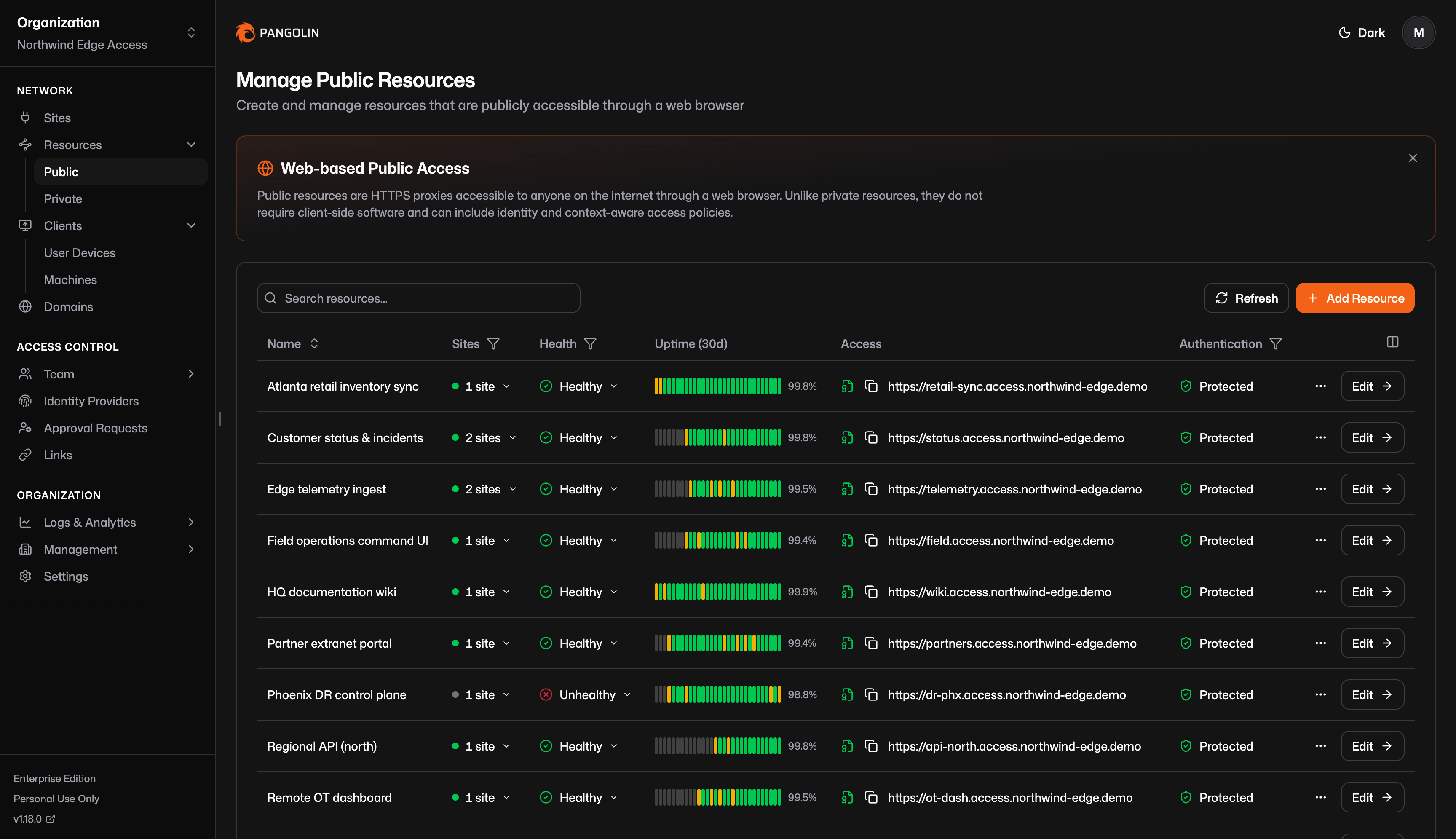 ## Why Pangolin Exists [#why-pangolin-exists]
Legacy SASE platforms got the idea right: connectivity and security belong together. They delivered it as a heavyweight, closed, cloud-locked stack. Pangolin does that unification in the open, on infrastructure you control, and simple enough to deploy yourself.
* **Open source and auditable.** You can see how traffic is handled and how access decisions get made.
* **Networking and security as one platform.** Connecting users and protecting them happen together, with one identity and policy model.
* **Lightweight by design.** The control plane runs on a modest server. A user-space connector sits in your private networks.
* **Zero trust from day one.** Access is granted per resource, with identity providers, roles, and audit logs.
* **Run it your way.** Self-host or use [Pangolin Cloud](https://app.pangolin.net/auth/signup).
## Core Concepts [#core-concepts]
Pangolin is organized around a few pieces you will use everywhere:
1. A **server** is the control plane. It holds identity, policy, and coordination. You can use [Pangolin Cloud](/about/pangolin-cloud-vs-self-hosted) or [self-host](/self-host/quick-install) the same software.
2. **[Sites](/manage/sites/understanding-sites)** connect the networks where your applications and infrastructure live.
3. **[Resources](/manage/resources/understanding-resources)** are the specific things users are allowed to reach: web apps, SSH, desktops, private hosts, and AI providers.
4. **[Clients](/manage/clients/understanding-clients)** give devices a private path to those resources.
## Why Pangolin Exists [#why-pangolin-exists]
Legacy SASE platforms got the idea right: connectivity and security belong together. They delivered it as a heavyweight, closed, cloud-locked stack. Pangolin does that unification in the open, on infrastructure you control, and simple enough to deploy yourself.
* **Open source and auditable.** You can see how traffic is handled and how access decisions get made.
* **Networking and security as one platform.** Connecting users and protecting them happen together, with one identity and policy model.
* **Lightweight by design.** The control plane runs on a modest server. A user-space connector sits in your private networks.
* **Zero trust from day one.** Access is granted per resource, with identity providers, roles, and audit logs.
* **Run it your way.** Self-host or use [Pangolin Cloud](https://app.pangolin.net/auth/signup).
## Core Concepts [#core-concepts]
Pangolin is organized around a few pieces you will use everywhere:
1. A **server** is the control plane. It holds identity, policy, and coordination. You can use [Pangolin Cloud](/about/pangolin-cloud-vs-self-hosted) or [self-host](/self-host/quick-install) the same software.
2. **[Sites](/manage/sites/understanding-sites)** connect the networks where your applications and infrastructure live.
3. **[Resources](/manage/resources/understanding-resources)** are the specific things users are allowed to reach: web apps, SSH, desktops, private hosts, and AI providers.
4. **[Clients](/manage/clients/understanding-clients)** give devices a private path to those resources.
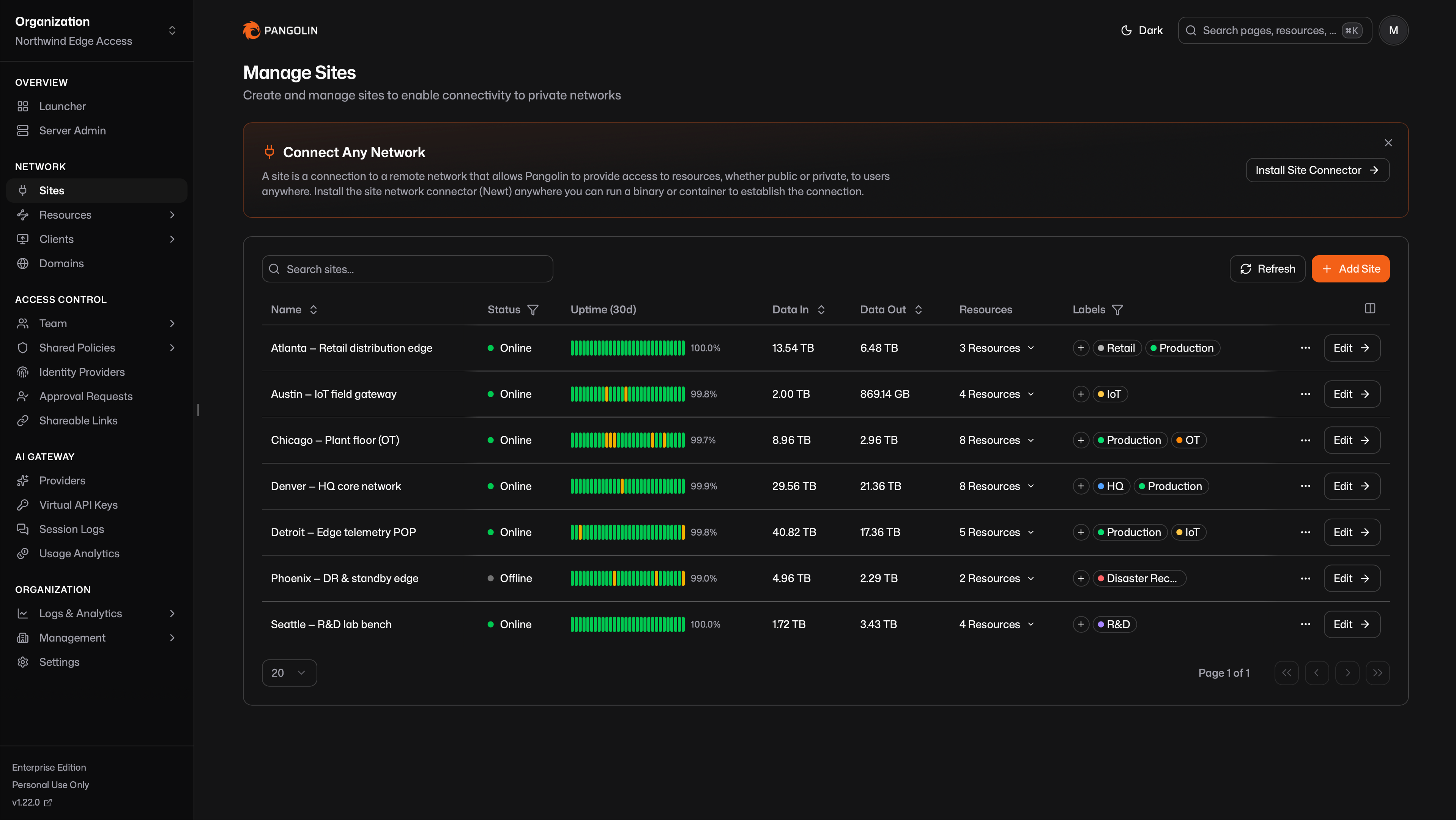 Sites run behind firewalls on remote networks. They maintain outbound connections to the Pangolin server. By default, sites block all traffic until you define resources and grant access. This ensures that just [deploying a site](/manage/sites/install-site) does not expose any network resources.
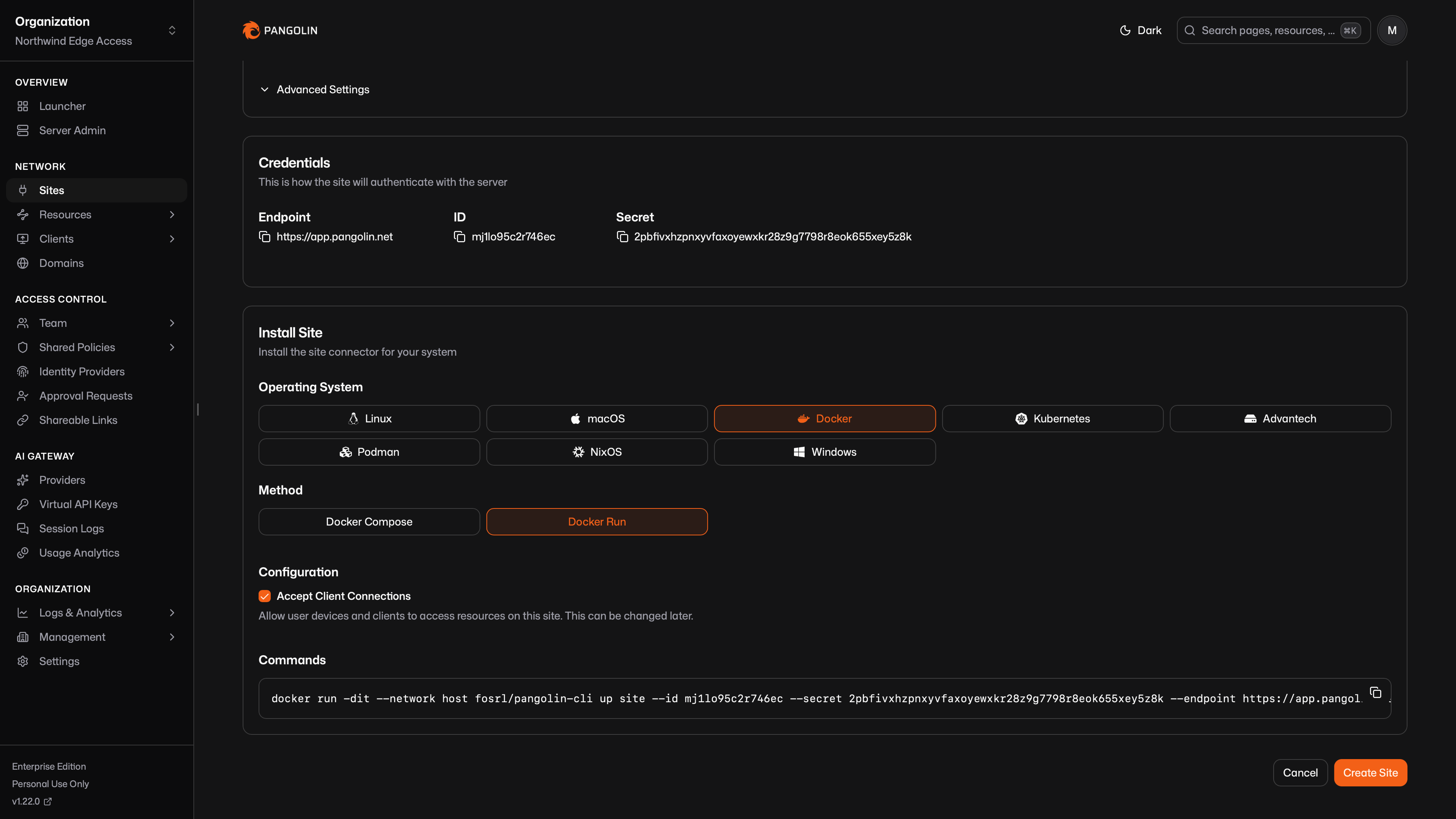 When [private resources](/manage/resources/understanding-resources#private-resource-types) (VPN-like access) are used, [clients](/manage/clients/understanding-clients) connect directly to the site connector using peer-to-peer (P2P) [NAT traversal](/manage/clients/nat-traversal). If the client is on the same network as the site connector, it will use the [local network address](/manage/clients/nat-traversal#same-network-detection).
The site connector is very intelligent and handles tunnel creation, NAT traversal, and routing. It makes remote networks available without requiring complex firewall rules or public IP addresses. They also unlock browser-based [SSH](/manage/resources/public/ssh), [RDP](/manage/resources/public/rdp), and [VNC](/manage/resources/public/vnc) resources, [private HTTP](/manage/resources/private/private-http) with edge TLS termination, intelligent [multi-site routing](/manage/resources/private/multi-site-routing) when the same resource is reachable from more than one location, and much more.
When [private resources](/manage/resources/understanding-resources#private-resource-types) (VPN-like access) are used, [clients](/manage/clients/understanding-clients) connect directly to the site connector using peer-to-peer (P2P) [NAT traversal](/manage/clients/nat-traversal). If the client is on the same network as the site connector, it will use the [local network address](/manage/clients/nat-traversal#same-network-detection).
The site connector is very intelligent and handles tunnel creation, NAT traversal, and routing. It makes remote networks available without requiring complex firewall rules or public IP addresses. They also unlock browser-based [SSH](/manage/resources/public/ssh), [RDP](/manage/resources/public/rdp), and [VNC](/manage/resources/public/vnc) resources, [private HTTP](/manage/resources/private/private-http) with edge TLS termination, intelligent [multi-site routing](/manage/resources/private/multi-site-routing) when the same resource is reachable from more than one location, and much more.
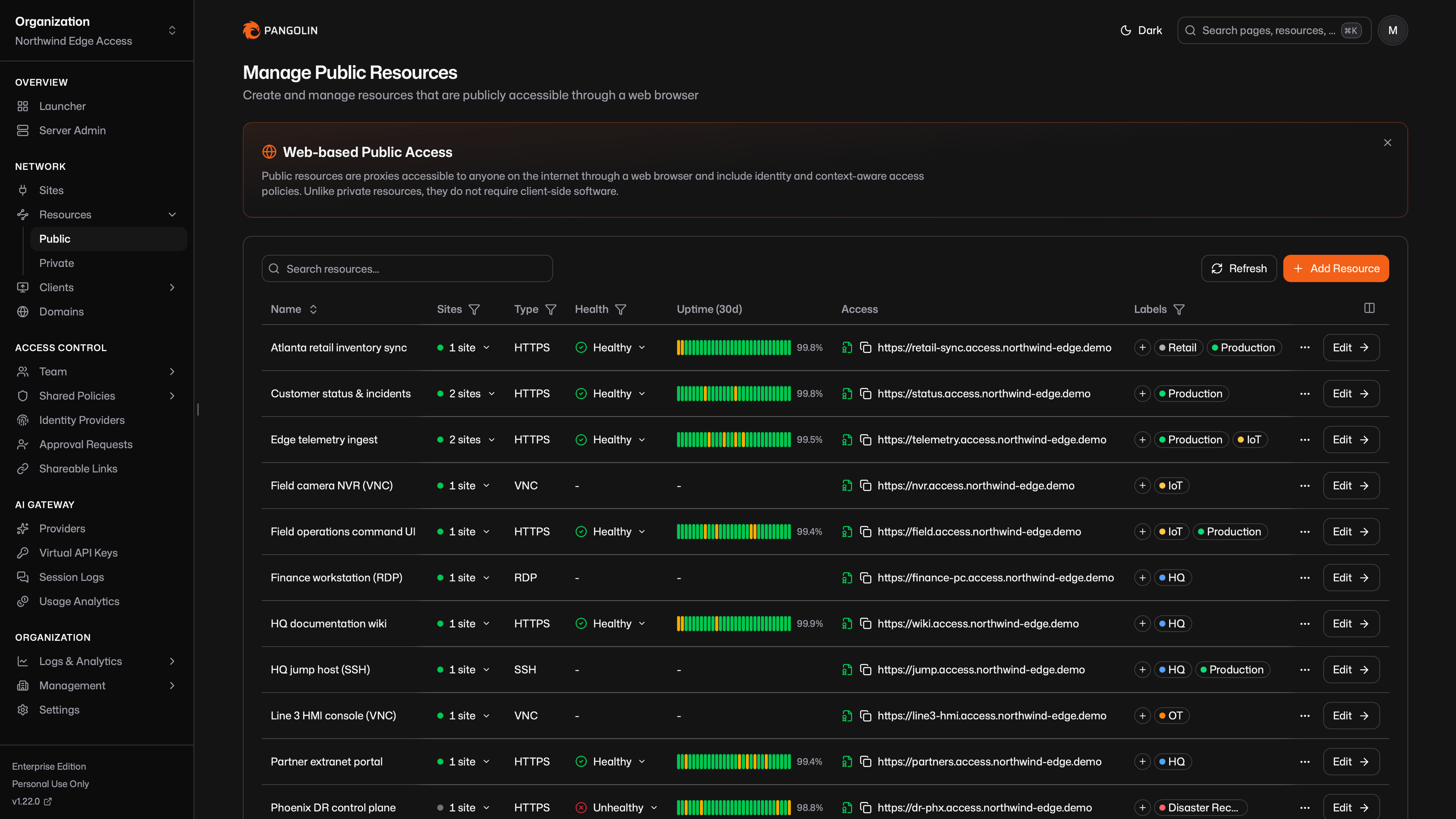 [Private resources](/manage/resources/understanding-resources#private-resource-types) require a [Pangolin client](/manage/clients/platforms) connection and stay off the public internet. They are for VPN-like, fully private access to resources on your remote network.
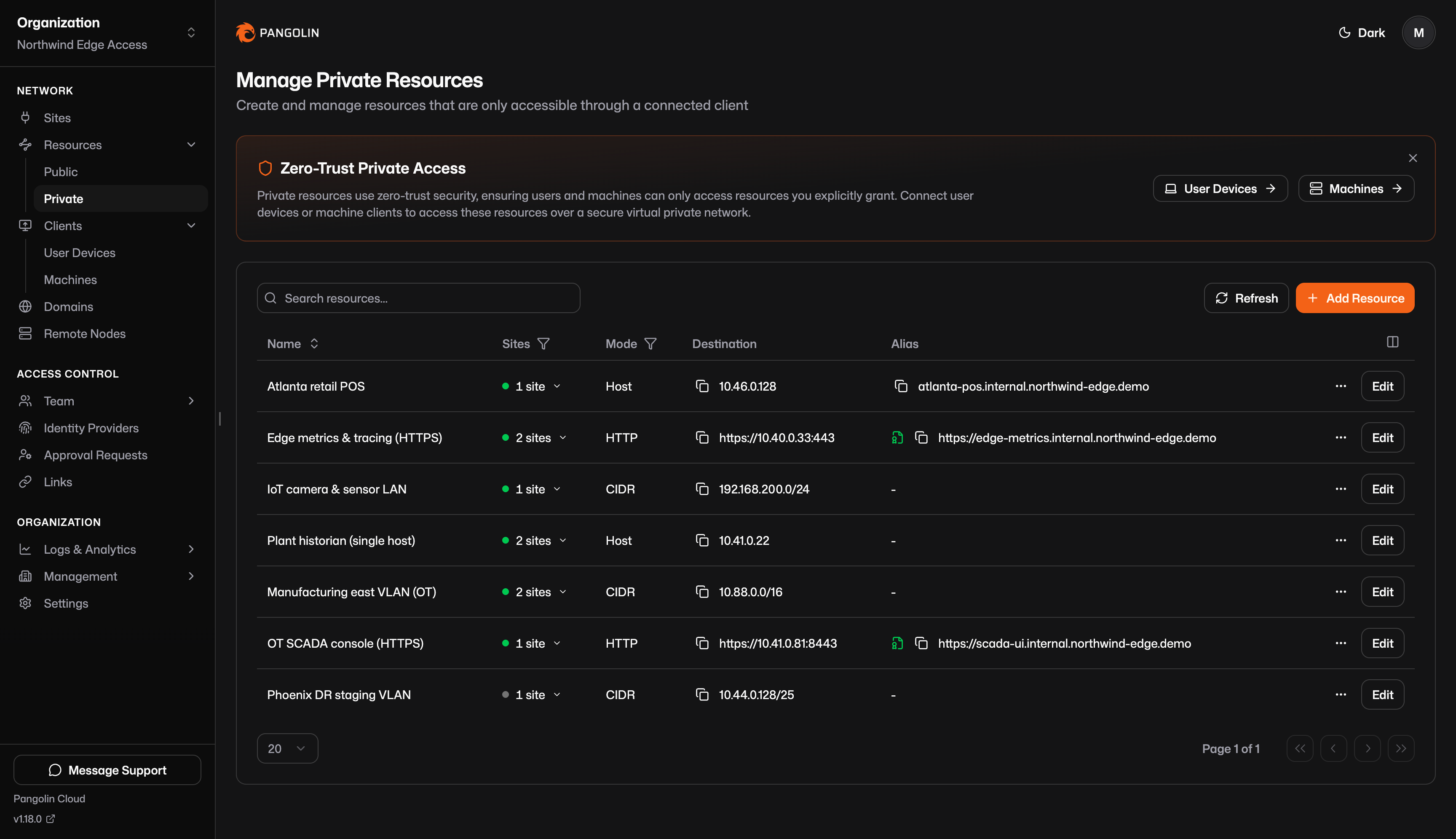 You must define resources and assign access before users can reach them. By default, no resources are available on sites. This ensures that only explicitly defined resources can be accessed.
#### Resource Launcher [#resource-launcher]
The Resource Launcher is the dashboard your users (non-admins) see. It lists every resource they are allowed to access in one place, grouped by site or label, with search and filters. Users open a web app, copy a hostname, or launch a private resource from that hub.
You must define resources and assign access before users can reach them. By default, no resources are available on sites. This ensures that only explicitly defined resources can be accessed.
#### Resource Launcher [#resource-launcher]
The Resource Launcher is the dashboard your users (non-admins) see. It lists every resource they are allowed to access in one place, grouped by site or label, with search and filters. Users open a web app, copy a hostname, or launch a private resource from that hub.
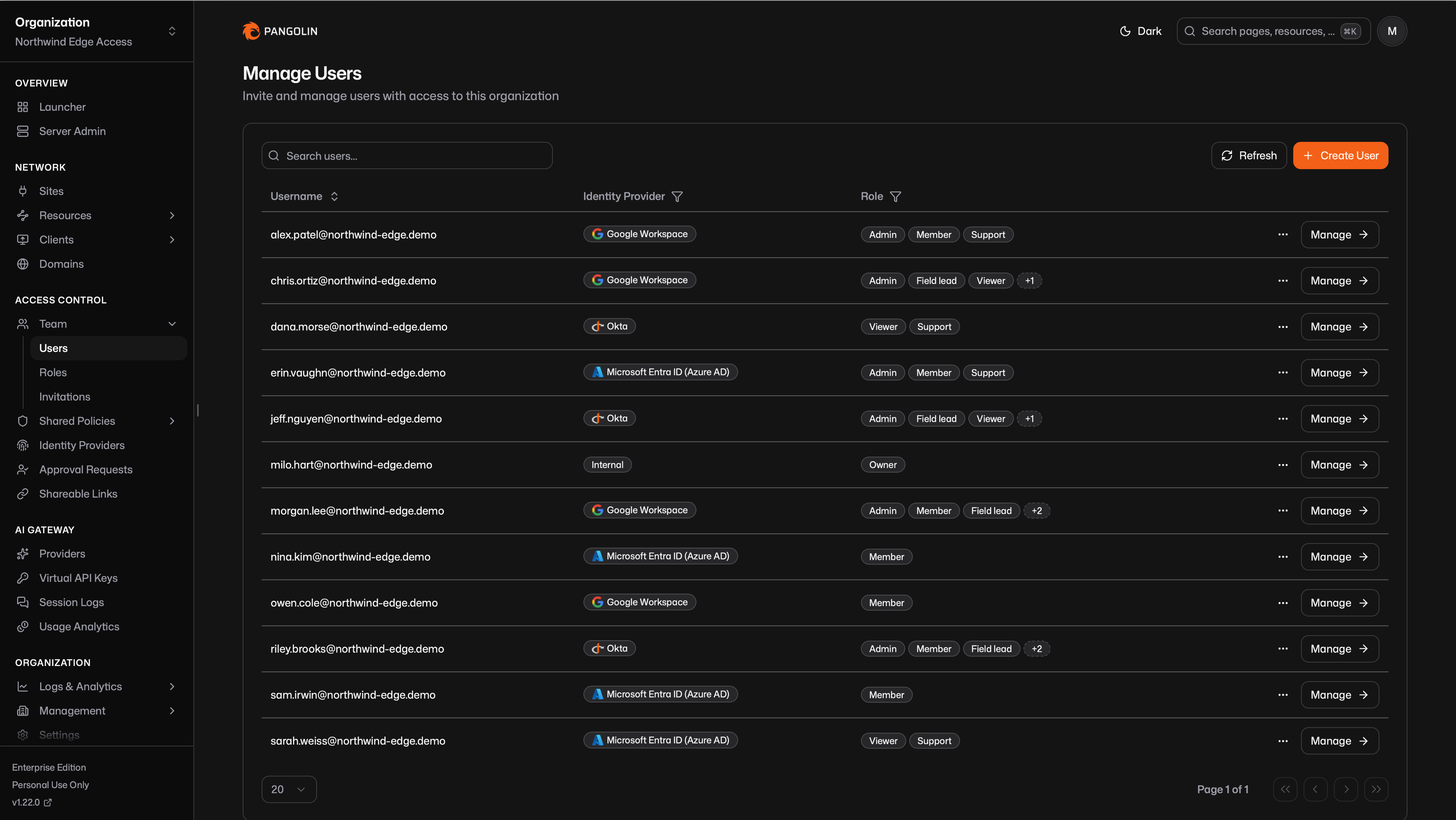
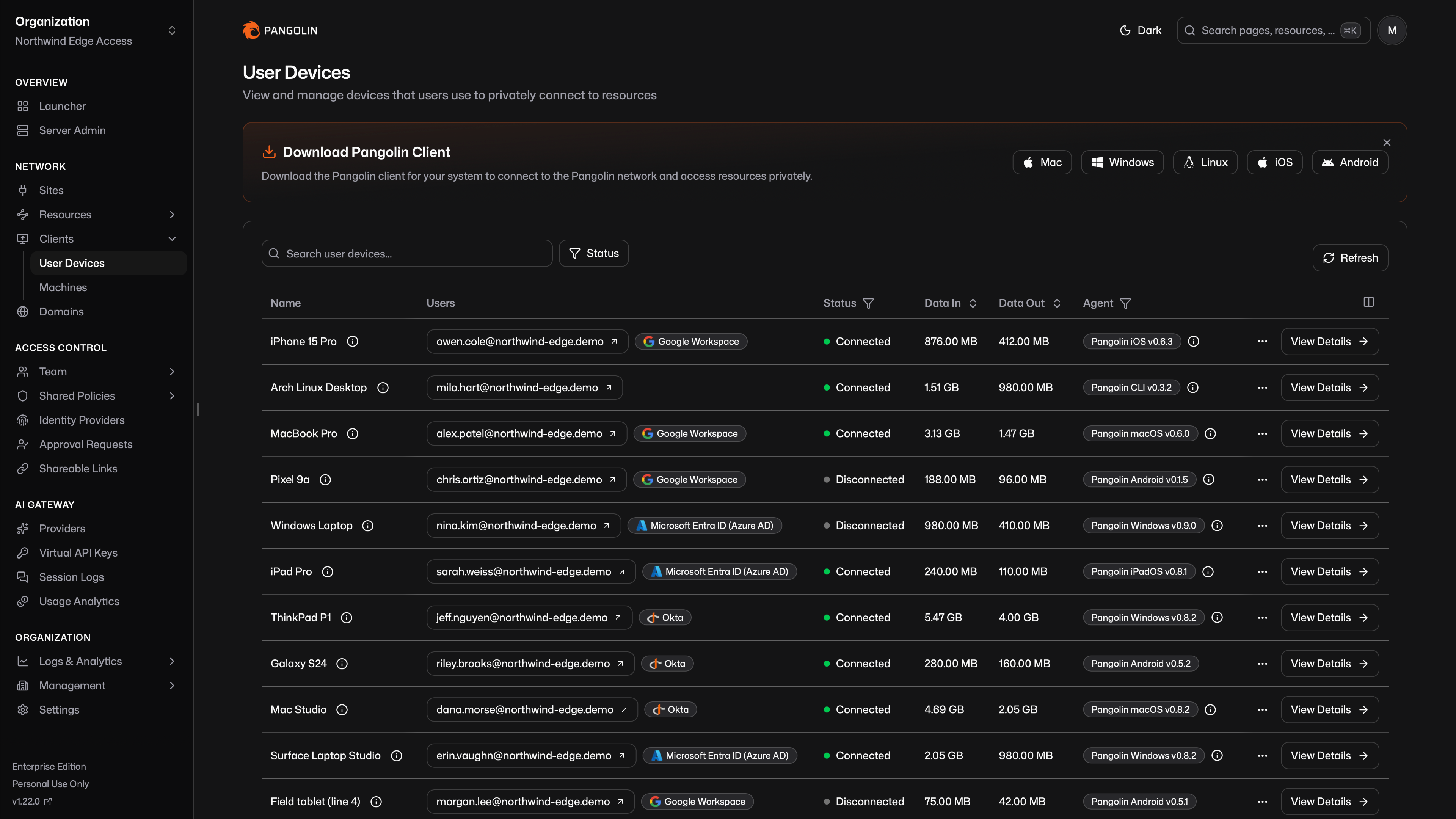 Clients are available on [all major platforms](/manage/clients/platforms). They work transparently with applications, so no application configuration is required.
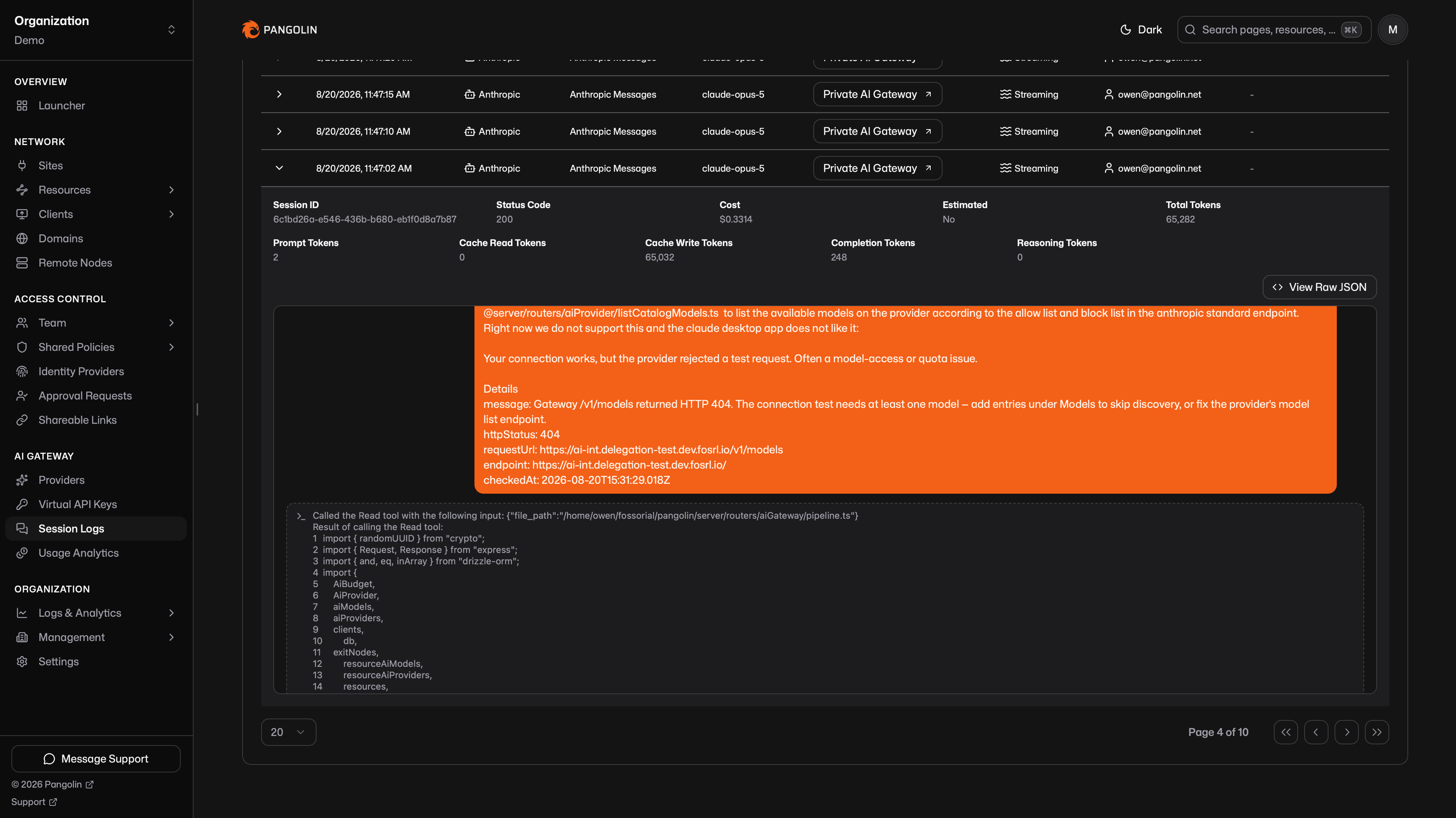 A [private AI Gateway](/manage/resources/private/ai-gateway) uses the [Pangolin client](/manage/clients/platforms) the same way every other private resource does. The client running on the end user's device already authenticated that user. Coding agents on that device call the resource over the tunnel, and Pangolin attributes the request to the connected identity. That eliminates provider API keys on the laptop: the upstream key stays on the [provider](/manage/ai/providers/overview).
 Follow the installation prompts, then enter the site ID, secret, and endpoint from Pangolin in the template fields.
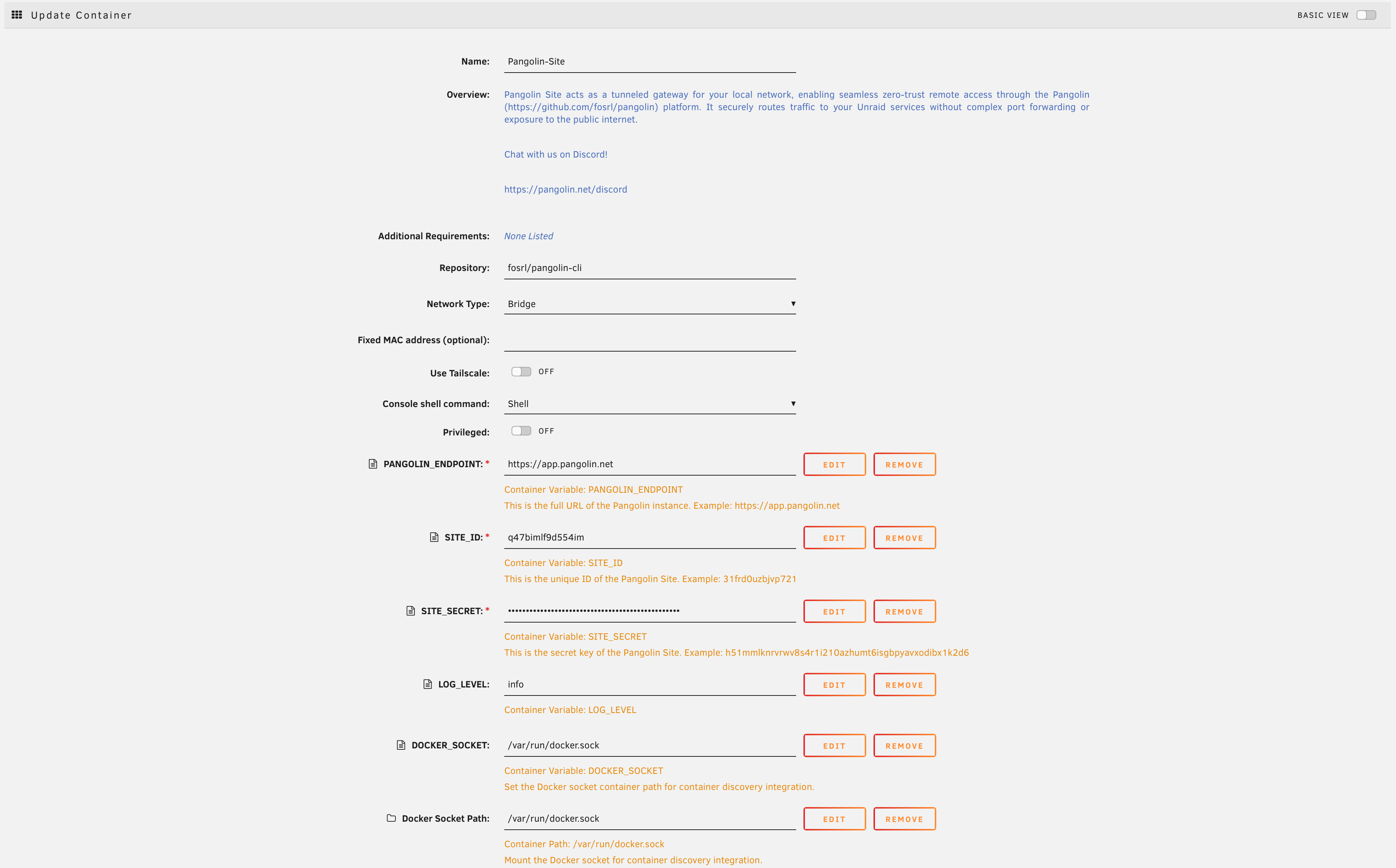 ### Kubernetes [#kubernetes]
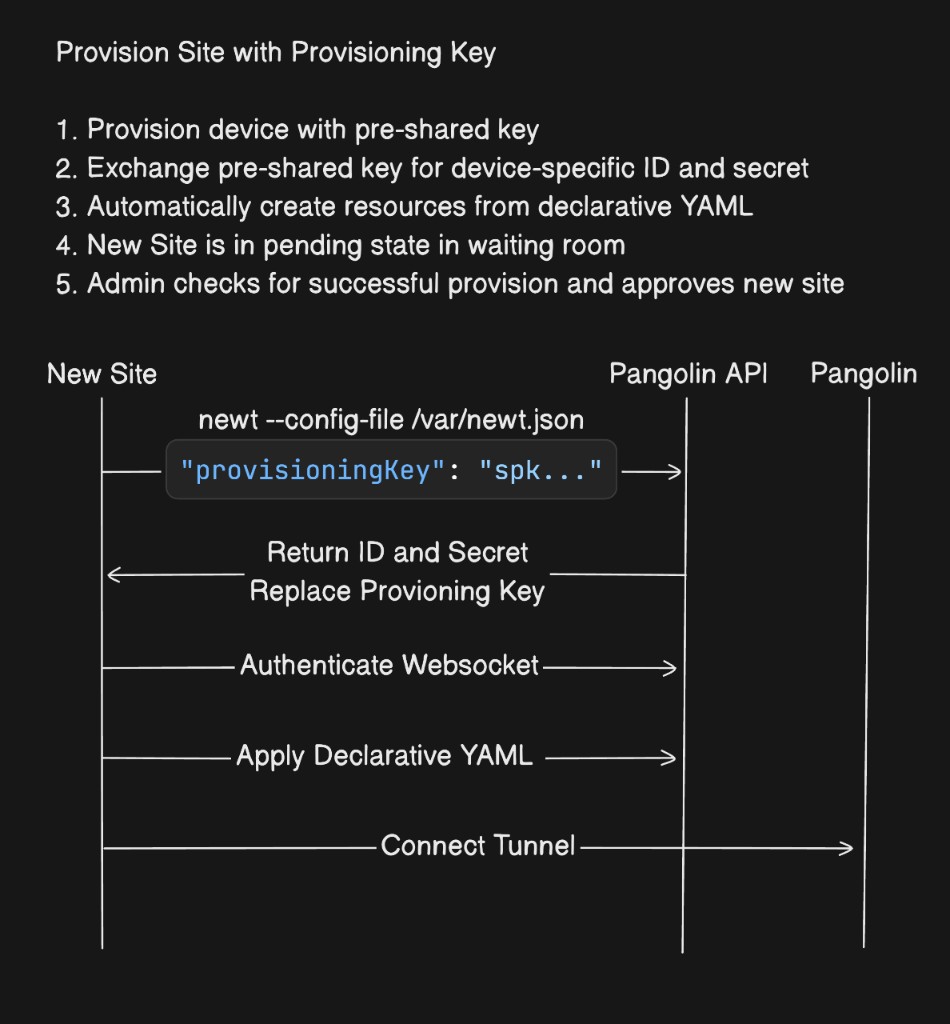
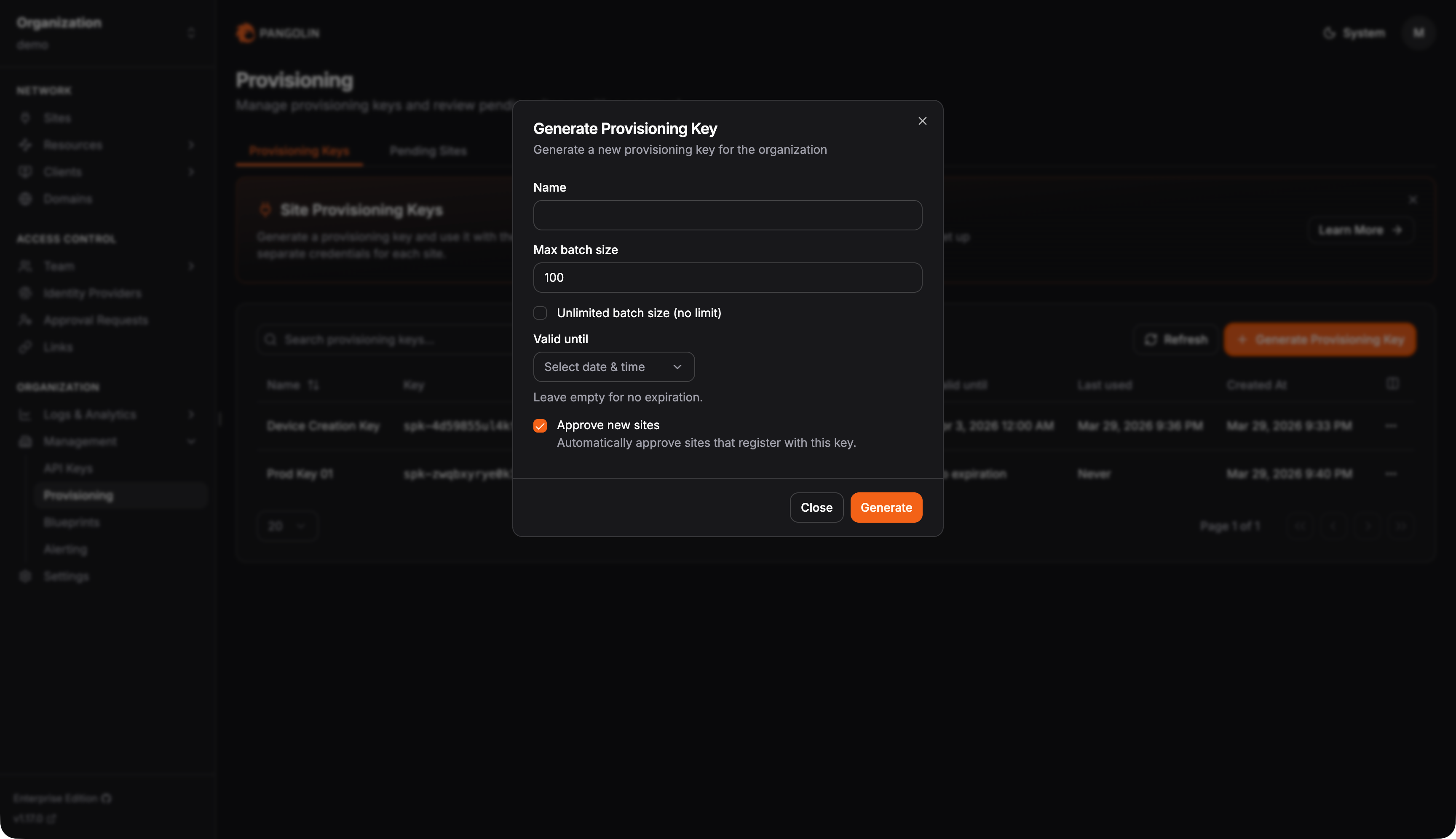 Optionally, sites provisioned with a key can be placed into a pending state. They appear under the Pending Sites tab on the provisioning page so administrators can review new sites and approve them before they are treated as fully active in production.
When a site is pending, any resources created for that site from a blueprint are pending as well. Pending resources are hidden from the main resources table and disabled by default, so end users cannot access them. That keeps the provisioned site and its blueprint resources in a staging setup until an admin confirms everything looks correct.
Admins can still inspect pending resources from the site: open **Resources** on the site row in the sites table, or go to the site’s edit page. Pending resources can be edited like any other resource. You can review configuration, enable a resource temporarily, and connect to verify that access works before promoting the site.
Approving a pending site marks all of its associated pending resources as not pending and enables them, moving the staged setup into production. Rejecting a pending site deletes all associated pending resources along with the site.
Optionally, sites provisioned with a key can be placed into a pending state. They appear under the Pending Sites tab on the provisioning page so administrators can review new sites and approve them before they are treated as fully active in production.
When a site is pending, any resources created for that site from a blueprint are pending as well. Pending resources are hidden from the main resources table and disabled by default, so end users cannot access them. That keeps the provisioned site and its blueprint resources in a staging setup until an admin confirms everything looks correct.
Admins can still inspect pending resources from the site: open **Resources** on the site row in the sites table, or go to the site’s edit page. Pending resources can be edited like any other resource. You can review configuration, enable a resource temporarily, and connect to verify that access works before promoting the site.
Approving a pending site marks all of its associated pending resources as not pending and enables them, moving the staged setup into production. Rejecting a pending site deletes all associated pending resources along with the site.
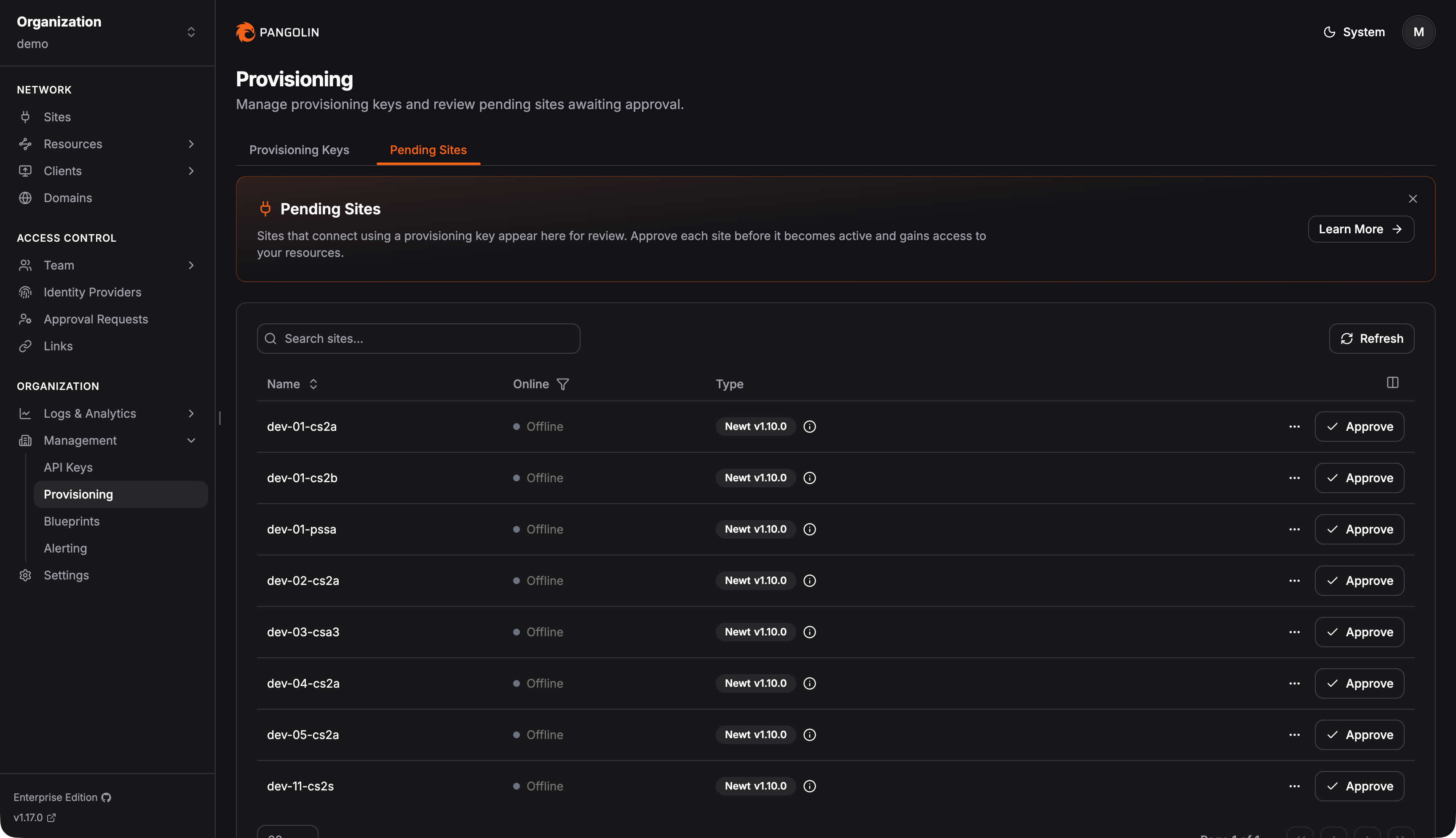 ---
# Helm (/manage/sites/kubernetes/helm)
> Quick-start guide for installing Site (newt) on Kubernetes using Helm.
This guide installs and manages Site (newt) in Kubernetes using Helm.
See [Version Matrix](https://github.com/fosrl/helm-charts/VERSION_MATRIX.md) for chart and default app version references.
## What the chart supports [#what-the-chart-supports]
The Newt chart can deploy one or more Newt instances through `newtInstances[]`.
Newt chart `1.4.0` includes support for:
* provisioning with `NEWT_PROVISIONING_KEY` and `NEWT_NAME`
* legacy credential installs with `NEWT_ID` and `NEWT_SECRET`
* existing Kubernetes Secrets for production credentials
* writable config persistence with `emptyDir` or an existing PVC
* optional metrics, PodMonitor, ServiceMonitor, and PrometheusRule
* optional NetworkPolicy
* multi-instance deployments with per-instance overrides
The chart README lists these features for version `1.4.0`.
## Prerequisites [#prerequisites]
Before installing Newt, you need:
* Kubernetes `1.30.14` or newer
* Helm 3.x
* `kubectl` access to the target cluster
* a reachable Pangolin instance
* either:
* Newt credentials from Pangolin: `NEWT_ID` and `NEWT_SECRET`
* or a provisioning key for provisioning installs
The chart quickstart lists Kubernetes `>=1.30.14`, Helm 3.x, configured `kubectl`, and Newt credentials from Pangolin as prerequisites.
See [Prerequisites](/self-host/manual/kubernetes/prerequisites) for cluster, namespace, storage, networking, and security planning.
## Authentication options [#authentication-options]
Newt chart `1.4.0` supports three credential patterns:
| Method | Recommended for | Notes |
| ---------------- | --------------------- | ------------------------------------------------------------------ |
| Existing Secret | Production | Credentials are stored in a Kubernetes Secret created outside Helm |
| Provisioning key | Provisioning installs | Requires writable config persistence |
| Inline values | Local testing only | Credentials may be stored in Helm release history |
For production, use `auth.existingSecretName` or a GitOps-safe secret workflow. The chart values explicitly warn that inline credentials can be stored in Helm release history and recommend existing Secrets for production.
## Quick install with existing Secret [#quick-install-with-existing-secret]
This is the recommended simple production pattern.
### Step 1: Create the namespace [#step-1-create-the-namespace]
Create the namespace before installing the chart:
```bash
kubectl create namespace pangolin
```
If your cluster uses Pod Security Admission labels, namespace labels, or policy annotations, apply them before installing Newt.
Example:
```bash
kubectl label namespace pangolin \
pod-security.kubernetes.io/enforce=baseline \
pod-security.kubernetes.io/audit=restricted \
pod-security.kubernetes.io/warn=restricted
```
---
# Helm (/manage/sites/kubernetes/helm)
> Quick-start guide for installing Site (newt) on Kubernetes using Helm.
This guide installs and manages Site (newt) in Kubernetes using Helm.
See [Version Matrix](https://github.com/fosrl/helm-charts/VERSION_MATRIX.md) for chart and default app version references.
## What the chart supports [#what-the-chart-supports]
The Newt chart can deploy one or more Newt instances through `newtInstances[]`.
Newt chart `1.4.0` includes support for:
* provisioning with `NEWT_PROVISIONING_KEY` and `NEWT_NAME`
* legacy credential installs with `NEWT_ID` and `NEWT_SECRET`
* existing Kubernetes Secrets for production credentials
* writable config persistence with `emptyDir` or an existing PVC
* optional metrics, PodMonitor, ServiceMonitor, and PrometheusRule
* optional NetworkPolicy
* multi-instance deployments with per-instance overrides
The chart README lists these features for version `1.4.0`.
## Prerequisites [#prerequisites]
Before installing Newt, you need:
* Kubernetes `1.30.14` or newer
* Helm 3.x
* `kubectl` access to the target cluster
* a reachable Pangolin instance
* either:
* Newt credentials from Pangolin: `NEWT_ID` and `NEWT_SECRET`
* or a provisioning key for provisioning installs
The chart quickstart lists Kubernetes `>=1.30.14`, Helm 3.x, configured `kubectl`, and Newt credentials from Pangolin as prerequisites.
See [Prerequisites](/self-host/manual/kubernetes/prerequisites) for cluster, namespace, storage, networking, and security planning.
## Authentication options [#authentication-options]
Newt chart `1.4.0` supports three credential patterns:
| Method | Recommended for | Notes |
| ---------------- | --------------------- | ------------------------------------------------------------------ |
| Existing Secret | Production | Credentials are stored in a Kubernetes Secret created outside Helm |
| Provisioning key | Provisioning installs | Requires writable config persistence |
| Inline values | Local testing only | Credentials may be stored in Helm release history |
For production, use `auth.existingSecretName` or a GitOps-safe secret workflow. The chart values explicitly warn that inline credentials can be stored in Helm release history and recommend existing Secrets for production.
## Quick install with existing Secret [#quick-install-with-existing-secret]
This is the recommended simple production pattern.
### Step 1: Create the namespace [#step-1-create-the-namespace]
Create the namespace before installing the chart:
```bash
kubectl create namespace pangolin
```
If your cluster uses Pod Security Admission labels, namespace labels, or policy annotations, apply them before installing Newt.
Example:
```bash
kubectl label namespace pangolin \
pod-security.kubernetes.io/enforce=baseline \
pod-security.kubernetes.io/audit=restricted \
pod-security.kubernetes.io/warn=restricted
```
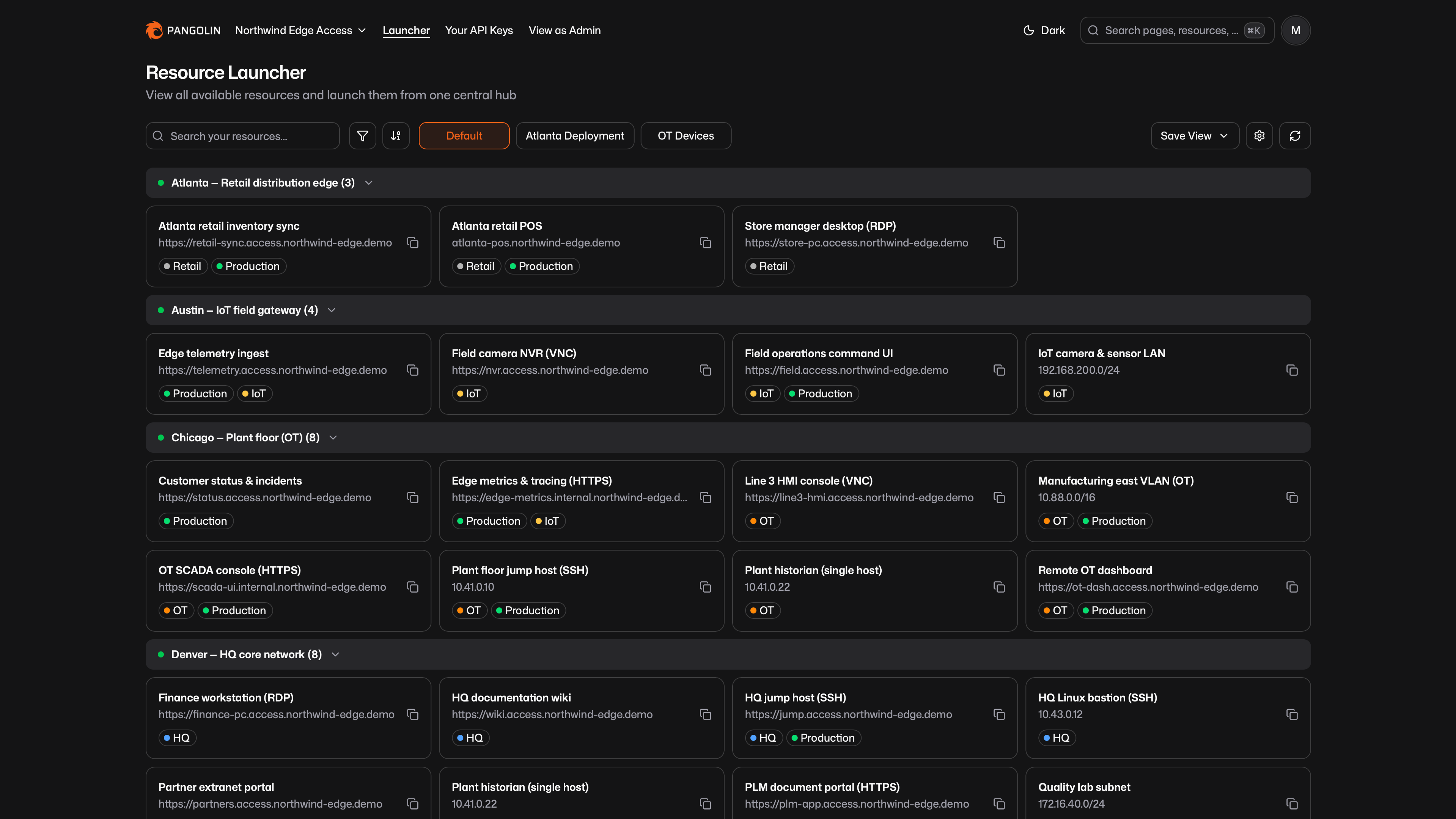 ## Find Resources [#find-resources]
Switch between **Grid** and **List** layouts. Search updates as you type across names, domains, sites, labels, destinations, aliases, and related fields. Filter by one or more [sites](/manage/sites/understanding-sites) and [labels](/manage/labels). Sort by name, and group by **Site**, **Label**, or **None** for a flat list.
Site groups show an online or offline indicator. You can expand or collapse groups. The launcher remembers that state for the current organization and view.
In very large organizations, the launcher may ask you to search or filter before browsing, and it may simplify grouping until the list is smaller.
## Open a Resource [#open-a-resource]
Selecting a resource always expands a details panel. The panel shows what matters for that type: access URL or alias, health and auth for public resources, destination and certificate status for private resources, and port restrictions when they apply.
## Find Resources [#find-resources]
Switch between **Grid** and **List** layouts. Search updates as you type across names, domains, sites, labels, destinations, aliases, and related fields. Filter by one or more [sites](/manage/sites/understanding-sites) and [labels](/manage/labels). Sort by name, and group by **Site**, **Label**, or **None** for a flat list.
Site groups show an online or offline indicator. You can expand or collapse groups. The launcher remembers that state for the current organization and view.
In very large organizations, the launcher may ask you to search or filter before browsing, and it may simplify grouping until the list is smaller.
## Open a Resource [#open-a-resource]
Selecting a resource always expands a details panel. The panel shows what matters for that type: access URL or alias, health and auth for public resources, destination and certificate status for private resources, and port restrictions when they apply.
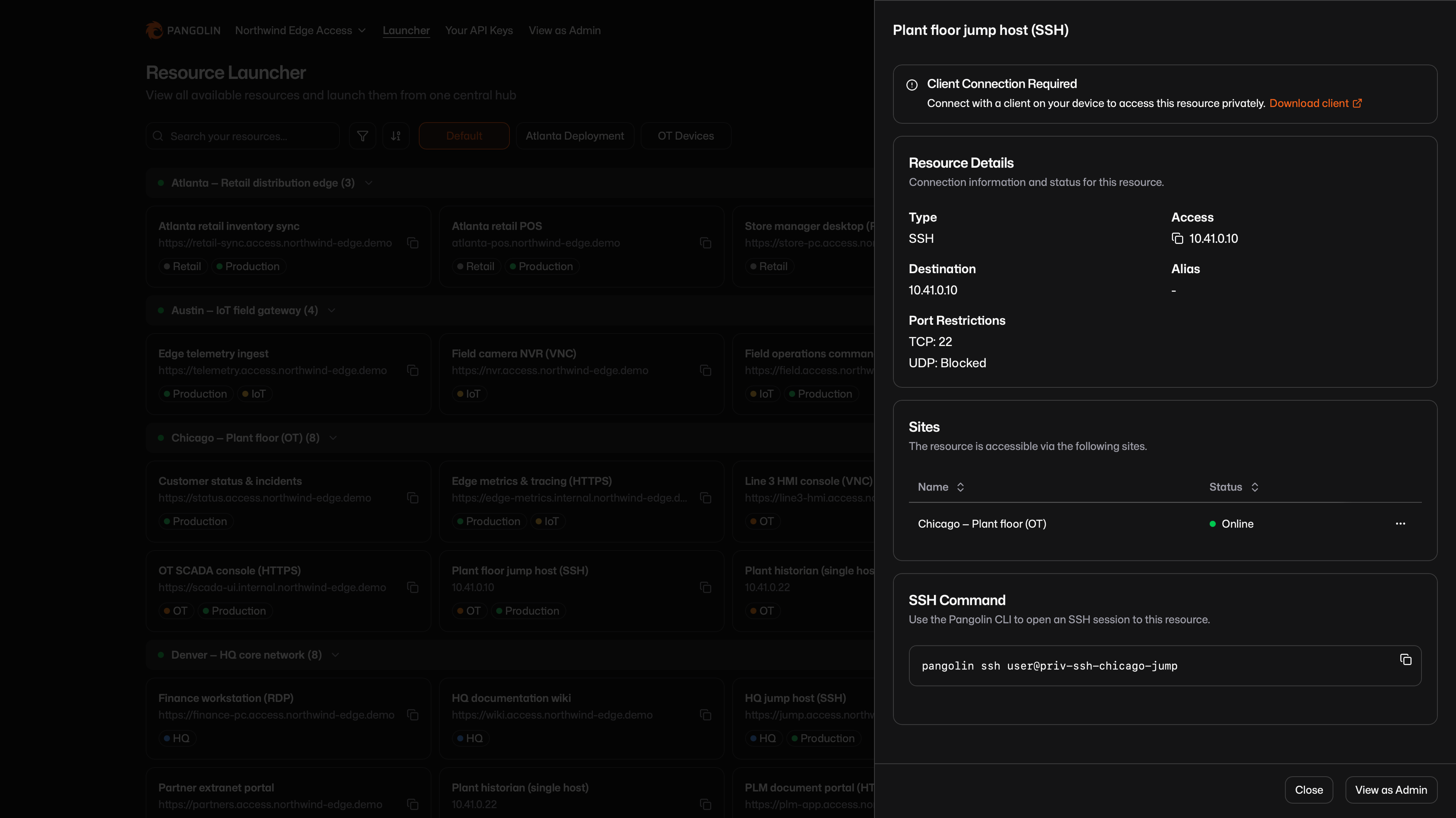 From a card, list row, or the panel you can open HTTP-style resources in a new tab (HTTP/HTTPS, SSH, RDP, VNC, AI Gateway) or copy the access string. Private resources remind you to connect with a [Pangolin client](/manage/clients/platforms).
For [AI Gateway](/manage/ai/overview) resources, the panel also lists available models, [virtual API keys](/manage/ai/virtual-api-keys), and copy-paste setup for coding agents. Public gateways use your API key. Private gateways use the connected client as the credential.
The launcher URL stores the current search, filters, grouping, layout, and sort, so you can bookmark or share a view. Opening a resource from admin settings can deep-link into the launcher with that resource's panel already open.
## Saved Views [#saved-views]
A saved view captures search, filters, grouping, layout, and sort. Start from **Default**, then save the current setup as a personal view. Switch views with the tabs at the top. The last view you used in that organization is restored when you come back.
* **Save for Me** stores your personal default. It overrides any organization-wide default for you only.
* **Save as New View** creates a named personal view.
* **Save to Current View** updates a personal view you own.
* **Reset View** discards unsaved changes.
Organization-wide views are read-only unless you are an administrator.
## For Administrators [#for-administrators]
Use **View as Admin** in the header to open organization settings, or from a resource panel to open that resource's settings. From a resource settings page you can jump back to the launcher with that resource already open.
Administrators can share views with the organization:
* **Save for Everyone** on the default view sets the organization-wide default for members who have not saved a personal default.
* **Save for Everyone** on a named view shares it with every member.
* **Make Personal** turns an organization-wide view back into a personal view.
Set a useful organization-wide default (for example grouped by site, list layout) so people do not have to configure the launcher themselves. Users only see resources granted to their user or a role they belong to. Refresh reloads the latest resources so recent access or config changes show up.
---
# HTTP / HTTPS (/manage/resources/public/http-https)
> Publish websites, APIs, and dashboards as authenticated public reverse proxies
HTTP and HTTPS public resources are the most common public resource type. They expose a web application or API on a fully qualified domain name with a valid TLS certificate, fronted by Pangolin's authenticated reverse proxy.
Users open the resource URL in any web browser. No Pangolin client is required.
## Benefits [#benefits]
* Publish apps from behind NAT or a firewall without opening inbound ports or needing a public IP on the backend.
* Every resource gets a valid TLS certificate that Pangolin issues and renews.
* Unauthenticated visitors are stopped at Pangolin before any traffic reaches your app.
* SSO, identity providers, and context rules like geo-blocking protect apps that have no login of their own.
* Multiple targets across sites give load balancing, health checks, and automatic failover.
* Users only need a browser, so contractors, customers, and personal devices can get access without installing anything.
## Use Cases [#use-cases]
* Put self-hosted apps such as Grafana, Home Assistant, or an internal wiki behind SSO.
* Publish a public website or API running on a home server or private network.
* Share a staging site with a client using a PIN, passcode, or expiring link.
* Restrict an admin panel to certain countries, IP ranges, or URL paths with access rules.
* Load balance a web app across servers in different locations.
## How It Works [#how-it-works]
1. You assign a FQDN on a domain managed in Pangolin.
2. Pangolin terminates TLS and applies [authentication and access rules](/manage/resources/public/authentication).
3. Authenticated requests are proxied through a site connector to your backend target.
Pangolin acts as a front-door barrier: unauthenticated visitors are redirected to a Pangolin login page before traffic reaches your application.
## Target Configuration [#target-configuration]
HTTP/HTTPS resources use **[targets](/manage/resources/public/targets)** to define where traffic is sent on your remote network.
* Add one or more targets, each with an upstream address and port.
* Assign each target to a site. Targets on different sites enable [load balancing](/manage/resources/public/targets#load-balancing-strategy) and [automatic failover](/manage/resources/public/healthchecks-failover).
* Optionally configure path-based routing, path rewriting, a load balancing strategy, sticky sessions, custom host headers, and other proxy settings.
This multi-target model differs from SSH, RDP, and VNC public resources, which use site selection and a single host/port instead of discrete targets.
## Authentication and Access Rules [#authentication-and-access-rules]
HTTP/HTTPS resources are protocol-aware and fully support Pangolin's identity and context policies:
* Platform SSO and external identity providers
* User, role, and machine access assignments
* PIN, passcode, shareable links, and email OTP
* Ranked allow/deny rules for IP, geolocation, URL paths, and more
See [Authentication](/manage/resources/public/authentication) for the full list of options. To share the same settings across multiple resources, use a [resource policy](/manage/resources/public/resource-policies).
---
# AI Gateway (/manage/resources/public/ai-gateway)
> Publish an AI API on a public FQDN and authenticate coding agents with virtual API keys
An AI Gateway public resource is a protocol-aware reverse proxy on a fully qualified domain name, like [HTTP / HTTPS](/manage/resources/public/http-https). Clients call that URL instead of OpenAI, Anthropic, Gemini, or another model API. Pangolin authenticates the caller, then forwards the request to an attached [provider](/manage/ai/providers/overview).
This page covers how the **resource** works: reachability, authentication, and what you attach. Providers, keys, model routing, the catalog, and client setup live in [AI Gateway](/manage/ai/overview).
## Benefits [#benefits]
* Coding agents work from anywhere, with no Pangolin client on the device.
* Provider API keys stay in Pangolin. Users get virtual API keys that you can revoke without rotating the provider key.
* Identity keys follow user and role grants, so removing someone's access disables their key.
* One URL can front several providers, with model routing, budgets, and usage analytics in one place.
## Use Cases [#use-cases]
* Give a team Claude Code, Codex, or Gemini CLI on company provider accounts.
* Issue manual keys to CI pipelines, scripts, or internal services that call a model API.
* Track AI usage per user and key, and cap spend by role, key, or model with [budgets](/manage/ai/budgets).
* Limit which models each team can use with [model routing](/manage/ai/providers/model-routing).
## How It Works [#how-it-works]
1. You assign a FQDN on a domain managed in Pangolin and set the resource type to **AI Gateway**.
2. You attach one or more org-level providers. The resource speaks the API formats those providers advertise.
3. A user retrieves a [virtual API key](/manage/ai/virtual-api-keys) by visiting the URL in a browser and logging in, or from the Resource Launcher or `https://app.pangolin.net/
From a card, list row, or the panel you can open HTTP-style resources in a new tab (HTTP/HTTPS, SSH, RDP, VNC, AI Gateway) or copy the access string. Private resources remind you to connect with a [Pangolin client](/manage/clients/platforms).
For [AI Gateway](/manage/ai/overview) resources, the panel also lists available models, [virtual API keys](/manage/ai/virtual-api-keys), and copy-paste setup for coding agents. Public gateways use your API key. Private gateways use the connected client as the credential.
The launcher URL stores the current search, filters, grouping, layout, and sort, so you can bookmark or share a view. Opening a resource from admin settings can deep-link into the launcher with that resource's panel already open.
## Saved Views [#saved-views]
A saved view captures search, filters, grouping, layout, and sort. Start from **Default**, then save the current setup as a personal view. Switch views with the tabs at the top. The last view you used in that organization is restored when you come back.
* **Save for Me** stores your personal default. It overrides any organization-wide default for you only.
* **Save as New View** creates a named personal view.
* **Save to Current View** updates a personal view you own.
* **Reset View** discards unsaved changes.
Organization-wide views are read-only unless you are an administrator.
## For Administrators [#for-administrators]
Use **View as Admin** in the header to open organization settings, or from a resource panel to open that resource's settings. From a resource settings page you can jump back to the launcher with that resource already open.
Administrators can share views with the organization:
* **Save for Everyone** on the default view sets the organization-wide default for members who have not saved a personal default.
* **Save for Everyone** on a named view shares it with every member.
* **Make Personal** turns an organization-wide view back into a personal view.
Set a useful organization-wide default (for example grouped by site, list layout) so people do not have to configure the launcher themselves. Users only see resources granted to their user or a role they belong to. Refresh reloads the latest resources so recent access or config changes show up.
---
# HTTP / HTTPS (/manage/resources/public/http-https)
> Publish websites, APIs, and dashboards as authenticated public reverse proxies
HTTP and HTTPS public resources are the most common public resource type. They expose a web application or API on a fully qualified domain name with a valid TLS certificate, fronted by Pangolin's authenticated reverse proxy.
Users open the resource URL in any web browser. No Pangolin client is required.
## Benefits [#benefits]
* Publish apps from behind NAT or a firewall without opening inbound ports or needing a public IP on the backend.
* Every resource gets a valid TLS certificate that Pangolin issues and renews.
* Unauthenticated visitors are stopped at Pangolin before any traffic reaches your app.
* SSO, identity providers, and context rules like geo-blocking protect apps that have no login of their own.
* Multiple targets across sites give load balancing, health checks, and automatic failover.
* Users only need a browser, so contractors, customers, and personal devices can get access without installing anything.
## Use Cases [#use-cases]
* Put self-hosted apps such as Grafana, Home Assistant, or an internal wiki behind SSO.
* Publish a public website or API running on a home server or private network.
* Share a staging site with a client using a PIN, passcode, or expiring link.
* Restrict an admin panel to certain countries, IP ranges, or URL paths with access rules.
* Load balance a web app across servers in different locations.
## How It Works [#how-it-works]
1. You assign a FQDN on a domain managed in Pangolin.
2. Pangolin terminates TLS and applies [authentication and access rules](/manage/resources/public/authentication).
3. Authenticated requests are proxied through a site connector to your backend target.
Pangolin acts as a front-door barrier: unauthenticated visitors are redirected to a Pangolin login page before traffic reaches your application.
## Target Configuration [#target-configuration]
HTTP/HTTPS resources use **[targets](/manage/resources/public/targets)** to define where traffic is sent on your remote network.
* Add one or more targets, each with an upstream address and port.
* Assign each target to a site. Targets on different sites enable [load balancing](/manage/resources/public/targets#load-balancing-strategy) and [automatic failover](/manage/resources/public/healthchecks-failover).
* Optionally configure path-based routing, path rewriting, a load balancing strategy, sticky sessions, custom host headers, and other proxy settings.
This multi-target model differs from SSH, RDP, and VNC public resources, which use site selection and a single host/port instead of discrete targets.
## Authentication and Access Rules [#authentication-and-access-rules]
HTTP/HTTPS resources are protocol-aware and fully support Pangolin's identity and context policies:
* Platform SSO and external identity providers
* User, role, and machine access assignments
* PIN, passcode, shareable links, and email OTP
* Ranked allow/deny rules for IP, geolocation, URL paths, and more
See [Authentication](/manage/resources/public/authentication) for the full list of options. To share the same settings across multiple resources, use a [resource policy](/manage/resources/public/resource-policies).
---
# AI Gateway (/manage/resources/public/ai-gateway)
> Publish an AI API on a public FQDN and authenticate coding agents with virtual API keys
An AI Gateway public resource is a protocol-aware reverse proxy on a fully qualified domain name, like [HTTP / HTTPS](/manage/resources/public/http-https). Clients call that URL instead of OpenAI, Anthropic, Gemini, or another model API. Pangolin authenticates the caller, then forwards the request to an attached [provider](/manage/ai/providers/overview).
This page covers how the **resource** works: reachability, authentication, and what you attach. Providers, keys, model routing, the catalog, and client setup live in [AI Gateway](/manage/ai/overview).
## Benefits [#benefits]
* Coding agents work from anywhere, with no Pangolin client on the device.
* Provider API keys stay in Pangolin. Users get virtual API keys that you can revoke without rotating the provider key.
* Identity keys follow user and role grants, so removing someone's access disables their key.
* One URL can front several providers, with model routing, budgets, and usage analytics in one place.
## Use Cases [#use-cases]
* Give a team Claude Code, Codex, or Gemini CLI on company provider accounts.
* Issue manual keys to CI pipelines, scripts, or internal services that call a model API.
* Track AI usage per user and key, and cap spend by role, key, or model with [budgets](/manage/ai/budgets).
* Limit which models each team can use with [model routing](/manage/ai/providers/model-routing).
## How It Works [#how-it-works]
1. You assign a FQDN on a domain managed in Pangolin and set the resource type to **AI Gateway**.
2. You attach one or more org-level providers. The resource speaks the API formats those providers advertise.
3. A user retrieves a [virtual API key](/manage/ai/virtual-api-keys) by visiting the URL in a browser and logging in, or from the Resource Launcher or `https://app.pangolin.net/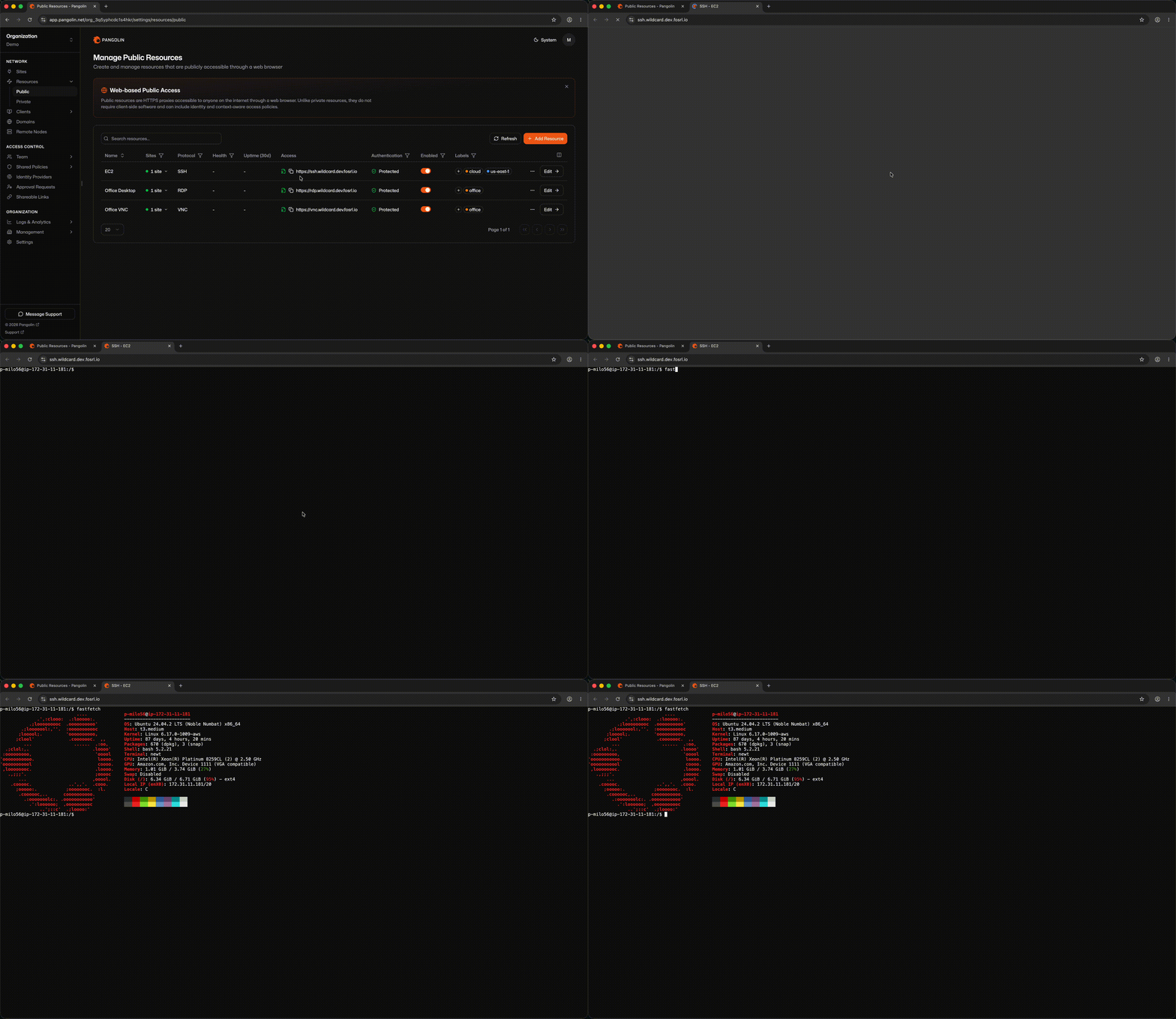 ## Benefits [#benefits]
* Users get a terminal from any browser, with no SSH client, keys, or Pangolin client on their device.
* The host's SSH port is never exposed to the internet. Pangolin authentication happens before a session can start.
* SSO, identity providers, and access rules like geo-blocking apply to shell access.
* With automated provisioning, users are created on the host from their Pangolin identity, so there are no shared accounts or keys to manage.
## Use Cases [#use-cases]
* Get emergency access to a server from a borrowed or locked-down computer.
* Give contractors shell access to a single server without setting up a VPN or SSH keys for them.
* Manage home lab or edge devices from a phone or tablet.
* Let support staff reach customer appliances behind NAT through a site.
## Video Walkthrough [#video-walkthrough]
## How It Works [#how-it-works]
1. You assign a FQDN on a domain managed in Pangolin.
2. The user completes [public resource authentication](/manage/resources/public/authentication) in the browser (platform SSO, identity providers, access rules, and so on).
3. Depending on the SSH [configuration](/manage/ssh#configuration-options) you chose, the user may be prompted for a second credential step or proceed directly into the terminal.
4. Pangolin renders the session and proxies traffic to the backend through a site connector.
## Site and Host Configuration [#site-and-host-configuration]
SSH public resources do **not** use [targets](/manage/resources/public/targets). Instead, you:
1. Select which sites can route to the resource.
2. Enter the backend host and port—unless you selected **Pangolin SSH** mode, which executes sessions on the site connector host and does not require a host or port.
## Benefits [#benefits]
* Users get a terminal from any browser, with no SSH client, keys, or Pangolin client on their device.
* The host's SSH port is never exposed to the internet. Pangolin authentication happens before a session can start.
* SSO, identity providers, and access rules like geo-blocking apply to shell access.
* With automated provisioning, users are created on the host from their Pangolin identity, so there are no shared accounts or keys to manage.
## Use Cases [#use-cases]
* Get emergency access to a server from a borrowed or locked-down computer.
* Give contractors shell access to a single server without setting up a VPN or SSH keys for them.
* Manage home lab or edge devices from a phone or tablet.
* Let support staff reach customer appliances behind NAT through a site.
## Video Walkthrough [#video-walkthrough]
## How It Works [#how-it-works]
1. You assign a FQDN on a domain managed in Pangolin.
2. The user completes [public resource authentication](/manage/resources/public/authentication) in the browser (platform SSO, identity providers, access rules, and so on).
3. Depending on the SSH [configuration](/manage/ssh#configuration-options) you chose, the user may be prompted for a second credential step or proceed directly into the terminal.
4. Pangolin renders the session and proxies traffic to the backend through a site connector.
## Site and Host Configuration [#site-and-host-configuration]
SSH public resources do **not** use [targets](/manage/resources/public/targets). Instead, you:
1. Select which sites can route to the resource.
2. Enter the backend host and port—unless you selected **Pangolin SSH** mode, which executes sessions on the site connector host and does not require a host or port.
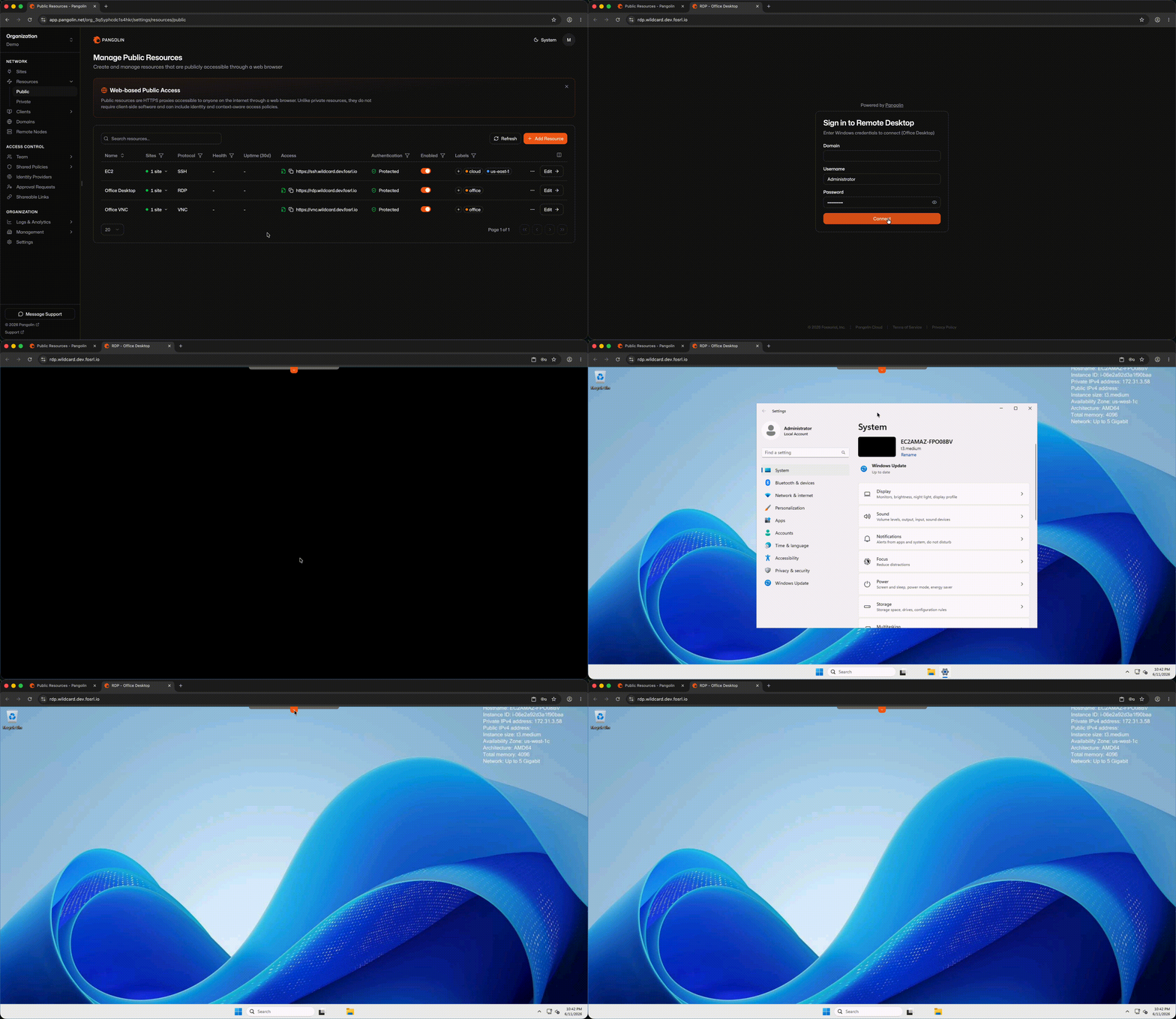 ## Benefits [#benefits]
* Users get a Windows desktop from any browser, with no remote desktop software or Pangolin client to install.
* Port 3389 is never exposed to the internet, which removes a common target for brute-force attacks.
* SSO, identity providers, and access rules sit in front of Windows authentication.
* File transfer and clipboard copy and paste work in the browser session.
## Use Cases [#use-cases]
* Let staff reach their office workstation from home or a personal device.
* Give vendors or support staff time-limited access to a Windows server.
* Reach Windows machines on a factory floor, lab, or branch office behind NAT.
* Use Windows-only line-of-business apps from Mac, Linux, or Chromebook devices.
## Video Walkthrough [#video-walkthrough]
## How It Works [#how-it-works]
1. You assign a FQDN on a domain managed in Pangolin.
2. The user completes [authentication and access rules](/manage/resources/public/authentication) in the browser.
3. Pangolin renders the RDP session and proxies traffic to the Windows host through a site connector.
No Pangolin client is required. Any modern web browser is sufficient.
## Site and Host Configuration [#site-and-host-configuration]
RDP public resources do **not** use [targets](/manage/resources/public/targets). Instead, you:
1. Select which sites can route to the resource.
2. Enter the backend Windows host and RDP port (default `3389`).
Pangolin routes through the site that is online and healthiest, using the same intelligent multi-site routing model as [private resources](/manage/resources/private/multi-site-routing).
## Authentication and Access Rules [#authentication-and-access-rules]
RDP public resources are protocol-aware and support the full set of Pangolin [authentication and access rules](/manage/resources/public/authentication), including platform SSO, identity providers, user/role assignments, and context-based allow/deny rules. You can share these settings across resources with a [resource policy](/manage/resources/public/resource-policies).
RDP session credentials (Windows username and password) are entered in the browser-rendered client after Pangolin authentication succeeds.
---
# VNC (/manage/resources/public/vnc)
> View and control a remote display through a VNC client rendered in the browser
VNC public resources render a full VNC client in the browser. Users visit a FQDN, complete Pangolin authentication, and get an interactive remote display session without installing a VNC viewer.
## Benefits [#benefits]
* Users get a remote display from any browser, with no VNC viewer or Pangolin client to install.
* The VNC server is never exposed to the internet. Pangolin authentication happens before a session can start.
* SSO, identity providers, and access rules protect VNC servers that often have weak or no passwords of their own.
* Works with Linux desktops, macOS screen sharing, and embedded devices that expose a VNC server.
## Use Cases [#use-cases]
* Remotely support a Linux or macOS desktop.
* Reach the display of a kiosk, digital sign, or industrial HMI panel behind NAT.
* Get console access to a virtual machine whose hypervisor exposes VNC.
## How It Works [#how-it-works]
1. You assign a FQDN on a domain managed in Pangolin.
2. The user completes [authentication and access rules](/manage/resources/public/authentication) in the browser.
3. Pangolin renders the VNC session and proxies traffic to the VNC server through a site connector.
No Pangolin client is required.
## Video Walkthrough [#video-walkthrough]
## Site and Host Configuration [#site-and-host-configuration]
VNC public resources do **not** use [targets](/manage/resources/public/targets). Instead, you:
1. Select which sites can route to the resource.
2. Enter the backend VNC server host and port (commonly `5900` or `5900 + display number`).
Pangolin routes through the site that is online and healthiest, using the same intelligent multi-site routing model as [private resources](/manage/resources/private/multi-site-routing).
## Authentication and Access Rules [#authentication-and-access-rules]
VNC public resources are protocol-aware and support the full set of Pangolin [authentication and access rules](/manage/resources/public/authentication), including platform SSO, identity providers, user/role assignments, and context-based allow/deny rules. You can share these settings across resources with a [resource policy](/manage/resources/public/resource-policies).
VNC session credentials (if configured on the VNC server) are entered in the browser-rendered client after Pangolin authentication succeeds.
---
# TCP / UDP (/manage/resources/public/raw-resources)
> Expose raw TCP and UDP services on a Pangolin server port without authentication
TCP and UDP public resources are protocol-agnostic proxies. Unlike HTTP/HTTPS, SSH, RDP, and VNC, they do **not** receive a fully qualified domain name or TLS certificate. Instead, each resource binds to a port on the Pangolin server host. Clients connect to `
## Benefits [#benefits]
* Users get a Windows desktop from any browser, with no remote desktop software or Pangolin client to install.
* Port 3389 is never exposed to the internet, which removes a common target for brute-force attacks.
* SSO, identity providers, and access rules sit in front of Windows authentication.
* File transfer and clipboard copy and paste work in the browser session.
## Use Cases [#use-cases]
* Let staff reach their office workstation from home or a personal device.
* Give vendors or support staff time-limited access to a Windows server.
* Reach Windows machines on a factory floor, lab, or branch office behind NAT.
* Use Windows-only line-of-business apps from Mac, Linux, or Chromebook devices.
## Video Walkthrough [#video-walkthrough]
## How It Works [#how-it-works]
1. You assign a FQDN on a domain managed in Pangolin.
2. The user completes [authentication and access rules](/manage/resources/public/authentication) in the browser.
3. Pangolin renders the RDP session and proxies traffic to the Windows host through a site connector.
No Pangolin client is required. Any modern web browser is sufficient.
## Site and Host Configuration [#site-and-host-configuration]
RDP public resources do **not** use [targets](/manage/resources/public/targets). Instead, you:
1. Select which sites can route to the resource.
2. Enter the backend Windows host and RDP port (default `3389`).
Pangolin routes through the site that is online and healthiest, using the same intelligent multi-site routing model as [private resources](/manage/resources/private/multi-site-routing).
## Authentication and Access Rules [#authentication-and-access-rules]
RDP public resources are protocol-aware and support the full set of Pangolin [authentication and access rules](/manage/resources/public/authentication), including platform SSO, identity providers, user/role assignments, and context-based allow/deny rules. You can share these settings across resources with a [resource policy](/manage/resources/public/resource-policies).
RDP session credentials (Windows username and password) are entered in the browser-rendered client after Pangolin authentication succeeds.
---
# VNC (/manage/resources/public/vnc)
> View and control a remote display through a VNC client rendered in the browser
VNC public resources render a full VNC client in the browser. Users visit a FQDN, complete Pangolin authentication, and get an interactive remote display session without installing a VNC viewer.
## Benefits [#benefits]
* Users get a remote display from any browser, with no VNC viewer or Pangolin client to install.
* The VNC server is never exposed to the internet. Pangolin authentication happens before a session can start.
* SSO, identity providers, and access rules protect VNC servers that often have weak or no passwords of their own.
* Works with Linux desktops, macOS screen sharing, and embedded devices that expose a VNC server.
## Use Cases [#use-cases]
* Remotely support a Linux or macOS desktop.
* Reach the display of a kiosk, digital sign, or industrial HMI panel behind NAT.
* Get console access to a virtual machine whose hypervisor exposes VNC.
## How It Works [#how-it-works]
1. You assign a FQDN on a domain managed in Pangolin.
2. The user completes [authentication and access rules](/manage/resources/public/authentication) in the browser.
3. Pangolin renders the VNC session and proxies traffic to the VNC server through a site connector.
No Pangolin client is required.
## Video Walkthrough [#video-walkthrough]
## Site and Host Configuration [#site-and-host-configuration]
VNC public resources do **not** use [targets](/manage/resources/public/targets). Instead, you:
1. Select which sites can route to the resource.
2. Enter the backend VNC server host and port (commonly `5900` or `5900 + display number`).
Pangolin routes through the site that is online and healthiest, using the same intelligent multi-site routing model as [private resources](/manage/resources/private/multi-site-routing).
## Authentication and Access Rules [#authentication-and-access-rules]
VNC public resources are protocol-aware and support the full set of Pangolin [authentication and access rules](/manage/resources/public/authentication), including platform SSO, identity providers, user/role assignments, and context-based allow/deny rules. You can share these settings across resources with a [resource policy](/manage/resources/public/resource-policies).
VNC session credentials (if configured on the VNC server) are entered in the browser-rendered client after Pangolin authentication succeeds.
---
# TCP / UDP (/manage/resources/public/raw-resources)
> Expose raw TCP and UDP services on a Pangolin server port without authentication
TCP and UDP public resources are protocol-agnostic proxies. Unlike HTTP/HTTPS, SSH, RDP, and VNC, they do **not** receive a fully qualified domain name or TLS certificate. Instead, each resource binds to a port on the Pangolin server host. Clients connect to `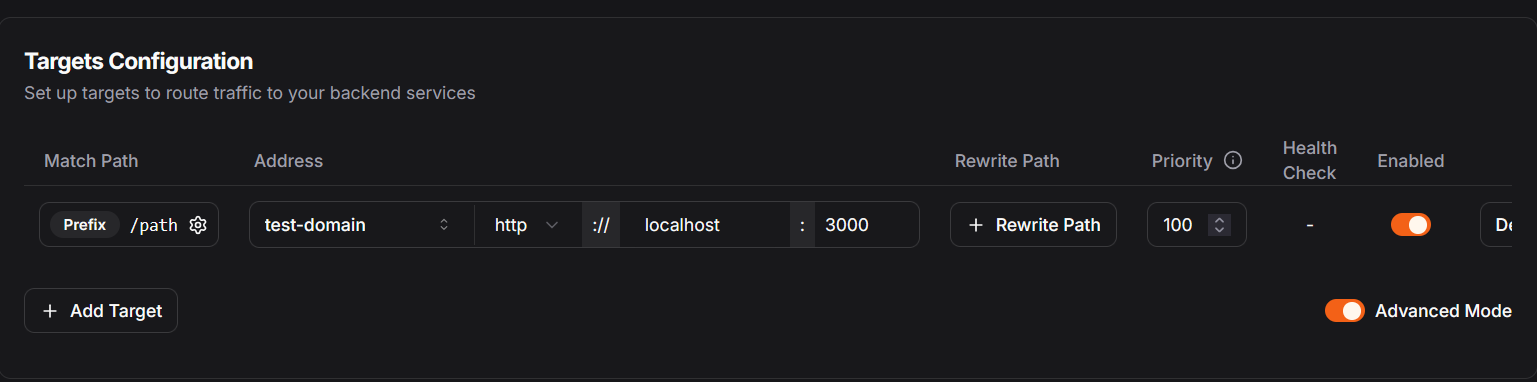 ### Load Balancing with Path-Based Routing [#load-balancing-with-path-based-routing]
When multiple targets have the same path and match configuration, Pangolin load balances between them using the resource [load balancing strategy](#load-balancing-strategy) (default: round robin).
**Example Scenario:**
* Target 1: Path `/api`, Match `prefix`, Address `10.0.1.10:8080`
* Target 2: Path `/api`, Match `prefix`, Address `10.0.1.11:8080`
* Target 3: Path `/web`, Match `prefix`, Address `10.0.1.12:80`
In this configuration:
* Requests to `/api/users` will be load balanced between Target 1 and Target 2
* Requests to `/web/dashboard` will only go to Target 3
## Path Rewriting [#path-rewriting]
Path rewriting allows you to modify the request path before it reaches your backend service. This enables you to expose different URL structures to your users while maintaining your existing backend API paths.
### Load Balancing with Path-Based Routing [#load-balancing-with-path-based-routing]
When multiple targets have the same path and match configuration, Pangolin load balances between them using the resource [load balancing strategy](#load-balancing-strategy) (default: round robin).
**Example Scenario:**
* Target 1: Path `/api`, Match `prefix`, Address `10.0.1.10:8080`
* Target 2: Path `/api`, Match `prefix`, Address `10.0.1.11:8080`
* Target 3: Path `/web`, Match `prefix`, Address `10.0.1.12:80`
In this configuration:
* Requests to `/api/users` will be load balanced between Target 1 and Target 2
* Requests to `/web/dashboard` will only go to Target 3
## Path Rewriting [#path-rewriting]
Path rewriting allows you to modify the request path before it reaches your backend service. This enables you to expose different URL structures to your users while maintaining your existing backend API paths.
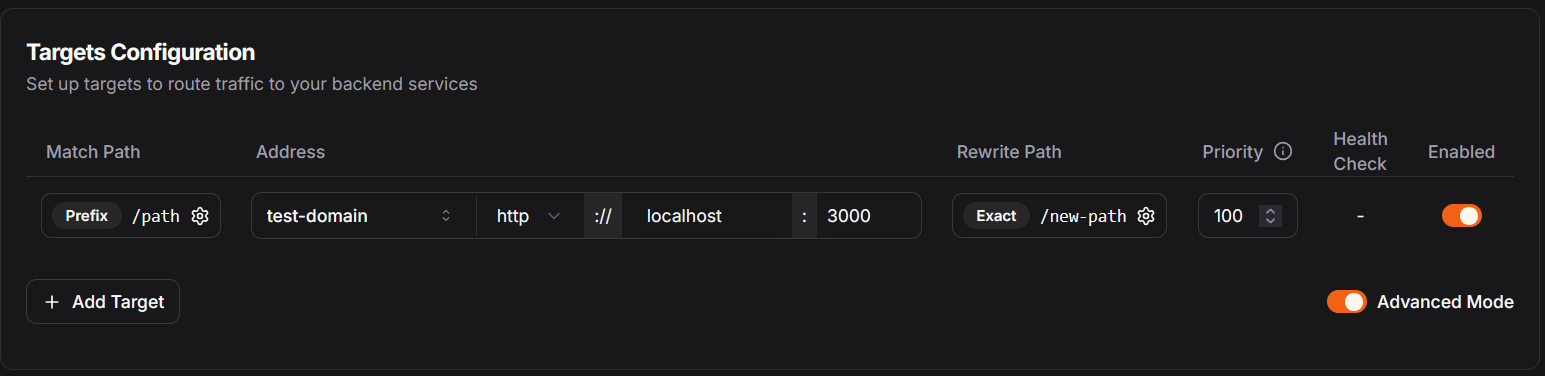 ### Configuration Requirements [#configuration-requirements]
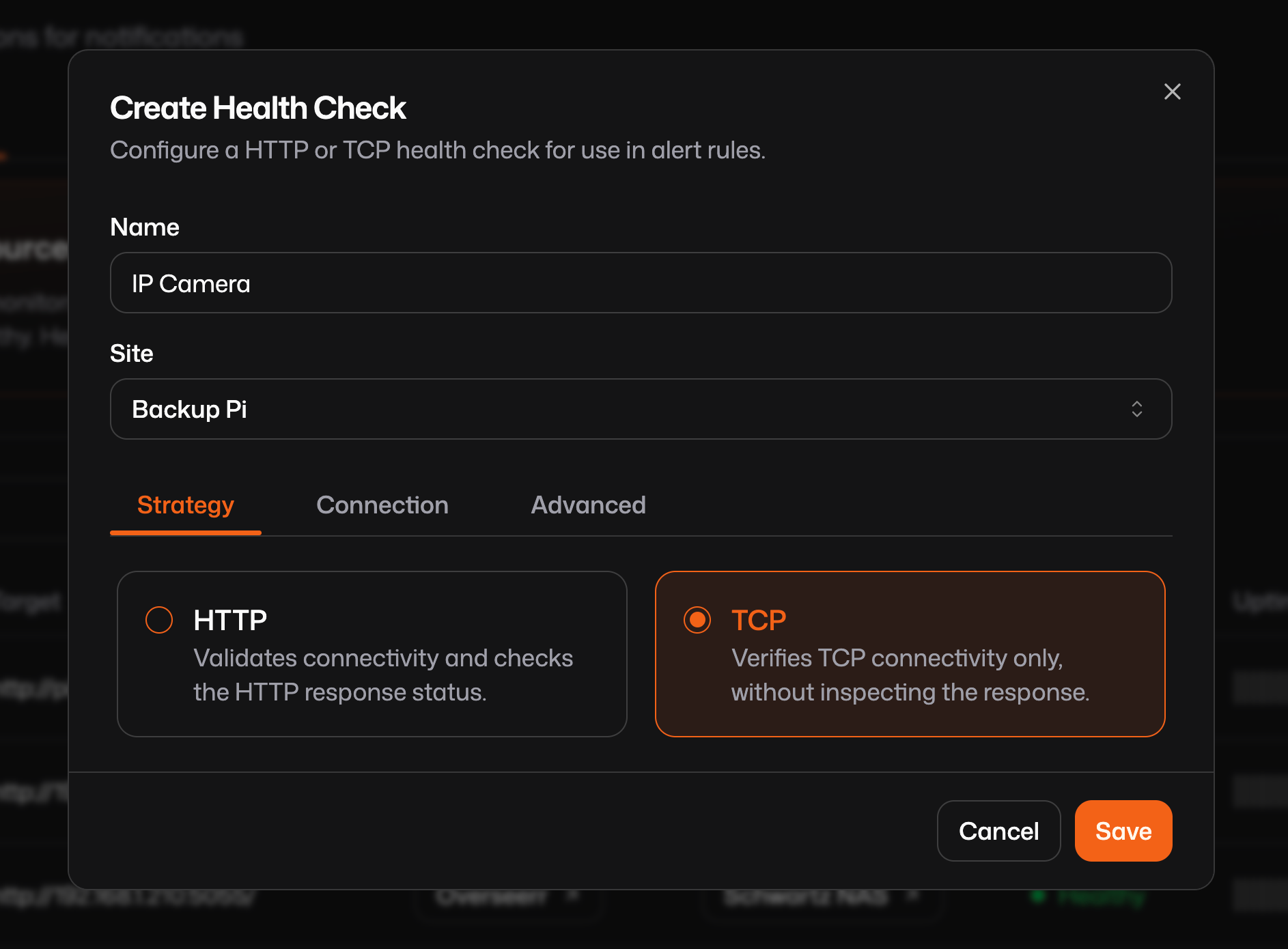 ## Common parameters [#common-parameters]
Some of the most important settings to tune are:
* `healthy interval`: how often Pangolin probes when a target is currently healthy.
* `unhealthy interval`: how often Pangolin probes when a target is currently unhealthy (usually shorter for faster recovery detection).
* `healthy threshold`: how many consecutive successful checks are required before marking a target healthy again.
* `unhealthy threshold`: how many consecutive failed checks are required before marking a target unhealthy.
* `timeout`: maximum time a probe can take before it is treated as failed.
* HTTP-specific fields: probe scheme (`http`/`https`), path, method, headers, and expected status codes.
Use intervals and thresholds together to avoid flapping: short transient blips should not immediately eject a target, and recovery should be confirmed before re-entry.
## Common parameters [#common-parameters]
Some of the most important settings to tune are:
* `healthy interval`: how often Pangolin probes when a target is currently healthy.
* `unhealthy interval`: how often Pangolin probes when a target is currently unhealthy (usually shorter for faster recovery detection).
* `healthy threshold`: how many consecutive successful checks are required before marking a target healthy again.
* `unhealthy threshold`: how many consecutive failed checks are required before marking a target unhealthy.
* `timeout`: maximum time a probe can take before it is treated as failed.
* HTTP-specific fields: probe scheme (`http`/`https`), path, method, headers, and expected status codes.
Use intervals and thresholds together to avoid flapping: short transient blips should not immediately eject a target, and recovery should be confirmed before re-entry.
 ## Benefits [#benefits]
* Users see a clear message you write instead of a gateway error when a resource is down.
* An estimated completion time sets expectations and cuts down on support requests.
* Automatic mode covers unplanned outages without anyone having to switch it on.
## Use Cases [#use-cases]
* Announce a planned maintenance window for an app or API.
* Tell users a service is temporarily unavailable when every target fails its health check.
* Hold a page in place while you migrate a resource to new servers.
## Configuration [#configuration]
Title: The main title text displayed on the maintenance page.
Message: A descriptive message informing users about the maintenance status.
Estimated completion time: Optionally provide an estimated time for when the resource will be back online.
## Enabling Maintenance Page [#enabling-maintenance-page]
To enable the maintenance page for a resource, navigate to the general resource settings in the Pangolin dashboard. Under the "Maintenance Page" section, you can customize the title, message, and estimated completion time. This can also be set using Blueprints.
## When is the Maintenance Page Shown? [#when-is-the-maintenance-page-shown]
There are two modes that control when the page is shown:
#### Forced [#forced]
In forced mode, the maintenance page is displayed to all users regardless of the health status of the resource targets. This is useful for planned maintenance windows.
#### Automatic [#automatic]
In automatic mode, the maintenance page is shown only when all targets associated with the resource are unhealthy or all of the sites are offline. This is useful for unplanned outages and can be used to inform the user that the resource is temporarily unavailable by customizing the above settings.
## Remote Nodes [#remote-nodes]
Maintenance pages do not work on remote nodes at this time.
---
# Host (/manage/resources/private/host)
> Route client traffic to a single IP address or FQDN on the remote network
A host private resource exposes a single machine on your remote network to connected Pangolin clients. When a user connects with the Pangolin client and has access to the resource, traffic destined for that host is carried over the tunnel to the site, which delivers it on the remote network.
Host resources are the most common private resource type. They do not render in a browser—you use native applications (a database client, `curl`, an RDP client, etc.) against the destination address while the Pangolin client is connected.
## Benefits [#benefits]
* Nothing is exposed to the public internet. The host is only reachable by clients that are connected and granted access.
* Access is scoped to a single machine, not the whole network behind the site, so users only reach what they need.
* Any TCP or UDP protocol works, and you can narrow it to specific ports with port restrictions.
* An alias gives users a stable, memorable name for the host without any external DNS records.
* Attaching several sites gives the host redundant paths with automatic failover.
## Use Cases [#use-cases]
* Connect to a database such as PostgreSQL or MySQL with your usual client, without opening its port to the internet.
* Reach an internal API, admin panel, or dashboard from a laptop on any network.
* Use a native RDP, SSH, or VNC client against a single server.
* Reach a service that only listens on the site host's loopback interface, through an alias.
* Give a machine client, such as a CI runner, access to one build server or artifact store.
## How Host Resources Work [#how-host-resources-work]
When a user with access connects, the Pangolin client starts routing traffic for the host over the encrypted tunnel. That covers the destination address and, if the resource has one, its alias, which the client resolves through Pangolin. A site attached to the resource receives the traffic and sends it to the destination on its local network. Responses come back the same way.
The site resolves the destination, so an FQDN only needs to resolve from the site's network, not from the user's device. Traffic to any other address stays on the user's normal network path, since the client only routes resources the user has access to.
## Destination [#destination]
Every host resource has a [destination](/manage/resources/private/destinations): a single IP address or fully qualified domain name (FQDN).
| Destination type | Example | When to use |
| ---------------- | -------------------- | --------------------------------------------------- |
| IP address | `10.1.0.35` | A host with a stable IP on the remote network |
| FQDN | `db.autoco.internal` | A host identified by DNS that may change IP |
| Loopback | `127.0.0.1` | A service running on the site connector host itself |
### Loopback on the Site Host [#loopback-on-the-site-host]
If the service runs on the same machine as the site connector, set the destination to `127.0.0.1` or `localhost`. On the user's machine, `localhost` always refers to their own computer—not the remote site. You must add an [alias](/manage/resources/private/alias) (for example `metrics.site-internal.example`) so users connect to a name that Pangolin resolves over the tunnel.
## Port Restrictions [#port-restrictions]
By default, all TCP and UDP ports on the destination are reachable. Tighten access with [port restrictions](/manage/resources/private/port-restrictions) to allow only the ports your application needs.
## Multi-Site Routing [#multi-site-routing]
Attach multiple sites to a host resource when the same destination is reachable from more than one connector. Pangolin [routes traffic through the best available site](/manage/resources/private/multi-site-routing) and fails over automatically when a site goes offline.
## Aliases [#aliases]
Optionally assign an [alias](/manage/resources/private/alias) so users connect with a memorable hostname instead of a raw IP. Aliases are required for loopback destinations and recommended when the same IP exists on overlapping networks across sites.
---
# CIDR (/manage/resources/private/cidr)
> Route client traffic to an entire IP range on the remote network
A CIDR private resource exposes an entire IP range on your remote network to connected Pangolin clients. When a user connects with the Pangolin client and has access to the resource, the client installs a route for that prefix and all traffic to addresses within the range is carried over the tunnel.
CIDR resources are the usual choice for whole subnets or network segments instead of creating a separate host resource for every machine.
## Benefits [#benefits]
* One resource covers a whole subnet, so you don't have to create a resource for every machine.
* Hosts added to the range later are reachable right away, with no change in Pangolin.
* Access is still granted per user, role, or machine client, and port restrictions apply to the whole range.
* Attaching several sites that reach the same range gives redundant paths with automatic failover.
* CIDR resources are the building block for [subnet routers](/manage/clients/subnet-router), which give devices that can't run the client access to Pangolin resources.
## Use Cases [#use-cases]
* Give IT or operations staff access to a full office or data center LAN.
* Reach a cloud VPC, such as an AWS VPC or Azure VNet, through a site running inside it.
* Manage a range of network equipment, IP cameras, or industrial devices on a dedicated subnet.
* Let a team reach a lab or staging network where machines change often.
* Restrict a range to a single protocol, such as HTTPS on port `443`, across every host in it.
## How CIDR Resources Work [#how-cidr-resources-work]
When a user with access connects, the Pangolin client installs a route for the whole prefix. Any traffic to an address in that range goes over the encrypted tunnel to a site attached to the resource, and the site forwards it to the matching host on its network.
The client only routes the prefixes a user has access to, so traffic to other addresses, including the public internet, stays on the device's normal network path. When a host resource and a CIDR resource overlap, the client prefers the more specific route.
## Destination [#destination]
A CIDR resource destination is an IP range in CIDR notation—for example `10.1.0.0/16`. Any address inside the range is covered for users who have been granted access.
The site connector must have routable access to the entire prefix. Confirm from the site's network that it can reach hosts across the range before creating the resource.
## Port Restrictions [#port-restrictions]
[Port restrictions](/manage/resources/private/port-restrictions) apply to the entire CIDR range. Use Custom mode to allow only specific ports (for example `443` for HTTPS workloads across the subnet) or Blocked to disable a protocol entirely.
## Multi-Site Routing [#multi-site-routing]
When the same CIDR is reachable from multiple site connectors, attach all applicable sites. Pangolin [routes through the best available path](/manage/resources/private/multi-site-routing) and fails over when a site goes offline.
## Benefits [#benefits]
* Users see a clear message you write instead of a gateway error when a resource is down.
* An estimated completion time sets expectations and cuts down on support requests.
* Automatic mode covers unplanned outages without anyone having to switch it on.
## Use Cases [#use-cases]
* Announce a planned maintenance window for an app or API.
* Tell users a service is temporarily unavailable when every target fails its health check.
* Hold a page in place while you migrate a resource to new servers.
## Configuration [#configuration]
Title: The main title text displayed on the maintenance page.
Message: A descriptive message informing users about the maintenance status.
Estimated completion time: Optionally provide an estimated time for when the resource will be back online.
## Enabling Maintenance Page [#enabling-maintenance-page]
To enable the maintenance page for a resource, navigate to the general resource settings in the Pangolin dashboard. Under the "Maintenance Page" section, you can customize the title, message, and estimated completion time. This can also be set using Blueprints.
## When is the Maintenance Page Shown? [#when-is-the-maintenance-page-shown]
There are two modes that control when the page is shown:
#### Forced [#forced]
In forced mode, the maintenance page is displayed to all users regardless of the health status of the resource targets. This is useful for planned maintenance windows.
#### Automatic [#automatic]
In automatic mode, the maintenance page is shown only when all targets associated with the resource are unhealthy or all of the sites are offline. This is useful for unplanned outages and can be used to inform the user that the resource is temporarily unavailable by customizing the above settings.
## Remote Nodes [#remote-nodes]
Maintenance pages do not work on remote nodes at this time.
---
# Host (/manage/resources/private/host)
> Route client traffic to a single IP address or FQDN on the remote network
A host private resource exposes a single machine on your remote network to connected Pangolin clients. When a user connects with the Pangolin client and has access to the resource, traffic destined for that host is carried over the tunnel to the site, which delivers it on the remote network.
Host resources are the most common private resource type. They do not render in a browser—you use native applications (a database client, `curl`, an RDP client, etc.) against the destination address while the Pangolin client is connected.
## Benefits [#benefits]
* Nothing is exposed to the public internet. The host is only reachable by clients that are connected and granted access.
* Access is scoped to a single machine, not the whole network behind the site, so users only reach what they need.
* Any TCP or UDP protocol works, and you can narrow it to specific ports with port restrictions.
* An alias gives users a stable, memorable name for the host without any external DNS records.
* Attaching several sites gives the host redundant paths with automatic failover.
## Use Cases [#use-cases]
* Connect to a database such as PostgreSQL or MySQL with your usual client, without opening its port to the internet.
* Reach an internal API, admin panel, or dashboard from a laptop on any network.
* Use a native RDP, SSH, or VNC client against a single server.
* Reach a service that only listens on the site host's loopback interface, through an alias.
* Give a machine client, such as a CI runner, access to one build server or artifact store.
## How Host Resources Work [#how-host-resources-work]
When a user with access connects, the Pangolin client starts routing traffic for the host over the encrypted tunnel. That covers the destination address and, if the resource has one, its alias, which the client resolves through Pangolin. A site attached to the resource receives the traffic and sends it to the destination on its local network. Responses come back the same way.
The site resolves the destination, so an FQDN only needs to resolve from the site's network, not from the user's device. Traffic to any other address stays on the user's normal network path, since the client only routes resources the user has access to.
## Destination [#destination]
Every host resource has a [destination](/manage/resources/private/destinations): a single IP address or fully qualified domain name (FQDN).
| Destination type | Example | When to use |
| ---------------- | -------------------- | --------------------------------------------------- |
| IP address | `10.1.0.35` | A host with a stable IP on the remote network |
| FQDN | `db.autoco.internal` | A host identified by DNS that may change IP |
| Loopback | `127.0.0.1` | A service running on the site connector host itself |
### Loopback on the Site Host [#loopback-on-the-site-host]
If the service runs on the same machine as the site connector, set the destination to `127.0.0.1` or `localhost`. On the user's machine, `localhost` always refers to their own computer—not the remote site. You must add an [alias](/manage/resources/private/alias) (for example `metrics.site-internal.example`) so users connect to a name that Pangolin resolves over the tunnel.
## Port Restrictions [#port-restrictions]
By default, all TCP and UDP ports on the destination are reachable. Tighten access with [port restrictions](/manage/resources/private/port-restrictions) to allow only the ports your application needs.
## Multi-Site Routing [#multi-site-routing]
Attach multiple sites to a host resource when the same destination is reachable from more than one connector. Pangolin [routes traffic through the best available site](/manage/resources/private/multi-site-routing) and fails over automatically when a site goes offline.
## Aliases [#aliases]
Optionally assign an [alias](/manage/resources/private/alias) so users connect with a memorable hostname instead of a raw IP. Aliases are required for loopback destinations and recommended when the same IP exists on overlapping networks across sites.
---
# CIDR (/manage/resources/private/cidr)
> Route client traffic to an entire IP range on the remote network
A CIDR private resource exposes an entire IP range on your remote network to connected Pangolin clients. When a user connects with the Pangolin client and has access to the resource, the client installs a route for that prefix and all traffic to addresses within the range is carried over the tunnel.
CIDR resources are the usual choice for whole subnets or network segments instead of creating a separate host resource for every machine.
## Benefits [#benefits]
* One resource covers a whole subnet, so you don't have to create a resource for every machine.
* Hosts added to the range later are reachable right away, with no change in Pangolin.
* Access is still granted per user, role, or machine client, and port restrictions apply to the whole range.
* Attaching several sites that reach the same range gives redundant paths with automatic failover.
* CIDR resources are the building block for [subnet routers](/manage/clients/subnet-router), which give devices that can't run the client access to Pangolin resources.
## Use Cases [#use-cases]
* Give IT or operations staff access to a full office or data center LAN.
* Reach a cloud VPC, such as an AWS VPC or Azure VNet, through a site running inside it.
* Manage a range of network equipment, IP cameras, or industrial devices on a dedicated subnet.
* Let a team reach a lab or staging network where machines change often.
* Restrict a range to a single protocol, such as HTTPS on port `443`, across every host in it.
## How CIDR Resources Work [#how-cidr-resources-work]
When a user with access connects, the Pangolin client installs a route for the whole prefix. Any traffic to an address in that range goes over the encrypted tunnel to a site attached to the resource, and the site forwards it to the matching host on its network.
The client only routes the prefixes a user has access to, so traffic to other addresses, including the public internet, stays on the device's normal network path. When a host resource and a CIDR resource overlap, the client prefers the more specific route.
## Destination [#destination]
A CIDR resource destination is an IP range in CIDR notation—for example `10.1.0.0/16`. Any address inside the range is covered for users who have been granted access.
The site connector must have routable access to the entire prefix. Confirm from the site's network that it can reach hosts across the range before creating the resource.
## Port Restrictions [#port-restrictions]
[Port restrictions](/manage/resources/private/port-restrictions) apply to the entire CIDR range. Use Custom mode to allow only specific ports (for example `443` for HTTPS workloads across the subnet) or Blocked to disable a protocol entirely.
## Multi-Site Routing [#multi-site-routing]
When the same CIDR is reachable from multiple site connectors, attach all applicable sites. Pangolin [routes through the best available path](/manage/resources/private/multi-site-routing) and fails over when a site goes offline.
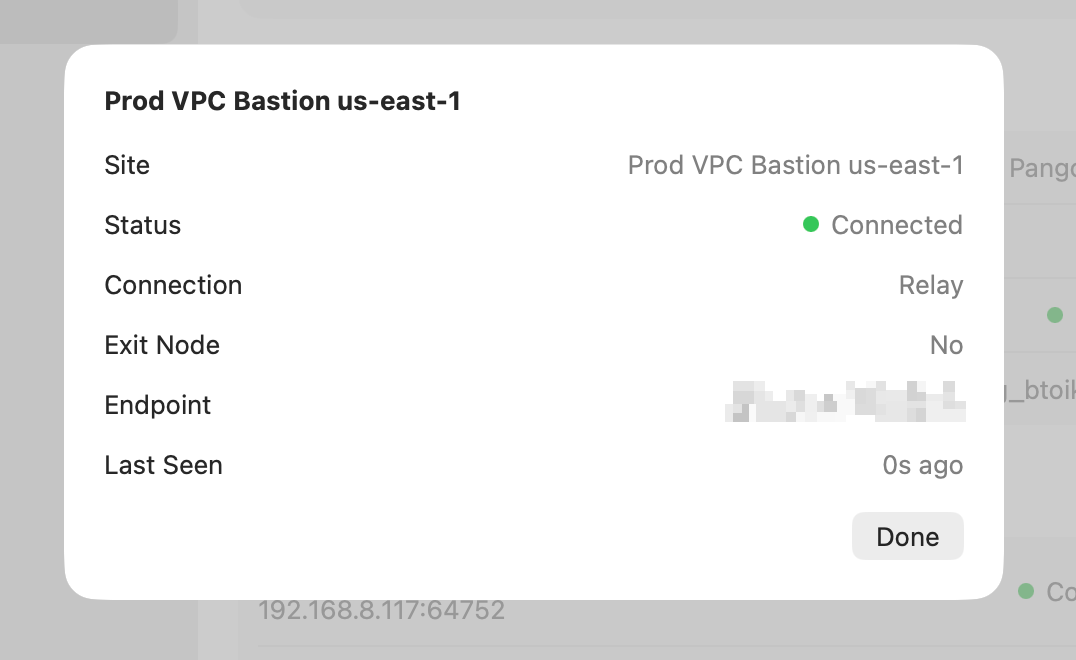 In this example, **Prod VPC Bastion us-east-1** is connected through the relay.
### CLI [#cli]
On Linux or when using [Pangolin CLI](/manage/clients/platforms/cli), run `pangolin status`. The **CONNECTION** column shows the same value for each site:
```bash
pangolin status
AGENT VERSION STATUS ORG
Pangolin CLI 0.10.1 Connected org_example123
SITE ENDPOINT STATUS LAST SEEN CONNECTION
Office Network 203.0.113.10:51820 Connected 1s ago Direct
Remote Lab 198.51.100.5:21820 Connected 1s ago Relay
Worklab Lab 192.168.1.33:23423 Connected 1s ago Local
```
Use either view when troubleshooting hole punching or verifying that configuration changes took effect.
## Improve Hole Punching Reliability [#improve-hole-punching-reliability]
Pangolin Sites support NAT traversal so clients can connect directly without relaying through the Pangolin server, improving performance and reducing latency.
In some environments, depending on the NAT type and firewall, you may need to tweak settings to get optimal connectivity in the firewall itself. See [Firewall Integrations](/manage/clients/firewalls) for Pangolin-specific guidance for common platforms.
Another option is to keep the Pangolin Site listening for client connections on a static port. This allows you to open a specific port in your firewall for Pangolin Site client connections instead of random high ports. You can do this by setting the `--port` flag or `PORT` environment variable and then opening this port in your firewall to DNAT to the Pangolin Site. See [Configure Sites](/manage/sites/configure-site) for the full list of Pangolin Site flags and environment variables.
## FAQ [#faq]
In this example, **Prod VPC Bastion us-east-1** is connected through the relay.
### CLI [#cli]
On Linux or when using [Pangolin CLI](/manage/clients/platforms/cli), run `pangolin status`. The **CONNECTION** column shows the same value for each site:
```bash
pangolin status
AGENT VERSION STATUS ORG
Pangolin CLI 0.10.1 Connected org_example123
SITE ENDPOINT STATUS LAST SEEN CONNECTION
Office Network 203.0.113.10:51820 Connected 1s ago Direct
Remote Lab 198.51.100.5:21820 Connected 1s ago Relay
Worklab Lab 192.168.1.33:23423 Connected 1s ago Local
```
Use either view when troubleshooting hole punching or verifying that configuration changes took effect.
## Improve Hole Punching Reliability [#improve-hole-punching-reliability]
Pangolin Sites support NAT traversal so clients can connect directly without relaying through the Pangolin server, improving performance and reducing latency.
In some environments, depending on the NAT type and firewall, you may need to tweak settings to get optimal connectivity in the firewall itself. See [Firewall Integrations](/manage/clients/firewalls) for Pangolin-specific guidance for common platforms.
Another option is to keep the Pangolin Site listening for client connections on a static port. This allows you to open a specific port in your firewall for Pangolin Site client connections instead of random high ports. You can do this by setting the `--port` flag or `PORT` environment variable and then opening this port in your firewall to DNAT to the Pangolin Site. See [Configure Sites](/manage/sites/configure-site) for the full list of Pangolin Site flags and environment variables.
## FAQ [#faq]
 ## Install [#install]
* [Pangolin for Windows Installer](https://pangolin.net/downloads/windows) - This is the official page to download the latest installer file for Windows.
* [All Versions](https://github.com/fosrl/windows/releases) - The releases section of this repository contains release notes and download artifacts for the latest version and all older versions.
### Installation Steps [#installation-steps]
1. **Download and install the Pangolin client**
Download and install the Pangolin client using the official .msi installer from the download button above.
2. **Launch Pangolin**
Open Pangolin from the Start menu or the shortcut on your Desktop.
3. **Log in with your Pangolin account**
Log in on your Pangolin Cloud account or your self-hosted Pangolin instance.
* Click the Pangolin icon in the task bar's system tray and select Log in.
## Companion Mode [#companion-mode]
Companion mode lets [Pangolin CLI](/manage/clients/platforms/cli) use this app's login and tunnel. Sign in and connect here, then run CLI commands as that same account. You do not run `pangolin login` again.
Companion mode is available on Windows only. It requires Pangolin for Windows 0.11.0 or later, and it is on by default once the CLI is installed.
1. Log in with the Windows client and connect.
2. Install Pangolin CLI if it is not already installed. From the Pangolin menu bar, choose **Install Pangolin CLI**, or follow the [CLI install steps](/manage/clients/platforms/cli).
3. Run CLI commands in a terminal. For example, open SSH to a [private SSH resource](/manage/resources/private/ssh):
```bash
pangolin ssh username@alias
```
The CLI follows the account, organization, and exit node selected in the desktop app. Change those in the app. While companion mode is on, `pangolin login`, `pangolin logout`, and `pangolin select` for account, organization, or exit node are blocked.
The desktop app has to be open and logged in. If it is not, the CLI asks you to start Pangolin and log in.
Commands to check status or turn companion mode off are on the [CLI companion mode section](/manage/clients/platforms/cli#companion-mode).
## Configure [#configure]
## Install [#install]
* [Pangolin for Windows Installer](https://pangolin.net/downloads/windows) - This is the official page to download the latest installer file for Windows.
* [All Versions](https://github.com/fosrl/windows/releases) - The releases section of this repository contains release notes and download artifacts for the latest version and all older versions.
### Installation Steps [#installation-steps]
1. **Download and install the Pangolin client**
Download and install the Pangolin client using the official .msi installer from the download button above.
2. **Launch Pangolin**
Open Pangolin from the Start menu or the shortcut on your Desktop.
3. **Log in with your Pangolin account**
Log in on your Pangolin Cloud account or your self-hosted Pangolin instance.
* Click the Pangolin icon in the task bar's system tray and select Log in.
## Companion Mode [#companion-mode]
Companion mode lets [Pangolin CLI](/manage/clients/platforms/cli) use this app's login and tunnel. Sign in and connect here, then run CLI commands as that same account. You do not run `pangolin login` again.
Companion mode is available on Windows only. It requires Pangolin for Windows 0.11.0 or later, and it is on by default once the CLI is installed.
1. Log in with the Windows client and connect.
2. Install Pangolin CLI if it is not already installed. From the Pangolin menu bar, choose **Install Pangolin CLI**, or follow the [CLI install steps](/manage/clients/platforms/cli).
3. Run CLI commands in a terminal. For example, open SSH to a [private SSH resource](/manage/resources/private/ssh):
```bash
pangolin ssh username@alias
```
The CLI follows the account, organization, and exit node selected in the desktop app. Change those in the app. While companion mode is on, `pangolin login`, `pangolin logout`, and `pangolin select` for account, organization, or exit node are blocked.
The desktop app has to be open and logged in. If it is not, the CLI asks you to start Pangolin and log in.
Commands to check status or turn companion mode off are on the [CLI companion mode section](/manage/clients/platforms/cli#companion-mode).
## Configure [#configure]
 ## Install [#install]
* [Pangolin for macOS Installer](https://pangolin.net/downloads/mac) - This is the official page to download the latest installer file for macOS.
* [All Versions](https://github.com/fosrl/apple/releases) - The releases section of this repository contains release notes and download artifacts for the latest version and all older versions.
### Installation Steps [#installation-steps]
1. **Download and install the Pangolin client**
Download and install the Pangolin client using the official .dmg installer from the download button above.
* Open the downloaded .dmg file
* Drag and drop Pangolin.app into your Applications folder
2. **Launch Pangolin**
Open Pangolin from your Applications folder.
3. **Install the VPN configuration**
Follow the Pangolin onboarding flow, which will guide you to install the Pangolin VPN configuration.
* Select Open System Settings on startup when it asks to install a network extension.
* In System Settings, under General > Login Items & Extension > By Category > Network Extensions, ensure that Pangolin.app is toggled on.
* Select Allow when Pangolin asks to add a VPN configuration.
4. **Log in with your Pangolin account**
Log in on your Pangolin Cloud account or your self-hosted Pangolin instance.
* Click the Pangolin icon in the menu bar and select Log in.
## Configure [#configure]
## Install [#install]
* [Pangolin for macOS Installer](https://pangolin.net/downloads/mac) - This is the official page to download the latest installer file for macOS.
* [All Versions](https://github.com/fosrl/apple/releases) - The releases section of this repository contains release notes and download artifacts for the latest version and all older versions.
### Installation Steps [#installation-steps]
1. **Download and install the Pangolin client**
Download and install the Pangolin client using the official .dmg installer from the download button above.
* Open the downloaded .dmg file
* Drag and drop Pangolin.app into your Applications folder
2. **Launch Pangolin**
Open Pangolin from your Applications folder.
3. **Install the VPN configuration**
Follow the Pangolin onboarding flow, which will guide you to install the Pangolin VPN configuration.
* Select Open System Settings on startup when it asks to install a network extension.
* In System Settings, under General > Login Items & Extension > By Category > Network Extensions, ensure that Pangolin.app is toggled on.
* Select Allow when Pangolin asks to add a VPN configuration.
4. **Log in with your Pangolin account**
Log in on your Pangolin Cloud account or your self-hosted Pangolin instance.
* Click the Pangolin icon in the menu bar and select Log in.
## Configure [#configure]
 ## Install [#install]
* [Pangolin on the App Store](https://apps.apple.com/us/app/pangolin-client/id6757407406) - This is the official page to download the latest Pangolin app for iOS and iPadOS.
### Installation Steps [#installation-steps]
1. **Download and install the Pangolin app**
Download and install the Pangolin app from the App Store using the link above.
2. **Launch Pangolin**
Open the Pangolin app from your home screen.
3. **Install the VPN configuration**
When prompted, allow Pangolin to add VPN configurations to your device.
You may be asked to enter your device passcode or use Face ID/Touch ID to authorize the VPN configuration.
4. **Log in with your Pangolin account**
Log in on your Pangolin Cloud account or your self-hosted Pangolin instance.
5. **Connect to Pangolin**
Tap the Connect button to establish a VPN connection.
## Configure [#configure]
## Install [#install]
* [Pangolin on the App Store](https://apps.apple.com/us/app/pangolin-client/id6757407406) - This is the official page to download the latest Pangolin app for iOS and iPadOS.
### Installation Steps [#installation-steps]
1. **Download and install the Pangolin app**
Download and install the Pangolin app from the App Store using the link above.
2. **Launch Pangolin**
Open the Pangolin app from your home screen.
3. **Install the VPN configuration**
When prompted, allow Pangolin to add VPN configurations to your device.
You may be asked to enter your device passcode or use Face ID/Touch ID to authorize the VPN configuration.
4. **Log in with your Pangolin account**
Log in on your Pangolin Cloud account or your self-hosted Pangolin instance.
5. **Connect to Pangolin**
Tap the Connect button to establish a VPN connection.
## Configure [#configure]
 ## Install [#install]
* [Pangolin on Google Play](https://play.google.com/store/apps/details?id=net.pangolin.Pangolin) - This is the official page to download the latest Pangolin app for Android devices.
* [All Versions](https://github.com/fosrl/android/releases) - The releases section of this repository contains release notes and download artifacts for the latest version and all older versions.
### Installation Steps [#installation-steps]
1. **Download and install the Pangolin app**
Download and install the Pangolin app from the Google Play Store using the link above.
2. **Launch Pangolin**
Open the Pangolin app from your app drawer or home screen.
3. **Log in with your Pangolin account**
Log in on your Pangolin Cloud account or your self-hosted Pangolin instance.
4. **Connect to Pangolin**
Tap the Connect button to establish a VPN connection. On the first connection, you may be prompted to allow the VPN connection.
## Configure [#configure]
## Install [#install]
* [Pangolin on Google Play](https://play.google.com/store/apps/details?id=net.pangolin.Pangolin) - This is the official page to download the latest Pangolin app for Android devices.
* [All Versions](https://github.com/fosrl/android/releases) - The releases section of this repository contains release notes and download artifacts for the latest version and all older versions.
### Installation Steps [#installation-steps]
1. **Download and install the Pangolin app**
Download and install the Pangolin app from the Google Play Store using the link above.
2. **Launch Pangolin**
Open the Pangolin app from your app drawer or home screen.
3. **Log in with your Pangolin account**
Log in on your Pangolin Cloud account or your self-hosted Pangolin instance.
4. **Connect to Pangolin**
Tap the Connect button to establish a VPN connection. On the first connection, you may be prompted to allow the VPN connection.
## Configure [#configure]
 ### Show Persistent VPN Notification [#show-persistent-vpn-notification]
When enabled, Pangolin keeps a status notification while connected. A temporary notification may still appear when connecting or recovering. Android's own VPN indicators are unaffected.
Leaving this on makes it less likely that Android will stop the connection while the app is in the background.
### Enable Log Collection [#enable-log-collection]
When enabled, tunnel logs are saved to a file that can be downloaded for troubleshooting. See [Client Logs](/manage/clients/client-logs).
### Battery Optimization [#battery-optimization]
To ensure Pangolin functions correctly in the background on Android devices, it's recommended to disable battery optimization for the app. This prevents the operating system from restricting its background activities, which could lead to disconnections.
1. Open the **Settings** app on your Android device.
2. Navigate to **Apps & notifications** (or simply **Apps** on some devices).
3. Find and select the Pangolin app from the list of installed apps.
4. Tap on **App battery usage**.
5. Select **Allow background usage** and enable if disabled.
6. From the options menu, choose **Unrestricted**.
### Show Persistent VPN Notification [#show-persistent-vpn-notification]
When enabled, Pangolin keeps a status notification while connected. A temporary notification may still appear when connecting or recovering. Android's own VPN indicators are unaffected.
Leaving this on makes it less likely that Android will stop the connection while the app is in the background.
### Enable Log Collection [#enable-log-collection]
When enabled, tunnel logs are saved to a file that can be downloaded for troubleshooting. See [Client Logs](/manage/clients/client-logs).
### Battery Optimization [#battery-optimization]
To ensure Pangolin functions correctly in the background on Android devices, it's recommended to disable battery optimization for the app. This prevents the operating system from restricting its background activities, which could lead to disconnections.
1. Open the **Settings** app on your Android device.
2. Navigate to **Apps & notifications** (or simply **Apps** on some devices).
3. Find and select the Pangolin app from the list of installed apps.
4. Tap on **App battery usage**.
5. Select **Allow background usage** and enable if disabled.
6. From the options menu, choose **Unrestricted**.
 ## Update [#update]
Updates are delivered through the Google Play Store. Release notes and older builds are in the [GitHub releases](https://github.com/fosrl/android/releases).
---
# Pangolin CLI (/manage/clients/platforms/cli)
> Install, configure, and update Pangolin CLI on Linux, macOS, and Windows
Pangolin CLI is the recommended way to run a client using a command line interface on Mac and Linux.
Pangolin CLI can run on Windows, but the CLI VPN functionality is not supported. With [companion mode](#companion-mode), connect in the Windows app and use the CLI for commands such as SSH, on the same account, without a second login.
Pangolin CLI supports running as a user device with authentication or a machine client.
The CLI stores its own defaults in a config file.
Refer to the [documentation in the official repository](https://github.com/fosrl/cli/blob/main/docs/pangolin.md) for the available commands, default values, and more.
## Install [#install]
Use this command to automatically install Pangolin CLI. It detects your system architecture automatically and always pulls the latest version, adding `pangolin` to your PATH:
```bash
curl -fsSL https://static.pangolin.net/get-cli.sh | bash
```
On Windows, [download the latest installer](https://github.com/fosrl/cli/releases/latest/download/pangolin-cli_windows_installer.msi), or choose to install the CLI from menu bar of the desktop app by choosing the "Install Pangolin CLI" option.
Binaries for all platforms are available in the [GitHub releases](https://github.com/fosrl/cli/releases) for ARM and AMD64 (x86\_64) architectures.
### Installation Steps [#installation-steps]
1. **Download and install the Pangolin client**
Install Pangolin using the installation script:
```bash
curl -fsSL https://static.pangolin.net/get-cli.sh | bash
```
2. **Log in with your Pangolin account**
Log in on your Pangolin Cloud account or your self-hosted Pangolin instance:
```bash
pangolin login
```
3. **Start Pangolin**
When logged in as a Pangolin user, connect by running:
```bash
pangolin up
```
To launch a machine client without logging in, use your client credentials:
```bash
pangolin up --id {client_id} --secret {client_secret} --endpoint {endpoint_url} --attach
```
## Update [#update]
Updates are delivered through the Google Play Store. Release notes and older builds are in the [GitHub releases](https://github.com/fosrl/android/releases).
---
# Pangolin CLI (/manage/clients/platforms/cli)
> Install, configure, and update Pangolin CLI on Linux, macOS, and Windows
Pangolin CLI is the recommended way to run a client using a command line interface on Mac and Linux.
Pangolin CLI can run on Windows, but the CLI VPN functionality is not supported. With [companion mode](#companion-mode), connect in the Windows app and use the CLI for commands such as SSH, on the same account, without a second login.
Pangolin CLI supports running as a user device with authentication or a machine client.
The CLI stores its own defaults in a config file.
Refer to the [documentation in the official repository](https://github.com/fosrl/cli/blob/main/docs/pangolin.md) for the available commands, default values, and more.
## Install [#install]
Use this command to automatically install Pangolin CLI. It detects your system architecture automatically and always pulls the latest version, adding `pangolin` to your PATH:
```bash
curl -fsSL https://static.pangolin.net/get-cli.sh | bash
```
On Windows, [download the latest installer](https://github.com/fosrl/cli/releases/latest/download/pangolin-cli_windows_installer.msi), or choose to install the CLI from menu bar of the desktop app by choosing the "Install Pangolin CLI" option.
Binaries for all platforms are available in the [GitHub releases](https://github.com/fosrl/cli/releases) for ARM and AMD64 (x86\_64) architectures.
### Installation Steps [#installation-steps]
1. **Download and install the Pangolin client**
Install Pangolin using the installation script:
```bash
curl -fsSL https://static.pangolin.net/get-cli.sh | bash
```
2. **Log in with your Pangolin account**
Log in on your Pangolin Cloud account or your self-hosted Pangolin instance:
```bash
pangolin login
```
3. **Start Pangolin**
When logged in as a Pangolin user, connect by running:
```bash
pangolin up
```
To launch a machine client without logging in, use your client credentials:
```bash
pangolin up --id {client_id} --secret {client_secret} --endpoint {endpoint_url} --attach
```
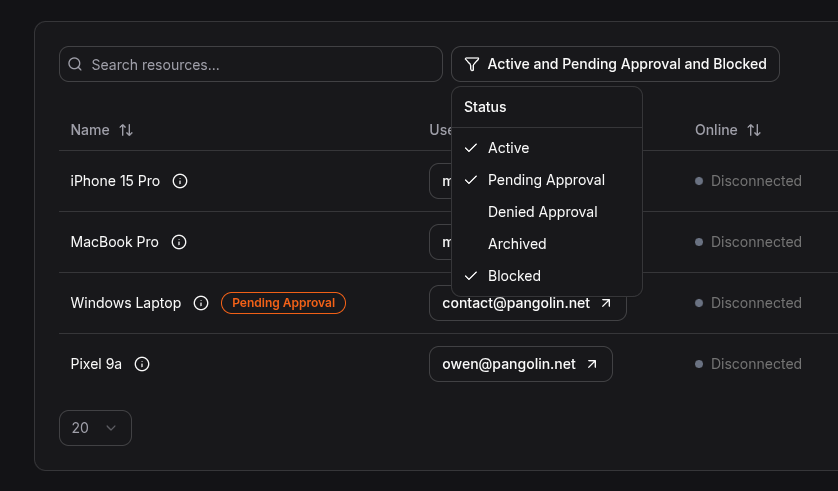 ---
# Client Logs (/manage/clients/client-logs)
> View Pangolin client logs on Windows, Mac, Linux, Android, and iOS
How you access client logs depends on the platform. Use the section for your client type below.
## Windows [#windows]
You can view logs in the Pangolin client GUI under **Preferences > Logs**.
You can also open the log file directly. The default location is:
```
C:\ProgramData\pangolin\logs\pangolin.log
```
To tail the log in PowerShell:
```powershell
Get-Content "C:\ProgramData\pangolin\logs\pangolin.log" -Tail 0 -Wait
```
## Mac [#mac]
Mac uses the Apple system logger. To stream Pangolin logs:
```bash
log stream --predicate 'subsystem == "net.pangolin.Pangolin" OR subsystem == "net.pangolin.Pangolin.PacketTunnel"' --level debug --style compact
```
## CLI / Linux [#cli--linux]
The default log file location is:
```
~/.config/pangolin/logs/client.log
```
If you run `pangolin up` in detached mode, you can tail logs with:
```bash
pangolin logs client -f -n 10
```
This example follows new log lines and shows the last 10 rows.
Alternatively, run in attached mode to see logs in the current terminal session:
```bash
sudo pangolin up --attach
```
## Android [#android]
Turn on **Enable Log Collection** under **Preferences**. Tunnel logs are then saved to a file you can download from the app. You can also view logs under **Preferences > Logs**. See [Android](/manage/clients/platforms/android).
## iOS [#ios]
Because of how iOS handles system logging, attach the iPhone to a Mac and use Console.app to view logs.
In Console.app, add a **Subsystem** filter for:
```
net.pangolin.Pangolin
```
---
# Subnet Router (/manage/clients/subnet-router)
A subnet router lets devices that can't run the Pangolin client access Pangolin resources. It sits between the Pangolin network and a physical subnet, so legacy devices, whole networks, or services still have access without installing Pangolin on each one.
---
# Client Logs (/manage/clients/client-logs)
> View Pangolin client logs on Windows, Mac, Linux, Android, and iOS
How you access client logs depends on the platform. Use the section for your client type below.
## Windows [#windows]
You can view logs in the Pangolin client GUI under **Preferences > Logs**.
You can also open the log file directly. The default location is:
```
C:\ProgramData\pangolin\logs\pangolin.log
```
To tail the log in PowerShell:
```powershell
Get-Content "C:\ProgramData\pangolin\logs\pangolin.log" -Tail 0 -Wait
```
## Mac [#mac]
Mac uses the Apple system logger. To stream Pangolin logs:
```bash
log stream --predicate 'subsystem == "net.pangolin.Pangolin" OR subsystem == "net.pangolin.Pangolin.PacketTunnel"' --level debug --style compact
```
## CLI / Linux [#cli--linux]
The default log file location is:
```
~/.config/pangolin/logs/client.log
```
If you run `pangolin up` in detached mode, you can tail logs with:
```bash
pangolin logs client -f -n 10
```
This example follows new log lines and shows the last 10 rows.
Alternatively, run in attached mode to see logs in the current terminal session:
```bash
sudo pangolin up --attach
```
## Android [#android]
Turn on **Enable Log Collection** under **Preferences**. Tunnel logs are then saved to a file you can download from the app. You can also view logs under **Preferences > Logs**. See [Android](/manage/clients/platforms/android).
## iOS [#ios]
Because of how iOS handles system logging, attach the iPhone to a Mac and use Console.app to view logs.
In Console.app, add a **Subsystem** filter for:
```
net.pangolin.Pangolin
```
---
# Subnet Router (/manage/clients/subnet-router)
A subnet router lets devices that can't run the Pangolin client access Pangolin resources. It sits between the Pangolin network and a physical subnet, so legacy devices, whole networks, or services still have access without installing Pangolin on each one.
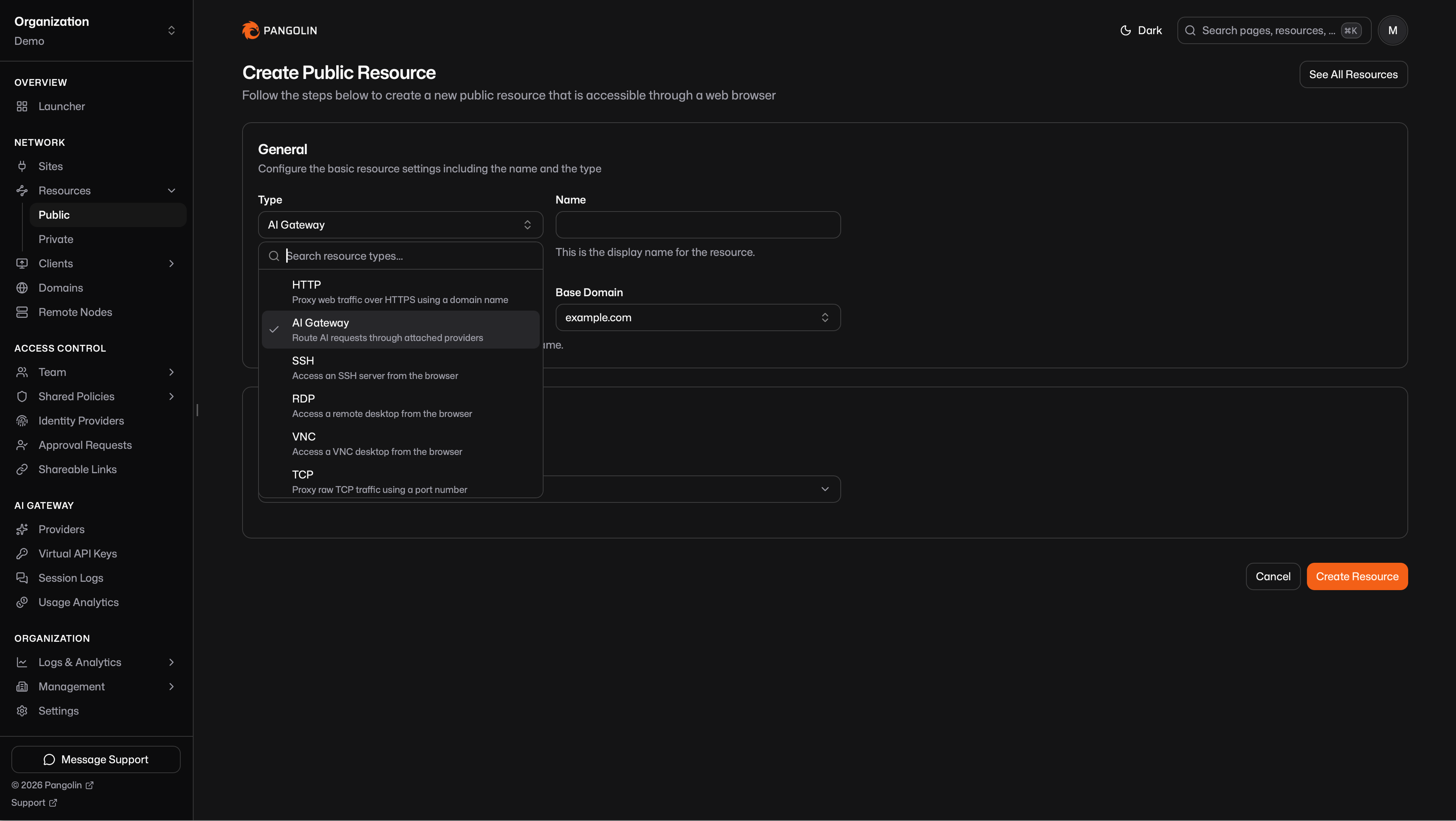 You can create more than one AI Gateway resource so different users and roles get their own providers. Distinct hostnames are the usual approach; they can also share a FQDN. See [Multiple Gateway Resources](/manage/ai/multiple-gateway-resources).
## 3. Authenticate to the Gateway [#3-authenticate-to-the-gateway]
How a client authenticates depends on whether the resource is public or private.
### Private Resources [#private-resources]
Reachable only on devices connected with the [Pangolin client](/manage/clients/platforms). Identity comes from that connection, so you do not issue a [virtual API key](/manage/ai/virtual-api-keys). The desktop client already proved who is calling. Details are on the [private AI Gateway](/manage/resources/private/ai-gateway) resource page.
### Public Resources [#public-resources]
Reachable from anywhere. The gateway checks a [virtual API key](/manage/ai/virtual-api-keys) on every call. Details are on the [public AI Gateway](/manage/resources/public/ai-gateway) resource page.
## 4. Connect a Coding Agent, Agent, or AI Client to the Gateway [#4-connect-a-coding-agent-agent-or-ai-client-to-the-gateway]
Every resource has ready-to-copy setup for common clients, and `pangolin configure
You can create more than one AI Gateway resource so different users and roles get their own providers. Distinct hostnames are the usual approach; they can also share a FQDN. See [Multiple Gateway Resources](/manage/ai/multiple-gateway-resources).
## 3. Authenticate to the Gateway [#3-authenticate-to-the-gateway]
How a client authenticates depends on whether the resource is public or private.
### Private Resources [#private-resources]
Reachable only on devices connected with the [Pangolin client](/manage/clients/platforms). Identity comes from that connection, so you do not issue a [virtual API key](/manage/ai/virtual-api-keys). The desktop client already proved who is calling. Details are on the [private AI Gateway](/manage/resources/private/ai-gateway) resource page.
### Public Resources [#public-resources]
Reachable from anywhere. The gateway checks a [virtual API key](/manage/ai/virtual-api-keys) on every call. Details are on the [public AI Gateway](/manage/resources/public/ai-gateway) resource page.
## 4. Connect a Coding Agent, Agent, or AI Client to the Gateway [#4-connect-a-coding-agent-agent-or-ai-client-to-the-gateway]
Every resource has ready-to-copy setup for common clients, and `pangolin configure 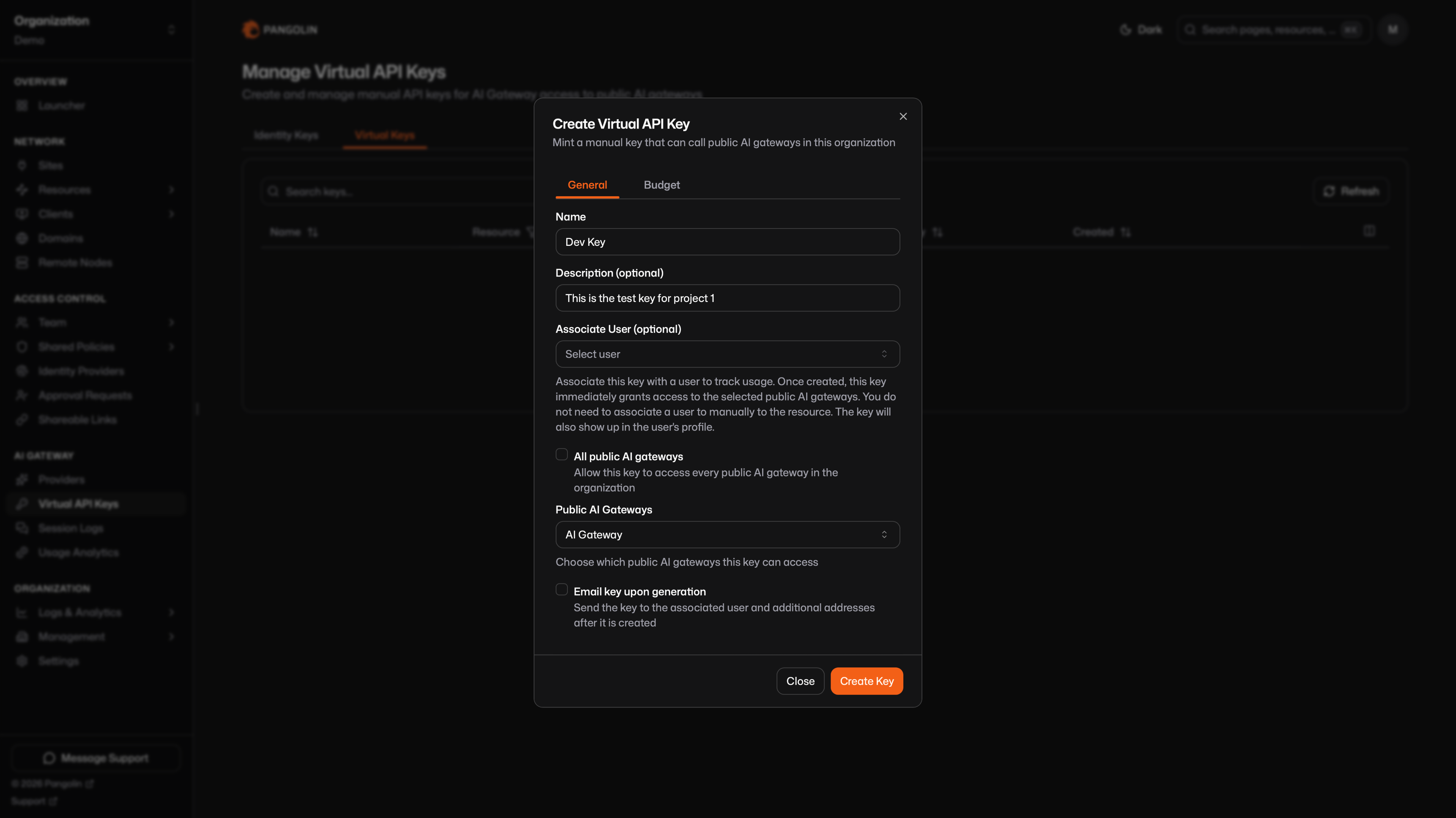 ## Where to Get a Key [#where-to-get-a-key]
Your identity key and any manual keys attributed to you are available in three places:
1. Visit the public resource URL in a browser and log in with your Pangolin identity. After login, Pangolin shows the key.
2. Open the Resource Launcher, select the resource, and use the more-info side panel.
3. Go to `https://app.pangolin.net/
## Where to Get a Key [#where-to-get-a-key]
Your identity key and any manual keys attributed to you are available in three places:
1. Visit the public resource URL in a browser and log in with your Pangolin identity. After login, Pangolin shows the key.
2. Open the Resource Launcher, select the resource, and use the more-info side panel.
3. Go to `https://app.pangolin.net/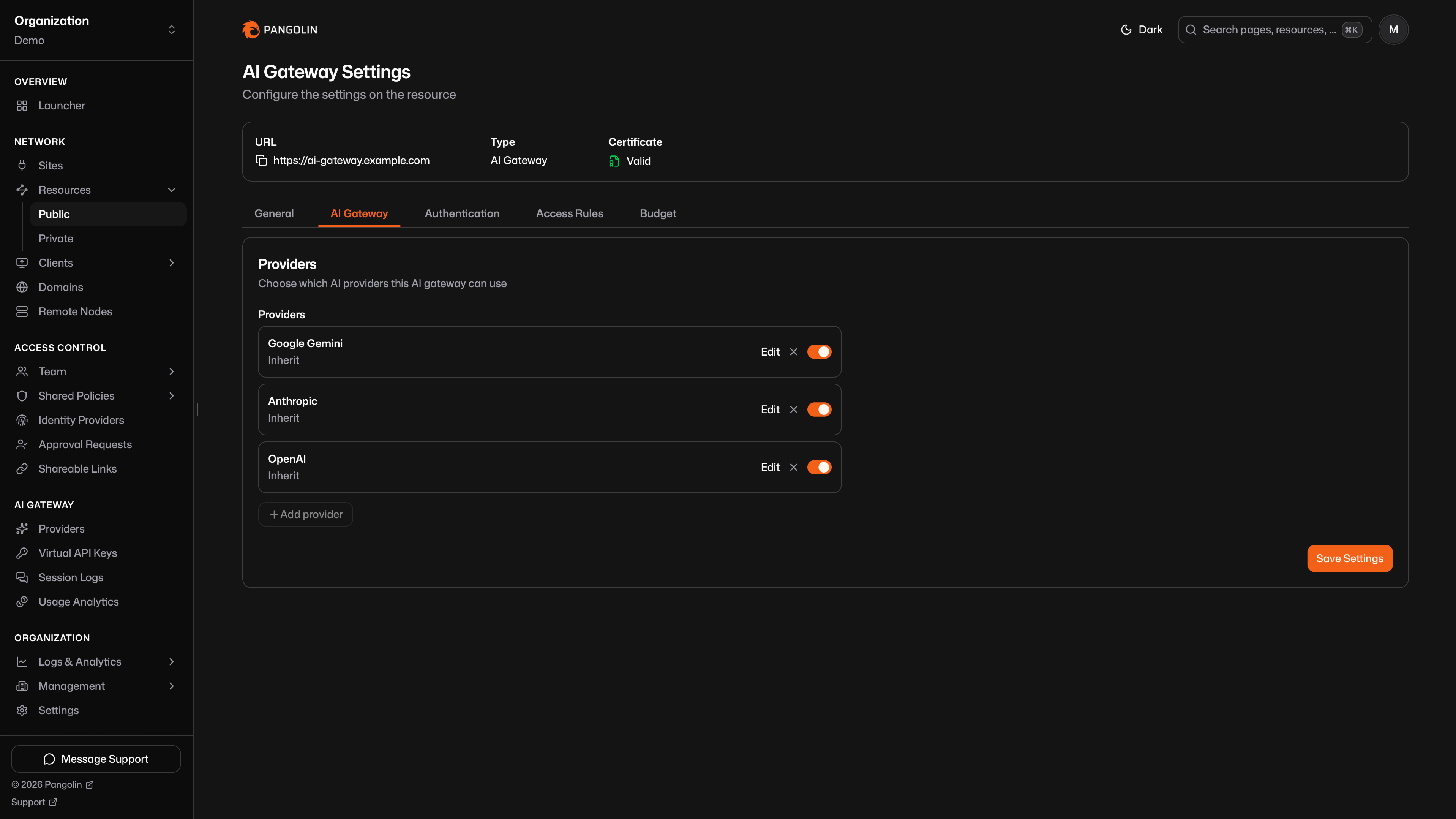 ## Provider Types [#provider-types]
| Provider | Default capabilities | Guide |
| ----------------- | --------------------------------------------- | --------------------------------------------------------------------- |
| OpenAI | Chat Completions, Responses | [Configure OpenAI](/manage/ai/providers/openai) |
| Anthropic | Messages, Models | [Configure Anthropic](/manage/ai/providers/anthropic) |
| Google Gemini | Gemini Generate Content | [Configure Google Gemini](/manage/ai/providers/google-gemini) |
| Vertex AI | Vertex Generate Content, Raw Predict | [Configure Vertex AI](/manage/ai/providers/vertex-ai) |
| Amazon Bedrock | Bedrock Converse | [Configure Amazon Bedrock](/manage/ai/providers/bedrock) |
| Microsoft Foundry | Chat Completions, Responses, Messages, Models | [Configure Microsoft Foundry](/manage/ai/providers/microsoft-foundry) |
| OpenRouter | Chat Completions | [Configure OpenRouter](/manage/ai/providers/open-router) |
| Vercel AI Gateway | Chat Completions, Responses | [Configure Vercel AI Gateway](/manage/ai/providers/vercel-ai-gateway) |
| Custom | Whatever you select | [Configure Custom](/manage/ai/providers/custom) |
Custom also covers local engines, downstream routers, and cloud APIs sent through a site. See [Ollama](/manage/ai/providers/custom/ollama), [vLLM](/manage/ai/providers/custom/vllm), [Bifrost](/manage/ai/providers/custom/bifrost), and [Cloud APIs Through a Site](/manage/ai/providers/custom/cloud-apis-through-a-site).
---
# Provider Configuration (/manage/ai/providers/configuration)
> Capabilities, auth, routing, and model lists for AI Gateway providers
This page is the field reference for every AI provider type. Type-specific defaults (URL, auth header, capabilities) live on each provider page. See [AI Providers](/manage/ai/providers/overview) for what a provider is and how it attaches to a resource.
Sidebar → **AI Gateway** → **Providers** → **Create**. After you save, the provider has tabs for **General**, **Network**, **Models**, **Authentication**, and **Budget**.
## Capabilities [#capabilities]
A capability is an API format the gateway will accept and proxy. The incoming request path selects a capability, and only attached providers that advertise that capability can handle the request. That is why Claude Code needs a provider with Anthropic Messages, and Codex needs a provider with OpenAI Chat Completions or Responses.
| Capability | What the gateway accepts |
| ----------------------- | ------------------------------------------------------------------------------------------ |
| OpenAI Chat Completions | `POST /v1/chat/completions` |
| OpenAI Responses | `POST /v1/responses` |
| Anthropic Messages | `POST /v1/messages` |
| Anthropic Models | `GET /v1/models` (answered from the gateway's allow and block lists, not proxied upstream) |
| Gemini Generate Content | Gemini `generateContent` / `streamGenerateContent` |
| Vertex Generate Content | Vertex AI Gemini format |
| Vertex Raw Predict | Vertex AI `rawPredict` for Anthropic models |
| Bedrock Converse | Amazon Bedrock Converse API |
| Bedrock Model Invoke | Amazon Bedrock InvokeModel |
Typed providers start with recommended capabilities. Custom providers need at least one selected. You can change capabilities later on the provider's **General** tab. Select every format the upstream actually speaks. Custom providers can mix any combination.
If two attached providers share a capability for the same model, the gateway picks one at request time. See [Model Routing](/manage/ai/providers/model-routing#provider-selection).
## Auth Type [#auth-type]
How the gateway authenticates to the upstream. Typed providers prefill the header that upstream expects.
| Auth type | What Pangolin sends |
| --------------------- | ----------------------------------------------------------------------------------------------------------- |
| Bearer | `Authorization: Bearer
## Provider Types [#provider-types]
| Provider | Default capabilities | Guide |
| ----------------- | --------------------------------------------- | --------------------------------------------------------------------- |
| OpenAI | Chat Completions, Responses | [Configure OpenAI](/manage/ai/providers/openai) |
| Anthropic | Messages, Models | [Configure Anthropic](/manage/ai/providers/anthropic) |
| Google Gemini | Gemini Generate Content | [Configure Google Gemini](/manage/ai/providers/google-gemini) |
| Vertex AI | Vertex Generate Content, Raw Predict | [Configure Vertex AI](/manage/ai/providers/vertex-ai) |
| Amazon Bedrock | Bedrock Converse | [Configure Amazon Bedrock](/manage/ai/providers/bedrock) |
| Microsoft Foundry | Chat Completions, Responses, Messages, Models | [Configure Microsoft Foundry](/manage/ai/providers/microsoft-foundry) |
| OpenRouter | Chat Completions | [Configure OpenRouter](/manage/ai/providers/open-router) |
| Vercel AI Gateway | Chat Completions, Responses | [Configure Vercel AI Gateway](/manage/ai/providers/vercel-ai-gateway) |
| Custom | Whatever you select | [Configure Custom](/manage/ai/providers/custom) |
Custom also covers local engines, downstream routers, and cloud APIs sent through a site. See [Ollama](/manage/ai/providers/custom/ollama), [vLLM](/manage/ai/providers/custom/vllm), [Bifrost](/manage/ai/providers/custom/bifrost), and [Cloud APIs Through a Site](/manage/ai/providers/custom/cloud-apis-through-a-site).
---
# Provider Configuration (/manage/ai/providers/configuration)
> Capabilities, auth, routing, and model lists for AI Gateway providers
This page is the field reference for every AI provider type. Type-specific defaults (URL, auth header, capabilities) live on each provider page. See [AI Providers](/manage/ai/providers/overview) for what a provider is and how it attaches to a resource.
Sidebar → **AI Gateway** → **Providers** → **Create**. After you save, the provider has tabs for **General**, **Network**, **Models**, **Authentication**, and **Budget**.
## Capabilities [#capabilities]
A capability is an API format the gateway will accept and proxy. The incoming request path selects a capability, and only attached providers that advertise that capability can handle the request. That is why Claude Code needs a provider with Anthropic Messages, and Codex needs a provider with OpenAI Chat Completions or Responses.
| Capability | What the gateway accepts |
| ----------------------- | ------------------------------------------------------------------------------------------ |
| OpenAI Chat Completions | `POST /v1/chat/completions` |
| OpenAI Responses | `POST /v1/responses` |
| Anthropic Messages | `POST /v1/messages` |
| Anthropic Models | `GET /v1/models` (answered from the gateway's allow and block lists, not proxied upstream) |
| Gemini Generate Content | Gemini `generateContent` / `streamGenerateContent` |
| Vertex Generate Content | Vertex AI Gemini format |
| Vertex Raw Predict | Vertex AI `rawPredict` for Anthropic models |
| Bedrock Converse | Amazon Bedrock Converse API |
| Bedrock Model Invoke | Amazon Bedrock InvokeModel |
Typed providers start with recommended capabilities. Custom providers need at least one selected. You can change capabilities later on the provider's **General** tab. Select every format the upstream actually speaks. Custom providers can mix any combination.
If two attached providers share a capability for the same model, the gateway picks one at request time. See [Model Routing](/manage/ai/providers/model-routing#provider-selection).
## Auth Type [#auth-type]
How the gateway authenticates to the upstream. Typed providers prefill the header that upstream expects.
| Auth type | What Pangolin sends |
| --------------------- | ----------------------------------------------------------------------------------------------------------- |
| Bearer | `Authorization: Bearer 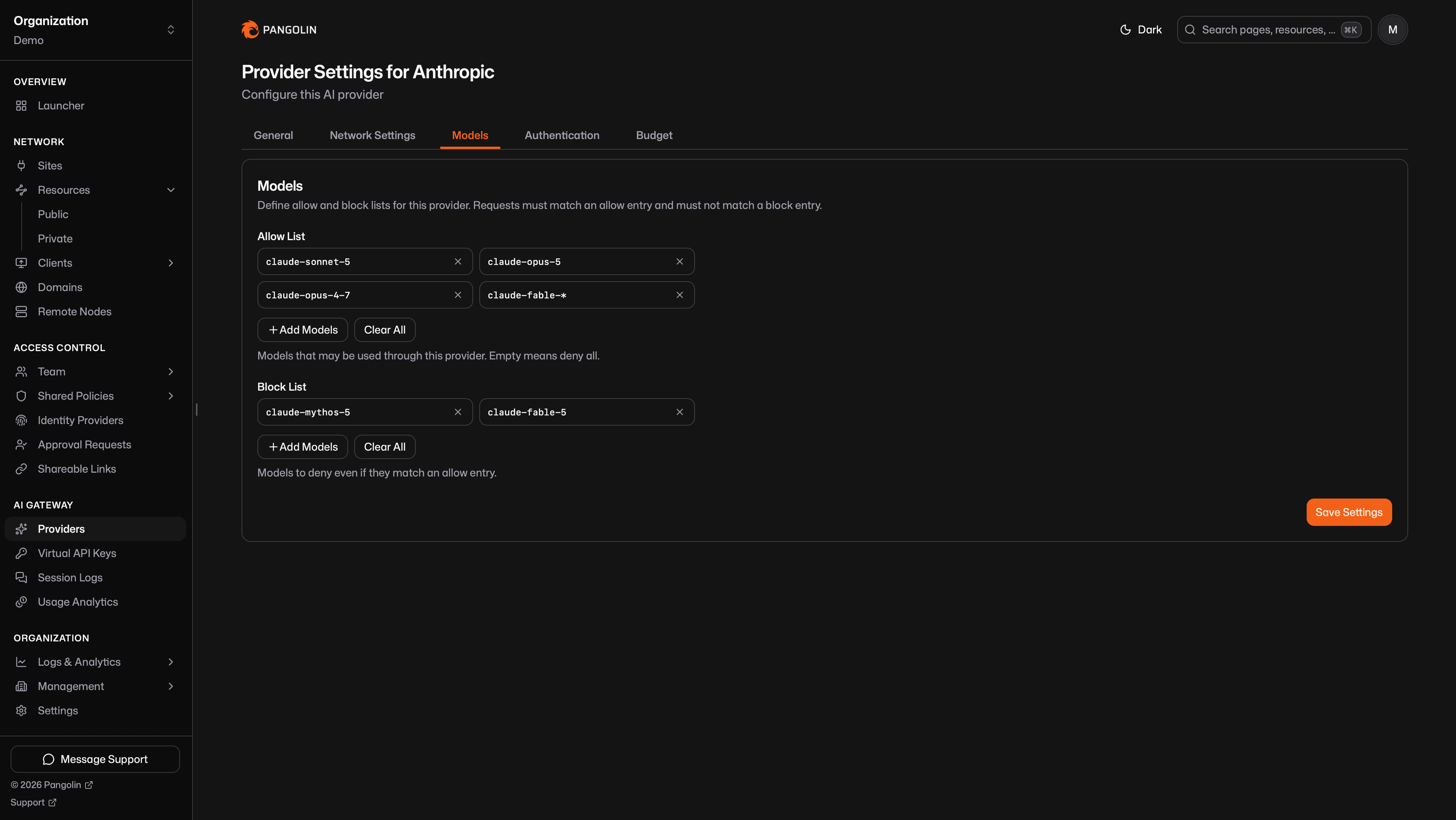 You add keys three ways:
| How | What it is | Example |
| ------------------------------------------------------ | -------------------------------------------- | ----------------------------------- |
| **[Catalog (Known Models)](/manage/ai/model-catalog)** | Pick from the catalog for that provider type | `gpt-4o`, `claude-sonnet-4-6` |
| **Custom key** | Type an exact model id the upstream accepts | `llama3.2`, `openai/gpt-4o-mini` |
| **Pattern** | Glob with `*` and `?` | `gpt-*`, `claude-3-5-sonnet-?`, `*` |
`*` matches every model key. Typed providers (OpenAI, Anthropic, Google Gemini, Vertex AI, Amazon Bedrock, Microsoft Foundry) show Known Models from the catalog. [OpenRouter](/manage/ai/providers/open-router), [Vercel AI Gateway](/manage/ai/providers/vercel-ai-gateway), and [Custom](/manage/ai/providers/custom) skip that list; enter custom keys or patterns.
### Allow vs Block [#allow-vs-block]
Allow is the positive set. Block subtracts even when allow matched. Allow `*` and block `gpt-4o-mini` to permit every key except that one. Allow `gpt-*` and leave block empty to permit only keys that start with `gpt-`.
### Model Discovery [#model-discovery]
`GET /v1/models` is answered from these lists plus the catalog. The gateway does not proxy that listing call upstream.
* Exact allow keys are listed as themselves.
* Patterns expand against the catalog for typed providers (`claude-*` becomes every matching catalog id).
* On OpenRouter, Vercel AI Gateway, and Custom, add exact allow keys to make those models show up in discovery. A wildcard still matches at request time.
A block pattern hides a model from discovery the same way it would reject the request.
## Inherit vs Select [#inherit-vs-select]
On an AI Gateway resource, attach providers from the **AI Gateway** settings tab. Each attachment has an access mode:
| Mode | What the resource uses |
| ----------- | ---------------------------------------------------------------------- |
| **Inherit** | The provider's allow and block lists as configured on the provider |
| **Select** | A subset of that provider's allow-list models, chosen on this resource |
The same provider can be inherited on one resource and selected on another. You can disable an attachment without removing the provider.
Select only offers models already on the provider's allow list. Use inherit when every resource should see the same keys. Use select when one gateway should expose a narrower set (for example a public resource with `gpt-4o` only, while the provider still allows `gpt-*`).
## Provider Selection [#provider-selection]
When a resource has more than one attached provider, the gateway picks one per request. Overlapping allows are allowed at save time. Collisions are resolved, or rejected, when the request arrives.
Steps, in order. Later steps run only while more than one candidate remains:
1. **Capability.** The path must match a [capability](/manage/ai/providers/configuration#capabilities) the provider advertises.
2. **Allow and block.** The effective lists (inherit or select) must pass.
3. **Specificity.** The most specific matching allow wins: exact keys beat patterns, fewer wildcards win, longer literals win. `gpt-4o` beats `gpt-*` beats `*`.
4. **Catalog ownership.** A typed provider whose catalog contains the id beats an aggregator that also allows it.
5. **Class.** Native typed providers beat aggregators (OpenRouter, Vercel AI Gateway), which beat Custom.
6. **Ambiguous.** If more than one distinct provider remains, the gateway returns `403` with `Model "
You add keys three ways:
| How | What it is | Example |
| ------------------------------------------------------ | -------------------------------------------- | ----------------------------------- |
| **[Catalog (Known Models)](/manage/ai/model-catalog)** | Pick from the catalog for that provider type | `gpt-4o`, `claude-sonnet-4-6` |
| **Custom key** | Type an exact model id the upstream accepts | `llama3.2`, `openai/gpt-4o-mini` |
| **Pattern** | Glob with `*` and `?` | `gpt-*`, `claude-3-5-sonnet-?`, `*` |
`*` matches every model key. Typed providers (OpenAI, Anthropic, Google Gemini, Vertex AI, Amazon Bedrock, Microsoft Foundry) show Known Models from the catalog. [OpenRouter](/manage/ai/providers/open-router), [Vercel AI Gateway](/manage/ai/providers/vercel-ai-gateway), and [Custom](/manage/ai/providers/custom) skip that list; enter custom keys or patterns.
### Allow vs Block [#allow-vs-block]
Allow is the positive set. Block subtracts even when allow matched. Allow `*` and block `gpt-4o-mini` to permit every key except that one. Allow `gpt-*` and leave block empty to permit only keys that start with `gpt-`.
### Model Discovery [#model-discovery]
`GET /v1/models` is answered from these lists plus the catalog. The gateway does not proxy that listing call upstream.
* Exact allow keys are listed as themselves.
* Patterns expand against the catalog for typed providers (`claude-*` becomes every matching catalog id).
* On OpenRouter, Vercel AI Gateway, and Custom, add exact allow keys to make those models show up in discovery. A wildcard still matches at request time.
A block pattern hides a model from discovery the same way it would reject the request.
## Inherit vs Select [#inherit-vs-select]
On an AI Gateway resource, attach providers from the **AI Gateway** settings tab. Each attachment has an access mode:
| Mode | What the resource uses |
| ----------- | ---------------------------------------------------------------------- |
| **Inherit** | The provider's allow and block lists as configured on the provider |
| **Select** | A subset of that provider's allow-list models, chosen on this resource |
The same provider can be inherited on one resource and selected on another. You can disable an attachment without removing the provider.
Select only offers models already on the provider's allow list. Use inherit when every resource should see the same keys. Use select when one gateway should expose a narrower set (for example a public resource with `gpt-4o` only, while the provider still allows `gpt-*`).
## Provider Selection [#provider-selection]
When a resource has more than one attached provider, the gateway picks one per request. Overlapping allows are allowed at save time. Collisions are resolved, or rejected, when the request arrives.
Steps, in order. Later steps run only while more than one candidate remains:
1. **Capability.** The path must match a [capability](/manage/ai/providers/configuration#capabilities) the provider advertises.
2. **Allow and block.** The effective lists (inherit or select) must pass.
3. **Specificity.** The most specific matching allow wins: exact keys beat patterns, fewer wildcards win, longer literals win. `gpt-4o` beats `gpt-*` beats `*`.
4. **Catalog ownership.** A typed provider whose catalog contains the id beats an aggregator that also allows it.
5. **Class.** Native typed providers beat aggregators (OpenRouter, Vercel AI Gateway), which beat Custom.
6. **Ambiguous.** If more than one distinct provider remains, the gateway returns `403` with `Model " */}
Save, then open a new chat - the models exposed by your resource's attached provider(s) show up in the model picker.
{/*
Screenshot: `/images/ai/openwebui-model-picker.png`
The Open WebUI model picker showing models served through the Pangolin gateway.
*/}
Save, then open a new chat - the models exposed by your resource's attached provider(s) show up in the model picker.
{/*
Screenshot: `/images/ai/openwebui-model-picker.png`
The Open WebUI model picker showing models served through the Pangolin gateway.
 */}
For a private resource, set the key to `none` rather than leaving it blank. Open WebUI treats a blank key as "no connection configured" and won't list the models.
Note that Open WebUI runs as a server, not on your laptop - so it's the Open WebUI host that needs the Pangolin client installed and connected to reach a private resource, not the browser you're viewing it from.
---
# Claude Desktop (/manage/ai/configure-ai-clients/claude-desktop)
> Connect Claude Desktop's third-party inference to a Pangolin AI Gateway resource
Claude Desktop can route its requests through a third-party inference gateway instead of Anthropic directly. Point it at an AI Gateway resource that has an Anthropic-compatible provider attached — Anthropic itself, Bedrock, Vertex AI, or a custom Anthropic-compatible endpoint. See [AI Gateway Overview](/manage/ai/overview) if you haven't set that up yet.
*/}
For a private resource, set the key to `none` rather than leaving it blank. Open WebUI treats a blank key as "no connection configured" and won't list the models.
Note that Open WebUI runs as a server, not on your laptop - so it's the Open WebUI host that needs the Pangolin client installed and connected to reach a private resource, not the browser you're viewing it from.
---
# Claude Desktop (/manage/ai/configure-ai-clients/claude-desktop)
> Connect Claude Desktop's third-party inference to a Pangolin AI Gateway resource
Claude Desktop can route its requests through a third-party inference gateway instead of Anthropic directly. Point it at an AI Gateway resource that has an Anthropic-compatible provider attached — Anthropic itself, Bedrock, Vertex AI, or a custom Anthropic-compatible endpoint. See [AI Gateway Overview](/manage/ai/overview) if you haven't set that up yet.
 You'll need the resource's URL (its `
 2. From the menu bar, open **Developer**, then **Configure Third-Party Inference…**.
 3. Select **Gateway**
4. Select **Credential kind** > **Static API Key**.
5. Fill in:
* **Gateway base URL:** `
3. Select **Gateway**
4. Select **Credential kind** > **Static API Key**.
5. Fill in:
* **Gateway base URL:** ` 6. Restart Claude Desktop.
Send a message to confirm it's working — check the resource's activity in Pangolin's logs if you want to verify traffic is actually flowing through the gateway rather than straight to Anthropic.
For a private resource, put `none` in the API Key field rather than leaving it blank, and make sure the Pangolin client is installed and connected on the same machine as Claude Desktop.
---
# OpenClaw (/manage/ai/configure-ai-clients/openclaw)
> Connect OpenClaw to a Pangolin AI Gateway resource
[OpenClaw](https://openclaw.ai) is an open-source agent gateway that can run against any OpenAI- or Anthropic-compatible endpoint. Point it at an AI Gateway resource with a matching provider attached - OpenAI-compatible (OpenAI, OpenRouter, Vercel AI Gateway, Microsoft Foundry, custom) or Anthropic-compatible (Anthropic, Bedrock, Vertex AI, custom). See [AI Gateway Overview](/manage/ai/overview) if you haven't set that up yet.
You'll need the resource's URL (its `
6. Restart Claude Desktop.
Send a message to confirm it's working — check the resource's activity in Pangolin's logs if you want to verify traffic is actually flowing through the gateway rather than straight to Anthropic.
For a private resource, put `none` in the API Key field rather than leaving it blank, and make sure the Pangolin client is installed and connected on the same machine as Claude Desktop.
---
# OpenClaw (/manage/ai/configure-ai-clients/openclaw)
> Connect OpenClaw to a Pangolin AI Gateway resource
[OpenClaw](https://openclaw.ai) is an open-source agent gateway that can run against any OpenAI- or Anthropic-compatible endpoint. Point it at an AI Gateway resource with a matching provider attached - OpenAI-compatible (OpenAI, OpenRouter, Vercel AI Gateway, Microsoft Foundry, custom) or Anthropic-compatible (Anthropic, Bedrock, Vertex AI, custom). See [AI Gateway Overview](/manage/ai/overview) if you haven't set that up yet.
You'll need the resource's URL (its `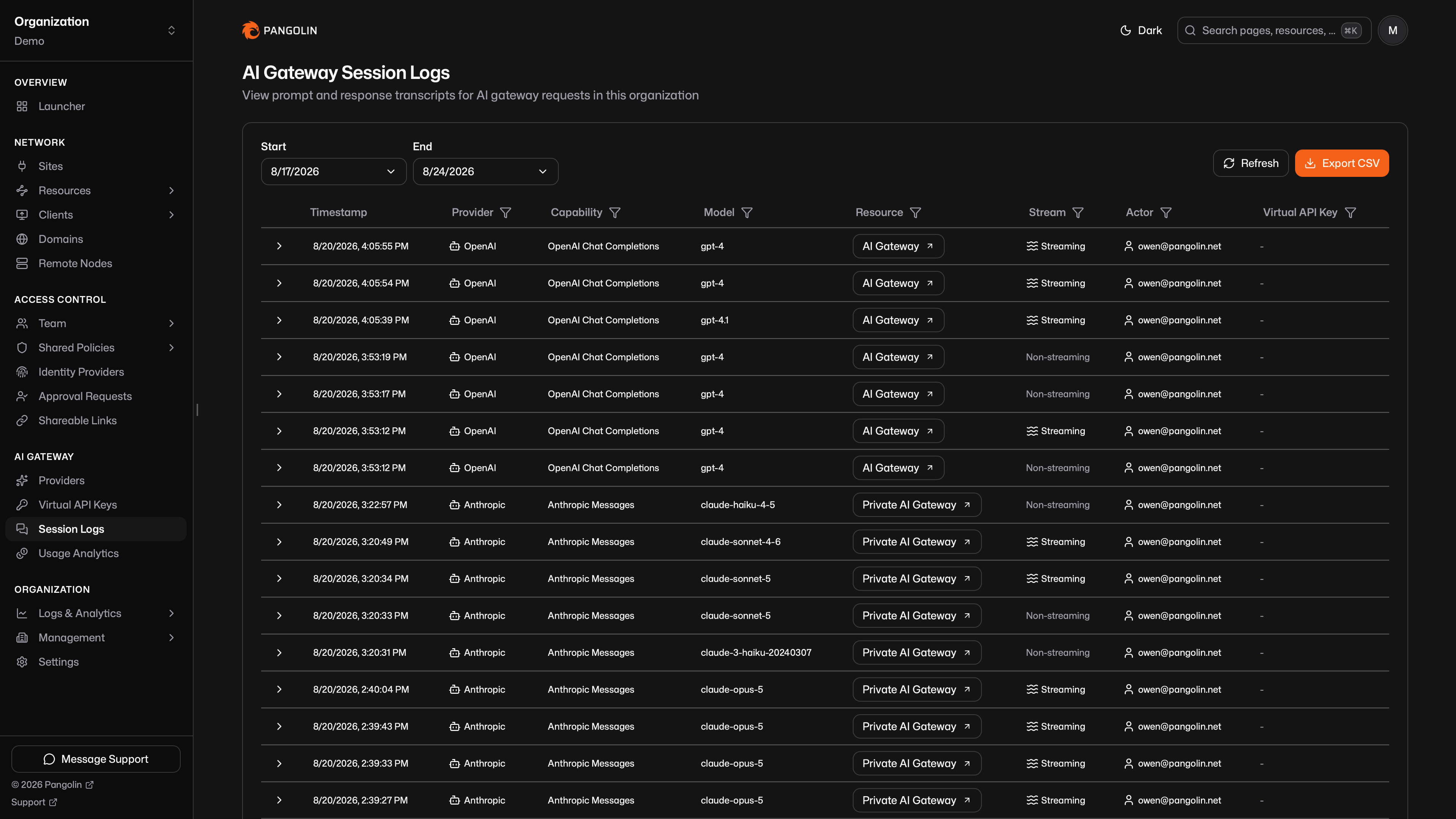
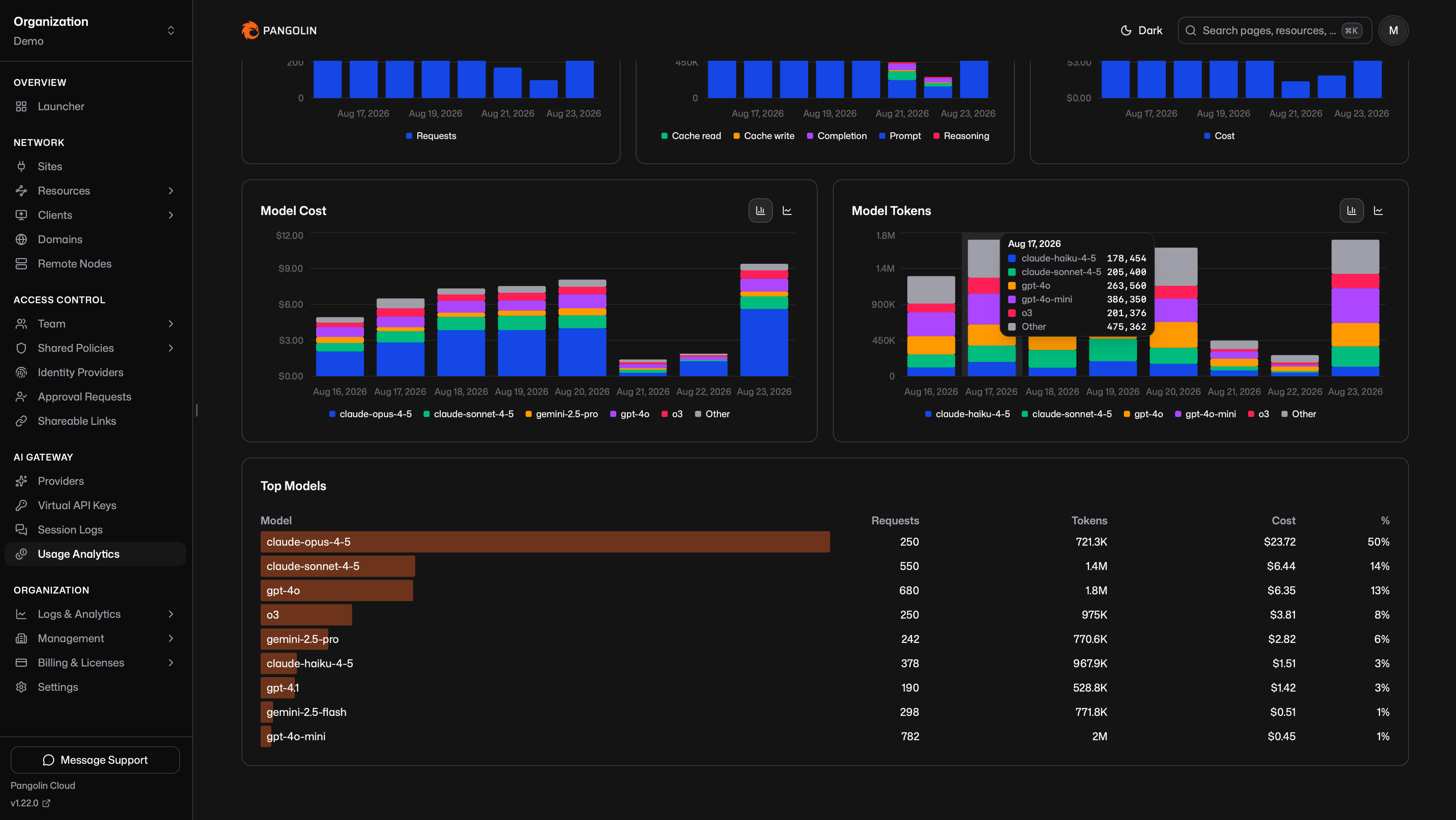 These records are independent of session log retention. For prompt and response text, see [Session Logs](/manage/ai/session-logs). The two share a session id per call.
## How Numbers Are Calculated [#how-numbers-are-calculated]
USD uses [catalog](/manage/ai/model-catalog) rates (`in`, `out`, `cache`, `reasoning`) when the model id is known. Unknown models have no USD amount. Tokens still sum.
Token buckets are prompt, cache-read, cache-write, completion, and reasoning. If the upstream omits usage, Pangolin estimates tokens from the request and response. Overview shows **Estimated**: the share of requests that used that path.
A non-2xx response from the provider still counts as a request with zero tokens, so volume charts include failed attempts.
These figures are estimates for the dashboard and for budgets, not a copy of the vendor invoice. See [Budgets](/manage/ai/budgets) for the same calculation used at enforcement time.
## Filters [#filters]
Every tab uses the same filters. The default date range is the last seven days.
* Provider
* Model
* Resource
* Role
* User
* Virtual API key
## Tabs [#tabs]
**Overview** shows totals for requests, tokens, cost, and estimated percent, daily charts for each, and top models by cost.
**Providers**, **Resources**, **Roles**, **Users**, and **Virtual API Keys** each show cost and token trends plus a ranked list for that dimension.
Role is derived from the caller's org roles. Usage rows store the user id, not the role. A [manual key](/manage/ai/virtual-api-keys#manual-keys) with no attributed user appears as an unknown user.
---
# Domains (/manage/domains)
> Learn how to configure domains for your Pangolin resources and understand the different domain types available
Domains allow you to access your Pangolin resources through custom URLs. Pangolin supports different domain types depending on your deployment model and requirements. You can also attach [redirects](/manage/redirects) to a domain hostname to forward matching requests to another URL.
These records are independent of session log retention. For prompt and response text, see [Session Logs](/manage/ai/session-logs). The two share a session id per call.
## How Numbers Are Calculated [#how-numbers-are-calculated]
USD uses [catalog](/manage/ai/model-catalog) rates (`in`, `out`, `cache`, `reasoning`) when the model id is known. Unknown models have no USD amount. Tokens still sum.
Token buckets are prompt, cache-read, cache-write, completion, and reasoning. If the upstream omits usage, Pangolin estimates tokens from the request and response. Overview shows **Estimated**: the share of requests that used that path.
A non-2xx response from the provider still counts as a request with zero tokens, so volume charts include failed attempts.
These figures are estimates for the dashboard and for budgets, not a copy of the vendor invoice. See [Budgets](/manage/ai/budgets) for the same calculation used at enforcement time.
## Filters [#filters]
Every tab uses the same filters. The default date range is the last seven days.
* Provider
* Model
* Resource
* Role
* User
* Virtual API key
## Tabs [#tabs]
**Overview** shows totals for requests, tokens, cost, and estimated percent, daily charts for each, and top models by cost.
**Providers**, **Resources**, **Roles**, **Users**, and **Virtual API Keys** each show cost and token trends plus a ranked list for that dimension.
Role is derived from the caller's org roles. Usage rows store the user id, not the role. A [manual key](/manage/ai/virtual-api-keys#manual-keys) with no attributed user appears as an unknown user.
---
# Domains (/manage/domains)
> Learn how to configure domains for your Pangolin resources and understand the different domain types available
Domains allow you to access your Pangolin resources through custom URLs. Pangolin supports different domain types depending on your deployment model and requirements. You can also attach [redirects](/manage/redirects) to a domain hostname to forward matching requests to another URL.
 ---
# Redirects (/manage/redirects)
> Forward requests from a path on your domains or resources to another URL
Redirects forward matching HTTP requests to another URL. Use them to retire old hostnames, move paths on an existing resource, or send traffic from one origin to another.
Manage redirects from your organization's **Settings -> Redirects**.
## Attach to a Domain or a Resource [#attach-to-a-domain-or-a-resource]
Every redirect attaches to exactly one of:
| Attachment | Listen host | When to use it |
| ------------ | ----------------------------------------------------------------------------------- | -------------------------------------------------------------------------------------------------------------------------------------------------------------------------------------------------------------------------------------------- |
| **Domain** | A hostname on one of your [domains](/manage/domains) (subdomain or the base domain) | You need a redirect on a hostname that is not (or not only) a public resource, for example retiring `old.example.com`. Also use this when the hostname matches a resource but you do not want the redirect tied to that resource's lifecycle |
| **Resource** | The attached [public resource](/manage/resources/public/http-https)'s full hostname | You want some paths on an existing resource to redirect while other paths still hit that resource, and you are fine deleting the redirect when the resource is deleted |
### Domain-attached redirects [#domain-attached-redirects]
Choose **Domain** when you want to enter a subdomain or the base domain for one of the domains you have attached to your organization regardless of whether a resource is attached to it.
* You pick a domain and an optional subdomain. The listen host is `subdomain.baseDomain`, or the bare base domain if subdomain is empty.
* The redirect owns its own TLS setting. Pangolin provisions a certificate for that host. On self-hosted installs you can turn SSL off to match plain HTTP; on Pangolin Cloud, HTTPS is always on.
* No public resource is required on that hostname.
* You can use the same hostname as an existing resource (same domain and subdomain). The redirect is not linked to the resource, so deleting or disabling the resource leaves the redirect in place.
* Deleting the domain deletes every redirect attached to it.
### Resource-attached redirects [#resource-attached-redirects]
Choose **Resource** when you want to use a resource's full hostname (including wildcards when the resource uses them).
* The listen host is the resource's full domain (including wildcards when the resource uses them).
* TLS follows the resource — there is no separate SSL toggle on the redirect.
* Paths that do not match the redirect continue to the resource as usual.
* Matching redirects are evaluated **before** resource authentication, so visitors are redirected without logging in even if the resource is protected.
* If the resource is disabled or has no domain, the redirect is not active.
* Deleting the resource deletes every redirect attached to it.
## How Requests Are Matched [#how-requests-are-matched]
A request matches a redirect when:
1. The **Host** matches the listen host from the attachment (domain hostname or resource full domain).
2. The **path** matches the redirect's path rule — or the redirect has no path rule, which matches every path on that host.
Path match types:
| Type | Behavior |
| ---------- | --------------------------------------------------------------------------------------------------------------------------------- |
| **Exact** | Path must equal the match path |
| **Prefix** | Path must start with the match path as a path segment (for example `/products` matches `/products/shoes`, not `/productsforsale`) |
| **Regex** | Path must match the regular expression |
Leave the match path empty to redirect every request on that host.
When a redirect and a public resource share a host, the redirect is always considered first. Among redirects, higher **priority** wins.
## Destination and Path Rewrite [#destination-and-path-rewrite]
The **destination** is an origin only: scheme, host, and optional port — for example `https://example.com` or `https://example.com:8443`. Do not put a path, query string, or fragment in the destination field.
The final redirect URL is:
```
destination origin + rewritten path + original query string
```
By default the request path is kept. Optionally set a **path rewrite**:
| Rewrite type | Behavior |
| ---------------- | ------------------------------------------------------------------------------------- |
| **Exact** | Replace the entire path |
| **Prefix** | Replace the matched prefix and keep the remainder |
| **Regex** | Replace using the match pattern; substitution supports capture groups (`$1`, `$2`, …) |
| **Strip prefix** | Remove the matched prefix; optionally add a new prefix |
### Capture groups [#capture-groups]
When the rewrite type is **Regex**, parentheses in the **match path** (with match type **Regex**) define capture groups. Reference them in the rewrite path with `$1`, `$2`, and so on — the same substitution rules as JavaScript `String.replace`.
Example: move `/blog/2020/post` to `/archive/post-2020`:
| Field | Value |
| --------------- | -------------------- |
| Path match type | Regex |
| Match path | `^/blog/(\d+)/(.*)$` |
| Rewrite type | Regex |
| Rewrite path | `/archive/$2-$1` |
With match type **Prefix** and rewrite type **Regex**, the remainder after the prefix is available as `$1` (for example match `/old` and rewrite `/new$1` turns `/old/x` into `/new/x`).
Use **Same Domain as Source** when you only want to change the path and keep the visitor on the same host.
The original query string is always preserved.
## Permanent vs Temporary [#permanent-vs-temporary]
| Setting | Status code | Behavior |
| ------------------- | ----------- | --------------------------------------------------------------- |
| Temporary (default) | **307** | Browsers and clients should not cache the redirect indefinitely |
| Permanent | **308** | Browsers may cache the redirect; use when the move is lasting |
Turn on **Permanent** only when you intend clients to remember the new location.
## Priority [#priority]
Each redirect has a priority from 1 to 1000. Higher values are evaluated first.
Redirects always sit above public resources on the same host, so a matching redirect wins over the resource even when priorities look similar in the UI. Use priority mainly to order multiple redirects against each other.
---
# Manage Organizations (/manage/organizations/manage-organizations)
> View every organization on a self-hosted instance from the server admin panel
The server admin panel is for the people who run a self-hosted Pangolin instance. It already includes a [master list of every user](/manage/access-control/create-user) on the server, across all organizations. Pangolin 1.23 adds the same kind of list for organizations.
## Organizations Table [#organizations-table]
Open **Server Admin → Organizations** to see every organization on the instance in one place. Each row shows the organization name, ID, owner, and counts for users, sites, and resources.
---
# Redirects (/manage/redirects)
> Forward requests from a path on your domains or resources to another URL
Redirects forward matching HTTP requests to another URL. Use them to retire old hostnames, move paths on an existing resource, or send traffic from one origin to another.
Manage redirects from your organization's **Settings -> Redirects**.
## Attach to a Domain or a Resource [#attach-to-a-domain-or-a-resource]
Every redirect attaches to exactly one of:
| Attachment | Listen host | When to use it |
| ------------ | ----------------------------------------------------------------------------------- | -------------------------------------------------------------------------------------------------------------------------------------------------------------------------------------------------------------------------------------------- |
| **Domain** | A hostname on one of your [domains](/manage/domains) (subdomain or the base domain) | You need a redirect on a hostname that is not (or not only) a public resource, for example retiring `old.example.com`. Also use this when the hostname matches a resource but you do not want the redirect tied to that resource's lifecycle |
| **Resource** | The attached [public resource](/manage/resources/public/http-https)'s full hostname | You want some paths on an existing resource to redirect while other paths still hit that resource, and you are fine deleting the redirect when the resource is deleted |
### Domain-attached redirects [#domain-attached-redirects]
Choose **Domain** when you want to enter a subdomain or the base domain for one of the domains you have attached to your organization regardless of whether a resource is attached to it.
* You pick a domain and an optional subdomain. The listen host is `subdomain.baseDomain`, or the bare base domain if subdomain is empty.
* The redirect owns its own TLS setting. Pangolin provisions a certificate for that host. On self-hosted installs you can turn SSL off to match plain HTTP; on Pangolin Cloud, HTTPS is always on.
* No public resource is required on that hostname.
* You can use the same hostname as an existing resource (same domain and subdomain). The redirect is not linked to the resource, so deleting or disabling the resource leaves the redirect in place.
* Deleting the domain deletes every redirect attached to it.
### Resource-attached redirects [#resource-attached-redirects]
Choose **Resource** when you want to use a resource's full hostname (including wildcards when the resource uses them).
* The listen host is the resource's full domain (including wildcards when the resource uses them).
* TLS follows the resource — there is no separate SSL toggle on the redirect.
* Paths that do not match the redirect continue to the resource as usual.
* Matching redirects are evaluated **before** resource authentication, so visitors are redirected without logging in even if the resource is protected.
* If the resource is disabled or has no domain, the redirect is not active.
* Deleting the resource deletes every redirect attached to it.
## How Requests Are Matched [#how-requests-are-matched]
A request matches a redirect when:
1. The **Host** matches the listen host from the attachment (domain hostname or resource full domain).
2. The **path** matches the redirect's path rule — or the redirect has no path rule, which matches every path on that host.
Path match types:
| Type | Behavior |
| ---------- | --------------------------------------------------------------------------------------------------------------------------------- |
| **Exact** | Path must equal the match path |
| **Prefix** | Path must start with the match path as a path segment (for example `/products` matches `/products/shoes`, not `/productsforsale`) |
| **Regex** | Path must match the regular expression |
Leave the match path empty to redirect every request on that host.
When a redirect and a public resource share a host, the redirect is always considered first. Among redirects, higher **priority** wins.
## Destination and Path Rewrite [#destination-and-path-rewrite]
The **destination** is an origin only: scheme, host, and optional port — for example `https://example.com` or `https://example.com:8443`. Do not put a path, query string, or fragment in the destination field.
The final redirect URL is:
```
destination origin + rewritten path + original query string
```
By default the request path is kept. Optionally set a **path rewrite**:
| Rewrite type | Behavior |
| ---------------- | ------------------------------------------------------------------------------------- |
| **Exact** | Replace the entire path |
| **Prefix** | Replace the matched prefix and keep the remainder |
| **Regex** | Replace using the match pattern; substitution supports capture groups (`$1`, `$2`, …) |
| **Strip prefix** | Remove the matched prefix; optionally add a new prefix |
### Capture groups [#capture-groups]
When the rewrite type is **Regex**, parentheses in the **match path** (with match type **Regex**) define capture groups. Reference them in the rewrite path with `$1`, `$2`, and so on — the same substitution rules as JavaScript `String.replace`.
Example: move `/blog/2020/post` to `/archive/post-2020`:
| Field | Value |
| --------------- | -------------------- |
| Path match type | Regex |
| Match path | `^/blog/(\d+)/(.*)$` |
| Rewrite type | Regex |
| Rewrite path | `/archive/$2-$1` |
With match type **Prefix** and rewrite type **Regex**, the remainder after the prefix is available as `$1` (for example match `/old` and rewrite `/new$1` turns `/old/x` into `/new/x`).
Use **Same Domain as Source** when you only want to change the path and keep the visitor on the same host.
The original query string is always preserved.
## Permanent vs Temporary [#permanent-vs-temporary]
| Setting | Status code | Behavior |
| ------------------- | ----------- | --------------------------------------------------------------- |
| Temporary (default) | **307** | Browsers and clients should not cache the redirect indefinitely |
| Permanent | **308** | Browsers may cache the redirect; use when the move is lasting |
Turn on **Permanent** only when you intend clients to remember the new location.
## Priority [#priority]
Each redirect has a priority from 1 to 1000. Higher values are evaluated first.
Redirects always sit above public resources on the same host, so a matching redirect wins over the resource even when priorities look similar in the UI. Use priority mainly to order multiple redirects against each other.
---
# Manage Organizations (/manage/organizations/manage-organizations)
> View every organization on a self-hosted instance from the server admin panel
The server admin panel is for the people who run a self-hosted Pangolin instance. It already includes a [master list of every user](/manage/access-control/create-user) on the server, across all organizations. Pangolin 1.23 adds the same kind of list for organizations.
## Organizations Table [#organizations-table]
Open **Server Admin → Organizations** to see every organization on the instance in one place. Each row shows the organization name, ID, owner, and counts for users, sites, and resources.
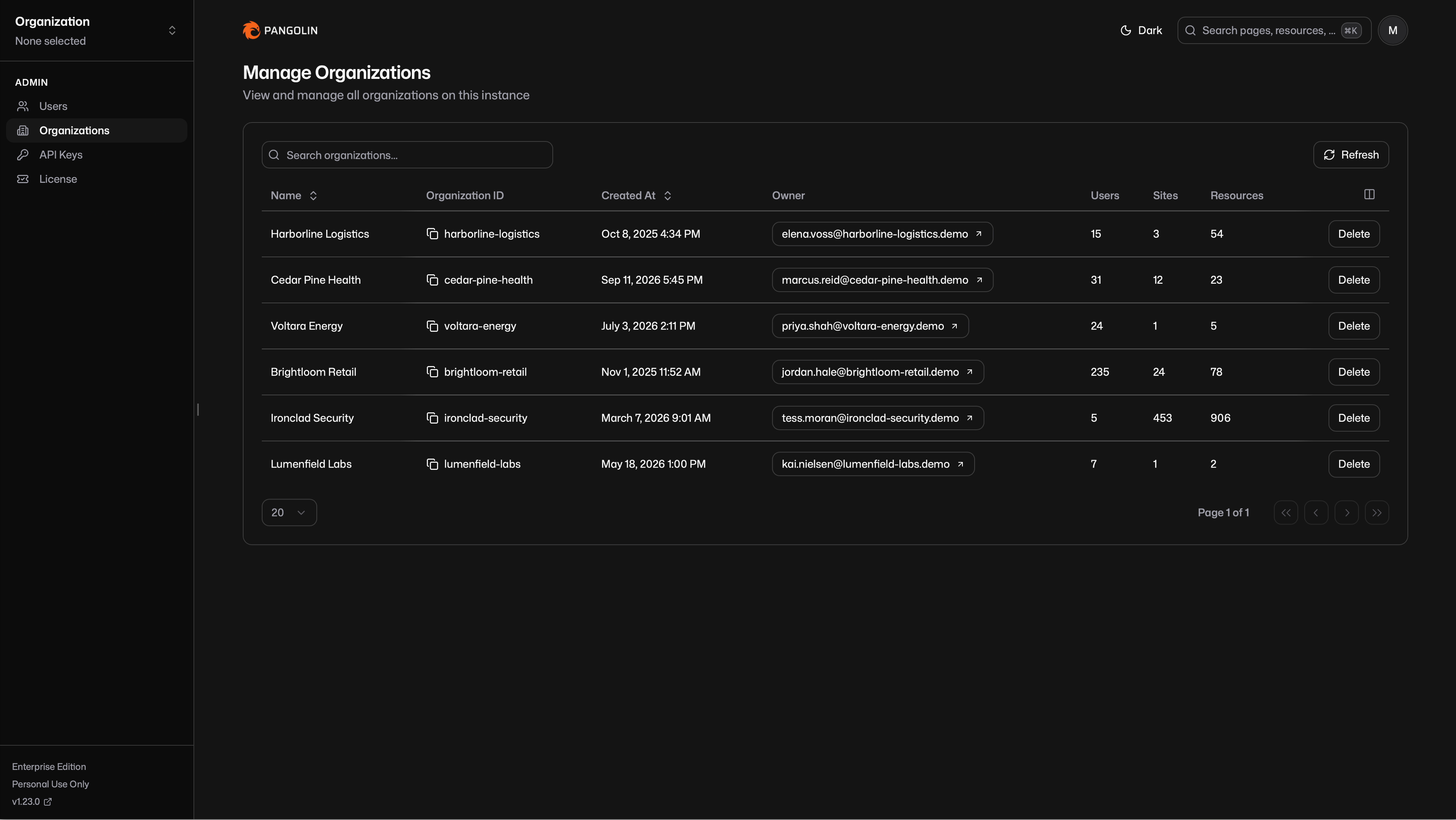 You can search the table and delete an organization from it.
## Visibility and Membership [#visibility-and-membership]
Server admins can see this list even if they are not a member of an organization. That visibility is limited to the table. It does not add the server admin as a member, and it does not let them impersonate one.
To see an organization's contents in the dashboard, a server admin still has to be a member of that organization.
---
# Organization ID (/manage/organizations/org-id)
> Understand organization IDs and how to locate yours in the dashboard
Pangolin is multi-tenant. All sites, resources, clients, and other items belong to an organization, and a server can host more than one organization.
Each organization has a unique ID that Pangolin generates when you create the organization. You cannot change the ID after creation, and it is separate from the display name.
## Finding Your Organization ID [#finding-your-organization-id]
You can find your organization ID in these ways:
1. Check the general settings page for your organization. The ID appears at the top of the info card.
2. Check the URL path when viewing your dashboard. The org ID is the first slug in the URL. For example, in `https://app.pangolin.net/home-lab/settings/sites`, the org ID is `home-lab`.
3. On a self-hosted instance, as the server admin account, open the [organizations table](/manage/organizations/manage-organizations) in the server admin panel. The Organization ID column lists every org on the server.
---
# Labels (/manage/labels)
> Attach reusable string labels to sites, clients, and resources for metadata, search, and filtering
You can search the table and delete an organization from it.
## Visibility and Membership [#visibility-and-membership]
Server admins can see this list even if they are not a member of an organization. That visibility is limited to the table. It does not add the server admin as a member, and it does not let them impersonate one.
To see an organization's contents in the dashboard, a server admin still has to be a member of that organization.
---
# Organization ID (/manage/organizations/org-id)
> Understand organization IDs and how to locate yours in the dashboard
Pangolin is multi-tenant. All sites, resources, clients, and other items belong to an organization, and a server can host more than one organization.
Each organization has a unique ID that Pangolin generates when you create the organization. You cannot change the ID after creation, and it is separate from the display name.
## Finding Your Organization ID [#finding-your-organization-id]
You can find your organization ID in these ways:
1. Check the general settings page for your organization. The ID appears at the top of the info card.
2. Check the URL path when viewing your dashboard. The org ID is the first slug in the URL. For example, in `https://app.pangolin.net/home-lab/settings/sites`, the org ID is `home-lab`.
3. On a self-hosted instance, as the server admin account, open the [organizations table](/manage/organizations/manage-organizations) in the server admin panel. The Organization ID column lists every org on the server.
---
# Labels (/manage/labels)
> Attach reusable string labels to sites, clients, and resources for metadata, search, and filtering
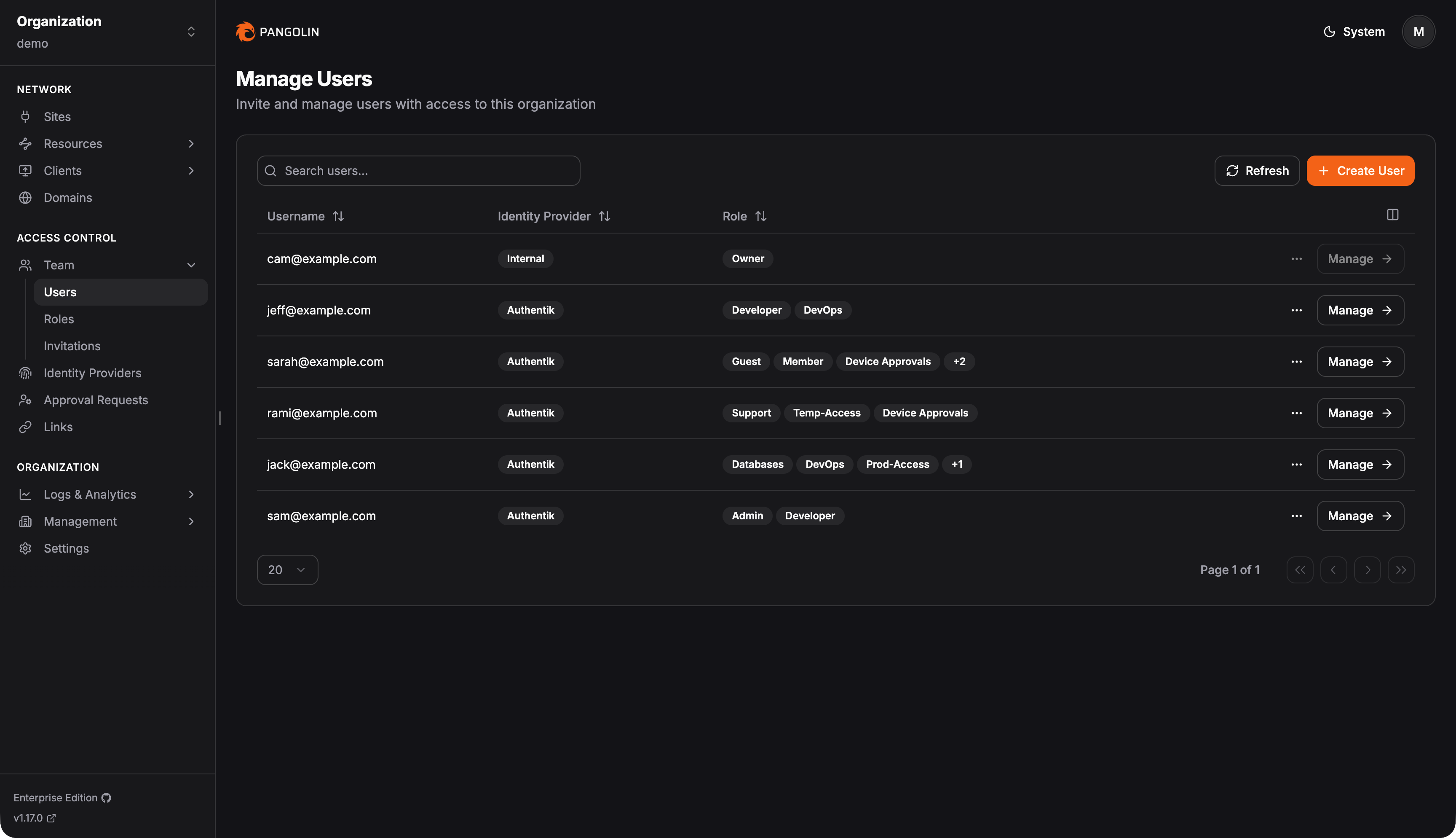 ### Internal Users [#internal-users]
An internal user is an identity managed by Pangolin only. When adding the user, you will receive an invite link. The user needs to use this link to either accept the invite, or create an account for the first time and accept the invite.
### External Users [#external-users]
An external user is an identity managed by an external identity provider. When creating an external user, you will need to select an existing identity provider added to Pangolin. [Check out the documentation on adding an IDP](/manage/identity-providers/add-an-idp).
An identity provider may have auto‑provisioning enabled. This means new users who log in with the IDP are automatically created and you do not need to manually create the user. [Check out the auto‑provisioning documentation](/manage/identity-providers/auto-provisioning).
Even if auto‑provisioning is enabled, you can still manually create users.
## Roles [#roles]
Roles are how you group users in an organization. A user can belong to more than one role, for example Member, Admin, Contractor, Operations, or any custom roles you define. You use roles with RBAC on resources so access follows those groups: only Operations might reach production resources, while only Contractors might reach test environments, and so on.
On each resource, you define which roles are allowed to access it. A user’s effective access is the union of all resources their roles can reach: they can use any resource that at least one of their assigned roles is permitted to access.
You can create as many custom roles as you need in Pangolin. Each role has a name and a description. The name is the display label and also acts as the unique identifier, so two roles cannot share the exact same name.
To change which roles a user has, open that user’s settings and select the roles they should belong to.
To see how to configure SSH access on a role see [SSH Access](/manage/ssh#configuring-role-permissions).
### Internal Users [#internal-users]
An internal user is an identity managed by Pangolin only. When adding the user, you will receive an invite link. The user needs to use this link to either accept the invite, or create an account for the first time and accept the invite.
### External Users [#external-users]
An external user is an identity managed by an external identity provider. When creating an external user, you will need to select an existing identity provider added to Pangolin. [Check out the documentation on adding an IDP](/manage/identity-providers/add-an-idp).
An identity provider may have auto‑provisioning enabled. This means new users who log in with the IDP are automatically created and you do not need to manually create the user. [Check out the auto‑provisioning documentation](/manage/identity-providers/auto-provisioning).
Even if auto‑provisioning is enabled, you can still manually create users.
## Roles [#roles]
Roles are how you group users in an organization. A user can belong to more than one role, for example Member, Admin, Contractor, Operations, or any custom roles you define. You use roles with RBAC on resources so access follows those groups: only Operations might reach production resources, while only Contractors might reach test environments, and so on.
On each resource, you define which roles are allowed to access it. A user’s effective access is the union of all resources their roles can reach: they can use any resource that at least one of their assigned roles is permitted to access.
You can create as many custom roles as you need in Pangolin. Each role has a name and a description. The name is the display label and also acts as the unique identifier, so two roles cannot share the exact same name.
To change which roles a user has, open that user’s settings and select the roles they should belong to.
To see how to configure SSH access on a role see [SSH Access](/manage/ssh#configuring-role-permissions).
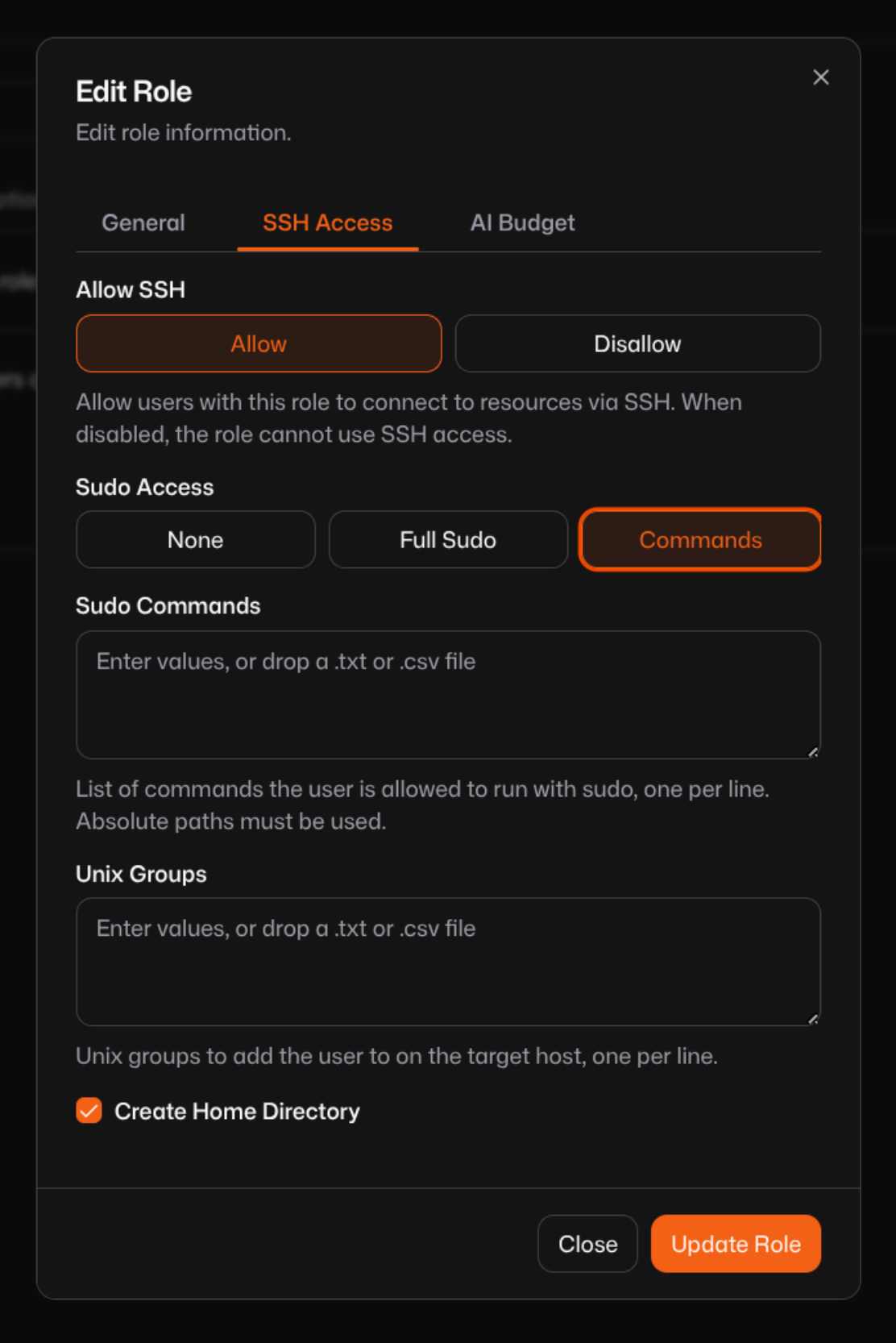 When using SSH automated provisioning, you can configure role permissions to control which users have the ability to SSH and what privileges they have. This is done in the Pangolin dashboard under the role's settings.
Choosing to disable SSH will prevent users in that role from being able to connect with either private or public resources.
Choosing to restrict the sudo mode will configure what sudo permissions the user has on the remote machine. You can choose between no sudo access, full sudo access, or limited sudo access restricted by specific commands. Additionally, you can configure which groups to put the users into.
You can choose weather or not to allow the user to have a home directory configure when provisioning the user on the remote machine.
## FAQ [#faq]
### How long are the temporary keys valid? [#how-long-are-the-temporary-keys-valid]
When the client requests a signed key from the Pangolin server, the certificate is valid for **5 minutes**. You must start the SSH connection within that window. Once the session is established, it can stay open.
### Is the SSH Connection Proxied Through the Pangolin Site? [#is-the-ssh-connection-proxied-through-the-pangolin-site]
**Pangolin SSH mode or auth daemon on site:** Your client connects directly to the server that runs the Pangolin Site. SSH traffic does not go through another hop.
**Standard SSH Server + remote auth daemon:** Your client connects to the Pangolin Site, and the site proxies the SSH session to the target server. The auth daemon on each target is an extension of the Pangolin Site.
### How are usernames created on the remote server? [#how-are-usernames-created-on-the-remote-server]
Pangolin derives the remote username from your Pangolin identity (the part before `@`). If that name is already taken in the organization, a numeric suffix is added until it is unique.
### How Does the Pangolin Site Communicate With the External Auth Daemon? [#how-does-the-pangolin-site-communicate-with-the-external-auth-daemon]
The Pangolin Site talks to the auth daemon over **HTTPS** on **TCP 22123** by default. Port 22123 only needs to be open between the Pangolin Site and the auth daemon hosts on your internal network.
To use a different port, set the port in the resource's SSH settings and pass the same port to the auth daemon with `--port`.
---
# Rules (/manage/access-control/rules)
> Configure rules to allow or deny access to resources without authentication
Rules allow you to either "allow" and bypass the Pangolin auth system (no pin, login, password), or "deny" and fully reject the request. After you create a resource you can select the "Rules" tab on the sidebar and enable rules. On public resources, you can also define rules in a [resource policy](/manage/resources/public/resource-policies) and share them across multiple resources.
When using SSH automated provisioning, you can configure role permissions to control which users have the ability to SSH and what privileges they have. This is done in the Pangolin dashboard under the role's settings.
Choosing to disable SSH will prevent users in that role from being able to connect with either private or public resources.
Choosing to restrict the sudo mode will configure what sudo permissions the user has on the remote machine. You can choose between no sudo access, full sudo access, or limited sudo access restricted by specific commands. Additionally, you can configure which groups to put the users into.
You can choose weather or not to allow the user to have a home directory configure when provisioning the user on the remote machine.
## FAQ [#faq]
### How long are the temporary keys valid? [#how-long-are-the-temporary-keys-valid]
When the client requests a signed key from the Pangolin server, the certificate is valid for **5 minutes**. You must start the SSH connection within that window. Once the session is established, it can stay open.
### Is the SSH Connection Proxied Through the Pangolin Site? [#is-the-ssh-connection-proxied-through-the-pangolin-site]
**Pangolin SSH mode or auth daemon on site:** Your client connects directly to the server that runs the Pangolin Site. SSH traffic does not go through another hop.
**Standard SSH Server + remote auth daemon:** Your client connects to the Pangolin Site, and the site proxies the SSH session to the target server. The auth daemon on each target is an extension of the Pangolin Site.
### How are usernames created on the remote server? [#how-are-usernames-created-on-the-remote-server]
Pangolin derives the remote username from your Pangolin identity (the part before `@`). If that name is already taken in the organization, a numeric suffix is added until it is unique.
### How Does the Pangolin Site Communicate With the External Auth Daemon? [#how-does-the-pangolin-site-communicate-with-the-external-auth-daemon]
The Pangolin Site talks to the auth daemon over **HTTPS** on **TCP 22123** by default. Port 22123 only needs to be open between the Pangolin Site and the auth daemon hosts on your internal network.
To use a different port, set the port in the resource's SSH settings and pass the same port to the auth daemon with `--port`.
---
# Rules (/manage/access-control/rules)
> Configure rules to allow or deny access to resources without authentication
Rules allow you to either "allow" and bypass the Pangolin auth system (no pin, login, password), or "deny" and fully reject the request. After you create a resource you can select the "Rules" tab on the sidebar and enable rules. On public resources, you can also define rules in a [resource policy](/manage/resources/public/resource-policies) and share them across multiple resources.
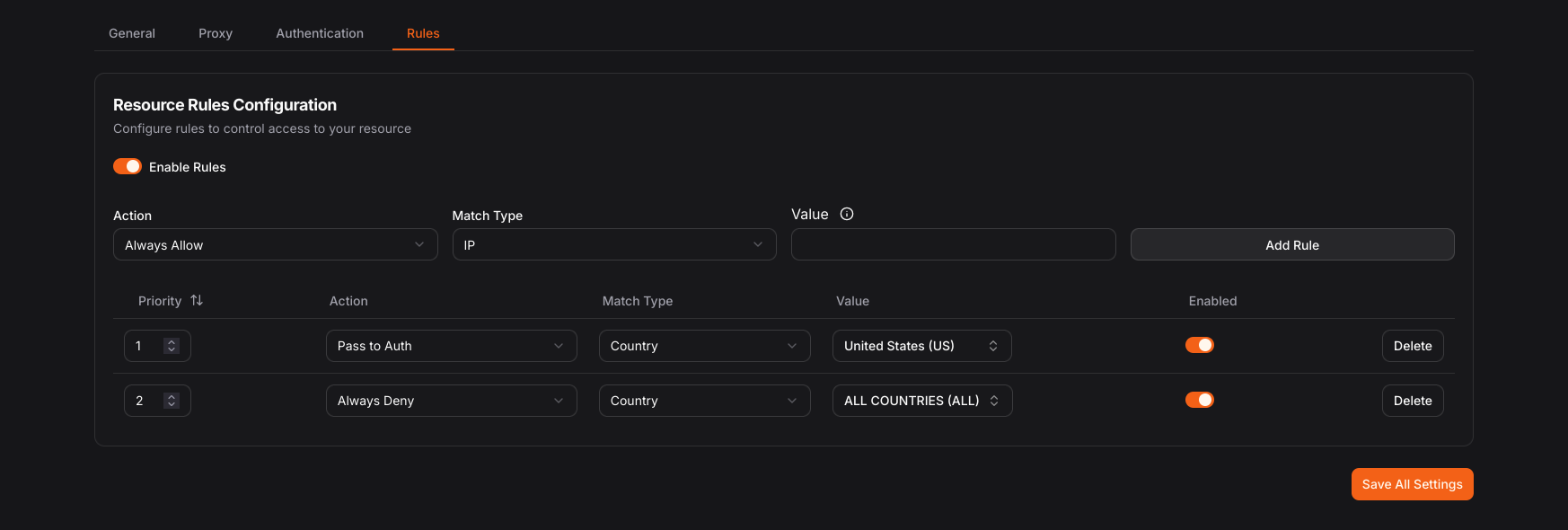 ### Setting Up Geo-blocking Rules [#setting-up-geo-blocking-rules]
1. Navigate to your target resource and select the **Rules** tab
2. Create a new rule and select **Country** as the match type
3. Choose your rule action:
* **Allow**: Bypass authentication for users from specific countries
* **Deny**: Block all access from specific countries
* **Pass to Auth**: Let users from specific countries proceed to authentication
### Common Geo-blocking Patterns [#common-geo-blocking-patterns]
#### Allow Only Specific Countries [#allow-only-specific-countries]
Create a "Deny" rule that blocks all countries except those you want to allow:
1. Create a **Deny** rule
2. Select **Country** match type
3. Choose "ALL" to match all countries
4. Add priority: 100 (lower priority)
Then create specific allow rules for your approved countries:
1. Create **Allow** rules for each approved country
2. Set higher priority (e.g., 10, 20, 30) so they process first
#### Block Specific High-Risk Countries [#block-specific-high-risk-countries]
Create targeted deny rules for specific countries while allowing all others:
1. Create **Deny** rules for each country you want to block
2. Select the specific countries from the dropdown
3. Set appropriate priorities
#### Regional Access Control [#regional-access-control]
Combine geo-blocking with other rule types for sophisticated access control:
1. **Path + Country**: Block admin paths (`/admin/*`) from all countries except your headquarters
2. **IP + Country**: Allow specific IPs from restricted countries (for VPN users or partners)
3. **CIDR + Country**: Combine network-based and geography-based restrictions
### Best Practices [#best-practices]
### Setting Up Geo-blocking Rules [#setting-up-geo-blocking-rules]
1. Navigate to your target resource and select the **Rules** tab
2. Create a new rule and select **Country** as the match type
3. Choose your rule action:
* **Allow**: Bypass authentication for users from specific countries
* **Deny**: Block all access from specific countries
* **Pass to Auth**: Let users from specific countries proceed to authentication
### Common Geo-blocking Patterns [#common-geo-blocking-patterns]
#### Allow Only Specific Countries [#allow-only-specific-countries]
Create a "Deny" rule that blocks all countries except those you want to allow:
1. Create a **Deny** rule
2. Select **Country** match type
3. Choose "ALL" to match all countries
4. Add priority: 100 (lower priority)
Then create specific allow rules for your approved countries:
1. Create **Allow** rules for each approved country
2. Set higher priority (e.g., 10, 20, 30) so they process first
#### Block Specific High-Risk Countries [#block-specific-high-risk-countries]
Create targeted deny rules for specific countries while allowing all others:
1. Create **Deny** rules for each country you want to block
2. Select the specific countries from the dropdown
3. Set appropriate priorities
#### Regional Access Control [#regional-access-control]
Combine geo-blocking with other rule types for sophisticated access control:
1. **Path + Country**: Block admin paths (`/admin/*`) from all countries except your headquarters
2. **IP + Country**: Allow specific IPs from restricted countries (for VPN users or partners)
3. **CIDR + Country**: Combine network-based and geography-based restrictions
### Best Practices [#best-practices]
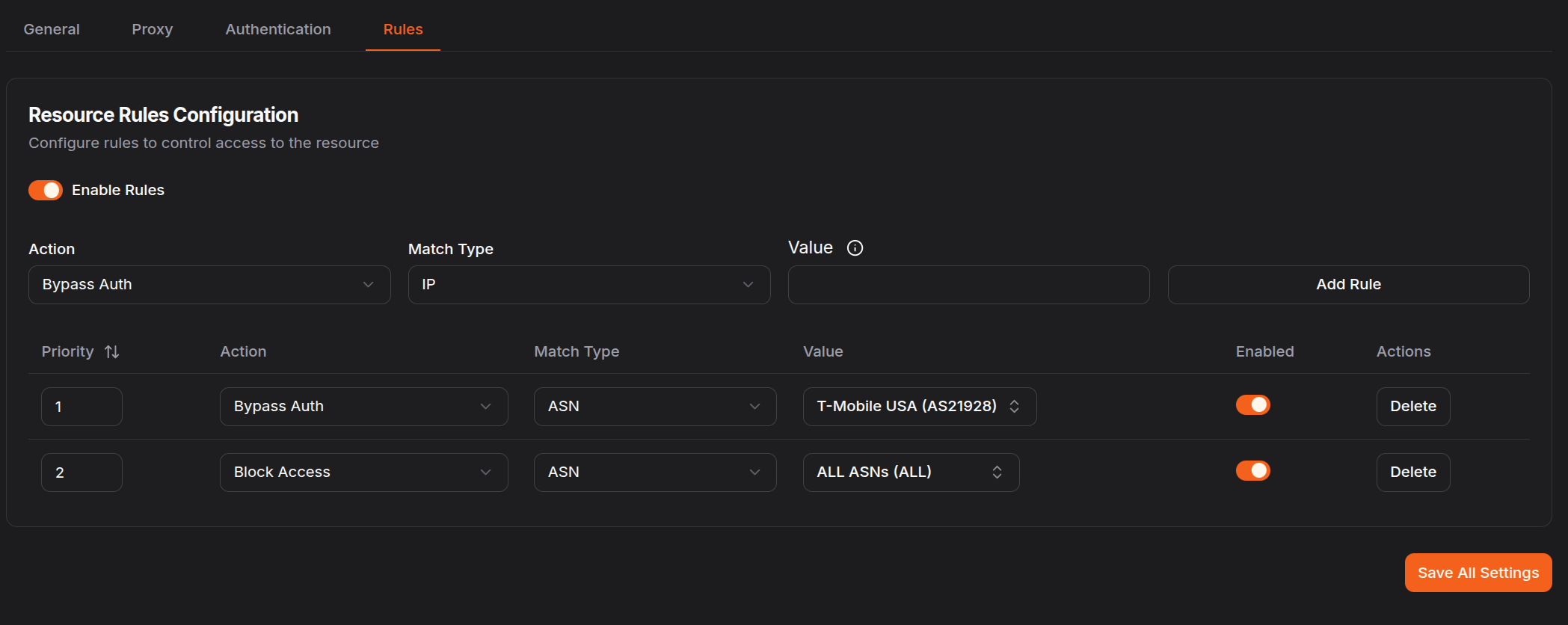 ### Setting Up ASN Blocking Rules [#setting-up-asn-blocking-rules]
1. Navigate to your target resource and select the **Rules** tab
2. Create a new rule and select **ASN** as the match type
3. Choose an ASN from the dropdown of common providers, or manually enter a specific ASN number
4. Choose your rule action:
* **Allow**: Bypass authentication for users from specific ASNs
* **Deny**: Block all access from specific ASNs
* **Pass to Auth**: Let users from specific ASNs proceed to authentication
### Common ASNs [#common-asns]
The dropdown includes many commonly-used ASNs such as:
* **Cloud Providers**: Amazon (AS16509), Google Cloud (AS15169), Microsoft Azure (AS8075), DigitalOcean (AS14061)
* **Major ISPs**: Comcast (AS7922), AT\&T (AS7018), Verizon (AS701), Deutsche Telekom (AS3320)
* **VPN/Proxy Services**: NordVPN (various), ExpressVPN (various), Mullvad (AS42831)
* **CDN Providers**: Cloudflare (AS13335), Fastly (AS54113), Akamai (various)
If the ASN you need isn't in the dropdown, you can manually enter the ASN number (e.g., AS12345 or just 12345).
### Common ASN Blocking Patterns [#common-asn-blocking-patterns]
#### Block VPN and Proxy Services [#block-vpn-and-proxy-services]
Create deny rules for known VPN and proxy ASNs to prevent anonymous access:
1. Create **Deny** rules for each VPN/proxy provider ASN
2. Select ASNs from the dropdown or enter them manually
3. Set appropriate priorities
#### Block Datacenter Traffic [#block-datacenter-traffic]
Block access from datacenter and hosting provider ASNs while allowing residential users:
1. Create **Deny** rules for major cloud and hosting provider ASNs
2. Include providers like AWS, GCP, Azure, DigitalOcean, etc.
3. This helps ensure only real users from residential ISPs can access your resources
#### Allow Only Specific Networks [#allow-only-specific-networks]
Create a default deny rule and explicitly allow only approved ASNs:
1. Create a **Deny** rule matching all traffic with priority 100
2. Create **Allow** rules for specific approved ASNs with higher priority (e.g., 10, 20, 30)
#### Regional ISP Control [#regional-isp-control]
Allow access only from specific country ISPs while blocking others:
1. **Combine with Country Rules**: Use ASN rules to specify which ISPs are allowed
2. Create **Allow** rules for major residential ISPs in your target countries
3. Block datacenter and VPN ASNs that might circumvent country restrictions
### Best Practices [#best-practices]
### Setting Up ASN Blocking Rules [#setting-up-asn-blocking-rules]
1. Navigate to your target resource and select the **Rules** tab
2. Create a new rule and select **ASN** as the match type
3. Choose an ASN from the dropdown of common providers, or manually enter a specific ASN number
4. Choose your rule action:
* **Allow**: Bypass authentication for users from specific ASNs
* **Deny**: Block all access from specific ASNs
* **Pass to Auth**: Let users from specific ASNs proceed to authentication
### Common ASNs [#common-asns]
The dropdown includes many commonly-used ASNs such as:
* **Cloud Providers**: Amazon (AS16509), Google Cloud (AS15169), Microsoft Azure (AS8075), DigitalOcean (AS14061)
* **Major ISPs**: Comcast (AS7922), AT\&T (AS7018), Verizon (AS701), Deutsche Telekom (AS3320)
* **VPN/Proxy Services**: NordVPN (various), ExpressVPN (various), Mullvad (AS42831)
* **CDN Providers**: Cloudflare (AS13335), Fastly (AS54113), Akamai (various)
If the ASN you need isn't in the dropdown, you can manually enter the ASN number (e.g., AS12345 or just 12345).
### Common ASN Blocking Patterns [#common-asn-blocking-patterns]
#### Block VPN and Proxy Services [#block-vpn-and-proxy-services]
Create deny rules for known VPN and proxy ASNs to prevent anonymous access:
1. Create **Deny** rules for each VPN/proxy provider ASN
2. Select ASNs from the dropdown or enter them manually
3. Set appropriate priorities
#### Block Datacenter Traffic [#block-datacenter-traffic]
Block access from datacenter and hosting provider ASNs while allowing residential users:
1. Create **Deny** rules for major cloud and hosting provider ASNs
2. Include providers like AWS, GCP, Azure, DigitalOcean, etc.
3. This helps ensure only real users from residential ISPs can access your resources
#### Allow Only Specific Networks [#allow-only-specific-networks]
Create a default deny rule and explicitly allow only approved ASNs:
1. Create a **Deny** rule matching all traffic with priority 100
2. Create **Allow** rules for specific approved ASNs with higher priority (e.g., 10, 20, 30)
#### Regional ISP Control [#regional-isp-control]
Allow access only from specific country ISPs while blocking others:
1. **Combine with Country Rules**: Use ASN rules to specify which ISPs are allowed
2. Create **Allow** rules for major residential ISPs in your target countries
3. Block datacenter and VPN ASNs that might circumvent country restrictions
### Best Practices [#best-practices]
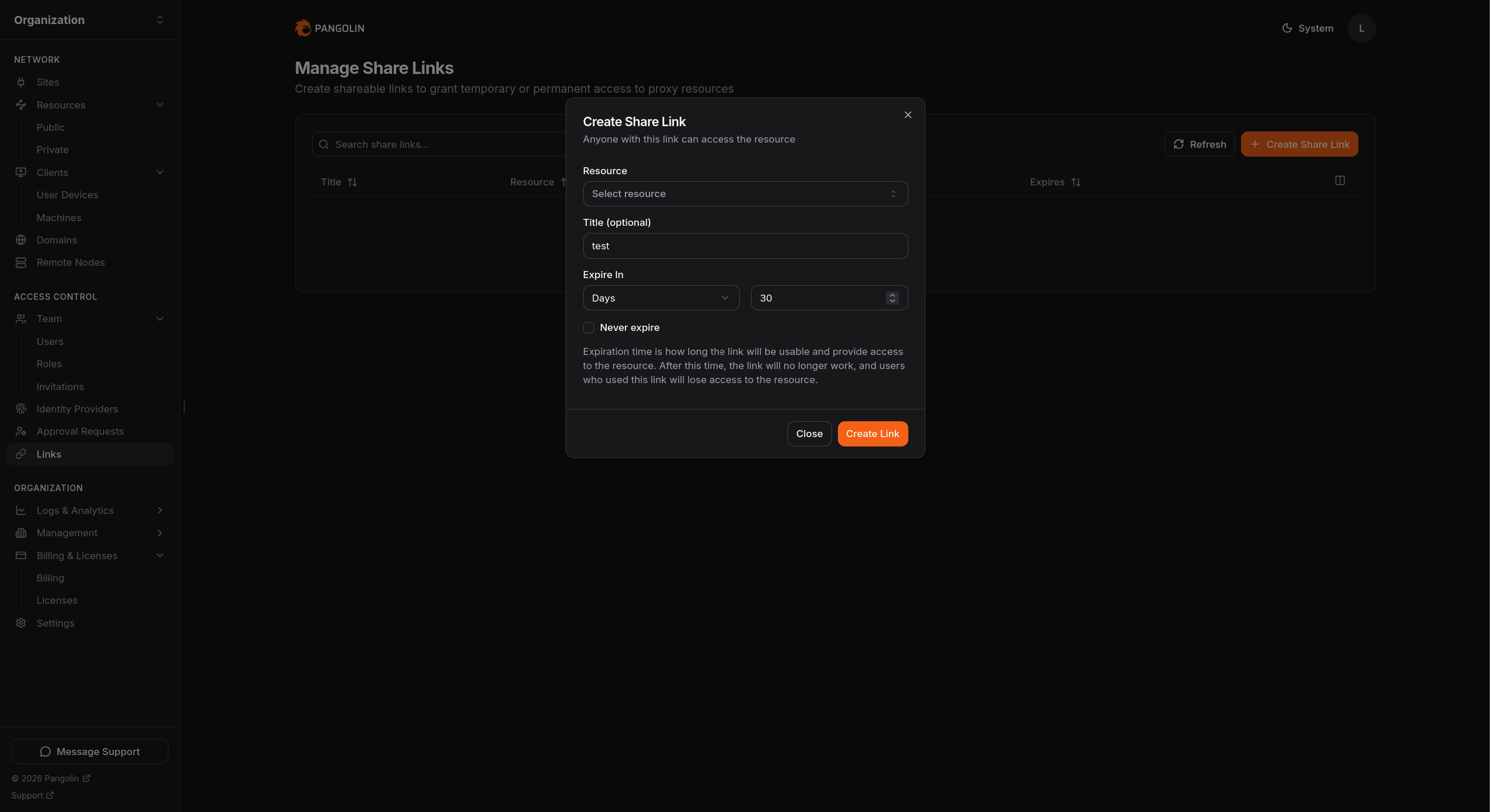
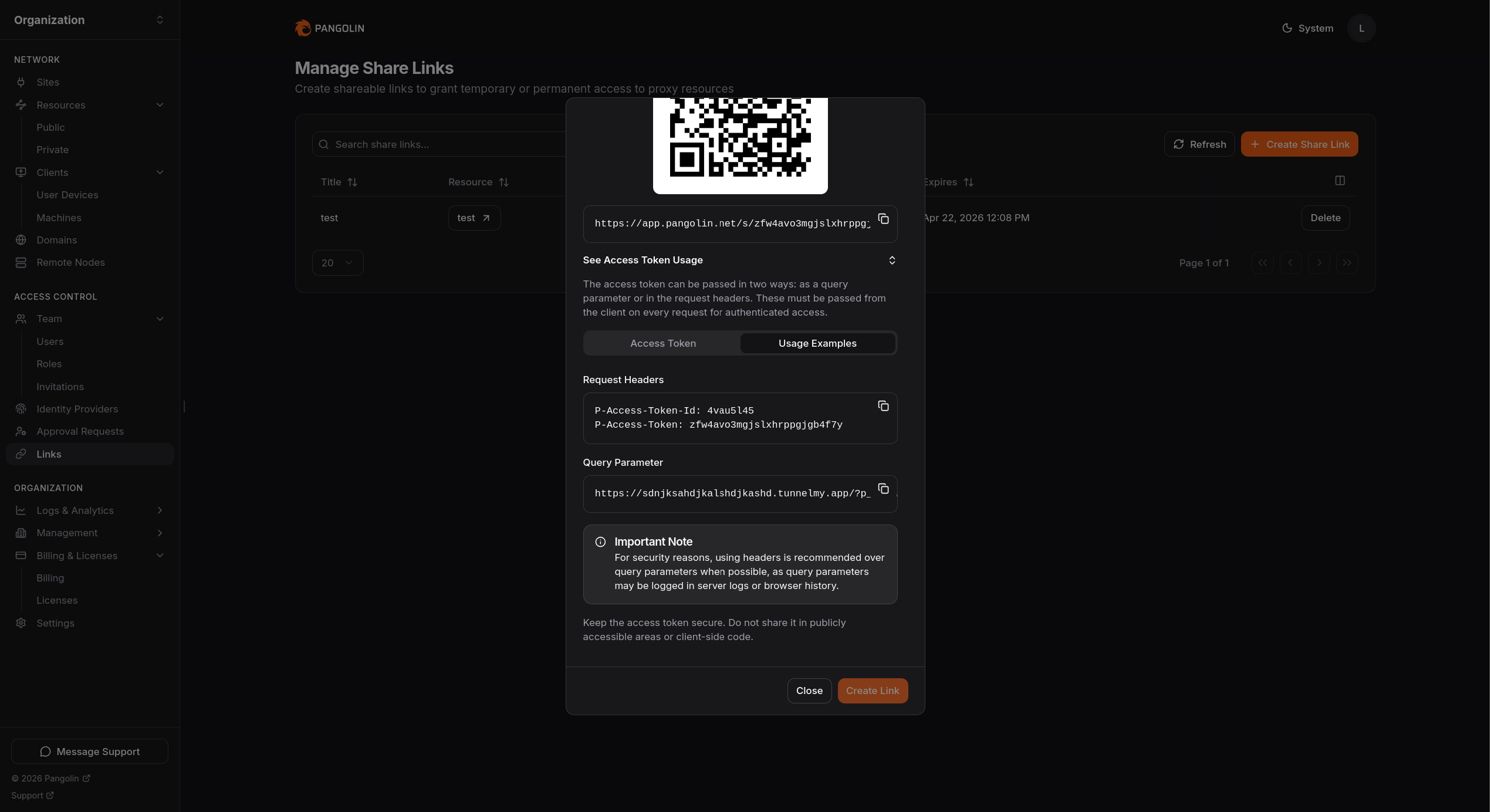 ### Query Parameter [#query-parameter]
Pangolin accepts the access token in the `p_token` query parameter:
```bash
curl "https://resource.example.com/?p_token=
### Query Parameter [#query-parameter]
Pangolin accepts the access token in the `p_token` query parameter:
```bash
curl "https://resource.example.com/?p_token=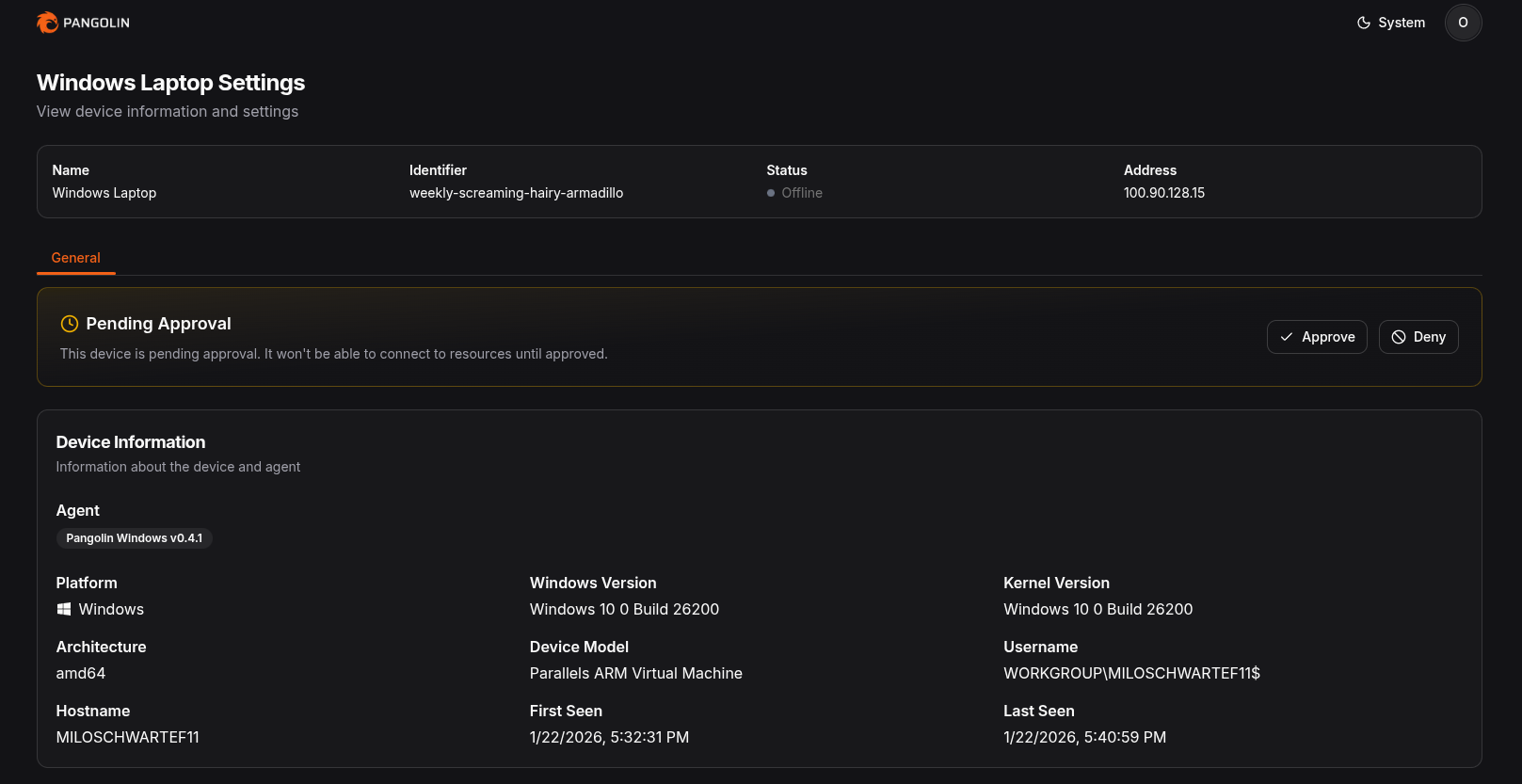 All approvals can also be managed from a central page as they stream in to allow admins to approve or deny devices quickly.
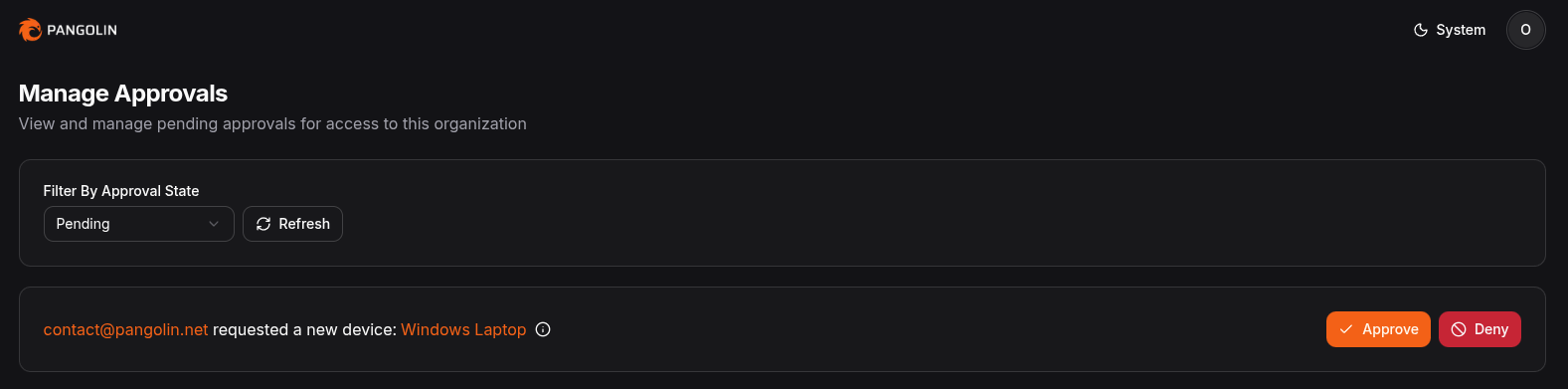 ## Benefits [#benefits]
* Stolen or phished credentials aren't enough to connect from an unknown device.
* Admins see every new device before it can reach resources.
* Approvals are set per role, so you can require them for some groups and not others.
## Use Cases [#use-cases]
* Only allow company-issued laptops to connect, not personal devices.
* Require approval for contractor roles while employees connect freely.
* Catch an unexpected new device on a user's account before it reaches sensitive resources.
## How Device Approvals Work [#how-device-approvals-work]
1. A user in a role that requires approval connects a device for the first time.
2. The device shows as Pending Approval and can't reach any organization resources.
3. An admin approves or denies it from the device or the approvals page.
4. Once approved, the device connects normally. Devices that were already approved aren't asked again.
## Enabling Device Approvals [#enabling-device-approvals]
Device approvals are enabled on a per-role basis. To enable device approvals for a role, follow these steps:
1. Click on the **Roles** tab.
2. Select the role you want to enable device approvals for.
3. Toggle the **Require Device Approval** option to enable it.
4. Save your changes.
Once enabled, any new user connecting with that role will require approval from an administrator before it can access organization resources.
## Benefits [#benefits]
* Stolen or phished credentials aren't enough to connect from an unknown device.
* Admins see every new device before it can reach resources.
* Approvals are set per role, so you can require them for some groups and not others.
## Use Cases [#use-cases]
* Only allow company-issued laptops to connect, not personal devices.
* Require approval for contractor roles while employees connect freely.
* Catch an unexpected new device on a user's account before it reaches sensitive resources.
## How Device Approvals Work [#how-device-approvals-work]
1. A user in a role that requires approval connects a device for the first time.
2. The device shows as Pending Approval and can't reach any organization resources.
3. An admin approves or denies it from the device or the approvals page.
4. Once approved, the device connects normally. Devices that were already approved aren't asked again.
## Enabling Device Approvals [#enabling-device-approvals]
Device approvals are enabled on a per-role basis. To enable device approvals for a role, follow these steps:
1. Click on the **Roles** tab.
2. Select the role you want to enable device approvals for.
3. Toggle the **Require Device Approval** option to enable it.
4. Save your changes.
Once enabled, any new user connecting with that role will require approval from an administrator before it can access organization resources.
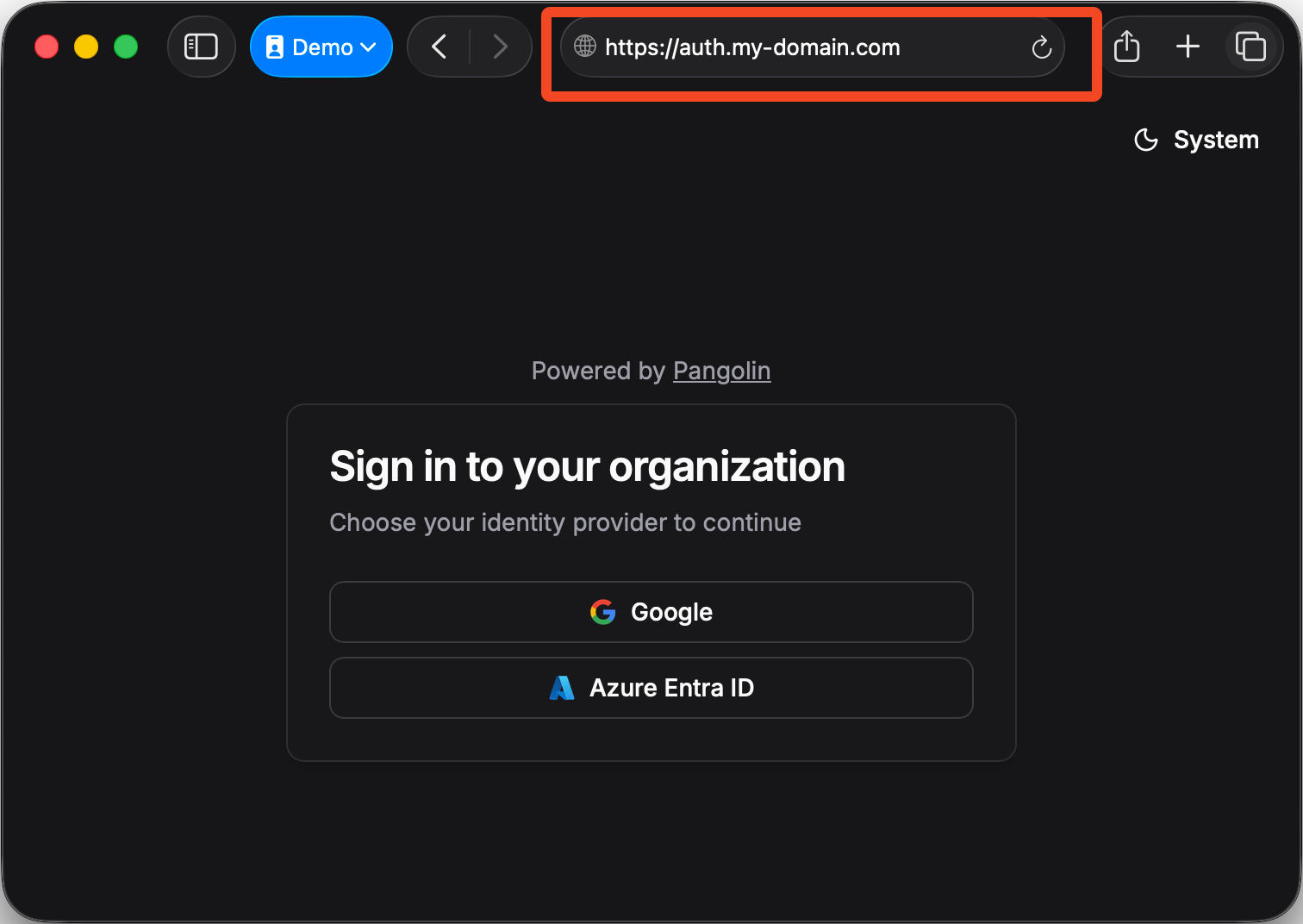 ## Configuration [#configuration]
1. Go to **Settings** in your organization sidebar
2. Use the domain picker to select your custom domain
3. Save your changes
## Configuration [#configuration]
1. Go to **Settings** in your organization sidebar
2. Use the domain picker to select your custom domain
3. Save your changes
 ---
# Add Identity Providers (/manage/identity-providers/add-an-idp)
> Configure external identity providers for user authentication to resources and the organization
Identity providers allow your users to log into Pangolin and Pangolin resources using their existing accounts from external identity systems like Google, Microsoft Azure, or Okta. Instead of creating separate Pangolin accounts, users can authenticate with their familiar work or personal credentials.
Here is an example using Microsoft Azure Entra ID as SSO for Pangolin:
**This feature is for you if:**
* Your organization already uses an identity provider like Google Workspace, Microsoft Entra ID, Okta, or similar systems
* You want to centralize user management and avoid maintaining separate Pangolin accounts
* You need to control who can access Pangolin resources through your existing user directory
* You want users to access Pangolin using their existing credentials without creating new passwords
---
# Add Identity Providers (/manage/identity-providers/add-an-idp)
> Configure external identity providers for user authentication to resources and the organization
Identity providers allow your users to log into Pangolin and Pangolin resources using their existing accounts from external identity systems like Google, Microsoft Azure, or Okta. Instead of creating separate Pangolin accounts, users can authenticate with their familiar work or personal credentials.
Here is an example using Microsoft Azure Entra ID as SSO for Pangolin:
**This feature is for you if:**
* Your organization already uses an identity provider like Google Workspace, Microsoft Entra ID, Okta, or similar systems
* You want to centralize user management and avoid maintaining separate Pangolin accounts
* You need to control who can access Pangolin resources through your existing user directory
* You want users to access Pangolin using their existing credentials without creating new passwords
 ## Identity Provider Types [#identity-provider-types]
### Organization Identity Providers [#organization-identity-providers]
Organization identity providers are configured per organization and only apply to that specific organization. Each org can have its own identity providers, allowing for authentication methods based on the organization's needs.
Organization only identity providers appear only on the organization login page.
## Identity Provider Types [#identity-provider-types]
### Organization Identity Providers [#organization-identity-providers]
Organization identity providers are configured per organization and only apply to that specific organization. Each org can have its own identity providers, allowing for authentication methods based on the organization's needs.
Organization only identity providers appear only on the organization login page.
 ## What if Auto Provisioning is Disabled? [#what-if-auto-provisioning-is-disabled]
If auto provision is disabled, organization admins will need to manually create the user accounts and select the role for each user. When creating a user, you can select the identity provider that the user will be associated with. A user will not be able to log in using the identity provider if a user is not pre-provisioned in the system.
## What if Auto Provisioning is Disabled? [#what-if-auto-provisioning-is-disabled]
If auto provision is disabled, organization admins will need to manually create the user accounts and select the role for each user. When creating a user, you can select the identity provider that the user will be associated with. A user will not be able to log in using the identity provider if a user is not pre-provisioned in the system.
 ## Role Mappings [#role-mappings]
When you configure role mappings in auto provisioning settings, you use one of three approaches: fixed roles, mapping builder, or raw expression. These options are available for global identity providers and for organization-only identity providers.
## Role Mappings [#role-mappings]
When you configure role mappings in auto provisioning settings, you use one of three approaches: fixed roles, mapping builder, or raw expression. These options are available for global identity providers and for organization-only identity providers.
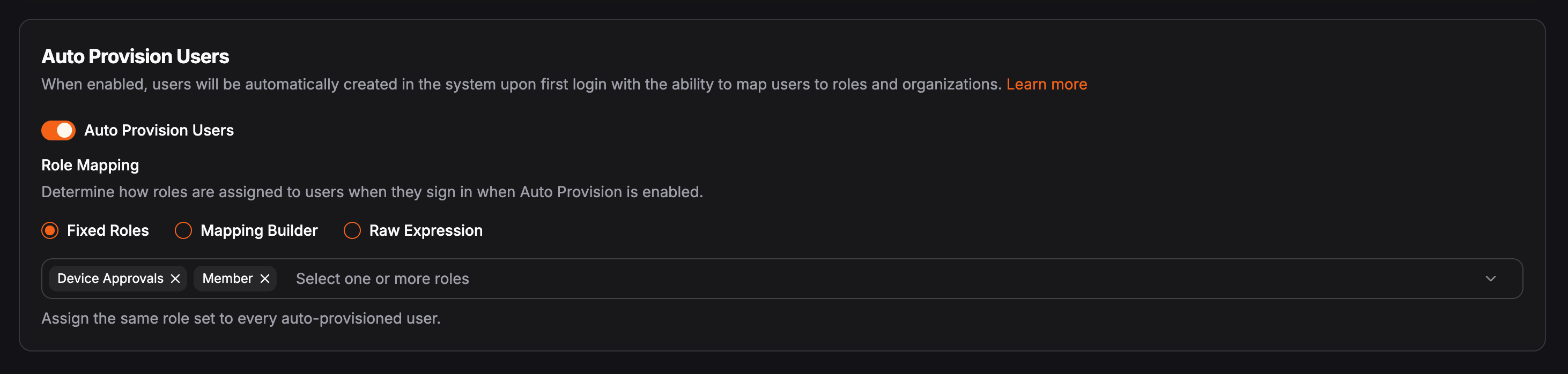 ### Role Mapping: Mapping Builder [#role-mapping-mapping-builder]
The mapping builder lets you map roles from your identity provider to Pangolin roles without writing expressions. For example, a user might sign in from Azure and belong to several groups there. Azure identifies those groups with its own internal ID strings. With the mapping builder, you translate those IDs to Pangolin role names in the UI.
First, choose the claim in the OIDC token where roles or groups are provided such as `groups`. Then define a one-to-one mapping for each role: on one side, the role or group ID from the identity provider; on the other, the Pangolin role name that already exists in the organization. The Pangolin side must match that role’s name exactly (same spelling, spacing, and casing).
### Role Mapping: Mapping Builder [#role-mapping-mapping-builder]
The mapping builder lets you map roles from your identity provider to Pangolin roles without writing expressions. For example, a user might sign in from Azure and belong to several groups there. Azure identifies those groups with its own internal ID strings. With the mapping builder, you translate those IDs to Pangolin role names in the UI.
First, choose the claim in the OIDC token where roles or groups are provided such as `groups`. Then define a one-to-one mapping for each role: on one side, the role or group ID from the identity provider; on the other, the Pangolin role name that already exists in the organization. The Pangolin side must match that role’s name exactly (same spelling, spacing, and casing).
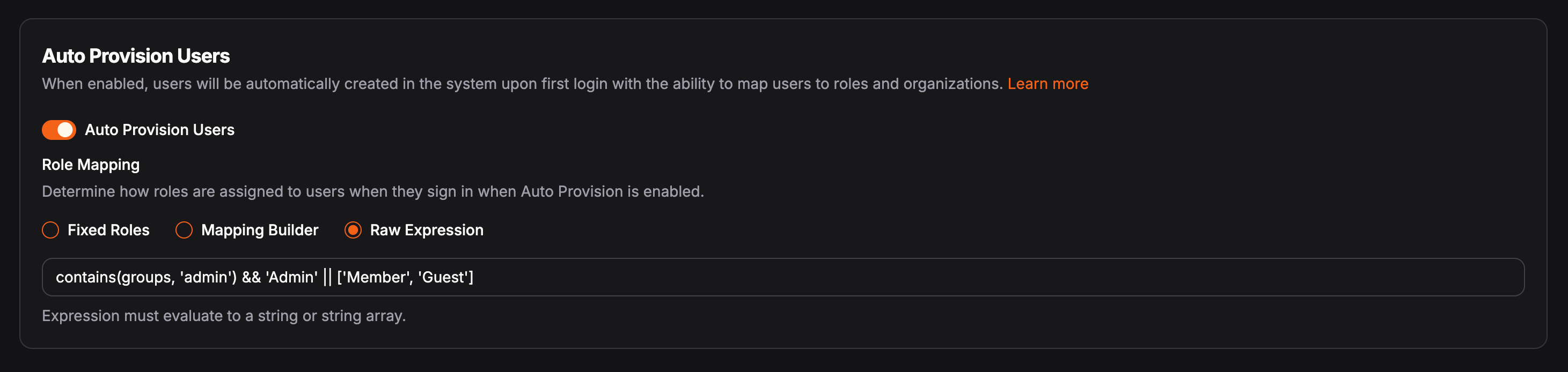 #### Raw Expression Example: JMESPath role selection [#raw-expression-example-jmespath-role-selection]
This expression returns `"Admin"` when the user is in the `admin` group, and `"Member"` otherwise.
**Expression:**
#### Raw Expression Example: JMESPath role selection [#raw-expression-example-jmespath-role-selection]
This expression returns `"Admin"` when the user is in the `admin` group, and `"Member"` otherwise.
**Expression:**
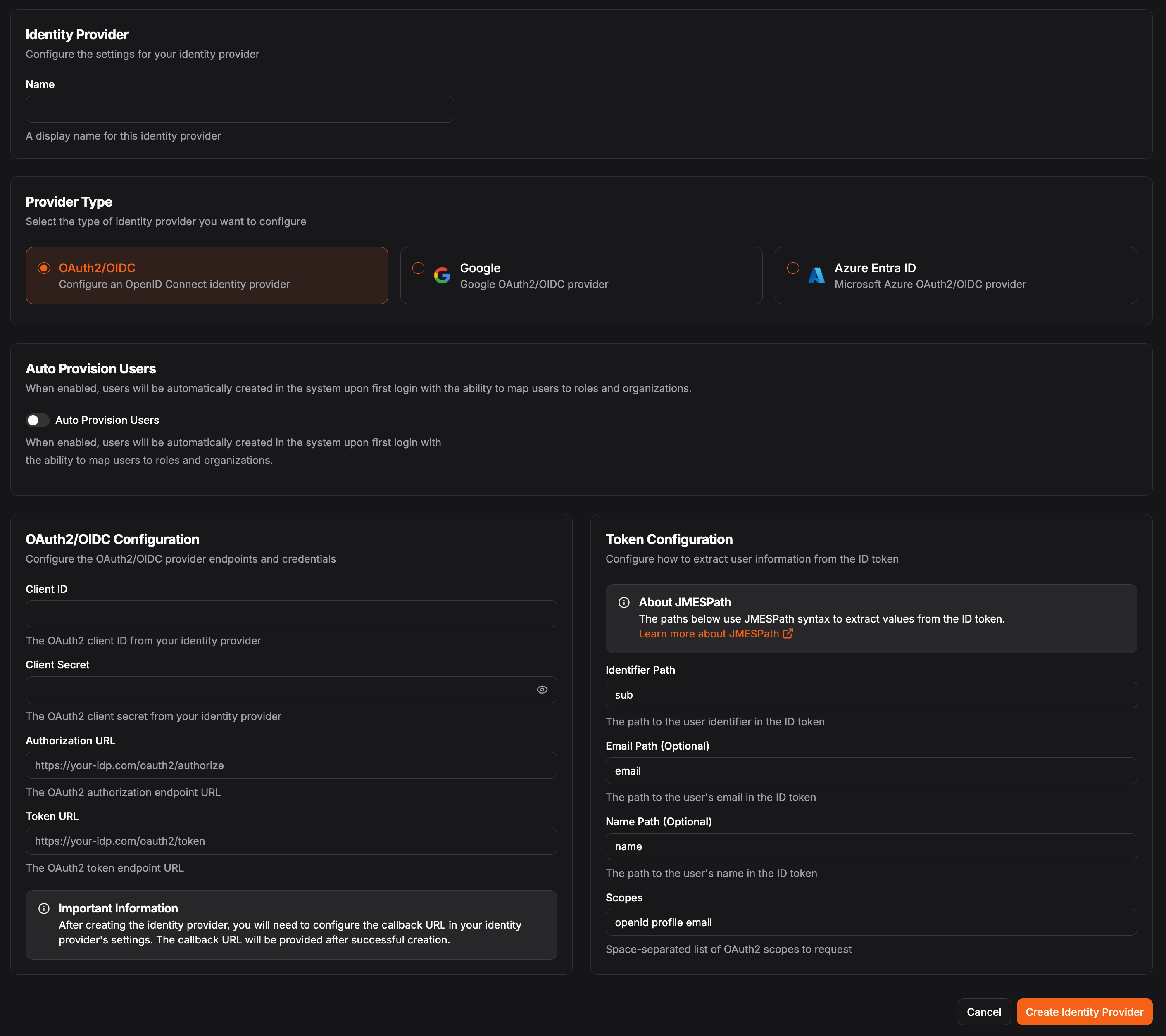 In the OAuth2/OIDC Configuration, you'll need the following fields:
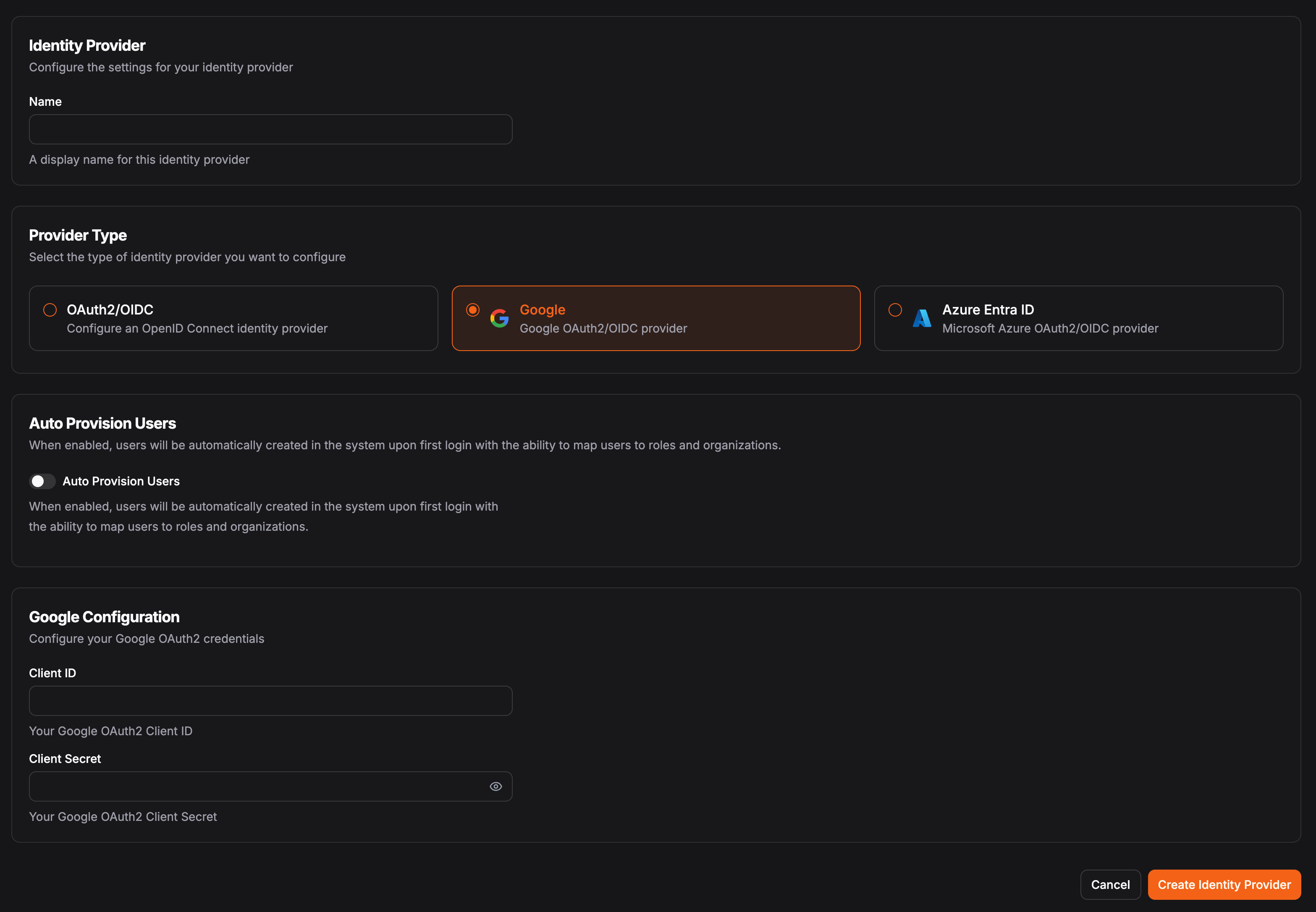 In the "Google Configuration", you'll need the following fields:
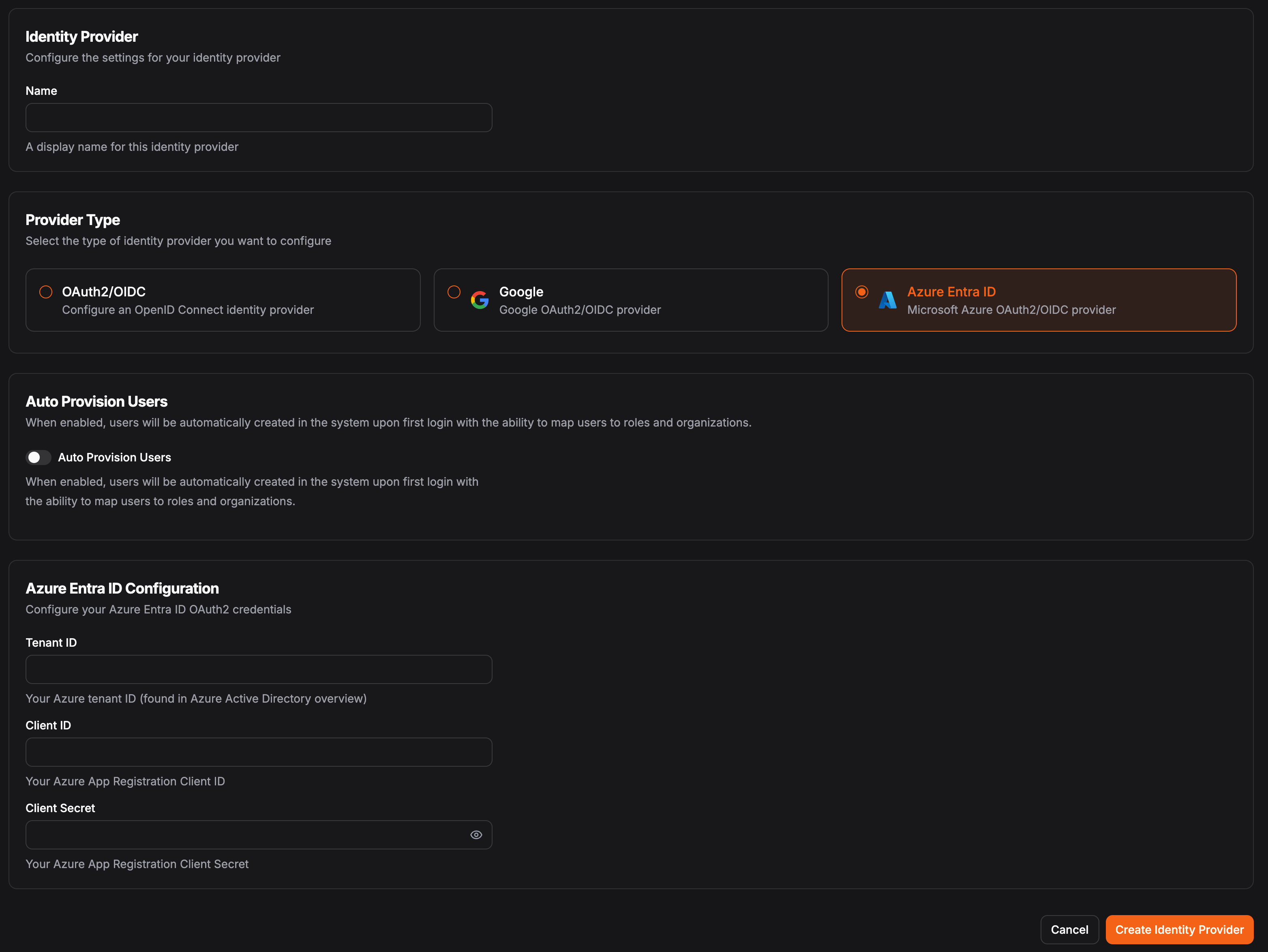 In the OAuth2/OIDC Configuration, you'll need the following fields:
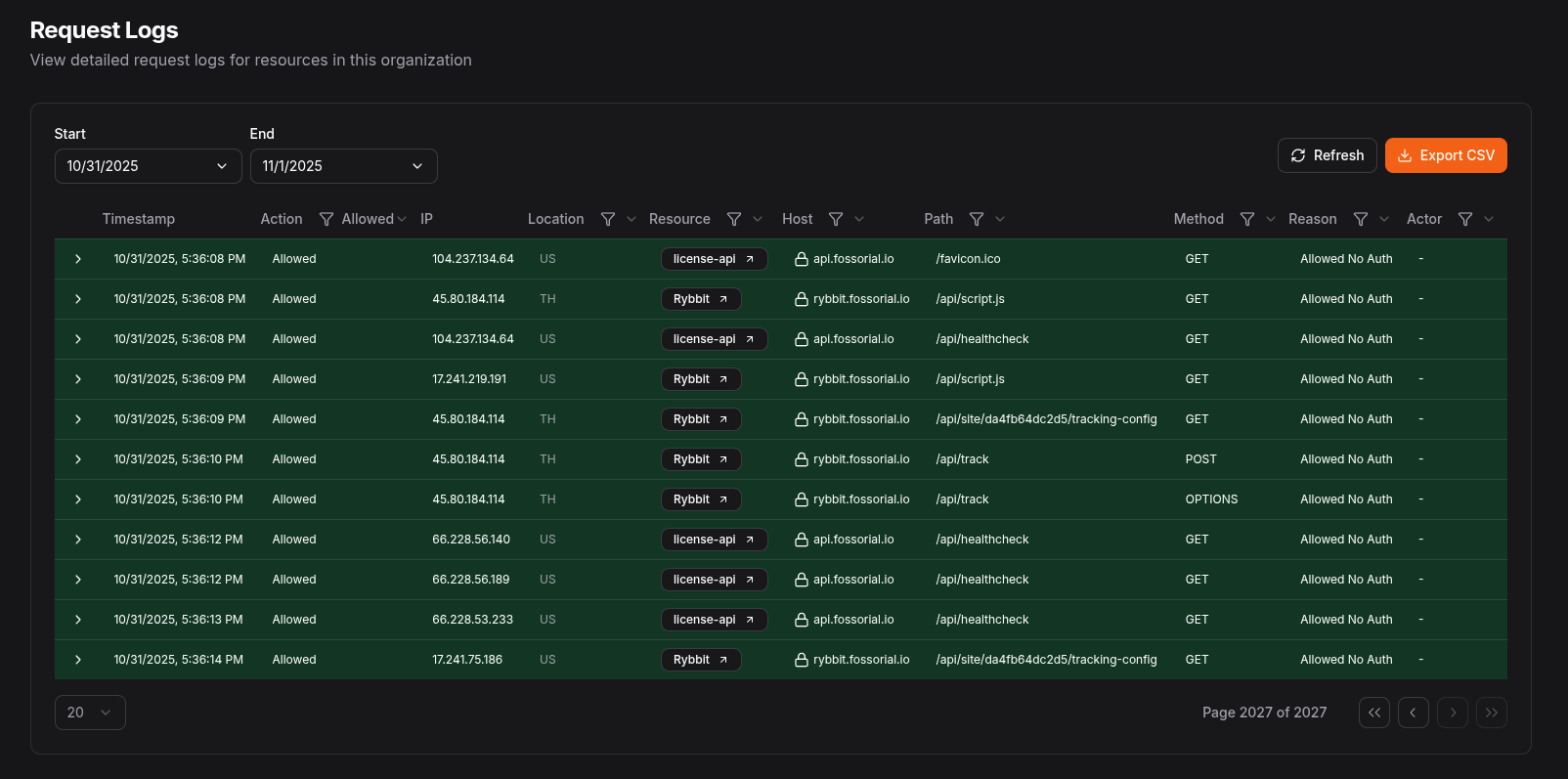 ## HTTPS Request Log Fields [#https-request-log-fields]
Each HTTPS request log entry contains the following fields:
| Field | Type | Description |
| -------------------- | ------- | ------------------------------------------------------------------------------ |
| `timestamp` | number | Unix timestamp (in seconds) when the request was made |
| `action` | boolean | Whether the request was allowed (`true`) or denied (`false`) |
| `reason` | number | Numeric code indicating the reason for the decision |
| `actorType` | string | The type of actor making the request ("user", "apiKey", or null for anonymous) |
| `actor` | string | The display name of the authenticated actor (username or API key name) |
| `actorId` | string | The unique identifier for the authenticated actor |
| `resourceId` | number | The ID of the resource that received the request |
| `ip` | string | The IP address of the client making the request |
| `location` | string | The geographic location (country code) based on IP address |
| `userAgent` | string | The user agent string of the client browser or application |
| `metadata` | string | Additional contextual information in JSON format |
| `headers` | string | HTTP request headers in JSON format |
| `query` | string | URL query parameters in JSON format |
| `originalRequestURL` | string | The full original URL of the request |
| `scheme` | string | The protocol scheme (http or https) |
| `host` | string | The hostname from the request |
| `path` | string | The URL path of the request |
| `method` | string | The HTTP method (GET, POST, PUT, DELETE, etc.) |
| `tls` | boolean | Whether the connection used TLS/SSL |
## Log Retention [#log-retention]
HTTPS Request log retention is controlled by the organization setting. By default, HTTPS request logs are retained for 7 days.
## HTTPS Request Log Fields [#https-request-log-fields]
Each HTTPS request log entry contains the following fields:
| Field | Type | Description |
| -------------------- | ------- | ------------------------------------------------------------------------------ |
| `timestamp` | number | Unix timestamp (in seconds) when the request was made |
| `action` | boolean | Whether the request was allowed (`true`) or denied (`false`) |
| `reason` | number | Numeric code indicating the reason for the decision |
| `actorType` | string | The type of actor making the request ("user", "apiKey", or null for anonymous) |
| `actor` | string | The display name of the authenticated actor (username or API key name) |
| `actorId` | string | The unique identifier for the authenticated actor |
| `resourceId` | number | The ID of the resource that received the request |
| `ip` | string | The IP address of the client making the request |
| `location` | string | The geographic location (country code) based on IP address |
| `userAgent` | string | The user agent string of the client browser or application |
| `metadata` | string | Additional contextual information in JSON format |
| `headers` | string | HTTP request headers in JSON format |
| `query` | string | URL query parameters in JSON format |
| `originalRequestURL` | string | The full original URL of the request |
| `scheme` | string | The protocol scheme (http or https) |
| `host` | string | The hostname from the request |
| `path` | string | The URL path of the request |
| `method` | string | The HTTP method (GET, POST, PUT, DELETE, etc.) |
| `tls` | boolean | Whether the connection used TLS/SSL |
## Log Retention [#log-retention]
HTTPS Request log retention is controlled by the organization setting. By default, HTTPS request logs are retained for 7 days.
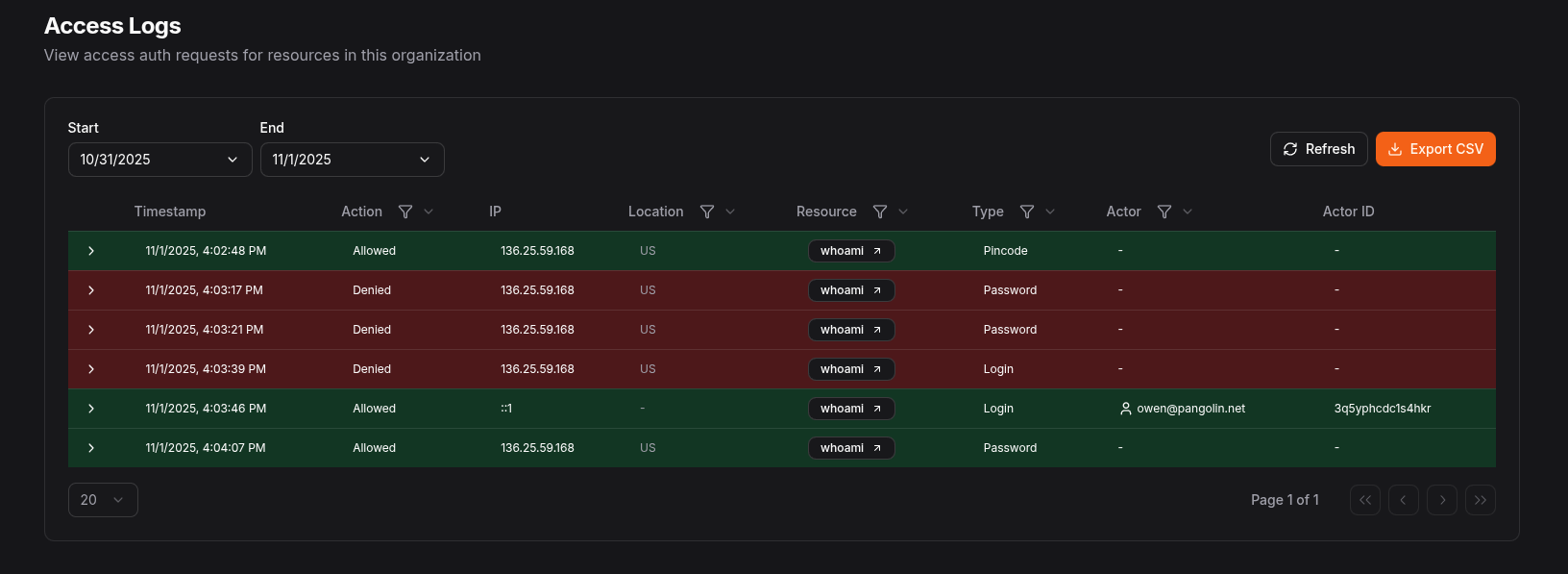
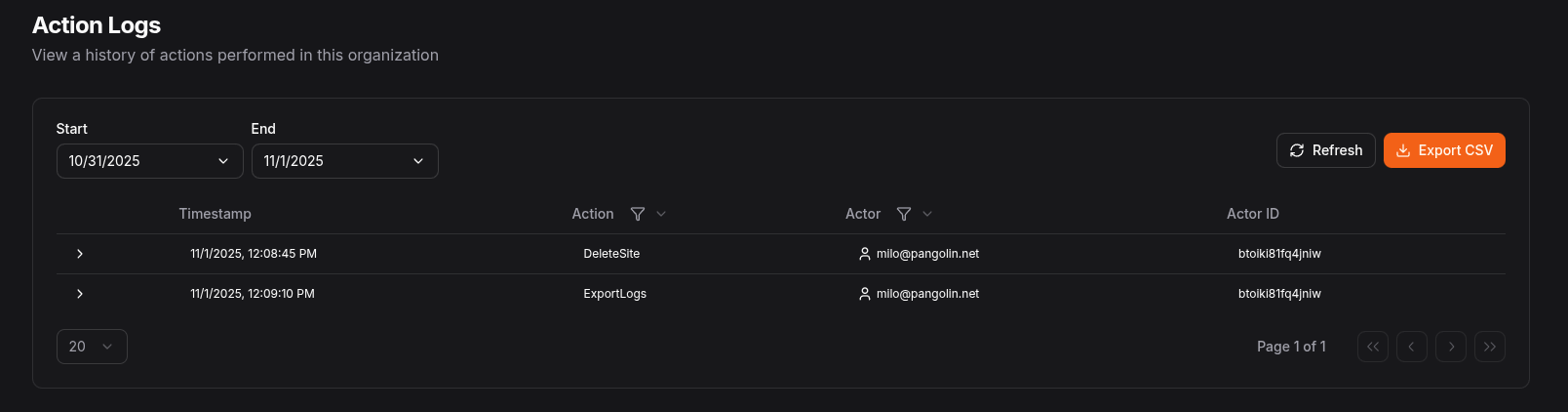
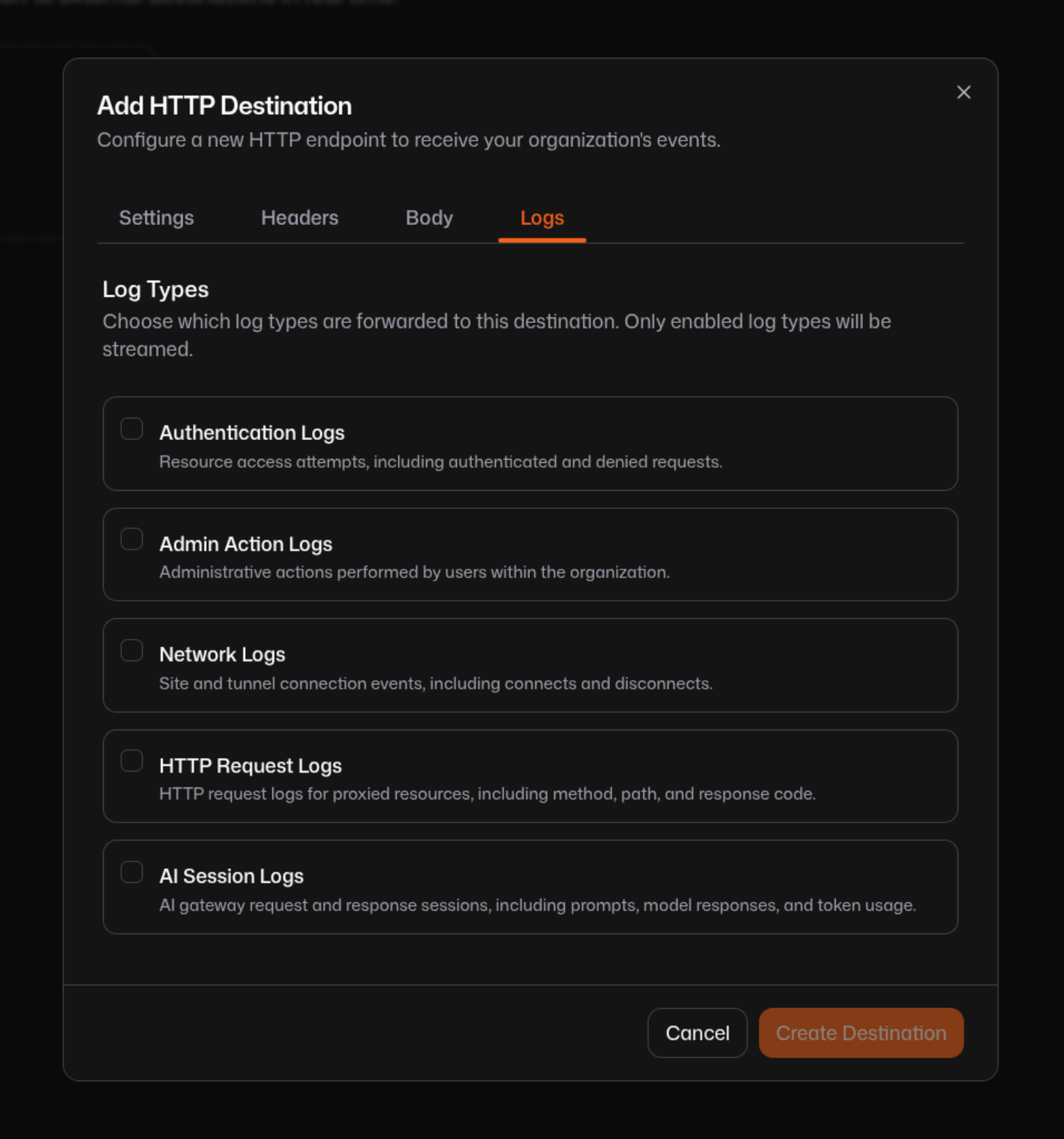 ## Destination types [#destination-types]
Each destination type has its own configuration and payload behavior. Select **Add destination** and pick a delivery method.
## Destination types [#destination-types]
Each destination type has its own configuration and payload behavior. Select **Add destination** and pick a delivery method.
 All delivery uses **POST**. Requests time out after 30 seconds.
## Authentication and headers [#authentication-and-headers]
On the **Headers** tab, add optional static headers sent with every request, for example a vendor-specific API key or a non-default `Content-Type`. When you do not override it, Pangolin sends `Content-Type: application/json` (or `application/x-ndjson` when using the NDJSON payload format).
All delivery uses **POST**. Requests time out after 30 seconds.
## Authentication and headers [#authentication-and-headers]
On the **Headers** tab, add optional static headers sent with every request, for example a vendor-specific API key or a non-default `Content-Type`. When you do not override it, Pangolin sends `Content-Type: application/json` (or `application/x-ndjson` when using the NDJSON payload format).
 ## Default payload (template off) [#default-payload-template-off]
When custom body template is disabled, each log event is serialized as:
```json
{
"event": "request",
"timestamp": "2025-06-15T12:34:56.789Z",
"data": {
"timestamp": 1718454896,
"action": true,
"method": "GET",
"path": "/api/health"
}
}
```
| Field | Meaning |
| ----------- | --------------------------------------------------------------------- |
| `event` | Log type: `request`, `access`, `action`, or `connection` |
| `timestamp` | Event time as ISO-8601 UTC |
| `data` | The **complete stored log row** for that record, not a curated subset |
The field set inside `data` depends on the log type. The same destination can stream multiple types; batches may contain heterogeneous `data` shapes. See [Log type reference](#log-type-reference) below and the dedicated log docs for full field lists.
## Default payload (template off) [#default-payload-template-off]
When custom body template is disabled, each log event is serialized as:
```json
{
"event": "request",
"timestamp": "2025-06-15T12:34:56.789Z",
"data": {
"timestamp": 1718454896,
"action": true,
"method": "GET",
"path": "/api/health"
}
}
```
| Field | Meaning |
| ----------- | --------------------------------------------------------------------- |
| `event` | Log type: `request`, `access`, `action`, or `connection` |
| `timestamp` | Event time as ISO-8601 UTC |
| `data` | The **complete stored log row** for that record, not a curated subset |
The field set inside `data` depends on the log type. The same destination can stream multiple types; batches may contain heterogeneous `data` shapes. See [Log type reference](#log-type-reference) below and the dedicated log docs for full field lists.
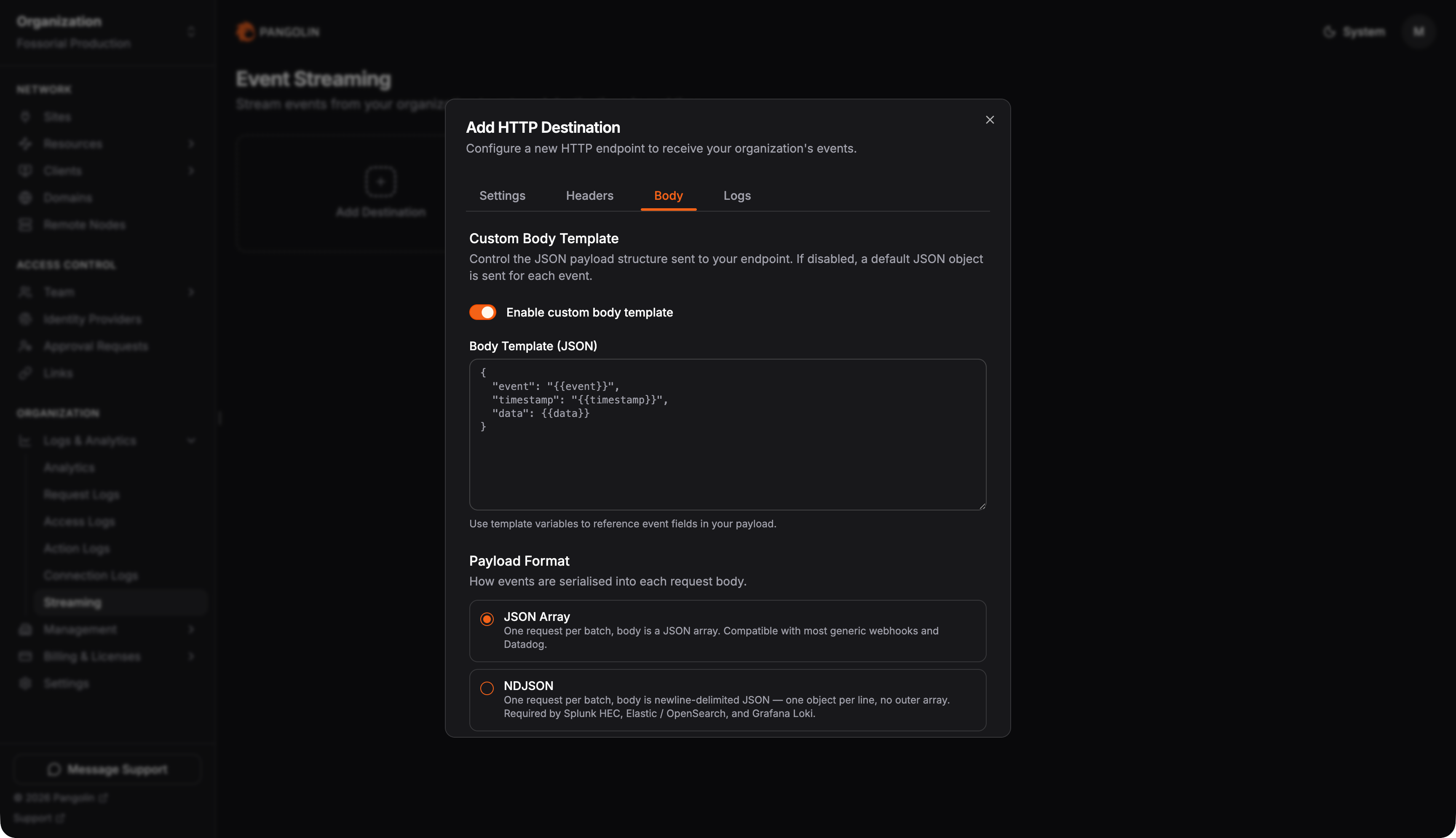 ### Template variables [#template-variables]
Only these three placeholders are supported:
| Variable | Source | How to use in the template |
| --------------- | ------------------------------------------------------ | --------------------------------------------- |
| `{{event}}` | Log type (`request`, `access`, `action`, `connection`) | Inside JSON **string quotes** |
| `{{timestamp}}` | Event time (ISO-8601 UTC) | Inside JSON **string quotes** |
| `{{data}}` | Full log row as JSON | **Never wrap in quotes**; inlined as raw JSON |
**Canonical example** (equivalent to the default payload):
```json
{
"event": "{{event}}",
"timestamp": "{{timestamp}}",
"data": {{data}}
}
```
**Remapping property names** for a downstream schema:
```json
{
"type": "{{event}}",
"ts": "{{timestamp}}",
"payload": {{data}}
}
```
You may use the same token multiple times and nest placeholders at any depth in your JSON structure. Nested objects and arrays **inside** the substituted `{{data}}` value are preserved from the log row.
### Rules and constraints [#rules-and-constraints]
* **Simple substitution only:** No conditionals, loops, filters, or expressions.
* **No field paths:** Placeholders like `{{data.orgId}}`, `{{orgId}}`, or `{{ip}}` do **not** work. To use a single field, read it from the full `data` object on the receiver or transform after ingest.
* **Quote `{{data}}` correctly:** `"field": {{data}}` is valid; `"field": "{{data}}"` stringifies the object incorrectly and produces invalid or useless JSON.
* **One template per destination:** The same template applies to every log type enabled on that destination. You cannot define different templates per log type on one HTTP destination.
* **String escaping:** `{{event}}` and `{{timestamp}}` are JSON-escaped for safe use inside quoted strings.
* **Invalid JSON:** Pangolin does not validate templates at save time. If the rendered body is not valid JSON, delivery may still occur but your receiver may reject it. Validate templates with a JSON linter before saving.
* **Not available on other destination types:** Body templates apply to HTTP streaming only, not S3 or Datadog destinations.
## Payload format [#payload-format]
Payload format is separate from the body template. The template defines the shape of **one event**; payload format controls **how many events** are sent per HTTP request.
| Format | HTTP body | Content-Type |
| ------------------------- | ---------------------------------------- | ---------------------- |
| **JSON array** (default) | One POST per batch: `[{…}, {…}, …]` | `application/json` |
| **NDJSON** | One JSON object per line, no outer array | `application/x-ndjson` |
| **One event per request** | Separate POST for each event | `application/json` |
The template is applied once per event, then results are batched into an array, joined as NDJSON lines, or sent individually, depending on the format you select.
Choose **NDJSON** for aggregators that expect newline-delimited ingest (Splunk HEC, Elastic/OpenSearch bulk-style HTTP inputs, Loki). Choose **one event per request** when the endpoint cannot accept batches.
## Log type reference [#log-type-reference]
The `data` object in each streamed event is the full stored log row. Field sets differ by log type. See the documentation for that log type under **Logs & Analytics** for the complete `data` shape.
## Integration examples [#integration-examples]
### Generic webhook (default shape, JSON array) [#generic-webhook-default-shape-json-array]
Leave custom body template disabled. Select **JSON array** payload format. Point the destination at your webhook URL with bearer or custom-header auth.
Each batch POST body looks like:
```json
[
{
"event": "action",
"timestamp": "2025-06-15T12:34:56.789Z",
"data": { "action": "updateUser", "actor": "admin@example.com" }
}
]
```
### Log aggregator (NDJSON, minimal template) [#log-aggregator-ndjson-minimal-template]
Enable a custom template and select **NDJSON**:
```json
{
"type": "{{event}}",
"ts": "{{timestamp}}",
"payload": {{data}}
}
```
Each line in the POST body is one rendered event. Set any vendor-required headers on the **Headers** tab.
### Vendor schema remapping [#vendor-schema-remapping]
If a tool expects your log row under a specific key, wrap `{{data}}` without quotes:
```json
{
"source": "pangolin",
"sourcetype": "_json",
"time": "{{timestamp}}",
"event": {{data}}
}
```
Adjust property names to match the vendor; field extraction beyond the three template variables happens on the receiver.
## Limitations and troubleshooting [#limitations-and-troubleshooting]
* **Field selection:** Cannot pick individual columns in the template. Use full `{{data}}` or transform after delivery.
* **Mixed log types:** Enabling multiple log types on one destination produces heterogeneous `data` in the same batch. Enable one type per destination if your pipeline expects a uniform schema.
* **Historical logs:** New destinations do not backfill. Only events recorded after the destination is created are streamed.
* **Delivery errors:** Check the destination’s **last error** in the dashboard. Common causes: wrong URL, auth failure, TLS issues, or receiver rejecting malformed JSON.
* **Quoting `{{data}}`:** `"payload": "{{data}}"` treats the entire row as a string, which is almost always wrong. Use `"payload": {{data}}`.
* **Splunk field extraction:** Pangolin does not emit Splunk-style indexed fields in the template. Parse `data` or use a receiver-side pipeline.
---
# Amazon S3 (/manage/analytics/streaming/s3)
> Archive audit logs to S3 or S3-compatible object storage
S3 destinations upload batches of your organization's audit logs as objects in a bucket you control. Use them for long-term archival, data lakes (Athena, Glue, BigQuery), or S3-compatible stores such as MinIO and Cloudflare R2.
### Template variables [#template-variables]
Only these three placeholders are supported:
| Variable | Source | How to use in the template |
| --------------- | ------------------------------------------------------ | --------------------------------------------- |
| `{{event}}` | Log type (`request`, `access`, `action`, `connection`) | Inside JSON **string quotes** |
| `{{timestamp}}` | Event time (ISO-8601 UTC) | Inside JSON **string quotes** |
| `{{data}}` | Full log row as JSON | **Never wrap in quotes**; inlined as raw JSON |
**Canonical example** (equivalent to the default payload):
```json
{
"event": "{{event}}",
"timestamp": "{{timestamp}}",
"data": {{data}}
}
```
**Remapping property names** for a downstream schema:
```json
{
"type": "{{event}}",
"ts": "{{timestamp}}",
"payload": {{data}}
}
```
You may use the same token multiple times and nest placeholders at any depth in your JSON structure. Nested objects and arrays **inside** the substituted `{{data}}` value are preserved from the log row.
### Rules and constraints [#rules-and-constraints]
* **Simple substitution only:** No conditionals, loops, filters, or expressions.
* **No field paths:** Placeholders like `{{data.orgId}}`, `{{orgId}}`, or `{{ip}}` do **not** work. To use a single field, read it from the full `data` object on the receiver or transform after ingest.
* **Quote `{{data}}` correctly:** `"field": {{data}}` is valid; `"field": "{{data}}"` stringifies the object incorrectly and produces invalid or useless JSON.
* **One template per destination:** The same template applies to every log type enabled on that destination. You cannot define different templates per log type on one HTTP destination.
* **String escaping:** `{{event}}` and `{{timestamp}}` are JSON-escaped for safe use inside quoted strings.
* **Invalid JSON:** Pangolin does not validate templates at save time. If the rendered body is not valid JSON, delivery may still occur but your receiver may reject it. Validate templates with a JSON linter before saving.
* **Not available on other destination types:** Body templates apply to HTTP streaming only, not S3 or Datadog destinations.
## Payload format [#payload-format]
Payload format is separate from the body template. The template defines the shape of **one event**; payload format controls **how many events** are sent per HTTP request.
| Format | HTTP body | Content-Type |
| ------------------------- | ---------------------------------------- | ---------------------- |
| **JSON array** (default) | One POST per batch: `[{…}, {…}, …]` | `application/json` |
| **NDJSON** | One JSON object per line, no outer array | `application/x-ndjson` |
| **One event per request** | Separate POST for each event | `application/json` |
The template is applied once per event, then results are batched into an array, joined as NDJSON lines, or sent individually, depending on the format you select.
Choose **NDJSON** for aggregators that expect newline-delimited ingest (Splunk HEC, Elastic/OpenSearch bulk-style HTTP inputs, Loki). Choose **one event per request** when the endpoint cannot accept batches.
## Log type reference [#log-type-reference]
The `data` object in each streamed event is the full stored log row. Field sets differ by log type. See the documentation for that log type under **Logs & Analytics** for the complete `data` shape.
## Integration examples [#integration-examples]
### Generic webhook (default shape, JSON array) [#generic-webhook-default-shape-json-array]
Leave custom body template disabled. Select **JSON array** payload format. Point the destination at your webhook URL with bearer or custom-header auth.
Each batch POST body looks like:
```json
[
{
"event": "action",
"timestamp": "2025-06-15T12:34:56.789Z",
"data": { "action": "updateUser", "actor": "admin@example.com" }
}
]
```
### Log aggregator (NDJSON, minimal template) [#log-aggregator-ndjson-minimal-template]
Enable a custom template and select **NDJSON**:
```json
{
"type": "{{event}}",
"ts": "{{timestamp}}",
"payload": {{data}}
}
```
Each line in the POST body is one rendered event. Set any vendor-required headers on the **Headers** tab.
### Vendor schema remapping [#vendor-schema-remapping]
If a tool expects your log row under a specific key, wrap `{{data}}` without quotes:
```json
{
"source": "pangolin",
"sourcetype": "_json",
"time": "{{timestamp}}",
"event": {{data}}
}
```
Adjust property names to match the vendor; field extraction beyond the three template variables happens on the receiver.
## Limitations and troubleshooting [#limitations-and-troubleshooting]
* **Field selection:** Cannot pick individual columns in the template. Use full `{{data}}` or transform after delivery.
* **Mixed log types:** Enabling multiple log types on one destination produces heterogeneous `data` in the same batch. Enable one type per destination if your pipeline expects a uniform schema.
* **Historical logs:** New destinations do not backfill. Only events recorded after the destination is created are streamed.
* **Delivery errors:** Check the destination’s **last error** in the dashboard. Common causes: wrong URL, auth failure, TLS issues, or receiver rejecting malformed JSON.
* **Quoting `{{data}}`:** `"payload": "{{data}}"` treats the entire row as a string, which is almost always wrong. Use `"payload": {{data}}`.
* **Splunk field extraction:** Pangolin does not emit Splunk-style indexed fields in the template. Parse `data` or use a receiver-side pipeline.
---
# Amazon S3 (/manage/analytics/streaming/s3)
> Archive audit logs to S3 or S3-compatible object storage
S3 destinations upload batches of your organization's audit logs as objects in a bucket you control. Use them for long-term archival, data lakes (Athena, Glue, BigQuery), or S3-compatible stores such as MinIO and Cloudflare R2.
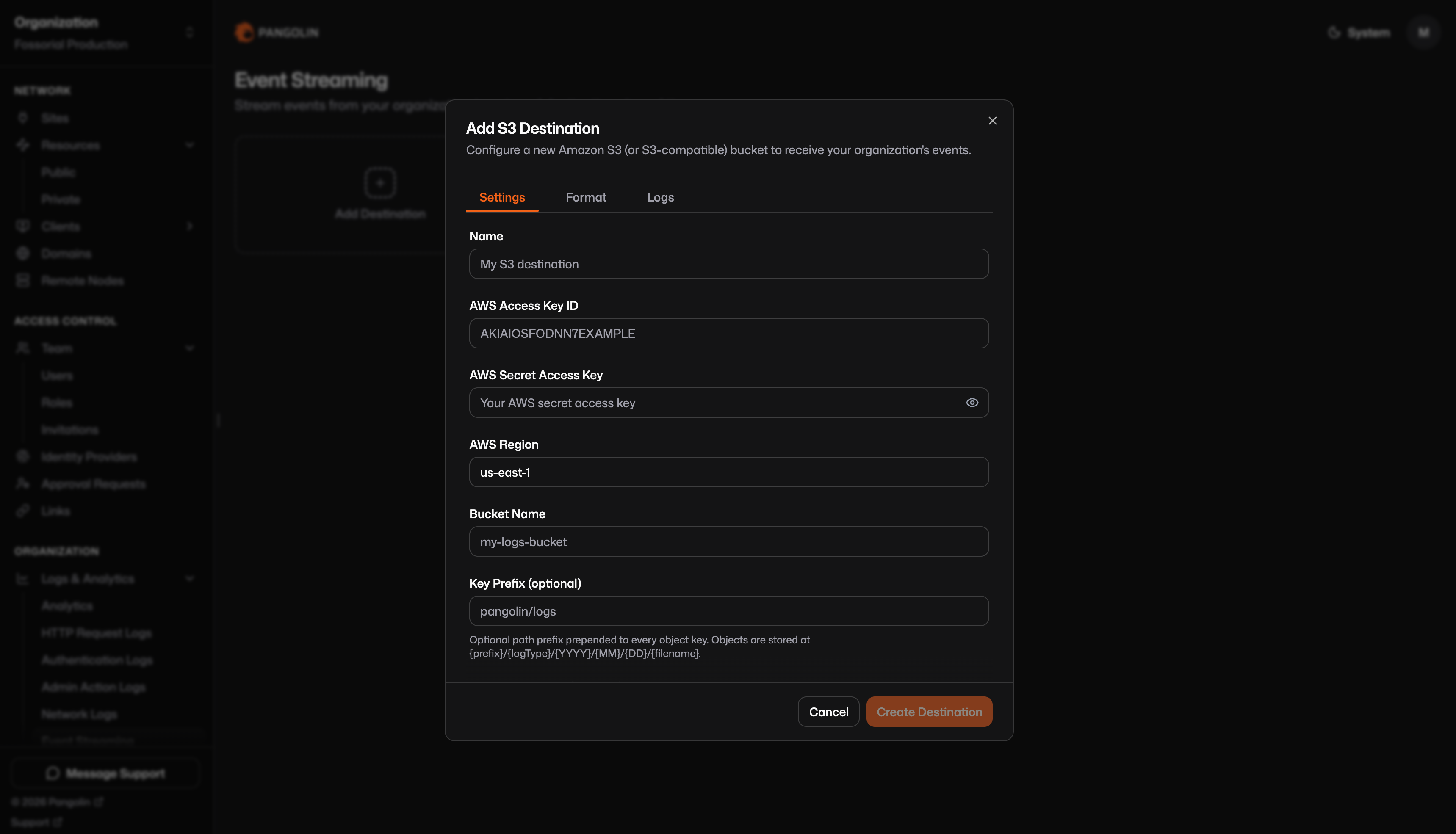 Uploads time out after 60 seconds per object.
## Format tab [#format-tab]
**Gzip compression** (optional): When enabled, the object body is gzip-compressed before upload, `Content-Encoding: gzip` is set, and the object key gets a `.gz` suffix (for example `….json.gz`). Decompress before parsing unless your tool handles gzip automatically.
**File format:**
| Format | Description |
| ------------------------ | ------------------------------------------------------------- |
| **JSON array** (default) | One array per object: `[{…}, {…}, …]` |
| **NDJSON** | One JSON object per line, no outer array |
| **CSV** | RFC-4180 CSV with a header row; see [CSV format](#csv-format) |
Uploads time out after 60 seconds per object.
## Format tab [#format-tab]
**Gzip compression** (optional): When enabled, the object body is gzip-compressed before upload, `Content-Encoding: gzip` is set, and the object key gets a `.gz` suffix (for example `….json.gz`). Decompress before parsing unless your tool handles gzip automatically.
**File format:**
| Format | Description |
| ------------------------ | ------------------------------------------------------------- |
| **JSON array** (default) | One array per object: `[{…}, {…}, …]` |
| **NDJSON** | One JSON object per line, no outer array |
| **CSV** | RFC-4180 CSV with a header row; see [CSV format](#csv-format) |
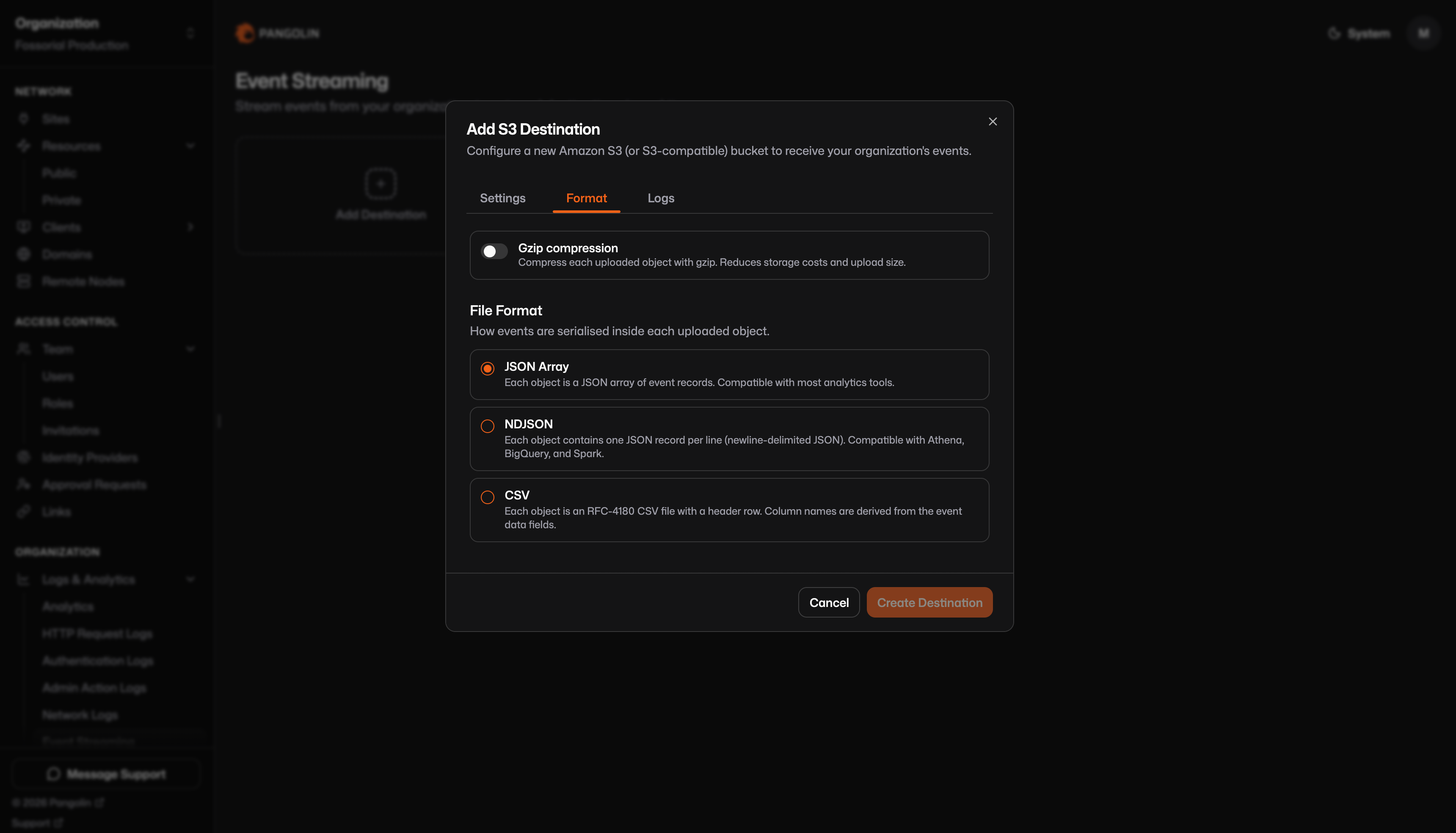 ## Logs tab [#logs-tab]
Choose which log categories are uploaded. Each enabled type is written to its own key prefix (`request/`, `action/`, etc.). Only log types enabled for your organization can be streamed.
## Logs tab [#logs-tab]
Choose which log categories are uploaded. Each enabled type is written to its own key prefix (`request/`, `action/`, etc.). Only log types enabled for your organization can be streamed.
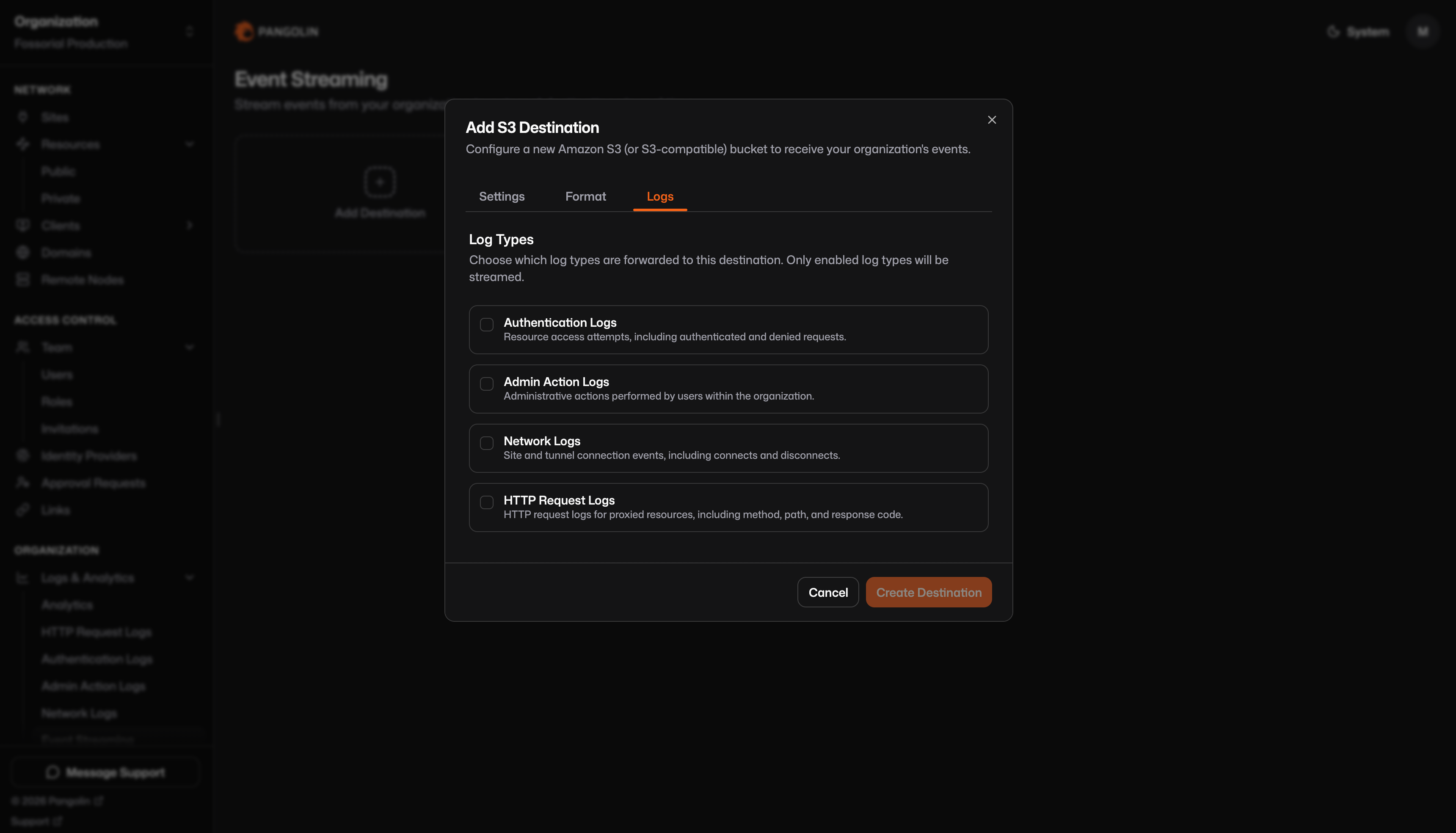 ## Object key layout [#object-key-layout]
Every upload gets a unique key:
```
{prefix}/{logType}/{YYYY}/{MM}/{DD}/{HH-mm-ss-uuid}.{ext}[.gz]
```
| Segment | Meaning |
| --------------- | ---------------------------------------------- |
| `prefix` | Your optional key prefix; omitted when empty |
| `logType` | `request`, `action`, `access`, or `connection` |
| `YYYY/MM/DD` | **Upload time (UTC)**, not the event timestamp |
| `HH-mm-ss-uuid` | Upload time plus a UUID so keys never collide |
| `ext` | `json` (JSON array), `ndjson`, or `csv` |
| `.gz` | Present when gzip is enabled |
**Without prefix:**
```
request/2026/06/04/14-30-45-a1b2c3d4-e5f6-7890-abcd-ef1234567890.json
```
**With prefix `pangolin/audit` and gzip:**
```
pangolin/audit/action/2026/06/04/14-30-45-a1b2c3d4-e5f6-7890-abcd-ef1234567890.json.gz
```
Enabling multiple log types on one destination produces **separate object streams** under different `logType/` segments. A single object never mixes log types.
## Event record shape [#event-record-shape]
Each event in JSON and NDJSON objects uses this fixed structure:
```json
{
"event": "request",
"timestamp": "2026-06-04T12:00:00.000Z",
"data": {
"timestamp": 1717492800,
"action": true,
"method": "GET",
"path": "/api/health"
}
}
```
| Field | Meaning |
| ----------- | --------------------------------------------------------------------- |
| `event` | Log type: `request`, `access`, `action`, or `connection` |
| `timestamp` | Event time as ISO-8601 UTC (connection logs use session start) |
| `data` | The **complete stored log row** for that record, not a curated subset |
## Object key layout [#object-key-layout]
Every upload gets a unique key:
```
{prefix}/{logType}/{YYYY}/{MM}/{DD}/{HH-mm-ss-uuid}.{ext}[.gz]
```
| Segment | Meaning |
| --------------- | ---------------------------------------------- |
| `prefix` | Your optional key prefix; omitted when empty |
| `logType` | `request`, `action`, `access`, or `connection` |
| `YYYY/MM/DD` | **Upload time (UTC)**, not the event timestamp |
| `HH-mm-ss-uuid` | Upload time plus a UUID so keys never collide |
| `ext` | `json` (JSON array), `ndjson`, or `csv` |
| `.gz` | Present when gzip is enabled |
**Without prefix:**
```
request/2026/06/04/14-30-45-a1b2c3d4-e5f6-7890-abcd-ef1234567890.json
```
**With prefix `pangolin/audit` and gzip:**
```
pangolin/audit/action/2026/06/04/14-30-45-a1b2c3d4-e5f6-7890-abcd-ef1234567890.json.gz
```
Enabling multiple log types on one destination produces **separate object streams** under different `logType/` segments. A single object never mixes log types.
## Event record shape [#event-record-shape]
Each event in JSON and NDJSON objects uses this fixed structure:
```json
{
"event": "request",
"timestamp": "2026-06-04T12:00:00.000Z",
"data": {
"timestamp": 1717492800,
"action": true,
"method": "GET",
"path": "/api/health"
}
}
```
| Field | Meaning |
| ----------- | --------------------------------------------------------------------- |
| `event` | Log type: `request`, `access`, `action`, or `connection` |
| `timestamp` | Event time as ISO-8601 UTC (connection logs use session start) |
| `data` | The **complete stored log row** for that record, not a curated subset |
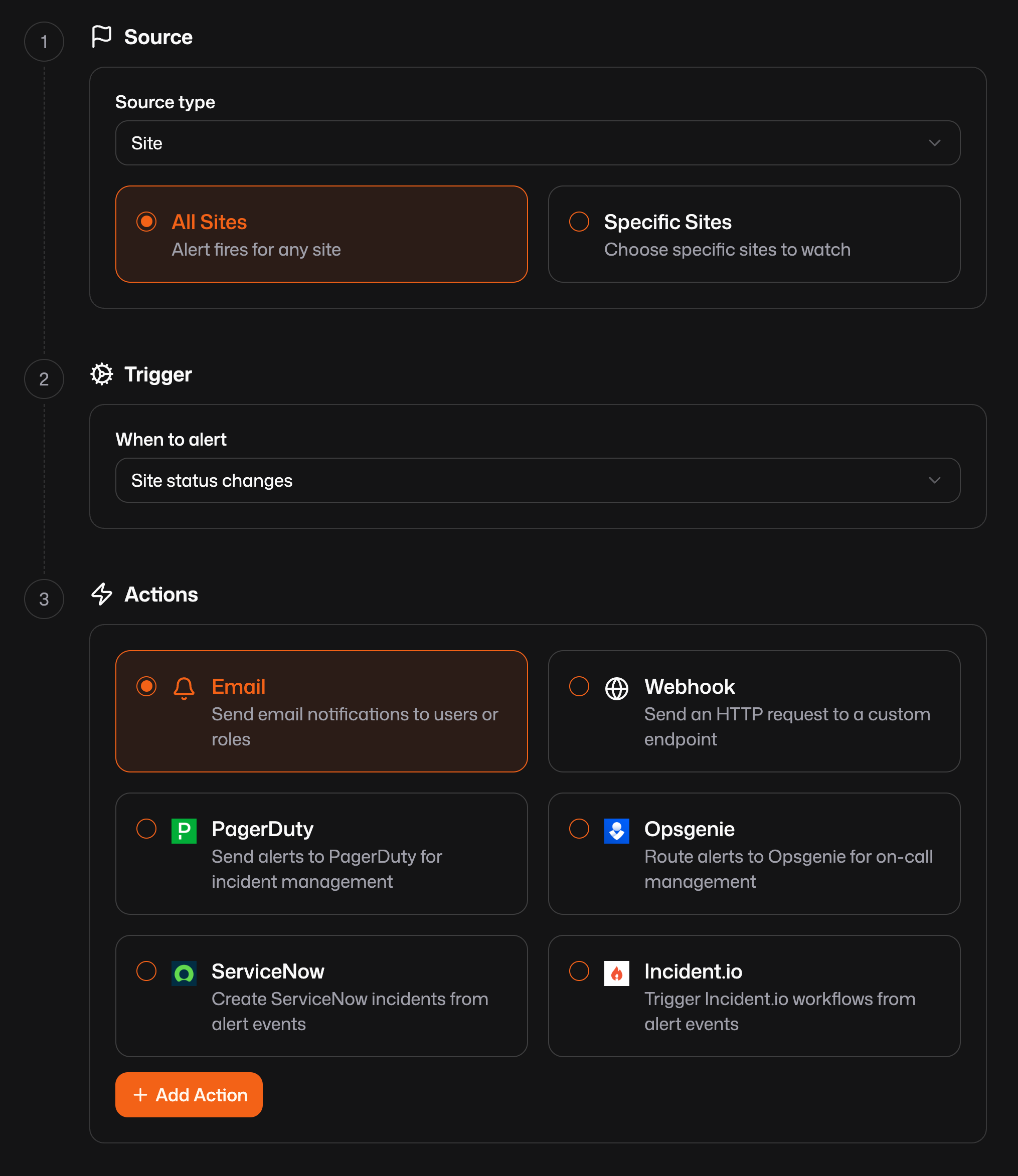 ### 1. Source [#1-source]
Choose what entity the rule watches:
| Source type | Meaning |
| ------------ | ----------------------------------------------------------- |
| Site | One or more [sites](/manage/sites/understanding-sites) |
| Resource | One or more resources in the org |
| Health check | One or more [health checks](/manage/alerting/health-checks) |
For each type, decide whether the rule applies to all of that kind (for example all sites) or only specific sites, resources, or health checks you select.
### 2. Trigger [#2-trigger]
Available triggers depend on the source type. For sites, options include coming online, going offline, or any status change. For resources and health checks, you get healthy, unhealthy, and combined toggle-style triggers that match how those entities change state-the dashboard only lists combinations that apply to what you selected.
Pick the condition that should fire the rule (for example site status changes when you care about both online and offline transitions).
### 3. Actions [#3-actions]
Configure what happens when the trigger runs: add one or more actions (email, webhook, or a vendor integration). Use Add action to stack multiple destinations for the same rule.
## Webhook payloads [#webhook-payloads]
Webhook bodies are JSON. Every event includes `event`, ISO-8601 `timestamp`, and a `data` object. The event name tells you what changed; `data` always includes `orgId` and entity-specific fields.
`{{data}}` is an object and must be treated as such. If you can not support a object, you can also use the flattened fields shown in the examples below. For example `{{orgId}}`, `{{siteId}}`, and `{{siteName}}` are all available on a site alert.
### Site events [#site-events]
#### `site_online` [#site_online]
A site came back online.
```json
{
"event": "site_online",
"timestamp": "2025-06-15T12:34:56.789Z",
"data": {
"orgId": "org_abc123",
"siteId": 42,
"siteName": "us-east-prod"
}
}
```
#### `site_offline` [#site_offline]
A site went offline.
```json
{
"event": "site_offline",
"timestamp": "2025-06-15T12:34:56.789Z",
"data": {
"orgId": "org_abc123",
"siteId": 42,
"siteName": "us-east-prod"
}
}
```
#### `site_toggle` [#site_toggle]
Fires when site connectivity changes, alongside both `site_online` and `site_offline`. Use this when you only care that status flipped, not which direction. `siteId` is always present in `data`.
```json
{
"event": "site_toggle",
"timestamp": "2025-06-15T12:34:56.789Z",
"data": {
"orgId": "org_abc123",
"siteId": 42,
"siteName": "us-east-prod"
}
}
```
### Health check events [#health-check-events]
#### `health_check_healthy` [#health_check_healthy]
A health check recovered.
```json
{
"event": "health_check_healthy",
"timestamp": "2025-06-15T12:34:56.789Z",
"data": {
"orgId": "org_abc123",
"healthCheckName": "API /healthz"
}
}
```
#### `health_check_unhealthy` [#health_check_unhealthy]
A health check is failing.
```json
{
"event": "health_check_unhealthy",
"timestamp": "2025-06-15T12:34:56.789Z",
"data": {
"orgId": "org_abc123",
"healthCheckName": "API /healthz"
}
}
```
#### `health_check_toggle` [#health_check_toggle]
Fires alongside healthy and unhealthy transitions. `healthCheckId` is included in `data` for this combined event.
```json
{
"event": "health_check_toggle",
"timestamp": "2025-06-15T12:34:56.789Z",
"data": {
"orgId": "org_abc123",
"healthCheckId": 7,
"healthCheckName": "API /healthz"
}
}
```
### Resource events [#resource-events]
#### `resource_healthy` [#resource_healthy]
A resource recovered.
```json
{
"event": "resource_healthy",
"timestamp": "2025-06-15T12:34:56.789Z",
"data": {
"orgId": "org_abc123",
"resourceName": "internal-dashboard"
}
}
```
#### `resource_unhealthy` [#resource_unhealthy]
A resource is unhealthy.
```json
{
"event": "resource_unhealthy",
"timestamp": "2025-06-15T12:34:56.789Z",
"data": {
"orgId": "org_abc123",
"resourceName": "internal-dashboard"
}
}
```
#### `resource_toggle` [#resource_toggle]
Fires alongside healthy and unhealthy transitions, or when a resource is enabled or disabled. `resourceId` is included in `data`.
```json
{
"event": "resource_toggle",
"timestamp": "2025-06-15T12:34:56.789Z",
"data": {
"orgId": "org_abc123",
"resourceId": 15,
"resourceName": "internal-dashboard"
}
}
```
---
# Health Checks (/manage/alerting/health-checks)
> Monitor reachability and response for public resource targets and arbitrary endpoints from your sites
A health check is a periodic probe that decides whether something on your network is up and responding the way you expect. Pangolin runs these checks from your sites so they reflect reachability from the connector’s perspective, not only from wherever an administrator happens to be.
## Health Checks on Public Resource Targets [#health-checks-on-public-resource-targets]
You can attach health checks to individual targets on public resources. When a target fails its health check, Pangolin treats it as unhealthy: it is removed from rotation and load balancing until it passes again, so traffic is not sent to a broken upstream. That behavior is configured per target alongside your proxy settings.
For step-by-step setup, states (healthy / unhealthy / unknown), and routing implications, see [Health checks & failover](/manage/resources/public/healthchecks-failover).
## Health Checks in Alerting [#health-checks-in-alerting]
Under Alerting → Health checks for your organization, you get a single view of health checks tied to public resource targets, so you can see status across resources without opening each resource separately.
### 1. Source [#1-source]
Choose what entity the rule watches:
| Source type | Meaning |
| ------------ | ----------------------------------------------------------- |
| Site | One or more [sites](/manage/sites/understanding-sites) |
| Resource | One or more resources in the org |
| Health check | One or more [health checks](/manage/alerting/health-checks) |
For each type, decide whether the rule applies to all of that kind (for example all sites) or only specific sites, resources, or health checks you select.
### 2. Trigger [#2-trigger]
Available triggers depend on the source type. For sites, options include coming online, going offline, or any status change. For resources and health checks, you get healthy, unhealthy, and combined toggle-style triggers that match how those entities change state-the dashboard only lists combinations that apply to what you selected.
Pick the condition that should fire the rule (for example site status changes when you care about both online and offline transitions).
### 3. Actions [#3-actions]
Configure what happens when the trigger runs: add one or more actions (email, webhook, or a vendor integration). Use Add action to stack multiple destinations for the same rule.
## Webhook payloads [#webhook-payloads]
Webhook bodies are JSON. Every event includes `event`, ISO-8601 `timestamp`, and a `data` object. The event name tells you what changed; `data` always includes `orgId` and entity-specific fields.
`{{data}}` is an object and must be treated as such. If you can not support a object, you can also use the flattened fields shown in the examples below. For example `{{orgId}}`, `{{siteId}}`, and `{{siteName}}` are all available on a site alert.
### Site events [#site-events]
#### `site_online` [#site_online]
A site came back online.
```json
{
"event": "site_online",
"timestamp": "2025-06-15T12:34:56.789Z",
"data": {
"orgId": "org_abc123",
"siteId": 42,
"siteName": "us-east-prod"
}
}
```
#### `site_offline` [#site_offline]
A site went offline.
```json
{
"event": "site_offline",
"timestamp": "2025-06-15T12:34:56.789Z",
"data": {
"orgId": "org_abc123",
"siteId": 42,
"siteName": "us-east-prod"
}
}
```
#### `site_toggle` [#site_toggle]
Fires when site connectivity changes, alongside both `site_online` and `site_offline`. Use this when you only care that status flipped, not which direction. `siteId` is always present in `data`.
```json
{
"event": "site_toggle",
"timestamp": "2025-06-15T12:34:56.789Z",
"data": {
"orgId": "org_abc123",
"siteId": 42,
"siteName": "us-east-prod"
}
}
```
### Health check events [#health-check-events]
#### `health_check_healthy` [#health_check_healthy]
A health check recovered.
```json
{
"event": "health_check_healthy",
"timestamp": "2025-06-15T12:34:56.789Z",
"data": {
"orgId": "org_abc123",
"healthCheckName": "API /healthz"
}
}
```
#### `health_check_unhealthy` [#health_check_unhealthy]
A health check is failing.
```json
{
"event": "health_check_unhealthy",
"timestamp": "2025-06-15T12:34:56.789Z",
"data": {
"orgId": "org_abc123",
"healthCheckName": "API /healthz"
}
}
```
#### `health_check_toggle` [#health_check_toggle]
Fires alongside healthy and unhealthy transitions. `healthCheckId` is included in `data` for this combined event.
```json
{
"event": "health_check_toggle",
"timestamp": "2025-06-15T12:34:56.789Z",
"data": {
"orgId": "org_abc123",
"healthCheckId": 7,
"healthCheckName": "API /healthz"
}
}
```
### Resource events [#resource-events]
#### `resource_healthy` [#resource_healthy]
A resource recovered.
```json
{
"event": "resource_healthy",
"timestamp": "2025-06-15T12:34:56.789Z",
"data": {
"orgId": "org_abc123",
"resourceName": "internal-dashboard"
}
}
```
#### `resource_unhealthy` [#resource_unhealthy]
A resource is unhealthy.
```json
{
"event": "resource_unhealthy",
"timestamp": "2025-06-15T12:34:56.789Z",
"data": {
"orgId": "org_abc123",
"resourceName": "internal-dashboard"
}
}
```
#### `resource_toggle` [#resource_toggle]
Fires alongside healthy and unhealthy transitions, or when a resource is enabled or disabled. `resourceId` is included in `data`.
```json
{
"event": "resource_toggle",
"timestamp": "2025-06-15T12:34:56.789Z",
"data": {
"orgId": "org_abc123",
"resourceId": 15,
"resourceName": "internal-dashboard"
}
}
```
---
# Health Checks (/manage/alerting/health-checks)
> Monitor reachability and response for public resource targets and arbitrary endpoints from your sites
A health check is a periodic probe that decides whether something on your network is up and responding the way you expect. Pangolin runs these checks from your sites so they reflect reachability from the connector’s perspective, not only from wherever an administrator happens to be.
## Health Checks on Public Resource Targets [#health-checks-on-public-resource-targets]
You can attach health checks to individual targets on public resources. When a target fails its health check, Pangolin treats it as unhealthy: it is removed from rotation and load balancing until it passes again, so traffic is not sent to a broken upstream. That behavior is configured per target alongside your proxy settings.
For step-by-step setup, states (healthy / unhealthy / unknown), and routing implications, see [Health checks & failover](/manage/resources/public/healthchecks-failover).
## Health Checks in Alerting [#health-checks-in-alerting]
Under Alerting → Health checks for your organization, you get a single view of health checks tied to public resource targets, so you can see status across resources without opening each resource separately.
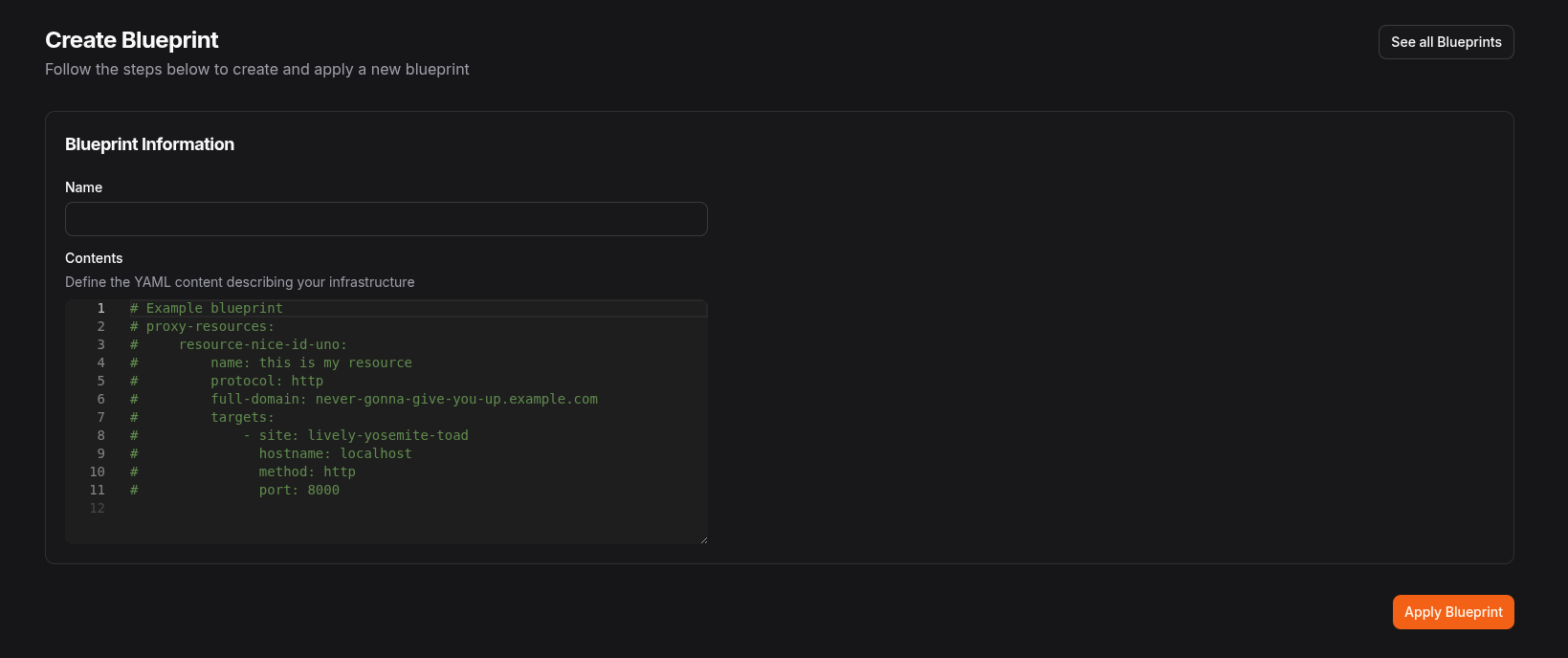
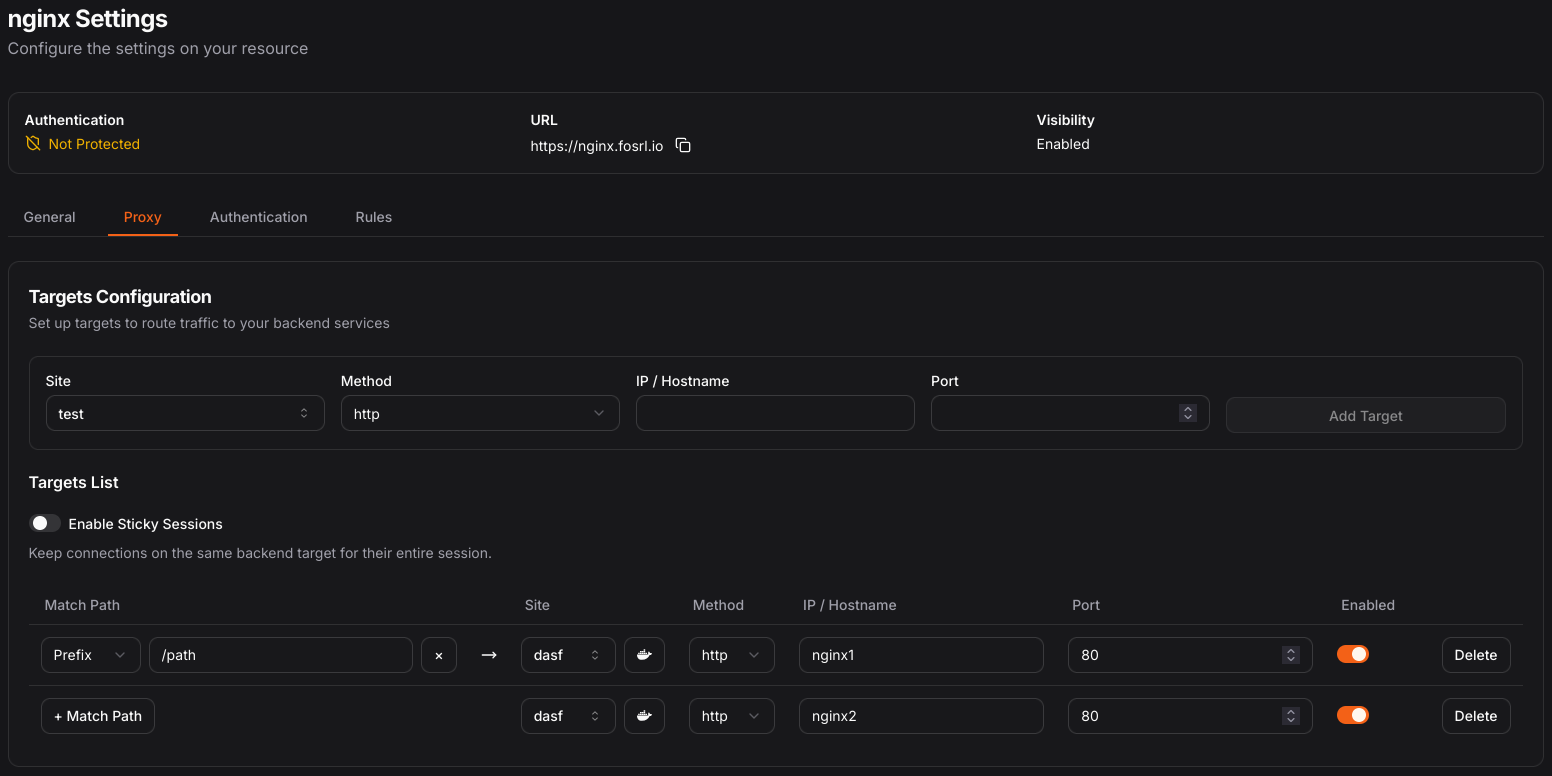 ### Container Label Behavior [#container-label-behavior]
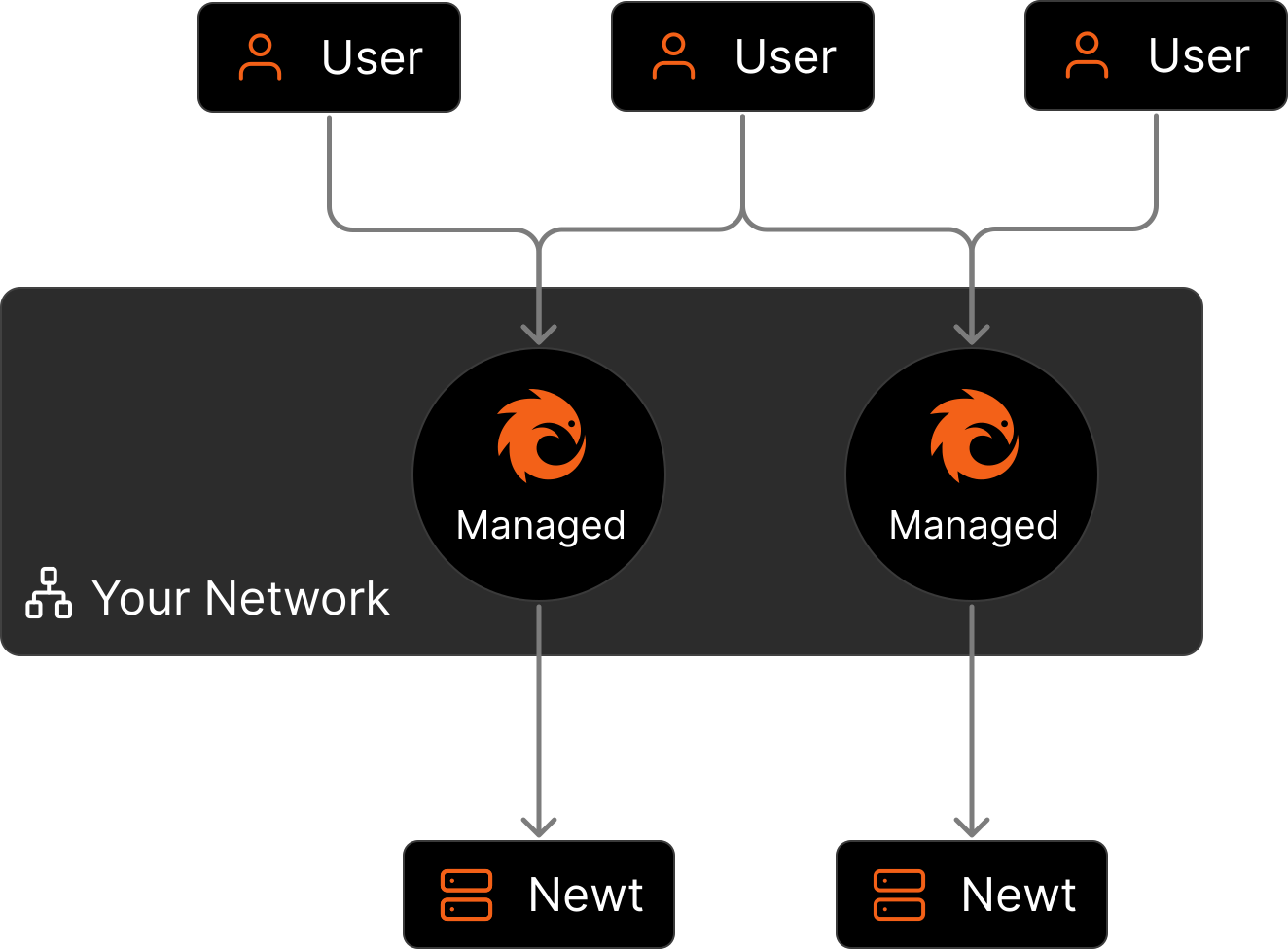 ## Benefits [#benefits]
### Automatic Updates and Less Maintenance [#automatic-updates-and-less-maintenance]
The cloud dashboard evolves quickly, so you get new features and bug fixes without having to manually pull new containers every time. Because the remote node is just handling the networking you do not need to do database migrations, or backups.
### Cloud Failover [#cloud-failover]
If your nodes goes down, your tunnels can temporarily fail over to our cloud points of presence or another node until you bring it back online. This ensures continuous availability.
### High Availability (PoPs) [#high-availability-pops]
You can attach multiple nodes to your account for redundancy and better performance. For example, deploy nodes across different regions or providers for decreased latency.
### Better Bandwidth [#better-bandwidth]
Since all tunnel traffic flows through your own server, you benefit from your own network's bandwidth capacity. This means you are not constrained by shared cloud infrastructure limits - if your server has high-throughput connectivity, your tunnels will too.
## Restrictions [#restrictions]
### AI Gateway Providers [#ai-gateway-providers]
AI Gateway providers are only routed to the Pangolin server nodes. Sites that are connected to remote nodes will not be accessible to be routed to as targets on providers. DNS resolution of gateway resources will not point at remote nodes. Users using gateway resources with custom targets on sites may wish to create a separate org for these resources so sites are able to connect to regular nodes.
---
# Quick Install Guide (/manage/remote-node/quick-install-remote)
> Deploy your own remote Pangolin node in under 10 minutes with our automated installer
## Prerequisites [#prerequisites]
Before you begin, ensure you have:
* **Pangolin Cloud** account. You can [create a free account here](https://app.pangolin.net/auth/signup) OR a [clustered self-hosted Pangolin Enterprise deployment](/self-host/clustering/understanding-clustering).
* **Linux server** with root access and public IP address.
* **Open ports on firewall** for 80 (TCP), 443 (TCP), 51820 (UDP), and 21820 (UDP for clients).
## Benefits [#benefits]
### Automatic Updates and Less Maintenance [#automatic-updates-and-less-maintenance]
The cloud dashboard evolves quickly, so you get new features and bug fixes without having to manually pull new containers every time. Because the remote node is just handling the networking you do not need to do database migrations, or backups.
### Cloud Failover [#cloud-failover]
If your nodes goes down, your tunnels can temporarily fail over to our cloud points of presence or another node until you bring it back online. This ensures continuous availability.
### High Availability (PoPs) [#high-availability-pops]
You can attach multiple nodes to your account for redundancy and better performance. For example, deploy nodes across different regions or providers for decreased latency.
### Better Bandwidth [#better-bandwidth]
Since all tunnel traffic flows through your own server, you benefit from your own network's bandwidth capacity. This means you are not constrained by shared cloud infrastructure limits - if your server has high-throughput connectivity, your tunnels will too.
## Restrictions [#restrictions]
### AI Gateway Providers [#ai-gateway-providers]
AI Gateway providers are only routed to the Pangolin server nodes. Sites that are connected to remote nodes will not be accessible to be routed to as targets on providers. DNS resolution of gateway resources will not point at remote nodes. Users using gateway resources with custom targets on sites may wish to create a separate org for these resources so sites are able to connect to regular nodes.
---
# Quick Install Guide (/manage/remote-node/quick-install-remote)
> Deploy your own remote Pangolin node in under 10 minutes with our automated installer
## Prerequisites [#prerequisites]
Before you begin, ensure you have:
* **Pangolin Cloud** account. You can [create a free account here](https://app.pangolin.net/auth/signup) OR a [clustered self-hosted Pangolin Enterprise deployment](/self-host/clustering/understanding-clustering).
* **Linux server** with root access and public IP address.
* **Open ports on firewall** for 80 (TCP), 443 (TCP), 51820 (UDP), and 21820 (UDP for clients).
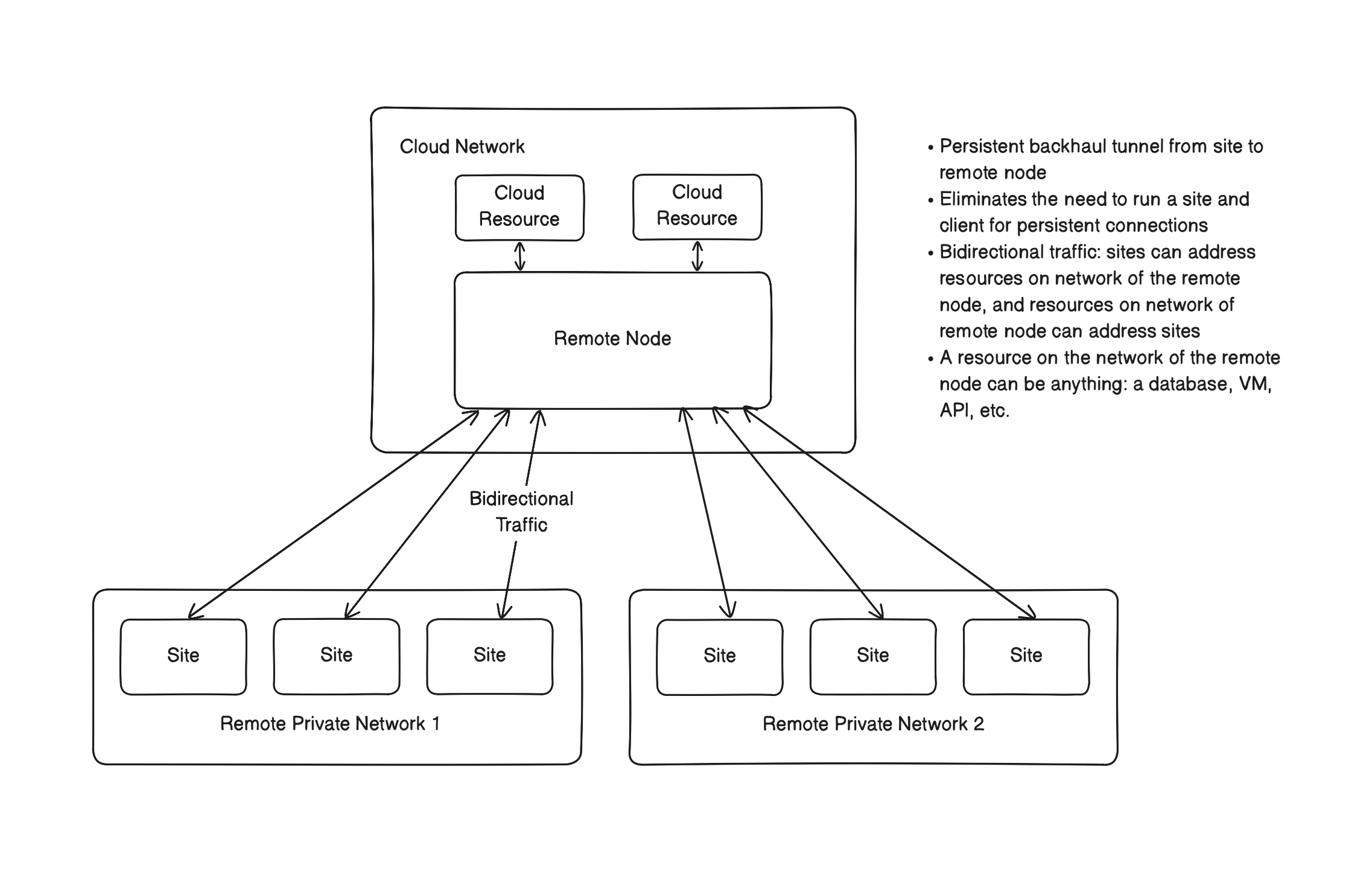
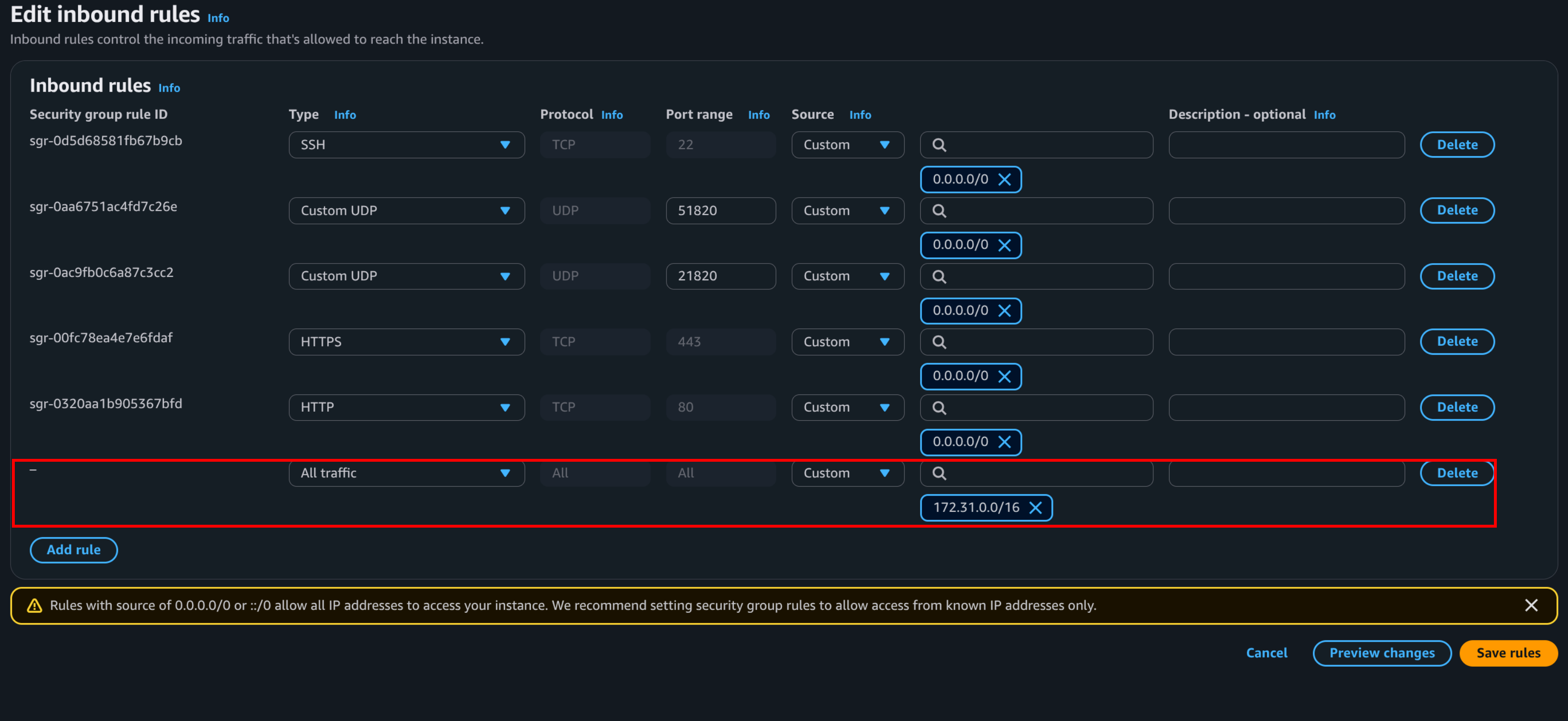
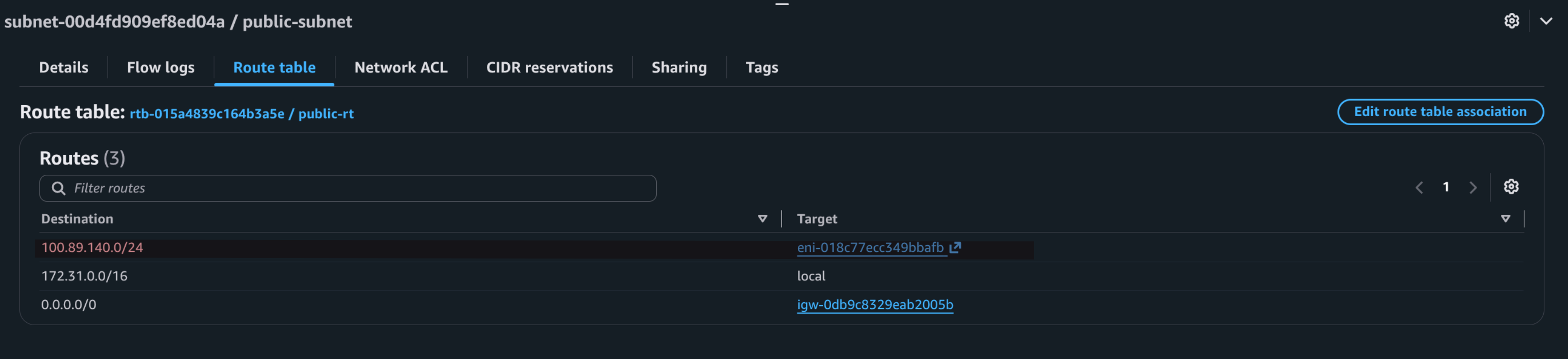
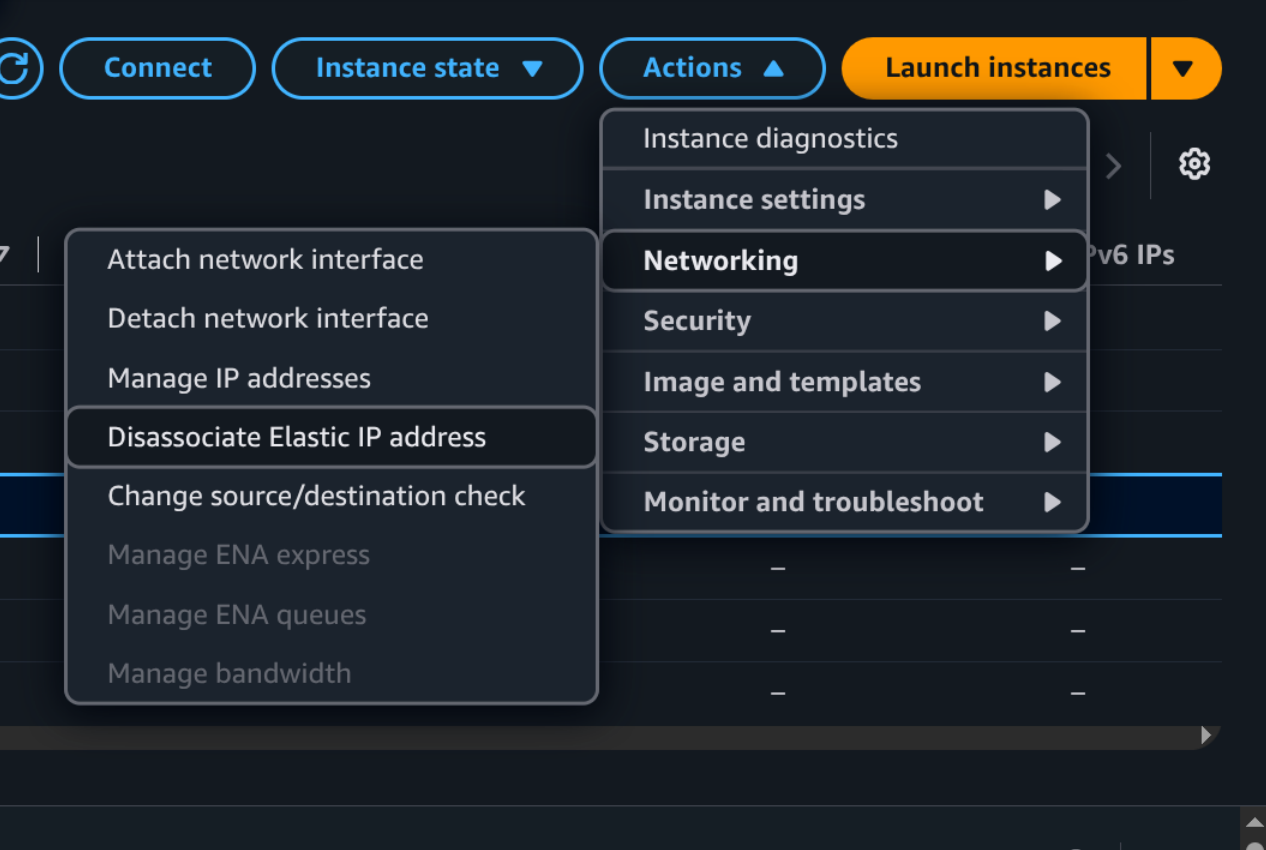
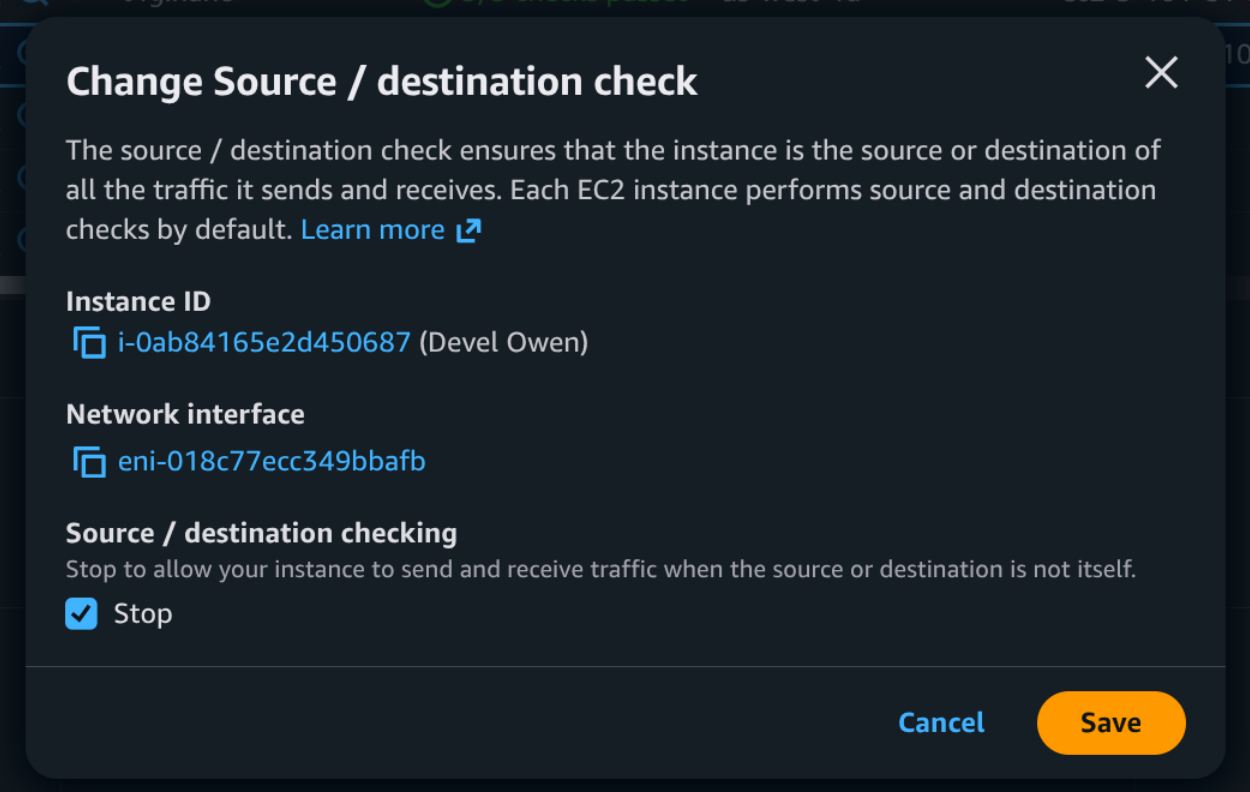
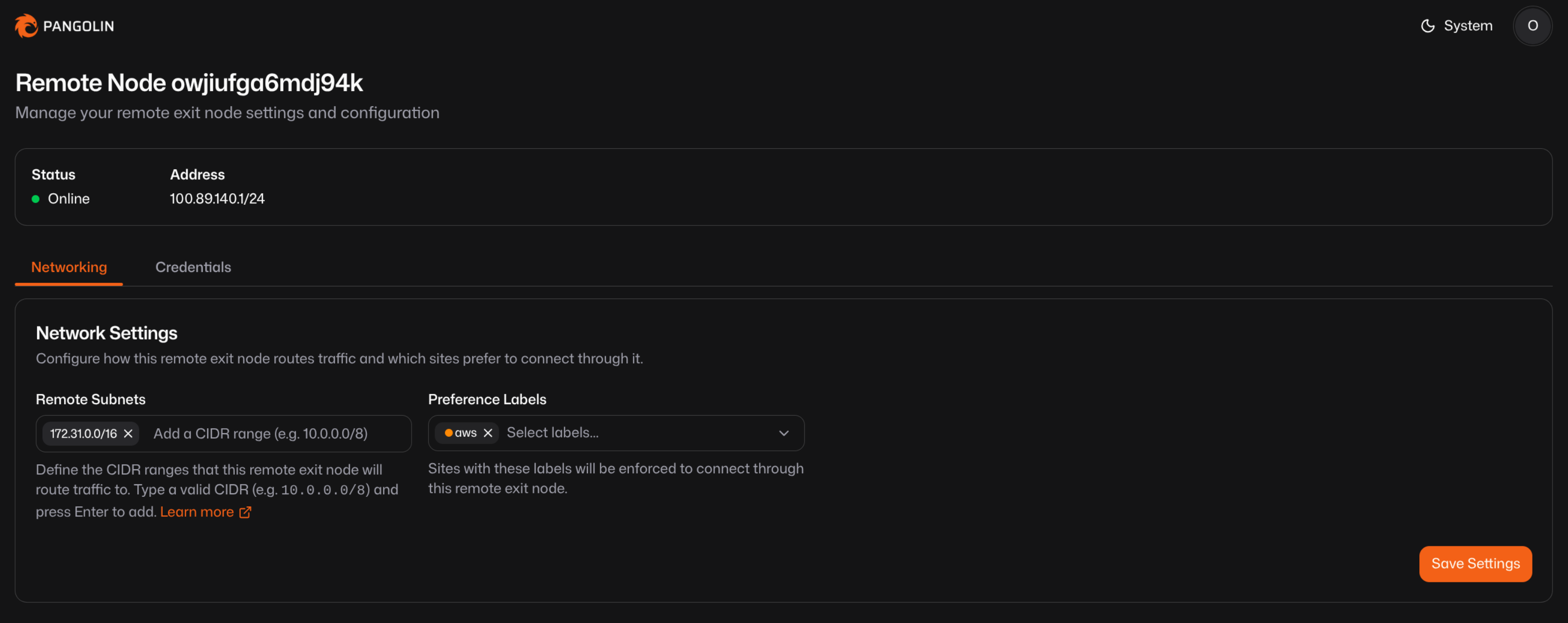
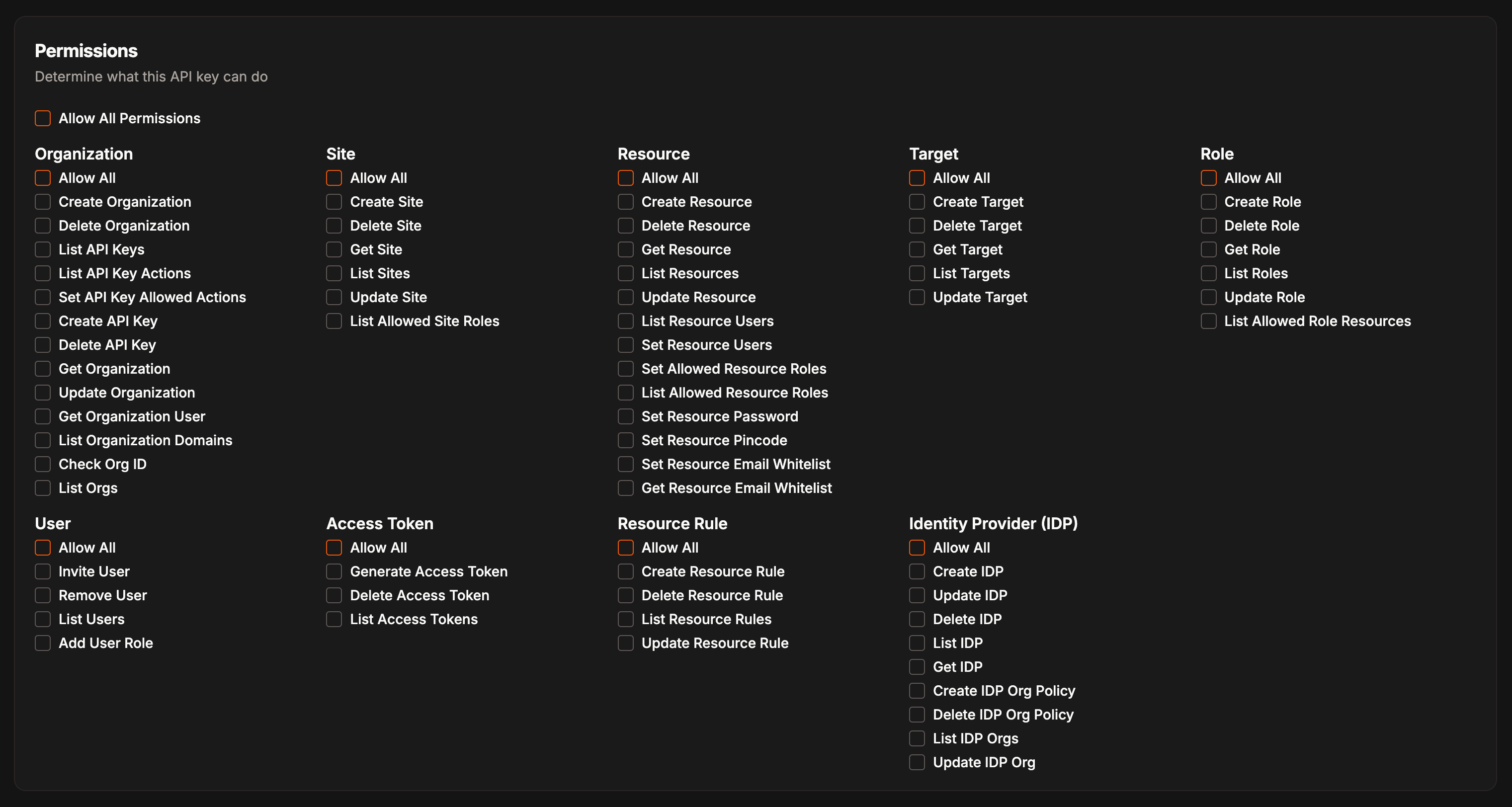
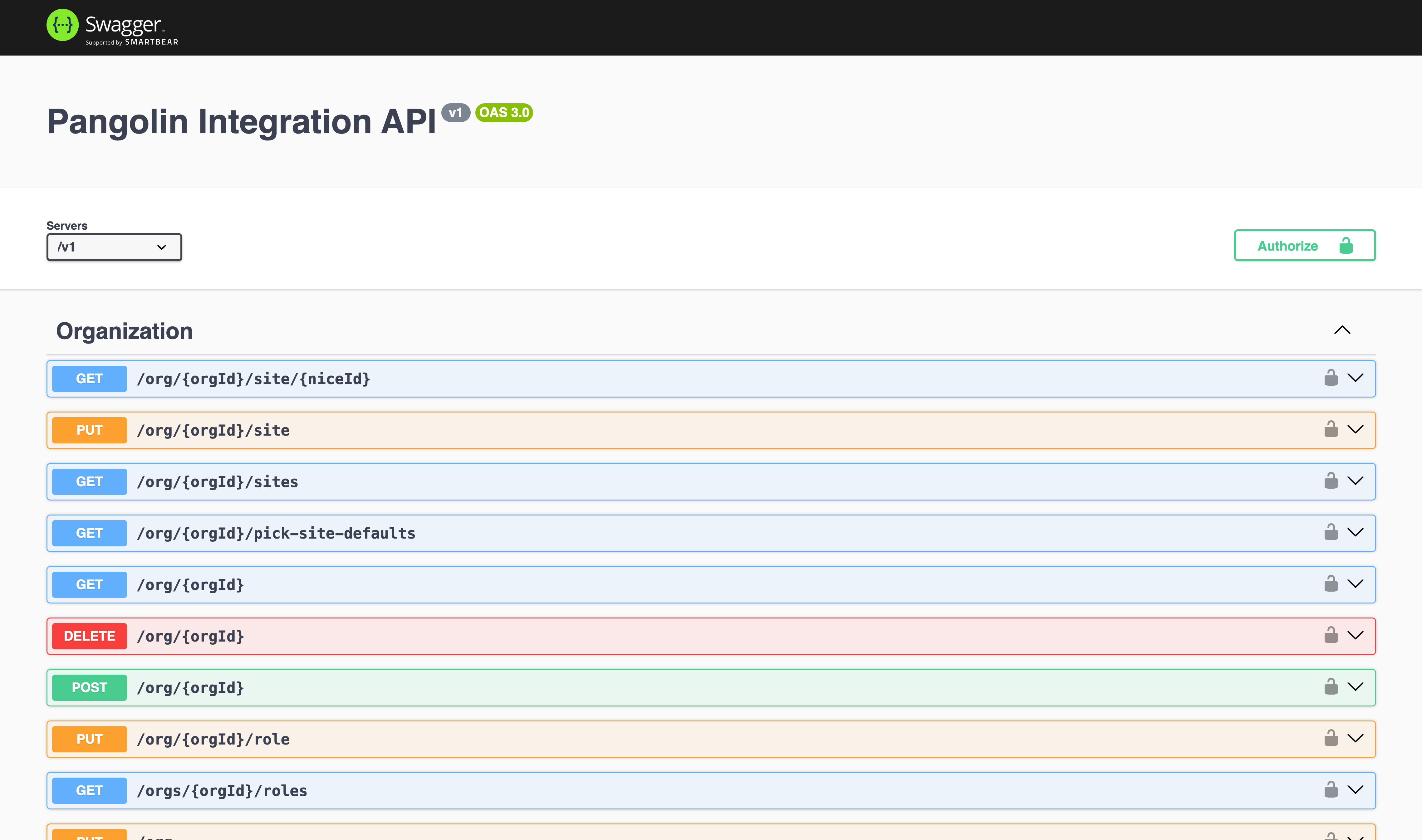 For self-hosted Pangolin, access the documentation at `https://api.your-domain.com/v1/docs`.
---
# Branding (/manage/branding)
> Learn how to customize the look your Pangolin dashboard and login pages with custom branding
For self-hosted Pangolin, access the documentation at `https://api.your-domain.com/v1/docs`.
---
# Branding (/manage/branding)
> Learn how to customize the look your Pangolin dashboard and login pages with custom branding
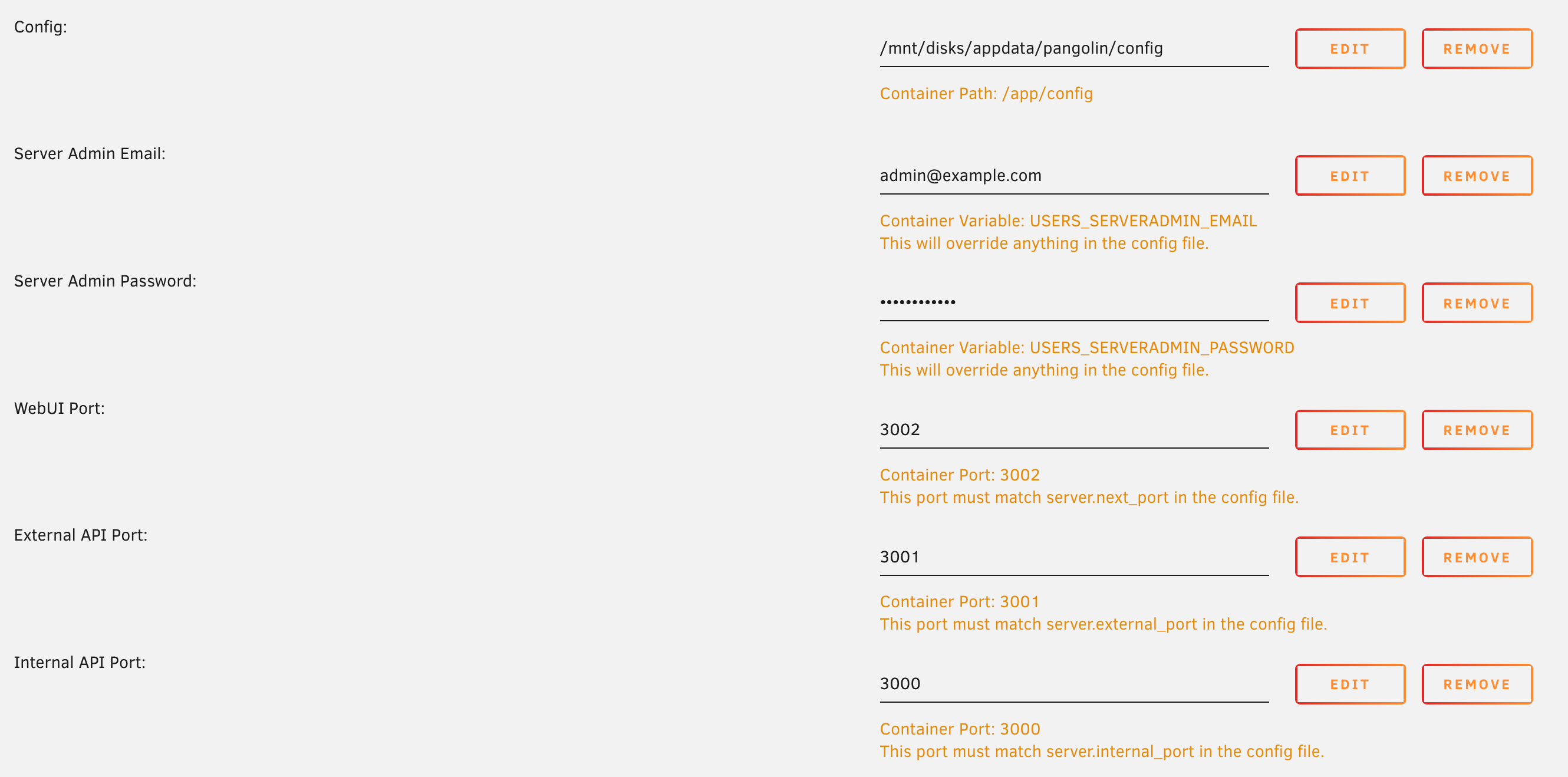 **Ports:**
Due to the way Pangolin was designed to work with docker compose and a config file, the way it handles ports is a little different as compared to other popular Unraid containers. For all host ports:
The host ports, container ports, and ports in the config should match for simplicity. This is because the Pangolin config also has ports in it. If you decide to use a non-default port, you would need to edit the port in the template and the config file.
For example, to change the port for the WebUI:
* Click edit on the port
* Set the "Container Port" to the new port you want to use
* Set the "Host Port" to the new port you want to use
* Edit Pangolin's config file and set `server.next_port` to the new port you want to use
#### 4. Start the Pangolin Container [#4-start-the-pangolin-container]
**Ports:**
Due to the way Pangolin was designed to work with docker compose and a config file, the way it handles ports is a little different as compared to other popular Unraid containers. For all host ports:
The host ports, container ports, and ports in the config should match for simplicity. This is because the Pangolin config also has ports in it. If you decide to use a non-default port, you would need to edit the port in the template and the config file.
For example, to change the port for the WebUI:
* Click edit on the port
* Set the "Container Port" to the new port you want to use
* Set the "Host Port" to the new port you want to use
* Edit Pangolin's config file and set `server.next_port` to the new port you want to use
#### 4. Start the Pangolin Container [#4-start-the-pangolin-container]
 #### 3. Configure Traefik [#3-configure-traefik]
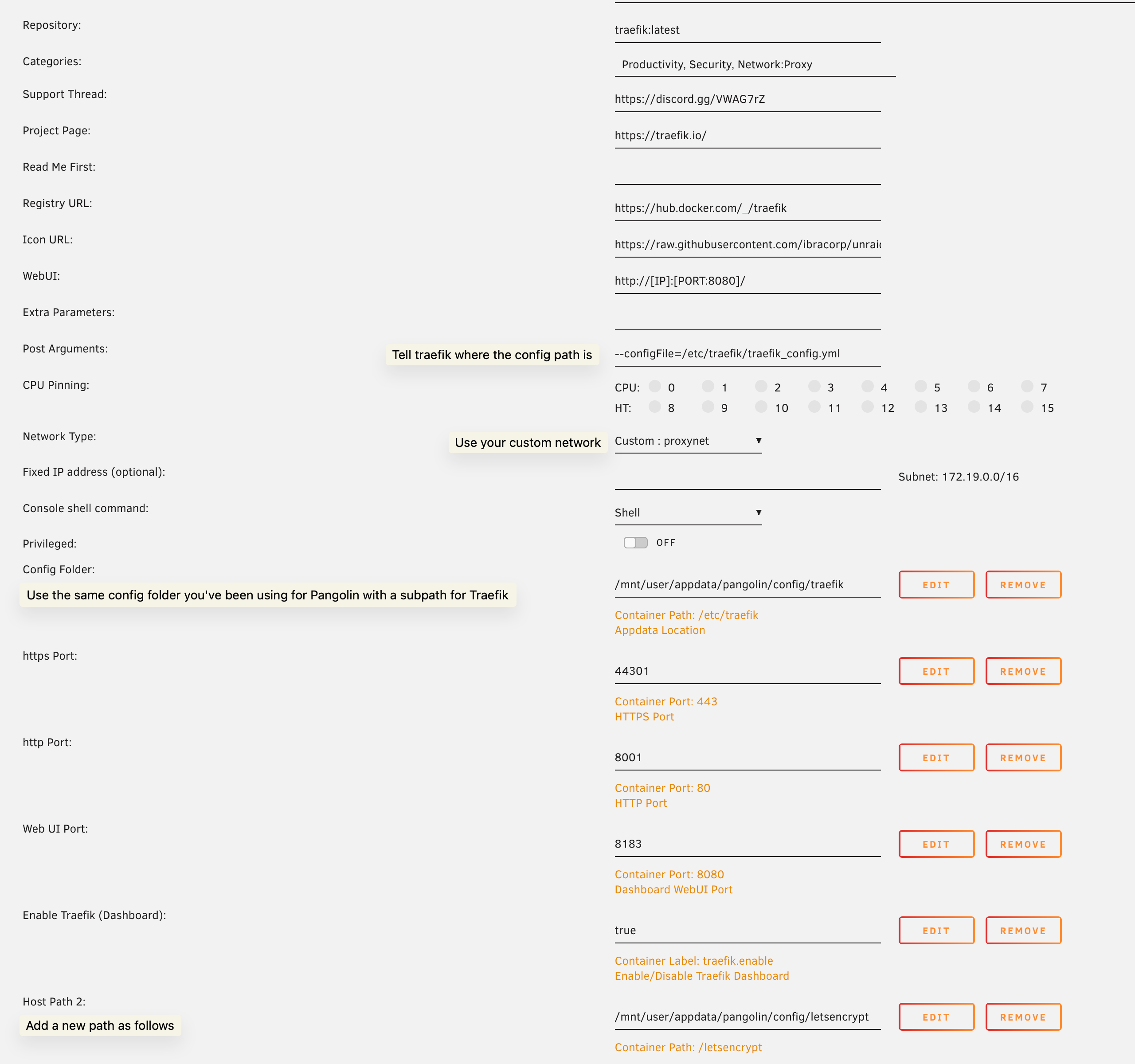
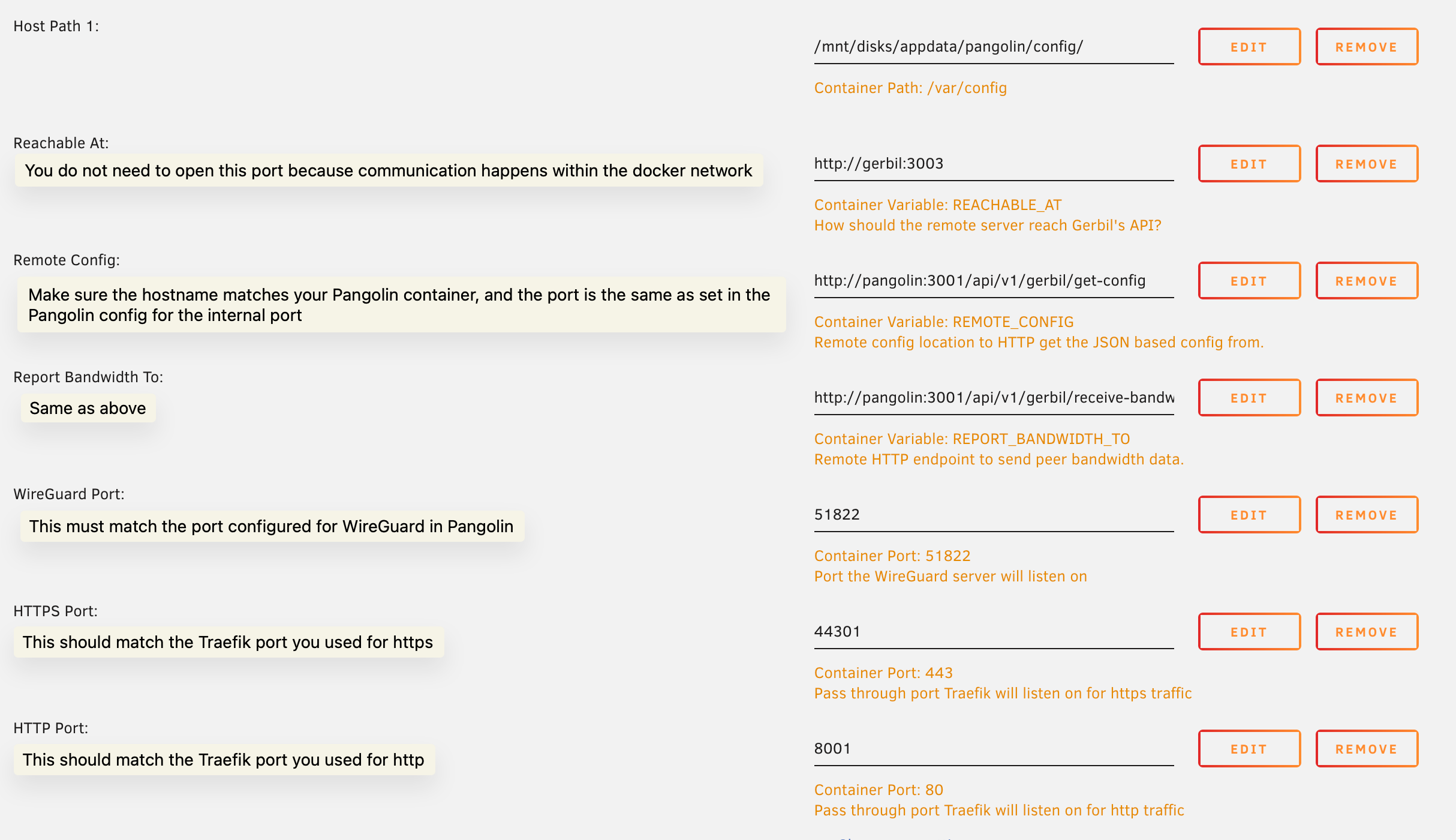 **Important things to consider:**
**Internal Communication:**
Anywhere you see `http://pangolin:3001` must match. The hostname should be the name of the Pangolin container on the docker network you're using. This is because it is routed using the internal docker DNS address. The port must also match the port you have set for the internal port in Pangolin. These defaults will work unless you changed these values earlier when setting up Pangolin.
**WireGuard Port:**
**Important things to consider:**
**Internal Communication:**
Anywhere you see `http://pangolin:3001` must match. The hostname should be the name of the Pangolin container on the docker network you're using. This is because it is routed using the internal docker DNS address. The port must also match the port you have set for the internal port in Pangolin. These defaults will work unless you changed these values earlier when setting up Pangolin.
**WireGuard Port:**
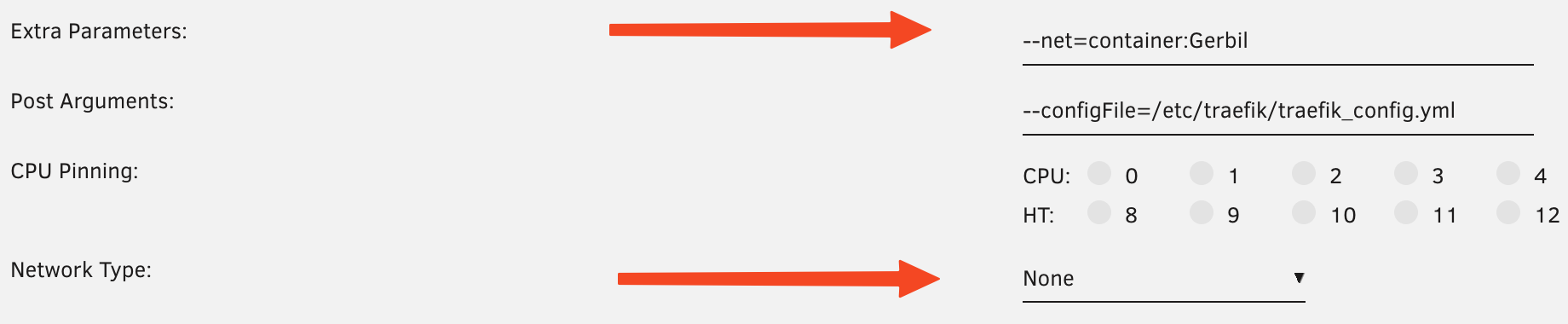 #### 4. Start the stack [#4-start-the-stack]
We recommend to start the whole stack in the following order:
1. Pangolin
2. Gerbil
3. Traefik
#### 5. Port Forwarding [#5-port-forwarding]
You will need to port forward the WireGuard port you set in the Gerbil config on your network's router. This is so that the client can connect to the server.
#### 6. Verify Tunnels are Functional [#6-verify-tunnels-are-functional]
Your logs for Gerbil should look something like this:
#### 4. Start the stack [#4-start-the-stack]
We recommend to start the whole stack in the following order:
1. Pangolin
2. Gerbil
3. Traefik
#### 5. Port Forwarding [#5-port-forwarding]
You will need to port forward the WireGuard port you set in the Gerbil config on your network's router. This is so that the client can connect to the server.
#### 6. Verify Tunnels are Functional [#6-verify-tunnels-are-functional]
Your logs for Gerbil should look something like this:
 Log back into the Pangolin dashboard and create a new site with Newt or basic WireGuard. Copy the credentials to your client and connect. You should see the tunnel status change to "Online" after a few moments if the connection is successful. Remember to also monitor the logs on the client and server.
---
# Overview (/self-host/manual/kubernetes/overview)
> Deploy Pangolin, Sites (Newt), and related components on Kubernetes.
## Components [#components]
| Component | Role |
| ------------------------ | -------------------------------------------------------------------------------------------------- |
| Pangolin | Main application for the dashboard, API, authentication, configuration, and database-backed state. |
| Gerbil | Tunnel stack component used by Pangolin for site connectivity. |
| Site (Newt) | Site connector used to connect private resources to Pangolin. |
| Traefik | Reverse proxy and router for ingress traffic. |
| PostgreSQL / SQLite | Database options for Pangolin deployments, depending on the selected chart configuration. |
| Pangolin Kube Controller | Kubernetes controller for integrating Pangolin with Kubernetes and Traefik resources. |
Log back into the Pangolin dashboard and create a new site with Newt or basic WireGuard. Copy the credentials to your client and connect. You should see the tunnel status change to "Online" after a few moments if the connection is successful. Remember to also monitor the logs on the client and server.
---
# Overview (/self-host/manual/kubernetes/overview)
> Deploy Pangolin, Sites (Newt), and related components on Kubernetes.
## Components [#components]
| Component | Role |
| ------------------------ | -------------------------------------------------------------------------------------------------- |
| Pangolin | Main application for the dashboard, API, authentication, configuration, and database-backed state. |
| Gerbil | Tunnel stack component used by Pangolin for site connectivity. |
| Site (Newt) | Site connector used to connect private resources to Pangolin. |
| Traefik | Reverse proxy and router for ingress traffic. |
| PostgreSQL / SQLite | Database options for Pangolin deployments, depending on the selected chart configuration. |
| Pangolin Kube Controller | Kubernetes controller for integrating Pangolin with Kubernetes and Traefik resources. |
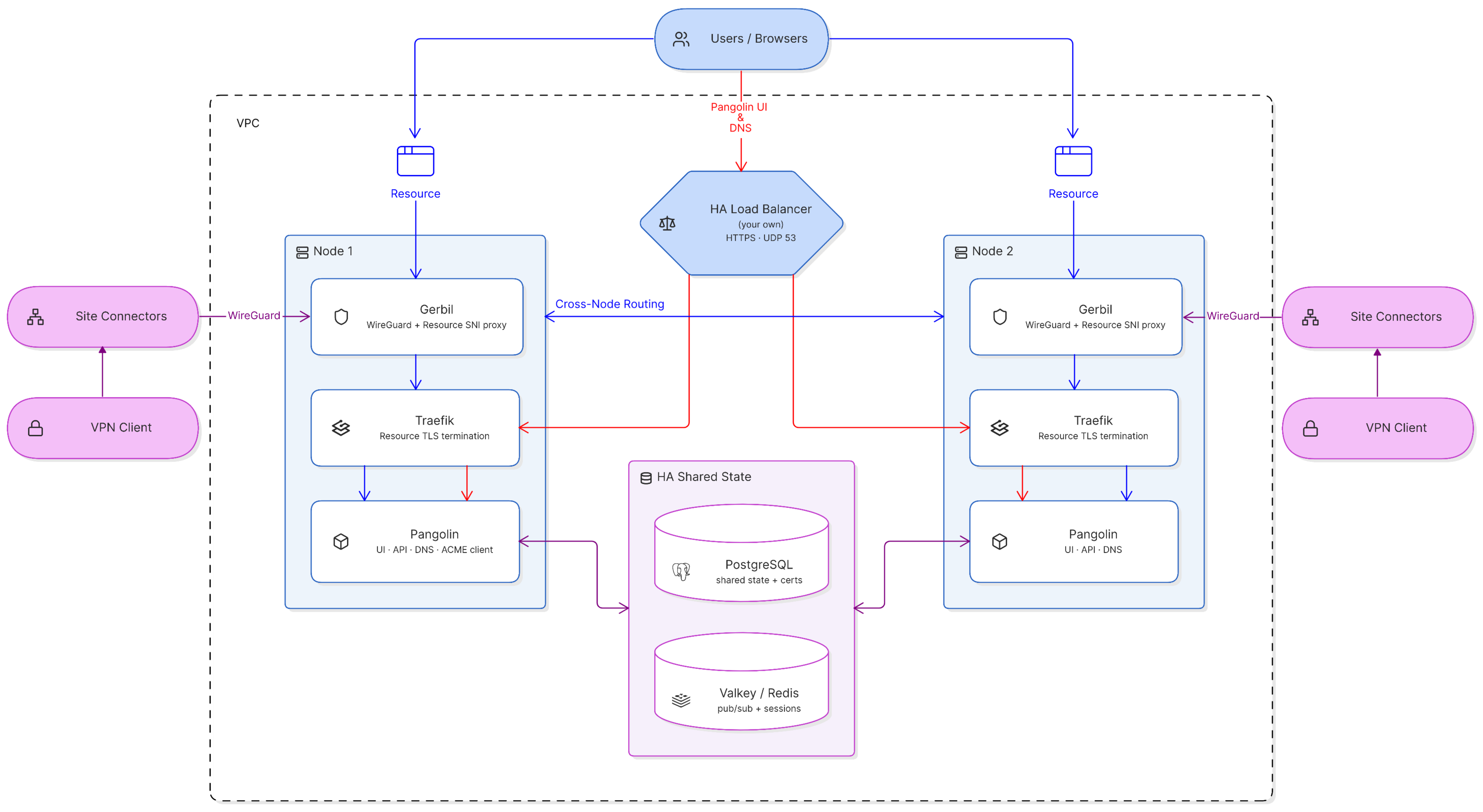 ### Pangolin Instances [#pangolin-instances]
**Purpose**: Serve the web UI and API, resolve DNS, issue and renew TLS certificates, and coordinate cluster state.
**How It Works**:
* Multiple Pangolin instances run simultaneously across different nodes, one per node
* Each instance can independently handle user authentication and requests
* All instances share state through the PostgreSQL database and Valkey
* Each instance embeds a DNS server used for resource resolution and ACME DNS-01 challenges
* Only one instance in the cluster should be configured as the ACME client. It issues and renews certificates and stores them encrypted in PostgreSQL. Every other instance reads the same certificates from the database
**High Availability**: A load balancer sits in front of all Pangolin instances. If any instance goes down, the load balancer automatically routes traffic to healthy nodes, ensuring the UI, API, and DNS remain accessible from the same domain without interruption.
### PostgreSQL Database [#postgresql-database]
**Purpose**: Store all persistent cluster state in a centralized, shared database.
**How It Works**:
* All Pangolin instances connect to the same shared PostgreSQL database
* Stores user accounts, site configurations, resources, access policies, and organizational settings
* Certificates are stored encrypted in the database for security
* Changes made through any instance are immediately available cluster-wide
**High Availability**: Database replication and backup strategies ensure data persistence and availability across the cluster. See [Database Options](/self-host/advanced/database-options) for general PostgreSQL configuration.
### Valkey (Redis) [#valkey-redis]
**Purpose**: Provide real-time state synchronization between cluster nodes.
**How It Works**:
* Pub/sub messaging handles cross node messaging for websocket command control
* Handles caching for the cluster
* Any Redis-compatible server works, as long as it supports pub/sub
**High Availability**: Ensures that session and connection information remains available even when individual nodes fail.
### Traefik Instances [#traefik-instances]
**Purpose**: Route HTTP/HTTPS traffic to resources and terminate TLS connections.
**How It Works**:
* Each cluster node runs its own Traefik instance
* Pangolin writes router configuration and certificates to a shared volume with Traefik (`file_mode`) instead of Traefik scraping the Pangolin API directly, since Traefik can only load certificates from files
* Each node's Pangolin instance pulls the certificate from the database to that shared volume so its local Traefik can read it
* Sits behind Gerbil, which runs an SNI proxy for traffic routing
**High Availability**: Multiple Traefik instances ensure traffic routing continues even if individual nodes fail.
### Gerbil Instances [#gerbil-instances]
**Purpose**: Manage WireGuard tunnels to site connectors and route traffic between cluster nodes.
**How It Works**:
* Each Pangolin instance runs alongside its own Gerbil tunnel manager
* Handles WireGuard VPN connections from Pangolin Site connectors
* Site connectors can establish tunnels to any available Gerbil instance
* Every Gerbil instance is made aware of the other trusted nodes in the cluster
* When a request lands on the node that isn't holding the relevant tunnel, Gerbil routes it to the correct node instead of dropping it - this covers the case where DNS caching sends a client to the "wrong" node
**High Availability**: Distributed tunnel management ensures connectivity remains available even if individual Gerbil instances fail, with automatic cross-node failover.
### Load Balancer [#load-balancer]
**Purpose**: Distribute incoming traffic across healthy Pangolin instances.
**How It Works**:
* Sits in front of all cluster nodes, fronting the dashboard/API port, HTTP/HTTPS resource ports, and DNS
* Monitors instance health (the `/ping` endpoint) and routes traffic only to available nodes
* Ensures all traffic reaches the cluster through a single, consistent domain
* Does NOT handle resource routing - these are directed to the correct node directly by the DNS server
**High Availability**: Essential for continuous access to the Pangolin UI, API, and DNS regardless of individual instance failures. **You must provide your own HA load balancer** in front of the cluster - this can be a cloud load balancer or a self-hosted one.
## Traffic Flow [#traffic-flow]
Understanding how requests flow through the cluster helps clarify how these components work together:
1. **User access**: Users access the Pangolin UI/API through the load balancer, which routes to any healthy Pangolin instance
2. **Resource requests**: When accessing a resource, DNS resolves to the node that the site is connected to, and the request is routed to that node's Gerbil instance
3. **Cross-node routing**: If DNS caching or the load balancer points to a node that isn't holding the relevant tunnel, Gerbil routes the request to the correct node
4. **Tunnel routing**: Gerbil receives the request and forwards it to the local Traefik instance
5. **TLS termination**: Traefik terminates TLS using the certificate synced to its shared volume, then proxies the request to the site connector's tunnel
## How Failover Works [#how-failover-works]
When a node fails, the load balancer stops routing to it and traffic continues to flow through the remaining healthy nodes. This keeps the API, UI, and DNS running without interruption.
The sites connected to the failed node will being detecting ping failures and will initiate a reconnection requests to connect to a different online node. Once connected, the DNS will update the resource resolution to point to the new node, and traffic will continue without user disruption. There may be brief periods of downtime while the site connector detects the failure and reconnects to a healthy node, but this is typically only a few seconds.
## Benefits of Clustering [#benefits-of-clustering]
**High Availability**: Eliminate single points of failure. If one server instance fails, traffic automatically routes to healthy nodes without user disruption.
**Regional Distribution**: Deploy servers closer to your users and sites across different geographic regions to minimize latency and improve performance.
**Horizontal Scaling**: Add more server instances to handle increased load as your organization grows, without architectural changes.
**Zero-Downtime Updates**: Perform rolling updates by taking nodes offline one at a time while others continue serving traffic.
**Simplified Infrastructure**: DNS resolution and certificate management are built into Pangolin itself, so there's no separate DNS or certificate-issuing service to deploy, scale, or keep highly available on top of the cluster.
**Dynamic Failover**: Automatic traffic routing between nodes and the load balancer ensures resources remain accessible when nodes fail.
## Enterprise Support [#enterprise-support]
Clustered deployments require careful planning around database replication, Valkey configuration, network topology, DNS delegation, and monitoring. For organizations interested in clustering for high availability or regional distribution, please [contact our enterprise team](https://pangolin.net/contact) to discuss your requirements and receive implementation guidance support. A support contract is not required for deployment.
### Pangolin Instances [#pangolin-instances]
**Purpose**: Serve the web UI and API, resolve DNS, issue and renew TLS certificates, and coordinate cluster state.
**How It Works**:
* Multiple Pangolin instances run simultaneously across different nodes, one per node
* Each instance can independently handle user authentication and requests
* All instances share state through the PostgreSQL database and Valkey
* Each instance embeds a DNS server used for resource resolution and ACME DNS-01 challenges
* Only one instance in the cluster should be configured as the ACME client. It issues and renews certificates and stores them encrypted in PostgreSQL. Every other instance reads the same certificates from the database
**High Availability**: A load balancer sits in front of all Pangolin instances. If any instance goes down, the load balancer automatically routes traffic to healthy nodes, ensuring the UI, API, and DNS remain accessible from the same domain without interruption.
### PostgreSQL Database [#postgresql-database]
**Purpose**: Store all persistent cluster state in a centralized, shared database.
**How It Works**:
* All Pangolin instances connect to the same shared PostgreSQL database
* Stores user accounts, site configurations, resources, access policies, and organizational settings
* Certificates are stored encrypted in the database for security
* Changes made through any instance are immediately available cluster-wide
**High Availability**: Database replication and backup strategies ensure data persistence and availability across the cluster. See [Database Options](/self-host/advanced/database-options) for general PostgreSQL configuration.
### Valkey (Redis) [#valkey-redis]
**Purpose**: Provide real-time state synchronization between cluster nodes.
**How It Works**:
* Pub/sub messaging handles cross node messaging for websocket command control
* Handles caching for the cluster
* Any Redis-compatible server works, as long as it supports pub/sub
**High Availability**: Ensures that session and connection information remains available even when individual nodes fail.
### Traefik Instances [#traefik-instances]
**Purpose**: Route HTTP/HTTPS traffic to resources and terminate TLS connections.
**How It Works**:
* Each cluster node runs its own Traefik instance
* Pangolin writes router configuration and certificates to a shared volume with Traefik (`file_mode`) instead of Traefik scraping the Pangolin API directly, since Traefik can only load certificates from files
* Each node's Pangolin instance pulls the certificate from the database to that shared volume so its local Traefik can read it
* Sits behind Gerbil, which runs an SNI proxy for traffic routing
**High Availability**: Multiple Traefik instances ensure traffic routing continues even if individual nodes fail.
### Gerbil Instances [#gerbil-instances]
**Purpose**: Manage WireGuard tunnels to site connectors and route traffic between cluster nodes.
**How It Works**:
* Each Pangolin instance runs alongside its own Gerbil tunnel manager
* Handles WireGuard VPN connections from Pangolin Site connectors
* Site connectors can establish tunnels to any available Gerbil instance
* Every Gerbil instance is made aware of the other trusted nodes in the cluster
* When a request lands on the node that isn't holding the relevant tunnel, Gerbil routes it to the correct node instead of dropping it - this covers the case where DNS caching sends a client to the "wrong" node
**High Availability**: Distributed tunnel management ensures connectivity remains available even if individual Gerbil instances fail, with automatic cross-node failover.
### Load Balancer [#load-balancer]
**Purpose**: Distribute incoming traffic across healthy Pangolin instances.
**How It Works**:
* Sits in front of all cluster nodes, fronting the dashboard/API port, HTTP/HTTPS resource ports, and DNS
* Monitors instance health (the `/ping` endpoint) and routes traffic only to available nodes
* Ensures all traffic reaches the cluster through a single, consistent domain
* Does NOT handle resource routing - these are directed to the correct node directly by the DNS server
**High Availability**: Essential for continuous access to the Pangolin UI, API, and DNS regardless of individual instance failures. **You must provide your own HA load balancer** in front of the cluster - this can be a cloud load balancer or a self-hosted one.
## Traffic Flow [#traffic-flow]
Understanding how requests flow through the cluster helps clarify how these components work together:
1. **User access**: Users access the Pangolin UI/API through the load balancer, which routes to any healthy Pangolin instance
2. **Resource requests**: When accessing a resource, DNS resolves to the node that the site is connected to, and the request is routed to that node's Gerbil instance
3. **Cross-node routing**: If DNS caching or the load balancer points to a node that isn't holding the relevant tunnel, Gerbil routes the request to the correct node
4. **Tunnel routing**: Gerbil receives the request and forwards it to the local Traefik instance
5. **TLS termination**: Traefik terminates TLS using the certificate synced to its shared volume, then proxies the request to the site connector's tunnel
## How Failover Works [#how-failover-works]
When a node fails, the load balancer stops routing to it and traffic continues to flow through the remaining healthy nodes. This keeps the API, UI, and DNS running without interruption.
The sites connected to the failed node will being detecting ping failures and will initiate a reconnection requests to connect to a different online node. Once connected, the DNS will update the resource resolution to point to the new node, and traffic will continue without user disruption. There may be brief periods of downtime while the site connector detects the failure and reconnects to a healthy node, but this is typically only a few seconds.
## Benefits of Clustering [#benefits-of-clustering]
**High Availability**: Eliminate single points of failure. If one server instance fails, traffic automatically routes to healthy nodes without user disruption.
**Regional Distribution**: Deploy servers closer to your users and sites across different geographic regions to minimize latency and improve performance.
**Horizontal Scaling**: Add more server instances to handle increased load as your organization grows, without architectural changes.
**Zero-Downtime Updates**: Perform rolling updates by taking nodes offline one at a time while others continue serving traffic.
**Simplified Infrastructure**: DNS resolution and certificate management are built into Pangolin itself, so there's no separate DNS or certificate-issuing service to deploy, scale, or keep highly available on top of the cluster.
**Dynamic Failover**: Automatic traffic routing between nodes and the load balancer ensures resources remain accessible when nodes fail.
## Enterprise Support [#enterprise-support]
Clustered deployments require careful planning around database replication, Valkey configuration, network topology, DNS delegation, and monitoring. For organizations interested in clustering for high availability or regional distribution, please [contact our enterprise team](https://pangolin.net/contact) to discuss your requirements and receive implementation guidance support. A support contract is not required for deployment.
 ---
# Without Tunneling (/self-host/advanced/without-tunneling)
> Use Pangolin as a local reverse proxy without Gerbil tunneling
Use Pangolin as a local reverse proxy and authentication manager
You can use Pangolin without Gerbil and tunneling. In this configuration, Pangolin acts as a normal reverse proxy and authentication manager that can be deployed on your local network to provide access to resources.
---
# Without Tunneling (/self-host/advanced/without-tunneling)
> Use Pangolin as a local reverse proxy without Gerbil tunneling
Use Pangolin as a local reverse proxy and authentication manager
You can use Pangolin without Gerbil and tunneling. In this configuration, Pangolin acts as a normal reverse proxy and authentication manager that can be deployed on your local network to provide access to resources.
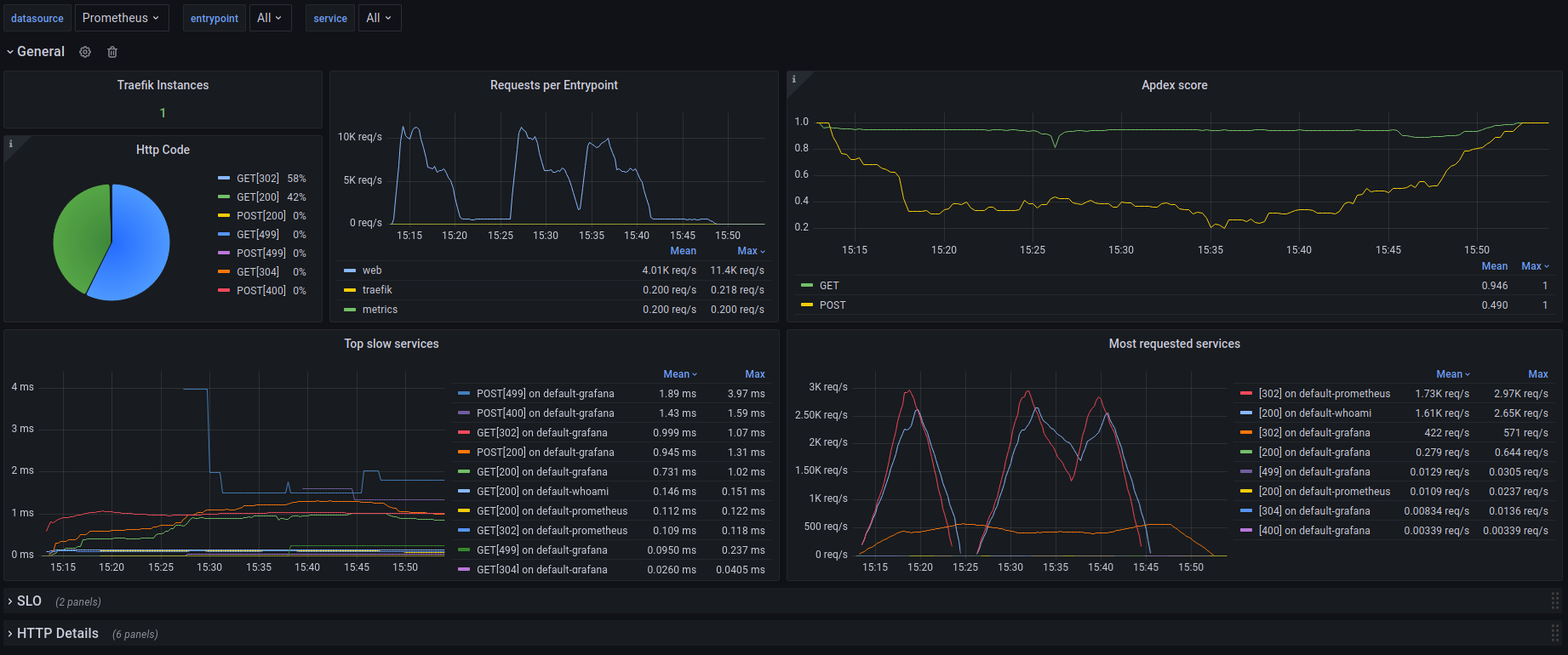 Template Import ID = 17346
[https://grafana.com/grafana/dashboards/17346-traefik-official-standalone-dashboard/](https://grafana.com/grafana/dashboards/17346-traefik-official-standalone-dashboard/)
#### Crowdsec [#crowdsec-1]
[https://github.com/crowdsecurity/grafana-dashboards/tree/master](https://github.com/crowdsecurity/grafana-dashboards/tree/master)
---
# Home Assistant Add-on (/self-host/community-guides/homeassistant)
Template Import ID = 17346
[https://grafana.com/grafana/dashboards/17346-traefik-official-standalone-dashboard/](https://grafana.com/grafana/dashboards/17346-traefik-official-standalone-dashboard/)
#### Crowdsec [#crowdsec-1]
[https://github.com/crowdsecurity/grafana-dashboards/tree/master](https://github.com/crowdsecurity/grafana-dashboards/tree/master)
---
# Home Assistant Add-on (/self-host/community-guides/homeassistant)
 Give your new key a name. E.g. `Pangolin`.
 After your key got created the webpage will show you your Account ID as well as the API key. Save the key now because it can only be seen once. Don't panic if something goes wrong, you can easily create new keys.
 After you clicked on `Return to list` you should see an overview of your keys bundled with some metadata.
## 4. Modification of Pangolin's `docker-compose.yml` [#4-modification-of-pangolins-docker-composeyml]
Now login to your Pangolin host and navigate to `/pangolin` in your user directory:
```bash
cd pangolin
```
Shut down Pangolin with:
```bash
docker compose down
```
Open `docker-compose.yml` with your favorite text editor.
E.g. nano:
```bash
nano docker-compose.yml
```
Append this Docker compose service at the end of your stack and add your Account ID as well as your API key you created in the last step:
```yaml
services:
(...)
geoipupdate:
container_name: geoipupdate
image: ghcr.io/maxmind/geoipupdate
restart: unless-stopped
environment:
- 'GEOIPUPDATE_ACCOUNT_ID=' # Account ID
- 'GEOIPUPDATE_LICENSE_KEY=' # API key
- 'GEOIPUPDATE_EDITION_IDS=GeoLite2-Country GeoLite2-ASN' # Which dbs should be downloaded
- 'GEOIPUPDATE_FREQUENCY=72' # Update intervall in hours
volumes:
- './config/GeoLite2:/usr/share/GeoIP'
```
#### Note [#note]
If you use the standard Pangolin deployment you shouldn't need to modify the path.
This is the bare minimum to run the container. There are other optional environment variables available. Have a look at their [docs](https://dev.maxmind.com/geoip/updating-databases/?lang=en)!
Save and close the file, but don't restart the stack yet!
## 5. Modification of Pangolin's config.yml [#5-modification-of-pangolins-configyml]
Navigate to `/config` within the same folder and open it with a text editor.
```bash
cd config
```
Add these lines to the `server` object
```yaml
server:
maxmind_db_path: "./config/GeoLite2/GeoLite2-Country.mmdb"
maxmind_asn_path: "./config/GeoLite2/GeoLite2-ASN.mmdb"
```
These entries tell the Pangolin application where to find the databases.
Save and close the file then navigate to the `pangolin` folder one level higher.
Restart your Pangolin stack with:
```bash
docker compose up -d
```
Et voilà, you are now able to define country rules and ASN rules for your resources! 🏁
btw: you can use these exact databases for your Traefik dashboard too -> [Community Guide](/self-host/community-guides/traefiklogsdashboard)
---
# Enterprise Edition (/self-host/enterprise-edition)
> Licensing, plans, and how to get started with self-hosted Enterprise Edition
When self-hosting Pangolin, you can run the **Community Edition** or the **Enterprise Edition**. Both editions provide the same core functionality. Enterprise Edition unlocks additional features with a license key on the `ee` Docker image.
After you clicked on `Return to list` you should see an overview of your keys bundled with some metadata.
## 4. Modification of Pangolin's `docker-compose.yml` [#4-modification-of-pangolins-docker-composeyml]
Now login to your Pangolin host and navigate to `/pangolin` in your user directory:
```bash
cd pangolin
```
Shut down Pangolin with:
```bash
docker compose down
```
Open `docker-compose.yml` with your favorite text editor.
E.g. nano:
```bash
nano docker-compose.yml
```
Append this Docker compose service at the end of your stack and add your Account ID as well as your API key you created in the last step:
```yaml
services:
(...)
geoipupdate:
container_name: geoipupdate
image: ghcr.io/maxmind/geoipupdate
restart: unless-stopped
environment:
- 'GEOIPUPDATE_ACCOUNT_ID=' # Account ID
- 'GEOIPUPDATE_LICENSE_KEY=' # API key
- 'GEOIPUPDATE_EDITION_IDS=GeoLite2-Country GeoLite2-ASN' # Which dbs should be downloaded
- 'GEOIPUPDATE_FREQUENCY=72' # Update intervall in hours
volumes:
- './config/GeoLite2:/usr/share/GeoIP'
```
#### Note [#note]
If you use the standard Pangolin deployment you shouldn't need to modify the path.
This is the bare minimum to run the container. There are other optional environment variables available. Have a look at their [docs](https://dev.maxmind.com/geoip/updating-databases/?lang=en)!
Save and close the file, but don't restart the stack yet!
## 5. Modification of Pangolin's config.yml [#5-modification-of-pangolins-configyml]
Navigate to `/config` within the same folder and open it with a text editor.
```bash
cd config
```
Add these lines to the `server` object
```yaml
server:
maxmind_db_path: "./config/GeoLite2/GeoLite2-Country.mmdb"
maxmind_asn_path: "./config/GeoLite2/GeoLite2-ASN.mmdb"
```
These entries tell the Pangolin application where to find the databases.
Save and close the file then navigate to the `pangolin` folder one level higher.
Restart your Pangolin stack with:
```bash
docker compose up -d
```
Et voilà, you are now able to define country rules and ASN rules for your resources! 🏁
btw: you can use these exact databases for your Traefik dashboard too -> [Community Guide](/self-host/community-guides/traefiklogsdashboard)
---
# Enterprise Edition (/self-host/enterprise-edition)
> Licensing, plans, and how to get started with self-hosted Enterprise Edition
When self-hosting Pangolin, you can run the **Community Edition** or the **Enterprise Edition**. Both editions provide the same core functionality. Enterprise Edition unlocks additional features with a license key on the `ee` Docker image.