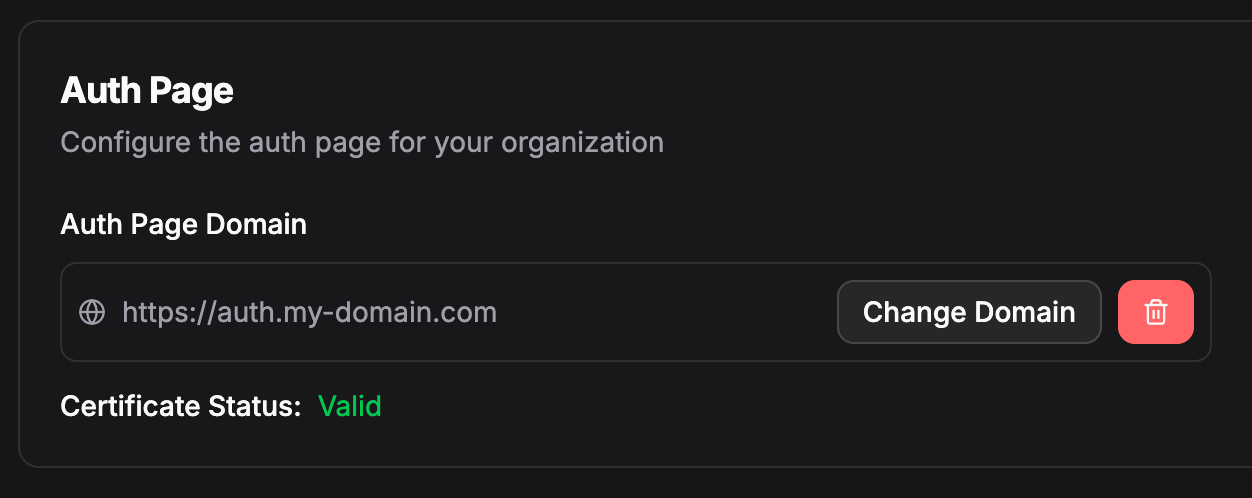
# Custom Login Page (/manage/access-control/login-page)
> Configure a custom authentication page URL for your organization
Custom auth pages are only available in [Pangolin Cloud](https://app.pangolin.net/auth/signup).
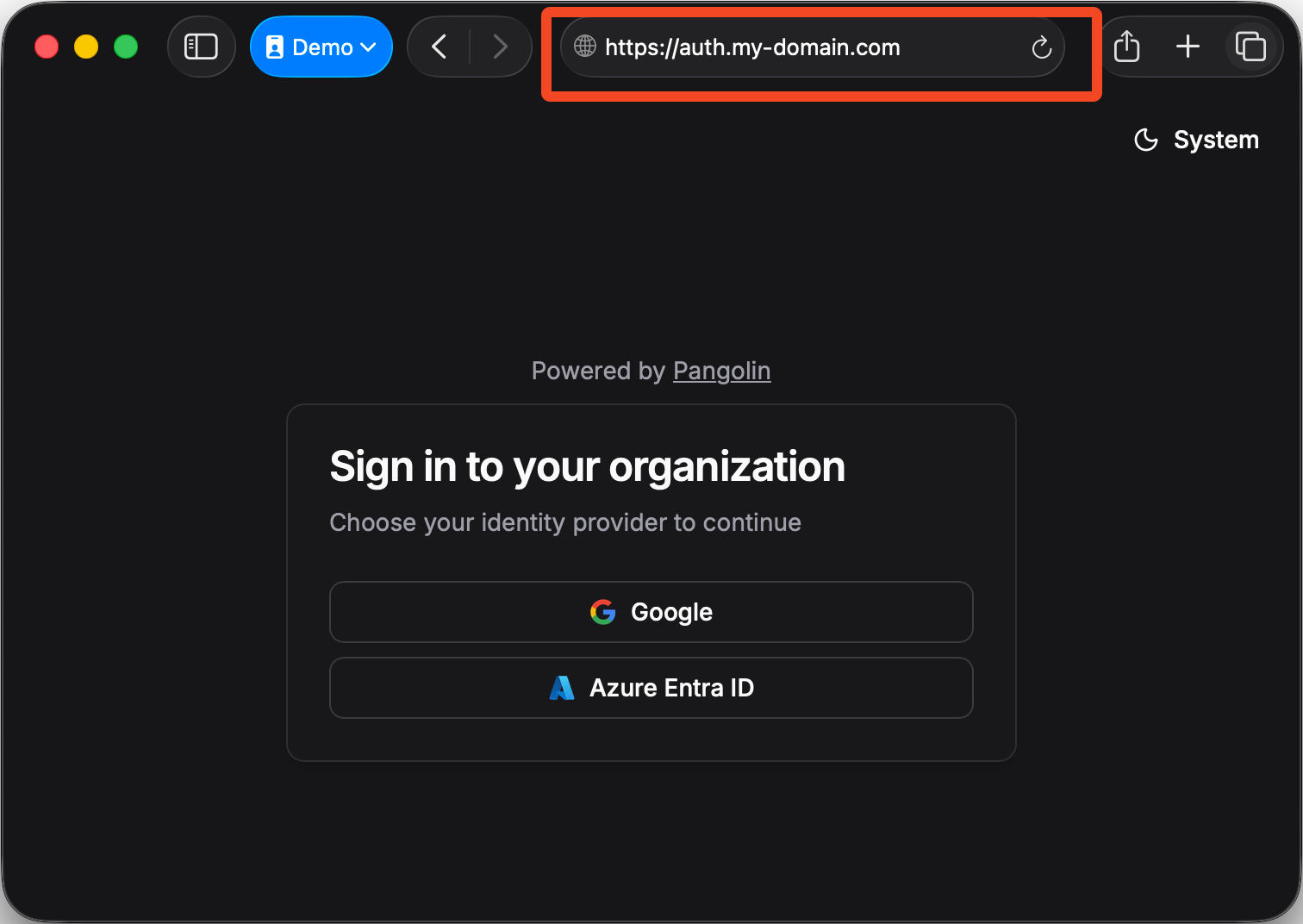
Custom organization authentication pages let you serve the login page at your own domain instead of the default `app.pangolin.net`. This provides better user experience and brand consistency.
## Benefits [#benefits]
**For Resource Authentication:**
* Users are redirected to your custom domain for login
* Familiar domain builds trust and security awareness
* Consistent branding throughout the authentication flow
**For Identity Provider Integration:**
* Centralized login page for your organization
* Choose between multiple login methods (Google, Azure, etc.)
* Platform SSO: login once, access all Pangolin resources
* Direct access to the Pangolin management dashboard
 ## Configuration [#configuration]
1. Go to **Settings** in your organization sidebar
2. Use the domain picker to select your custom domain
3. Save your changes
You need to add a custom domain to your organization first. Free domains (`*.tunneled.to`, `*.hostlocal.app`, etc.) cannot be used for auth pages. [Learn how to add domains](/manage/domains)
## Configuration [#configuration]
1. Go to **Settings** in your organization sidebar
2. Use the domain picker to select your custom domain
3. Save your changes
You need to add a custom domain to your organization first. Free domains (`*.tunneled.to`, `*.hostlocal.app`, etc.) cannot be used for auth pages. [Learn how to add domains](/manage/domains)