# Claude Desktop (/manage/ai/configure-ai-clients/claude-desktop)
> Connect Claude Desktop's third-party inference to a Pangolin AI Gateway resource
Claude Desktop can route its requests through a third-party inference gateway instead of Anthropic directly. Point it at an AI Gateway resource that has an Anthropic-compatible provider attached — Anthropic itself, Bedrock, Vertex AI, or a custom Anthropic-compatible endpoint. See [AI Gateway Overview](/manage/ai/overview) if you haven't set that up yet.
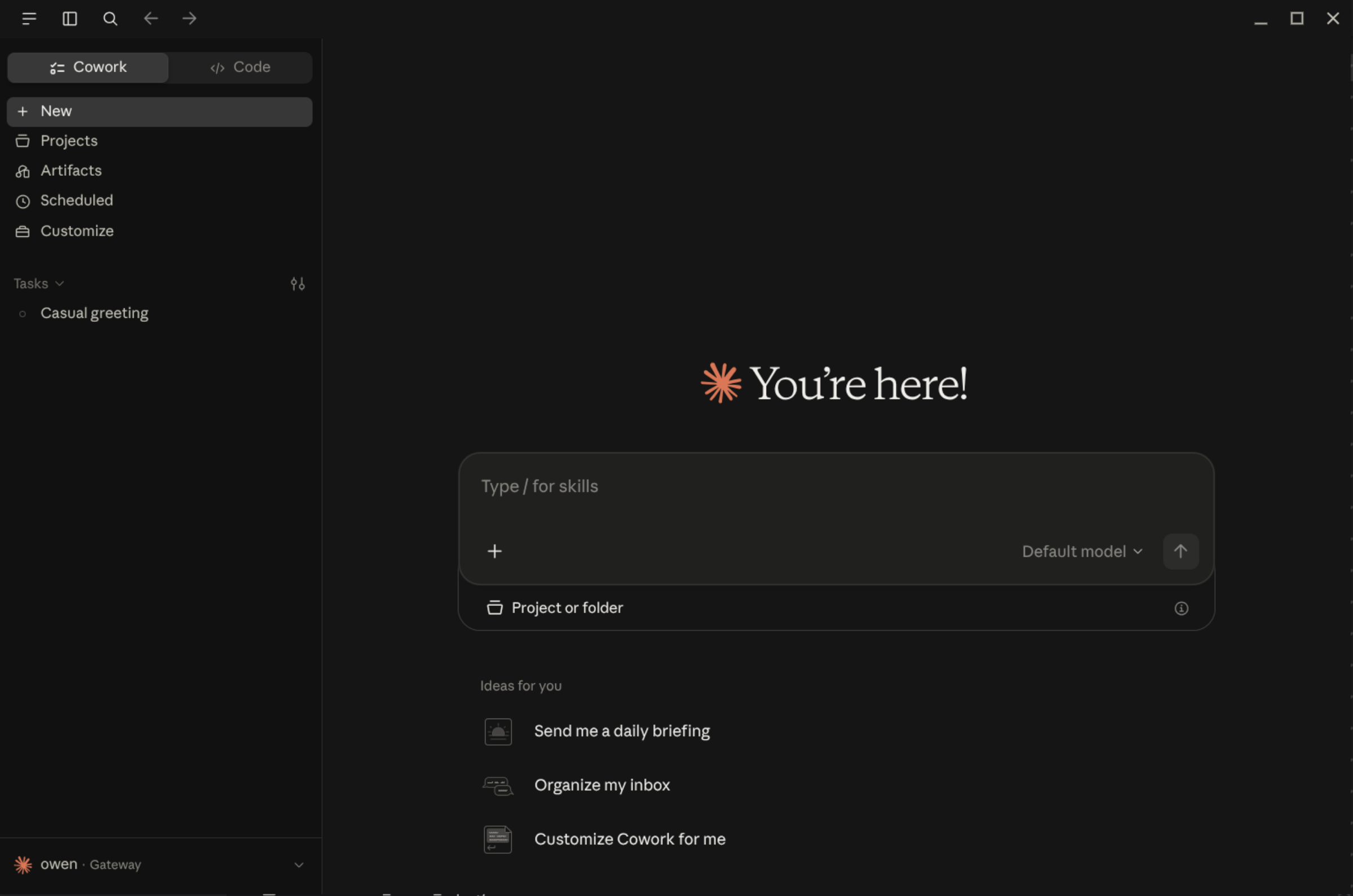 You'll need the resource's URL (its ``) and its API key (``). Both are on the resource's Keys page.
**Public vs. private resources**
Wherever these instructions show ``, what you put there depends on the resource type:
* **Public resource** - reachable from anywhere, so the gateway checks a [virtual API key](/manage/ai/virtual-api-keys). Copy it from the resource URL after login, the Resource Launcher more-info panel, or `https://app.pangolin.net//keys` (use your self-hosted dashboard URL in place of `app.pangolin.net` if you self-host).
* **Private resource** - only reachable from devices connected to your Pangolin network, so no key is checked. You must have the [Pangolin client](/manage/clients/platforms) installed and connected. Use the literal string `none` as the key.
Don't delete the key field for private resources. Most clients refuse to start without *some* key set, so they need an inert placeholder rather than a missing one.
## Steps [#steps]
1. Open Claude Desktop, go to the menu in the top left and select **Help > Troubleshooting**, and turn on **Developer Mode**.
You'll need the resource's URL (its ``) and its API key (``). Both are on the resource's Keys page.
**Public vs. private resources**
Wherever these instructions show ``, what you put there depends on the resource type:
* **Public resource** - reachable from anywhere, so the gateway checks a [virtual API key](/manage/ai/virtual-api-keys). Copy it from the resource URL after login, the Resource Launcher more-info panel, or `https://app.pangolin.net//keys` (use your self-hosted dashboard URL in place of `app.pangolin.net` if you self-host).
* **Private resource** - only reachable from devices connected to your Pangolin network, so no key is checked. You must have the [Pangolin client](/manage/clients/platforms) installed and connected. Use the literal string `none` as the key.
Don't delete the key field for private resources. Most clients refuse to start without *some* key set, so they need an inert placeholder rather than a missing one.
## Steps [#steps]
1. Open Claude Desktop, go to the menu in the top left and select **Help > Troubleshooting**, and turn on **Developer Mode**.
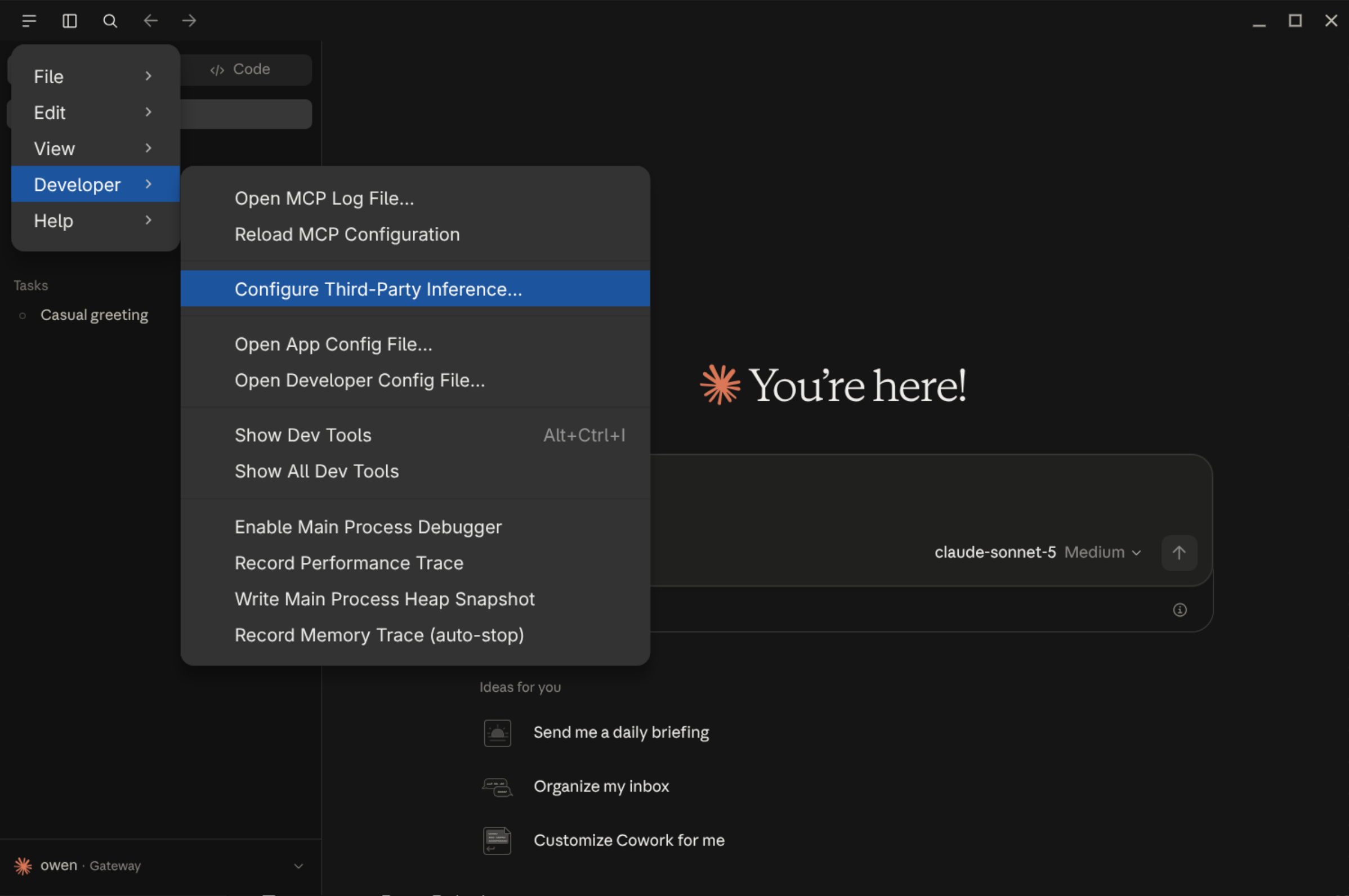
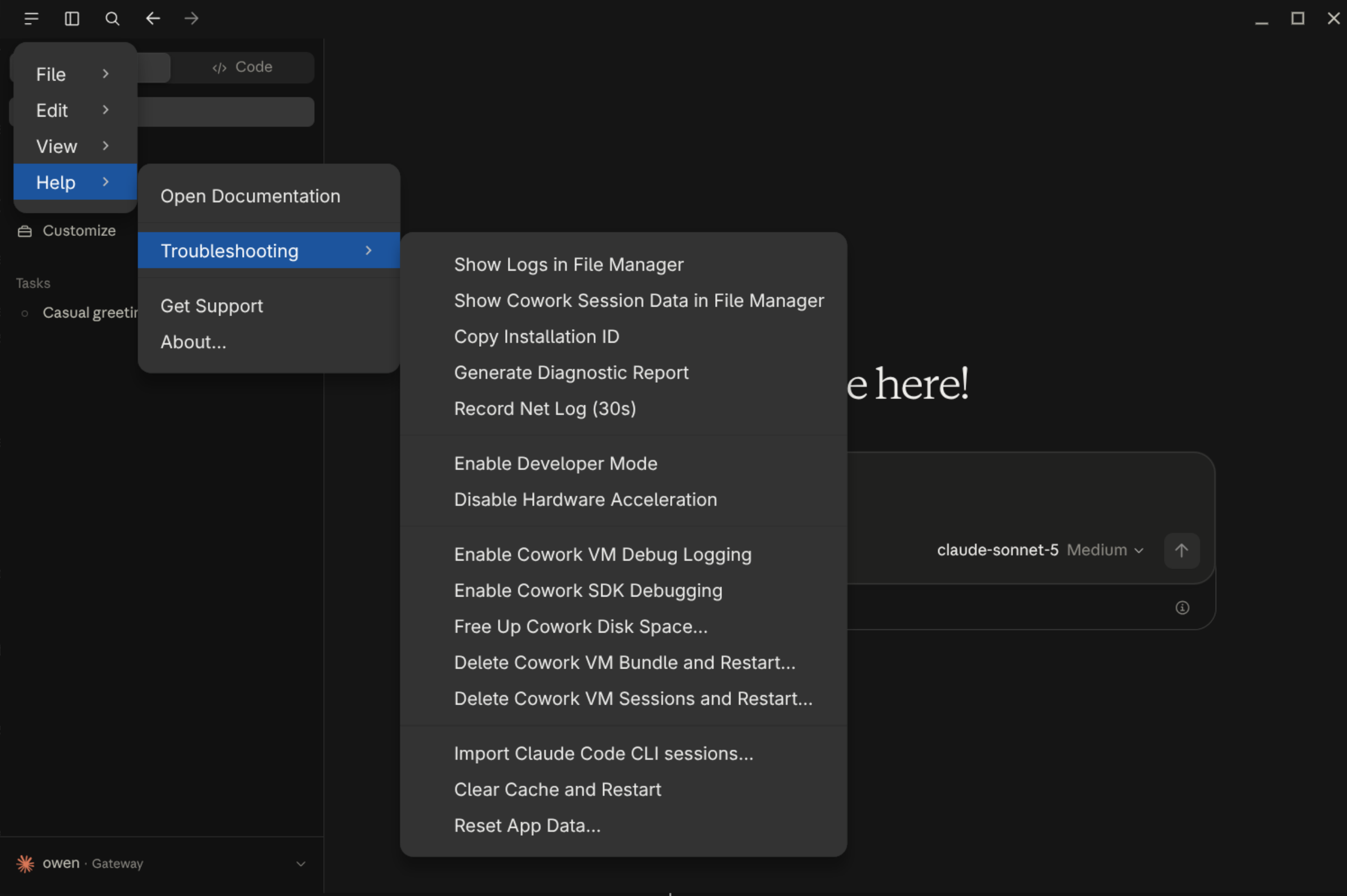 2. From the menu bar, open **Developer**, then **Configure Third-Party Inference…**.
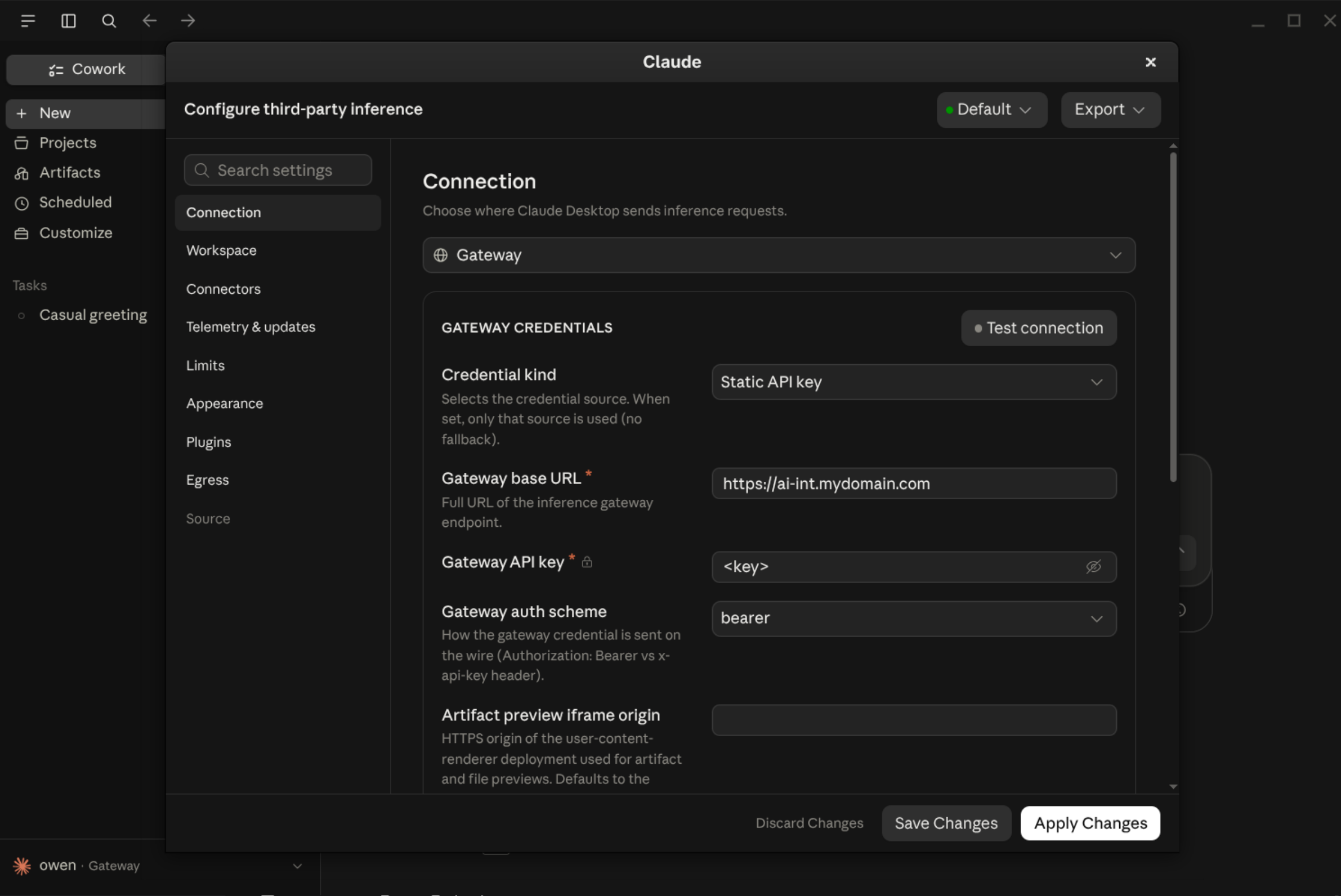
 3. Select **Gateway**
4. Select **Credential kind** > **Static API Key**.
5. Fill in:
* **Gateway base URL:** ``
* **Gateway API Key:** ``
3. Select **Gateway**
4. Select **Credential kind** > **Static API Key**.
5. Fill in:
* **Gateway base URL:** ``
* **Gateway API Key:** ``
 6. Restart Claude Desktop.
Send a message to confirm it's working — check the resource's activity in Pangolin's logs if you want to verify traffic is actually flowing through the gateway rather than straight to Anthropic.
For a private resource, put `none` in the API Key field rather than leaving it blank, and make sure the Pangolin client is installed and connected on the same machine as Claude Desktop.
6. Restart Claude Desktop.
Send a message to confirm it's working — check the resource's activity in Pangolin's logs if you want to verify traffic is actually flowing through the gateway rather than straight to Anthropic.
For a private resource, put `none` in the API Key field rather than leaving it blank, and make sure the Pangolin client is installed and connected on the same machine as Claude Desktop.