# Archiving & Blocking (/manage/clients/archiving-blocking)
> Manage clients and block unwanted connections
## Blocking Devices [#blocking-devices]
To block a device that has been compromised or lost:
1. Navigate to the device in your client list
2. Click the Action Menu (three dots)
3. Select **Block**
When you block a device, it is immediately moved to a restricted list and loses access to all resources or the ability to connect.
## Archiving Devices [#archiving-devices]
Devices cannot be permanently deleted from Pangolin. Instead, you can archive devices to remove them from your active client list.
To archive a device:
1. Navigate to the device in your client list
2. Click the Action Menu (three dots)
3. Select **Archive**
### Why Archive Instead of Delete? [#why-archive-instead-of-delete]
Pangolin maintains a permanent audit trail of all devices that have accessed your resources. This ensures:
* Block rules remain effective even for archived devices
* Security logs and access history are preserved
Archiving keeps your interface clean by hiding inactive or duplicate devices while maintaining the integrity of your security records.
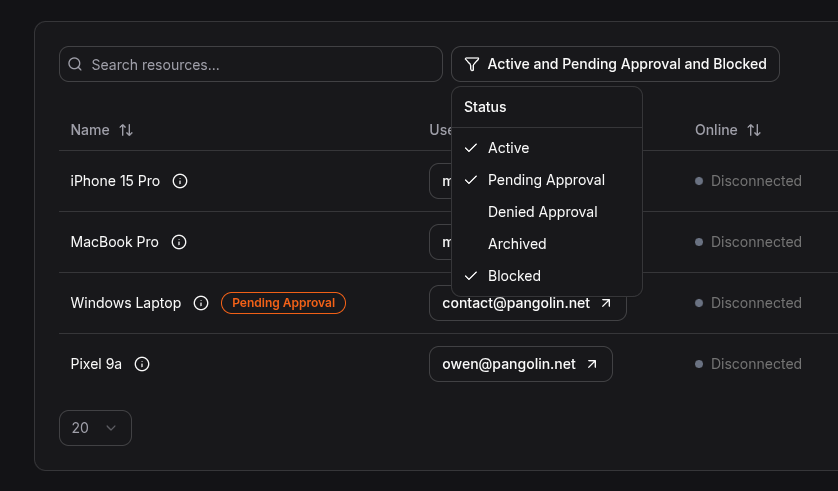
## Filtering [#filtering]
You can filter your client list to show only active, blocked, or archived devices.