# RDP (/manage/resources/public/rdp)
> Control a Windows computer remotely through a full RDP client rendered in the browser
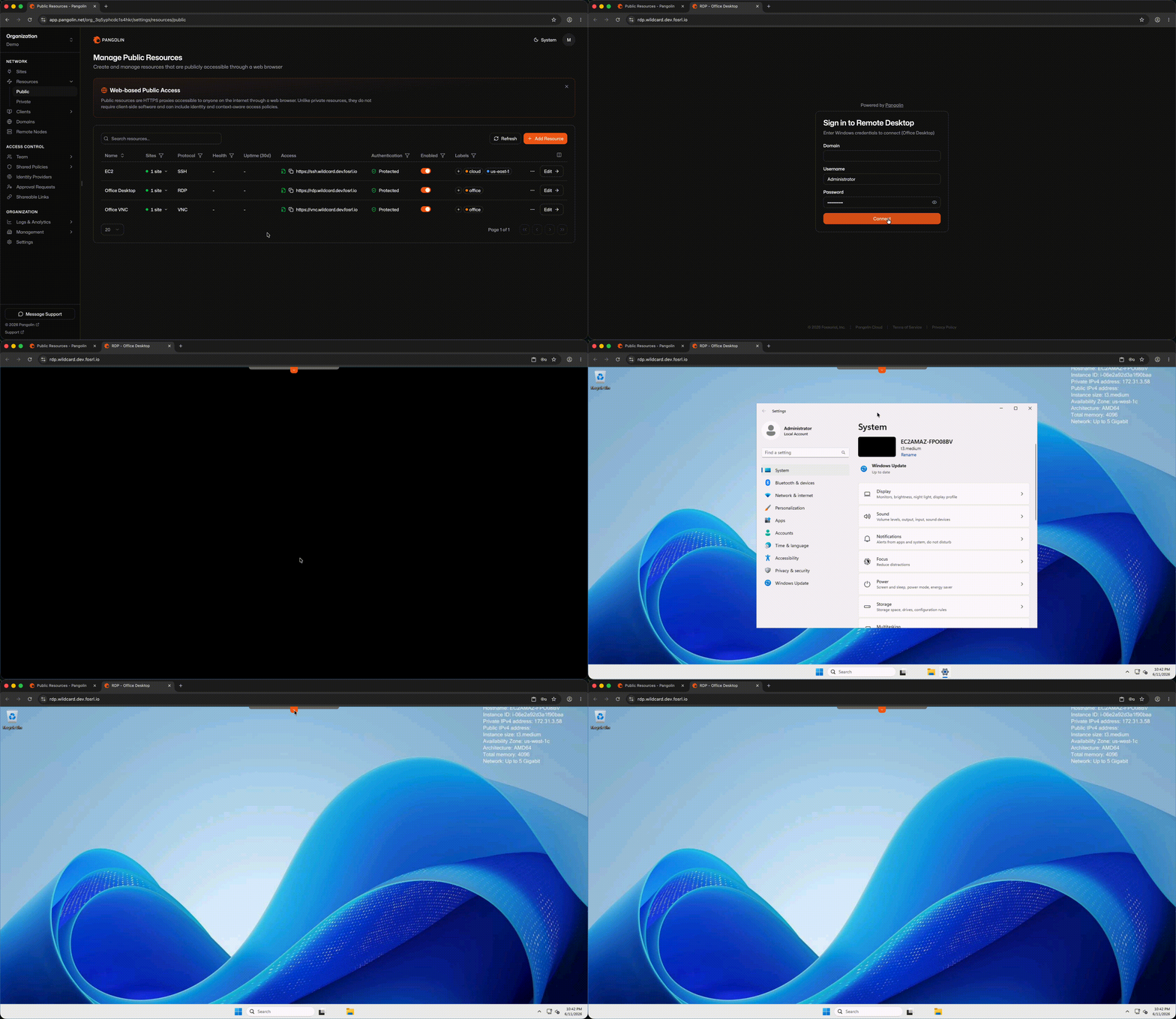
RDP public resources render a full Remote Desktop Protocol client in the browser. Users visit a FQDN, complete Pangolin authentication, and get an interactive Windows desktop session—including file transfers, clipboard copy/paste, and standard RDP features—without installing remote desktop software.
 ## Benefits [#benefits]
* Users get a Windows desktop from any browser, with no remote desktop software or Pangolin client to install.
* Port 3389 is never exposed to the internet, which removes a common target for brute-force attacks.
* SSO, identity providers, and access rules sit in front of Windows authentication.
* File transfer and clipboard copy and paste work in the browser session.
## Use Cases [#use-cases]
* Let staff reach their office workstation from home or a personal device.
* Give vendors or support staff time-limited access to a Windows server.
* Reach Windows machines on a factory floor, lab, or branch office behind NAT.
* Use Windows-only line-of-business apps from Mac, Linux, or Chromebook devices.
## Video Walkthrough [#video-walkthrough]
## How It Works [#how-it-works]
1. You assign a FQDN on a domain managed in Pangolin.
2. The user completes [authentication and access rules](/manage/resources/public/authentication) in the browser.
3. Pangolin renders the RDP session and proxies traffic to the Windows host through a site connector.
No Pangolin client is required. Any modern web browser is sufficient.
## Site and Host Configuration [#site-and-host-configuration]
RDP public resources do **not** use [targets](/manage/resources/public/targets). Instead, you:
1. Select which sites can route to the resource.
2. Enter the backend Windows host and RDP port (default `3389`).
Pangolin routes through the site that is online and healthiest, using the same intelligent multi-site routing model as [private resources](/manage/resources/private/multi-site-routing).
## Authentication and Access Rules [#authentication-and-access-rules]
RDP public resources are protocol-aware and support the full set of Pangolin [authentication and access rules](/manage/resources/public/authentication), including platform SSO, identity providers, user/role assignments, and context-based allow/deny rules. You can share these settings across resources with a [resource policy](/manage/resources/public/resource-policies).
RDP session credentials (Windows username and password) are entered in the browser-rendered client after Pangolin authentication succeeds.
## Benefits [#benefits]
* Users get a Windows desktop from any browser, with no remote desktop software or Pangolin client to install.
* Port 3389 is never exposed to the internet, which removes a common target for brute-force attacks.
* SSO, identity providers, and access rules sit in front of Windows authentication.
* File transfer and clipboard copy and paste work in the browser session.
## Use Cases [#use-cases]
* Let staff reach their office workstation from home or a personal device.
* Give vendors or support staff time-limited access to a Windows server.
* Reach Windows machines on a factory floor, lab, or branch office behind NAT.
* Use Windows-only line-of-business apps from Mac, Linux, or Chromebook devices.
## Video Walkthrough [#video-walkthrough]
## How It Works [#how-it-works]
1. You assign a FQDN on a domain managed in Pangolin.
2. The user completes [authentication and access rules](/manage/resources/public/authentication) in the browser.
3. Pangolin renders the RDP session and proxies traffic to the Windows host through a site connector.
No Pangolin client is required. Any modern web browser is sufficient.
## Site and Host Configuration [#site-and-host-configuration]
RDP public resources do **not** use [targets](/manage/resources/public/targets). Instead, you:
1. Select which sites can route to the resource.
2. Enter the backend Windows host and RDP port (default `3389`).
Pangolin routes through the site that is online and healthiest, using the same intelligent multi-site routing model as [private resources](/manage/resources/private/multi-site-routing).
## Authentication and Access Rules [#authentication-and-access-rules]
RDP public resources are protocol-aware and support the full set of Pangolin [authentication and access rules](/manage/resources/public/authentication), including platform SSO, identity providers, user/role assignments, and context-based allow/deny rules. You can share these settings across resources with a [resource policy](/manage/resources/public/resource-policies).
RDP session credentials (Windows username and password) are entered in the browser-rendered client after Pangolin authentication succeeds.