> ## Documentation Index
> Fetch the complete documentation index at: https://docs.pangolin.net/llms.txt
> Use this file to discover all available pages before exploring further.
# Alert Rules
> Subscribe to Pangolin events on sites, resources, and health checks and deliver email, webhooks, or integrations
Fastest way to get started with Pangolin using the hosted control plane. No credit card required.
Only available in [Pangolin Cloud](https://app.pangolin.net/auth/signup) and [Enterprise Edition](/self-host/enterprise-edition).
Alert rules let you react to changes in Pangolin: you pick a source (what to watch), a trigger (which change matters), and one or more actions (what to do). For example, when a site moves from online to offline, email your admins and support; when a [health check](/manage/alerting/health-checks) or resource becomes unhealthy, call a webhook so a tool like Zapier can fan out the event.
## Where to create rules
Create and manage rules from the Alert rules page under Alerting for your organization.
You can also start a rule from a site or resource detail page: use Create alert rule near the uptime graph to prefill context and keep the flow short.
## Actions
When a trigger fires, Pangolin can:
* Send email (recipients described below).
* Call a webhook with a JSON payload (see [Webhook payloads](#webhook-payloads)).
* Open an incident or ticket in PagerDuty, Opsgenie, ServiceNow, or incident.io.
You can attach several actions to the same rule (for example email plus a webhook).
### Email
Choose users in your Pangolin organization, entire roles, and/or arbitrary email addresses that should receive the message when the condition is met.
### Webhooks
Webhook actions issue an HTTP request to your endpoint when the trigger runs. Payloads are JSON and follow the shapes in [Webhook payloads](#webhook-payloads).
## Creating an alert rule
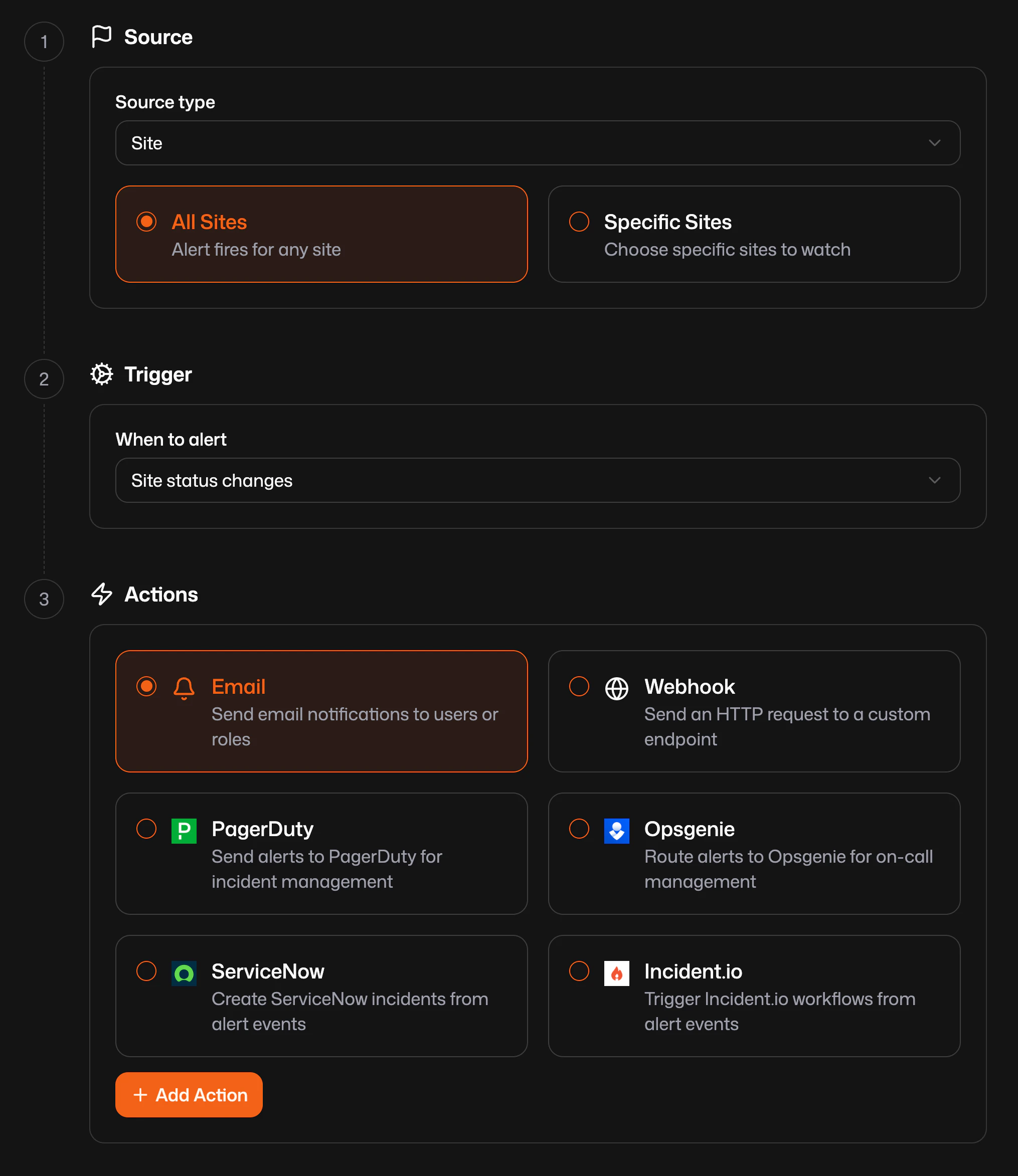 ### 1. Source
Choose what entity the rule watches:
| Source type | Meaning |
| ------------ | ----------------------------------------------------------- |
| Site | One or more [sites](/manage/sites/understanding-sites) |
| Resource | One or more resources in the org |
| Health check | One or more [health checks](/manage/alerting/health-checks) |
For each type, decide whether the rule applies to all of that kind (for example all sites) or only specific sites, resources, or health checks you select.
### 2. Trigger
Available triggers depend on the source type. For sites, options include coming online, going offline, or any status change. For resources and health checks, you get healthy, unhealthy, and combined toggle-style triggers that match how those entities change state—the dashboard only lists combinations that apply to what you selected.
Pick the condition that should fire the rule (for example site status changes when you care about both online and offline transitions).
### 3. Actions
Configure what happens when the trigger runs: add one or more actions (email, webhook, or a vendor integration). Use Add action to stack multiple destinations for the same rule.
## Webhook payloads
Webhook bodies are JSON. Every event includes `event`, ISO-8601 `timestamp`, and a `data` object. The event name tells you what changed; `data` always includes `orgId` and entity-specific fields.
`{{data}}` is an object and must be treated as such. If you can not support a object, you can also use the flattened fields shown in the examples below. For example `{{orgId}}`, `{{siteId}}`, and `{{siteName}}` are all available on a site alert.
### Site events
#### `site_online`
A site came back online.
```json theme={"dark"}
{
"event": "site_online",
"timestamp": "2025-06-15T12:34:56.789Z",
"data": {
"orgId": "org_abc123",
"siteId": 42,
"siteName": "us-east-prod"
}
}
```
#### `site_offline`
A site went offline.
```json theme={"dark"}
{
"event": "site_offline",
"timestamp": "2025-06-15T12:34:56.789Z",
"data": {
"orgId": "org_abc123",
"siteId": 42,
"siteName": "us-east-prod"
}
}
```
#### `site_toggle`
Fires when site connectivity changes, alongside both `site_online` and `site_offline`. Use this when you only care that status flipped, not which direction. `siteId` is always present in `data`.
```json theme={"dark"}
{
"event": "site_toggle",
"timestamp": "2025-06-15T12:34:56.789Z",
"data": {
"orgId": "org_abc123",
"siteId": 42,
"siteName": "us-east-prod"
}
}
```
### Health check events
#### `health_check_healthy`
A health check recovered.
```json theme={"dark"}
{
"event": "health_check_healthy",
"timestamp": "2025-06-15T12:34:56.789Z",
"data": {
"orgId": "org_abc123",
"healthCheckName": "API /healthz"
}
}
```
#### `health_check_unhealthy`
A health check is failing.
```json theme={"dark"}
{
"event": "health_check_unhealthy",
"timestamp": "2025-06-15T12:34:56.789Z",
"data": {
"orgId": "org_abc123",
"healthCheckName": "API /healthz"
}
}
```
#### `health_check_toggle`
Fires alongside healthy and unhealthy transitions. `healthCheckId` is included in `data` for this combined event.
```json theme={"dark"}
{
"event": "health_check_toggle",
"timestamp": "2025-06-15T12:34:56.789Z",
"data": {
"orgId": "org_abc123",
"healthCheckId": 7,
"healthCheckName": "API /healthz"
}
}
```
### Resource events
#### `resource_healthy`
A resource recovered.
```json theme={"dark"}
{
"event": "resource_healthy",
"timestamp": "2025-06-15T12:34:56.789Z",
"data": {
"orgId": "org_abc123",
"resourceName": "internal-dashboard"
}
}
```
#### `resource_unhealthy`
A resource is unhealthy.
```json theme={"dark"}
{
"event": "resource_unhealthy",
"timestamp": "2025-06-15T12:34:56.789Z",
"data": {
"orgId": "org_abc123",
"resourceName": "internal-dashboard"
}
}
```
#### `resource_toggle`
Fires alongside healthy and unhealthy transitions, or when a resource is enabled or disabled. `resourceId` is included in `data`.
```json theme={"dark"}
{
"event": "resource_toggle",
"timestamp": "2025-06-15T12:34:56.789Z",
"data": {
"orgId": "org_abc123",
"resourceId": 15,
"resourceName": "internal-dashboard"
}
}
```
### 1. Source
Choose what entity the rule watches:
| Source type | Meaning |
| ------------ | ----------------------------------------------------------- |
| Site | One or more [sites](/manage/sites/understanding-sites) |
| Resource | One or more resources in the org |
| Health check | One or more [health checks](/manage/alerting/health-checks) |
For each type, decide whether the rule applies to all of that kind (for example all sites) or only specific sites, resources, or health checks you select.
### 2. Trigger
Available triggers depend on the source type. For sites, options include coming online, going offline, or any status change. For resources and health checks, you get healthy, unhealthy, and combined toggle-style triggers that match how those entities change state—the dashboard only lists combinations that apply to what you selected.
Pick the condition that should fire the rule (for example site status changes when you care about both online and offline transitions).
### 3. Actions
Configure what happens when the trigger runs: add one or more actions (email, webhook, or a vendor integration). Use Add action to stack multiple destinations for the same rule.
## Webhook payloads
Webhook bodies are JSON. Every event includes `event`, ISO-8601 `timestamp`, and a `data` object. The event name tells you what changed; `data` always includes `orgId` and entity-specific fields.
`{{data}}` is an object and must be treated as such. If you can not support a object, you can also use the flattened fields shown in the examples below. For example `{{orgId}}`, `{{siteId}}`, and `{{siteName}}` are all available on a site alert.
### Site events
#### `site_online`
A site came back online.
```json theme={"dark"}
{
"event": "site_online",
"timestamp": "2025-06-15T12:34:56.789Z",
"data": {
"orgId": "org_abc123",
"siteId": 42,
"siteName": "us-east-prod"
}
}
```
#### `site_offline`
A site went offline.
```json theme={"dark"}
{
"event": "site_offline",
"timestamp": "2025-06-15T12:34:56.789Z",
"data": {
"orgId": "org_abc123",
"siteId": 42,
"siteName": "us-east-prod"
}
}
```
#### `site_toggle`
Fires when site connectivity changes, alongside both `site_online` and `site_offline`. Use this when you only care that status flipped, not which direction. `siteId` is always present in `data`.
```json theme={"dark"}
{
"event": "site_toggle",
"timestamp": "2025-06-15T12:34:56.789Z",
"data": {
"orgId": "org_abc123",
"siteId": 42,
"siteName": "us-east-prod"
}
}
```
### Health check events
#### `health_check_healthy`
A health check recovered.
```json theme={"dark"}
{
"event": "health_check_healthy",
"timestamp": "2025-06-15T12:34:56.789Z",
"data": {
"orgId": "org_abc123",
"healthCheckName": "API /healthz"
}
}
```
#### `health_check_unhealthy`
A health check is failing.
```json theme={"dark"}
{
"event": "health_check_unhealthy",
"timestamp": "2025-06-15T12:34:56.789Z",
"data": {
"orgId": "org_abc123",
"healthCheckName": "API /healthz"
}
}
```
#### `health_check_toggle`
Fires alongside healthy and unhealthy transitions. `healthCheckId` is included in `data` for this combined event.
```json theme={"dark"}
{
"event": "health_check_toggle",
"timestamp": "2025-06-15T12:34:56.789Z",
"data": {
"orgId": "org_abc123",
"healthCheckId": 7,
"healthCheckName": "API /healthz"
}
}
```
### Resource events
#### `resource_healthy`
A resource recovered.
```json theme={"dark"}
{
"event": "resource_healthy",
"timestamp": "2025-06-15T12:34:56.789Z",
"data": {
"orgId": "org_abc123",
"resourceName": "internal-dashboard"
}
}
```
#### `resource_unhealthy`
A resource is unhealthy.
```json theme={"dark"}
{
"event": "resource_unhealthy",
"timestamp": "2025-06-15T12:34:56.789Z",
"data": {
"orgId": "org_abc123",
"resourceName": "internal-dashboard"
}
}
```
#### `resource_toggle`
Fires alongside healthy and unhealthy transitions, or when a resource is enabled or disabled. `resourceId` is included in `data`.
```json theme={"dark"}
{
"event": "resource_toggle",
"timestamp": "2025-06-15T12:34:56.789Z",
"data": {
"orgId": "org_abc123",
"resourceId": 15,
"resourceName": "internal-dashboard"
}
}
```