> ## Documentation Index
> Fetch the complete documentation index at: https://docs.pangolin.net/llms.txt
> Use this file to discover all available pages before exploring further.
# Configure Clients
> Configure Olm for connecting to Pangolin clients
Fastest way to get started with Pangolin using the hosted control plane. No credit card required.
## GUI Clients (Mac, Windows, Android, iOS/iPadOS)
Each respective client has a preferences window with all currently available configuration parameters. In your desktop client, click the menu bar or system tray icon, select "More" in the menu, and click "Preferences". In the mobile apps, navigate to the "Settings" screen.
## Preferences
The following preferences control how your client handles DNS resolution and network routing. Understanding these settings helps you configure Pangolin to work best with your network setup.
#### Enable Aliases (Override DNS)
When enabled, the client uses custom DNS servers to resolve internal resources and aliases. This overrides your system's default DNS settings. Queries that cannot be resolved as a Pangolin resource will be forwarded to your configured Upstream DNS Server.
**When to use it**: This is required if you use aliases on resources in Pangolin. Aliases are friendly domain names assigned to private resources. Pangolin resolves these alias addresses over a private DNS server running in your client.
**How it works**: The client loops back to itself to resolve the alias. This is why you may see your DNS server as an unfamiliar address (often like `100.90.128.x`) when this is enabled. When a request doesn't resolve to a Pangolin resource and is bound for another website (like `google.com`), it falls back to your configured upstream DNS server.
#### DNS Over Tunnel
When enabled, DNS queries are routed through the tunnel for remote resolution. To ensure queries are tunneled correctly, you must define the DNS server as a Pangolin resource and enter its address as an Upstream DNS Server.
**When to use it**: Tunnel DNS is used when you want to send all DNS queries over the tunnel to a private resource made available in Pangolin. For example, if you host a DNS server like Pi-hole, you could define a private resource for Pi-hole on your remote network. Then in the Pangolin client, you would enable Tunnel DNS and set the host of the Pi-hole private resource as the tunnel DNS server.
**How it works**: When a request needs to be resolved, Pangolin sends it over the tunnel to the site of the private resource with your DNS server. You must enable DNS Over Tunnel and also set the upstream DNS server to your private DNS server.
This requires aliases "override DNS" to be enabled as well. This is because the client must take control of your DNS settings to route queries through the tunnel to your private DNS server.
You cannot use an alias name for your DNS server. It must be the IP address of the resource. This is because it's pointing to the DNS server, so the DNS server can't resolve itself.
#### Primary Upstream DNS
This is the DNS server that will be used if Override DNS is enabled or DNS Over Tunnel is enabled. It serves as the primary resolver for queries that cannot be resolved as Pangolin resources. Not used when override DNS (aliases) are disabled.
#### Secondary Upstream DNS
This is a fallback DNS server that the system can use if the primary server is unavailable. Ordering and priority of the server is not guaranteed, but it provides redundancy for DNS resolution. Not used when override DNS (aliases) are disabled.
#### MTU
You can set the maximum transmission unit (MTU) for the client’s internal WireGuard interface. This value is client-wide: every site the client connects to must use the same MTU on the site (Newt) side, or you can see fragmentation, failed handshakes, or unstable tunnels. See the **mtu** option on [Configure Sites](/manage/sites/configure-site) and set the same value on each of those sites.
Changing MTU is advanced and not recommended for most users. Only change it when you have a specific, well-understood reason (for example, a constrained network path or a requirement from your infrastructure team). If you do change it, you must update every connected site to the identical value.
## Windows Client (Advanced)
On Windows, the Pangolin GUI reads configuration from two `pangolin.json` files:
* User config: `%LOCALAPPDATA%\Pangolin\pangolin.json` (for example, `C:\Users\USER\AppData\Local\Pangolin\pangolin.json`)
* Global config: `%ProgramData%\Pangolin\pangolin.json`
All config keys in the `Config` object below can be set in either file. If the same key exists in both places, the user config value overrides the global value. This lets administrators define global defaults while still allowing per-user overrides when needed.
JSON configuration for the Windows Pangolin client stored in `pangolin.json`.
When true, matches the **Enable Aliases (Override DNS)** preference and lets the client take over DNS resolution for Pangolin resources.
When true, matches the **DNS Over Tunnel** preference and sends DNS queries through the Pangolin tunnel.
Primary upstream DNS server used when override/tunnel DNS is enabled.
Optional secondary upstream DNS server used as a fallback when the primary is unavailable.
When set, skips the deployment option screen during login; all login flows start directly with this server URL.
Optional path appended to the server URL for authentication, for example `/auth/org/my-org` to always send users to a specific organization or branded login page. Most deployments should leave this unset.
When true, hides and disables the settings form in the GUI so users cannot change these values themselves.
When true, opens the Status tab immediately after clicking Connect so users can watch connection feedback while the tunnel is starting.
MTU for the internal WireGuard interface. Changing this is advanced and not recommended unless you have a clear reason; if you set a non-default value, configure the same MTU on every site this client connects to—see [Configure Sites](/manage/sites/configure-site).
As a system administrator, you can script placing `pangolin.json` in `%ProgramData%\Pangolin\` to set global defaults, and/or in each user's `%LOCALAPPDATA%\Pangolin\` folder for per-user overrides and targeted rollout behavior.
For enterprise customers, contact us if you need a custom MSI installer with baked-in configuration; we can maintain custom installers as an add-on to your enterprise license.
### Windows client log level
`logLevel` is a global-only setting. To configure it for the Windows client, edit `%ProgramData%\Pangolin\pangolin.json`. For example:
```json theme={"theme":"gruvbox-light-hard"}
{ "logLevel": "debug" }
```
The default log level is `info`.
## Android Battery Optimization
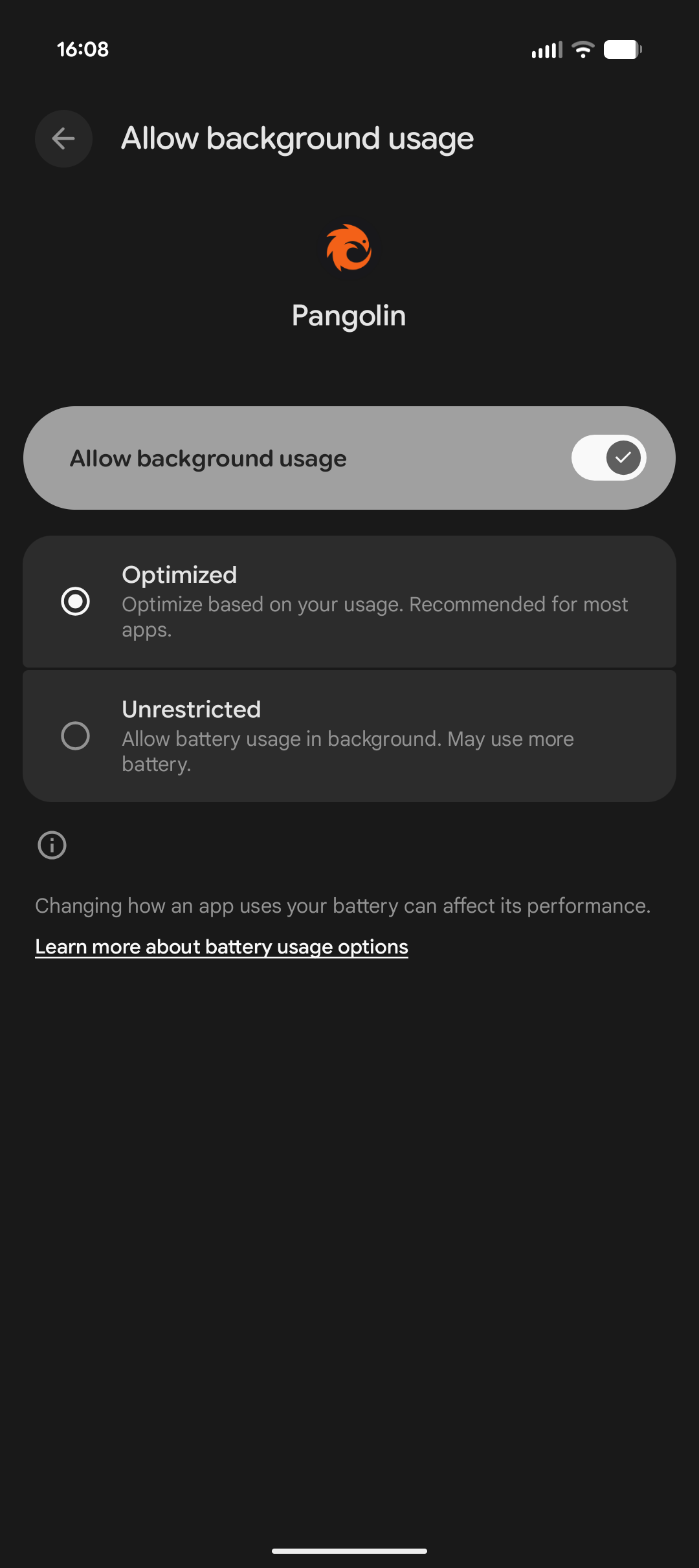
To ensure Pangolin functions correctly in the background on Android devices, it's recommended to disable battery optimization for the app. This prevents the operating system from restricting its background activities, which could lead to disconnections.
1. Open the **Settings** app on your Android device.
2. Navigate to **Apps & notifications** (or simply **Apps** on some devices).
3. Find and select the Pangolin app from the list of installed apps.
4. Tap on **App battery usage**.
5. Select **Allow background usage** and enable if disabled.
6. From the options menu, choose **Unrestricted**.
 ## Pangolin CLI
Refer to the [documentation in the official repository](https://github.com/fosrl/cli/blob/main/docs/pangolin.md) for the available commands, default values, and more.
## Olm (Advanced)
We recommend using the Pangolin CLI for both user and machine clients if you're looking for a CLI interface. Olm is the underlying client for the Pangolin CLI.
Olm is a command-line client for connecting machine clients in Pangolin. You can configure it using command-line flags, environment variables, or a configuration file. Expand the section below to view all available configuration options.
### Flags
Olm ID generated by Pangolin to identify the client.
**Example**: `31frd0uzbjvp721`
A unique secret used to authenticate the client ID with the websocket.
**Example**: `h51mmlknrvrwv8s4r1i210azhumt6isgbpyavxodibx1k2d6`
Keep this secret private and secure. It's used for authentication.
The endpoint where the Pangolin server resides for websocket connections.
**Example**: `https://pangolin.example.com`
Organization ID to connect to.
User authentication token.
MTU for the internal WireGuard interface.
**Default**: `1280`
DNS server to use to resolve the endpoint.
**Default**: `8.8.8.8`
Upstream DNS server(s), comma-separated.
**Default**: `8.8.8.8:53`
The log level to use for Olm output.
**Options**: `DEBUG`, `INFO`, `WARN`, `ERROR`, `FATAL`
**Default**: `INFO`
Interval for pinging the server.
**Default**: `3s`
Timeout for each ping.
**Default**: `5s`
Name of the WireGuard interface.
**Default**: `olm`
Enable API server for receiving connection requests.
**Default**: `false`
HTTP server address (e.g., ':9452').
**Default**: `:9452`
Unix socket path (or named pipe on Windows).
**Default**: `/var/run/olm.sock` (Linux/macOS) or `olm` (Windows)
Disable hole punching.
**Default**: `false`
When enabled, the client uses custom DNS servers to resolve internal resources and aliases. This overrides your system's default DNS settings. Queries that cannot be resolved as a Pangolin resource will be forwarded to your configured Upstream DNS Server. (default true)
**Default**: `false`
When enabled, DNS queries are routed through the tunnel for remote resolution. To ensure queries are tunneled correctly, you must define the DNS server as a Pangolin resource and enter its address as an Upstream DNS Server.
**Default**: `false`
Disable relay connections.
**Default**: `false`
### Environment Variables
All CLI arguments can be set using environment variables as an alternative to command line flags. Environment variables are particularly useful when running Olm in containerized environments.
When both environment variables and CLI arguments are provided, CLI arguments take precedence.
Endpoint of your Pangolin server (equivalent to `--endpoint`)
Olm ID generated by Pangolin (equivalent to `--id`)
Olm secret for authentication (equivalent to `--secret`)
Organization ID to connect to (equivalent to `--org`)
User authentication token (equivalent to `--user-token`)
MTU for the internal WireGuard interface (equivalent to `--mtu`)
**Default**: `1280`
DNS server to use to resolve the endpoint (equivalent to `--dns`)
**Default**: `8.8.8.8`
Upstream DNS server(s), comma-separated (equivalent to `--upstream-dns`)
**Default**: `8.8.8.8:53`
Log level (equivalent to `--log-level`)
**Default**: `INFO`
Interval for pinging the server (equivalent to `--ping-interval`)
**Default**: `3s`
Timeout for each ping (equivalent to `--ping-timeout`)
**Default**: `5s`
Name of the WireGuard interface (equivalent to `--interface`)
**Default**: `olm`
Enable API server for receiving connection requests (equivalent to `--enable-api`)
Set to "true" to enable
**Default**: `false`
HTTP server address (equivalent to `--http-addr`)
**Default**: `:9452`
Unix socket path or Windows named pipe (equivalent to `--socket-path`)
**Default**: `/var/run/olm.sock` (Linux/macOS) or `olm` (Windows)
Disable hole punching (equivalent to `--disable-holepunch`)
Set to "true" to disable
**Default**: `false`
Override system DNS settings (equivalent to `--override-dns`)
Set to "true" to enable
**Default**: `false`
Disable relay connections (equivalent to `--disable-relay`)
Set to "true" to disable
**Default**: `false`
Set to the location of a JSON file to load secret values
### Loading secrets from files
You can use `CONFIG_FILE` to define a location of a config file to store the credentials between runs.
```
$ cat ~/.config/olm-client/config.json
{
"id": "spmzu8rbpzj1qq6",
"secret": "f6v61mjutwme2kkydbw3fjo227zl60a2tsf5psw9r25hgae3",
"endpoint": "https://app.pangolin.net",
"org": "",
"userToken": "",
"mtu": 1280,
"dns": "8.8.8.8",
"upstreamDNS": ["8.8.8.8:53"],
"interface": "olm",
"logLevel": "INFO",
"enableApi": false,
"httpAddr": "",
"socketPath": "/var/run/olm.sock",
"pingInterval": "3s",
"pingTimeout": "5s",
"disableHolepunch": false,
"overrideDNS": false,
"disableRelay": false,
"tlsClientCert": ""
}
```
This file is also written to when olm first starts up. So you do not need to run every time with --id and secret if you have run it once!
Default locations:
* **macOS**: `~/Library/Application Support/olm-client/config.json`
* **Windows**: `%PROGRAMDATA%\olm\olm-client\config.json`
* **Linux/Others**: `~/.config/olm-client/config.json`
### API
Olm can be started with a HTTP or socket API to configure and manage it. See the [API documentation](https://github.com/fosrl/olm/blob/main/API.md) for more details.
## Pangolin CLI
Refer to the [documentation in the official repository](https://github.com/fosrl/cli/blob/main/docs/pangolin.md) for the available commands, default values, and more.
## Olm (Advanced)
We recommend using the Pangolin CLI for both user and machine clients if you're looking for a CLI interface. Olm is the underlying client for the Pangolin CLI.
Olm is a command-line client for connecting machine clients in Pangolin. You can configure it using command-line flags, environment variables, or a configuration file. Expand the section below to view all available configuration options.
### Flags
Olm ID generated by Pangolin to identify the client.
**Example**: `31frd0uzbjvp721`
A unique secret used to authenticate the client ID with the websocket.
**Example**: `h51mmlknrvrwv8s4r1i210azhumt6isgbpyavxodibx1k2d6`
Keep this secret private and secure. It's used for authentication.
The endpoint where the Pangolin server resides for websocket connections.
**Example**: `https://pangolin.example.com`
Organization ID to connect to.
User authentication token.
MTU for the internal WireGuard interface.
**Default**: `1280`
DNS server to use to resolve the endpoint.
**Default**: `8.8.8.8`
Upstream DNS server(s), comma-separated.
**Default**: `8.8.8.8:53`
The log level to use for Olm output.
**Options**: `DEBUG`, `INFO`, `WARN`, `ERROR`, `FATAL`
**Default**: `INFO`
Interval for pinging the server.
**Default**: `3s`
Timeout for each ping.
**Default**: `5s`
Name of the WireGuard interface.
**Default**: `olm`
Enable API server for receiving connection requests.
**Default**: `false`
HTTP server address (e.g., ':9452').
**Default**: `:9452`
Unix socket path (or named pipe on Windows).
**Default**: `/var/run/olm.sock` (Linux/macOS) or `olm` (Windows)
Disable hole punching.
**Default**: `false`
When enabled, the client uses custom DNS servers to resolve internal resources and aliases. This overrides your system's default DNS settings. Queries that cannot be resolved as a Pangolin resource will be forwarded to your configured Upstream DNS Server. (default true)
**Default**: `false`
When enabled, DNS queries are routed through the tunnel for remote resolution. To ensure queries are tunneled correctly, you must define the DNS server as a Pangolin resource and enter its address as an Upstream DNS Server.
**Default**: `false`
Disable relay connections.
**Default**: `false`
### Environment Variables
All CLI arguments can be set using environment variables as an alternative to command line flags. Environment variables are particularly useful when running Olm in containerized environments.
When both environment variables and CLI arguments are provided, CLI arguments take precedence.
Endpoint of your Pangolin server (equivalent to `--endpoint`)
Olm ID generated by Pangolin (equivalent to `--id`)
Olm secret for authentication (equivalent to `--secret`)
Organization ID to connect to (equivalent to `--org`)
User authentication token (equivalent to `--user-token`)
MTU for the internal WireGuard interface (equivalent to `--mtu`)
**Default**: `1280`
DNS server to use to resolve the endpoint (equivalent to `--dns`)
**Default**: `8.8.8.8`
Upstream DNS server(s), comma-separated (equivalent to `--upstream-dns`)
**Default**: `8.8.8.8:53`
Log level (equivalent to `--log-level`)
**Default**: `INFO`
Interval for pinging the server (equivalent to `--ping-interval`)
**Default**: `3s`
Timeout for each ping (equivalent to `--ping-timeout`)
**Default**: `5s`
Name of the WireGuard interface (equivalent to `--interface`)
**Default**: `olm`
Enable API server for receiving connection requests (equivalent to `--enable-api`)
Set to "true" to enable
**Default**: `false`
HTTP server address (equivalent to `--http-addr`)
**Default**: `:9452`
Unix socket path or Windows named pipe (equivalent to `--socket-path`)
**Default**: `/var/run/olm.sock` (Linux/macOS) or `olm` (Windows)
Disable hole punching (equivalent to `--disable-holepunch`)
Set to "true" to disable
**Default**: `false`
Override system DNS settings (equivalent to `--override-dns`)
Set to "true" to enable
**Default**: `false`
Disable relay connections (equivalent to `--disable-relay`)
Set to "true" to disable
**Default**: `false`
Set to the location of a JSON file to load secret values
### Loading secrets from files
You can use `CONFIG_FILE` to define a location of a config file to store the credentials between runs.
```
$ cat ~/.config/olm-client/config.json
{
"id": "spmzu8rbpzj1qq6",
"secret": "f6v61mjutwme2kkydbw3fjo227zl60a2tsf5psw9r25hgae3",
"endpoint": "https://app.pangolin.net",
"org": "",
"userToken": "",
"mtu": 1280,
"dns": "8.8.8.8",
"upstreamDNS": ["8.8.8.8:53"],
"interface": "olm",
"logLevel": "INFO",
"enableApi": false,
"httpAddr": "",
"socketPath": "/var/run/olm.sock",
"pingInterval": "3s",
"pingTimeout": "5s",
"disableHolepunch": false,
"overrideDNS": false,
"disableRelay": false,
"tlsClientCert": ""
}
```
This file is also written to when olm first starts up. So you do not need to run every time with --id and secret if you have run it once!
Default locations:
* **macOS**: `~/Library/Application Support/olm-client/config.json`
* **Windows**: `%PROGRAMDATA%\olm\olm-client\config.json`
* **Linux/Others**: `~/.config/olm-client/config.json`
### API
Olm can be started with a HTTP or socket API to configure and manage it. See the [API documentation](https://github.com/fosrl/olm/blob/main/API.md) for more details.