> ## Documentation Index
> Fetch the complete documentation index at: https://docs.pangolin.net/llms.txt
> Use this file to discover all available pages before exploring further.
# Resource Launcher
> Find and open the resources you can access from one organization home page
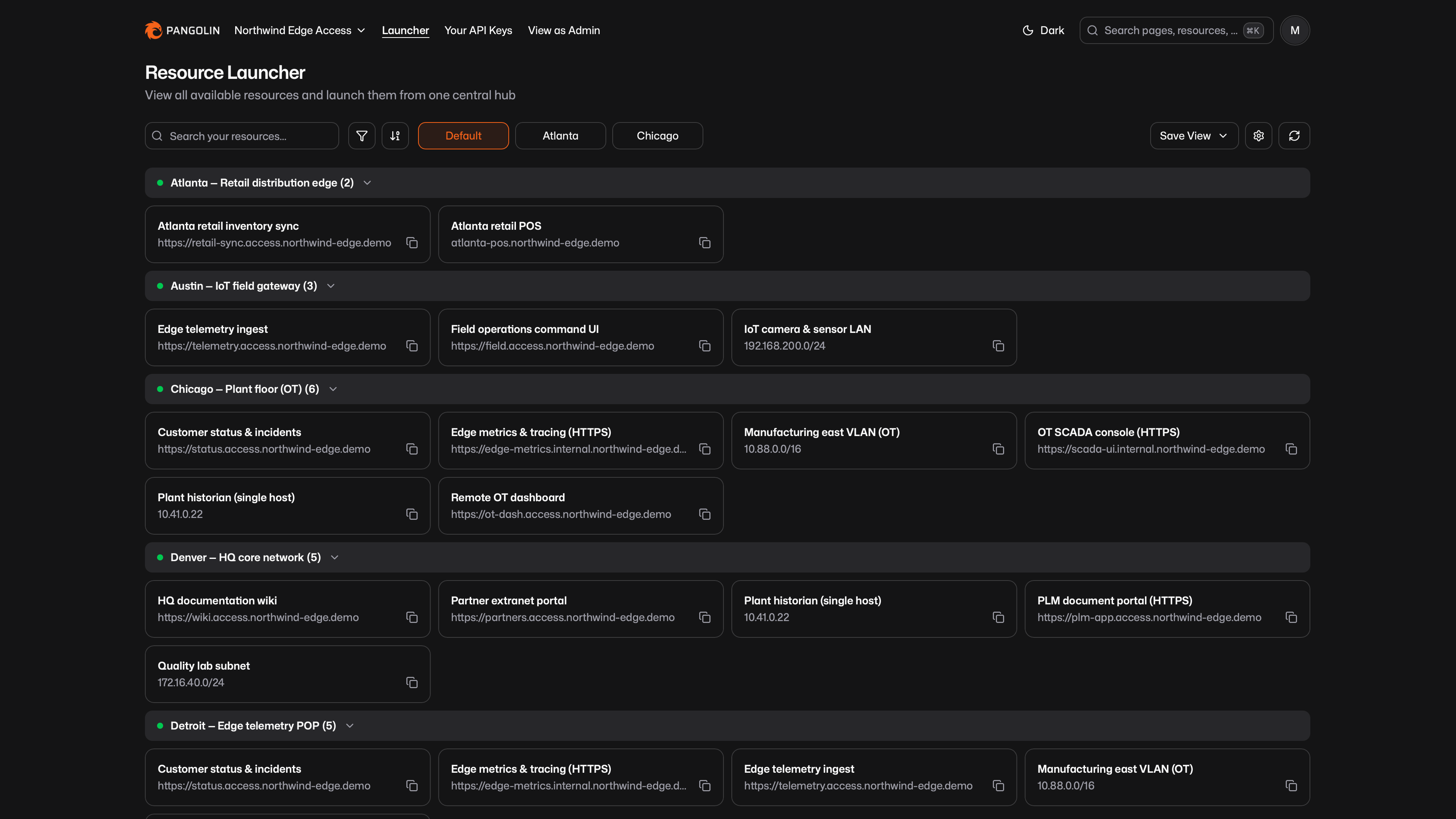
The Resource Launcher is the organization home page. It lists every [public](/manage/resources/understanding-resources#public-resource-types) and [private](/manage/resources/understanding-resources#private-resource-types) resource the signed-in user can access through an explicit grant on their user or [role](/manage/access-control/create-user#roles). Non-administrators land here when they sign in. Administrators can use it the same way, then jump into settings when they need to change a resource.
 ## Find Resources
Switch between **Grid** and **List** layouts. Search updates as you type across names, domains, sites, labels, destinations, aliases, and related fields. Filter by one or more [sites](/manage/sites/understanding-sites) and [labels](/manage/labels). Sort by name, and group by **Site**, **Label**, or **None** for a flat list.
Site groups show an online or offline indicator. You can expand or collapse groups. The launcher remembers that state for the current organization and view.
In very large organizations, the launcher may ask you to search or filter before browsing, and it may simplify grouping until the list is smaller.
## Open a Resource
Selecting a resource always expands a details panel. The panel shows what matters for that type: access URL or alias, health and auth for public resources, destination and certificate status for private resources, and port restrictions when they apply.
## Find Resources
Switch between **Grid** and **List** layouts. Search updates as you type across names, domains, sites, labels, destinations, aliases, and related fields. Filter by one or more [sites](/manage/sites/understanding-sites) and [labels](/manage/labels). Sort by name, and group by **Site**, **Label**, or **None** for a flat list.
Site groups show an online or offline indicator. You can expand or collapse groups. The launcher remembers that state for the current organization and view.
In very large organizations, the launcher may ask you to search or filter before browsing, and it may simplify grouping until the list is smaller.
## Open a Resource
Selecting a resource always expands a details panel. The panel shows what matters for that type: access URL or alias, health and auth for public resources, destination and certificate status for private resources, and port restrictions when they apply.
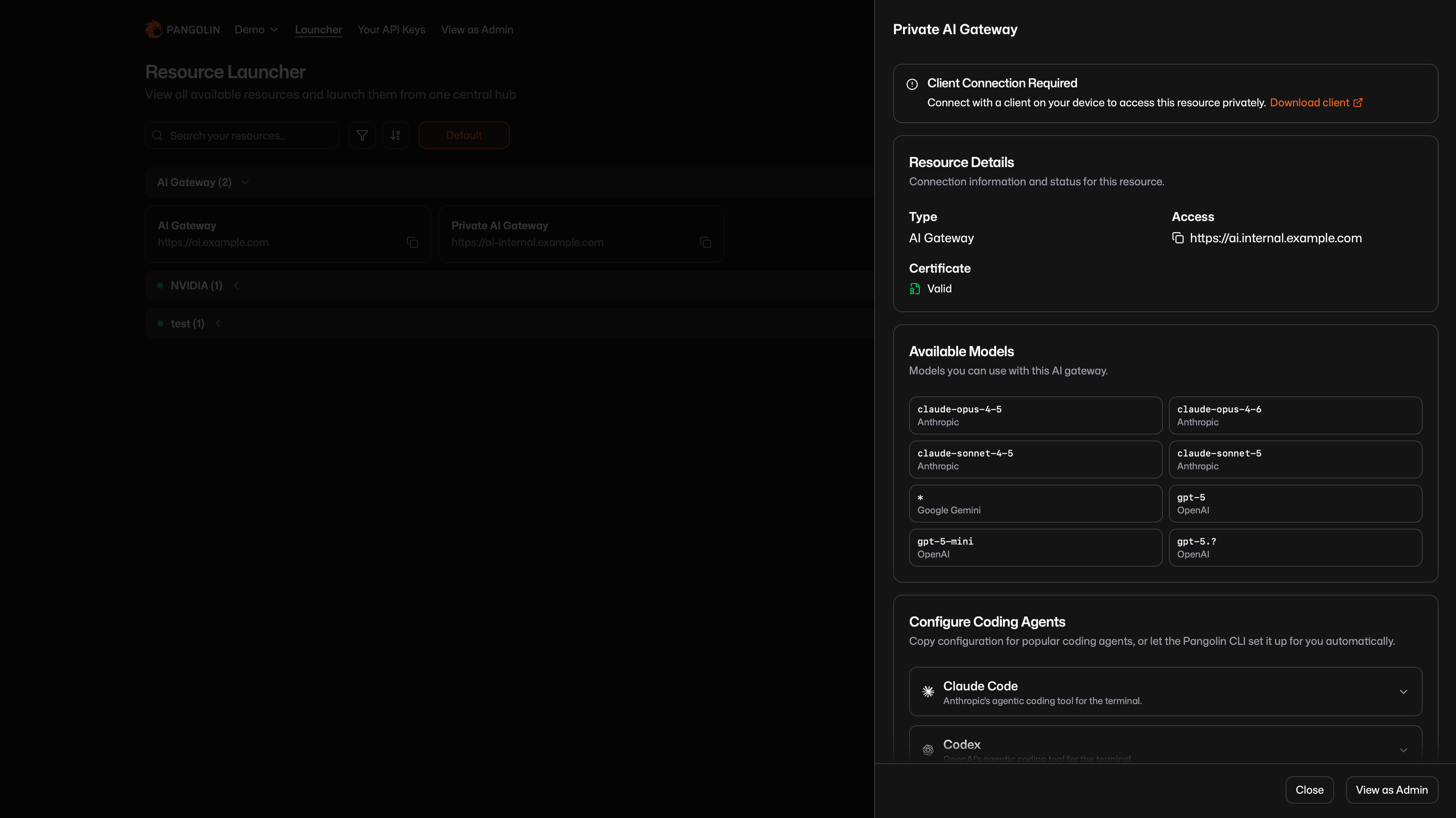 From a card, list row, or the panel you can open HTTP-style resources in a new tab (HTTP/HTTPS, SSH, RDP, VNC, AI Gateway) or copy the access string. Private resources remind you to connect with a [Pangolin client](/manage/clients/install-client).
For [AI Gateway](/manage/ai/overview) resources, the panel also lists available models, [virtual API keys](/manage/ai/virtual-api-keys), and copy-paste setup for coding agents. Public gateways use your API key. Private gateways use the connected client as the credential.
The launcher URL stores the current search, filters, grouping, layout, and sort, so you can bookmark or share a view. Opening a resource from admin settings can deep-link into the launcher with that resource's panel already open.
## Saved Views
A saved view captures search, filters, grouping, layout, and sort. Start from **Default**, then save the current setup as a personal view. Switch views with the tabs at the top. The last view you used in that organization is restored when you come back.
* **Save for Me** stores your personal default. It overrides any organization-wide default for you only.
* **Save as New View** creates a named personal view.
* **Save to Current View** updates a personal view you own.
* **Reset View** discards unsaved changes.
Organization-wide views are read-only unless you are an administrator.
## For Administrators
Use **View as Admin** in the header to open organization settings, or from a resource panel to open that resource's settings. From a resource settings page you can jump back to the launcher with that resource already open.
Administrators can share views with the organization:
* **Save for Everyone** on the default view sets the organization-wide default for members who have not saved a personal default.
* **Save for Everyone** on a named view shares it with every member.
* **Make Personal** turns an organization-wide view back into a personal view.
Set a useful organization-wide default (for example grouped by site, list layout) so people do not have to configure the launcher themselves. Users only see resources granted to their user or a role they belong to. Refresh reloads the latest resources so recent access or config changes show up.
From a card, list row, or the panel you can open HTTP-style resources in a new tab (HTTP/HTTPS, SSH, RDP, VNC, AI Gateway) or copy the access string. Private resources remind you to connect with a [Pangolin client](/manage/clients/install-client).
For [AI Gateway](/manage/ai/overview) resources, the panel also lists available models, [virtual API keys](/manage/ai/virtual-api-keys), and copy-paste setup for coding agents. Public gateways use your API key. Private gateways use the connected client as the credential.
The launcher URL stores the current search, filters, grouping, layout, and sort, so you can bookmark or share a view. Opening a resource from admin settings can deep-link into the launcher with that resource's panel already open.
## Saved Views
A saved view captures search, filters, grouping, layout, and sort. Start from **Default**, then save the current setup as a personal view. Switch views with the tabs at the top. The last view you used in that organization is restored when you come back.
* **Save for Me** stores your personal default. It overrides any organization-wide default for you only.
* **Save as New View** creates a named personal view.
* **Save to Current View** updates a personal view you own.
* **Reset View** discards unsaved changes.
Organization-wide views are read-only unless you are an administrator.
## For Administrators
Use **View as Admin** in the header to open organization settings, or from a resource panel to open that resource's settings. From a resource settings page you can jump back to the launcher with that resource already open.
Administrators can share views with the organization:
* **Save for Everyone** on the default view sets the organization-wide default for members who have not saved a personal default.
* **Save for Everyone** on a named view shares it with every member.
* **Make Personal** turns an organization-wide view back into a personal view.
Set a useful organization-wide default (for example grouped by site, list layout) so people do not have to configure the launcher themselves. Users only see resources granted to their user or a role they belong to. Refresh reloads the latest resources so recent access or config changes show up.