> ## Documentation Index
> Fetch the complete documentation index at: https://docs.pangolin.net/llms.txt
> Use this file to discover all available pages before exploring further.
# Cloudflare Proxy
Fastest way to get started with Pangolin using the hosted control plane. No credit card required.
Pangolin works with Cloudflare proxy (orange cloud) enabled, but requires specific configuration:
**Terms of Service**: Enabling Cloudflare proxy binds you to Cloudflare's terms of service as traffic routes through their network.
### SSL Configuration
**Recommended setup:**
1. **Use wildcard certificates** with DNS-01 challenge
2. **Set SSL/TLS mode to Full (Strict)**
3. **Disable port 80** (not needed with wildcard certs)
Pangolin will **not work** with Cloudflare's Full or Automatic SSL/TLS modes. Only Full (Strict) mode is supported.
### WireGuard Configuration
Since Cloudflare proxy obscures the destination IP, you must explicitly set your VPS IP in the [config file](/self-host/advanced/config-file):
```yaml theme={"theme":"gruvbox-light-hard"}
gerbil:
base_endpoint: "YOUR_VPS_IP_ADDRESS" # Required with Cloudflare proxy
```
Find your VPS public IP address:
```bash theme={"theme":"gruvbox-light-hard"}
curl ifconfig.io
```
Add the IP to your `config.yml`:
```yaml theme={"theme":"gruvbox-light-hard"}
gerbil:
base_endpoint: "104.21.16.1" # Replace with your actual IP
```
Restart Pangolin to apply the changes:
```bash theme={"theme":"gruvbox-light-hard"}
docker-compose restart
```
### Getting the Real Client IP
Pangolin needs to know the original client IP address for features like rate limiting and logging. When Cloudflare proxy is enabled, the API server sees Cloudflare's IP instead of the real client IP.
**Badger**, Pangolin's middleware for Traefik, automatically handles Cloudflare proxy IP extraction. Badger versions 1.3.0 and later automatically:
* Trust Cloudflare IP ranges
* Extract the real client IP from the `CF-Connecting-IP` header
* Set `X-Real-IP` and `X-Forwarded-For` headers for downstream services
**Automatic Configuration**: Pangolin installer versions 1.14.0 and greater automatically add Badger to all Pangolin routes in Traefik. If you're using a newer installer, no manual configuration is needed.
#### Manual Configuration
If you're using an older installer or need to manually configure Badger, add it to your Traefik configuration. Badger must be applied to all routers that handle Pangolin traffic (API, dashboard, and WebSocket routes):
```yaml title="dynamic_config.yml" theme={"theme":"gruvbox-light-hard"}
http:
middlewares:
badger:
plugin:
badger:
disableForwardAuth: true
routers:
# Next.js router (handles dashboard)
next-router:
rule: "Host(`pangolin.example.com`) && !PathPrefix(`/api/v1`)"
service: next-service
entryPoints:
- websecure
middlewares:
- badger
tls:
certResolver: letsencrypt
# API router (handles /api/v1 paths)
api-router:
rule: "Host(`pangolin.example.com`) && PathPrefix(`/api/v1`)"
service: api-service
entryPoints:
- websecure
middlewares:
- badger
tls:
certResolver: letsencrypt
# WebSocket router
ws-router:
rule: "Host(`pangolin.example.com`)"
service: api-service
entryPoints:
- websecure
middlewares:
- badger
tls:
certResolver: letsencrypt
```
**Why Badger is needed**: When `disableForwardAuth: true` is set, Badger extracts the real client IP from Cloudflare proxy headers without performing authentication. This is necessary because forward authentication is only needed for resources controlled by Pangolin, not for the main application routes. However, the main Pangolin containers and APIs still need the real client IP for proper rate limiting and IP tracking.
#### Pangolin Configuration
Set `trust_proxy: 2` in your Pangolin config file. This tells Pangolin to trust the second-level proxy (Traefik is proxy 1, Cloudflare is proxy 2):
```yaml theme={"theme":"gruvbox-light-hard"}
server:
trust_proxy: 2
```
**Update Badger**: Ensure you're running Badger version 1.3.0 or later to get real IP addresses in logs for Public resources. Update Badger if you're using an older version.
After making these changes, restart both Traefik and Pangolin for the configuration to take effect.
### Troubleshooting
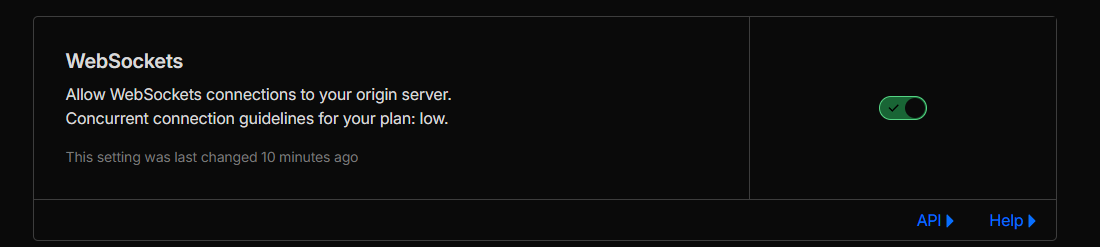
If websockets are not connecting like from newt or clients, ensure that websockets are enabled in Cloudflare: