

Site to Cloud Backhaul
Turn a remote node into a network concentrator that routes traffic between a cloud VPC and your Pangolin sites for edge to cloud backhaul
Site to cloud is an advanced remote node configuration available in Pangolin Cloud and Enterprise Edition.
A standard remote node terminates WireGuard tunnels and proxies HTTP(S) traffic to your resources. A backhaul node goes a step further: it acts as an IP router between an entire network, such as a cloud VPC, and your Pangolin sites. Instead of just forwarding individual resource connections, the node forwards whole subnets, letting hosts on either side reach each other without needing to install site and client on every machine.
This is useful when you want to bridge a cloud network (for example, an AWS VPC) with your on-prem or office network through Pangolin, using a node running in that VPC as the concentrator.
Another common use case is connecting edge devices to a cloud network. Edge devices can send traffic to a service in the cloud, and the cloud can send traffic down to a specific edge device. In both cases, the persistent backhaul tunnel carries the traffic.
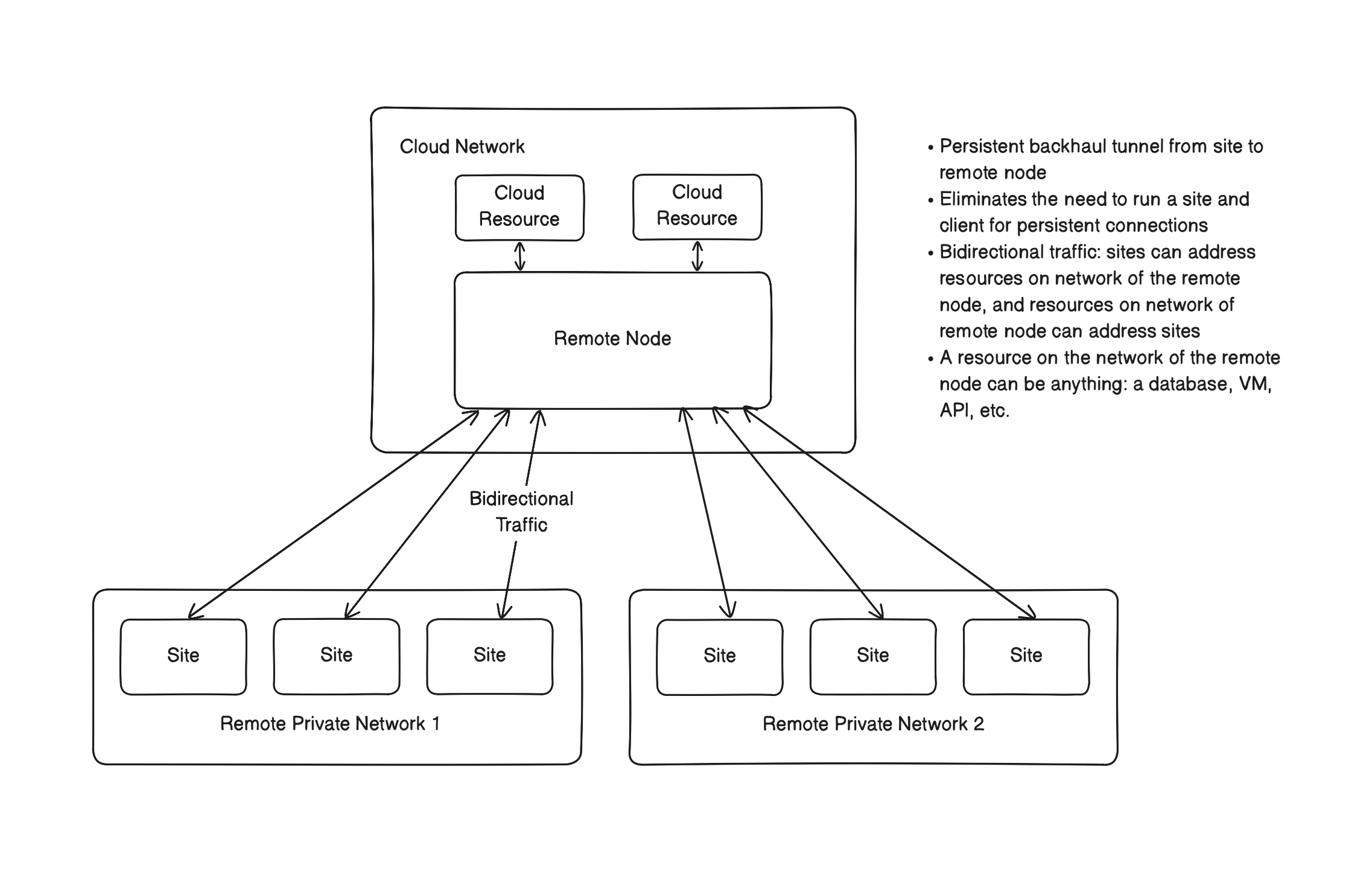
Site to cloud builds on top of a normal remote node install. Read Remote Nodes and Quick Install Guide first if you haven't deployed a node yet.
How It Works
- The node routes, it doesn't just proxy. Gerbil creates the WireGuard interface directly on the host and Docker forwards packets between it and the host's network, rather than isolating traffic inside a container network namespace.
- The cloud network learns to route to the node. You add a route in your VPC (or other network) so that traffic destined for the Pangolin overlay is sent to the node.
- The node learns to route to the cloud network. You register the VPC's CIDR on the node so it's pushed down to your sites as a route.
- Sites route natively. Sites connect with native routing mode so the tunnel subnet is a real route on the site's host, not just an application-layer proxy.
Prerequisites
- A Linux server with Docker and root access, dedicated to running the backhaul node.
- Administrative access to the cloud network you want to bridge (for example, an AWS VPC) so you can edit security groups, route tables, and instance settings.
Enable IP Forwarding on the Host
Because the node forwards packets between the WireGuard tunnel and the host network instead of only terminating them, the host must have IP forwarding enabled.
sudo sysctl -w net.ipv4.ip_forward=1Make it permanent by adding net.ipv4.ip_forward=1 to /etc/sysctl.d/99-pangolin-backhaul.conf.
Docker enables forwarding in its own iptables rules by default, but if you've disabled Docker's iptables management, or packets are still being dropped, allow forwarded traffic through Docker's chain in /etc/docker/daemon.json:
{
	"ip-forward-no-drop": true
}
Restart Docker after changing this file. See Docker's packet filtering and firewalls guide for background on running Docker on a router.
Deploy the Node with Host Networking
The standard node install runs Gerbil and Traefik on a bridge network, with Traefik sharing Gerbil's network namespace. For backhaul, all three services run with network_mode: host instead. This gives Gerbil direct access to the host's network stack and routing table, which is required for it to create routes for the subnets you register instead of only handling its own tunnel traffic.
name: pangolin
services:
  pangolin:
    image: docker.io/fosrl/pangolin-node:latest # We recommend locking to a specific version for stability.
    container_name: pangolin
    restart: unless-stopped
    network_mode: host
    volumes:
      - ./config:/app/config
      - pangolin-data-certificates:/var/certificates
      - pangolin-data-dynamic:/var/dynamic
    healthcheck:
      test: ["CMD", "curl", "-f", "http://localhost:3001/api/v1/"]
      interval: "10s"
      timeout: "10s"
      retries: 15

  gerbil:
    image: docker.io/fosrl/gerbil:latest
    container_name: gerbil
    restart: unless-stopped
    network_mode: host
    depends_on:
      pangolin:
        condition: service_healthy
    command:
      - --reachableAt=http://localhost:3003
      - --generateAndSaveKeyTo=/var/config/key
      - --remoteConfig=http://localhost:3001/api/v1/
    volumes:
      - ./config/:/var/config
    cap_add:
      - NET_ADMIN
      - SYS_MODULE

  traefik:
    image: docker.io/traefik:v3.7
    container_name: traefik
    restart: unless-stopped
    network_mode: host
    depends_on:
      pangolin:
        condition: service_healthy
    command:
      - --configFile=/etc/traefik/traefik_config.yml
    volumes:
      - ./config/traefik:/etc/traefik:ro
      - ./config/traefik/logs:/var/log/traefik
      - pangolin-data-certificates:/var/certificates:ro
      - pangolin-data-dynamic:/var/dynamic:ro

volumes:
  pangolin-data-dynamic:
  pangolin-data-certificates:
With network_mode: host, containers bind to ports directly on the host, so there's no ports mapping and no network_mode: service:gerbil on Traefik like there is in the standard install. Gerbil and Traefik reach each other and Pangolin over localhost.
Configure the Node
The config.yml for a backhaul node uses the same fields as any remote node, mounted at config/config.yml:
gerbil:
    start_port: 51820
    base_endpoint: "203.0.113.10" # REPLACE WITH YOUR NODE'S PUBLIC IP OR DOMAIN
    reachable_at: http://localhost:3003
server:
    internal_port: 3001
    internal_hostname: localhost
managed:
    id: "he4g78wevj25msf" # REPLACE WITH YOUR NODE'S ID
    secret: "n7sd18twfko0q0vrb7wyclqzbvvnx1fqt7ezv8xewhdb9s7d" # REPLACE WITH YOUR NODE'S SECRET
See the configuration file reference for every available option.
Configure Traefik
Traefik's config is largely the same as a standard node, with trustedIPs opened up to accept the proxy protocol header from Gerbil on the host network:
api:
  insecure: true
  dashboard: true

providers:
  file:
    directory: "/var/dynamic"
    watch: true

experimental:
  plugins:
    badger:
      moduleName: "github.com/fosrl/badger"
      version: "v1.7.0" # Check GitHub Releases for latest version tag

log:
  level: "INFO"
  format: "common"
  maxSize: 100
  maxBackups: 3
  maxAge: 3
  compress: true

entryPoints:
  web:
    address: ":80"
  websecure:
    address: ":443"
    proxyProtocol:
      trustedIPs:
        - 0.0.0.0/0 # This is coming from Gerbil
        - ::1/128
    transport:
      respondingTimeouts:
        readTimeout: "30m"

serversTransport:
  insecureSkipVerify: true

ping:
  entryPoint: "web"
Configure the Cloud Network
This section uses AWS as an example, but the same steps apply to any VPC-style network: the node needs to be allowed to receive and forward traffic for the whole network, and the network needs a route pointing back at the node.
Allow all traffic into the node
The node is acting as a concentrator for the whole network, not just serving its own ports, so its security group must accept all traffic from the VPC's CIDR. Otherwise the security group blocks the inbound traffic it's meant to forward.

Route the Pangolin overlay through the node
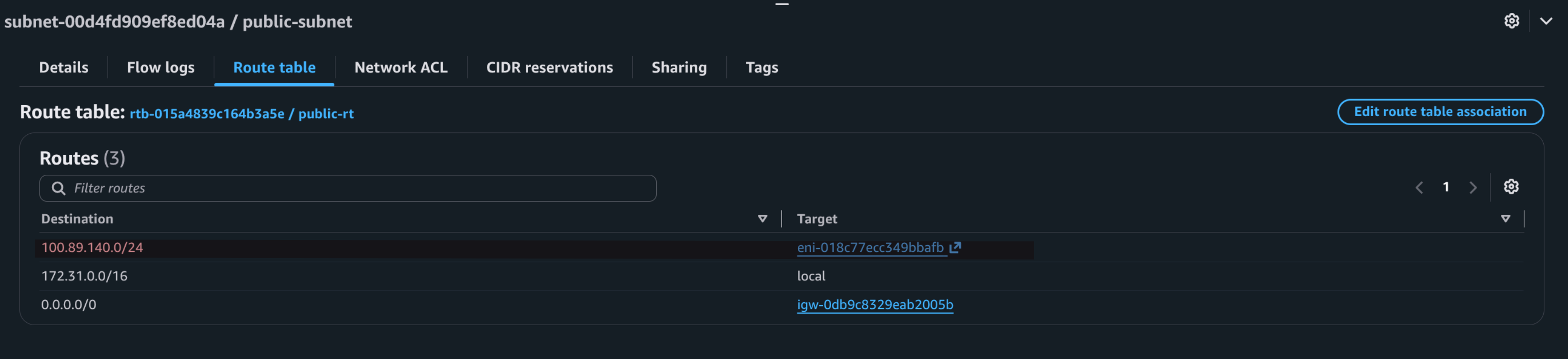
Add a route in the VPC's route table for the WireGuard overlay subnet assigned to your node (shown as the node's Address on its page in the Pangolin dashboard), targeting the node's instance or network interface. This tells the rest of the VPC to send anything destined for the Pangolin overlay - other sites and clients - to the node.
Disable source/destination check
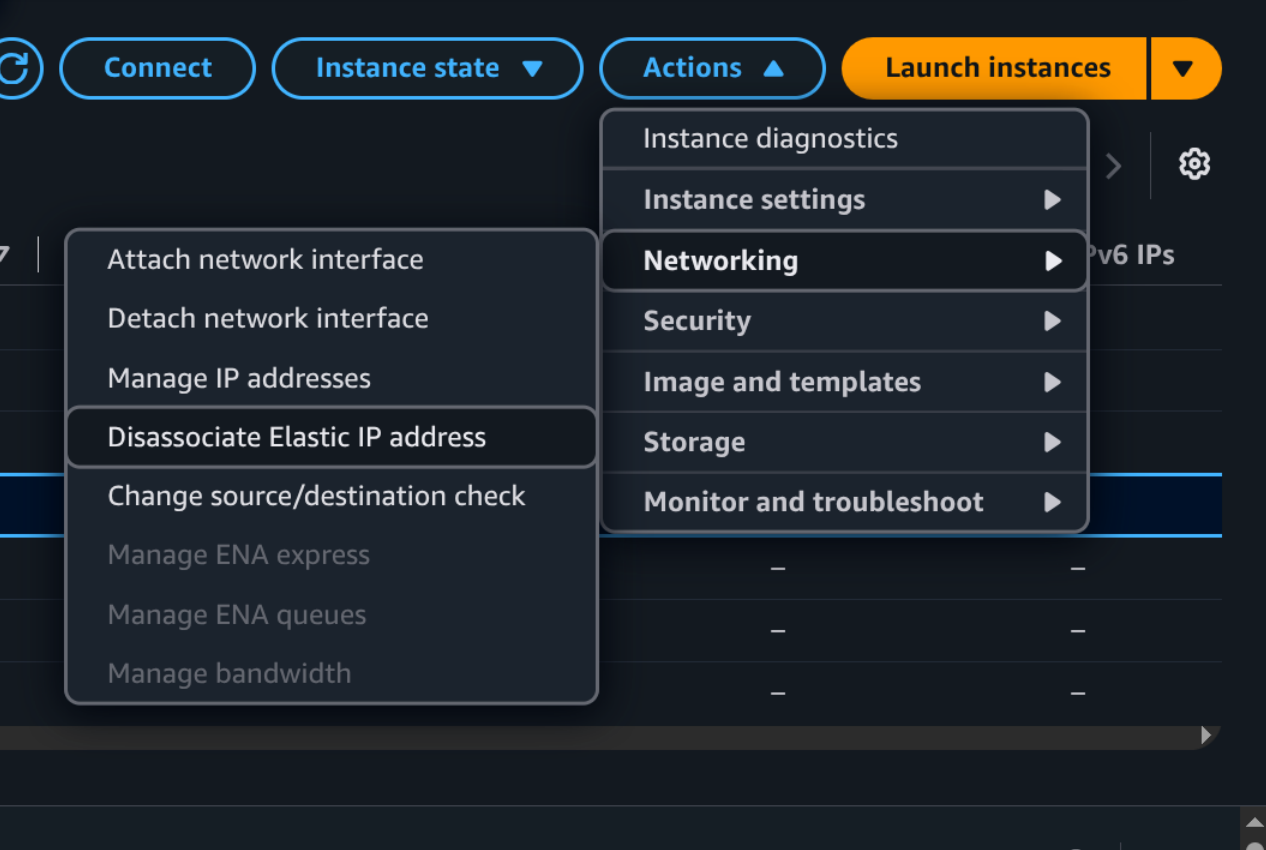
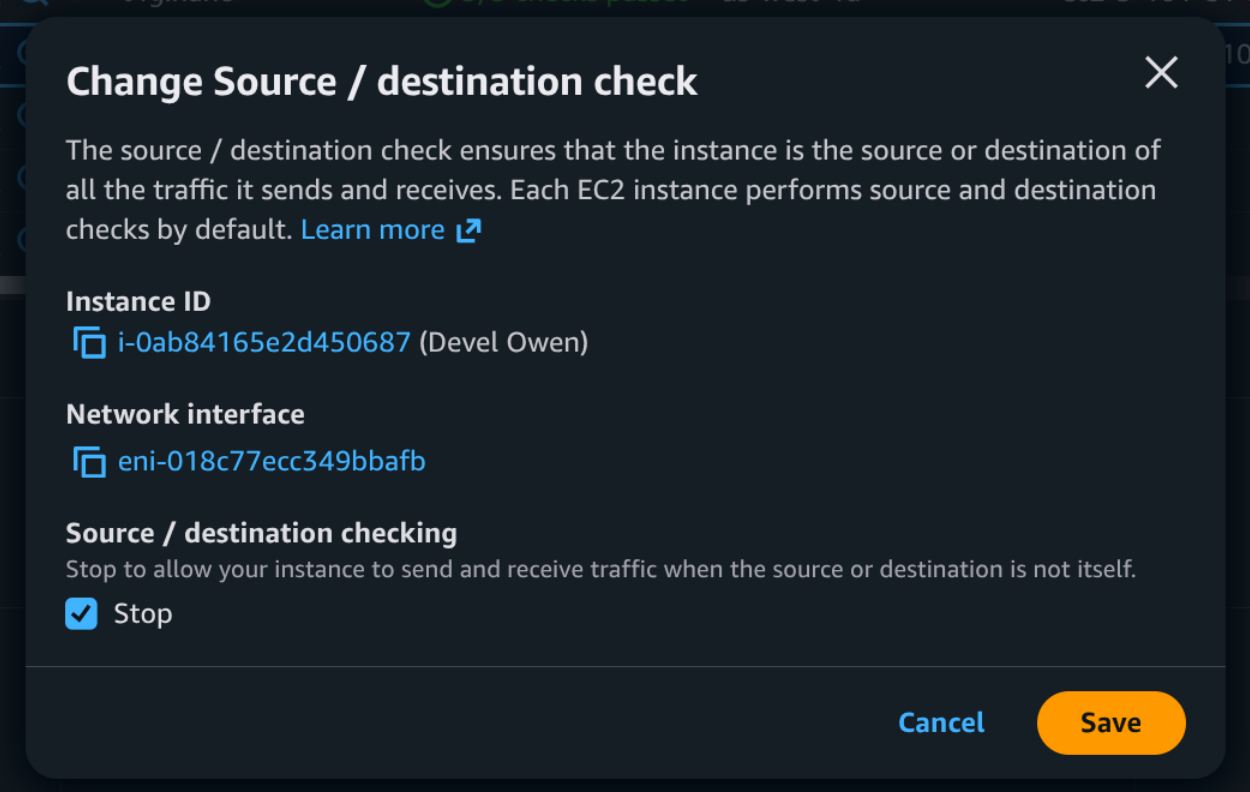
By default, AWS drops any packet where an instance isn't the source or destination, which would silently break a node that's forwarding traffic on behalf of others. Disable the source/destination check on the node's instance so it's allowed to route traffic that isn't addressed to itself.
Advertise the VPC subnet on the node
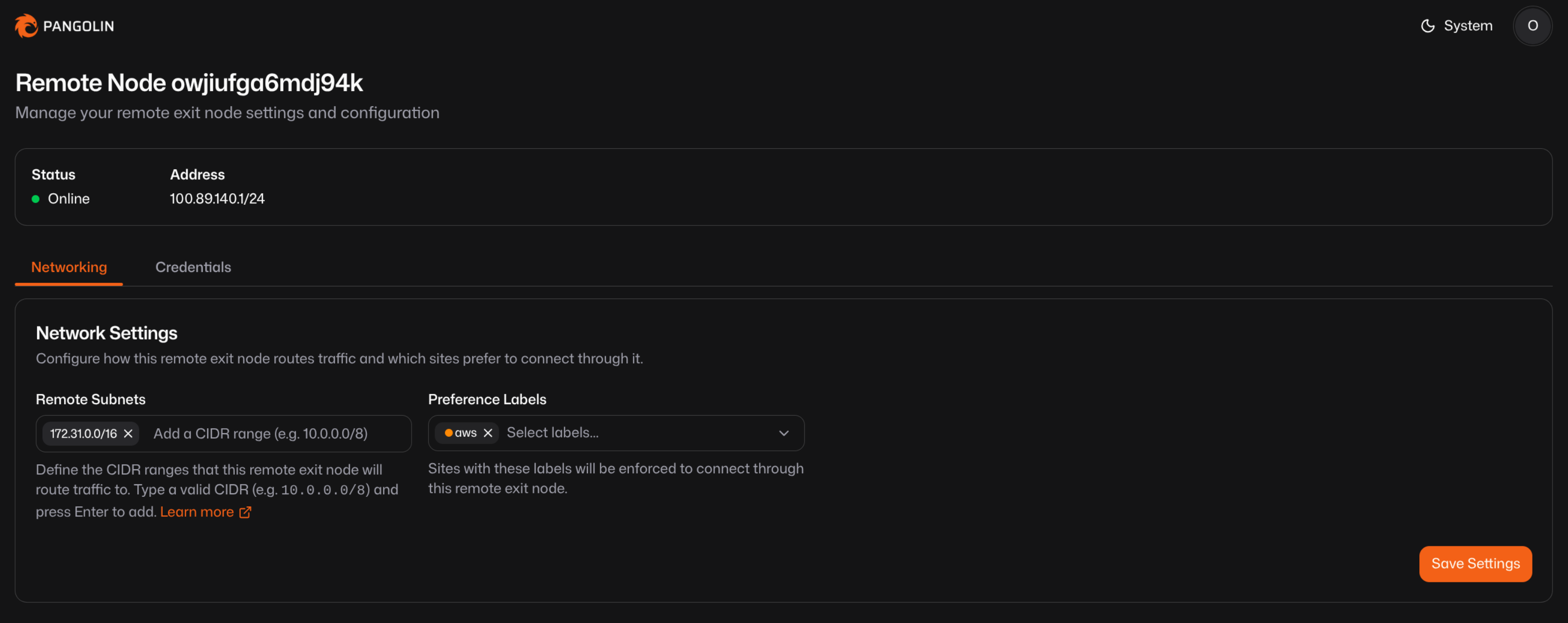
In the node's settings in the Pangolin dashboard, add the VPC's CIDR (for example, 172.31.0.0/16) to Remote Subnets under the Networking tab. This is pushed down to your sites as a route, so they know to send traffic for that subnet through this node's tunnel.
You can also set Preference Labels on the node and apply matching labels to sites, which enforces that those sites connect through this remote node specifically. This is useful once you have more than one node or point of presence and want particular sites to always backhaul through this one.
Enable Native Routing on Your Sites
For the VPC and a site's network to route to each other, the tunnel needs to be a real route on the site's host, not just something the Pangolin Site proxies at the application layer. Start the site with --native-main so it creates the network interface and routes directly on the host:
sudo pangolin up site \
--id 34s48my8iba5wsl \
--secret ts1v7480qqw01j7ba4uiw5y7l58skw7anpji2ndludhgzloh \
--endpoint https://app.pangolin.net \
--native-main
On Windows, set nativeMain in C:\Users\<Username>\.config\pangolin\site.json instead:
{
	"id": "34s48my8iba5wsl",
	"secret": "ts1v7480qqw01j7ba4uiw5y7l58skw7anpji2ndludhgzloh",
	"endpoint": "https://app.pangolin.net",
	"nativeMain": true
}
If you are using a Pangolin Site on Windows, wintun.dll is required to run in native mode. If not already provided by the installer, you can download from https://www.wintun.net/
Windows doesn't respond to ICMP echo requests (ping) over the tunnel interface by default. If you need to ping a Windows site, enable the built-in firewall rule for it:
Enable-NetFirewallRule -DisplayName "File and Printer Sharing (Echo Request - ICMPv4-In)"Resolving a Site's Address Directly
If something outside of Pangolin's normal resource routing needs to reach a site directly, for example a static route configured elsewhere in your network or a cloud service sending traffic to a specific edge device, you can resolve <siteId>.site.pangolin.net (the site ID is the one used in the --id argument when running the site) to get the site's current routable address.
High Availability
Deploy multiple nodes in your network. Each node will have a different routable subnet. Repeating the above steps will ensure they are routed to uniquely. Sites will connect to one of the nodes in the network and if it does down fail over to another online node.
Make sure to use the site's DNS address to connect to it as when it moves between nodes its address may change.
Was this page helpful?