

Auto Provisioning
Automatically create and manage user accounts from external identity providers
Auto provisioning is a feature that allows you to automatically create and manage user accounts in Pangolin when they log in using an external identity provider rather than pre-provisioning (manually creating) a user with a role and organization. This is useful for organizations that want to streamline the onboarding process for new users and ensure that their user accounts are always up-to-date.
You will be able to programmatically decide the roles and organizations for new users based on the information provided by the identity provider.
Enable Auto Provision
Toggle the "Auth Provision Users" switch when creating or editing an identity provider.
What if Auto Provisioning is Disabled?
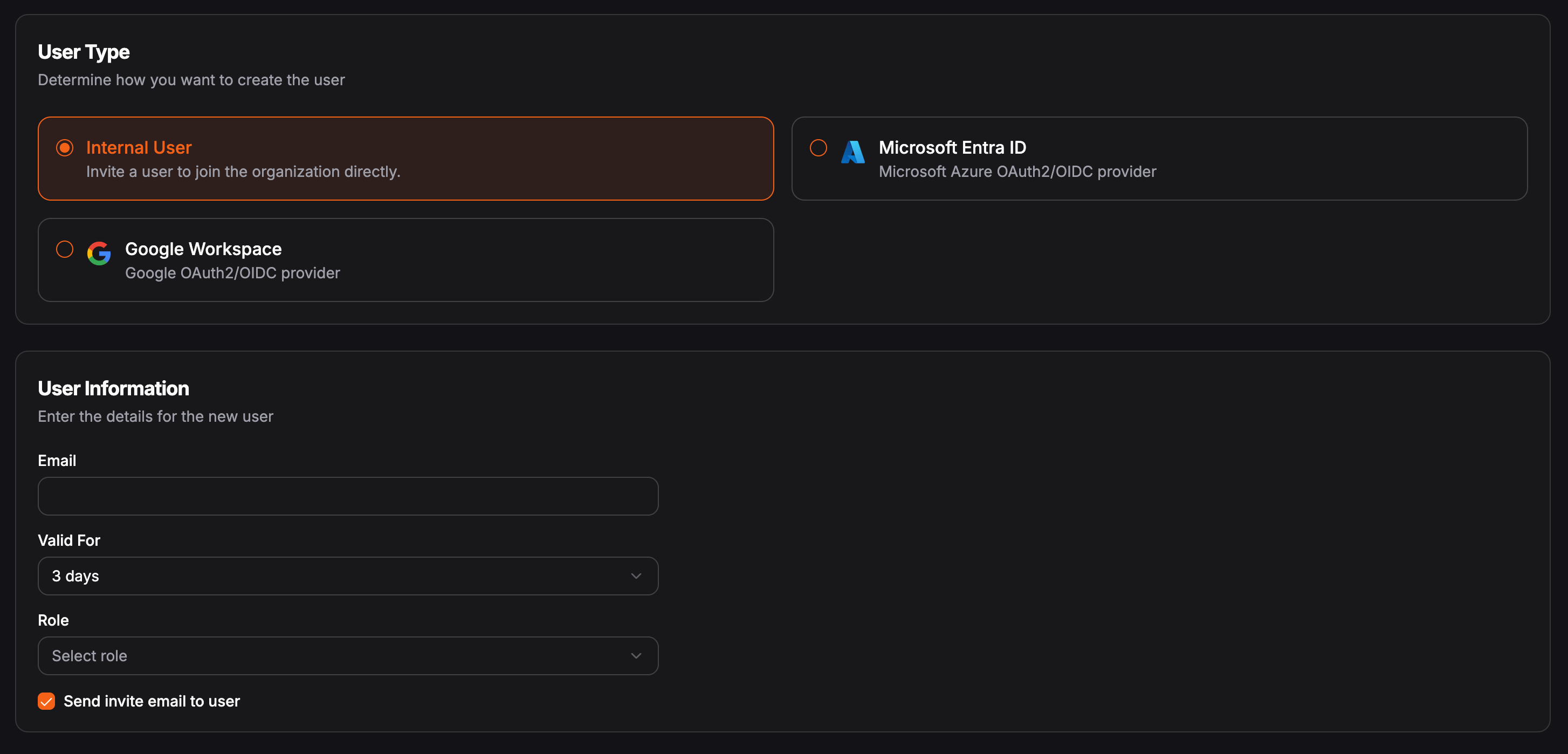
If auto provision is disabled, organization admins will need to manually create the user accounts and select the role for each user. When creating a user, you can select the identity provider that the user will be associated with. A user will not be able to log in using the identity provider if a user is not pre-provisioned in the system.
Role Mappings
When you configure role mappings in auto provisioning settings, you use one of three approaches: fixed roles, mapping builder, or raw expression. These options are available for global identity providers and for organization-only identity providers.
Auto provisioning does not create roles in Pangolin. Every role you assign whether you pick fixed roles, map IdP values in the builder, or return names from a raw expression must already exist in the target organization, and the name you use must match that role’s name exactly (character-for-character). This one-to-one name match applies to all three mapping types. If a name does not match an existing role, the user will not receive that role (and may not be added to the organization, depending on your setup).
Role Mapping: Fixed Roles
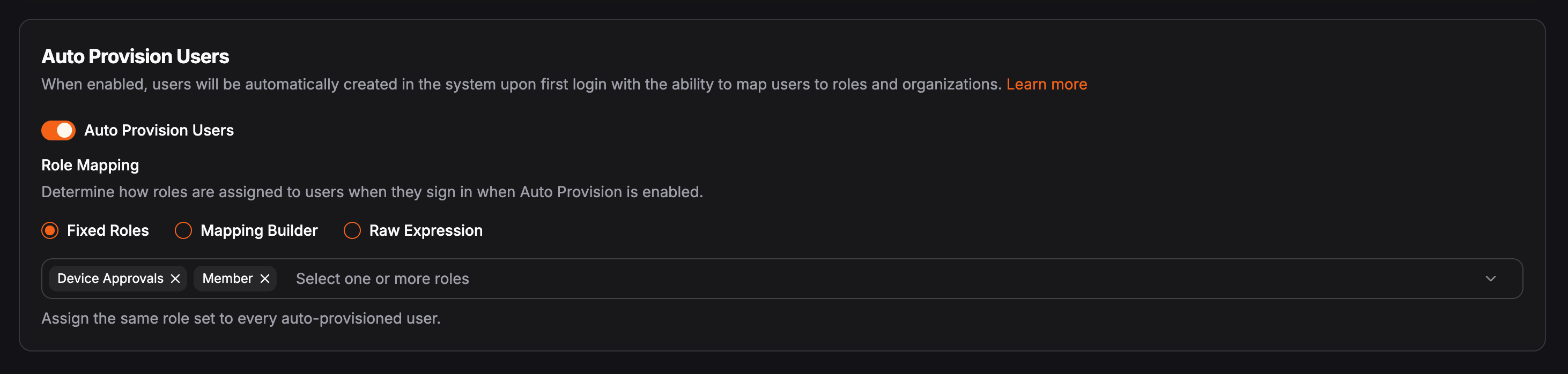
Fixed roles is the simplest option. Every user who signs in through the identity provider receives the same set of roles. The roles you select must already exist in Pangolin, and you must choose them by their exact names in that organization. Use this when you do not need dynamic mapping and a single role assignment for everyone is enough. You can still change roles on individual users after they have been auto-provisioned. This is the easiest way to get started.
Role Mapping: Mapping Builder
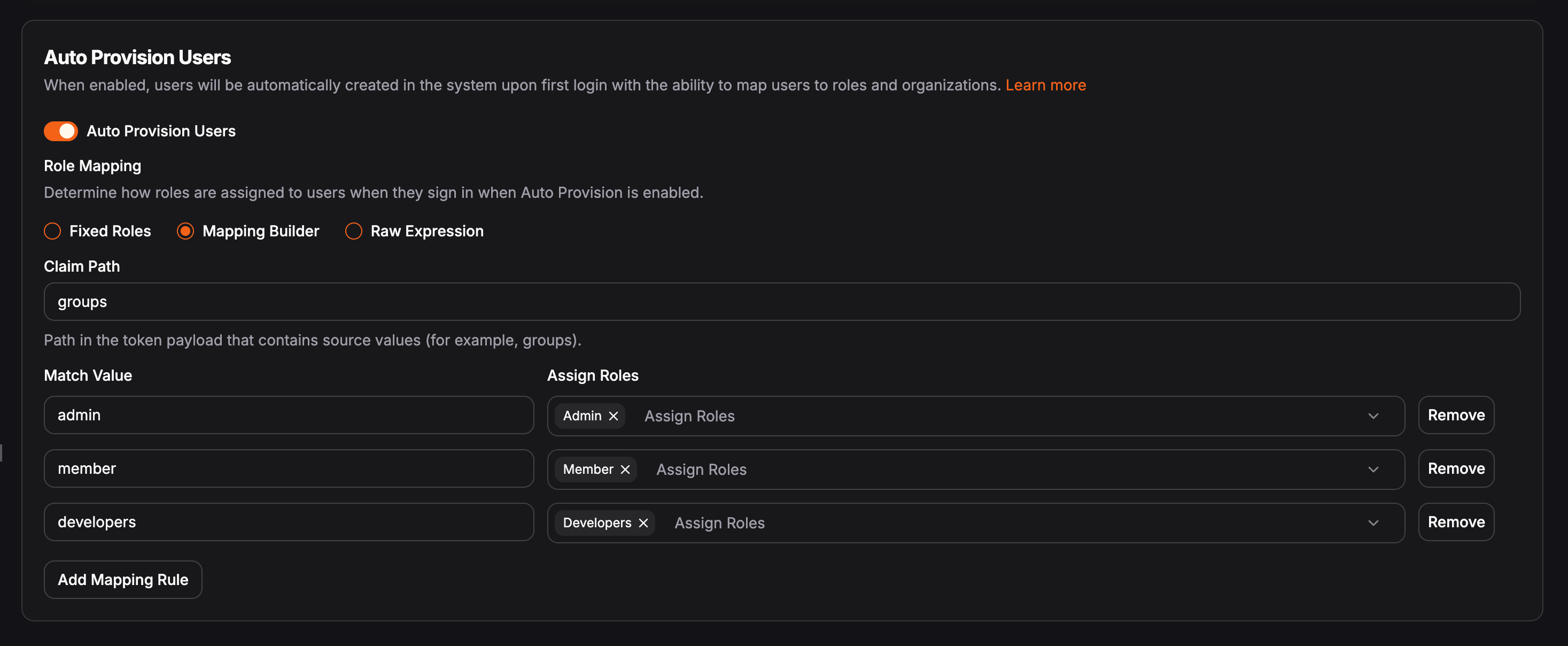
The mapping builder lets you map roles from your identity provider to Pangolin roles without writing expressions. For example, a user might sign in from Azure and belong to several groups there. Azure identifies those groups with its own internal ID strings. With the mapping builder, you translate those IDs to Pangolin role names in the UI.
First, choose the claim in the OIDC token where roles or groups are provided such as groups. Then define a one-to-one mapping for each role: on one side, the role or group ID from the identity provider; on the other, the Pangolin role name that already exists in the organization. The Pangolin side must match that role’s name exactly (same spelling, spacing, and casing).
Role Mapping: Raw Expression
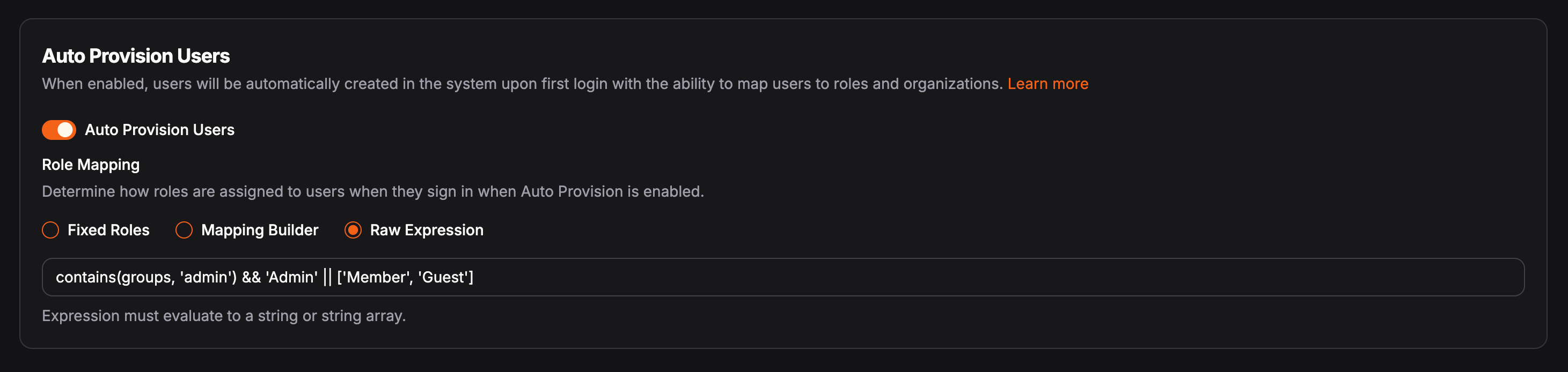
Raw expression is the most flexible option and the most complex. It matches how many users previously defined mappings in Pangolin. You provide a JMESPath expression that must evaluate to a string or array of strings. Each value must be the exact name of a role that already exists in the organization. If you can express the logic in JMESPath, it will work (for example, combining conditions on name, email, and other claims).
The expression is evaluated against the token from the identity provider on each login. Results are matched per organization:
- Each returned string must be the exact name of a role that already exists in that organization (same rules as fixed roles and the mapping builder).
- If no matching role is found for the resolved names, the user is not added to the organization.
Raw Expression Example: JMESPath role selection
This expression returns "Admin" when the user is in the admin group, and "Member" otherwise.
Expression:
When entering a string literal in JMESPath, surround it with ' (single quotes), as in the example below.
contains(groups, 'admin') && 'Admin' || 'Member'Identity provider token (excerpt):
{
   ...
    "sub": "9590c3bfccd1b1a54b35845fb1bb950057dfa50fba43cb8bada58b462c80e207",
    "aud": "JJoSvHCZcxnXT2sn6CObj6a21MuKNRXs3kN5wbys",
    "exp": 1745790819,
    "iat": 1745789019,
    "auth_time": 1745789019,
    "email": "user@example.com",
    "email_verified": true,
    "name": "Example User",
    "groups": [
        "home-lab",
        "admin"
    ]
}
Organization Mapping
Use this when you want to conditionally evaluate if the user should be added to an organization based on the identity provider data. For example, you can add users to an organization based on their email domain or if they are a member of a specific group.
This is different from the role mapping options because it is not based on the roles assigned to the user, but rather on the organization they should be added to.
The expression will be matched against each organization. Meaning:
- The result of the expression must return true or the organization ID as it is defined in the system.
- If no matching organization is found, the user will not be added to the organization.
You can insert the template variable {{orgId}} in the expression. This will be replaced with the organization ID when the expression is evaluated.
Example: Email-based Selection
When entering a string literal in JMESPath, surround it with ' (single quotes).
This example will return true since the user's email ends with @acme.com. Use this if you want to add users to an organization based on their email domain.
Expression:
ends_with(email, '@acme.com')Identity Provider Data:
{
   ...
    "sub": "9590c3bfccd1b1a54b35845fb1bb950057dfa50fba43cb8bada58b462c80e207",
    "aud": "JJoSvHCZcxnXT2sn6CObj6a21MuKNRXs3kN5wbys",
    "exp": 1745790819,
    "iat": 1745789019,
    "auth_time": 1745789019,
    "email": "user@acme.com",
    "email_verified": true,
    "name": "Example User",
    "groups": [
        "home-lab",
        "admin"
    ]
}
Global Identity Providers
After you create a global IdP, on the edit page you can manage organization policies from the Auto Provisioning tab. You can set a default (fallback) role mapping and organization rules, and you can add per-organization mappings that override or extend behavior for specific organizations. The fixed roles, mapping builder, and raw expression options apply both here (default and per org) and in organization-only identity providers.
How Organization Policies Are Evaluated
It is helpful to think of the auto provisioning process as follows:
User Login
User successfully logs in using an identity provider.
Account Creation
Pangolin creates a user account for the user.
Organization Evaluation
Pangolin loops through each organization and evaluates the JMESPath expression for organization membership. If the expression does not return true or the same ID as the current organization, the user will not be added to the organization.
Role Assignment
For each organization, Pangolin applies the configured role mapping (fixed roles, mapping builder, or raw expression). Resolved names must match existing Pangolin roles exactly; otherwise those assignments do not apply, and the user may not be added to the organization.
Role mappings for global IdPs
Use a default policy, per-organization policies, or both. Role mapping options (fixed roles, mapping builder, raw expression) work the same way as described in Role mappings.
Default (Fallback) Policy
You can optionally configure a default policy for all organizations. This will be used if the organization does not have its own policy configured.
This example will always return 'home-lab' meaning the user will always be added to the "home-lab" organization.
Example: Dynamic Organization Selection with Interpolation
When Pangolin evaluates this expression against the "home-lab" organization, it will replace {{orgId}} with "home-lab". The result of the expression will return true since the user is a member of the "home-lab" group.
Expression:
contains(groups, '{{orgId}}')Identity Provider Data:
{
   ...
    "sub": "9590c3bfccd1b1a54b35845fb1bb950057dfa50fba43cb8bada58b462c80e207",
    "aud": "JJoSvHCZcxnXT2sn6CObj6a21MuKNRXs3kN5wbys",
    "exp": 1745790819,
    "iat": 1745789019,
    "auth_time": 1745789019,
    "email": "user@example.com",
    "email_verified": true,
    "name": "Example User",
    "groups": [
        "home-lab",
        "admin"
    ]
}Was this page helpful?