

Install Newt
Install Newt as a binary or Docker container
Newt is the lighter-weight site connector. It provides the same tunneling and NAT traversal as a Pangolin Site, without the rest of the Pangolin CLI bundled in.
For new sites, install with the Pangolin CLI. Existing Newt deployments keep working. Leave them as they are, or switch to the CLI when you want to. Newt continues to be provided in all of its current forms. Use Newt directly when you need the smallest possible binary or container. The dashboard reports which agent a site is using, whether that is the CLI or Newt, and the version.
You must first create a site and copy the Newt config in Pangolin before running Newt.
Deploying Newt in Kubernetes instead? See the dedicated Kubernetes docs: install guides for Helm and Kustomize, a full Configuration reference, and Troubleshooting.
Binary Installation
Quick Install (Recommended)
Use this command to automatically install Newt. It detects your system architecture automatically and always pulls the latest version, adding Newt to your PATH:
curl -fsSL https://static.pangolin.net/get-newt.sh | bashWindows
To run Newt on Windows, use the latest installer from GitHub releases.
Manual Download
Binaries for Linux, macOS, and Windows are available in the GitHub releases for ARM and AMD64 (x86_64) architectures.
Download and install manually:
wget -O newt "https://github.com/fosrl/newt/releases/download/{version}/newt_{architecture}" && chmod +x ./newtReplace {version} with the desired version and {architecture} with your architecture. Check the release notes for the latest information.
Running Newt
Run Newt with the configuration from Pangolin:
newt \
--id 31frd0uzbjvp721 \
--secret h51mmlknrvrwv8s4r1i210azhumt6isgbpyavxodibx1k2d6 \
--endpoint https://app.pangolin.net
Systemd Service
Create /etc/newt/newt.env with the initial values from your Pangolin site configuration:
NEWT_ID=31frd0uzbjvp721
NEWT_SECRET=h51mmlknrvrwv8s4r1i210azhumt6isgbpyavxodibx1k2d6
PANGOLIN_ENDPOINT=https://app.pangolin.net
Create the directory, write the file, and restrict its permissions:
sudo install -d -m 0755 /etc/newt
sudo editor /etc/newt/newt.env
sudo chmod 600 /etc/newt/newt.env
Then create a systemd service. Newt reads those environment variables automatically, so ExecStart does not need to repeat them as flags:
[Unit]
Description=Newt
Wants=network-online.target
After=network-online.target

[Service]
Type=simple
User=root
Group=root
EnvironmentFile=/etc/newt/newt.env
ExecStart=/usr/local/bin/newt
Restart=always
RestartSec=2
UMask=0077

PrivateTmp=true

[Install]
WantedBy=multi-user.target
Make sure the binary exists at /usr/local/bin/newt before daemon reload and starting the service:
which newtReload systemd and enable the service:
sudo systemctl daemon-reload
sudo systemctl enable --now newt
sudo systemctl status newt
If you later change /etc/newt/newt.env, restart the service so Newt picks up the new values.
See Configure Sites for more environment variables.
Docker Installation
Pull the Image
Pull the latest Newt image from Docker Hub:
docker pull fosrl/newt:latestRun with Docker
Run Newt with CLI arguments from Pangolin:
docker run -it fosrl/newt --id 31frd0uzbjvp721 \
--secret h51mmlknrvrwv8s4r1i210azhumt6isgbpyavxodibx1k2d6 \
--endpoint https://app.pangolin.net
Docker Compose
Environment Variables (Recommended)
services:
  newt:
    image: fosrl/newt
    container_name: newt
    restart: unless-stopped
    environment:
      - PANGOLIN_ENDPOINT=https://app.pangolin.net
      - NEWT_ID=2ix2t8xk22ubpfy
      - NEWT_SECRET=nnisrfsdfc7prqsp9ewo1dvtvci50j5uiqotez00dgap0ii2
Config File Injected as Compose Secret
A safer but slightly more complex way is to use Compose Secrets. First, create a JSON file containing your configuration:
{
  "id": "2ix2t8xk22ubpfy",
  "secret": "nnisrfsdfc7prqsp9ewo1dvtvci50j5uiqotez00dgap0ii2",
  "endpoint": "https://app.pangolin.net"
}
Then register and reference the secret in your docker-compose.yml:
services:
  newt:
    image: fosrl/newt
    container_name: newt
    restart: unless-stopped
    environment:
      - CONFIG_FILE=/run/secrets/newt-config
    secrets:
      - newt-config

secrets:
  newt-config:
    file: ./newt-config.secret
This allows you to separate sensitive secrets from plain configuration, improving security when storing or sharing your docker-compose.yml anywhere else.
CLI Arguments
services:
  newt:
    image: fosrl/newt
    container_name: newt
    restart: unless-stopped
    command:
      - --id 31frd0uzbjvp721
      - --secret h51mmlknrvrwv8s4r1i210azhumt6isgbpyavxodibx1k2d6
      - --endpoint https://app.pangolin.net
Docker Healthcheck
Newt supports healthchecks as described in Configure Sites. This file can be used to run a healthcheck from within Docker Compose.
Define the HEALTH_FILE environment variable as well as the healthcheck itself:
    environment:
      - HEALTH_FILE=/tmp/healthy
    healthcheck:
      test: ["CMD-SHELL", "[ -f /tmp/healthy ]"]
      interval: 30s
      timeout: 5s
      start_period: 30s
      retries: 3
Start the service:
docker compose up -dPlatform-Specific Installation
Kubernetes
Running Newt in a Kubernetes cluster is covered separately from the Docker instructions above, since it uses a dedicated Helm chart rather than a plain docker run or Compose file. See:
Unraid
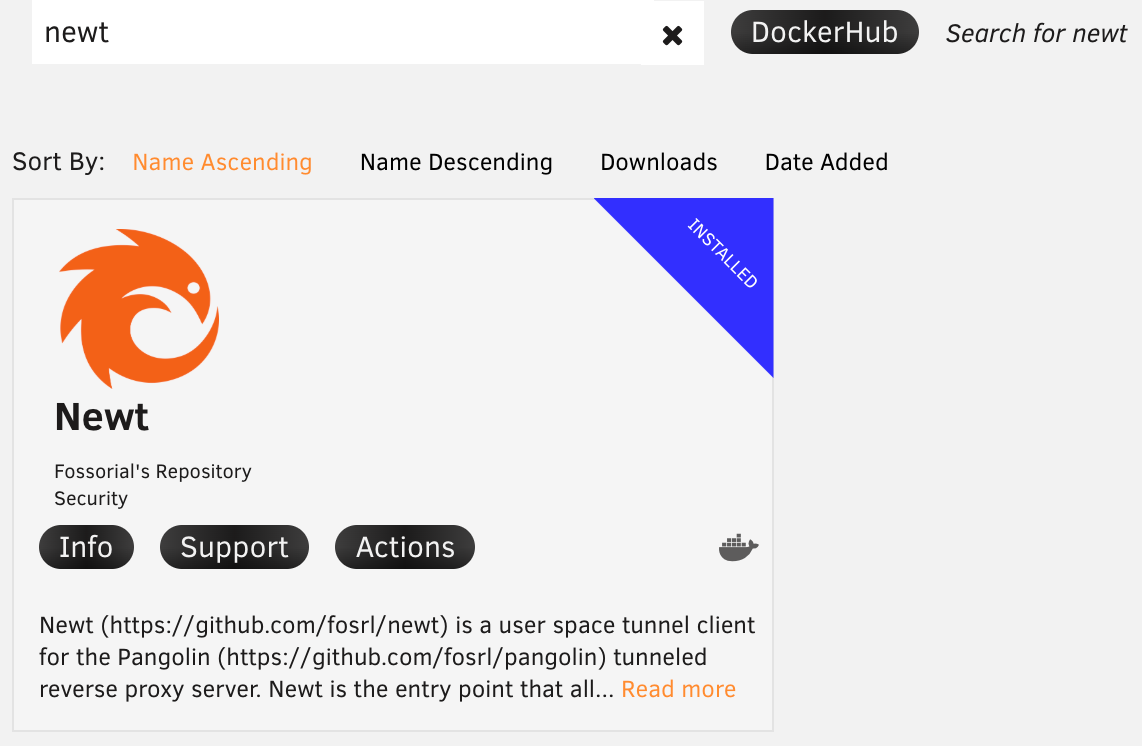
Newt is available in the Unraid Community Applications store. Search for "Newt" and follow the installation prompts. Enter the ID, secret, and endpoint from Pangolin in the template fields.
Portainer and Other UIs
Container management UIs like Portainer typically allow passing commands and environment variables to containers similar to Docker Compose. Look for a commands or arguments configuration section and follow the relevant guides.
Windows Service
On Windows, Newt can be run as a service or normally as a binary in a session.
When running as a binary and not installing the service, you can use the same CLI arguments as you would on any other platform.
If you are installing the service, we recommend writing the config into the config file location (%PROGRAMDATA%\newt\newt-client\config.json) first, following the config file format, with the provisioning key. Alternatively, you can install the service and start it with CLI args, which will also work. For example:
newt install
newt start --endpoint https://app.pangolin.net --provisioning-key <provisioning-key>
This will provision a new service, start it, and create the config file for future starts.
Service Management Commands
# Install the service
newt.exe install

# Start the service
newt.exe start

# Stop the service
newt.exe stop

# Check service status
newt.exe status

# Remove the service
newt.exe remove

# Show help
newt.exe service-help
Note running the service requires credentials in %PROGRAMDATA%\newt\newt-client\config.json.
Service Configuration
When running as a service, Newt will read configuration from environment variables or you can modify the service to include command-line arguments:
- Install the service:
newt.exe install - Set the credentials in
%PROGRAMDATA%\newt\newt-client\config.json. Hint: if you run Newt once with--idand--secretthis file will be populated. - Start the service:
newt.exe start
Service Logs
When running as a service, logs are written to:
- Windows Event Log (Application log, source: "newtWireguardService")
- Log files in:
%PROGRAMDATA%\newt\logs\newt.log
You can view the Windows Event Log using Event Viewer or PowerShell:
Get-EventLog -LogName Application -Source "newtWireguardService" -Newest 10Advantech Router App
Download the correct version of the router app for your device from the GitHub releases. You can find more information about router apps along with the right version information for your hardware on the Advantech engineering portal.
To install the router app, log into your Advantech router and navigate to the Router Apps section. Upload the downloaded .tgz file and follow the prompts to install.
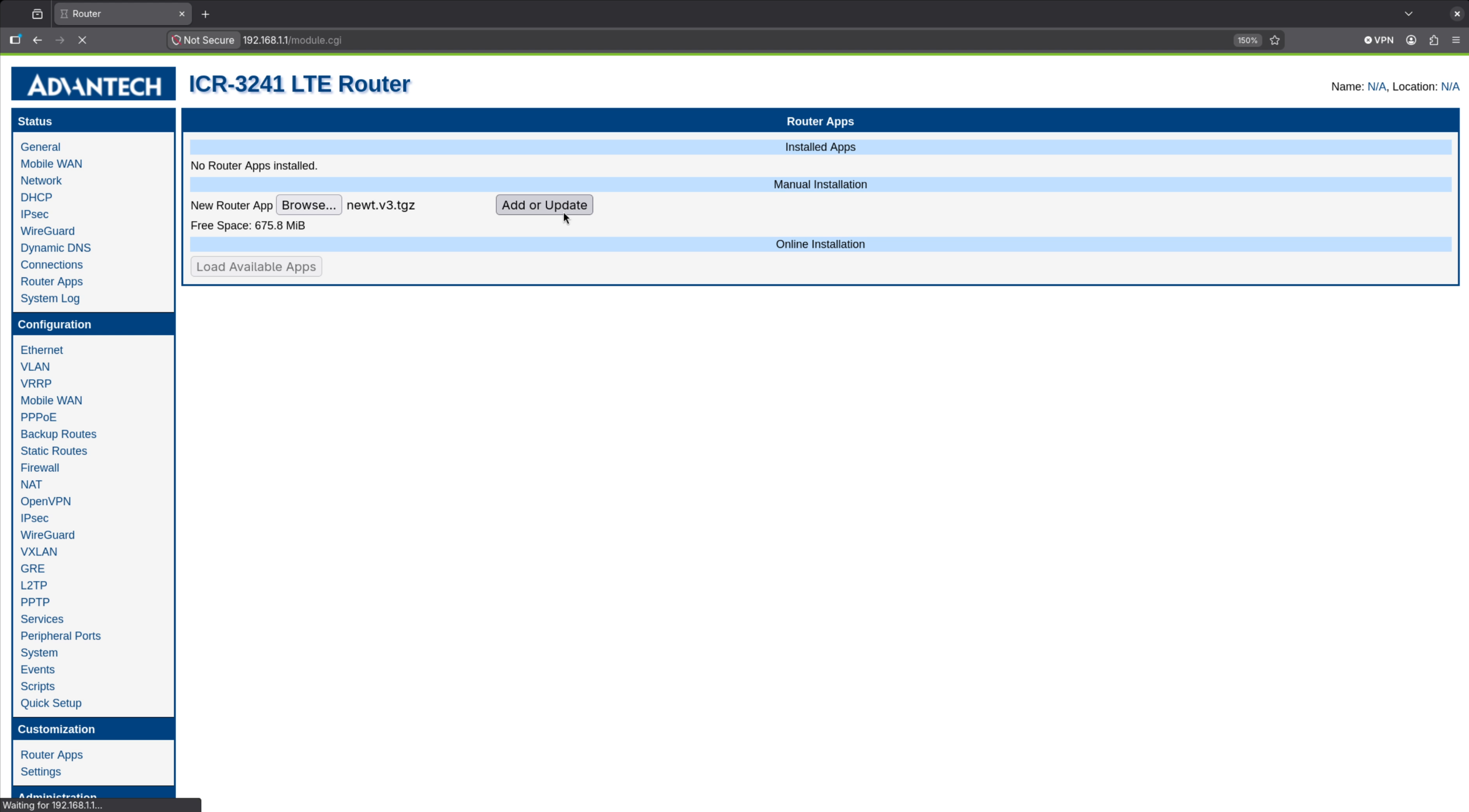
After installation, click on the router app link at the top of the page to configure the app with your Newt credentials from Pangolin. Once you have entered the credentials, save and start the app. The router will now be connected to your Pangolin site and you can manage it like any other Newt site in the dashboard.
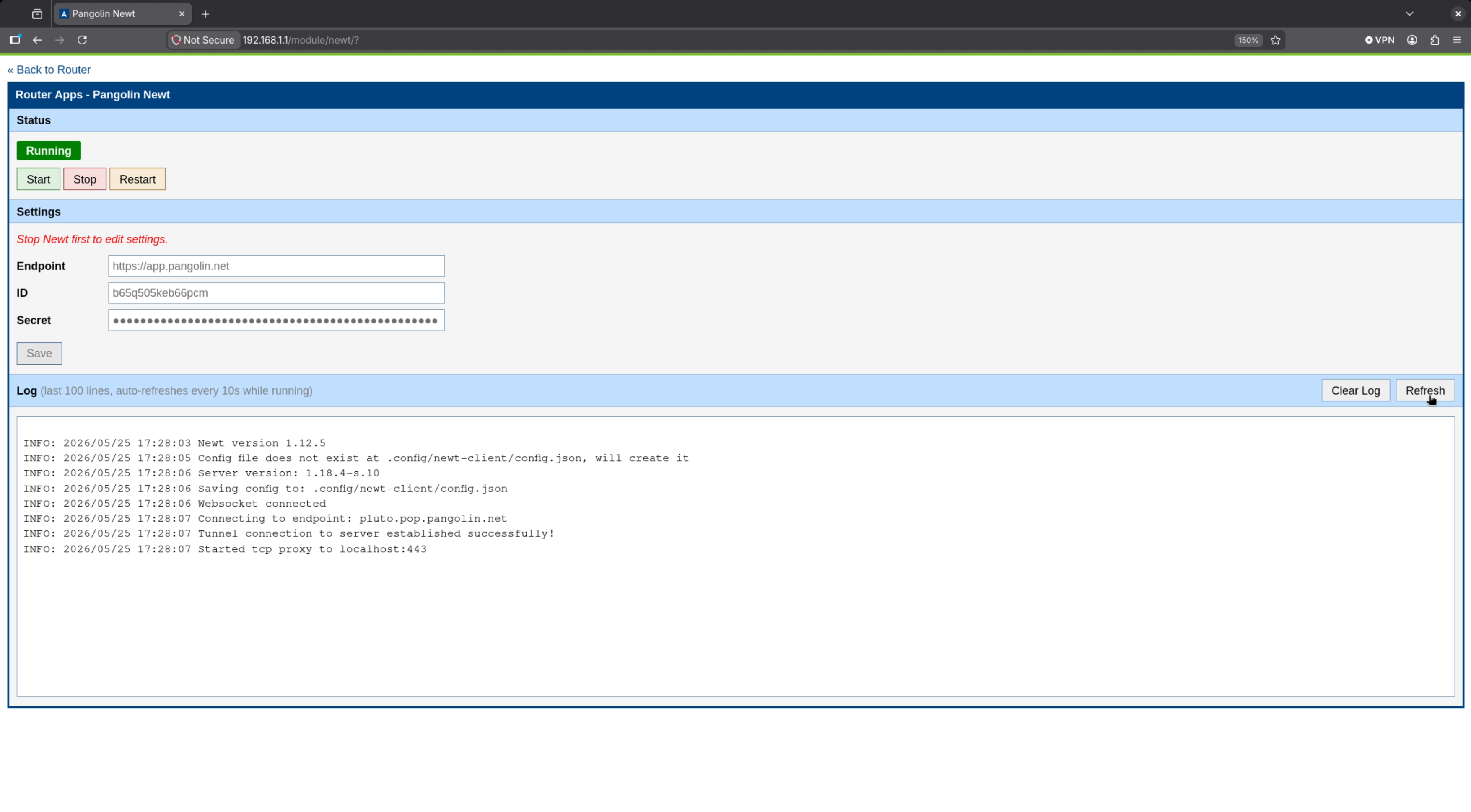
A complete config file is located at /etc/newt/settings on the router. You can edit this file directly to change credentials or add additional configuration options. After making changes, restart the router app to apply the new configuration. An example settings file can be found at: https://github.com/fosrl/newt/blob/main/packages/advantech/merge/etc/defaults
Updating Newt
If you used the auto installer, run it again to pull the latest version:
curl -fsSL https://static.pangolin.net/get-newt.sh | bashFor Docker, pull the latest image and recreate the container:
docker pull fosrl/newt:latest
docker compose up -d
Find release notes and manual binaries in the GitHub releases.