

Android
Install, configure, and update the Pangolin app for Android
Install
- Pangolin on Google Play - This is the official page to download the latest Pangolin app for Android devices.
- All Versions - The releases section of this repository contains release notes and download artifacts for the latest version and all older versions.
Installation Steps
-
Download and install the Pangolin app
Download and install the Pangolin app from the Google Play Store using the link above.
-
Launch Pangolin
Open the Pangolin app from your app drawer or home screen.
-
Log in with your Pangolin account
Log in on your Pangolin Cloud account or your self-hosted Pangolin instance.
-
Connect to Pangolin
Tap the Connect button to establish a VPN connection. On the first connection, you may be prompted to allow the VPN connection.
Configure
DNS, MTU, and other preferences shared across clients are on Platforms.
Always-on VPN
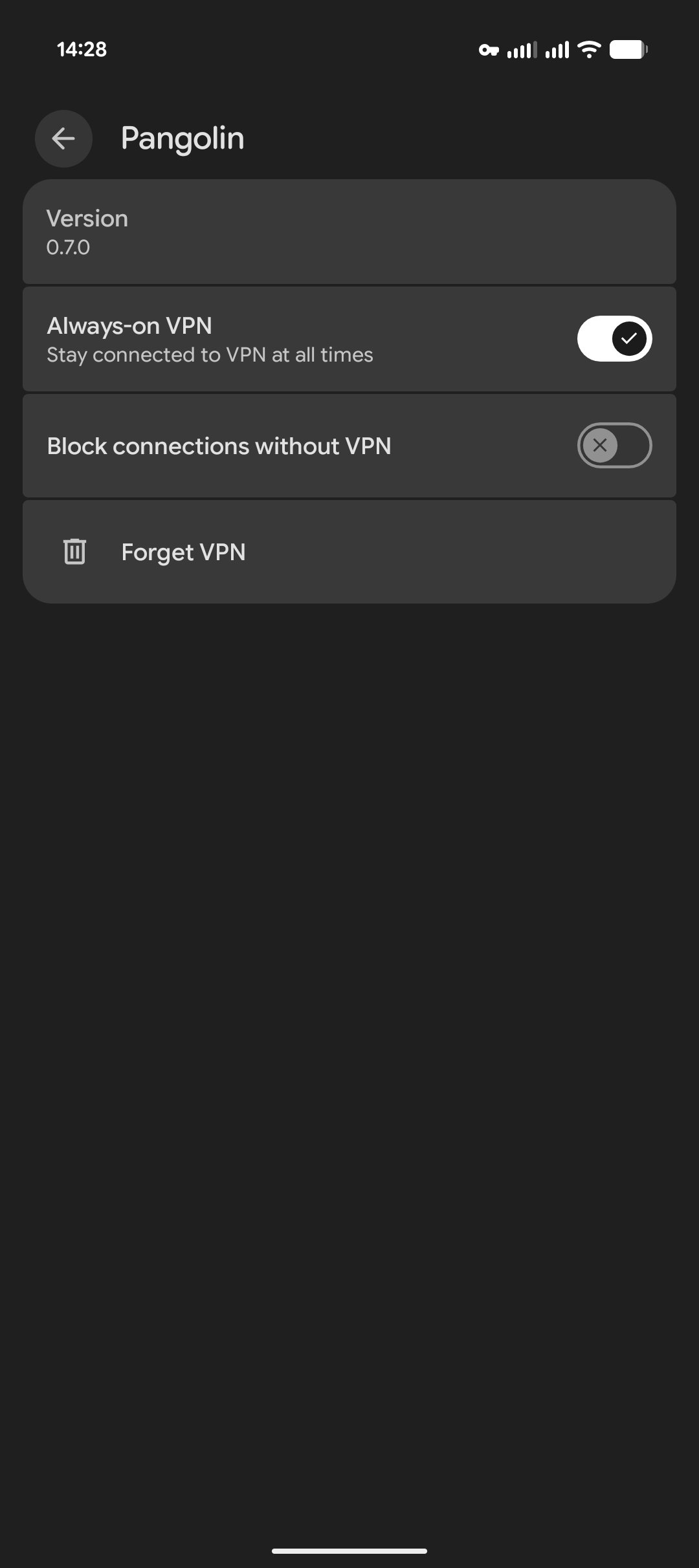
Always-on VPN keeps Pangolin connected and brings the tunnel back up if it drops. Connect once in the Pangolin app first so Android lists Pangolin under VPN, then turn it on in system settings:
- Open the Settings app.
- Go to Network & internet, then VPN. On some devices this is under Connections > More connection settings > VPN.
- Tap the settings icon next to Pangolin.
- Turn on Always-on VPN.
Show Persistent VPN Notification
When enabled, Pangolin keeps a status notification while connected. A temporary notification may still appear when connecting or recovering. Android's own VPN indicators are unaffected.
Leaving this on makes it less likely that Android will stop the connection while the app is in the background.
Enable Log Collection
When enabled, tunnel logs are saved to a file that can be downloaded for troubleshooting. See Client Logs.
Battery Optimization
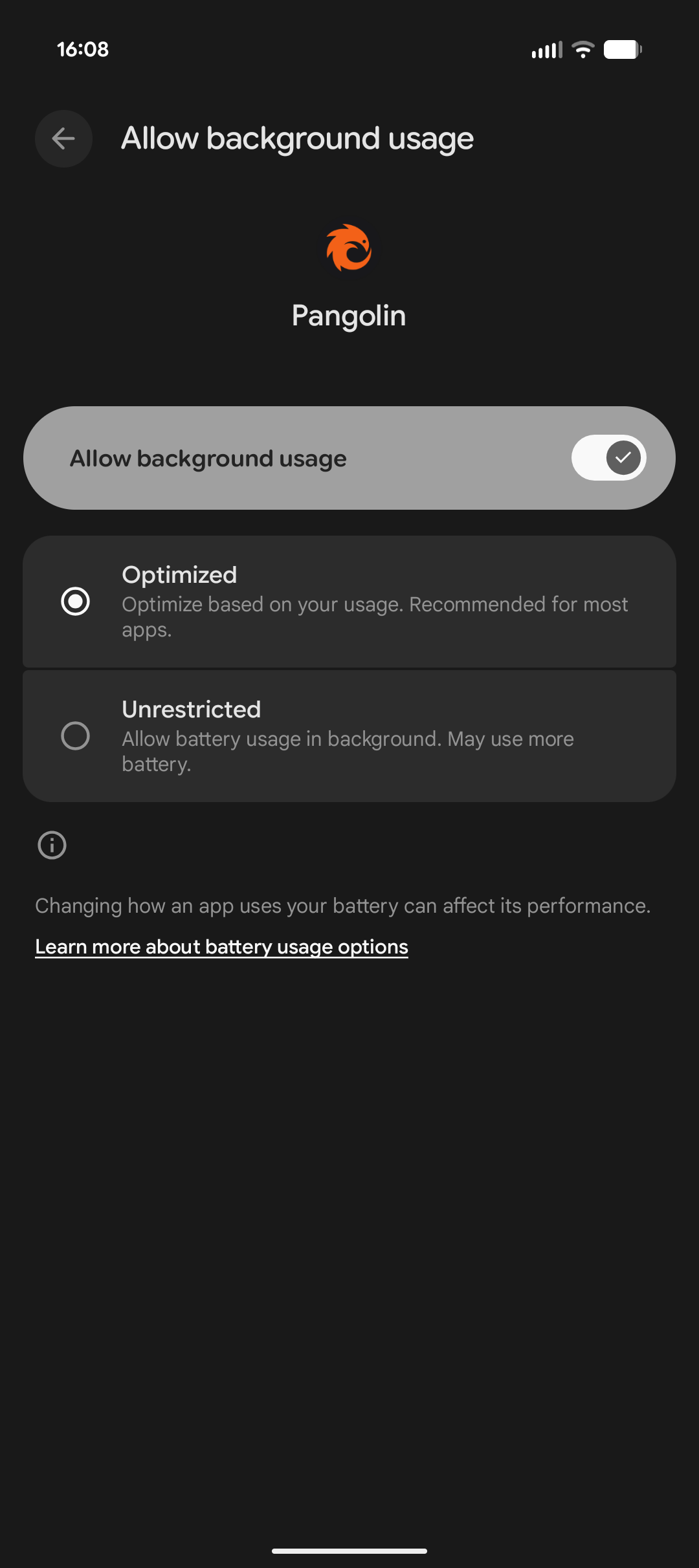
To ensure Pangolin functions correctly in the background on Android devices, it's recommended to disable battery optimization for the app. This prevents the operating system from restricting its background activities, which could lead to disconnections.
- Open the Settings app on your Android device.
- Navigate to Apps & notifications (or simply Apps on some devices).
- Find and select the Pangolin app from the list of installed apps.
- Tap on App battery usage.
- Select Allow background usage and enable if disabled.
- From the options menu, choose Unrestricted.
Update
Updates are delivered through the Google Play Store. Release notes and older builds are in the GitHub releases.
Was this page helpful?