

RDP
Control a Windows computer remotely through a full RDP client rendered in the browser
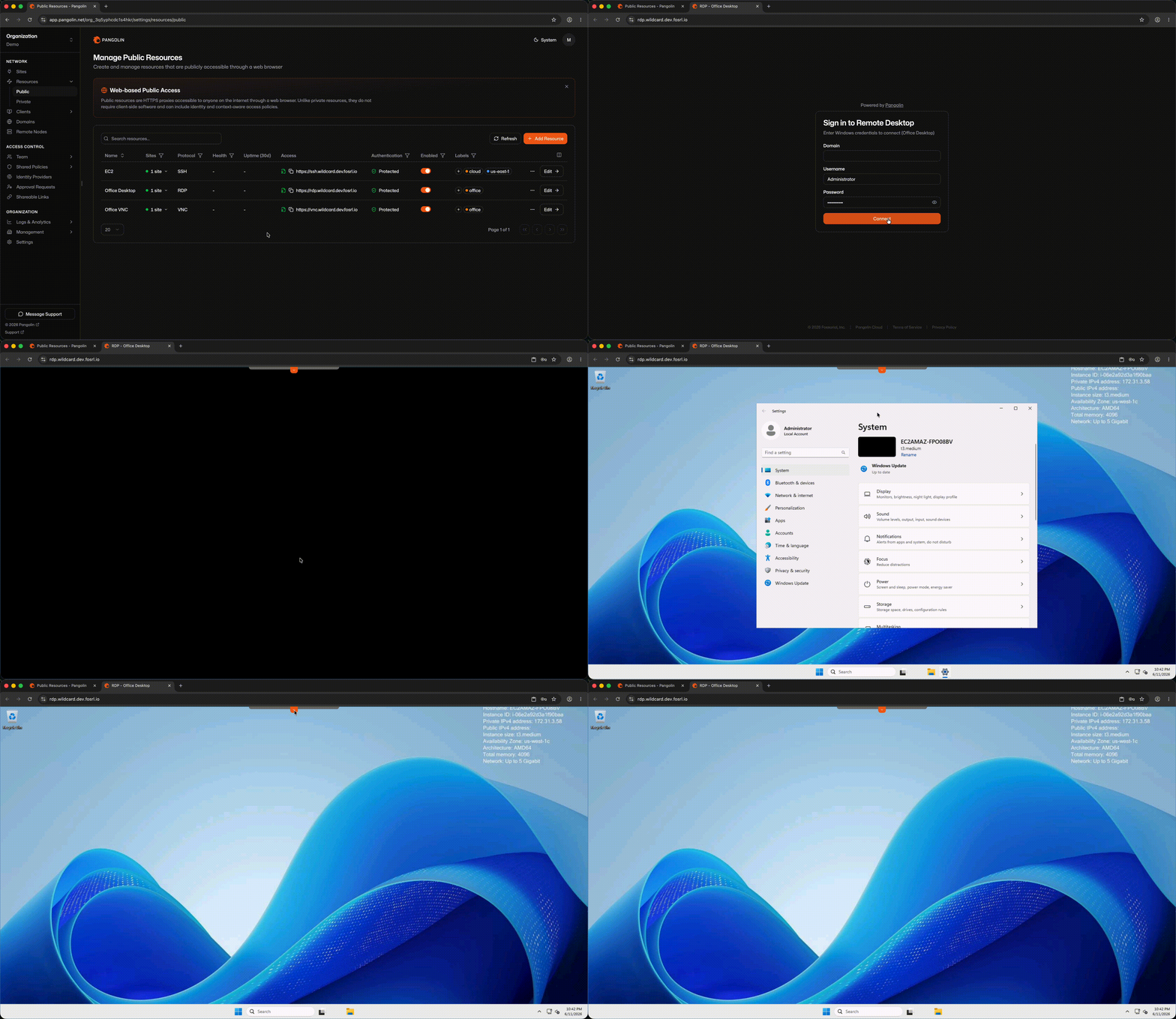
RDP public resources render a full Remote Desktop Protocol client in the browser. Users visit a FQDN, complete Pangolin authentication, and get an interactive Windows desktop session—including file transfers, clipboard copy/paste, and standard RDP features—without installing remote desktop software.
Benefits
- Users get a Windows desktop from any browser, with no remote desktop software or Pangolin client to install.
- Port 3389 is never exposed to the internet, which removes a common target for brute-force attacks.
- SSO, identity providers, and access rules sit in front of Windows authentication.
- File transfer and clipboard copy and paste work in the browser session.
Use Cases
- Let staff reach their office workstation from home or a personal device.
- Give vendors or support staff time-limited access to a Windows server.
- Reach Windows machines on a factory floor, lab, or branch office behind NAT.
- Use Windows-only line-of-business apps from Mac, Linux, or Chromebook devices.
Video Walkthrough
How It Works
- You assign a FQDN on a domain managed in Pangolin.
- The user completes authentication and access rules in the browser.
- Pangolin renders the RDP session and proxies traffic to the Windows host through a site connector.
No Pangolin client is required. Any modern web browser is sufficient.
Site and Host Configuration
RDP public resources do not use targets. Instead, you:
- Select which sites can route to the resource.
- Enter the backend Windows host and RDP port (default
3389).
Pangolin routes through the site that is online and healthiest, using the same intelligent multi-site routing model as private resources.
Authentication and Access Rules
RDP public resources are protocol-aware and support the full set of Pangolin authentication and access rules, including platform SSO, identity providers, user/role assignments, and context-based allow/deny rules. You can share these settings across resources with a resource policy.
RDP session credentials (Windows username and password) are entered in the browser-rendered client after Pangolin authentication succeeds.
Was this page helpful?